Zettelkasten-styled Card Box View
1 What Is the Card Box
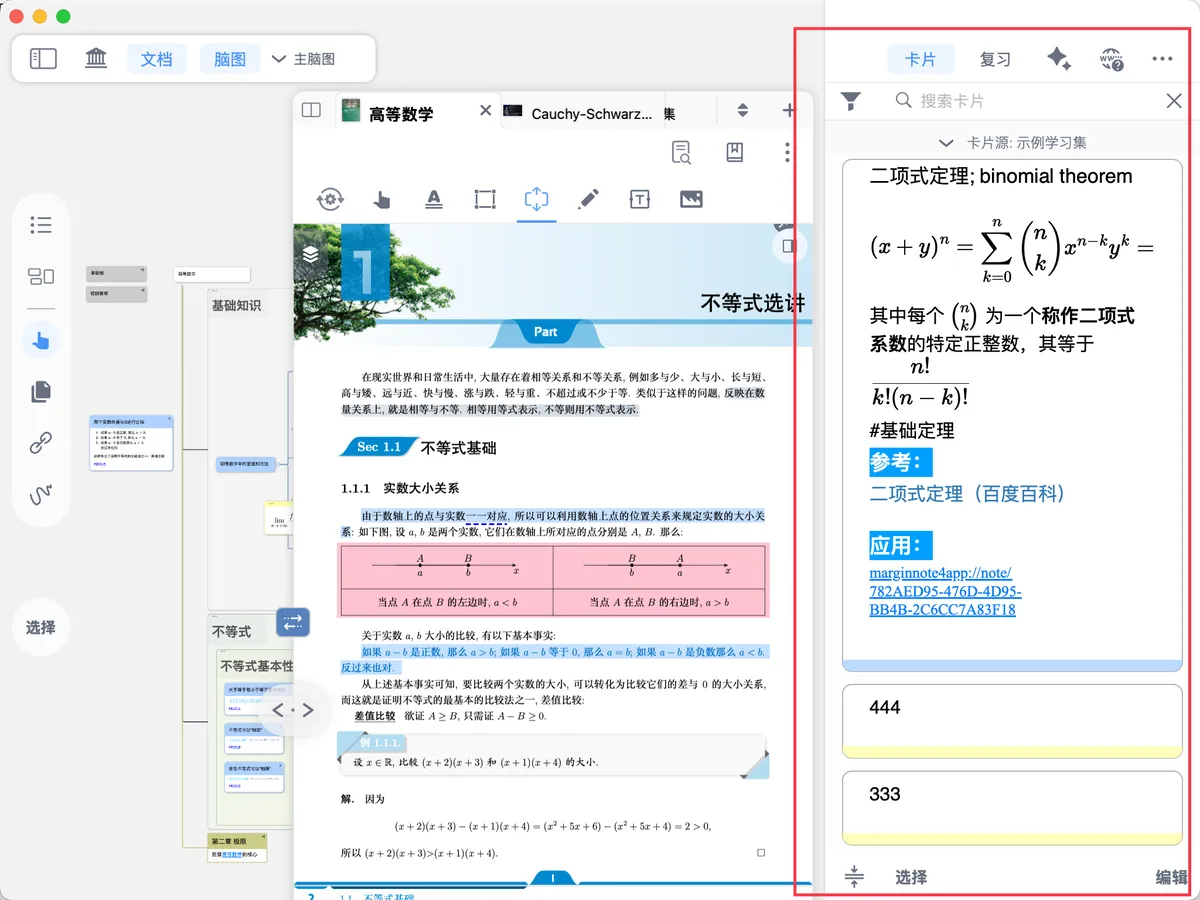
💡Zettelkasten-styled card box — the core area for managing all your note cards in one place:
In the card box, learners can view, search, trace back, and edit every note card.
More importantly, the card box opens up the connections between a study set and multiple mind maps, letting notes, documents, and mind maps work in tandem. This enables cross-document, cross-study-set knowledge integration and review, so your knowledge system keeps growing as cards flow through it.
2 Opening the Card Box
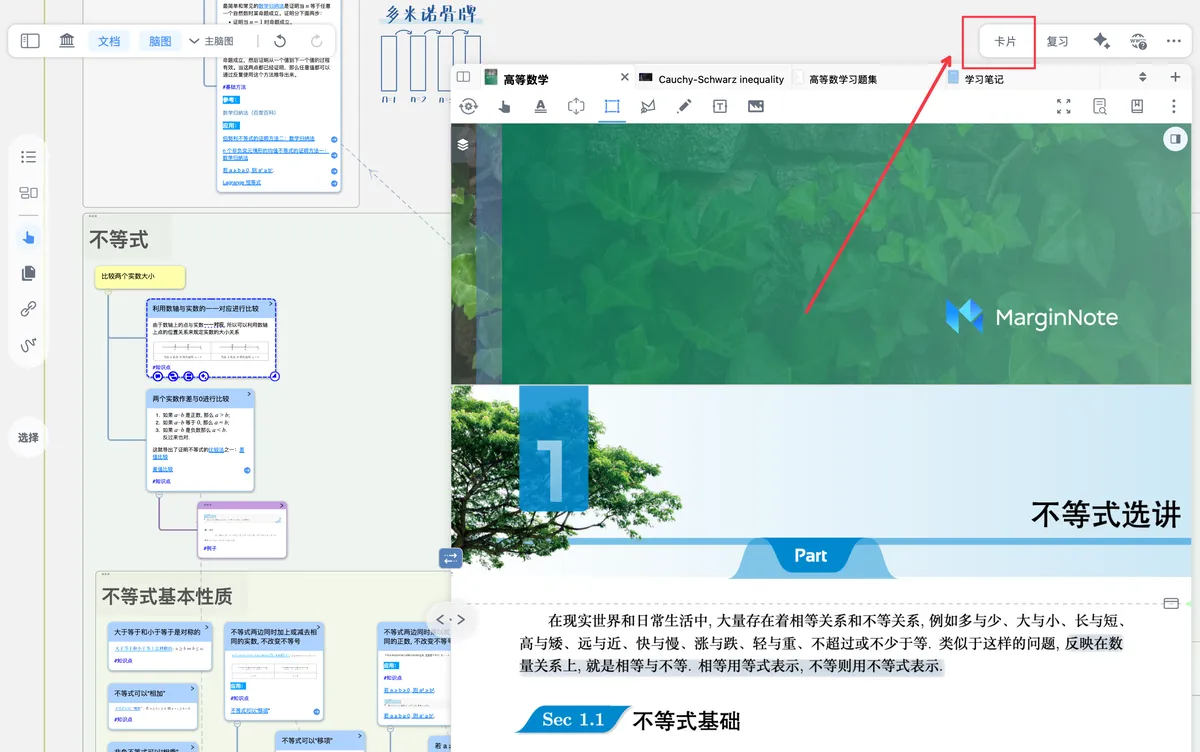
- In non-fullscreen mode, tap the
Cardsbutton in the top-right corner of the study set to open theZettelkasten-styled card box. - In fullscreen mode, tap
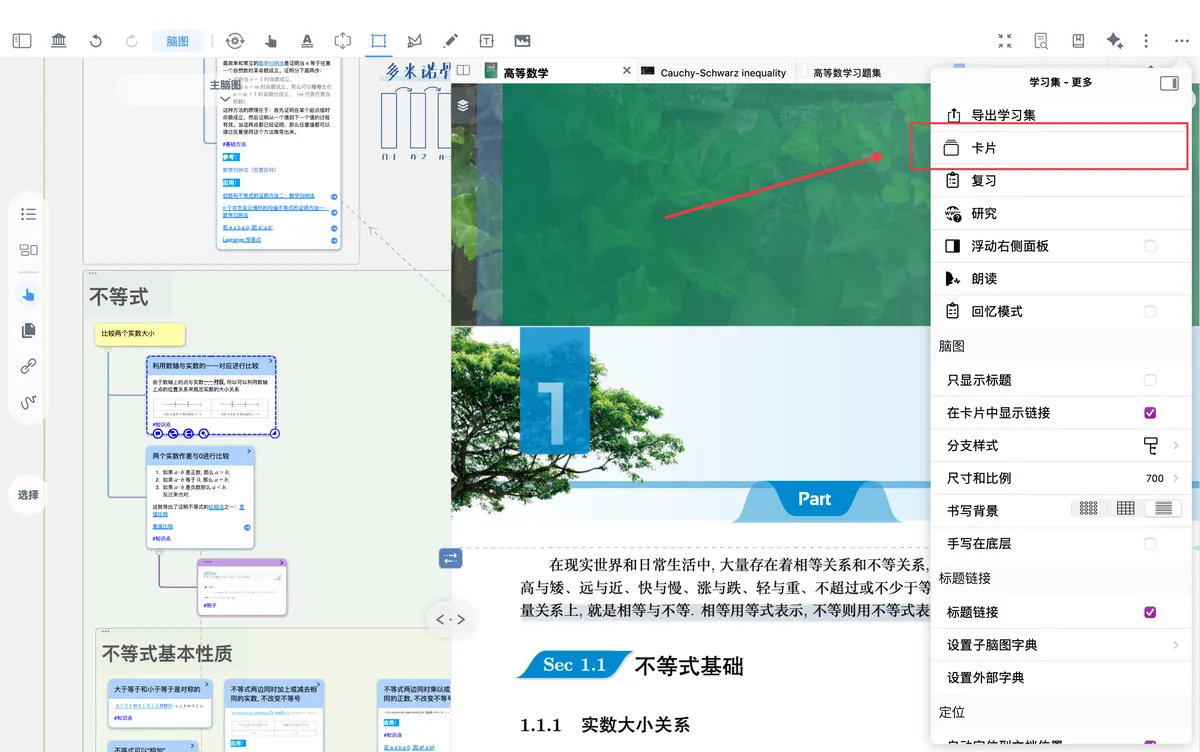
...(Study Set – More) in the top-right corner of the study set, then theCardsbutton to open theZettelkasten-styled card box.
Working with the 3 Zettelkasten-styled card box
Inside the 3.1 Zettelkasten-styled card box
-
The buttons inside the
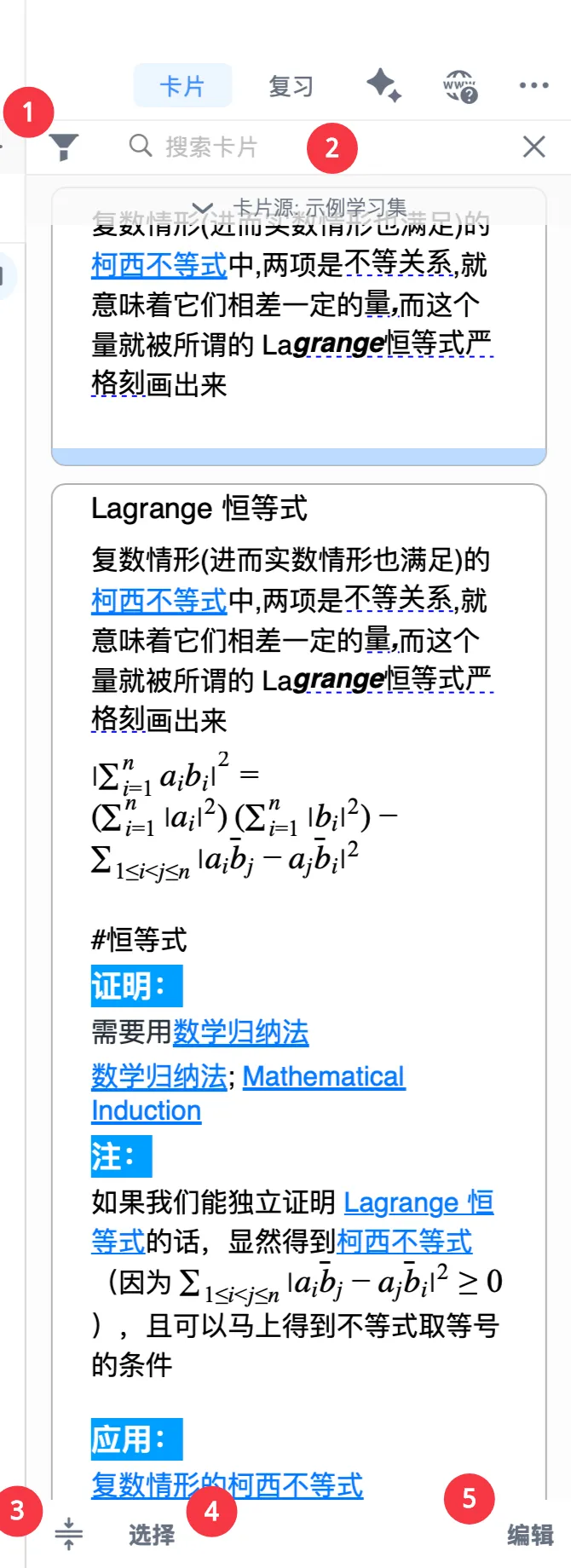
Zettelkasten-styled card boxare as follows:1 Filter tags:
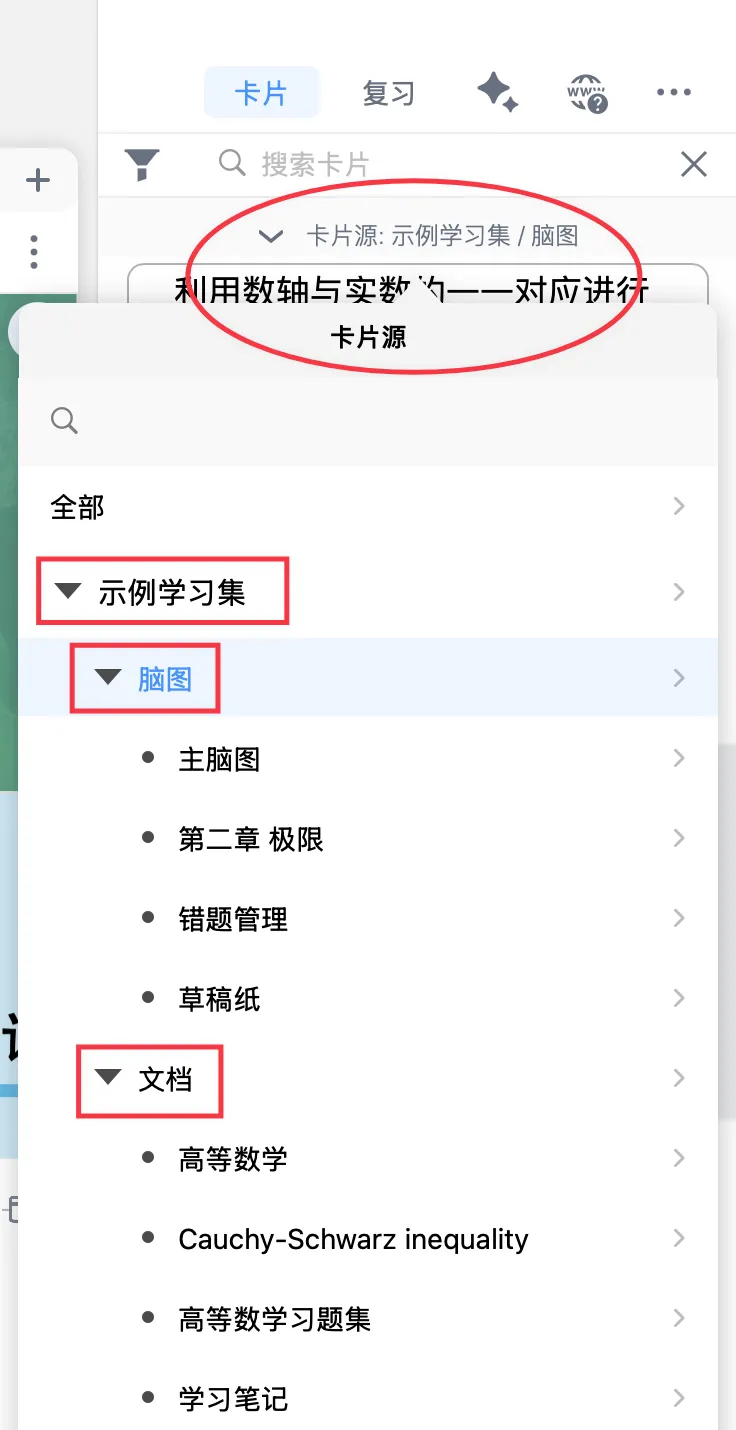
2 Switch card source: study set / mind map / document (as shown in "Switch card source" in the upper-right image above)
3 "Single-row display" button (as shown in the icon below)
Single-row display
4 Select cards (batch operations)
5 Edit card content
3.2 Operations on the Card Itself (Edit / Backlink)
-
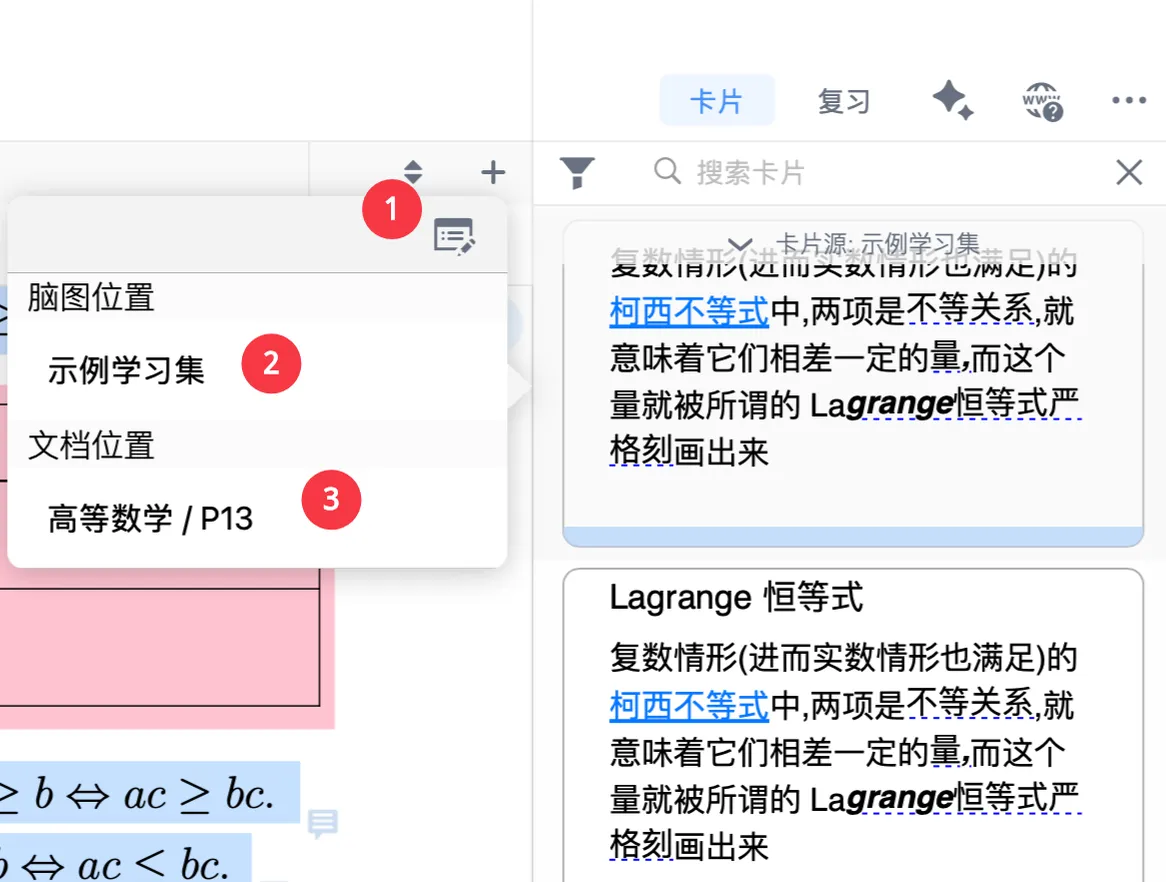
Tap the blank part of the card to bring up the action panel:
- Edit card content. See: Mind Map Cards ①: Creating and Editing Cards
-
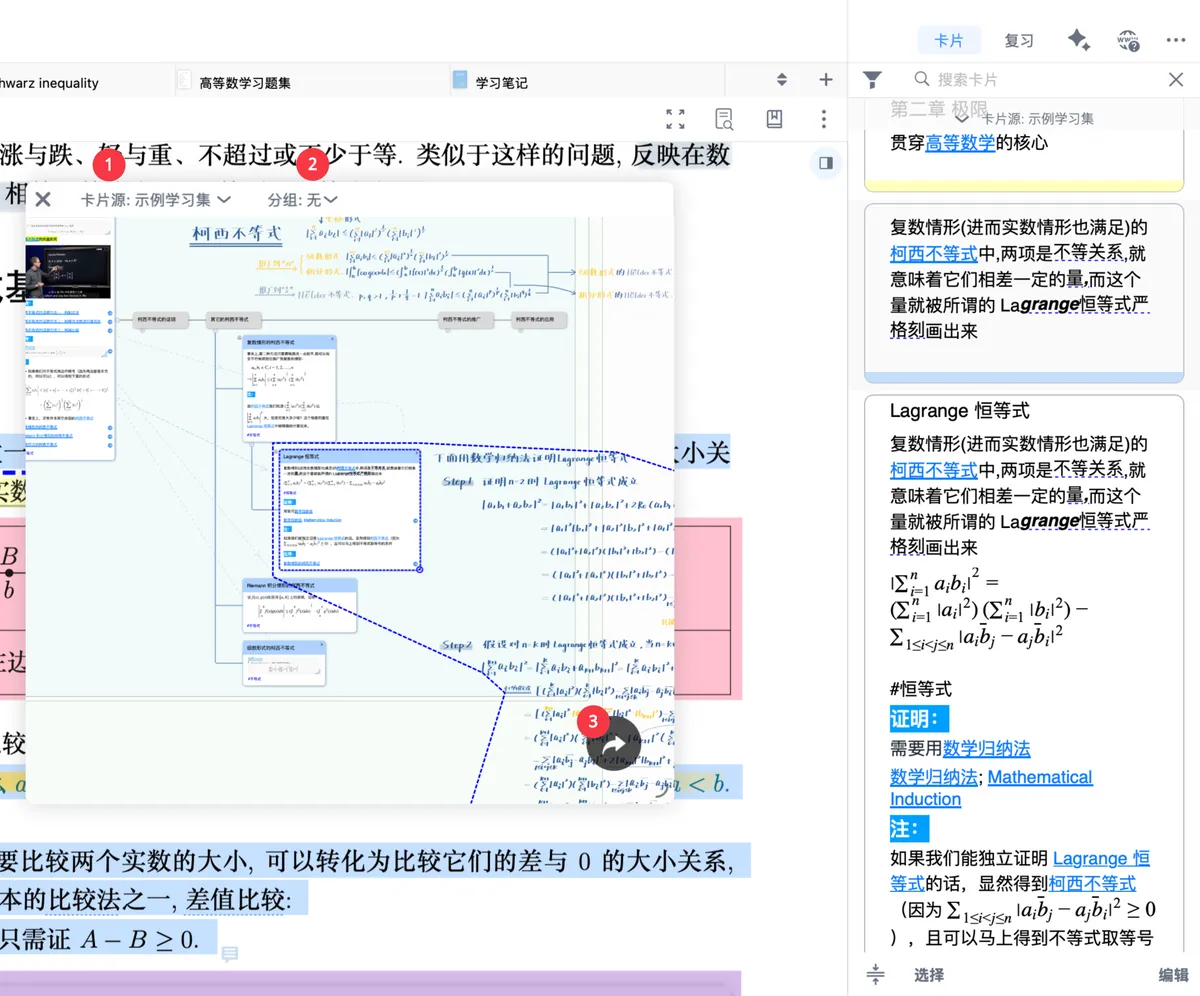
Tap the mind map location to open the
card grouping board(see Card Grouping Board ①: Precisely Filtering a Huge Pool of Cards)- Switch the card source (can be study set / mind map / document)
- Apply primary and secondary filtering
-
Jump to the fullscreen mind map
❗Can't backlink to the location? Check
Study Set – More→Locate→ whetherAuto-locate to document/mind map positionis enabled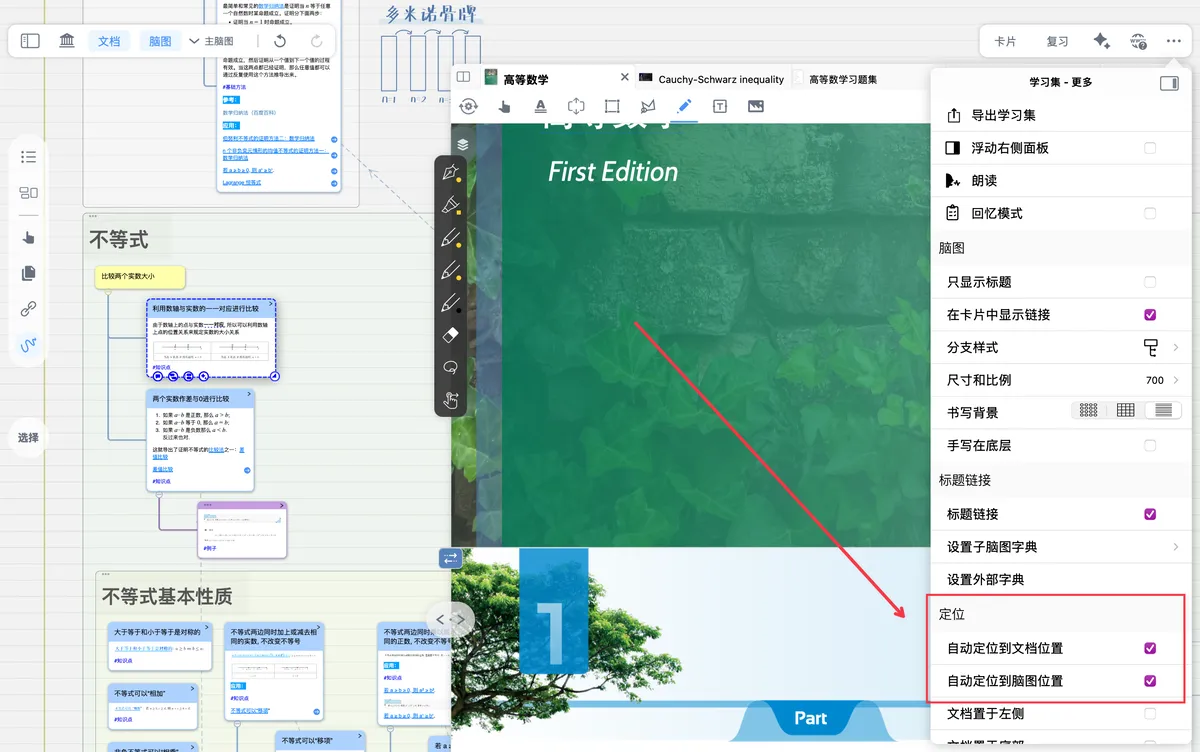
-
Tap
Document positionto jump to the document location where the excerpt resides
❗For cards that contain text, tapping the text area of the card opens editing
To open the Edit / Backlink menu shown above, be sure to tap the blank or image area of the card