Multi-Window Linking ②: Opening Multiple MN4 Windows Across Devices and Platforms
💡When studying or working across devices and platforms, you may run into scenarios like these:
- You need to show MarginNote 4's document view and mind map view on separate screens so you can view and work with both at the same time.
- You want to use the Apple Pencil for precise note annotation on an iPad while keeping the main view on a Mac.
- You have a Windows PC but want to take advantage of the iPad's handwriting capability or the Mac's MarginNote 4 processing power.
- You want to use an iPad as the host, gaining a larger mind map view through an extended display while writing by hand.
- You only have a Mac but want handwriting input via a graphics tablet.
The multi-window linking feature helps you flexibly configure and harness the strengths of different devices, efficiently combining documents, mind maps, and annotations.
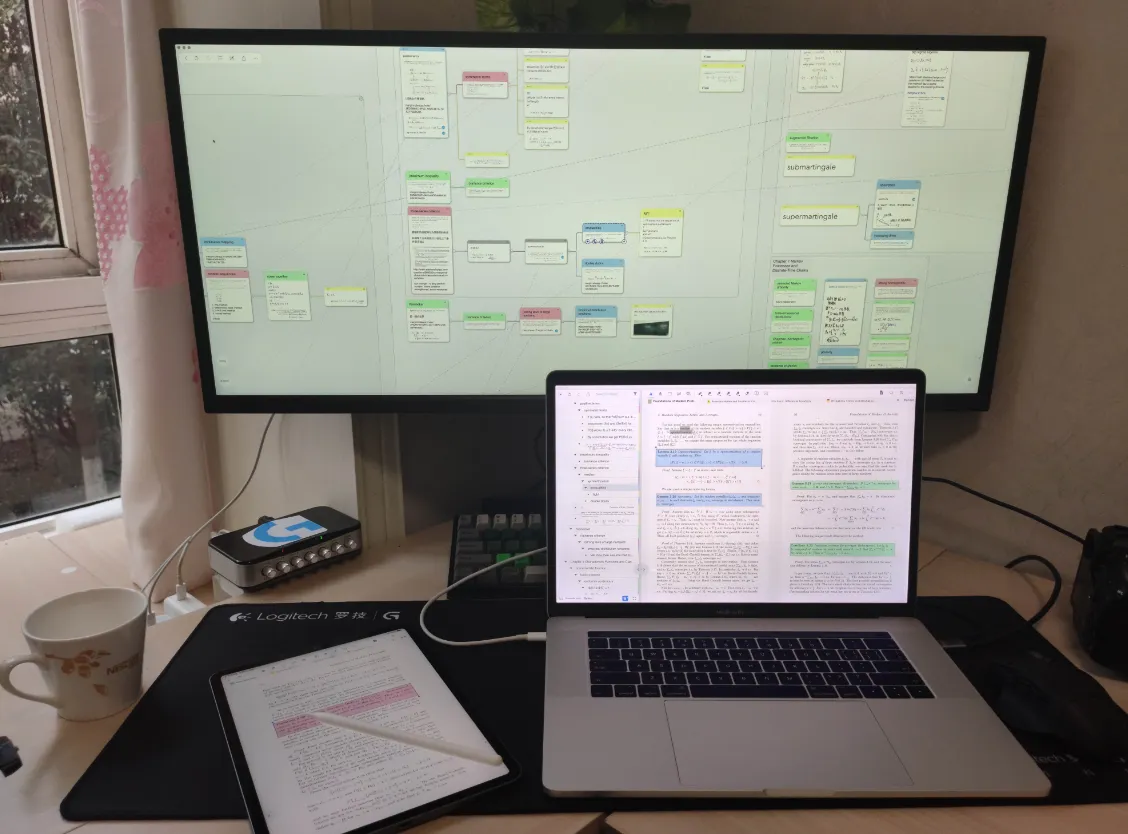
1 All-Apple Platform (iPad + Mac Linking)
Within the Apple ecosystem, a Mac and an iPad can be linked through mirroring or screen extension: the Mac handles logical construction (mind maps, typing, excerpting), while the iPad handles intuitive input (handwriting).
1.1 Prerequisites for Enabling Sidecar
Before you begin, make sure your devices meet all of the following requirements:
- Same Apple ID: Both devices must be signed in to the same iCloud account with two-factor authentication enabled.
- Distance and connectivity: Turn on Bluetooth, Wi-Fi, and Handoff; the devices must be within 10 meters of each other.
- System version: macOS Catalina or later, and iPadOS 13 or later.
1.2 How to Enable Sidecar (Connection Steps)
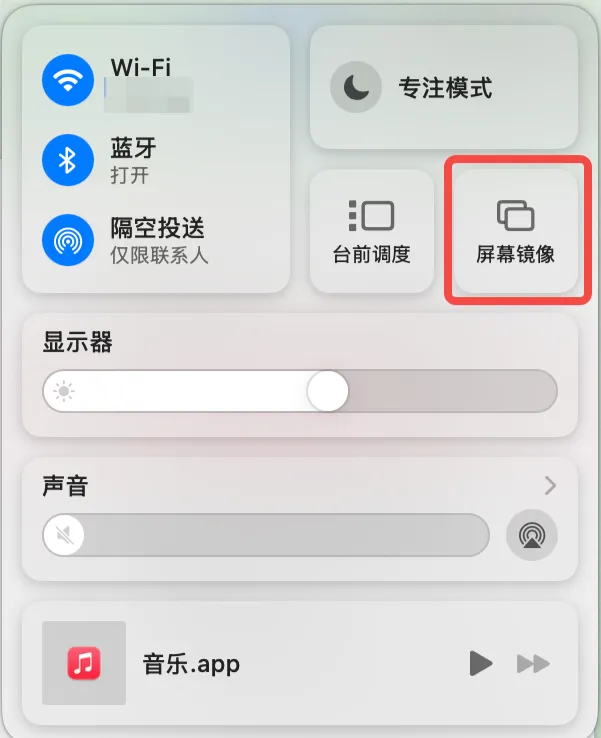
- On your Mac, click the Control Center icon in the top-right corner of the menu bar.
- Click the Screen Mirroring option.
- In the device list, click your iPad's name.
- The iPad screen will light up and display your Mac's desktop.
1.3 Choosing a Mode: Extend vs. Mirror
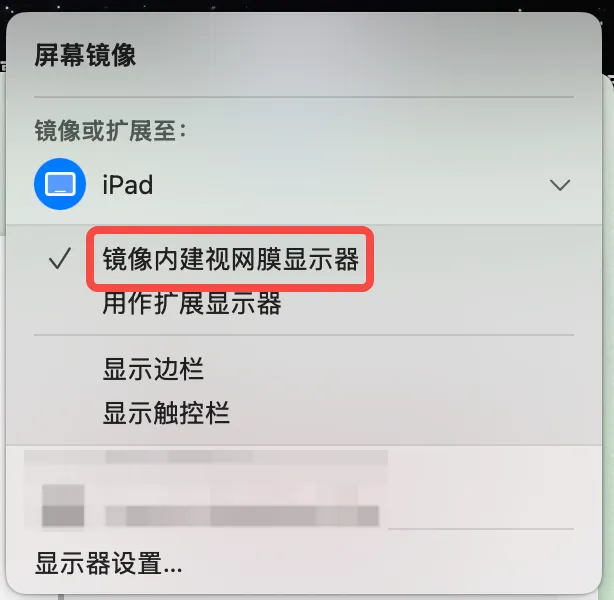
Once connected, you can switch between the following two modes from the Control Center or the "Screen Mirroring" icon in the menu bar:
Screen Mirroring mode Screen Mirroring mode
| Mode | Core Logic | Application in MarginNote Study Scenarios |
|---|---|---|
| 1. Mirror Mode (Mirror Built-in Retina Display) | Two screens, identical content. The iPad mirrors the Mac's full screen in real time. | Precise annotation: Use this when you want to handwrite with the Apple Pencil on the Mac version of MN4 without frequently moving windows. |
| 1. Extend Mode (Use as Extended Display) | Two screens, complementary content. The iPad becomes a second, independent display for the Mac, and the cursor can move across screens. | Most frequently used: Put the "mind map view" on the Mac screen and the "document view" on the iPad screen. The two screens operate independently without interfering with each other. |
1.4 Detailed Operation Guide
💡The keyboard shortcut for opening a new window on a Mac is
⌘+N. While Sidecar is active, tapping the iPad with your finger has no effect; you can tap or write with the Apple Pencil instead. You can drag the screen with two fingers or pinch with two fingers to zoom.
1.4.1 Set as an "Extended Display" (Recommended)
💡In this mode, we recommend enabling
Automatically Locate Current Card in Other Windows, which lets you jump both ways between document and card.
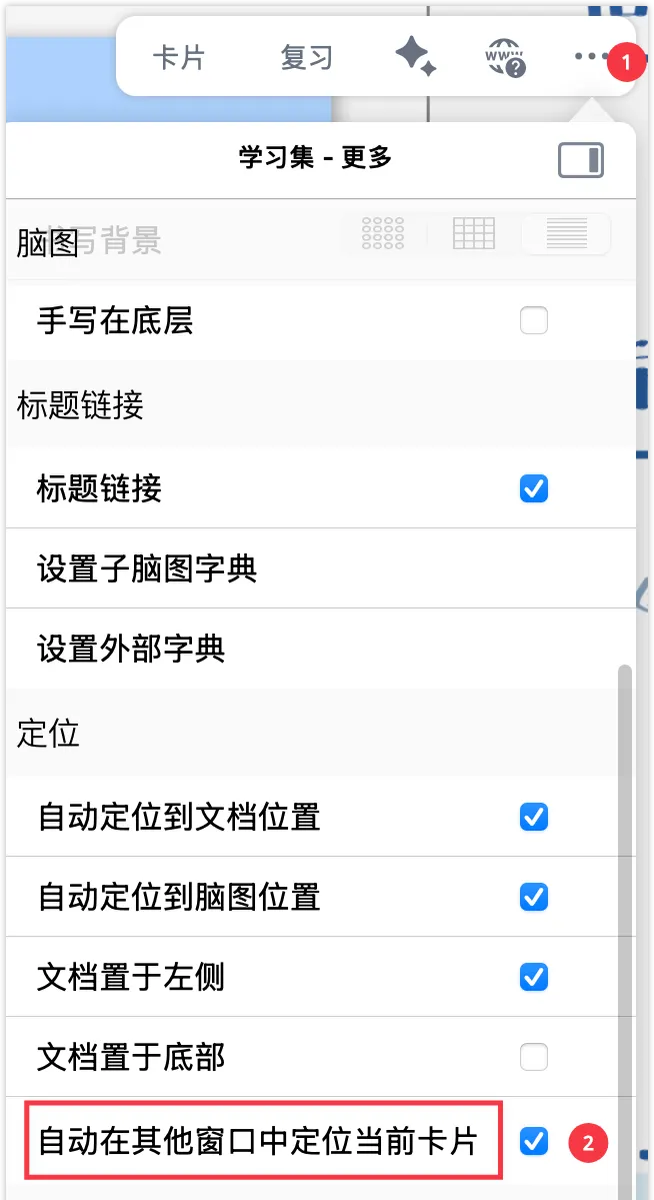
This mode gives you more room to work.
- Steps :
- MN4 linking: Simply drag MN4's PDF document window left or right off the Mac screen, and it will automatically appear on the iPad.
1.4.2 Set as "Mirror Built-in Display"
This mode is suited to users who don't need multi-window operation and just want to annotate instantly on the iPad.
-
Steps :
-
Click the "Screen Mirroring" icon in the Mac menu bar.
-
Select the device to connect to.
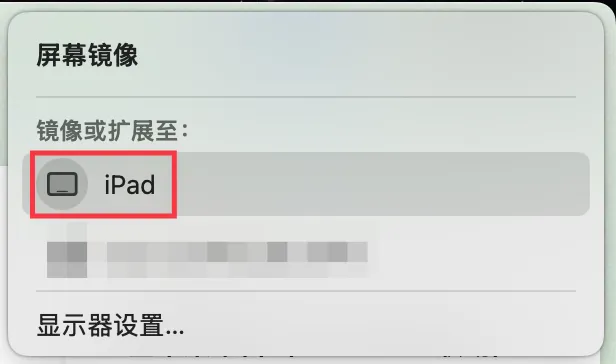
-
Check "Mirror Built-in Retina Display".
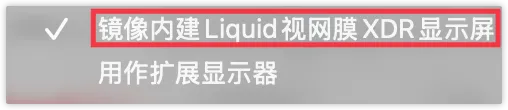
-
-
MN4 linking: The iPad will now display exactly the same screen as the Mac. You can use the Apple Pencil directly on the iPad to control the MN4 interface on the Mac—ideal for manually doodling or marking on a large mind map.
1.5 Sidecar-Specific Helper Features
When using Sidecar, two key tools appear at the edge of the iPad screen:
- Sidebar: Even without a keyboard, you can quickly use modifier combinations such as
CommandandShifton the iPad. -
Touch Bar: Displays quick actions such as Mac window controls at the bottom of the iPad.
2 Cross-System Platforms
2.1 Windows PC
For scenarios where you have a Windows PC but want to take advantage of the iPad's handwriting capability or the Mac's MN4 processing power.
2.1.1 Using a Windows PC Only as an Extended Display
Casting the iPad to a monitor to read literature and view mind maps
In this scenario, the iPad usually serves as the host, with the Windows screen acting as a "large display board."
-
Connection method:
- Install Spacedesk or Duet Display on Windows so that the Windows screen can receive the iPad's cast.
-
MN4 study scenario:
- On the iPad: Use the Apple Pencil for the core work of excerpting, doodling, and arranging the mind map.
- On the monitor: Use iPadOS to open multiple windows and display MN4's document view full-screen on the monitor, achieving a "reference on the big screen, handwrite on the small screen" experience.
2.1.2 Installing a macOS Virtual Machine + MarginNote 4 on a Windows PC
This approach suits users who only have a Windows PC but rely heavily on logic-construction-oriented work on the desktop version, such as typing.
- Set up a macOS virtual machine environment using VMware or VirtualBox, and install the Mac version of MN4.
https://www.bilibili.com/video/BV1m2JXz8E8m/
💡Drawbacks: Limited performance and very poor handwriting support; suitable only for keyboard-and-mouse operation. iCloud may not work reliably.
- Alternative: If iCloud can't sync reliably, you can use MN4's "Manual Backup & Restore" feature to transfer the
.marginpkgfile via cloud storage. See: Data Sync, Backup, and Restore.
2.2 iPad + Extended Display
https://support.apple.com/zh-cn/guide/ipad/ipadf1276cde/ipados
https://support.apple.com/zh-cn/guide/ipad/ipad8baf19a7/26/ipados/26
2.2.1 Detailed Tutorial: Connecting an iPad to a Monitor
When the iPad is connected to a monitor, MN4 can enjoy the ultimate mind map viewing experience on a large screen.
2.2.1.1 Prerequisites and Hardware Preparation
- Device requirements: Only iPad Pro/Air models with the M1 chip or later support Extend mode; non-M-chip iPads support Mirror mode only.
-
Cables:
- Direct USB-C connection: The monitor must support a full-featured USB-C port.
- Adapter connection: Use a USB-C to HDMI/DP cable.
-
Peripheral recommendation: connect a Bluetooth mouse/trackpad and a keyboard; otherwise you won't be able to perform complex operations on the extended screen. A trackpad is especially recommended, because system limitations otherwise leave no shortcut for panning the mind map (space + left-click drag).
2.2.1.2 Enabling "Stage Manager"
- Connect the iPad to the monitor.
- Swipe down from the top-right corner of the iPad screen to bring up the Control Center.
- Tap the "Stage Manager" icon.
2.3 Mac + Graphics Tablet
Suited to users who don't have an iPad and can only study on a Mac but want to use handwriting input.
💡We recommend a graphics tablet with physical shortcut keys. MarginNote 4 now supports ⇧+E as the eraser shortcut.