Export Documents, Mind Maps, and Study Sets
💡This page explains how to export PDFs, mind maps, and study sets for sharing. For document-backup and note-backup exports, see Data Sync, Backup & Restore
💡Quick Jump to Common Scenarios 1. Export a PDF with notes: Export Flattened PDF (with notes) 2. Export the complete mind map/outline list as a PDF: Export the Entire Mind Map as PDF 3. Export part of a mind map/outline list as a PDF: Export a Mind Map Focus as PDF
1 Export
1.1 Documents
1.1.1 Source PDF (without notes)
To export the original document, tap the ... More button in the bottom-right corner of the document, then tap Export Source PDF File in the pop-up submenu.
1.1.2 Export Flattened PDF (with notes)
💡Notes in an exported flattened PDF cannot be edited in any software (including MarginNote), and a flattened PDF currently does not include the table of contents created in MarginNote.
There are two ways to export a document that contains notes:
- Tap the
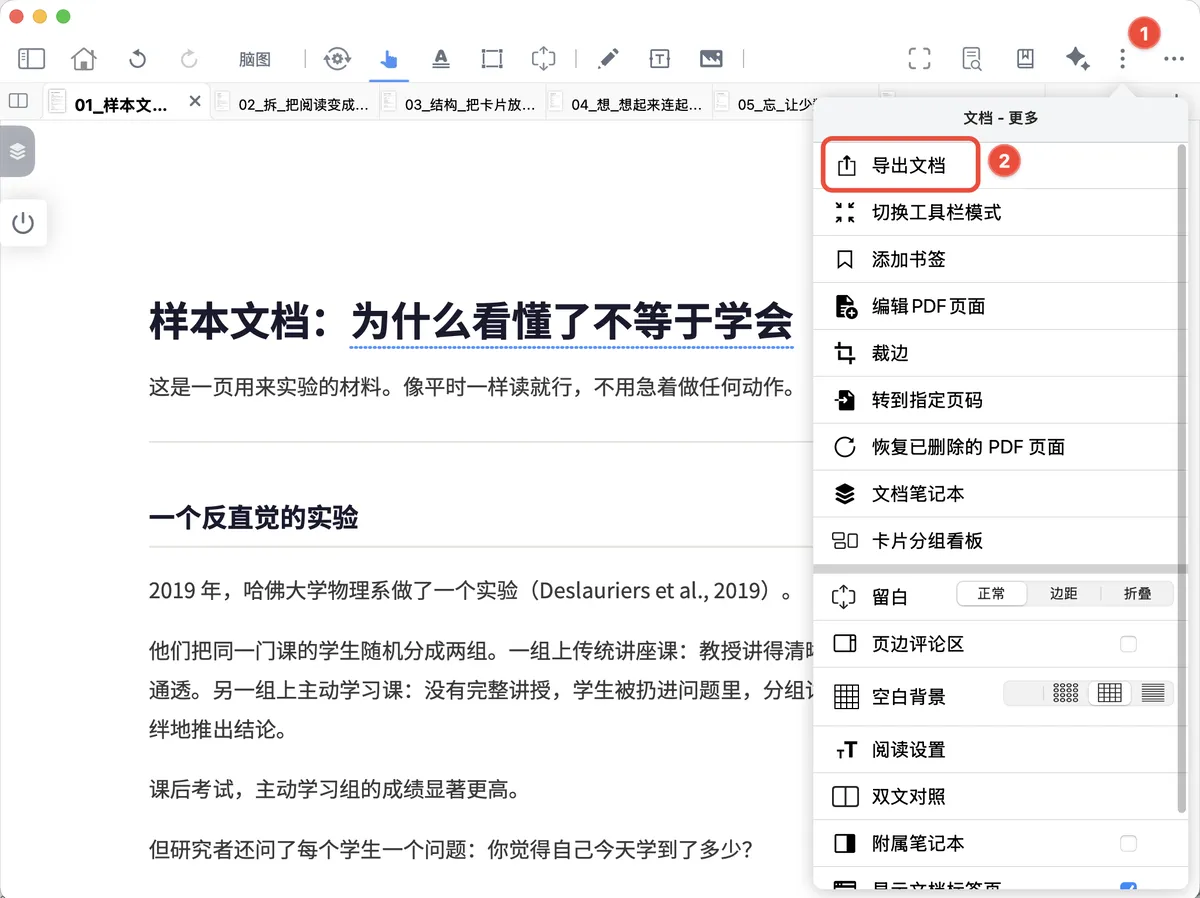
Document - Morebutton in the top-right corner of the document view, then tapExport Documentto export the document as a flattened PDF or long image.
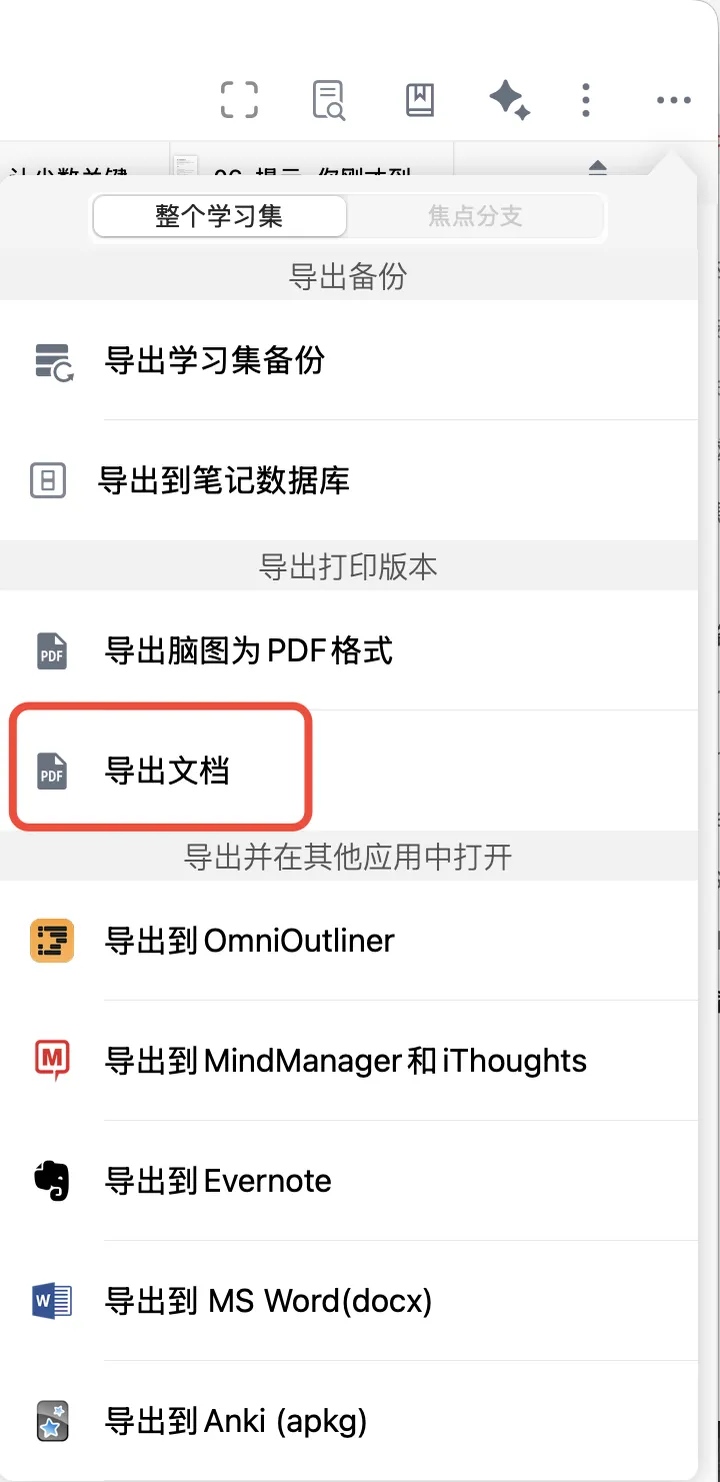
- In the top-right corner of the study set view, tap
Study Set - More-Export Study Set - Export Document.
- Select the pages to export. You can select pages using thumbnails,
Table of Contents,Page Range, orAnnotations(supported in version 4.4.4 and later).
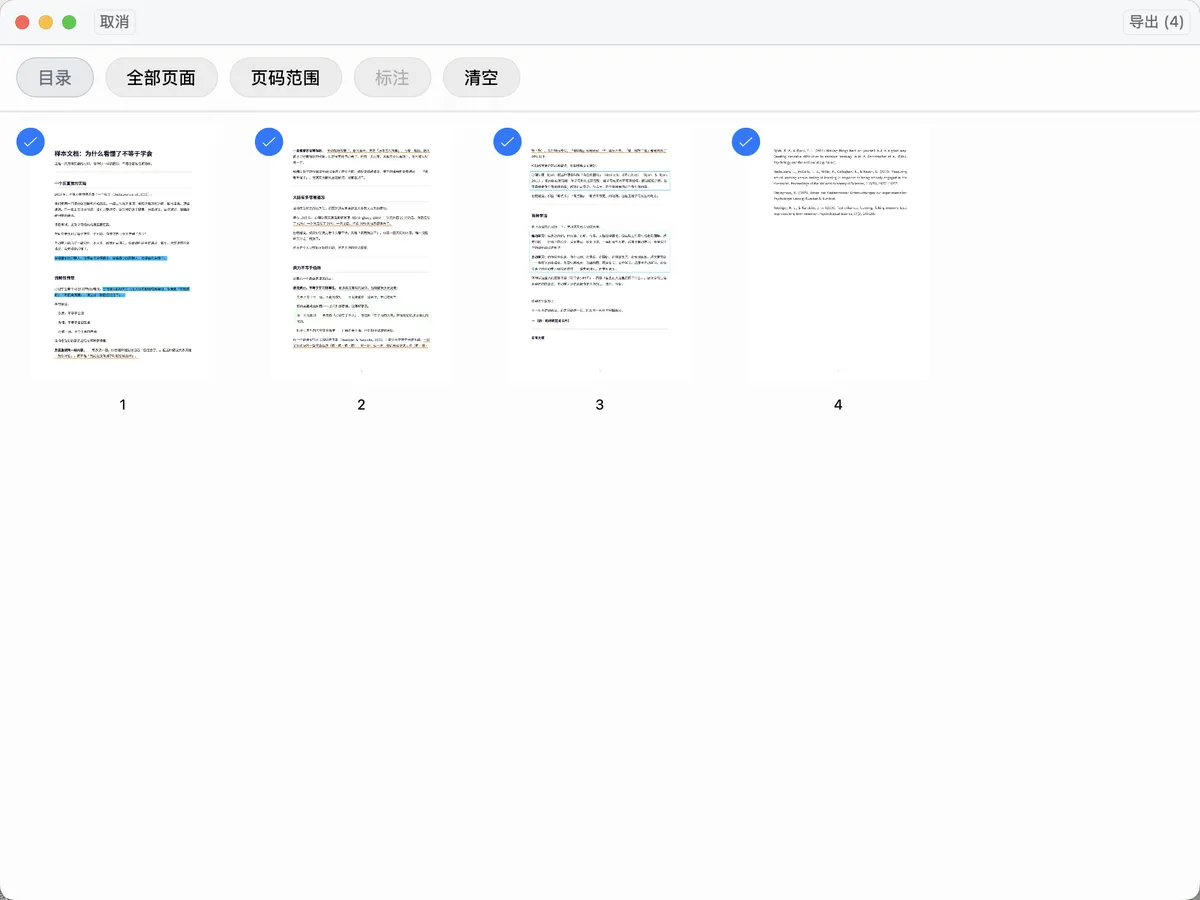
Table of Contents: Select specific nodes in the table of contents to export.
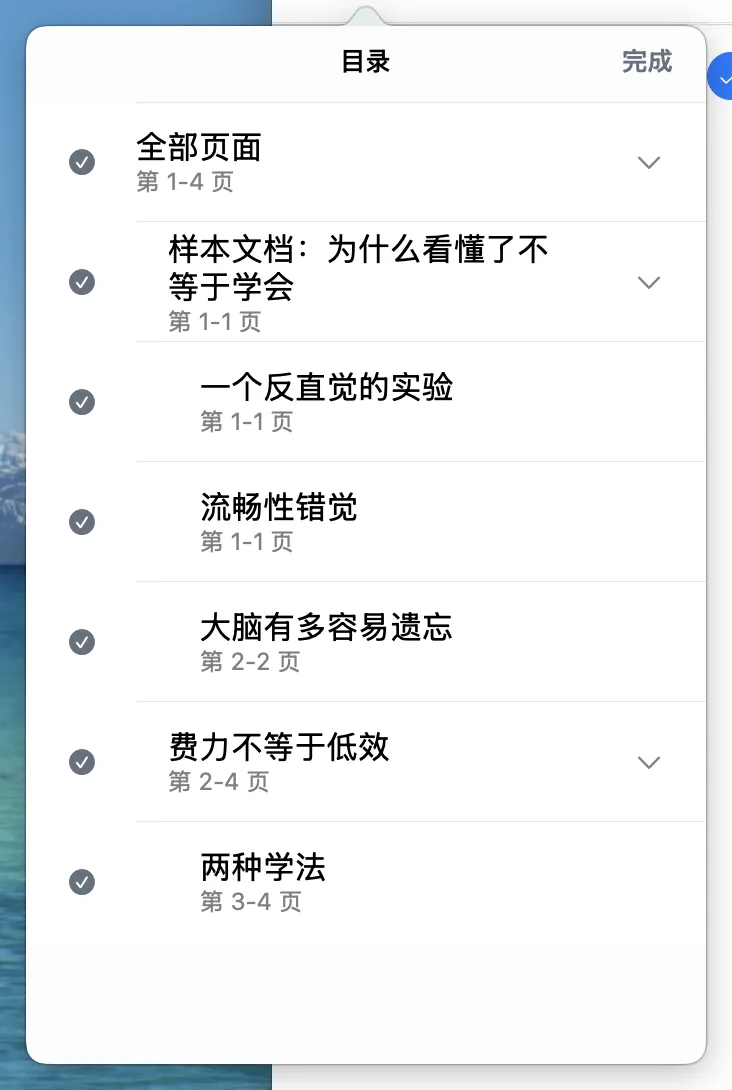
All Pages: Exports all pages except folded pages.Page Range: Export selected page numbers separated by commas (either Chinese or English punctuation is accepted). For example, “1,3,5-6” exports pages 1, 3, and 5 through 6.Annotations: Selects all pages that contain notes.
About exporting extended margins: to export extended margins, set them to expanded. Extended margins are not currently shown in the export thumbnails.
1.1.3 Exporting in Immersive Mode
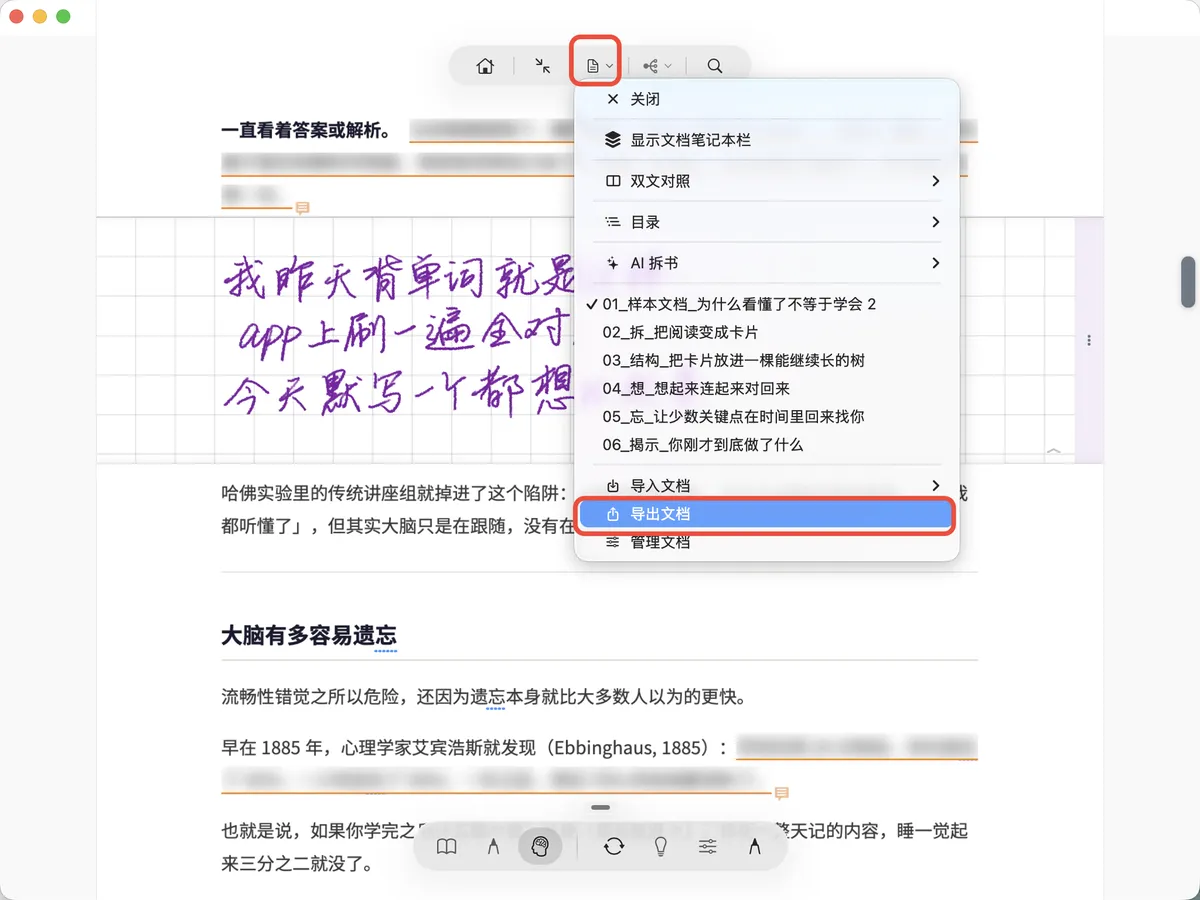
Tap the third Document button at the top, then tap Export Document.
1.2 Mind Maps
1.2.1 Export a Branch as PDF (Supported in Version 4.4.4 and Later)
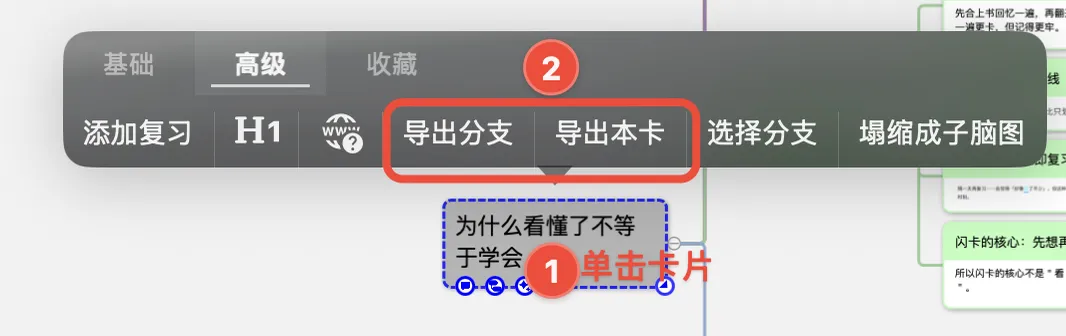
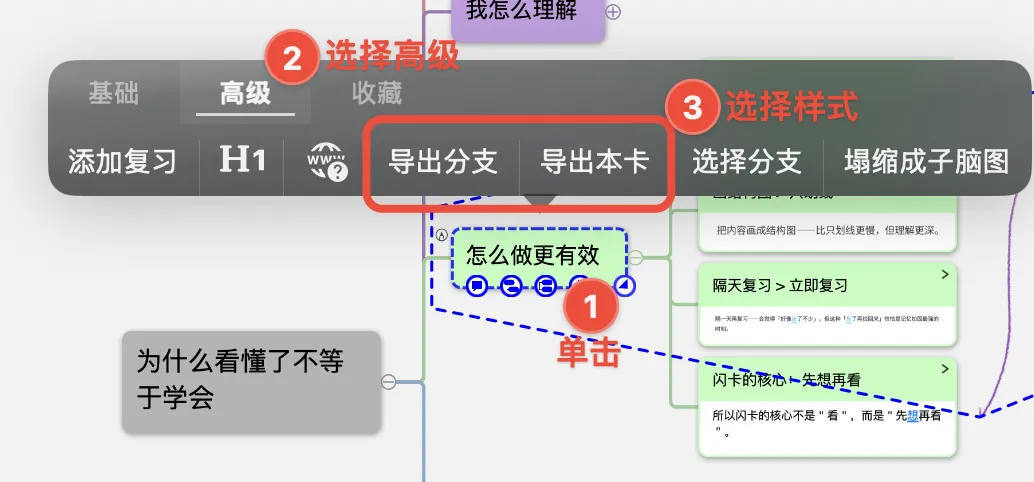
Tap the top-level card of the branch you want to export. In the pop-up menu, switch to Advanced, then select Export Branch or Export This Card, as described below.
1.2.1.1 Export Branch
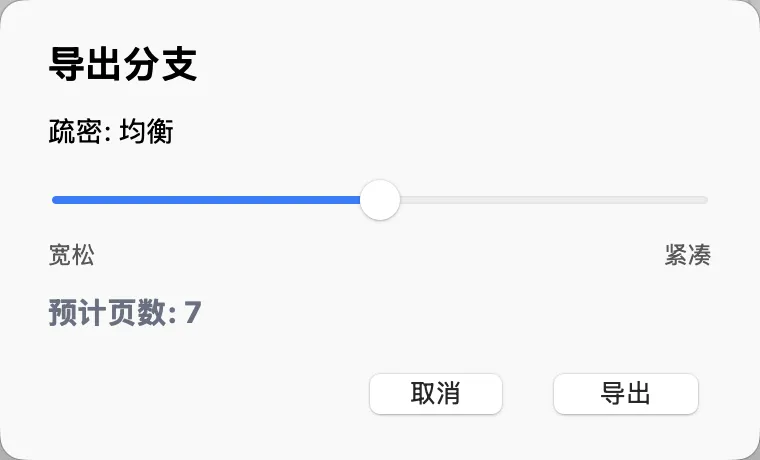
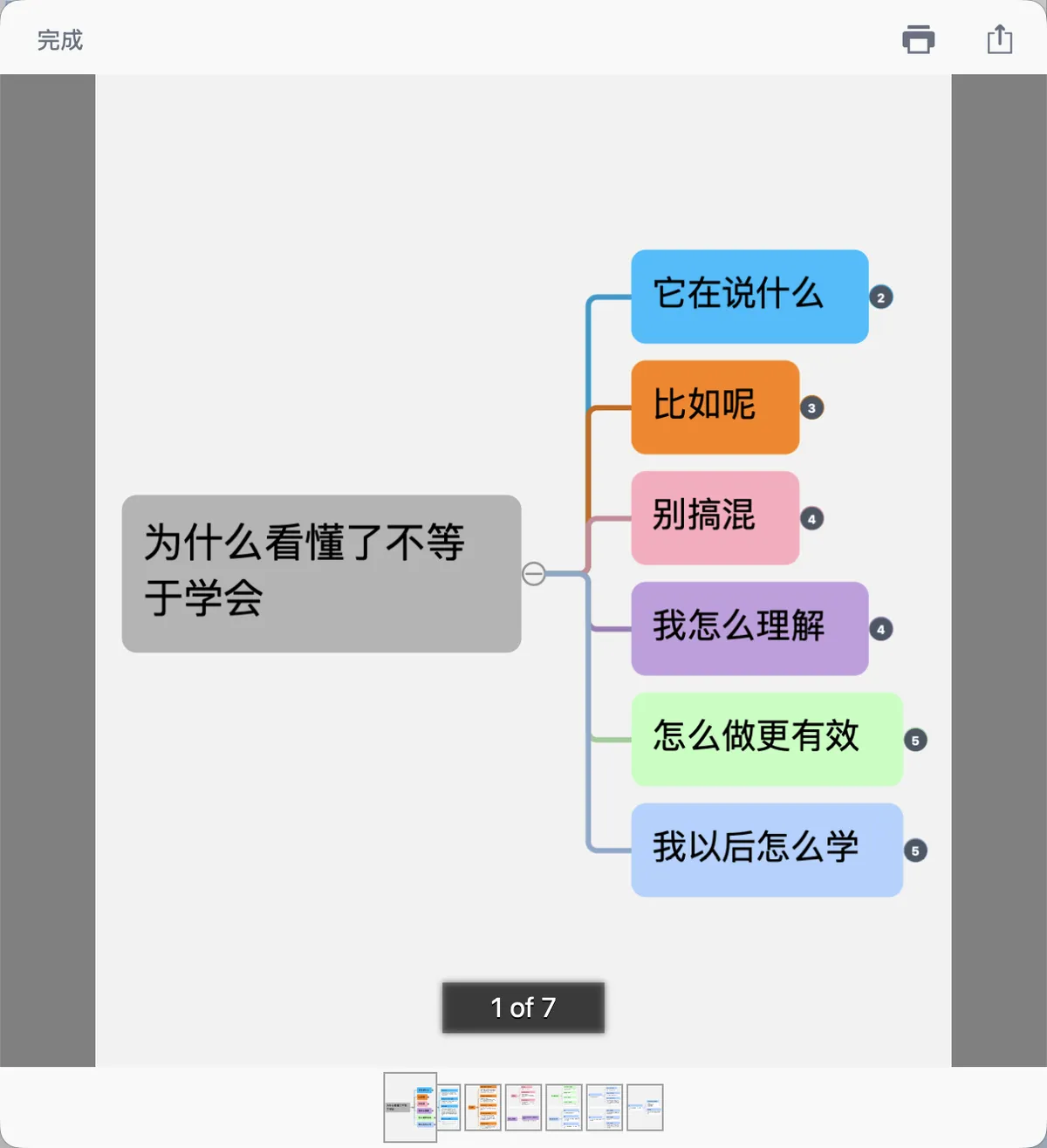
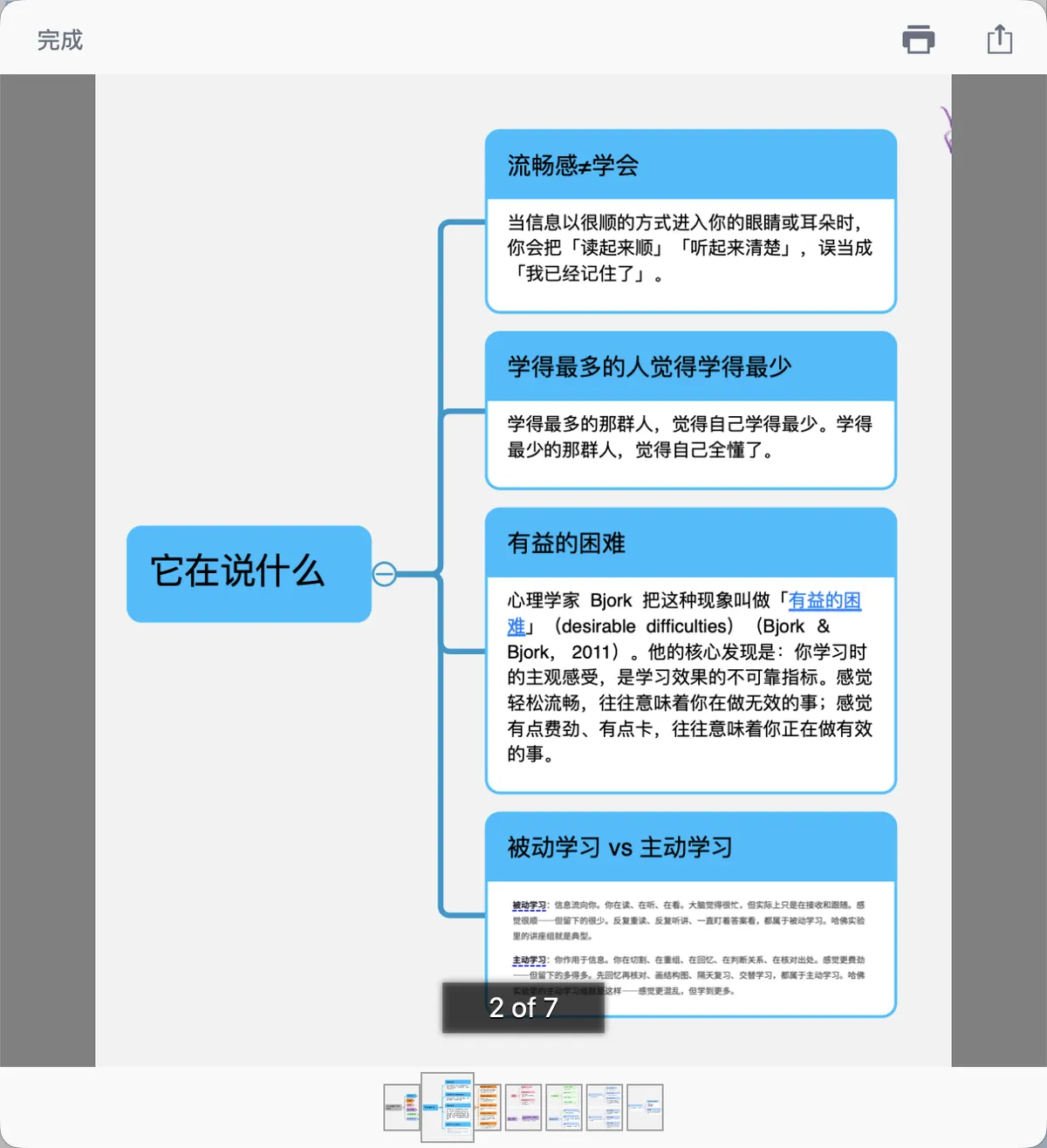
After selecting Export Branch, MarginNote automatically paginates the content according to the node hierarchy and density. You can then adjust the PDF information density using Spacious, Balanced, Compact, or Classic Mind Map (ordered from lowest to highest card density).
Export examples:
1.2.1.2 Export This Card
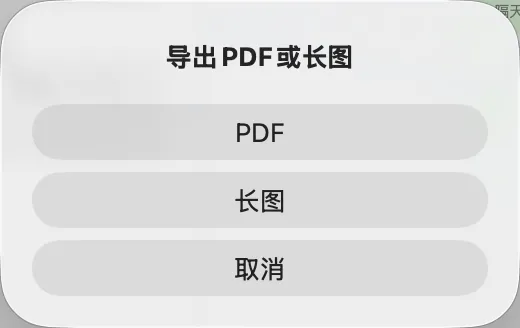
You can export the card as a PDF or Long Image. Export This Card includes only one card.

1.2.2 Export the Entire Mind Map as PDF
💡The exported PDF reflects the mind map/outline's current expanded state. To show all content, expand all levels first.
- Tap
Study Set - More.
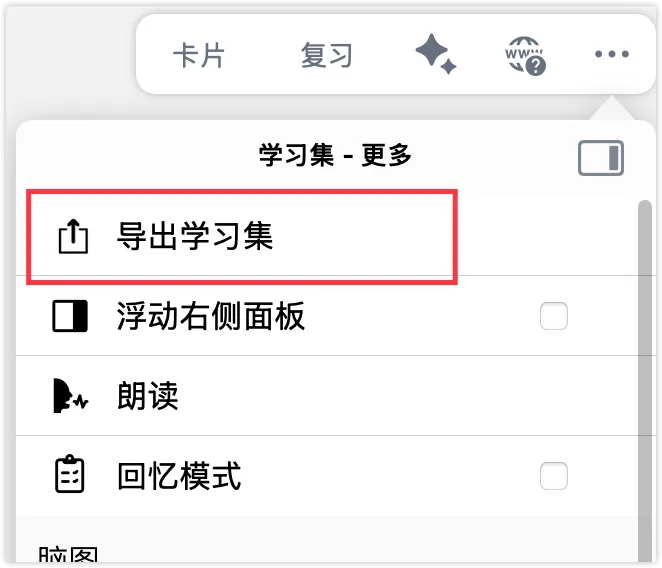
2.Tap Export Mind Map as PDF.
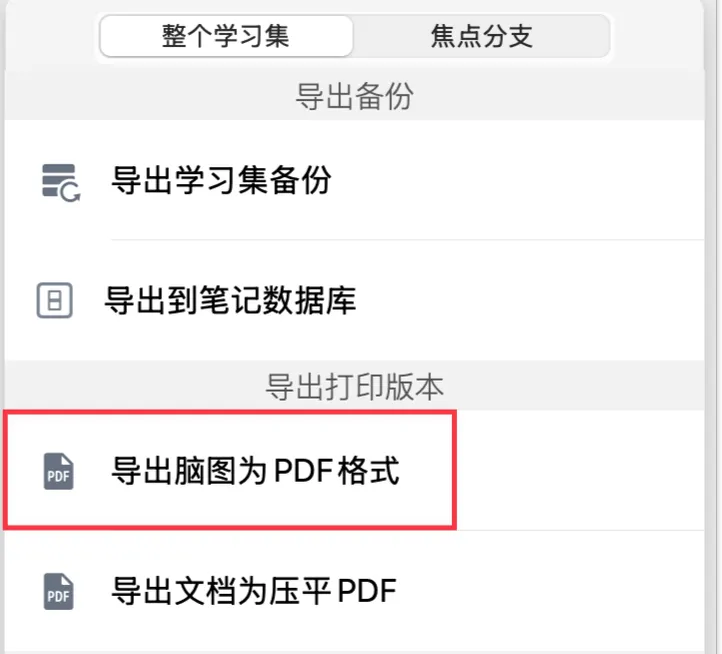
-
Select
Export Mind MapandExport Card Outline.💡The exported PDF reflects the mind map/outline's current expanded state. To show all content, expand all levels first.
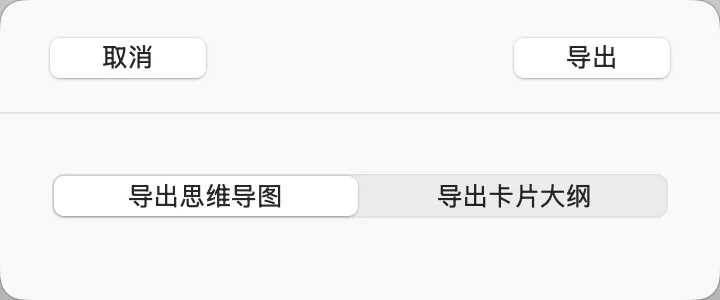 Select the content to export and tap
 Export. The remaining steps and notes are the same as Export Branch. In the mind map PDF preview, select Print or export to another app.
1.2.3 Export a Mind Map Focus as PDF
💡When you need to export only part of a mind map, export the focus branch.
1.2.3.1 Method 1
Tap the top-level card of the branch you want to export. In the pop-up menu, switch to Advanced, then select Export Branch or Export This Card. The remaining steps are the same as Export a Branch as PDF (supported in version 4.4.4 and later).
1.2.3.2 Method 2
First enter Focus mode on the top-level card of the branch you want to export (for instructions, see Mind Map Focus).
- Tap
Study Set-More-Export Study Set.
-
Tap
Focus Branch-Export Mind Map as PDF. The remaining steps and notes are the same as Export the Entire Mind Map as PDF.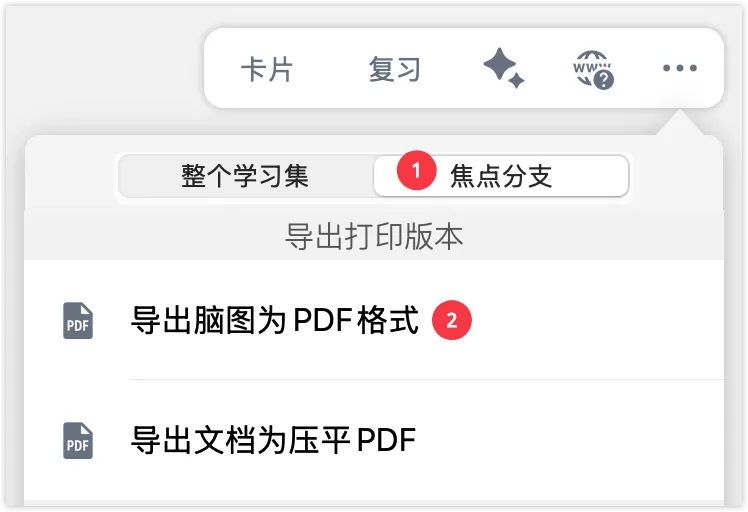
1.3 Study Sets
Tap Study Set - More - Export Study Set.
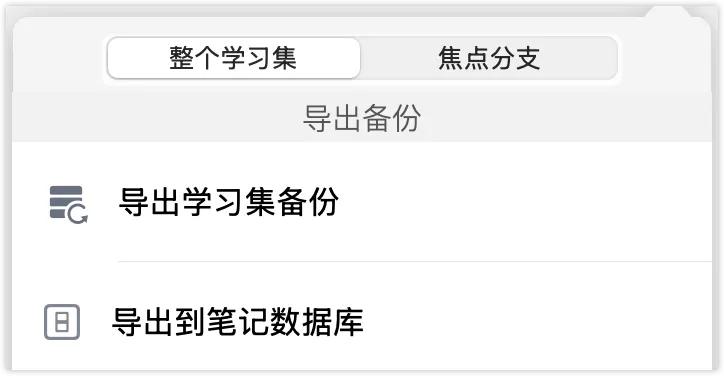
The Export Backup tab contains Export Study Set Backup and Export to Note Database.
Export Study Set Backup: Exports all documents and note data in the current study set for sharing or backup. The backup file can only be opened with MarginNote.-
Export to Note Database: A multi-note-database Max feature. Exporting selected study sets to another note database makes it easy to move study sets between databases and isolate note data from different periods or fields.💡For usage and common scenarios, see Note Database ①: Creating and Managing Databases.
1.4 Export to Other Formats
💡You can also export only the focus branch to other formats. The steps are the same as Export a Mind Map Focus as PDF.
- Tap
Study Set - More-Export Study Set. - Choose from the following export formats: OmniOutliner (oo3), MindManager and iThoughts (mmap), Evernote (api), MS Word (docx), and Anki (apkg).
💡Cards created using Markdown and Formulas will not render correctly after export in software that does not support Markdown syntax.
1.4.1 Export to OmniOutliner (oo3)
- Tap this option and choose whether to include excerpt colors when exporting the outline.
- An oo3 file is generated. Import it using OmniOutliner or another app that supports oo3 files.
💡Tip: This file is stored in the ExportedOmniOutlinerFiles folder inside MarginNote 4's local folder.
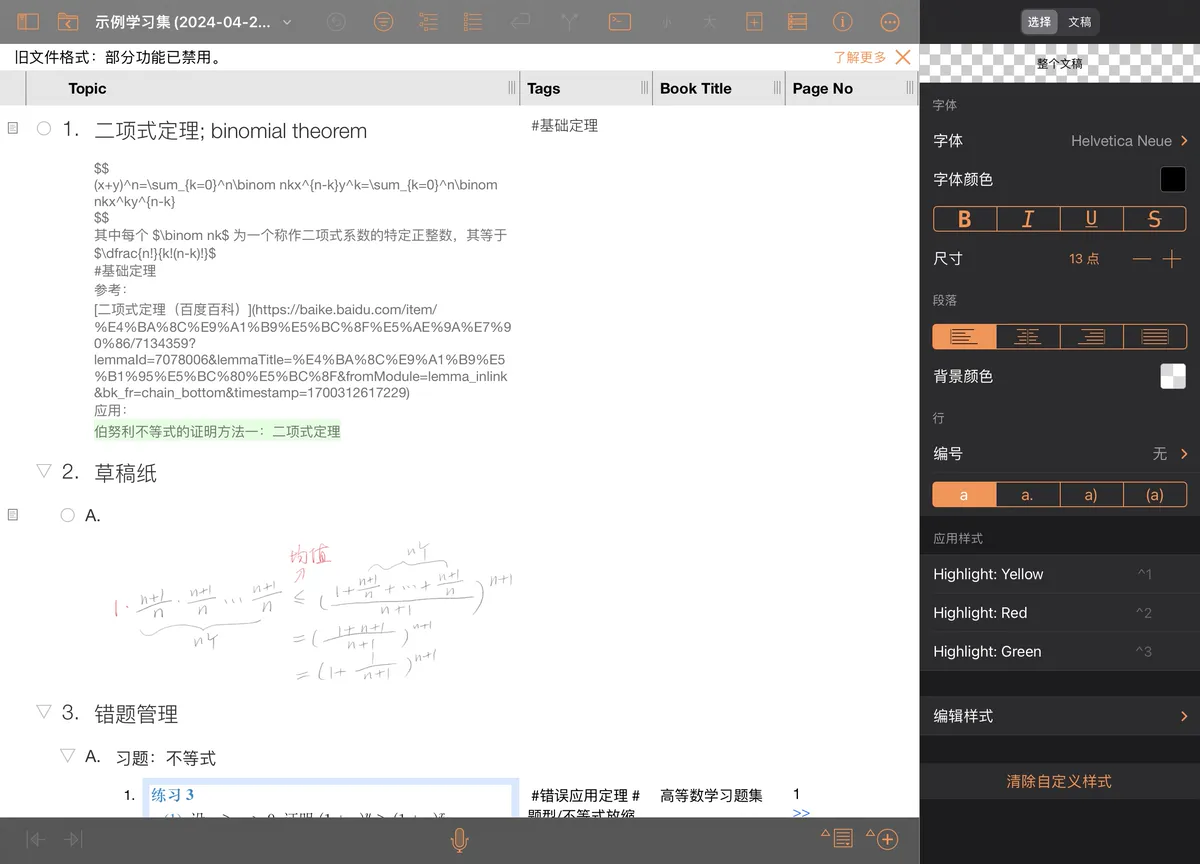
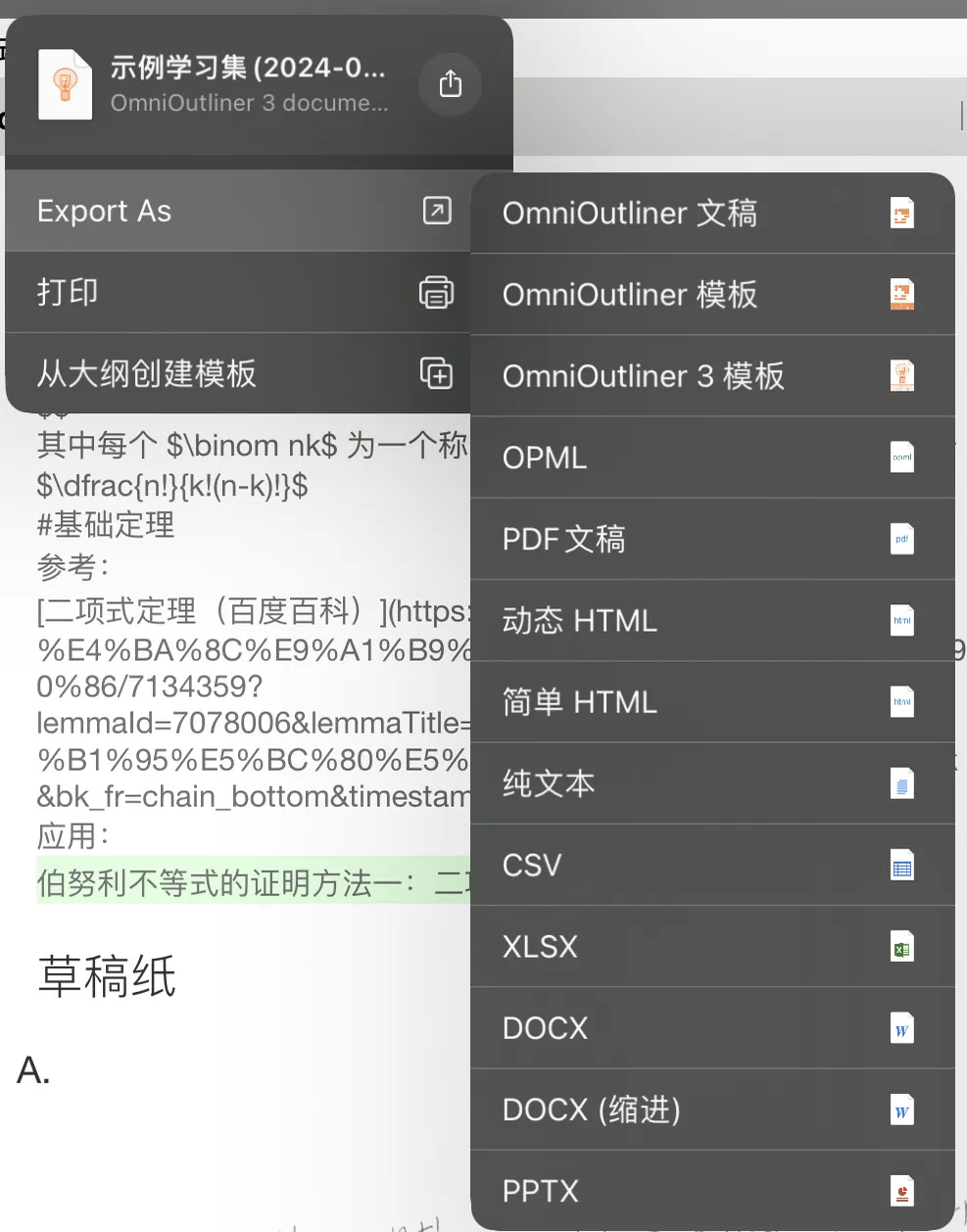
💡Tip: OmniOutliner's editing features require a subscription and are relatively expensive. Tap More Options after the file name in the top-left corner, then select Export As to convert the file to other formats.
1.4.2 Export to MindManager and iThoughts (mmap)
-
Tap this option and choose whether to include MarginNote links in the exported mind map. When links are included, tapping one returns to the corresponding card in MarginNote.

-
An mmap file is generated. Import it with an app that supports the mmap format.
💡Tip: This file is also stored in MarginNote 4's local folder.
-
Apps that support the mmap format:
-
MindManager
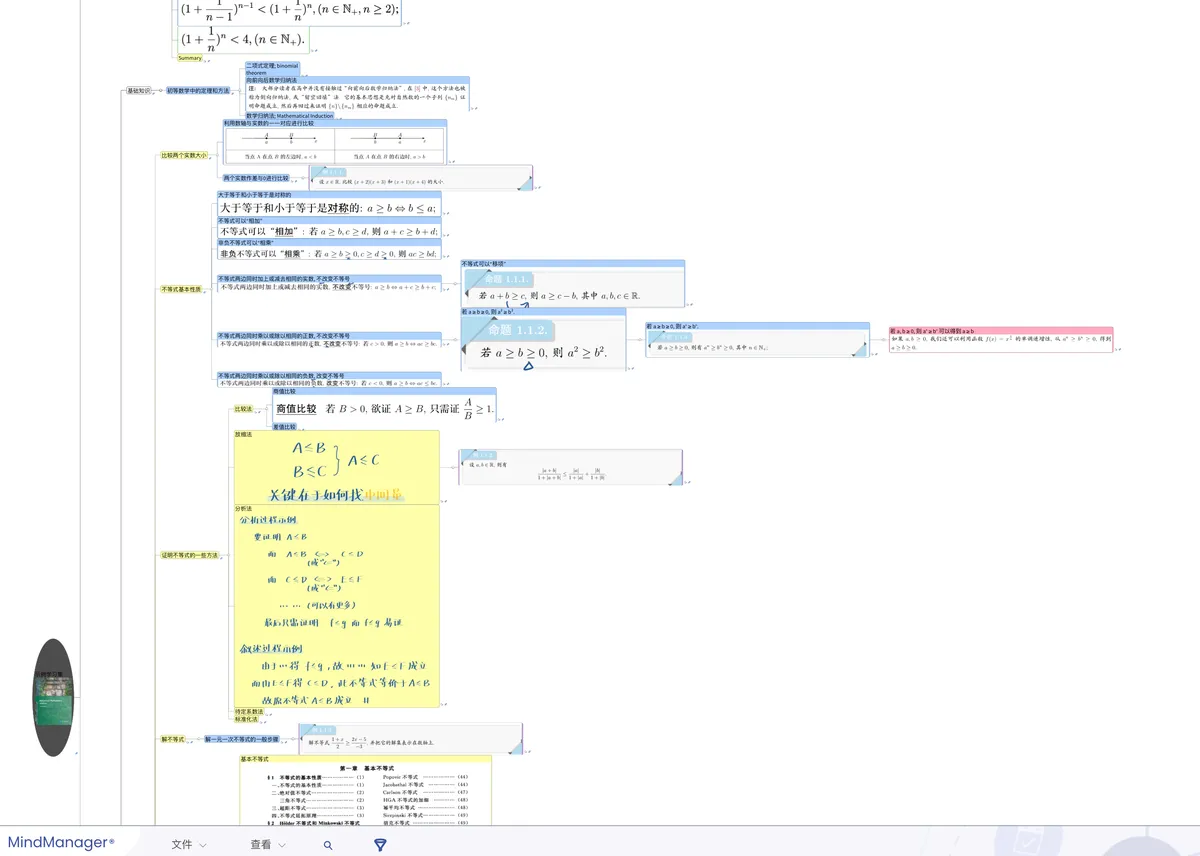
💡MindManager Go in the App Store can only view mmap files.
-
iThoughts
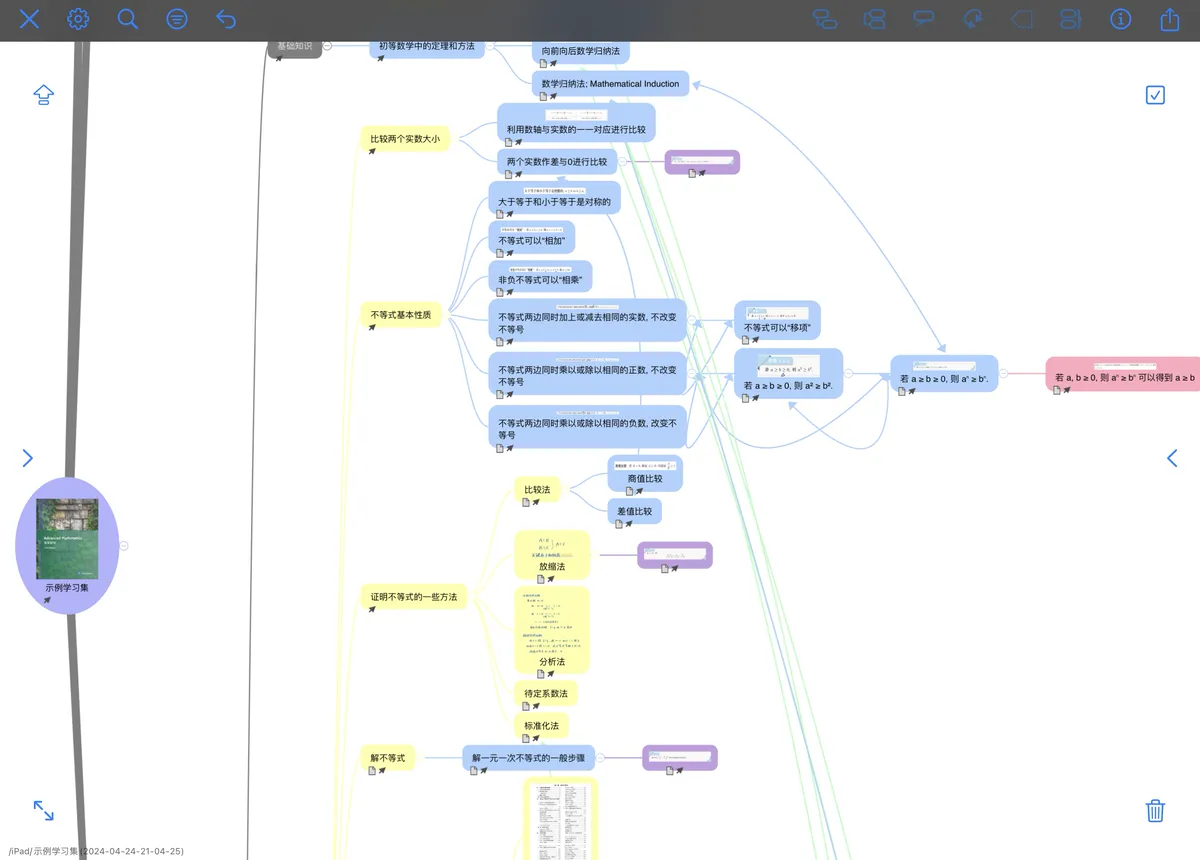
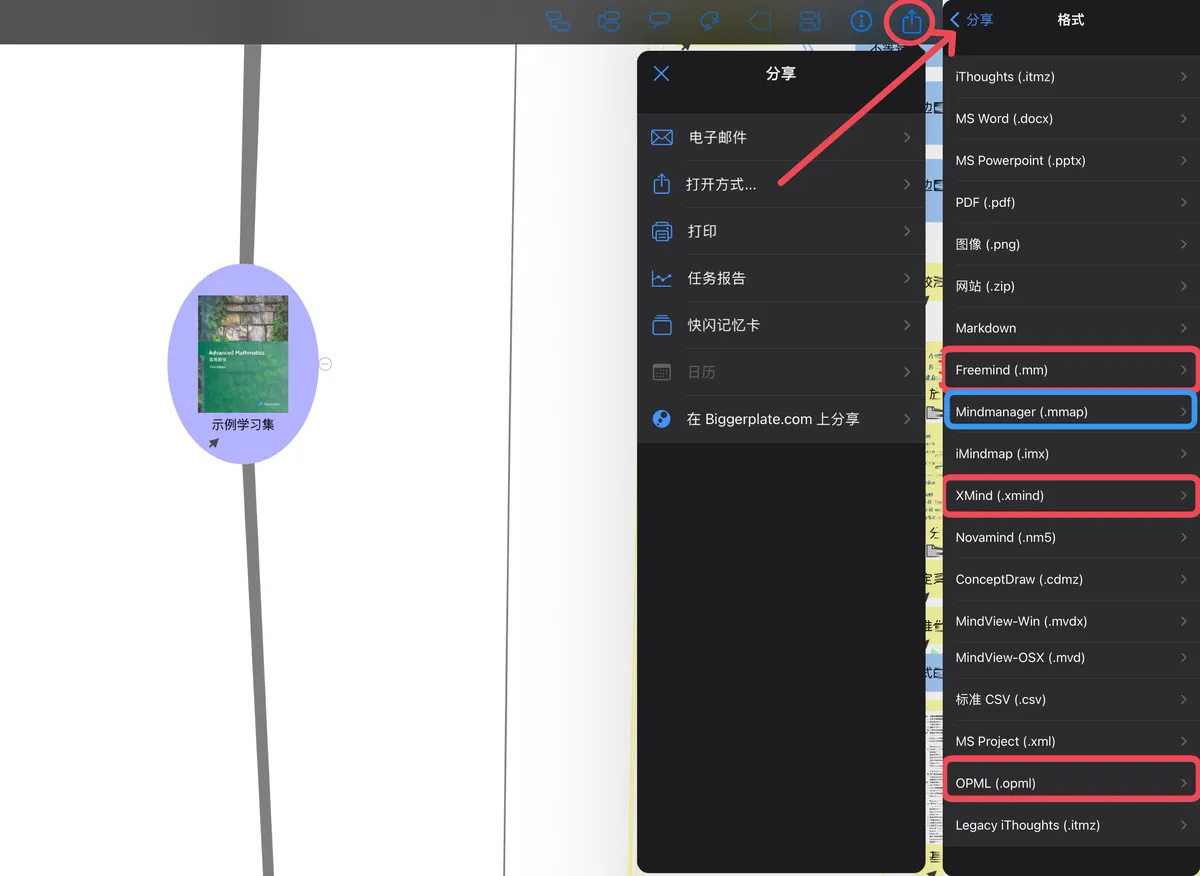
💡Tip: iThoughts can convert mind maps to many formats. Files in mm, opml, and xmind formats can be imported into Mubu (they must be under 2 MB). Mubu lets you view mind maps/outlines synced across platforms and devices. You can export the Mubu file, convert it back to mmap through iThoughts, and import it into MarginNote 4, either appending it to an existing study set mind map or creating a new mind map.
⚠️iThoughts is no longer available in the App Store. Mac and Windows users can find an iThoughts installer separately.
-
MindNode
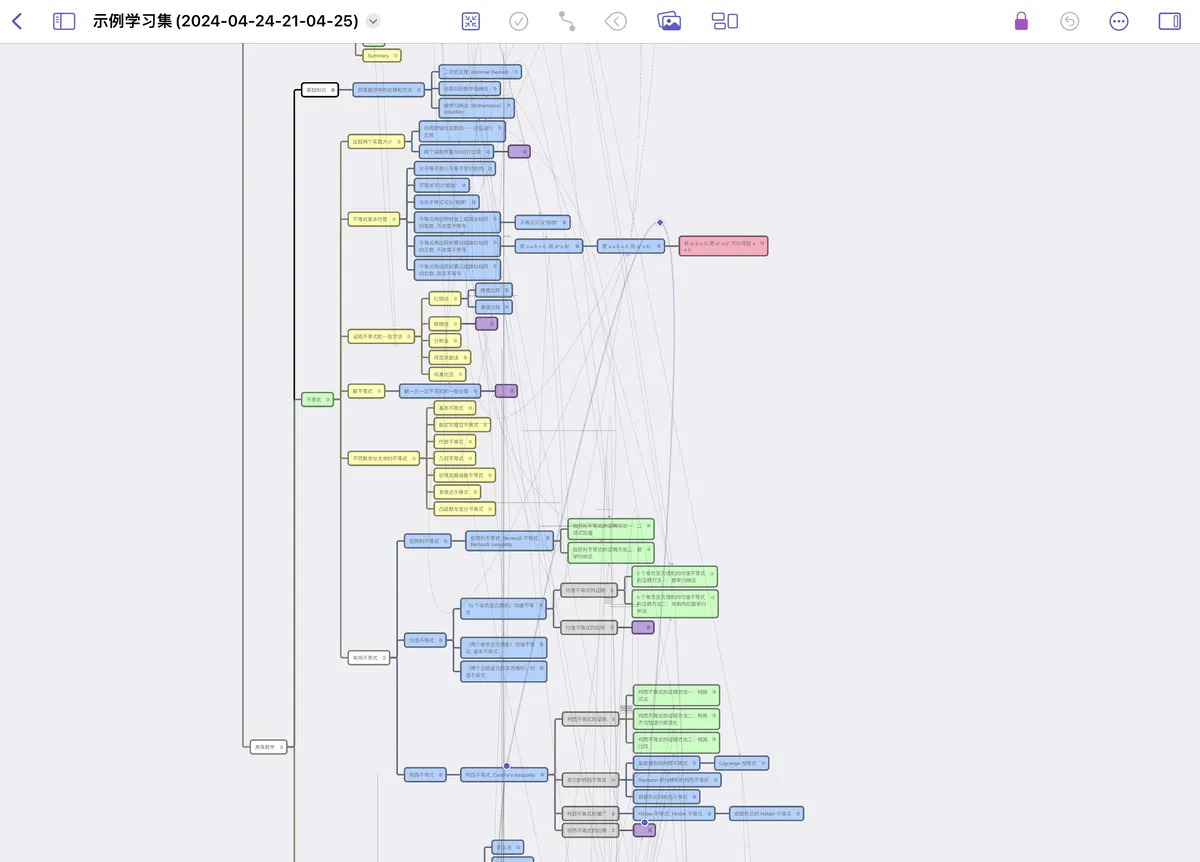
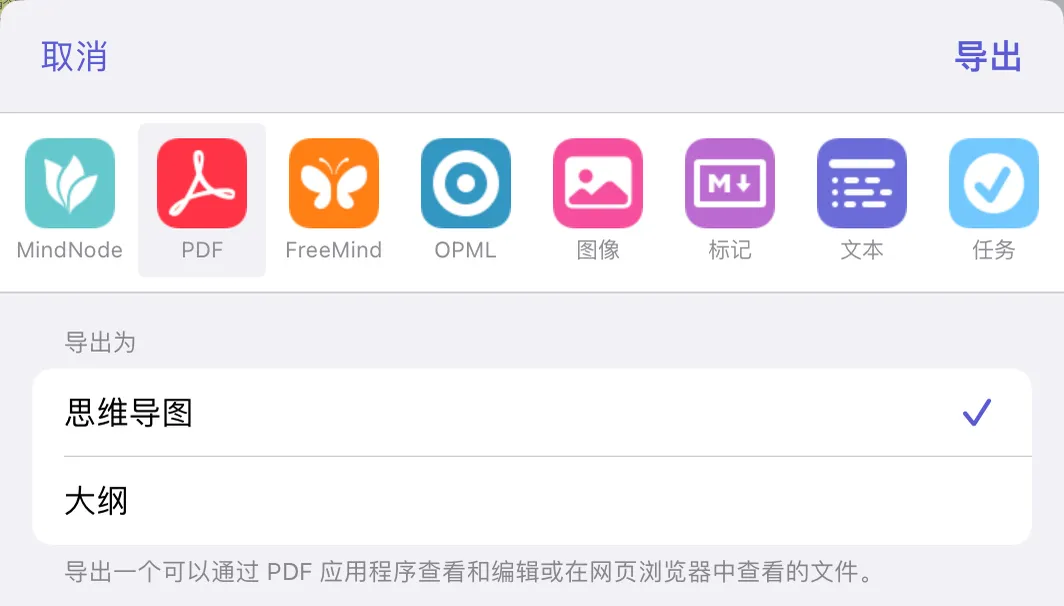
💡Tip: MindNode can convert a mind map to the formats shown.
-
MindMaster (under 10 MB)
- Baidu Naotu
- Xmind (non-mobile version)
-
1.4.3 Export to Evernote (api)
-
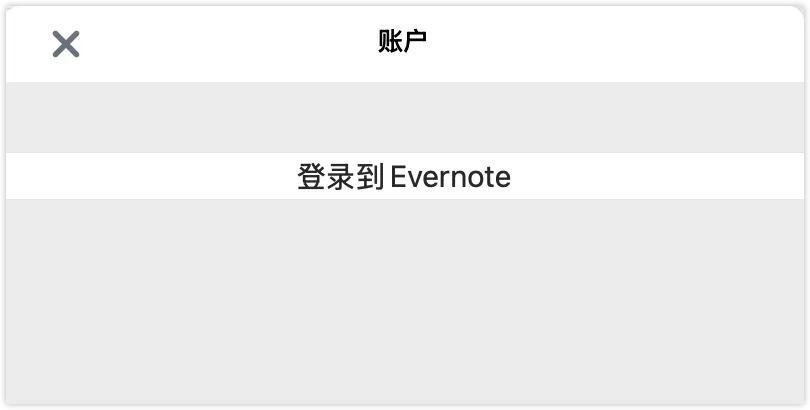
Tap this option, sign in to Evernote (Yinxiang Biji), choose the target folder, and tap Import.
-
Choose whether to attach the documents associated with the cards.
- Choose whether to attach the mind map.
- The study set is exported in the background. You receive a notification when the export finishes.
1.4.4 Export to MS Word (docx)
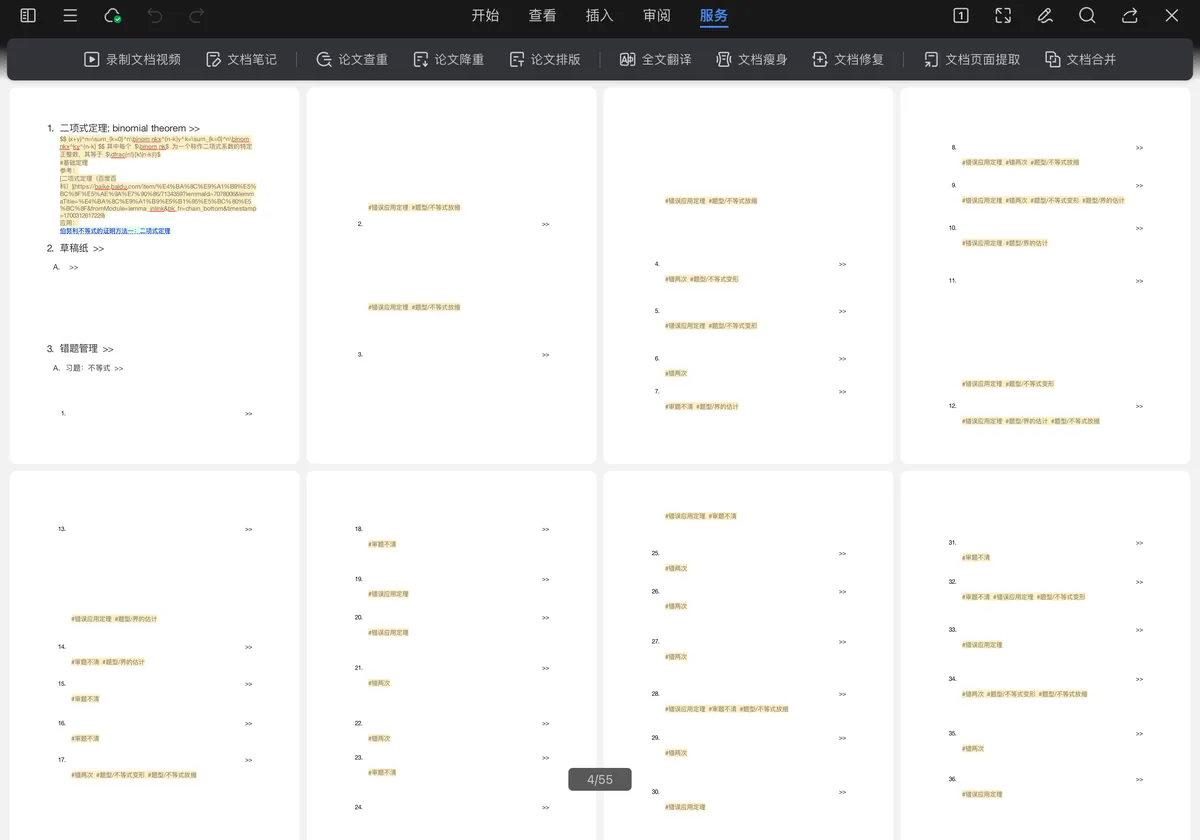
- Tap this option and choose whether to include excerpt colors when exporting the outline.
- A docx file is generated. Import it with an app that supports docx files.
💡Tip: This file is stored in MarginNote 4's local folder.
1.4.5 Export to Anki (apkg)
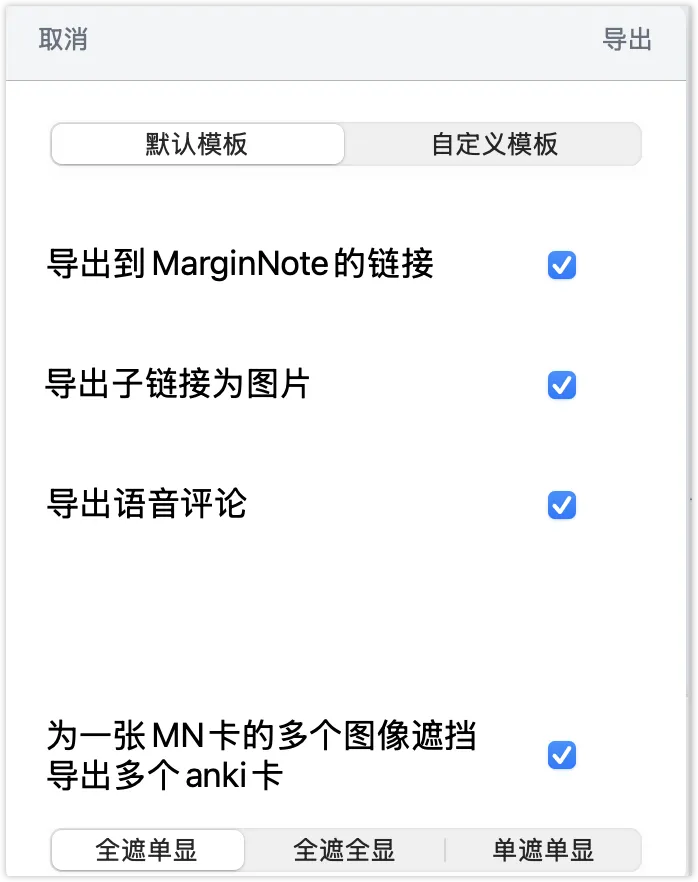
Tap this option to open the dialog shown below. In addition to exporting cards, the default template provides the following export settings.
-
Export Link to MarginNote
-
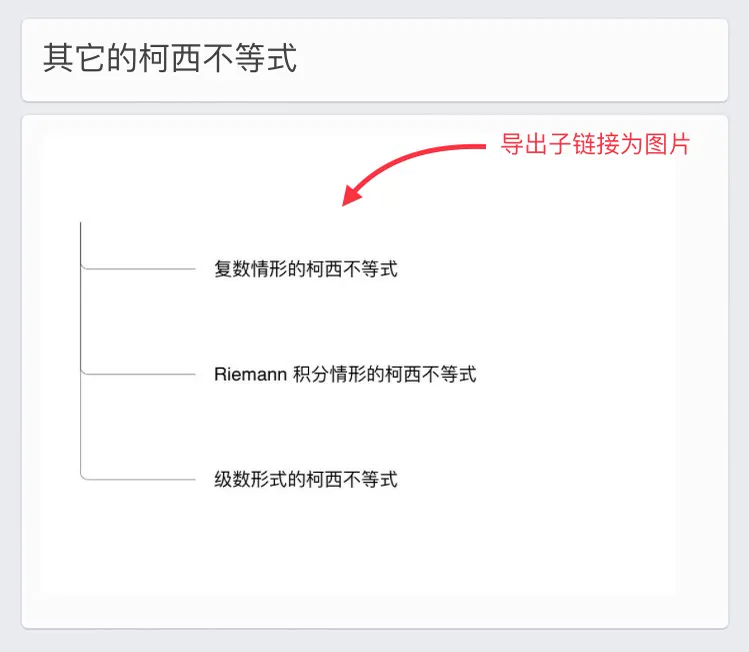
Export Child Links as Images
Export Voice Comments

Export Multiple Anki Cards for Multiple Image Occlusions on One MN Card: When one review card contains multiple fill-in occlusions, a corresponding number of Anki cards is generated.
-
Hide All, Show One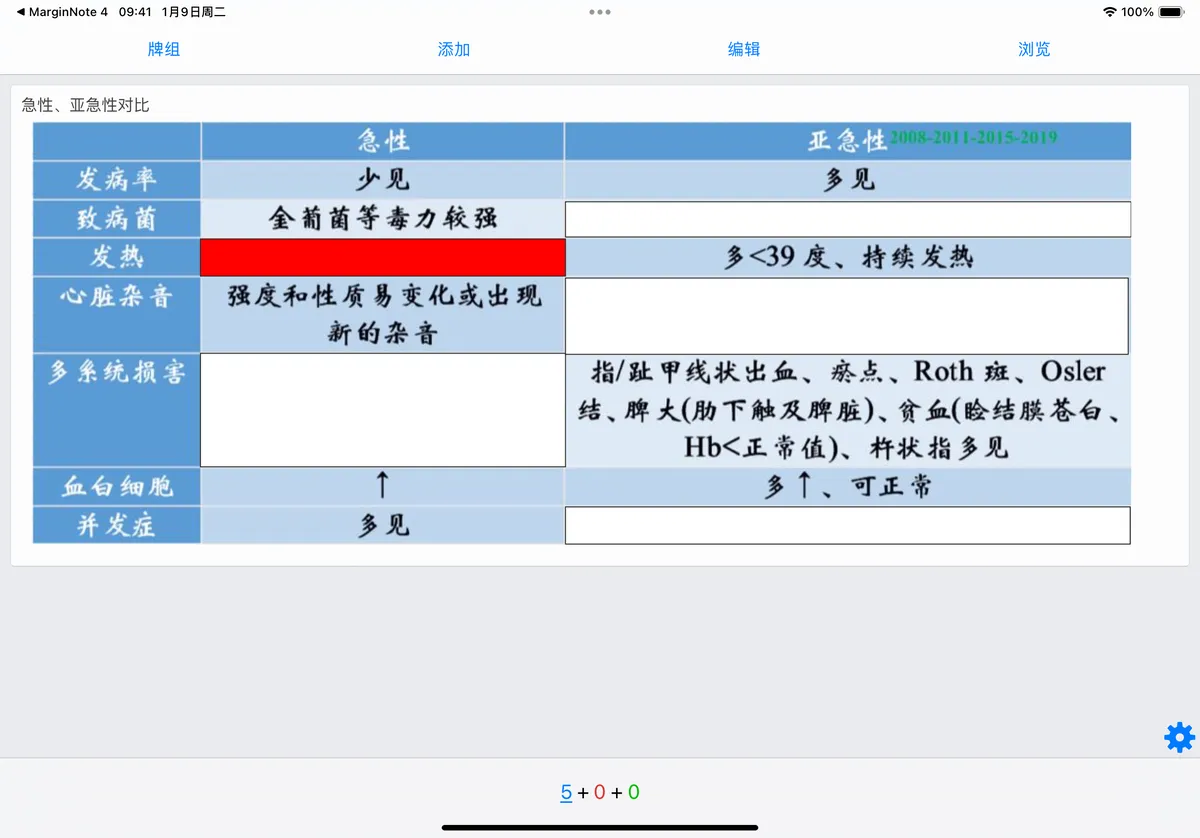
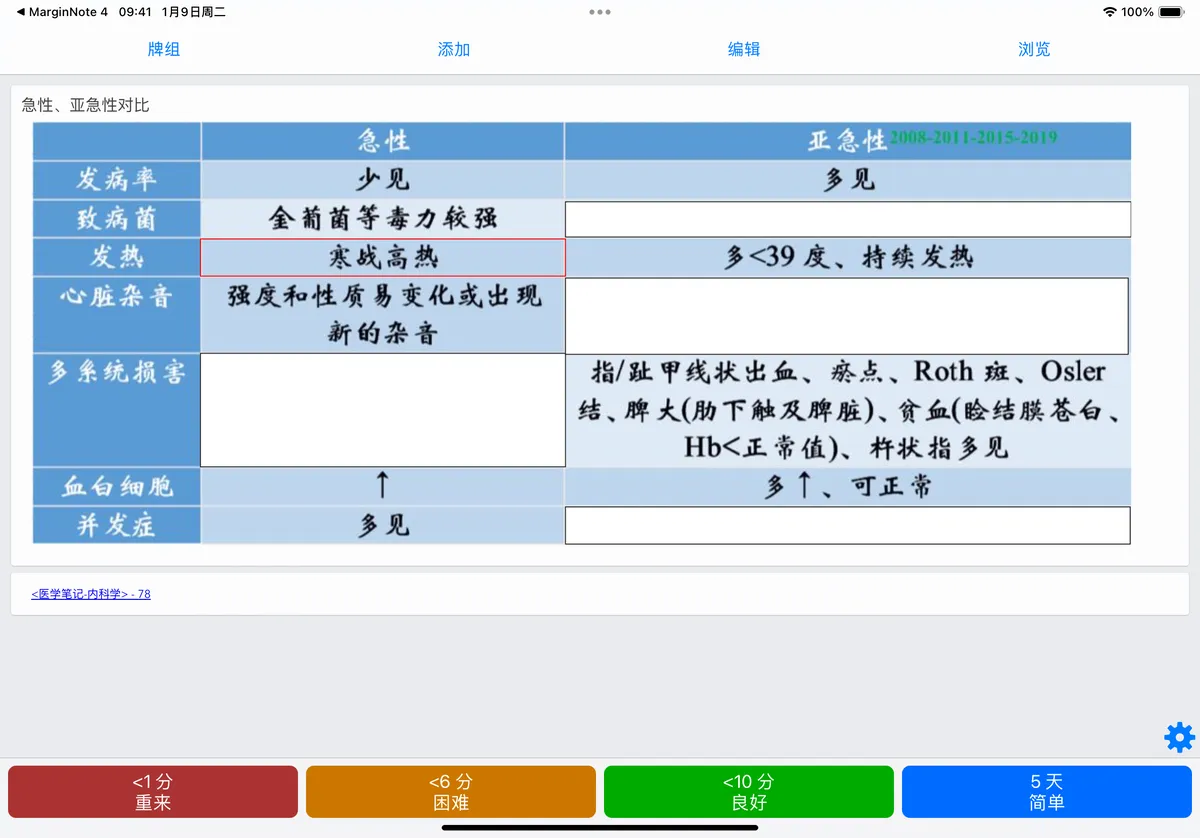
-
Hide All, Show All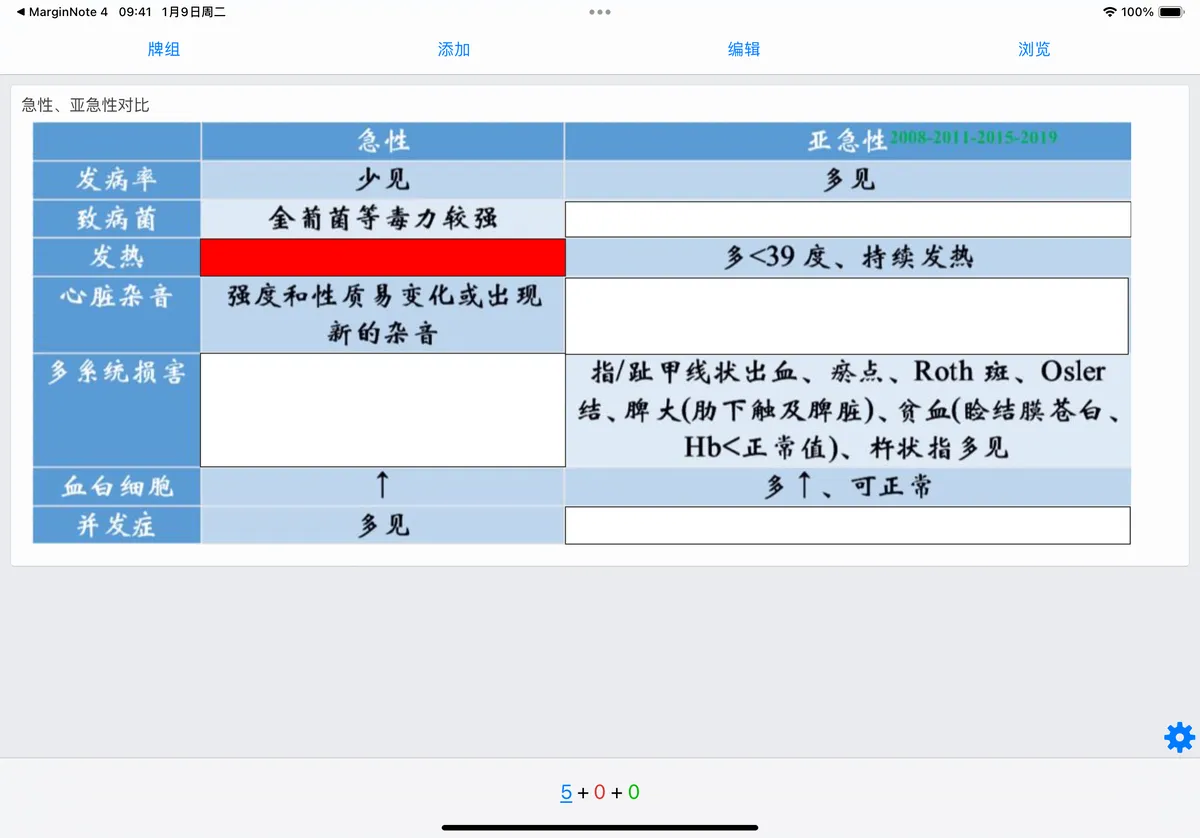
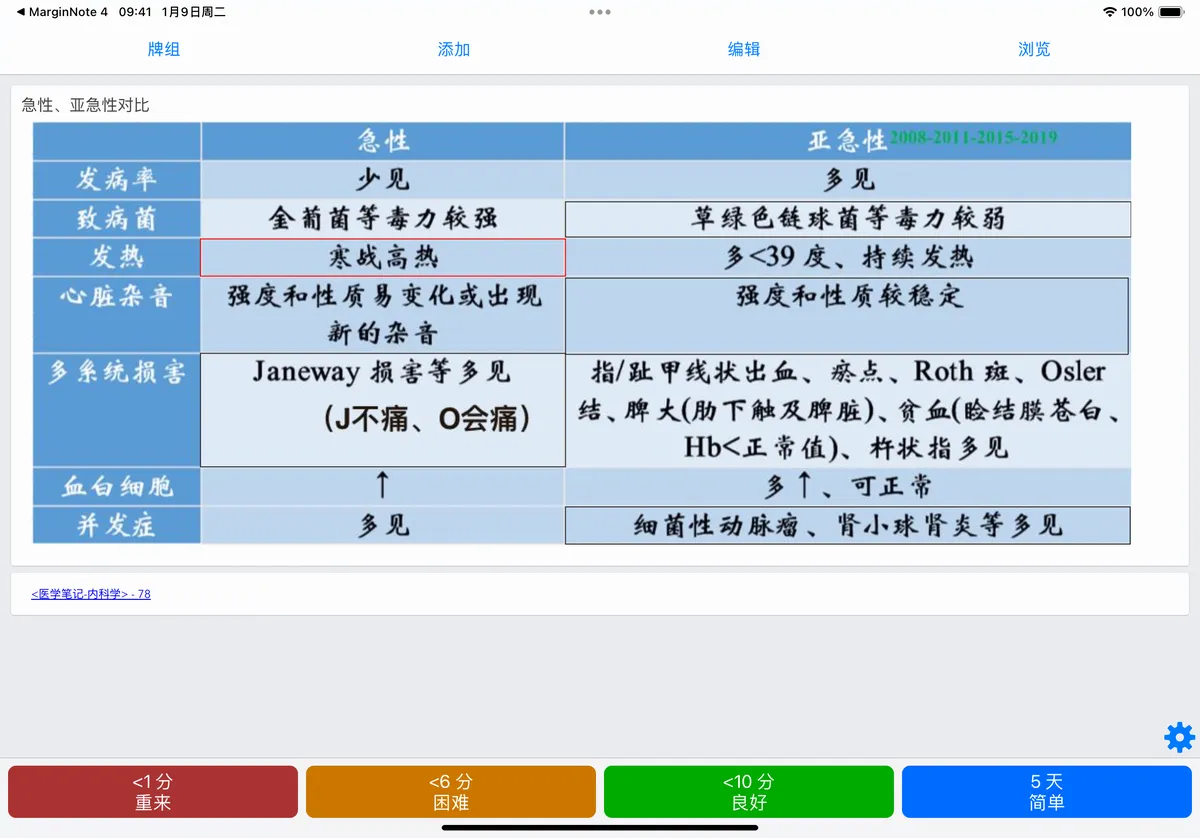
-
Hide One, Show One
💡For advanced usage of custom templates, see Flashcard Review ③: Export to Anki & Template Configuration.
2 Other Note-Export Plugins
💡Plugins on the MarginNote forum also support exporting study sets to more third-party apps, such as Obsidian and flomo. Visit the forum to learn more.