Excerpts: Capture the Key Points of a Document
💡

Excerptis a core feature of MN4's document reading notes. Without binding to a mind map framework, it lets you efficiently extract, manage, and reuse key information. Excerpts are both editable and easy to reuse, fitting a wide range of reading scenarios.
1 Overview
- Excerpting is the core, fundamental action in MN4's pure document-reading note mode. It extracts a document's key information into independent, editable excerpt cards, letting you efficiently extract, manage, and reuse information without binding to a mind map framework.
- Suitable scenarios: retaining fragmented knowledge, studying a single document in depth, quickly distilling temporary key points, and more.
- Key advantages over tools such as the
highlighter: excerpts can be filtered, edited, easily managed, and exported.
2 Core Features
2.1 The Four Excerpt Tools
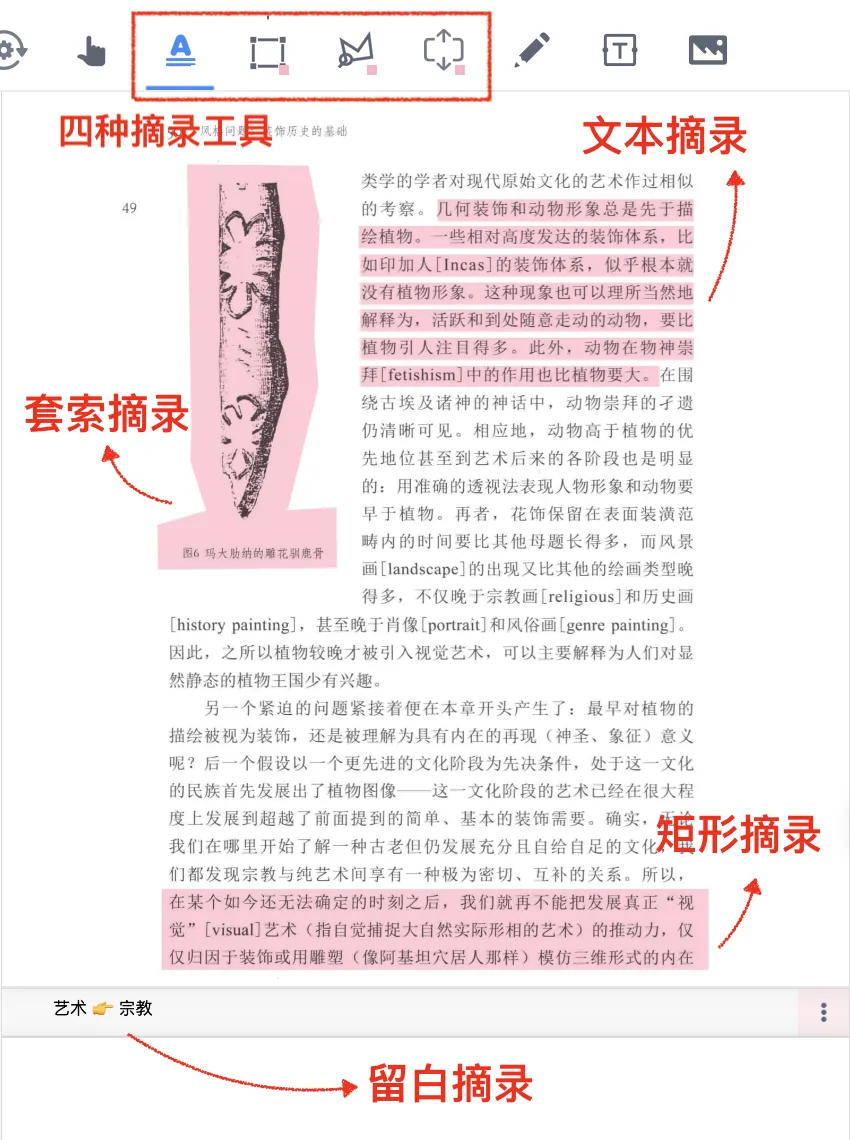
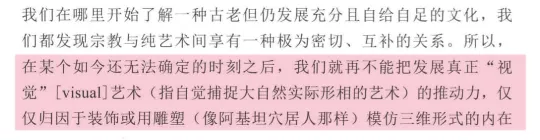


MN4 includes four core excerpt tools — Text Excerpt, Rectangular Excerpt, Lasso Excerpt, and Extend Note Excerpt — to suit different reading needs; choose whichever you need.
Excerpt Tool 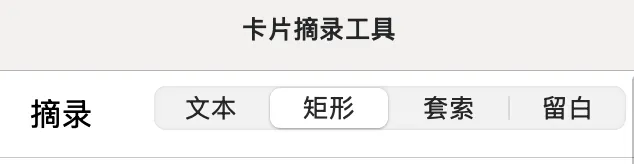 |
Text Excerpt | Rectangular Excerpt | Lasso Excerpt | Extend Note Excerpt |
|---|---|---|---|---|
| What it does | Precisely extracts editable text into an excerpt card | Drag to box-select a rectangular area | Freely lasso an irregular selection | Creates an editable extend-note area inside or beside the document; three excerpt forms in total |
| Use cases | Extracting textual information such as papers and textbooks | Keeping charts, formulas, and the like, or preserving the original layout | Odd-shaped graphics and text, content with no redundancy, special layouts | In-depth supplementation and logical structuring |
| Illustration | 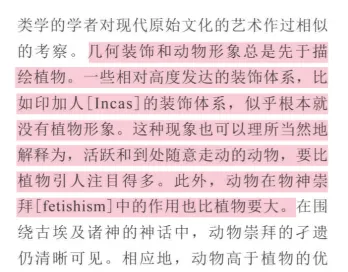 |
 |
 |
   |
3 Core Steps
3.1 Basic Operations
💡Tip: When you import a new document, wait a while for the text index to be built; otherwise the Text Excerpt tool may not recognize text accurately.
- Enter document reading mode and open the PDF, EPUB, or other document you want to work with;
-



In the toolbar at the top of the document, select an excerpt tool;
Textexcerpt tool: used to highlight textRectangularexcerpt tool: used to highlight a rectangular selectionLassoexcerpt tool: used to highlight an irregular selection-
Extend Noteexcerpt tool: used to insert blank spaceFor details on
Extend Noteexcerpting, see: Extend Note ① | Basic Operations: Freely Carve Out Note Space Between the Lines
-
Select the target text or region to complete the excerpt.
⚠️Note: For EPUB documents, only the Text Excerpt tool is available.
4 Advanced Operations
💡Compared with highlighter markup, the unique advantage of excerpts is that they "can be reused independently of the original text":
- Further editing: refine formatting, change colors, add tags, and add annotations
- Conversion into cards: add them to a mind map or review deck to turn them into cards
- Efficient management: store them together, with precise search and filtering
- Cross-scenario export: export individually or in batches for reuse in many scenarios
4.1 Editing and Refining Document Excerpts
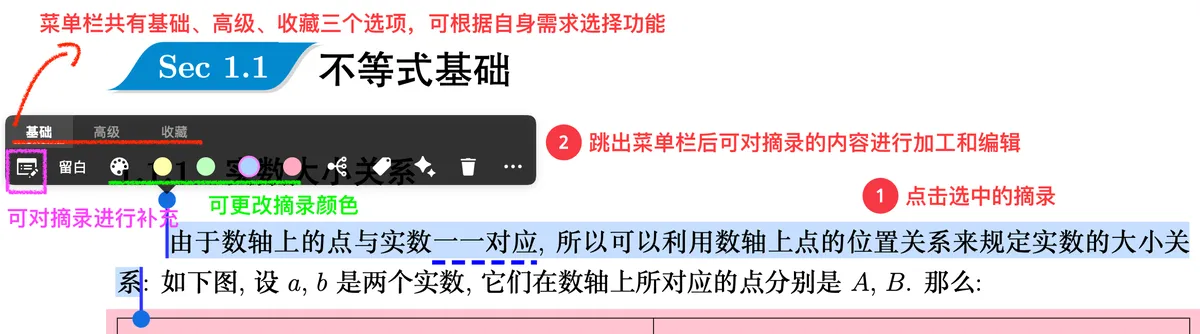
After creating a basic excerpt in a document, you get a corresponding excerpt card. You can then process its information in depth, upgrading the excerpt from a mere "text copy" into a "personal note":
- Tap the excerpt, then tap the
Card Editoricon in the pop-up menu bar to enter the editing screen; -
Key actions:
- Supplementary notes: in the
Add Commentfield below the card, add your own insights, questions, and connections between knowledge points to complete the cognitive processing; - Formatting: native Markdown is supported, so you can add bold text, lists, and formulas to suit academic reading and professional note-taking;
- Tags / colors: add dedicated tags or colors to the card to lay the groundwork for later classification and management.
- Supplementary notes: in the
4.2 Turning Document Excerpts into Mind Map Cards
To add document excerpts to a mind map for deeper processing, you can use either of the following two methods:
- Add in real time: in any
Card Excerpt Tool, checkOverride Default Automation Settings, then turn onAuto Add to MindMap; any excerpts you create afterward will automatically sync to the mind map; - Add past excerpts: if some earlier excerpts were never synced to the mind map, use the
Card Grouping Boardto filter and select the target cards, then add them to the mind map in bulk.


4.3 Searching and Managing Document Excerpts: Using the Card Grouping Board
-
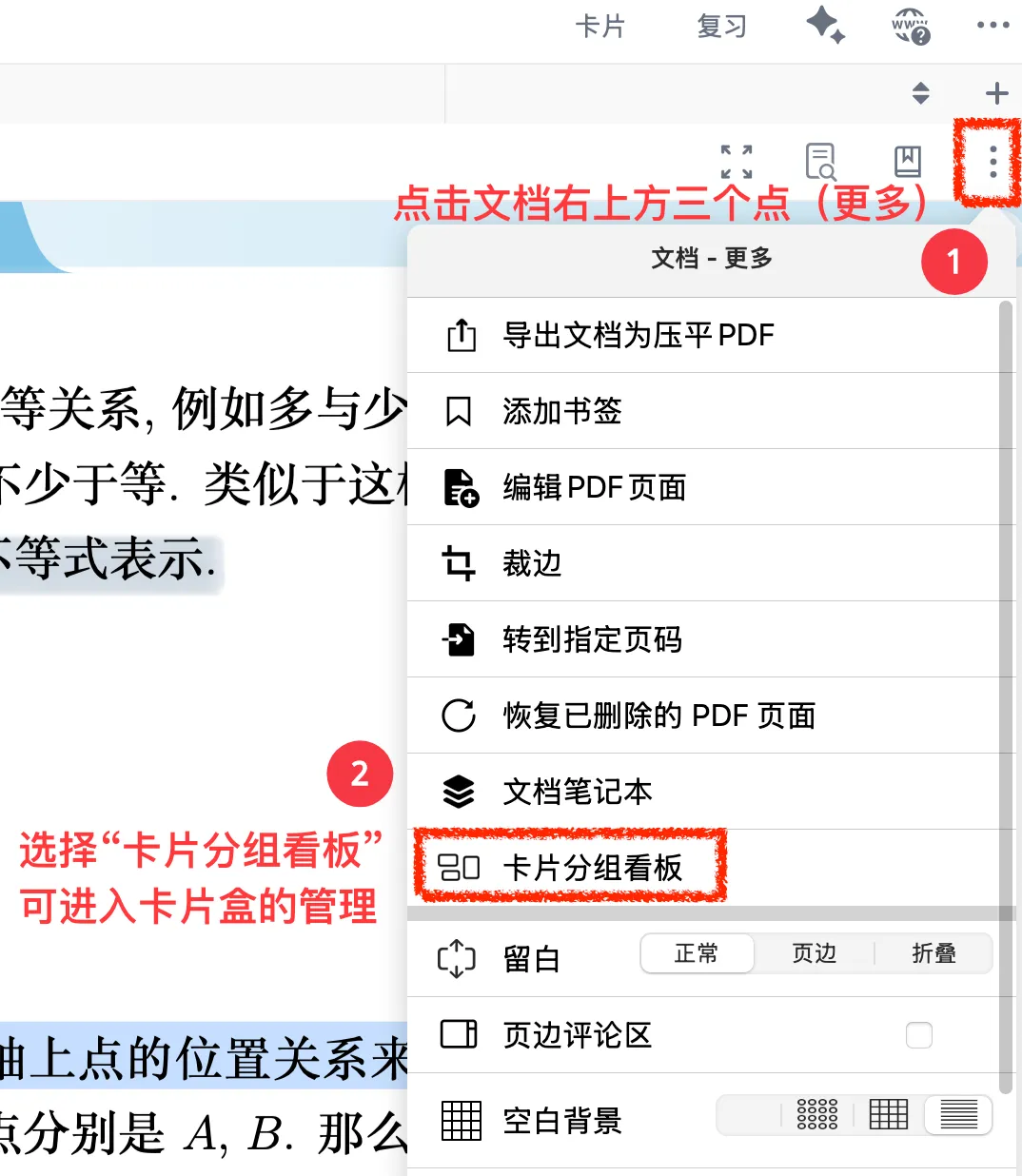
How to open it: you can manage all excerpts not yet added to a mind map from one central place:
- Entry point 1: in the left sidebar of the current study set, tap the three dots to the right of the document name (
Document - More), then chooseCard Grouping Board; - Entry point 2: in the study set, tap
Card Grouping Boarddirectly and set the filter toDocumentto see the not-yet-in-mind-map excerpts from every document;
- Entry point 1: in the left sidebar of the current study set, tap the three dots to the right of the document name (
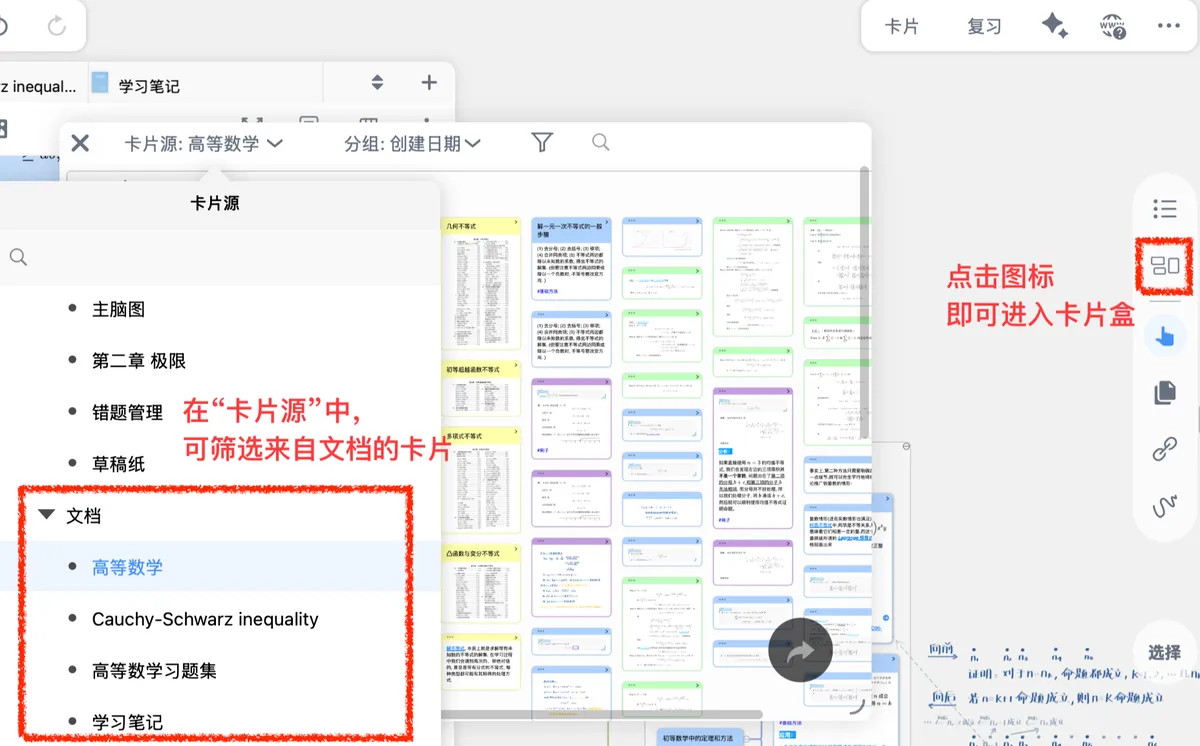
- Precise filtering: once in the
Card Grouping Board, you can stack filters such asColor,Tag, andDocumentto narrow things down further; - Key actions: tap a single card to trace it back to the source text or to edit it; batch delete, edit, tag, and export; group and sort by
Creation Time,Tag,Color, and more; and switch the document source at the top to view excerpts from multiple documents.
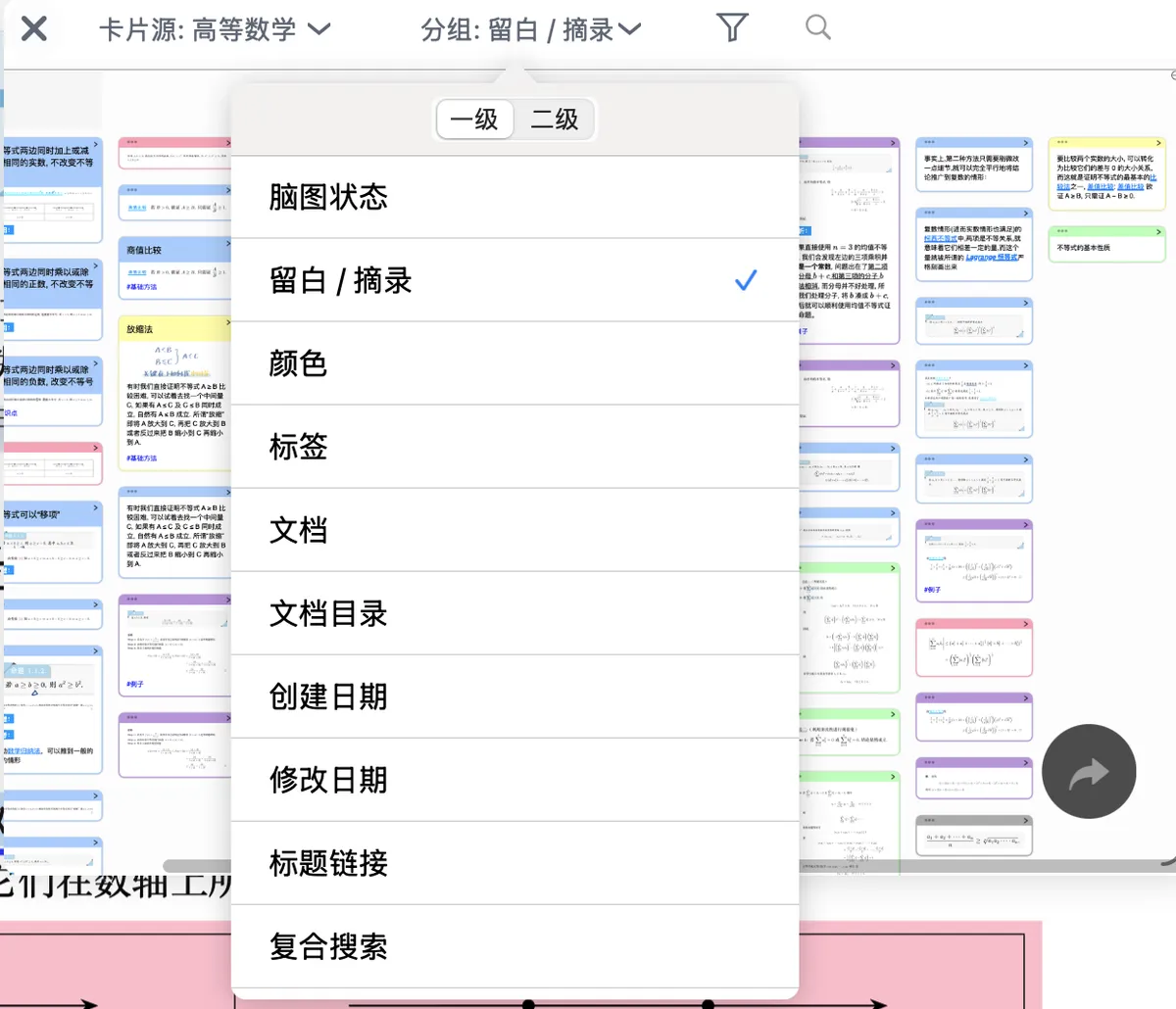


For more ways to use the Card Grouping Board, see: Card Grouping Board ①: Precisely Filter from a Sea of Cards
4.4 Exporting Excerpts
- Export individually: select the target excerpt card, and when the menu bar pops up, tap
Exportin the three-dot "More" menu to export it as aPDForLong Image; - Export in bulk: open the
Card Grouping Board, select multipleExcerpts, and export them asPDF/Long Imagefiles — handy for compiling notes.