Making Flashcards ③: Setting the Front and Back of a Flashcard
💡📖 Flashcard Series Navigation This series helps you master flashcard creation and scientific review in MN4.
Making flashcards:
- Essential reading for beginners: ① Getting to Know Flashcards and Review Card Decks ② Adding Cards to a Review Card Deck
- Advanced: ③ Setting the Front and Back of a Flashcard (this page)
Scientific review:
- Essential reading for beginners: ① Scientific Review Based on the FSRS Anti-Forgetting Algorithm
- Advanced: ② Source Context
⚠️Prerequisites
- You should first read Parts ① and ② of Making Flashcards to make sure you already have cards added to a review card deck. In Part ②, you learned how to add cards. This page teaches you how to fine-tune the front and back of your flashcards to make review more efficient.
- Before you begin, we recommend getting familiar with the
card editor(see: Mind Map Cards ①: Creating and Editing Cards).
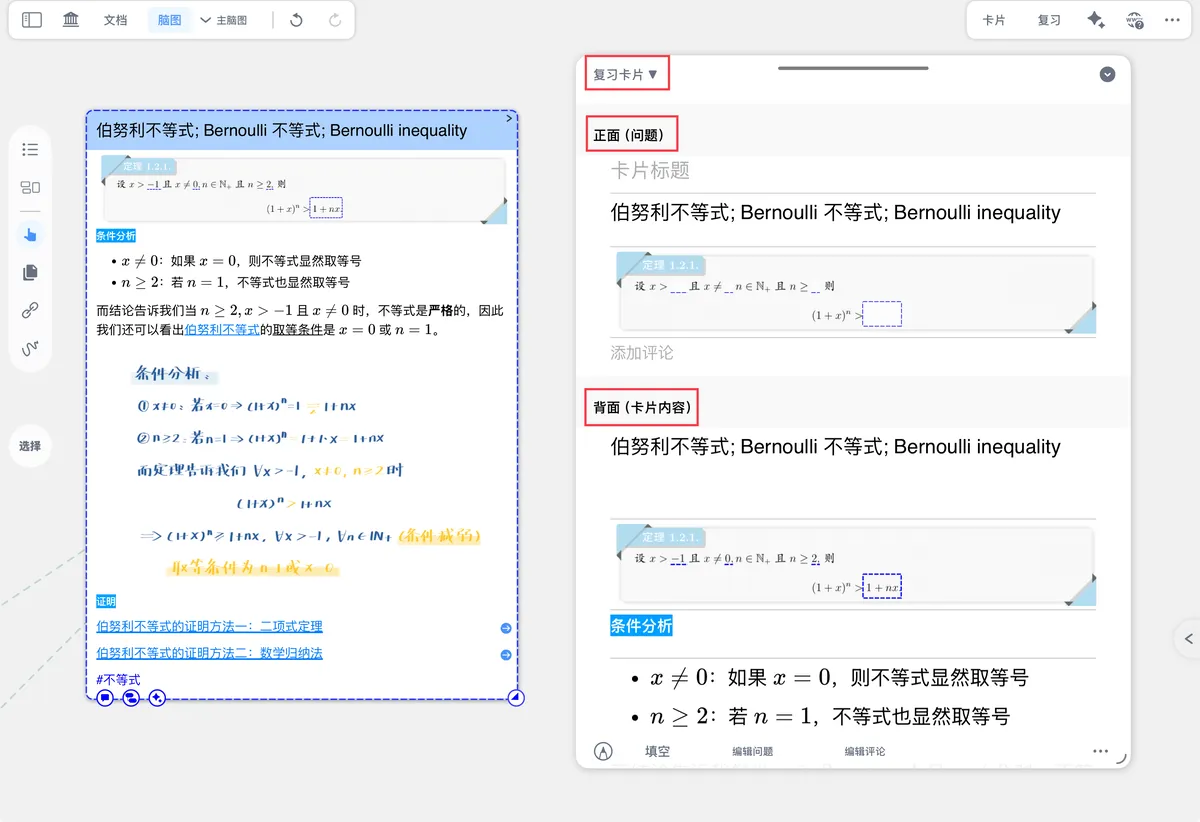
💡A flashcard consists of a front (the question) and a back (the answer). The back contains the entire note card's content (title + body), while the front can be customized. Setting an appropriate front and back for a flashcard helps improve review efficiency and memory retention.
💡Why set the front and back of a flashcard?
By default, MN4 uses the card title as the flashcard front (question) and the entire card as the back (answer). In the following situations, however, you may want to customize this:
- ✅ The card title isn't specific enough: a title like "Theorem 1.2" doesn't work as an effective question
- ✅ You need to create cloze questions: blank out key content to create fill-in-the-blank questions
- ✅ You need to extract a key question from a long card: the card has a lot of content and you only want to use part of it as the question
- ✅ You need to adjust the difficulty of the question: adjust how much the question hints at the answer based on how well you remember it
If your card title is already phrased as a clear question (such as "What is Bernoulli's inequality?") and you don't need to blank anything out, you can skip this page and start reviewing right away.
1 Comparing the Two Setup Methods
In MN4, there are two ways to set the front and back of a flashcard:
| Method | How to access | Best for | Advantages |
|---|---|---|---|
| Card editor | Tap a single card to open the editor | Fine-tuning individual cards | See the full card content and fine-tune cards one by one |
| Review card deck view | Open a review card deck | Setting many cards uniformly in bulk | Operate in bulk and apply uniform settings to many cards at once |
💡Which should you choose?
- If you need to set a different question for each individual card → use the card editor
- If you need to apply a uniform rule to many cards at once → use the review card deck view
⚠️Important
Changes to the flashcard back (card content) sync to the mind map card and document excerpt. Settings for the flashcard front (question), however, affect only what's shown during review and don't modify the original card.
2 Setting the Front and Back in the Card Editor
This method is suited to fine-tuning individual cards one at a time.
2.1 Open Review Card Editing Mode
- Tap a mind map card or document excerpt to open the
card editor - Tap the top-left corner of the editor to switch to
Review Cardmode
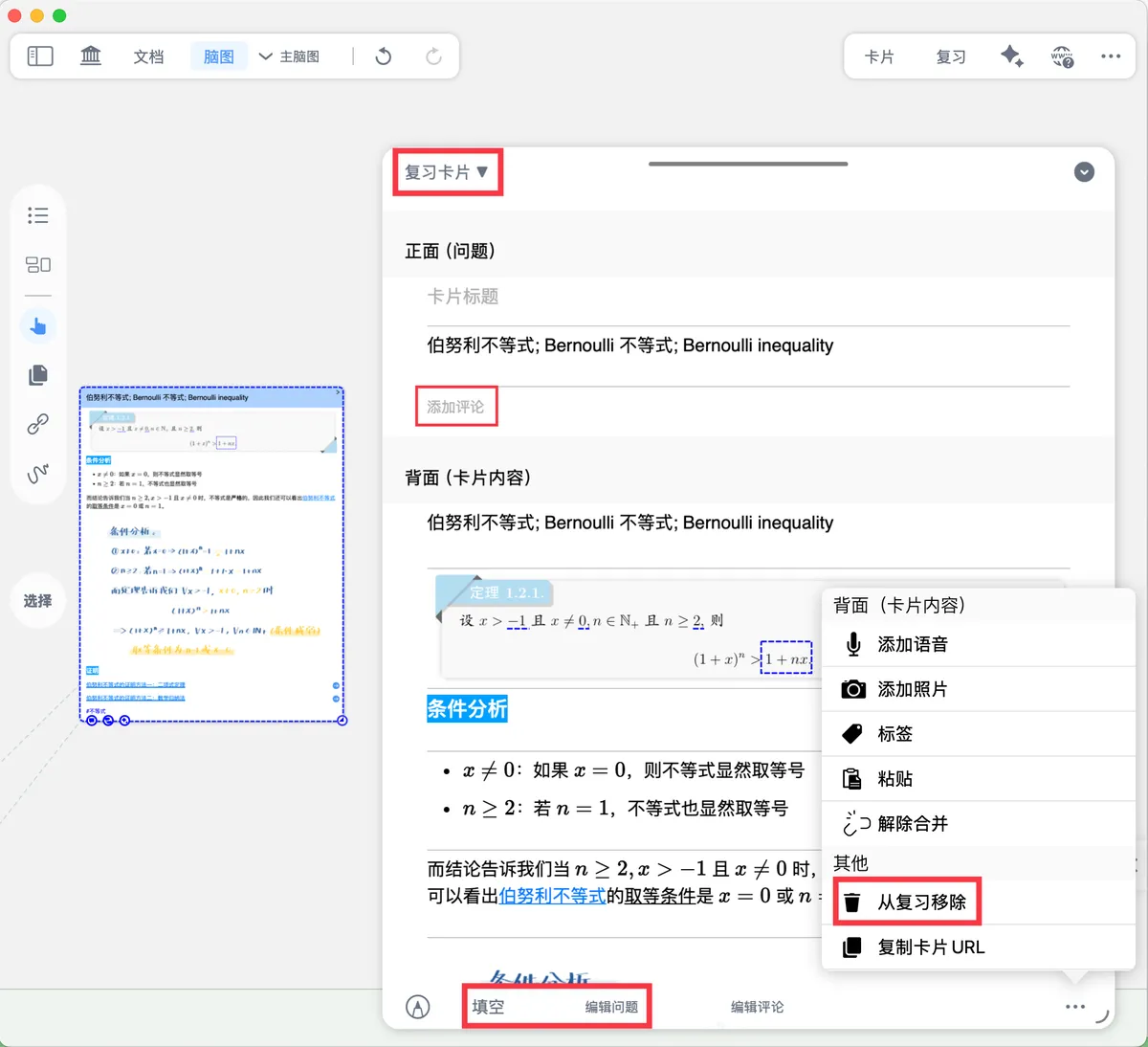
💡Tip: For the basics of the
card editor, see: Mind Map Cards ①: Creating and Editing Cards.
2.2 Add Comments
You can add comments to both the front and back of a flashcard. Comments can be handwritten or entered as plain text.
💡Use cases:
- Add a comment to the back to provide extra explanation or note a memory technique
- Add a comment to the front to give the question additional hints
Comments are shown on the flashcard to aid understanding and memorization
2.3 Set Up Cloze (Blanking)
Apply cloze (emphasize/occlude) to the flashcard front to create cloze questions. You can blank out individual characters or part of an image.

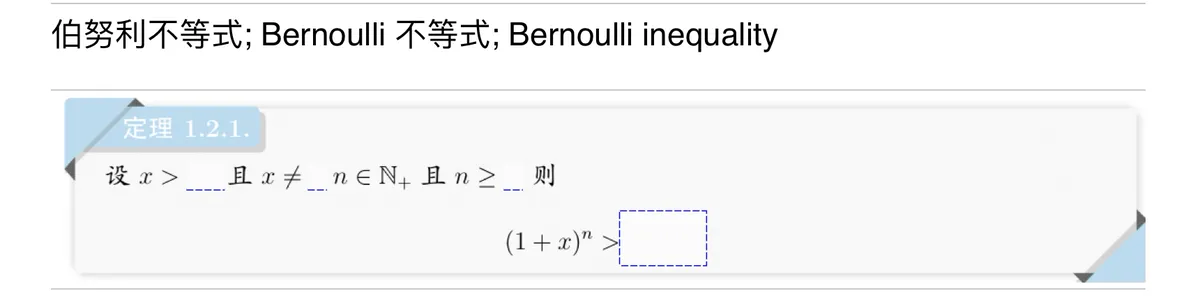
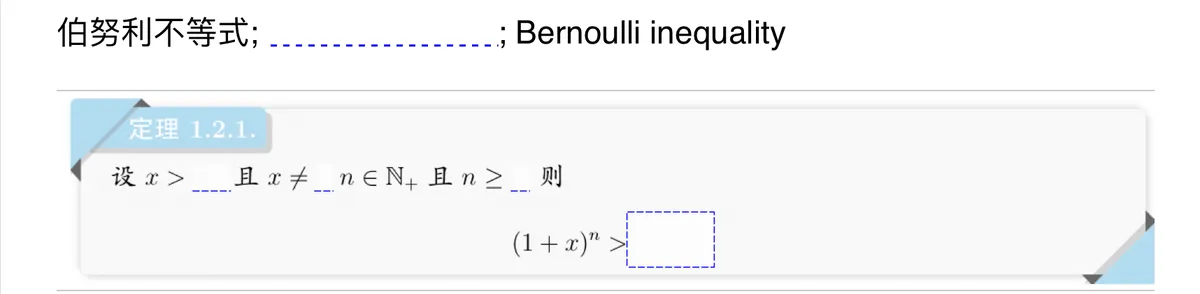
💡How to set up cloze and cloze groups in bulk: see Section 3.2 of this page
2.4 Edit Question

Extract content from the card back to use as the question on the flashcard front.
Default rules:
- By default, the card title is used as the flashcard question
- If the card has no title, the first excerpt/comment is used as the flashcard question by default
Changing the default rule for a single card:
Tap Edit Question to manually edit the front question for that card.
Changing the global default setting:
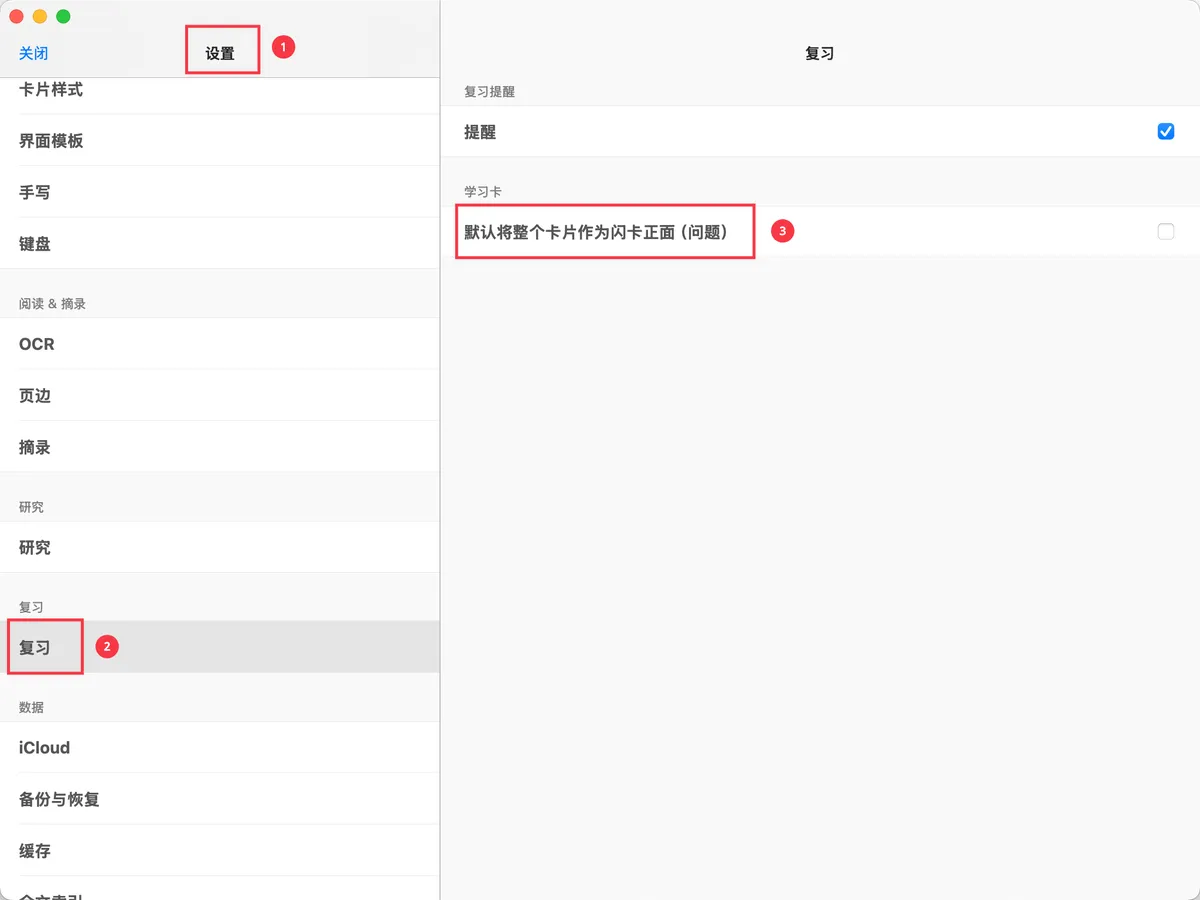
- To use the entire card as the flashcard front : go to MN4 Settings - Review and turn on
Use the entire card as the flashcard front (question) by default - To use emphasized content as the flashcard front : set this in bulk within the review card deck; see Section 3.3 of this page
2.5 Remove from Review
Tap Remove from Review to delete the card from the review card deck.
⚠️Note: Remove from Review does not delete the corresponding mind map card or document excerpt; it only cancels the card's review.
3 Setting the Front and Back in a Review Card Deck
This method is suited to setting many cards uniformly in bulk for greater efficiency.
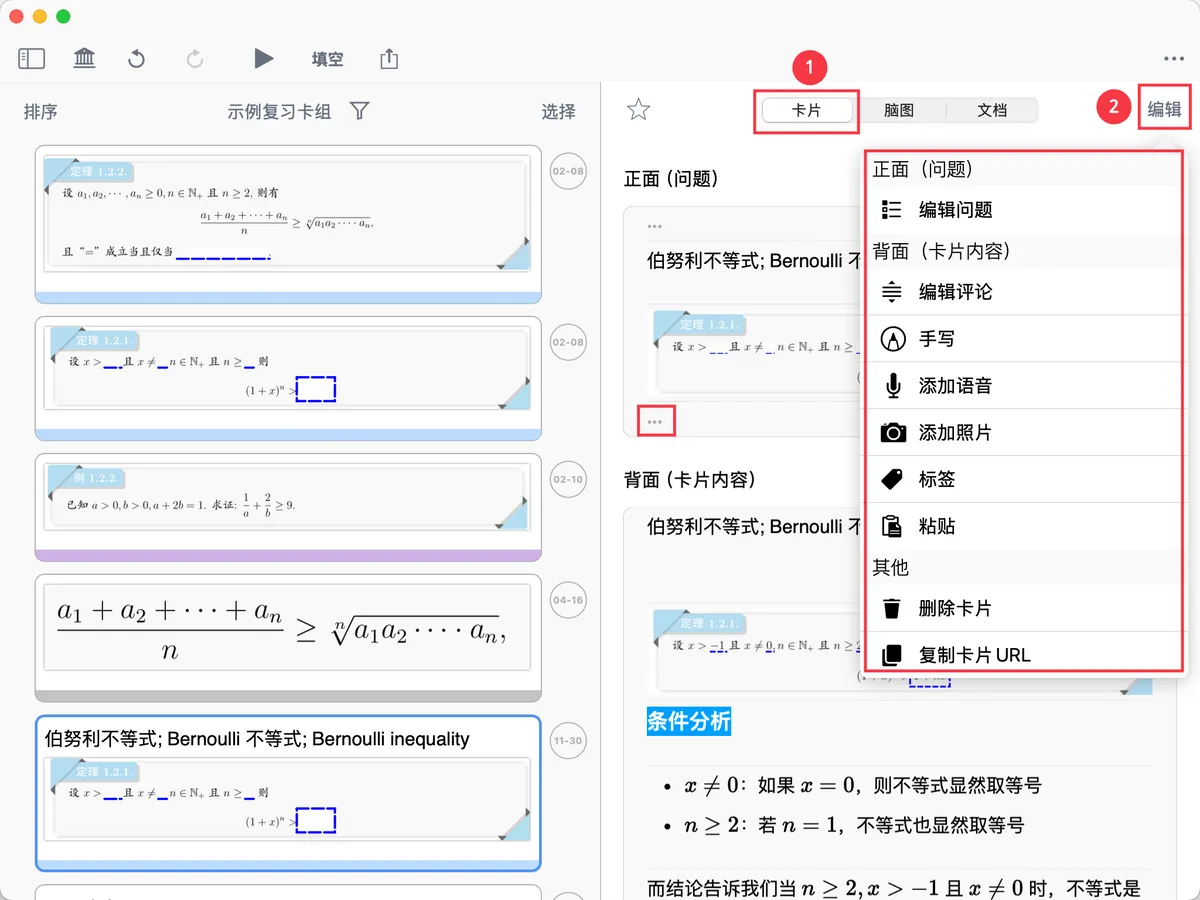
Opening the review card deck view:
On the MN4 home screen, tap Review Card Decks in the left sidebar → select the target review card deck
3.1 Editor Panel
Tap Edit in the top-right corner of the Card panel on the right to bring up the editor panel.
In the editor panel, you can perform operations similar to those in the card editor:
- Tap the
...on the front or back to add a comment - Other operations are largely the same as in Section 2
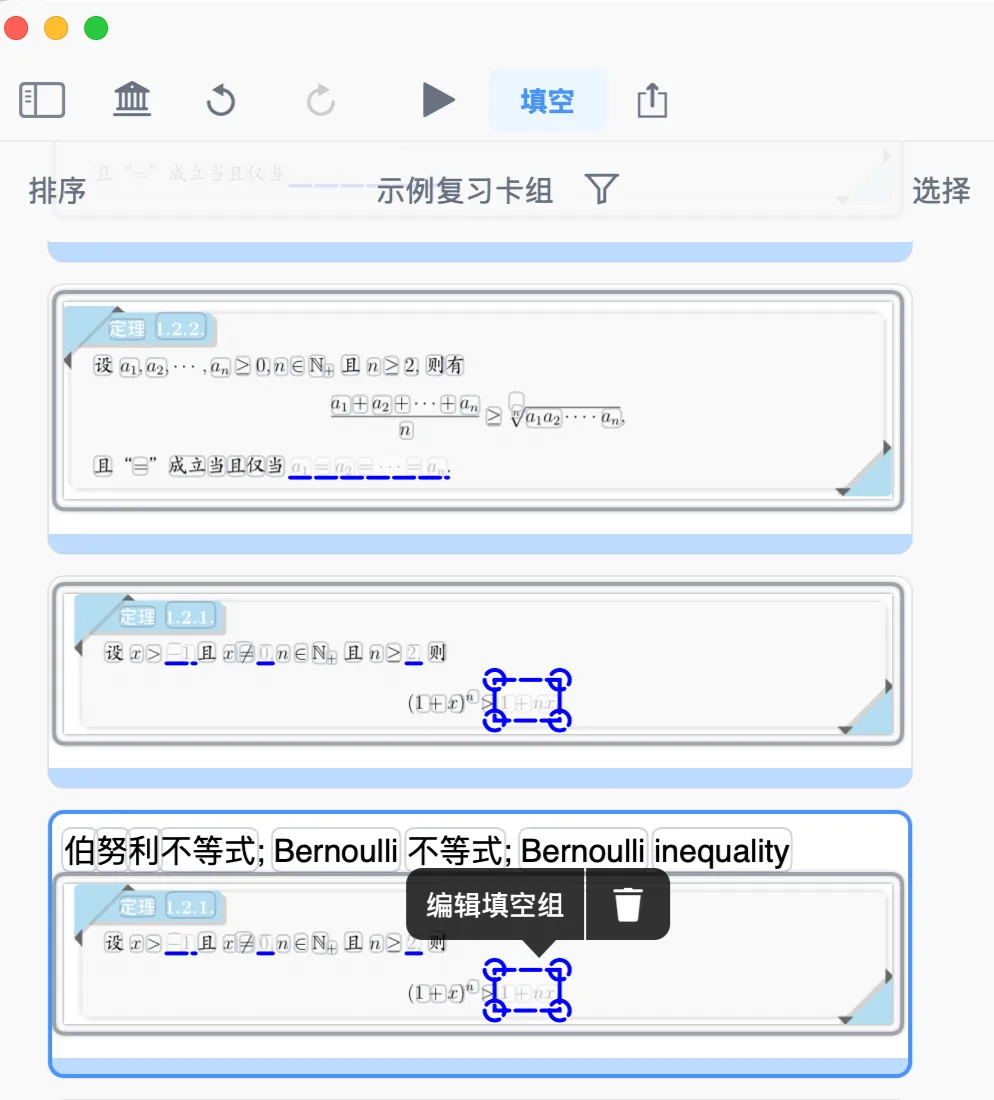
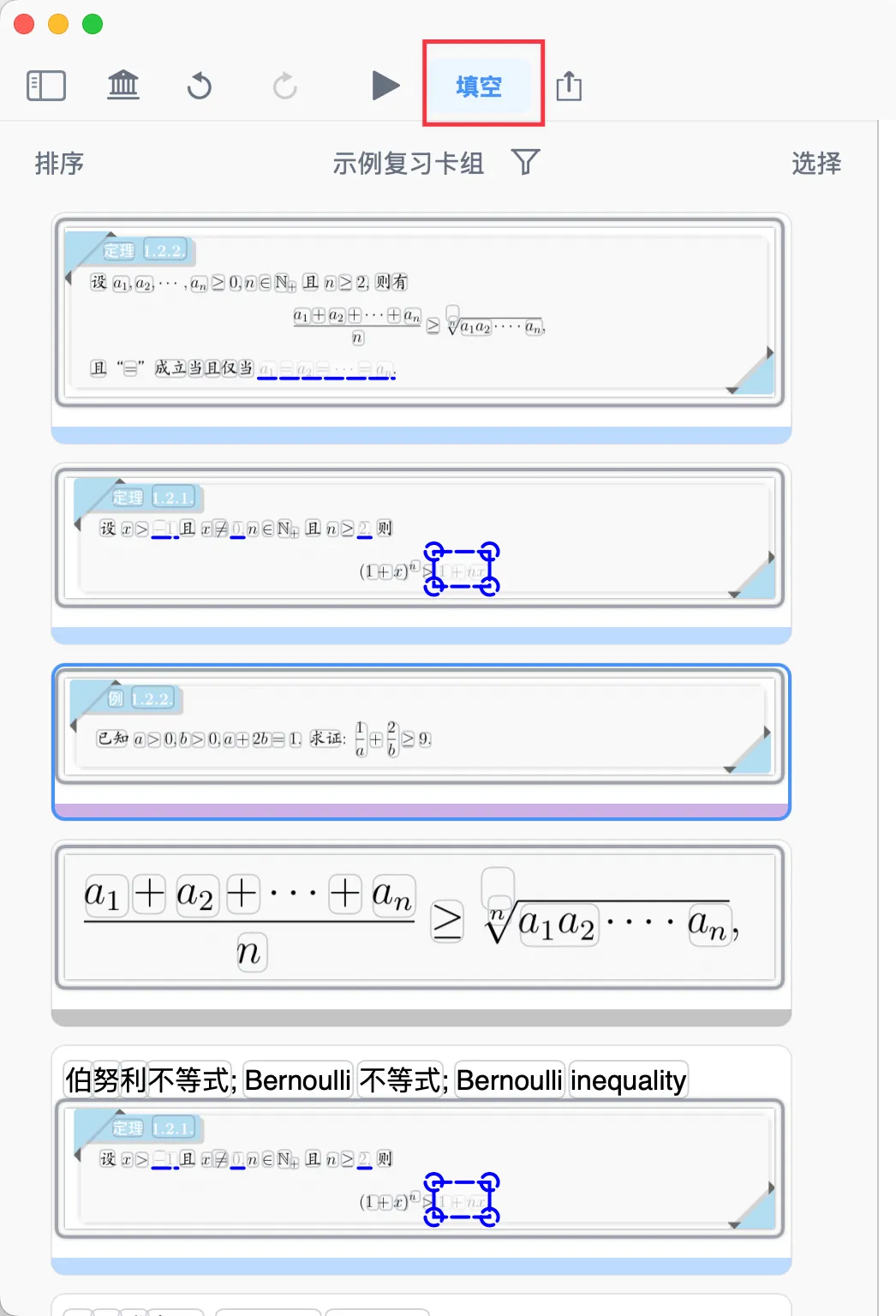
3.2 Bulk Cloze and Editing Cloze Groups
- Tap
clozeat the top of the flashcard list on the left to enter emphasize/cloze mode, where you can quickly emphasize content on the flashcard front (question) -
Basic operations:
- You can emphasize characters
- You can emphasize part of an image
-
Advanced feature:
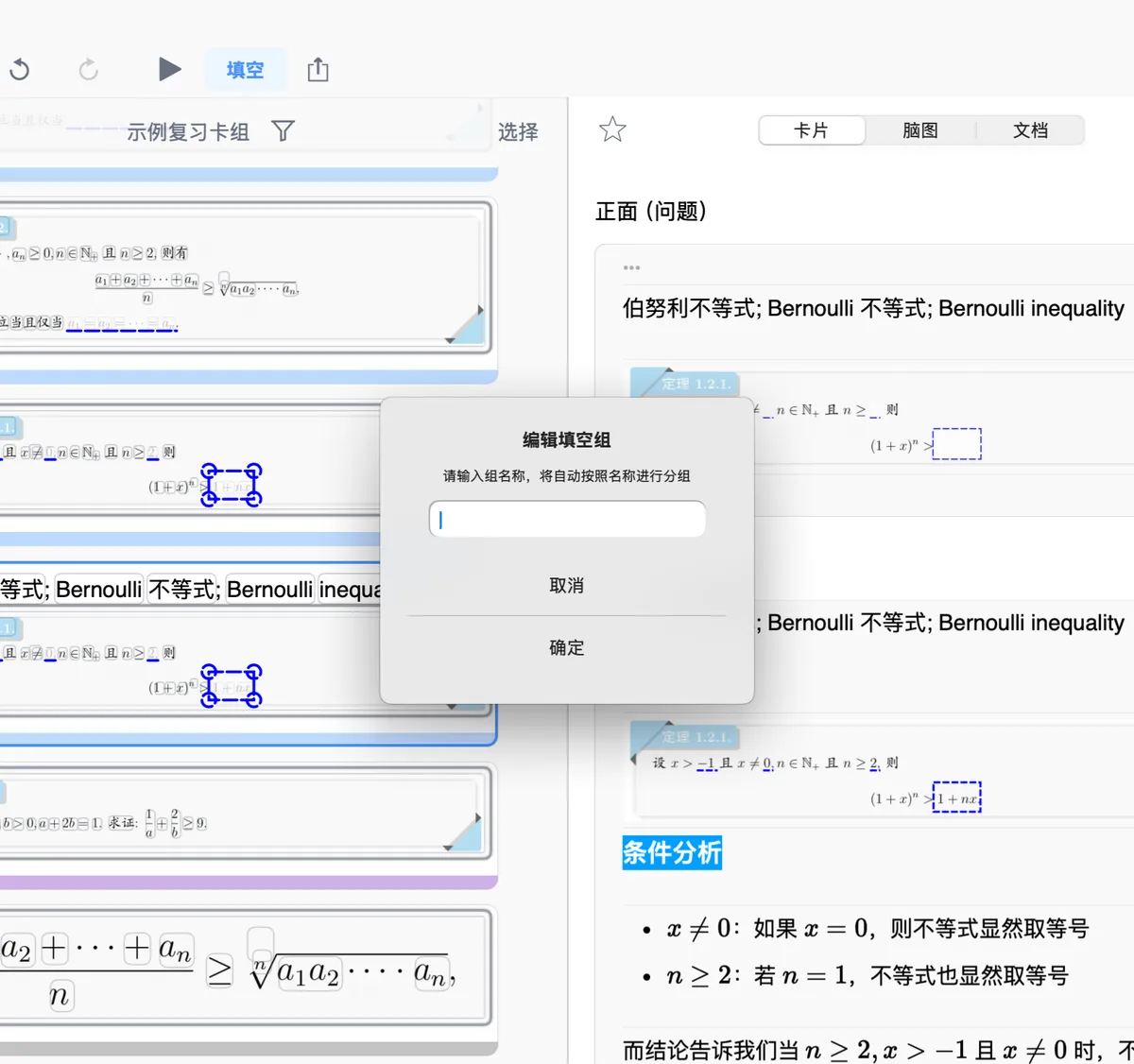
Edit Cloze GroupTap an existing rectangular emphasis (cloze) to group them.
💡Why group clozes?
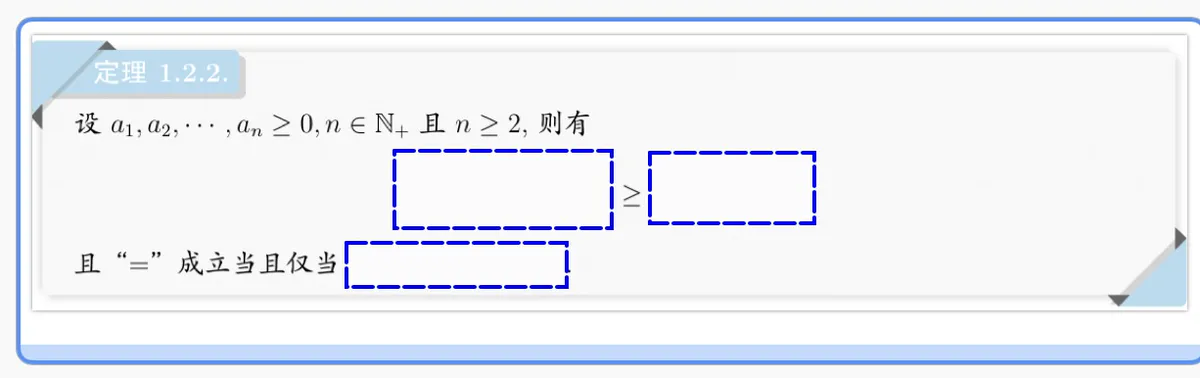


When reviewing a cloze question with multiple blanks, grouping lets you control the flip order:
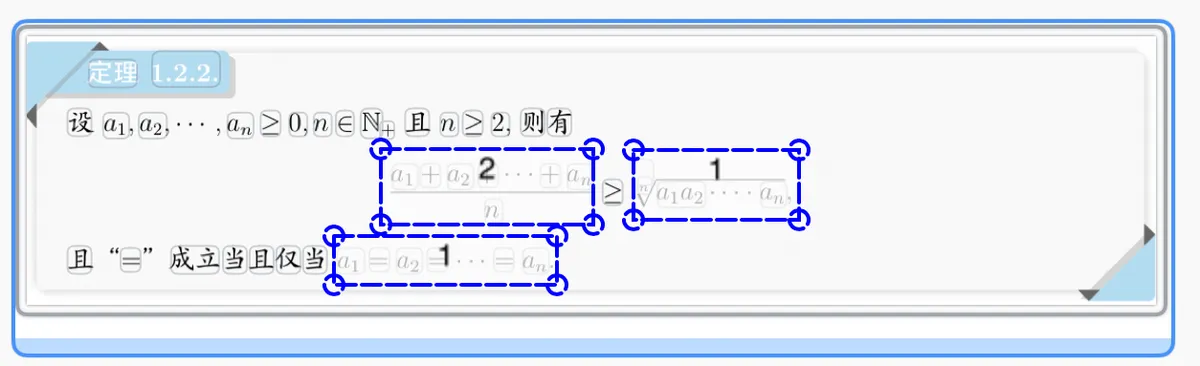
- Each tap on the flashcard front flips all emphasis marks in the same group at once
- The flip order of the groups is determined by the group name sorting
Grouping example:
A flashcard front has 10 emphasis marks. Do the following:
- Set 5 of them to "1" (or "Cloze Group 1")
- Set the other 5 to "2" (or "Cloze Group 2")
Review result:
- First tap on the flashcard front → the 5 emphasis marks in group "1" flip together
- Second tap on the flashcard front → the 5 emphasis marks in group "2" flip together
3.3 Occlude Highlighter Marks and Emphasis
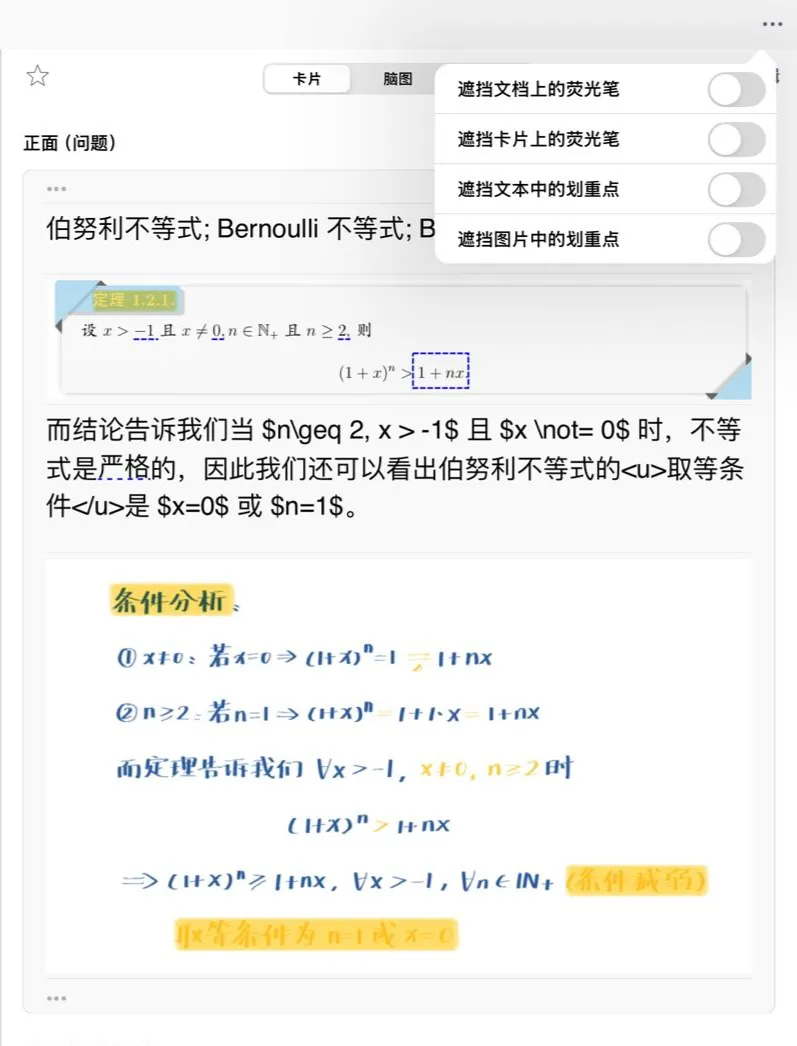
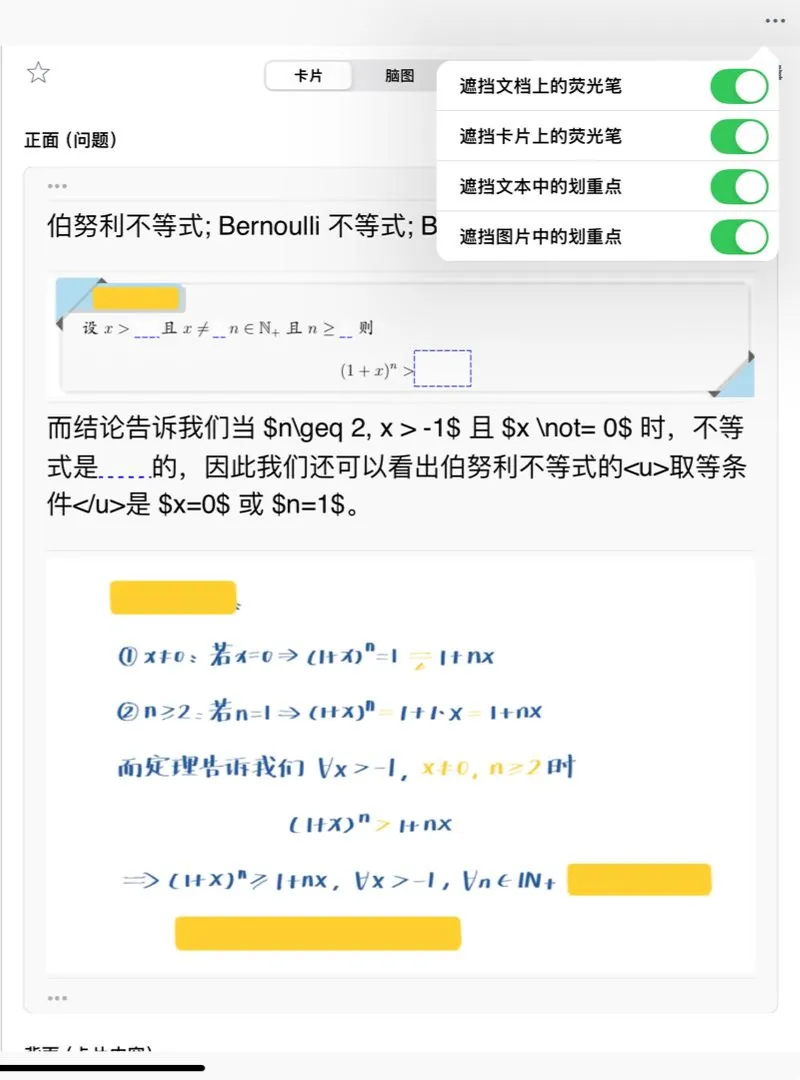
Tap the ... in the top-right corner to set occlusion rules for highlighter marks and emphasis
Occlude Highlighter in Documents: highlighter marks from the document on the flashcard front will be blanked outOcclude Highlighter on Cards: highlighter marks from mind map cards on the flashcard front will be blanked outOcclude Emphasis in Text: emphasis in text excerpts on the flashcard front will be blanked outOcclude Emphasis in Images: emphasis in images on the flashcard front will be blanked out
💡How do you choose occlusion settings?
Based on your study habits, enable only the options you'll actually use:
Your habit Recommended Highlighting key points in documents ✅ Occlude Highlighter in Documents Highlighting on cards ✅ Occlude Highlighter on Cards Emphasizing in text excerpts ✅ Occlude Emphasis in Text Emphasizing in image (rectangle/lasso) excerpts ✅ Occlude Emphasis in Images
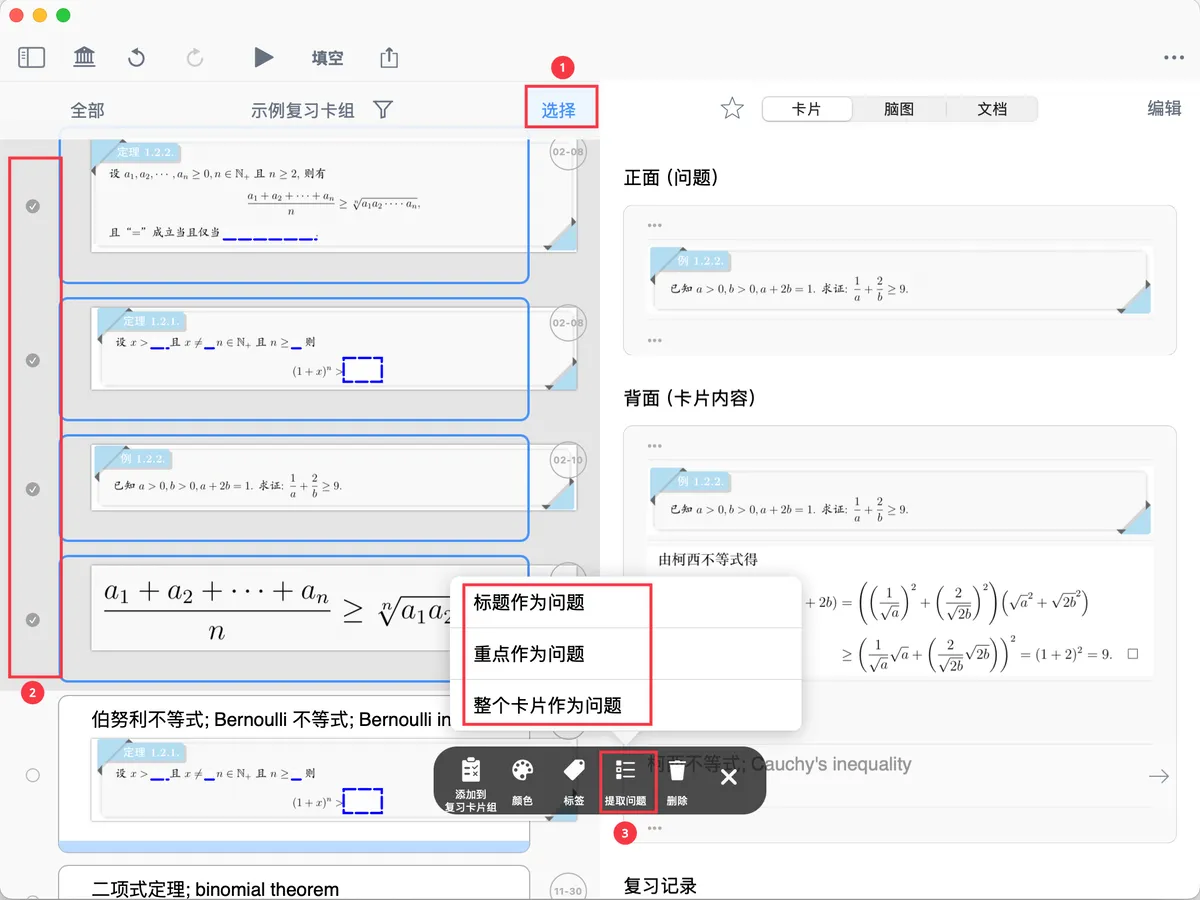
3.4 Bulk Extract Questions
- Tap
Selectat the top of the flashcard list on the left, then multi-select (or select all) the target cards -
Tap
Extract Questionin the pop-up menu bar at the bottom to quickly change the default front setting for those cards in bulkThree extraction methods:
Title as Question: use the card title as the flashcard frontEmphasis as Question: use the comment containing emphasis/cloze marks as the flashcard frontEntire Card as Question: use the entire card as the flashcard front
💡How do you choose an extraction method?
Extraction method Best for Example Title as Question The card title is already a question Title: "What is Bernoulli's inequality?" Emphasis as Question The card has emphasized key content Emphasis: "(1+x)ⁿ ≥ 1+nx" Entire Card as Question You need to memorize a whole passage An entire theorem statement Recommendation: In most cases, use "Title as Question", which is also MN4's default setting.
-
Other bulk operations:
In the pop-up menu bar at the bottom, you can also batch-edit:
- Color: change the color of all selected cards at once
- Tags: add or change tags uniformly
- Add to review card deck: add the cards to another review card deck (which also removes them from the current deck)
4 FAQ
Q1: Can I change the order of cloze groups?
A: Yes. The flip order of cloze groups is determined by the sorting of the group names. For example, if you change the group names from "1, 2, 3" to "3, 2, 1", the flip order is reversed.
Q2: What happens if I delete the flashcard front setting?
A: It reverts to the default setting (using the card title as the question). Deleting the setting does not affect the card's content.
Q3: Can I set multiple questions for the same card?
A: No. A card can have only one front (question). If you need multiple questions, we recommend duplicating the card and setting a different question for each copy.
Q4: Does editing a question in the card editor affect bulk settings?
A: No. A single card's setting takes precedence over bulk settings. If you've manually edited the question for a card, bulk Extract Question won't overwrite that card.
Q5: What is "Entire Card as Question"?
A: The front and back show the same content, which is ideal for creating fill-in-the-blank questions.
5 📌 Next Steps
Congratulations — you've mastered how to set the front and back of a flashcard!
You can now:
- ✅ Fine-tune the question for an individual card
- ✅ Set rules for many cards in bulk
- ✅ Create cloze and fill-in-the-blank questions
- ✅ Control the flip order of clozes
The flashcard-creation tutorial series is now complete. Next, start learning how to review scientifically to make your memory last longer:
→Start reviewing: Flashcard Review ①: Scientific Review Based on the FSRS Anti-Forgetting Algorithm
During review, you can also learn how to use context to aid memory:
→Advanced review: Flashcard Review ②: Source Context