Custom AI API Configuration Guide (Version 4.4.4 and Later)
📌
Custom AI (Max)is an advanced setting available to Max users. It connects your own service provider or local model service to MarginNote AI. After Custom AI is enabled, you can route MarginNote's AI requests to your chosen model service and use models that better match your needs when reading, excerpting, organizing cards, and asking in-depth questions. This guide explains how to enter the service address, key, and model names, and how to confirm that Custom AI has been bound successfully. After binding succeeds, all AI features in MarginNote use the current Custom AI configuration.If you do not configure Custom AI, you can use MarginNote's built-in AI features, which consume AI credits. For details about AI credits, see:
1 What You Need Before You Begin
Before configuring Custom AI, make sure you have an AI service that can be called. MarginNote uses the OpenAI Chat Completions API format, so a Custom AI API must be fully compatible with the OpenAI Chat Completions format and accessible from the current device.
Common requirements and API compatibility requirements:
- An accessible
Base URL: it must provide an OpenAI-compatible chat completions endpoint, for example https://api.openai.com/v1/chat/completions (refer to the MaaS platform's API documentation for the exact address), together with its correspondingAPI Key. If a local service does not require a key, leave this field blank. - A
Mini Modelfor lightweight tasks and aNormal Modelfor regular tasks (they may use the same model). Both theMini ModelandNormal Modelmust support streaming output and multimodal image input, which is mainly used for image recognition. - The
Normal Modelmust also support OpenAI-compatibletool_callsand tool-result submission. - Make sure MarginNote 4 is updated to version 4.4.4 or later (👉Check for Updates in the App Store)
If you use a local model service, start it before returning to MarginNote and entering its address. Example: http://127.0.0.1:1111/v1/chat/completions
2 Opening the Custom AI Settings
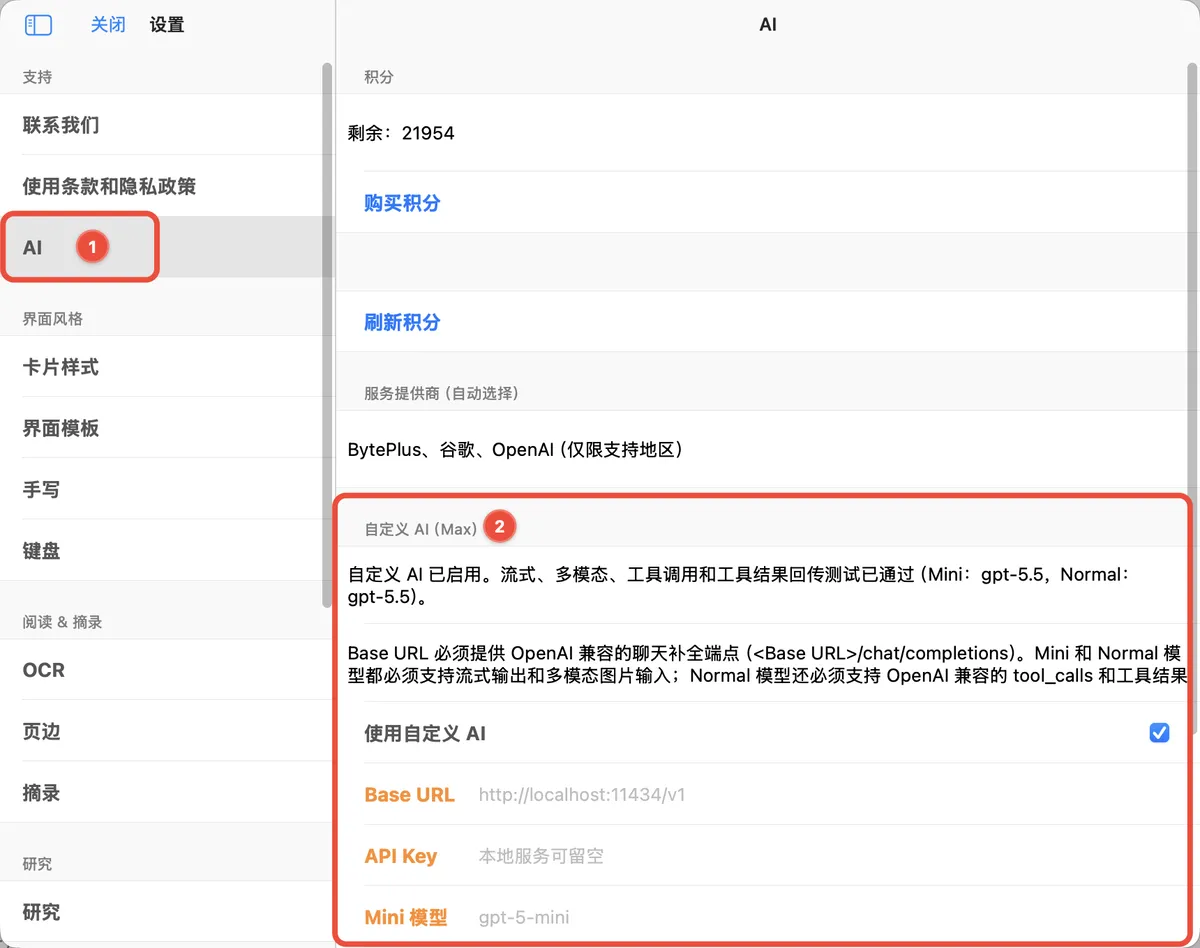
- Open MarginNote.
- Open
Settings. - Select
AIin the sidebar. - Find the
Custom AI (Max)section.
3 Entering Connection Information
📌You can select a provider preset directly in MarginNote to quickly configure common providers.
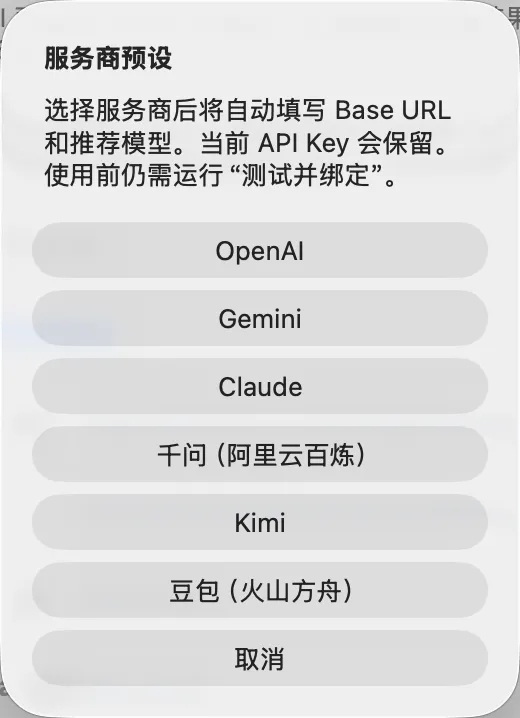
Enter the following fields in order:
Base URL: Enter the AI service endpoint. For a local service, enter the local service address; for a cloud service, enter the endpoint supplied by the provider.API Key: Enter the key supplied by the provider. Leave this blank if the local service does not require a key.Mini Model: Enter the model name used for lightweight tasks, such as quick organization and simple questions.Normal Model: Enter the model name used for regular tasks, such as long-text understanding, complex questions, and card organization.
Enter the exact model name registered on the server. Do not add quotation marks or enter descriptive text. Model names are case-sensitive (most are lowercase; examples: claude-opus-4-6, gpt-5.5, gemini-3.1-pro-low).
4 Testing and Binding Custom AI
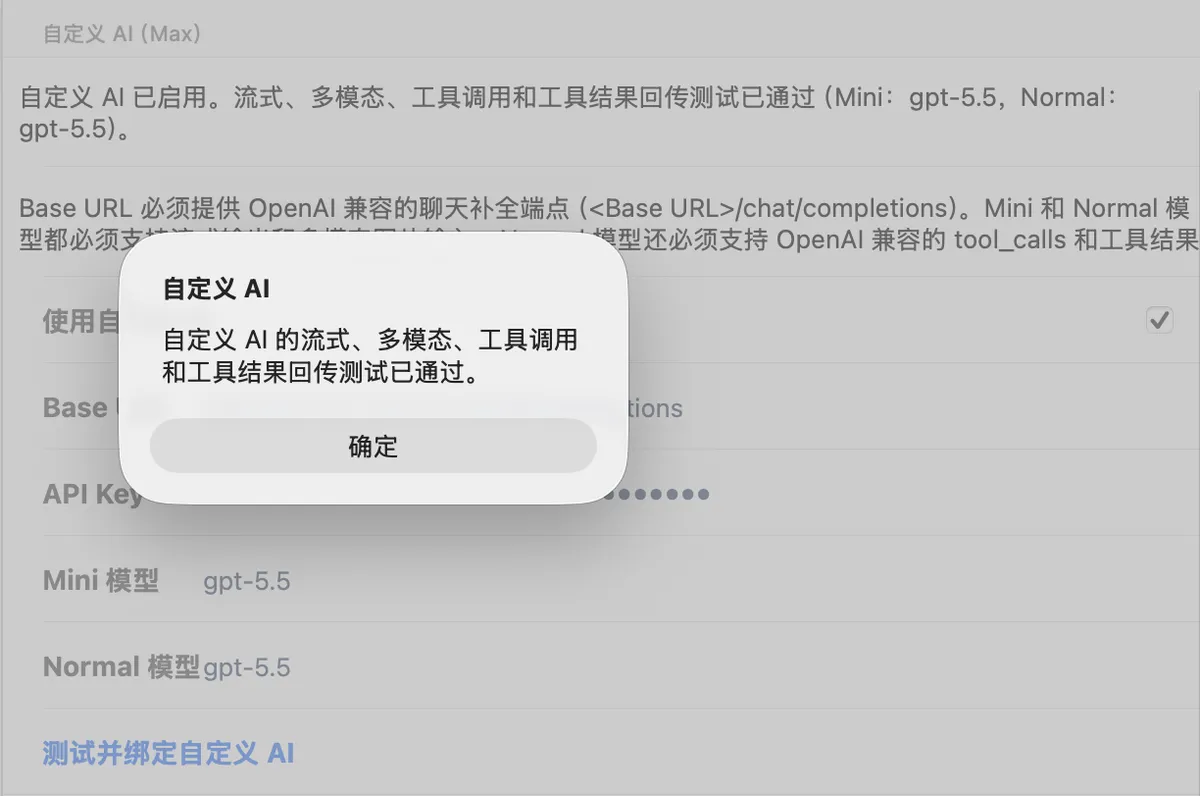
After entering the settings, tap Test and Bind Custom AI.
MarginNote checks basic connectivity, streaming output, multimodal input, tool calls, and tool-result submission in sequence. After all tests pass, Custom AI is enabled automatically. The page displays a message stating that the Custom AI streaming, multimodal, tool-call, and tool-result submission tests have passed, together with the currently bound Mini Model and Normal Model.
💡If a test fails, check the following first:
- Whether the
Base URLis accessible from the current device.- Whether the local model service is running.
- Whether the
API Keyis correct, or whether the local service permits an empty key.- Whether the
Mini ModelandNormal Modelnames exactly match the names registered on the server. Aliases are not supported and names are case-sensitive. Also confirm that the corresponding models support multimodal image recognition, streaming output, OpenAI-compatibletool_calls, and tool-result submission.- Whether the current network permits access to the service.
5 When to Change the Settings
When you change models, switch providers, or move between a local service and a cloud service, return to Settings > AI and update the Base URL, API Key, Mini Model, and Normal Model.
After making changes, tap Test and Bind Custom AI again. The new Custom AI configuration should only be used for subsequent reading, excerpting, and card processing after the test passes.
6 Features That Use Custom AI
After the custom API is configured successfully, all AI features in MarginNote use the current Custom AI configuration.
If you do not configure Custom AI, you can use MarginNote's built-in AI features, which consume AI credits. For details about purchasing credits, see:
- AI Floating Window (Ask)
- AI Chat Sidebar (Chat)
- AI Table of Contents
- Memory Recall
- One-Tap AI Recognition as Markdown Text
- AI OCR
7 Error Analysis
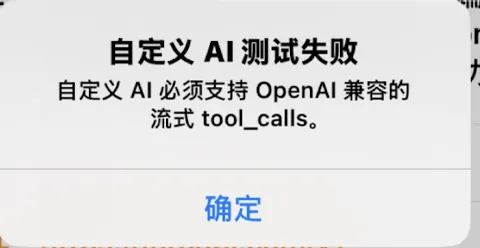
- The multimodal test passes, but tool calls (
tool_calls) have a compatibility issue.
- Cause: Streaming tool calls fail because the service is not fully compatible with the OpenAI Chat Completions format.
- Solution: Change the model or MaaS API platform.
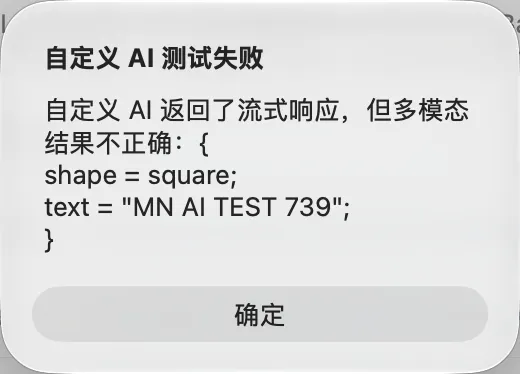
- The Custom AI test fails. Custom AI must support OpenAI-compatible streaming
tool_calls.
- Cause: Some proxy services support only the OpenAI Responses API format and do not support the Chat Completions format.
- Solution: Change the MaaS API platform.