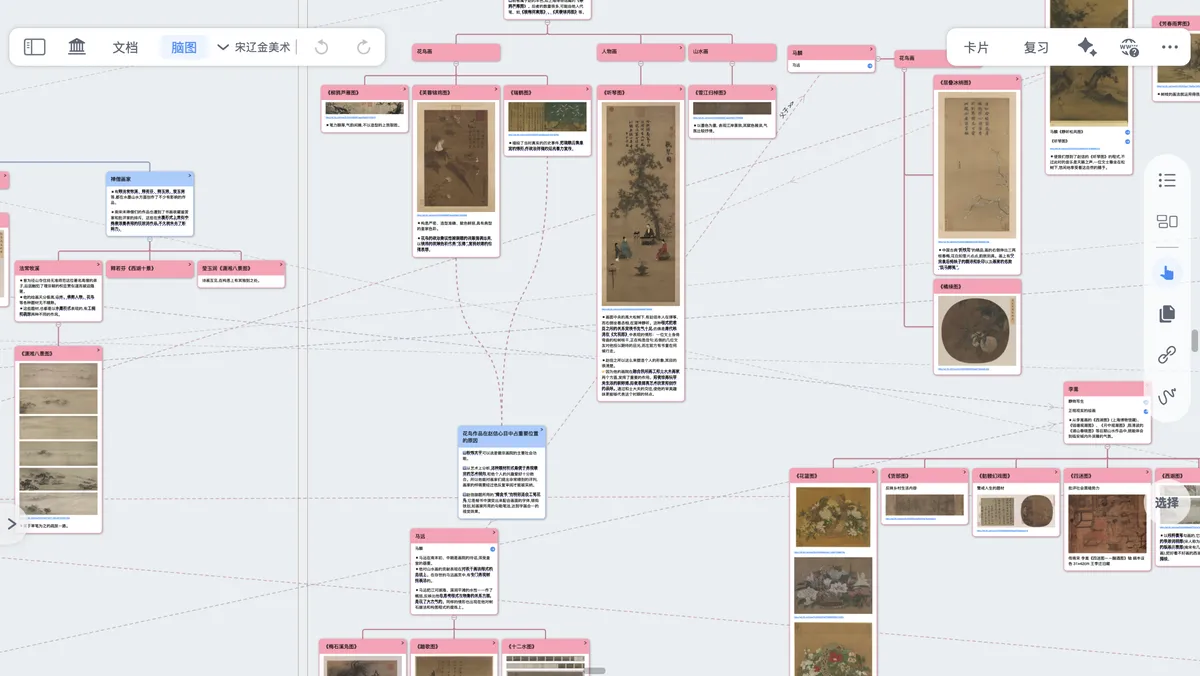
Card Links ① | One-Way and Two-Way Links: Free Association Across Hierarchies
💡Besides the "relatively fixed" node structure of parent-child relationships, cards also have a more "free" structure—the link.
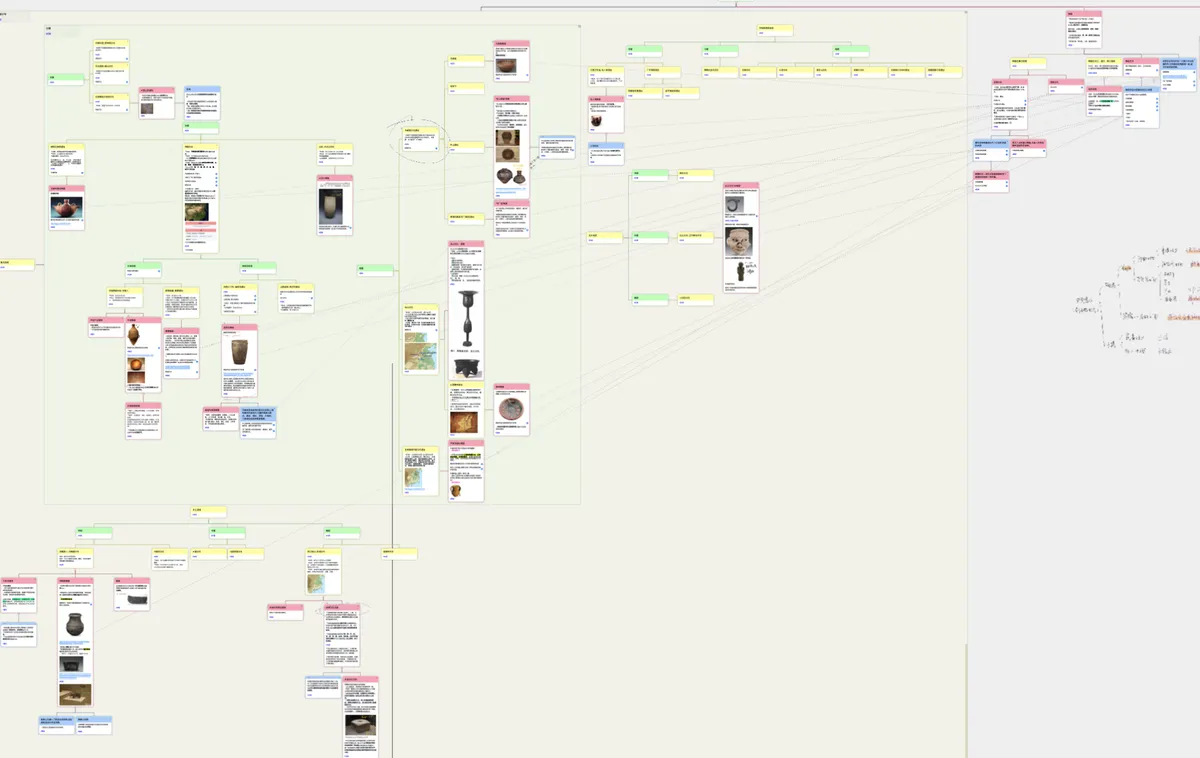
The advantage of links is that they place no restriction on where the two cards sit: the cards can come from different sub-mind maps, or even different study sets, and you can jump to view them at any time.
1 Understanding Links
1.1 What Is a Card Link
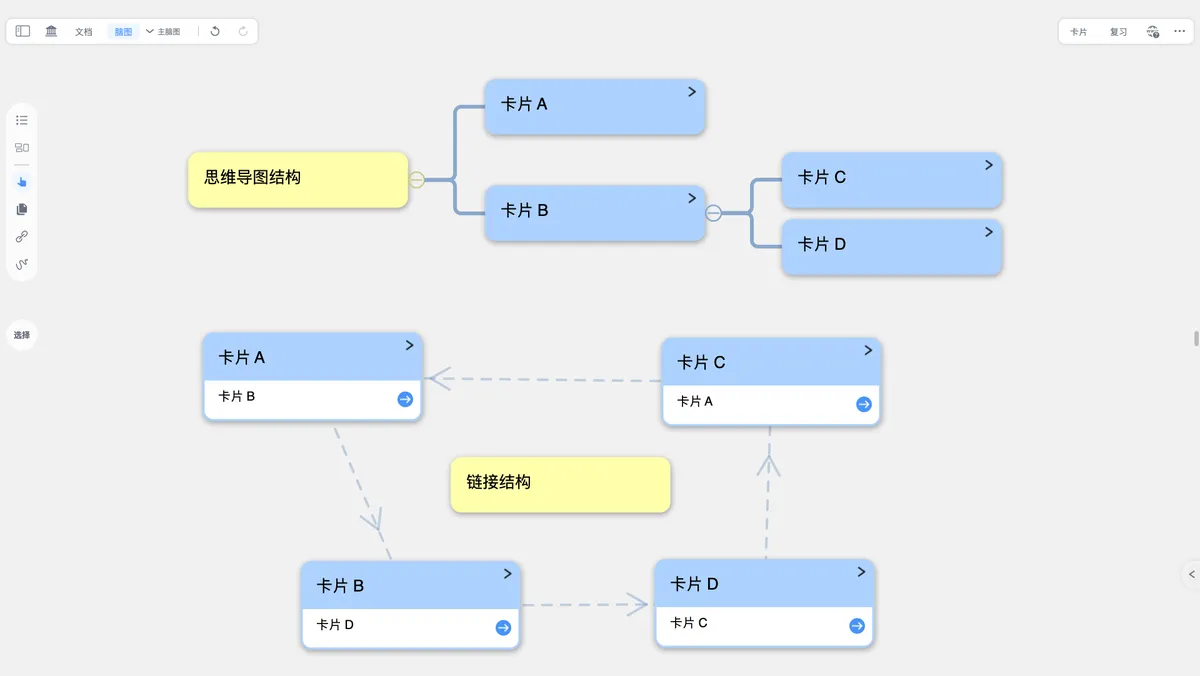
- A card link is a way of forming free associations in MarginNote 4 that breaks out of the mind map's fixed parent-child node structure.
- Unlike the mind map hierarchy, which can only associate cards by level within the same
sub-mind maporstudy set, card links are not restricted by where a card is located. Cards in different sub-mind maps, or even different study sets, can all be linked, and you can jump to view them at any time, making knowledge associations more flexible and efficient.
1.2 Two-Way vs. One-Way Links: Quick Comparison Table
| Type | Key Characteristics | Typical Use Cases |
|---|---|---|
| Two-Way Link | - The two cards are associated with each other - Each card's comment area shows a link to the other - A dashed link line with arrows pointing both ways | 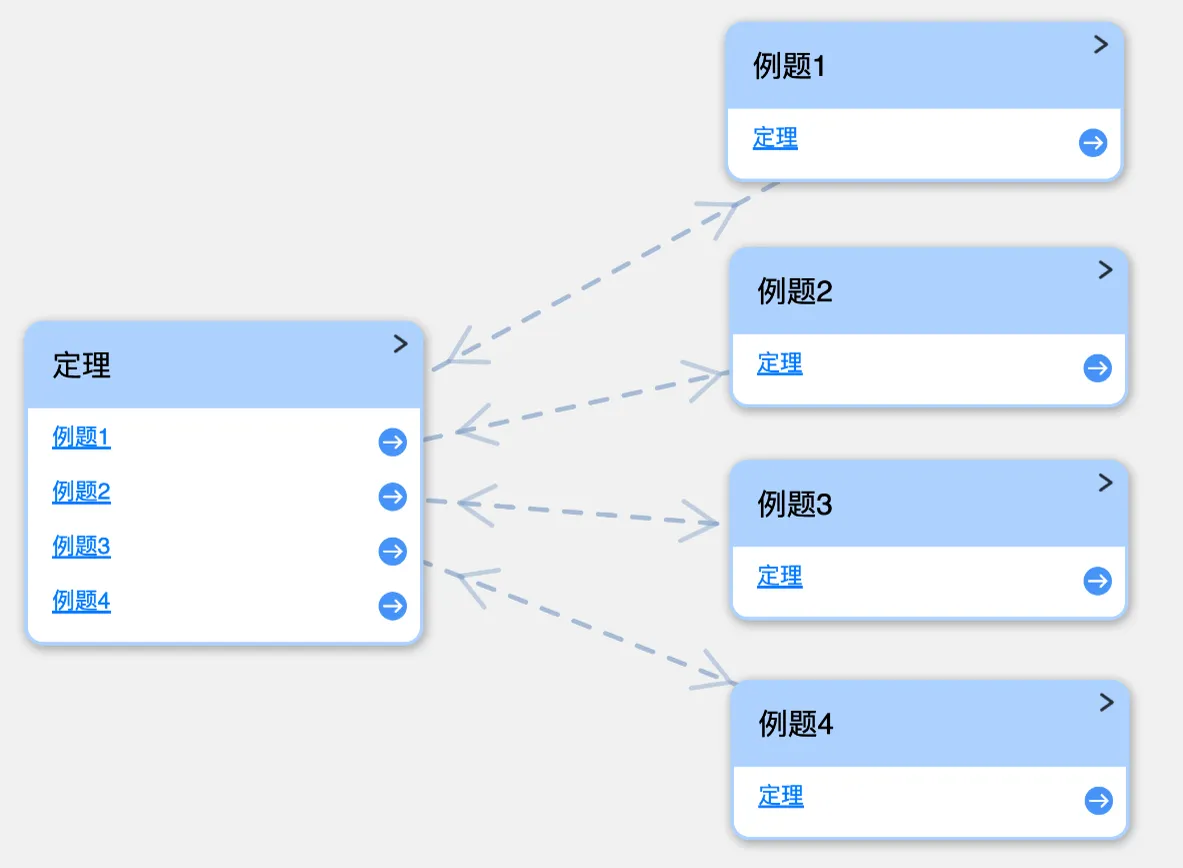 |
| One-Way Link | - Creates an association in a single direction only - Only the target card's comment area shows a link to the source card - The link line has a single-direction arrow | 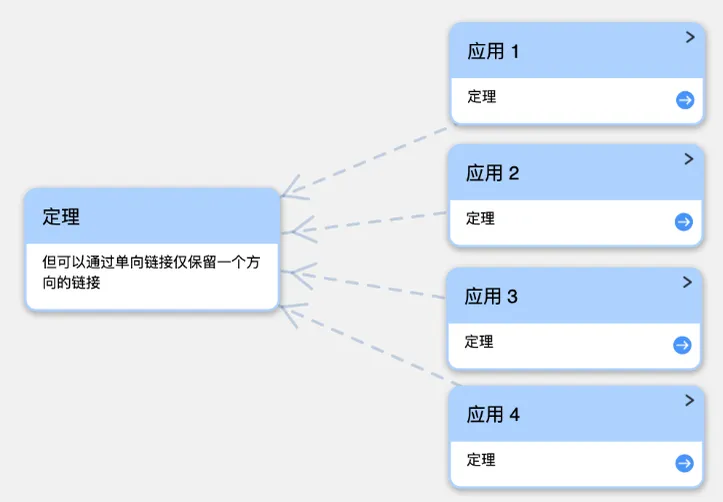 |
1.3 Use Cases
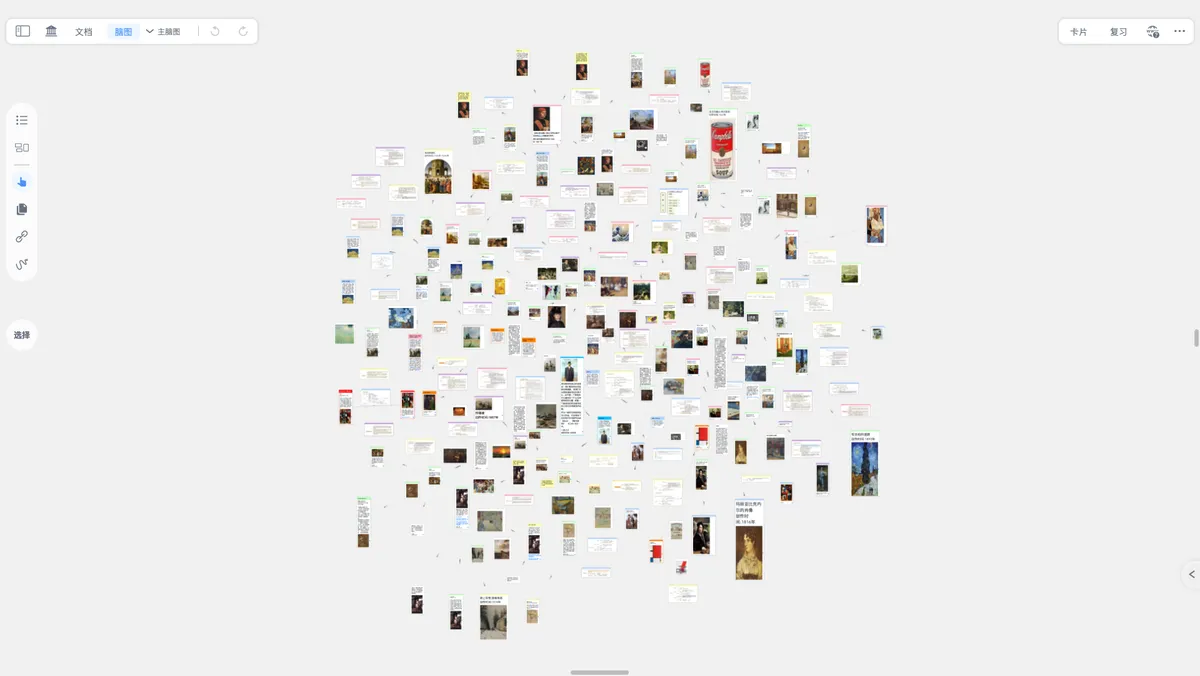
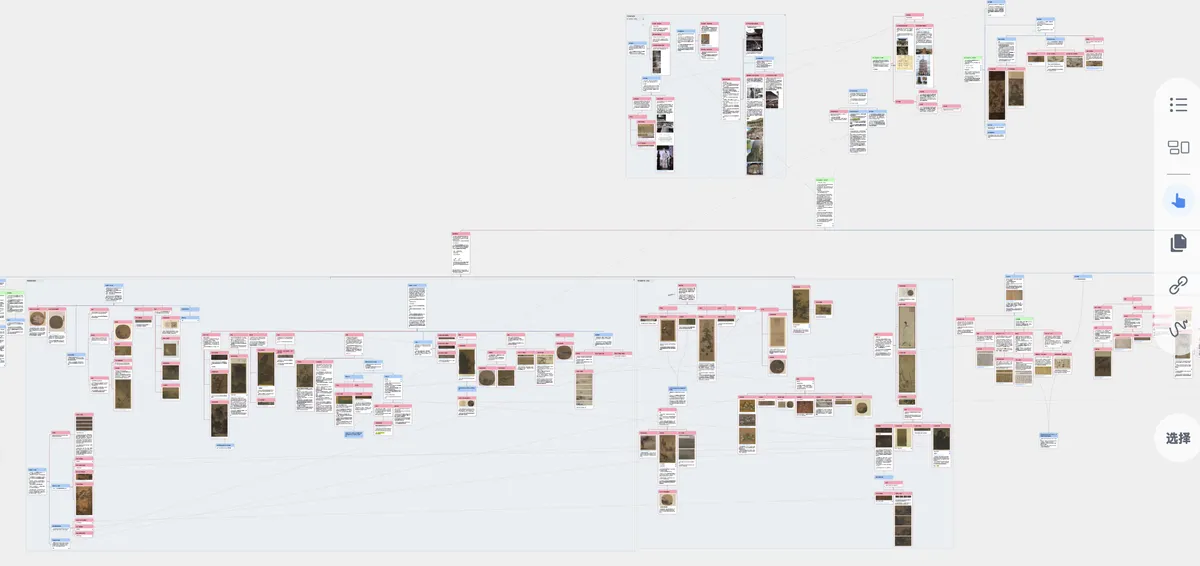
Card links are primarily used to create cross-dimensional associations between pieces of knowledge. Beyond the academic scenarios mentioned in the comparison table above, they can also be used for:
- Linking historical events to related figures and background knowledge;
- Linking specialized knowledge points to their reference materials and literature excerpt cards;
- Linking argument cards to supporting case cards in reading notes; and so on.
2 Creating Links
2.1 Method 1: Link Ball (Two-Way Only)
- Click card A, the card you want to link, and choose
Linkfrom the card menu that pops up; - A link ball then appears in the center of card A;
- Drag this link ball onto target card B to create a two-way link between the two cards.

📌The link created by the link ball is two-way, so if you click card B and follow the same steps to drag its link ball onto A, you will also create a two-way link.
2.2 Method 2: Drag a Card (Recommended)
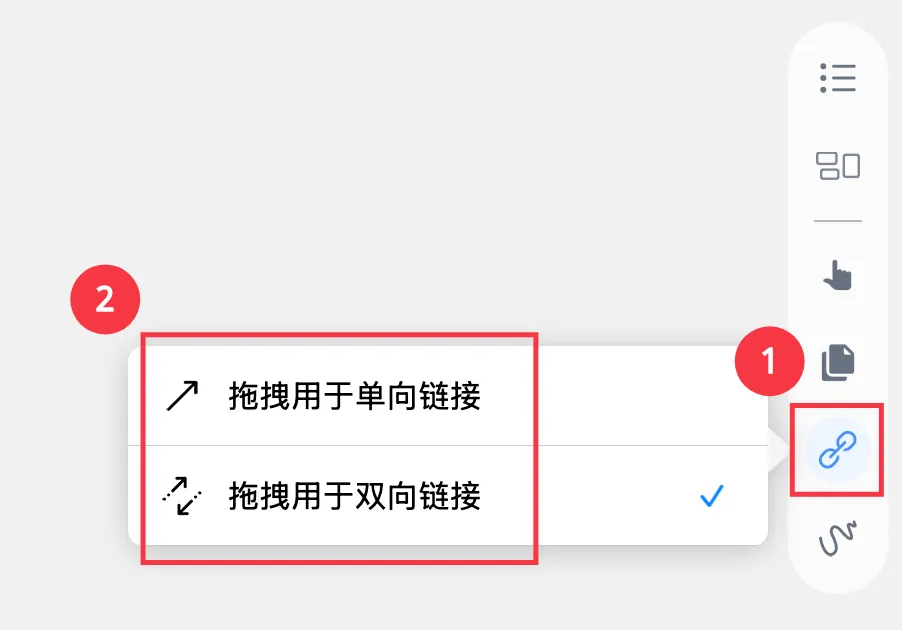
- First, switch to drag-to-link mode in the mind map (two-way / one-way)
Click the link tool in the mind map's side toolbar, then choose a link mode as needed:
Drag for One-Way LinkDrag for Two-Way Link

- Press and hold the source card you want to link, then drag it onto the target card;
- When a solid blue border appears around the target card, release the source card to create the link.


⚠️Note: unlike a two-way link, the result of dragging for a one-way link depends on which card you start from. Dragging from card B to card A produces the opposite result of dragging from card A to card B.
2.2.1 Comparing the Results (Two-Way vs. One-Way)
| Result | Illustration | |
|---|---|---|
| Two-Way Link | - The source and target cards each show a link to the other in their comment areas - A dashed link line with arrows pointing both ways is created between them | 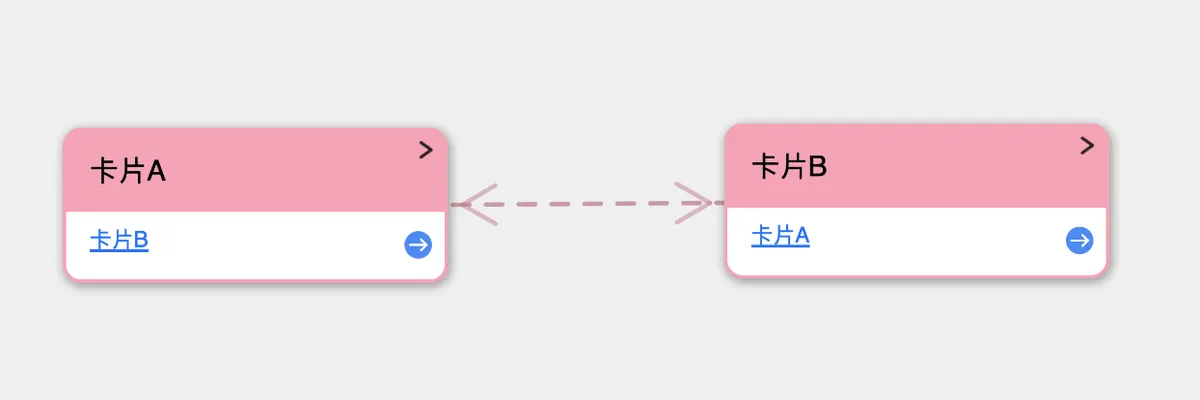 |
| One-Way Link | - Only the target card's comment area shows a link to the source card - A link line with a single-direction arrow (pointing from target to source) is created between them | 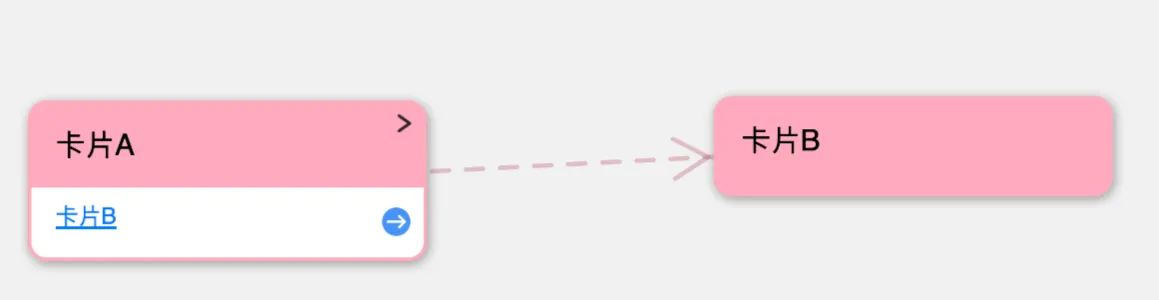 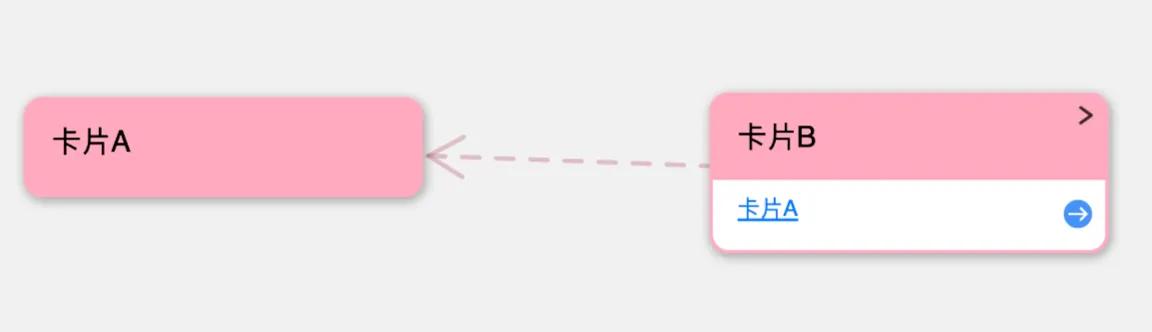 |
3 Using Links
3.1 Jumping to View (Single-Click Popup vs. Double-Click Jump)

Once a link exists, you can access the linked card by single-clicking or double-clicking it; the two actions just have different effects.

- Single-click the link: shows the corresponding card in a floating popup
- Double-click the link: jumps to the corresponding card
3.2 Adding a Note
You can add a short note to a link line.
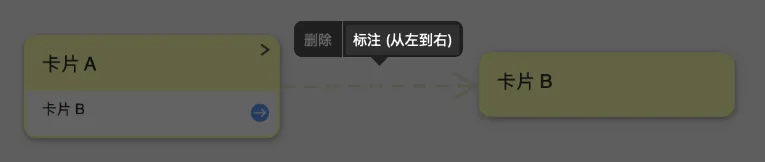
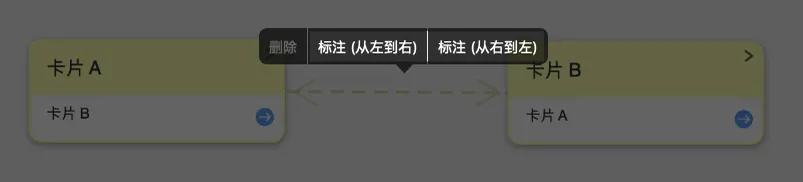
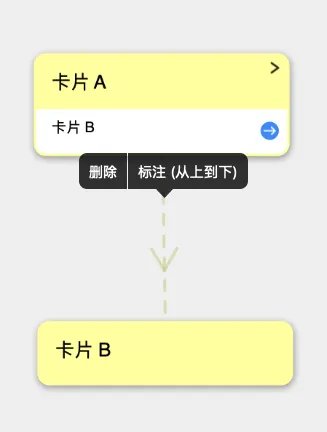
- Click the link line, then click
Annotatein the menu that pops up; you can choose the direction of the annotation
💡There are four
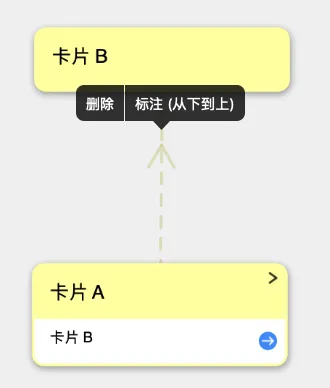
Annotatedirections in total, depending on the relative positions of the two cards.
Direction Annotate (left to right)Annotate (right to left)Annotate (bottom to top)Annotate (top to bottom)Illustration


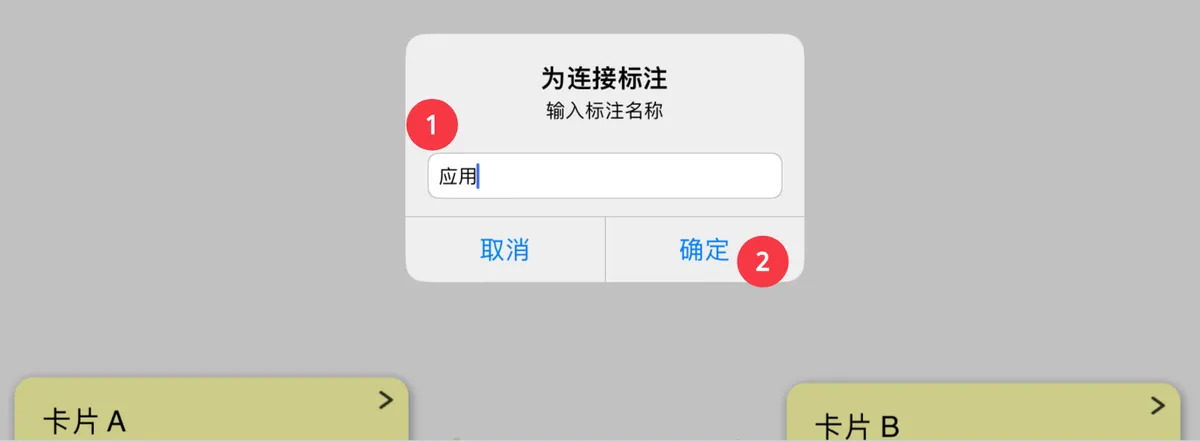
- Enter your note in the input box that appears, then click OK.
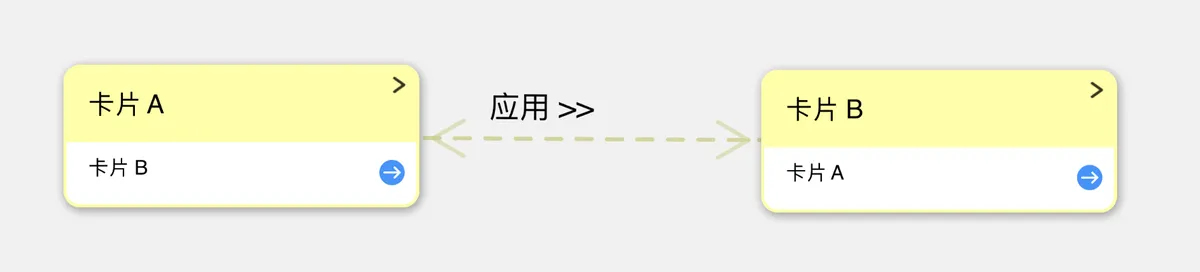
3.3 Deleting a Link
There are two ways to delete a card link:

- General method: open the
card editor→ delete the link text
-
Quick method: click the
link line→Delete-
Steps:
- Click the link's link line
- Click
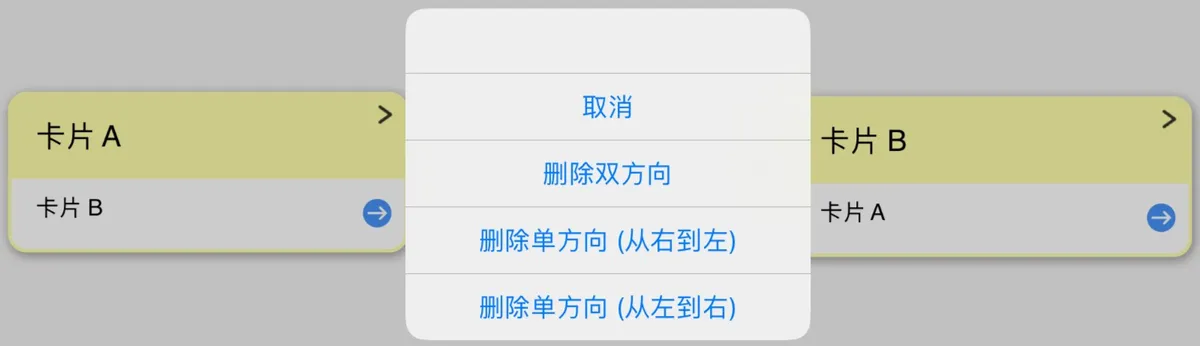
Deletein the menu; when the dialog appears, confirm which link direction to delete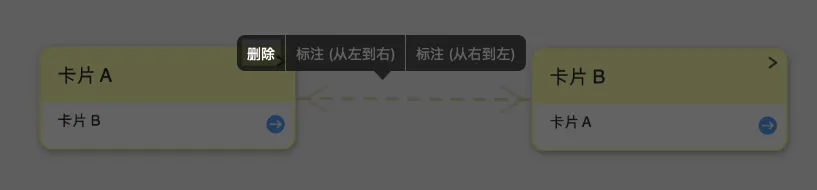
-
Results:
-
Delete Both Directions: deletes the link to B in card A and the link to A in card B
-
Delete One Direction (left to right): deletes only the link to card B in card A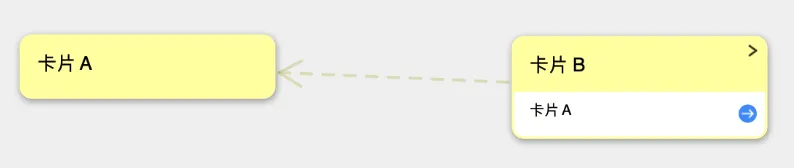
-
Delete One Direction (right to left): deletes only the link to card A in card B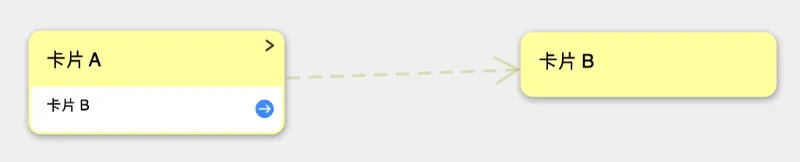
-
-
4 Advanced Uses of Links
4.1 Changing a Two-Way Link to a One-Way Link
See 3.3 Deleting a Link for details
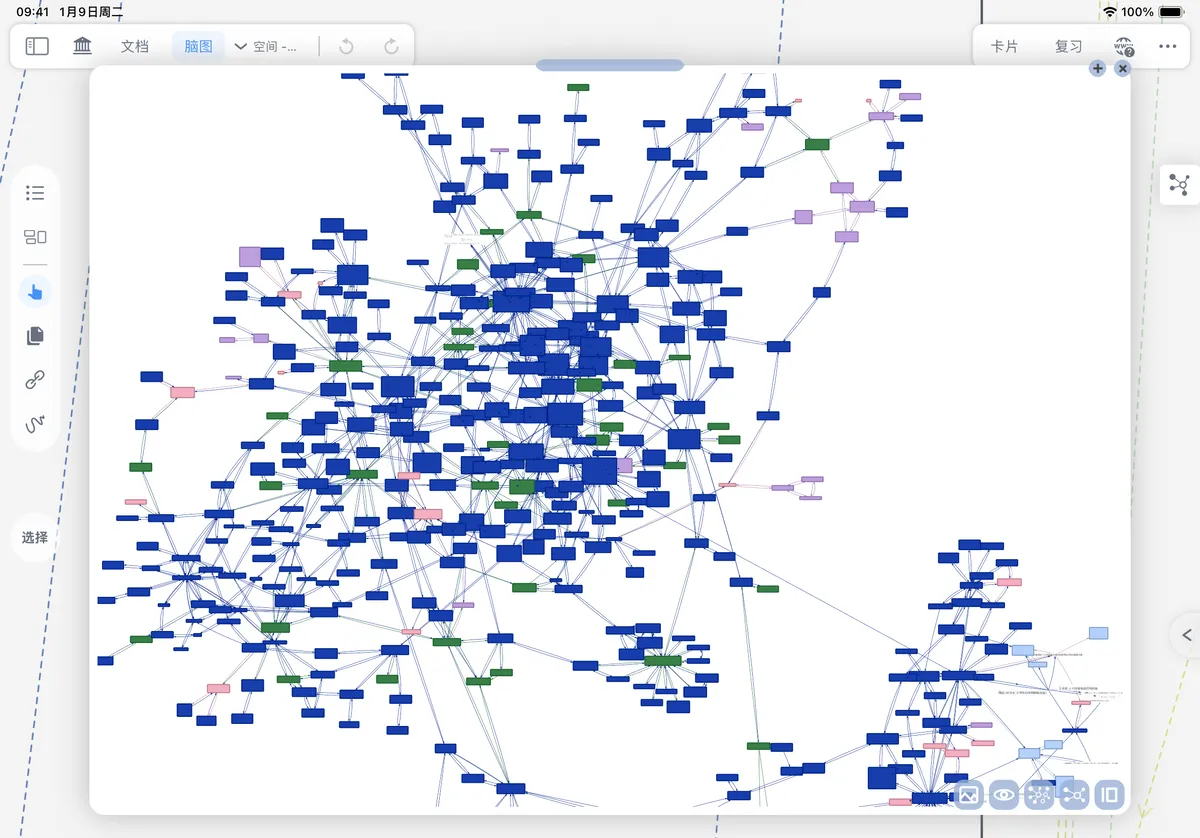
4.2 Generating a Concept Graph
- MN Network is a companion plugin in MarginNote 4 designed specifically for card links; it provides enhanced visualization and efficient management of the associations between cards.
- For plugin installation steps and usage, see: Handle MN Tasks Efficiently with Plugins
4.3 Using Links Together with the Mind Map
The mind map's parent-child structure and its link structure are often used together. Combining card links with the mind map's hierarchical structure preserves the clear hierarchical framework of the mind map while using links to break through its level limitations, enabling knowledge associations that span both levels and collections.