Note Database ①: Creating and Managing Databases
💡Why do you need note databases?
When using MarginNote, you may run into situations like these:
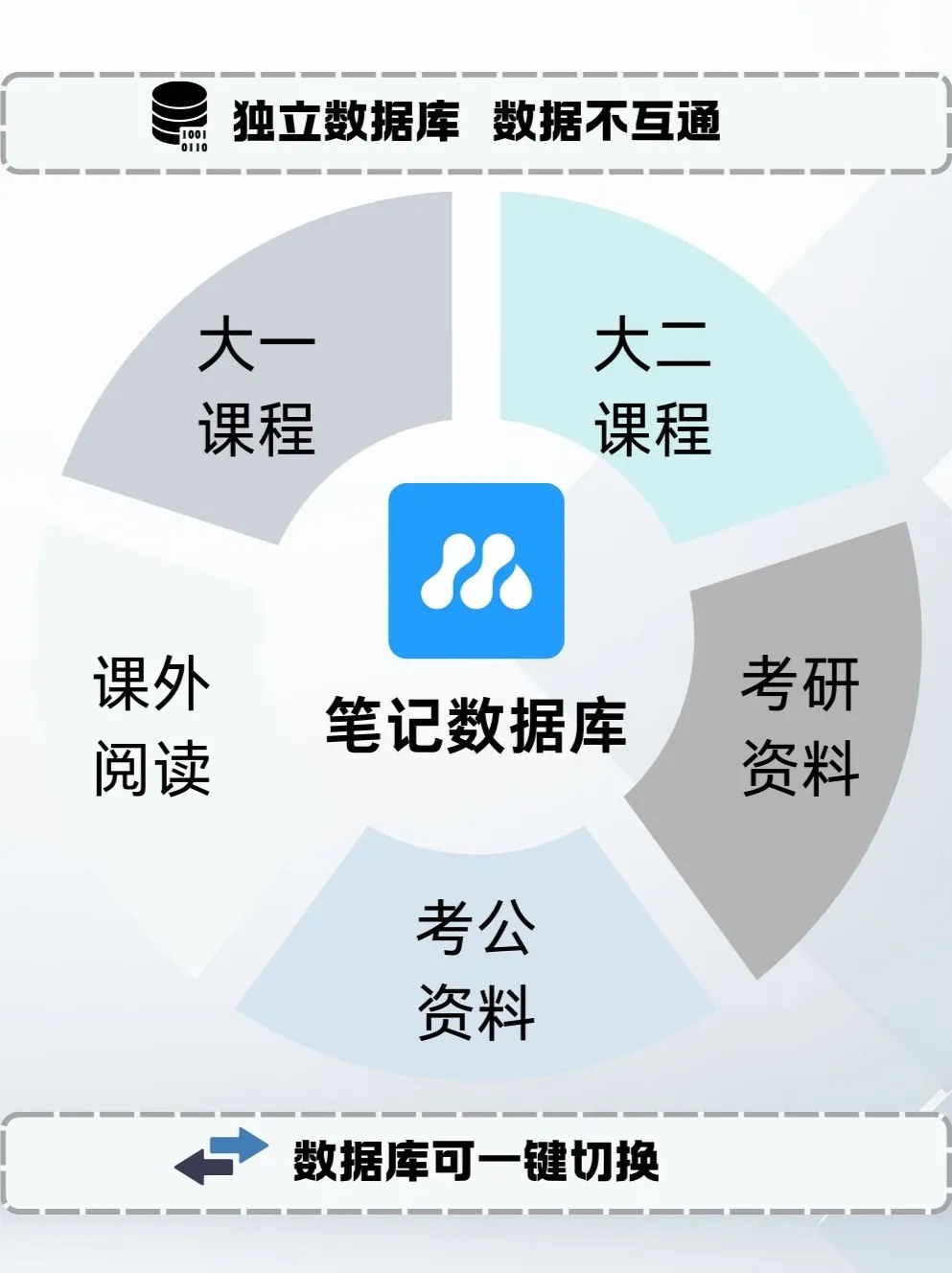
- Study notes from different periods piling up together (freshman through senior year, exams for every subject)
- Large volumes of old notes taking up storage space even though you don't need to browse them right now
- Needing to archive and back up your note data, or sync it across multiple devices
- Wanting to use different collections of notes on different devices
The note database feature helps you flexibly manage and isolate study data from different stages.
Note Database Series Navigation
This series helps you master MN4's note database features.
① Creating and managing databases (this page)
② Encrypted sharing
On this page:
- Understanding the core concepts of note databases
- Creating a new note database
- Switching between databases
- Managing databases (rename, delete)
1 Understanding Note Databases
1.1 What Is a Note Database
A note database is a container in MarginNote 4 used to isolate and manage your note data. Each database:
- Has its own study sets, mind maps, and review card decks
- Can be completely isolated from other databases (channel ID > 10000; see Important rules for channel IDs: below)
- Can be backed up, exported, and shared independently
- Lets you choose whether it shares the Document Library with other databases
💡Analogy: A note database is like a separate workspace, where each workspace holds study content from a different stage or of a different type.
1.2 Core Concept: Channel ID
What is a channel ID?
A channel ID is the unique identifier of a note database—a number. You must enter a channel ID when creating a database.
What the channel ID does:
- Distinguishes different databases
- Controls whether the Document Library is shared
- Enables multi-device sync
Important rules for channel IDs:
| Channel ID Range | Document Library |
|---|---|
| ≤ 10000 | All databases with a channel ID ≤ 10000 share the same Document Library (the path settings for external folders, local folders, and iCloud folders you've already added stay unchanged) |
| > 10000 | Each database with a channel ID > 10000 has its own Document Library |
💡What is Document Library isolation?
- Shared Document Library: Multiple databases use the same PDF/document folder settings, and added documents are visible to all of them
- Separate Document Library: Each database has its own document folder settings, with no effect on the others
1.3 Two Types of Databases
| Type | Characteristics | Best For |
|---|---|---|
| Regular database | - Can be shared freely - No license required - Anyone who obtains the database can view it | - Personal use - Team collaboration - Publicly sharing notes |
| Encrypted database | - Public-key encryption - Requires a license to access - Access permissions can be controlled | - Paid note sharing - Restricting who has access - Protecting intellectual property |
💡How to choose?
- Personal use, or no need to control access → Regular database
- Need to control who can access your notes → Encrypted database
⚠️Note: Regular and encrypted databases are created the same way. For how to use encrypted databases, see: Note Database ②: Encrypted Sharing
1.4 Multi-Device Sync Rules
⚠️Important: If you need to sync a note database across multiple devices, the following condition must be met:
The note databases used on each device must have the same channel ID
Example:
- The Mac uses the database with channel ID
1 - The iPad must also use the database with channel ID
1 - Only then can data sync between the two devices
If the devices use different channel IDs, the data cannot sync.
2 Creating a Note Database
2.1 Steps

- On the home page, open the sidebar and tap the menu button
- On the page that appears, tap
Switch Note Database - Tap the
➕button to create a new note database - Enter a channel ID (a number)
2.2 How to Set the Channel ID
| Use Case | Recommended Channel ID | Reason |
|---|---|---|
| Everyday primary database | 1 | Simple and easy to remember |
| Database that needs to share the Document Library | 2-10000 | Shares documents with the primary database |
| Database that needs full isolation | > 10000 | Separate Document Library, no interference |
| Multi-device sync | Same on every device | Must match in order to sync |
💡Example scenario:
Four years of university study
- Freshman through junior year: use channel ID
1with a shared Document Library- Senior-year thesis: use channel ID
10001with a separate Document Library to avoid interference
2.3 Settings After Creating
After creating a new database, we recommend:
- Rename the database: Give it a meaningful name (see 4.2)
- Set up the Document Library: Add the paths to your PDF folders
- Confirm sync settings: If you need multi-device sync, make sure every device uses the same channel ID
3 Switching Note Databases
💡Why switch databases
Switching databases lets you:
- Switch between study content from different stages
- Archive old notes to free up your current workspace
- Quickly switch between different projects or tasks
Steps:
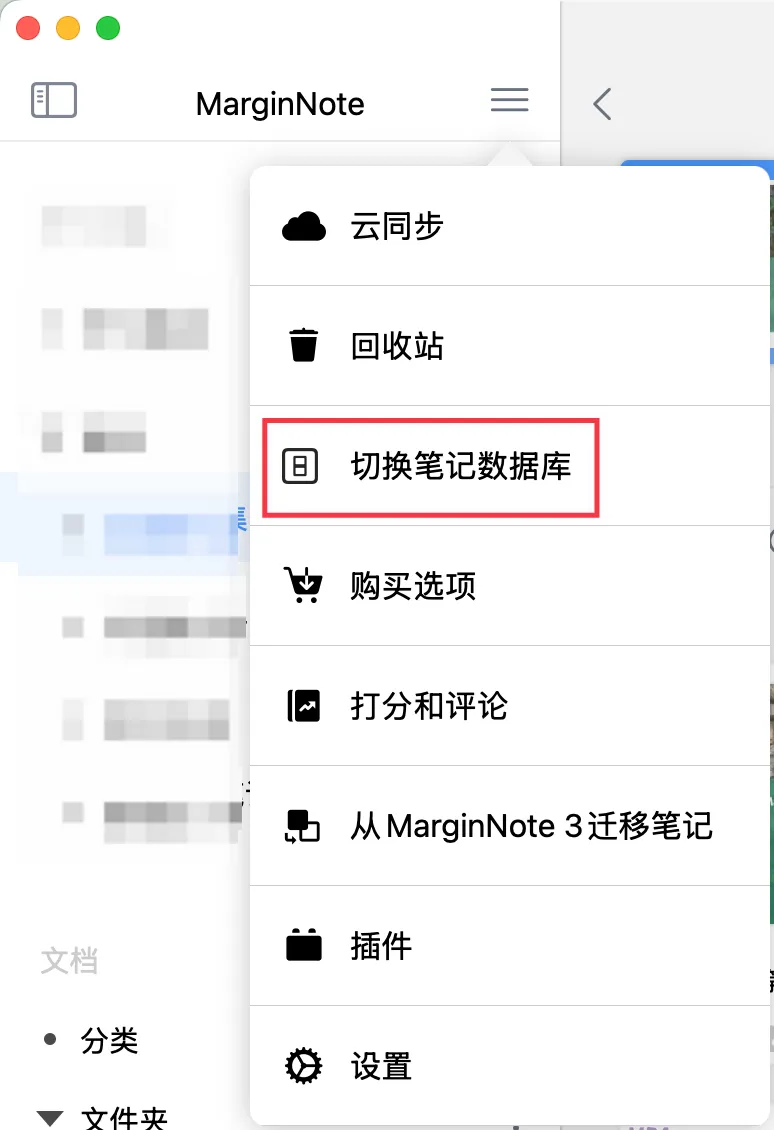
- On the home page, open the sidebar and tap the menu button
- On the page that appears, tap
Switch Note Database - Select the database you want to switch to
- Tap Confirm, then restart the app to complete the switch
4 Database Management
4.1 Switching Note Databases
- On the home page, open the sidebar and tap the menu button
- On the page that appears, tap
Switch Note Database
4.2 Renaming and Deleting Databases
💡Deleting a database cannot be undone❗❗❗❗❗ Do not delete a database lightly when you're unsure whether you need it❗❗❗❗
Before deleting, always:
- Confirm you truly don't need any of the database's content
- Back up your data first if necessary
- Carefully double-check the database name and channel ID
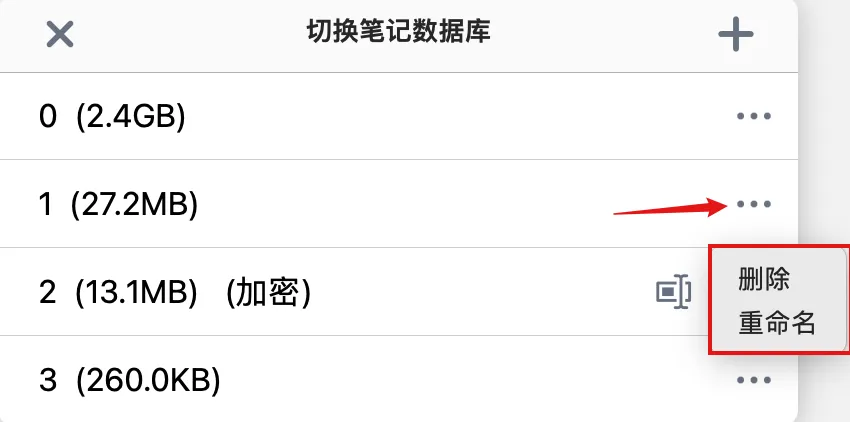
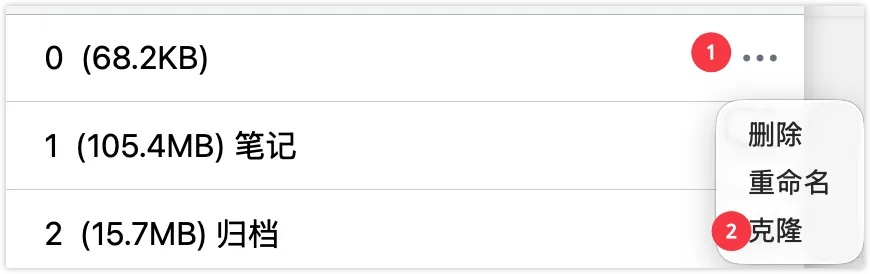
Tap the ... button on the right, and on the page that appears you can rename or delete the database.
4.3 Cloning a Database
💡Regular databases also support cloning, which makes note version control more convenient than manually backing up your data ⚠️Prerequisite: It must be a regular database; encrypted databases do not support backup
Tap the ... button on the right, and on the page that appears you can clone the database.
5 FAQ
Q1: Can the channel ID be changed?
A: No. Once created, a channel ID cannot be changed. If you need a different channel ID, you can only create a new database.
Q2: How can I recover a forgotten channel ID?
A: There is currently no one-tap way to show all the channel IDs you've used, so we recommend creating channel IDs in order, such as 1, 2, 3...10001, 10002...
Q3: Can I use multiple databases at the same time?
A: No. On a single device, you can only use one database at a time. But you can switch at any time.
Q4: Can a database be recovered after deletion?
A: No. Deletion cannot be undone. We recommend exporting a backup before deleting.
Q5: Can channel IDs 1 and 10001 share a Document Library?
A: No. Databases with a channel ID ≤ 10000 share one Document Library, while databases with a channel ID > 10000 have their own separate Document Library.
Q6: What happens if multiple devices use different channel IDs?
A: The data cannot sync. You must use the same channel ID for multi-device sync to work.
Q7: Is a newly created database empty?
A: Yes. A newly created database is empty; you need to create study sets, import documents, and make notes.
Q8: Does switching databases require restarting the app?
A: Yes. After switching databases, you need to restart the MarginNote app for the change to take effect.