Extend Note ① | Basic Operations: Freely Open Up Note Space Between the Lines
💡Extend Note — Expanding Your PDF Note Space:
The
extend notefeature lets you insert an expandable note area anywhere in a PDF — to add explanations, record your thoughts, attach related materials, or raise questions — without changing the original layout.Whether you're working through a long passage, organizing knowledge that spans pages, or extending notes on key content, you can expand right beside the original text and update it at any time, keeping reading and note-taking tightly connected.
💡If you've already mastered the basics of the
extend note, you can skip this page and continue to the use-case article: Extend Note ② | Use Cases: Managing Reading Notes in Layers
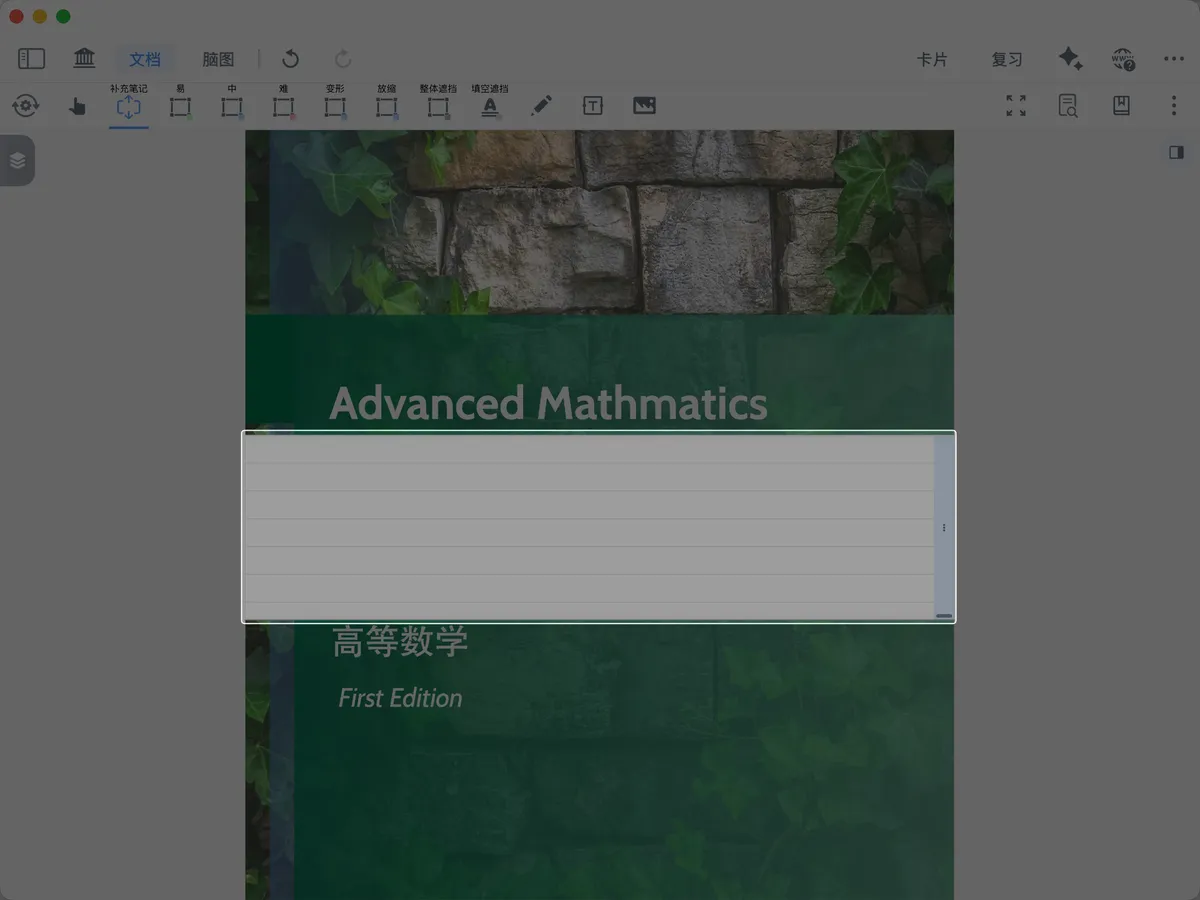
1 What Is an Extend Note
An extend note has three display modes:
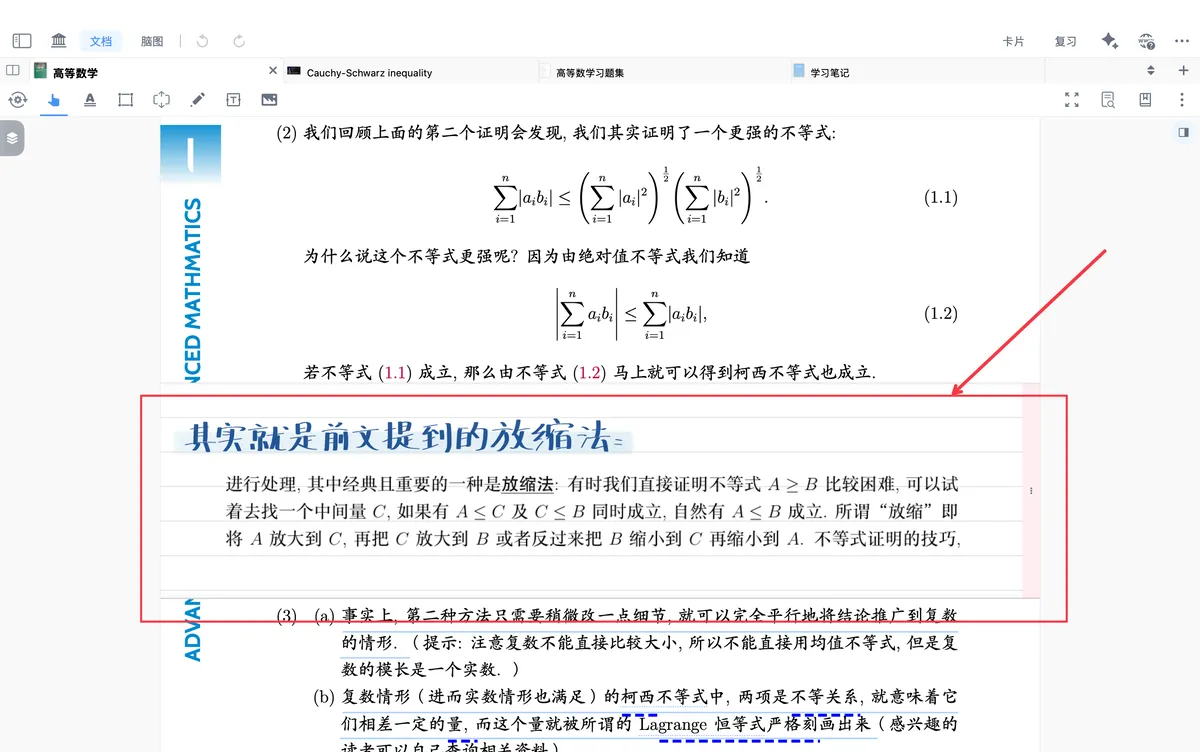
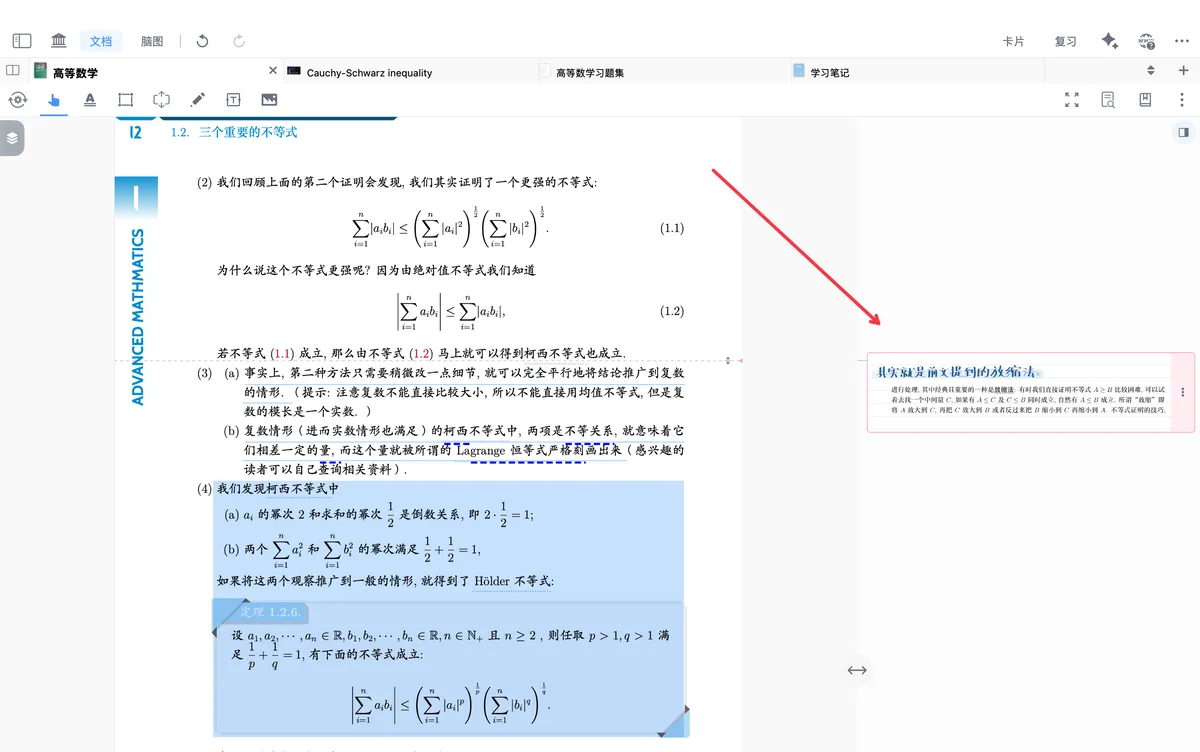
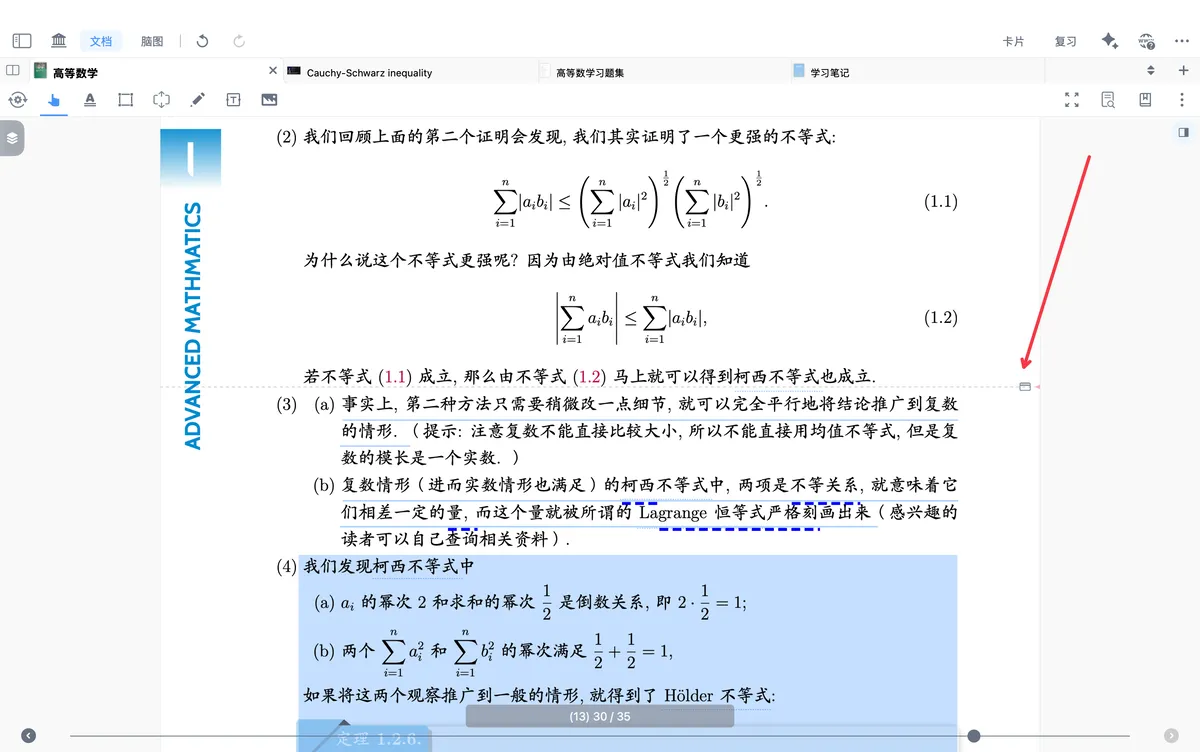
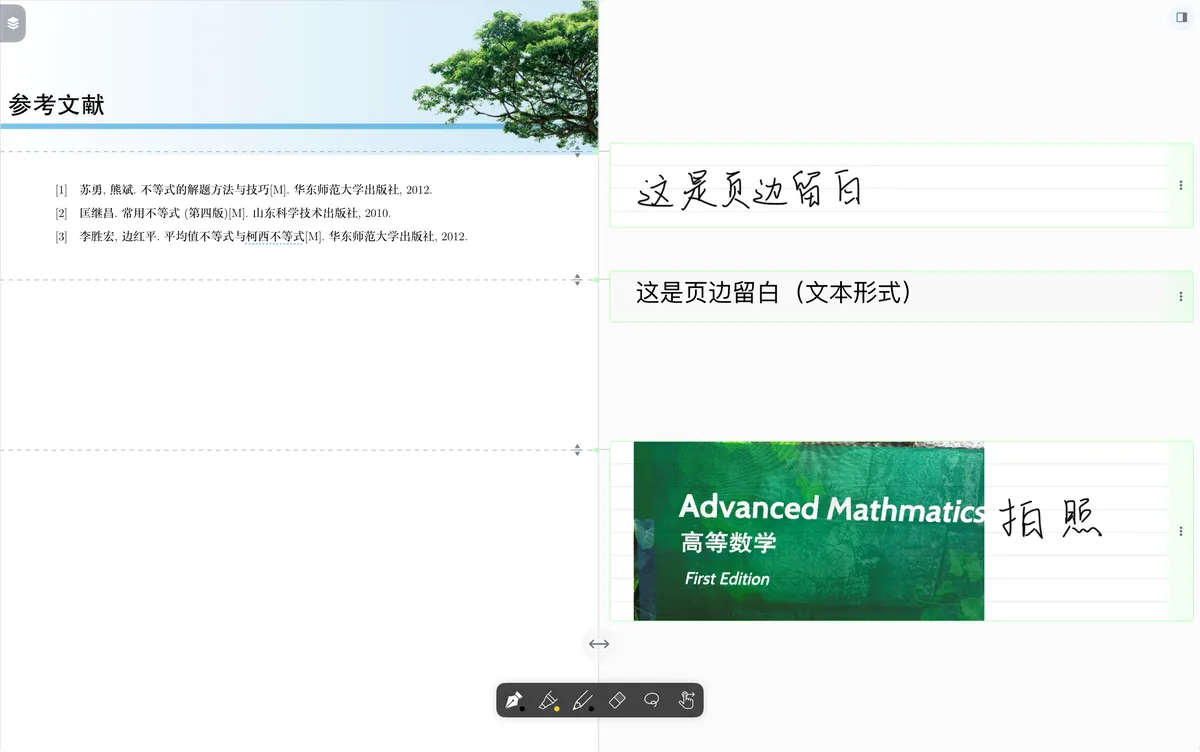
Embedded (Normal):the default mode of an extend note. Visually it blends seamlessly with the textbook, making it ideal for fleshing out textbook knowledge points in class, adding explanatory annotations, and so on.Margin:creates a separate comment area at the edge of the page so it doesn't interfere with your main reading — like sticky notes placed alongside the book. Ideal for preserving a paper's layout or quickly adding comments.Collapsed:once collapsed, the extend note shrinks to a single line so it doesn't interfere with your main reading; tap it to view when needed. For example, in a theorem proof where some steps aren't fully detailed, you can use an extend note to fill them in without disrupting the main proof framework.
2 Creating an Extend Note (Using Normal Mode as an Example)
2.1 Creating an Extend Note Within the Document View
Extend note tool
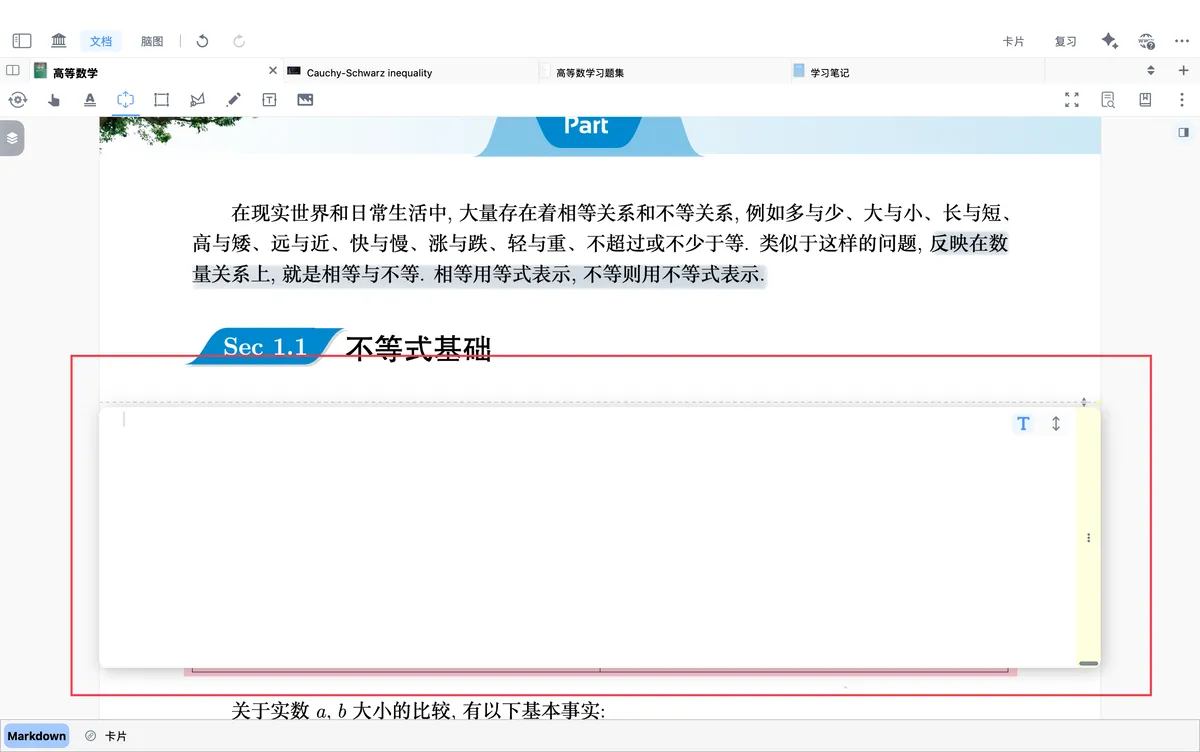
Tap to select the extend note tool in the toolbar (shown by the icon above). There are three ways to create an extend note:
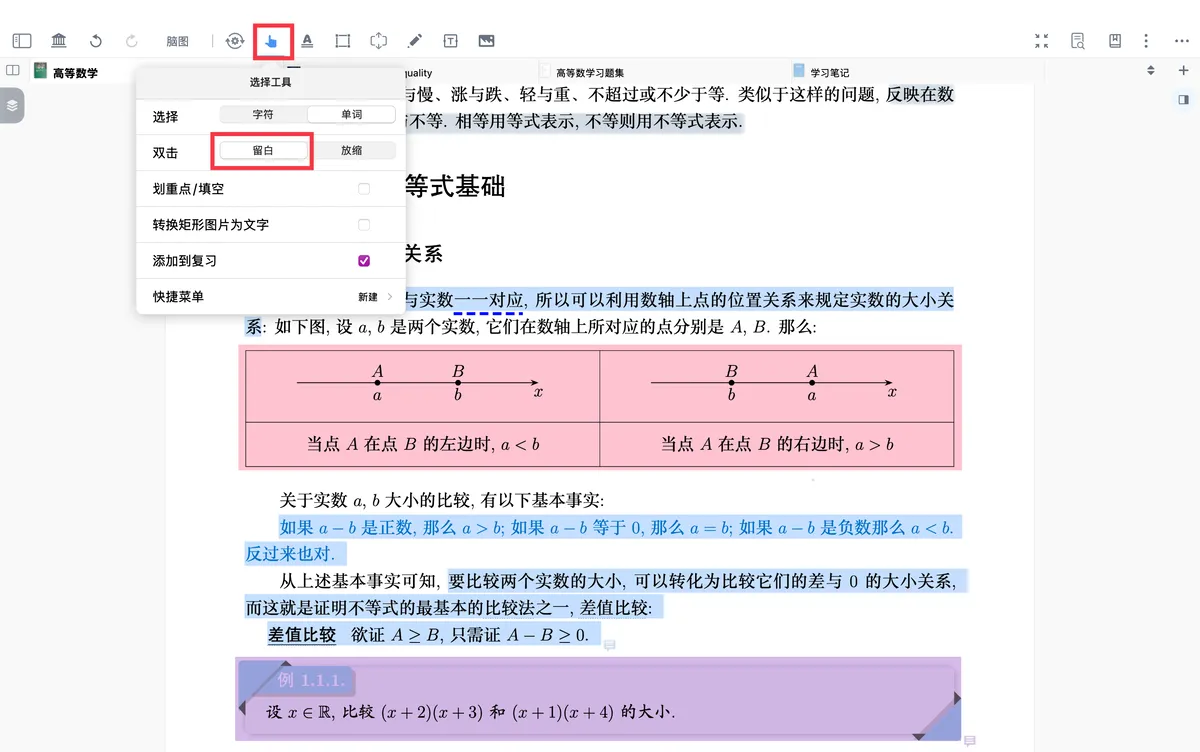
- Tap in a blank area to create an
extend note. You can also enabledouble-tap to create an extend notevia thehand tool(shown in the second image in this section).
💡Use this to add a new note location in the PDF.
Ideal for adding insights beside the original text, summarizing key points, jotting down ideas, or attaching supplementary materials. It doesn't depend on a selection in the original text, giving it the greatest flexibility.
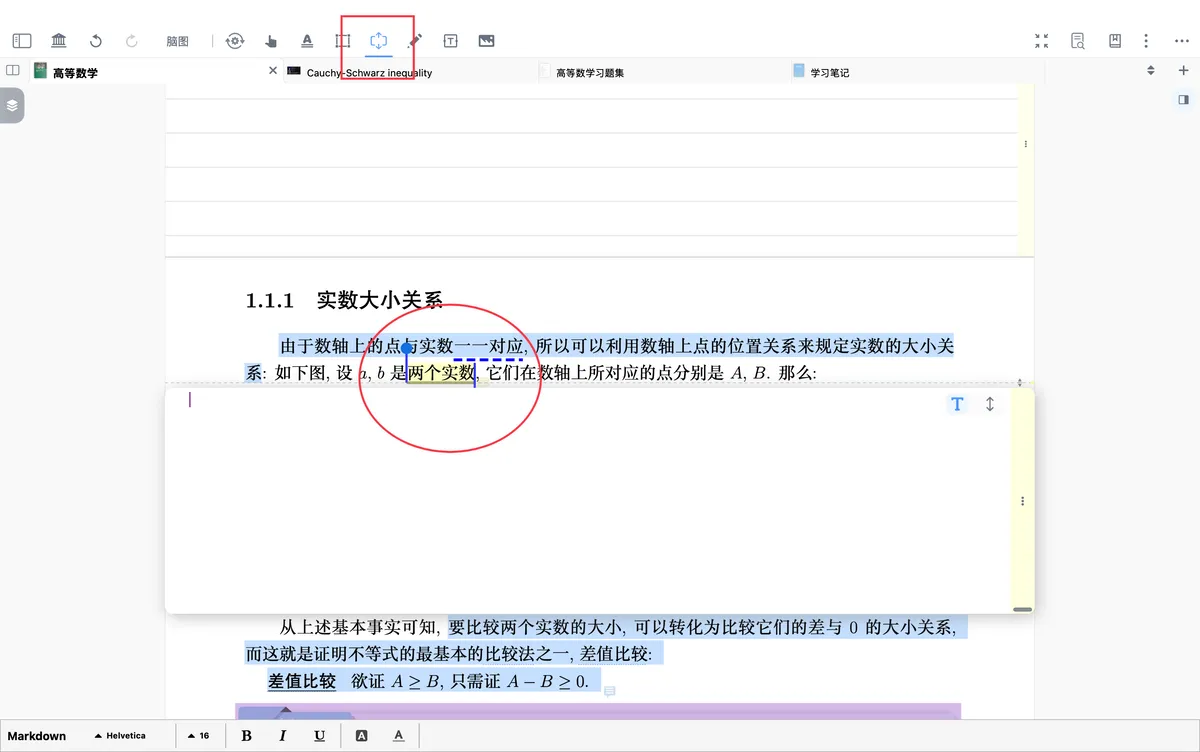
- In a text area, select text to create a
text excerpt extend note.
💡Use this to expand on an explanation or extend content based on the document's text.
Ideal for term definitions, concept clarification, translating example sentences, explaining formulas or arguments, and similar scenarios — it clearly links the selected content with your supplementary notes.
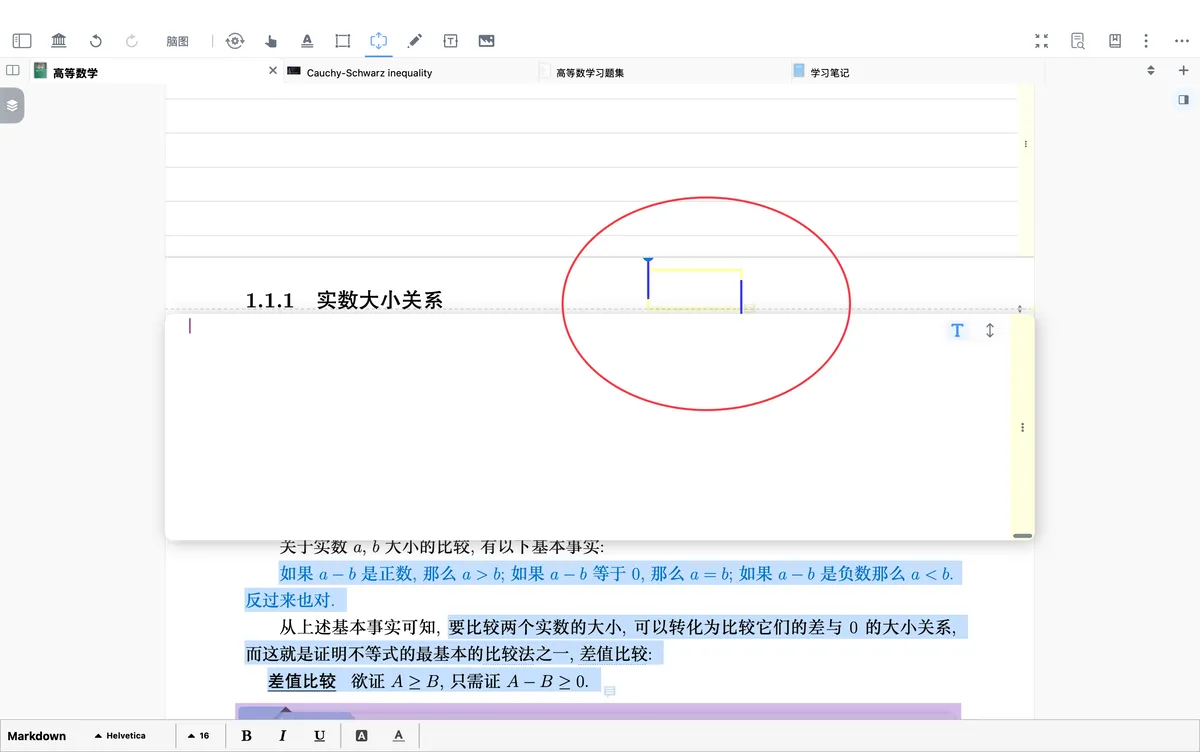
- In a non-text area, drag to select and create a
rectangular excerpt extend note.
💡Use this to add linked notes to non-text areas such as images, charts, formula screenshots, and tables.
Ideal for adding explanations beside visual material, breaking down its structure, marking key points, or adding further information.
2.2 Creating an Extend Note in the margin comment area
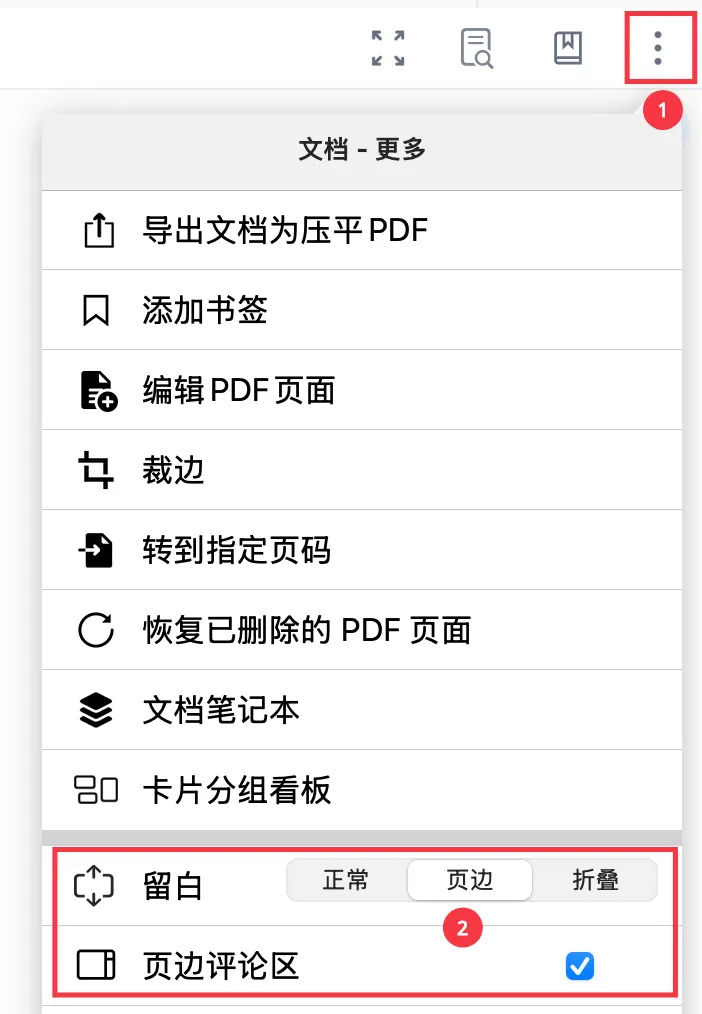
- In the top-right corner of the document, tap
...(Document - More - Switch the
extend notetoMarginmode, and themargin comment areawill open automatically
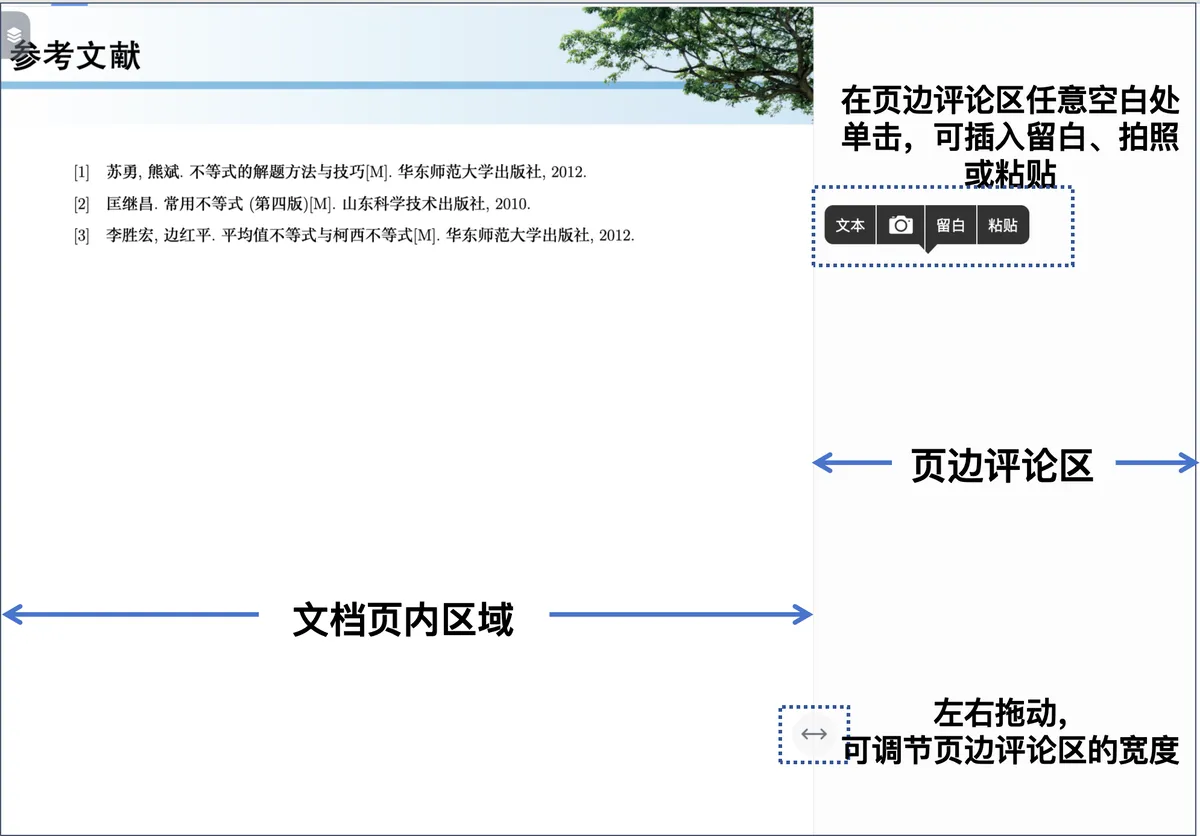
- Now when you create an
extend note, it expands by default in themargin comment area(as shown below)
3 Editing an Extend Note
3.1 Editing Extend Note Content
-
After creating an
extend note, you can edit its content-
You can write with Apple Pencil (tap the
Tkey to switch to typing in full-text mode)
-
In
handwriting mode, tap a blank spot inside the extend note to convert it to full-text mode (same as theTkey), paste content, insert a local text box or image (take a photo, insert from your photo library), or cancel the extend note
-

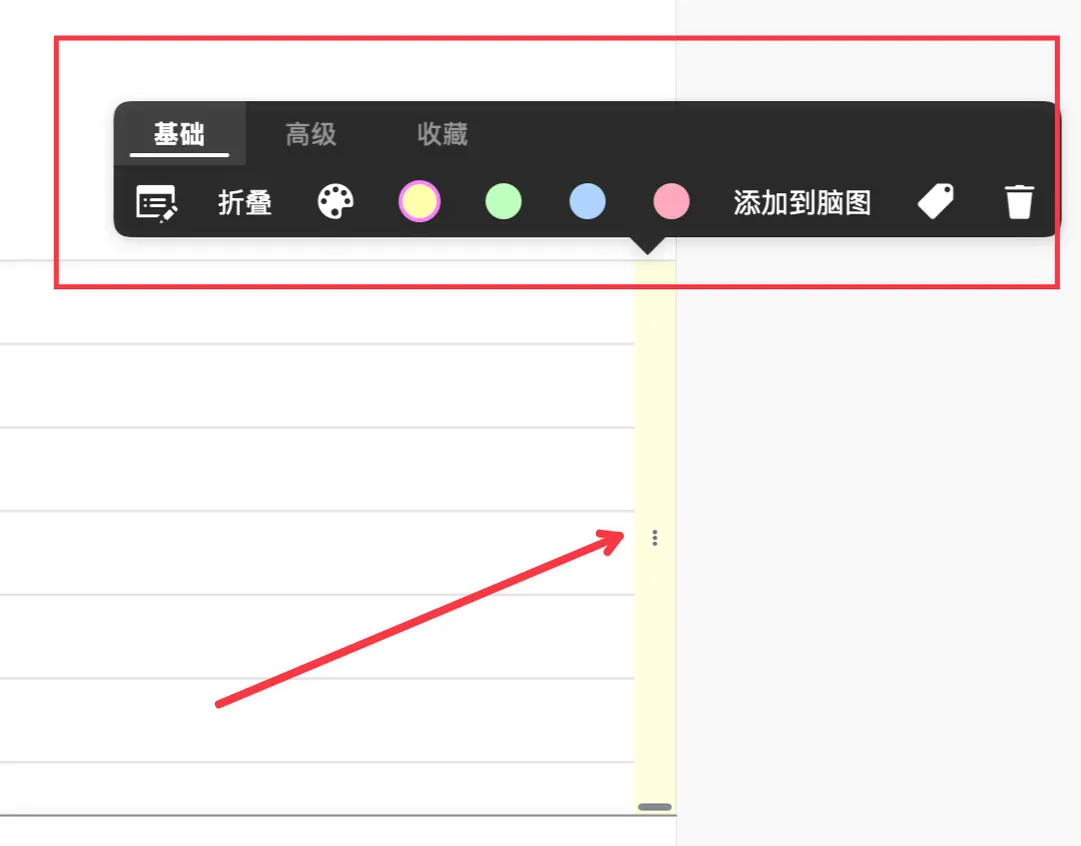
- Tap the three dots on the right side of the extend note to bring up the menu bar
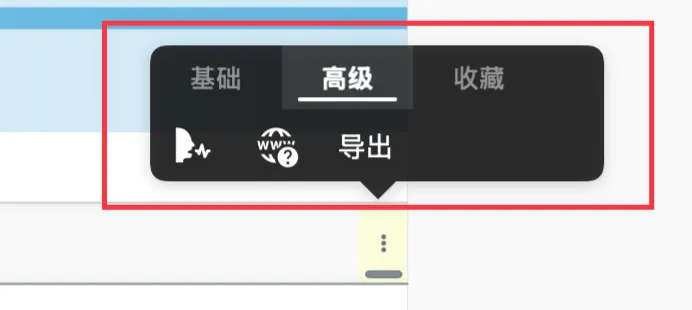
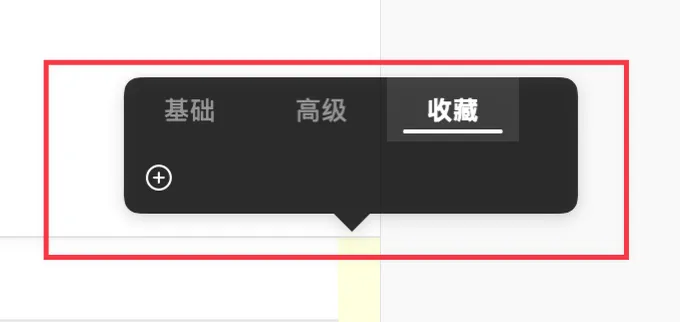
💡The card pop-up menu contains three categories of tools — the Basic, Advanced, and Favorites bars — used mainly to edit, manage, and extend card functions. For a full description of the buttons, see: The Card Pop-up Menu Bar and Its Customization
- Basic bar: performs simple operations on the card. Among these,
Collapseis a function closely tied to theextend note.
💡Once
Collapseis enabled, the selectedextend notecollapses into a dashed line — useful for simplifying the PDF page, hiding details, and maintaining reading continuity. Ideal for keeping the page tidy while working with extend notes or expanded paragraph content.
- Advanced bar: performs more complex operations on the card, including
speech,Research(search in MN's built-in browser), andExport - Favorites bar: frequently used functions from
BasicandAdvancedcan be gathered together inFavorites, so you don't have to switch back and forth.
3.2 Changing the Extend Note Style
Expanding an Extend Note
- When an extend note is
collapsed, tap theExpand extend notebutton to expand it.
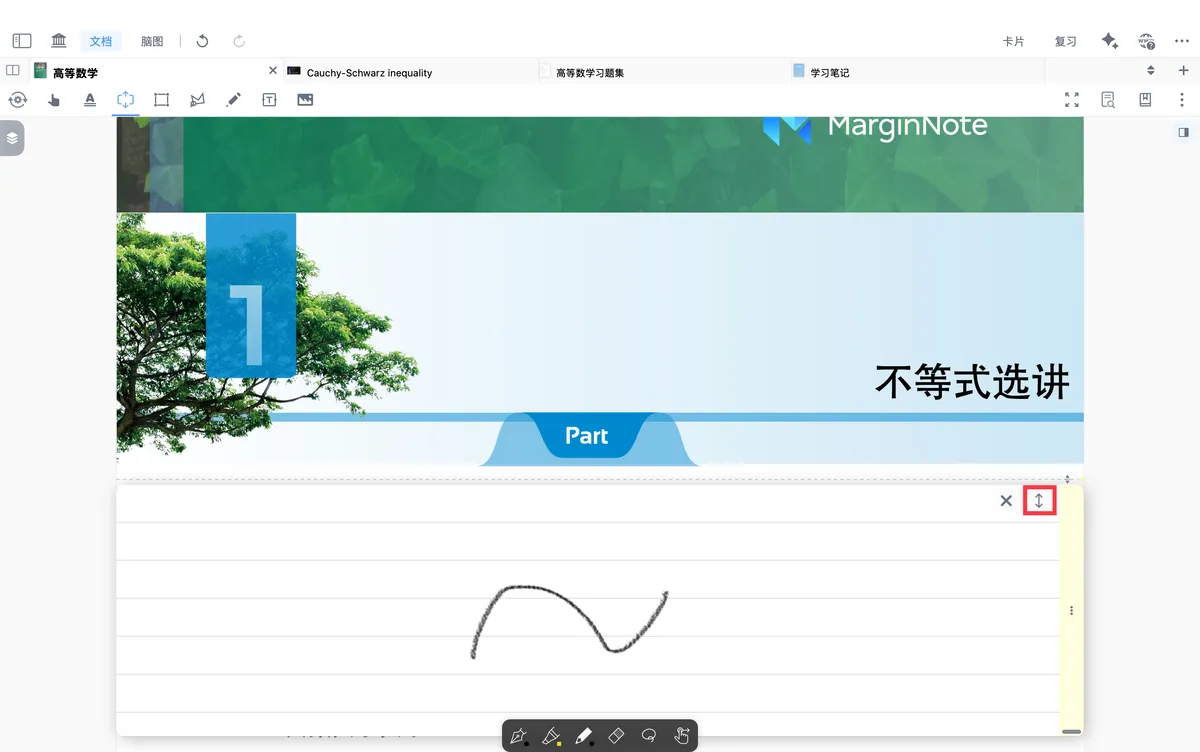
-
Tap the
Auto-expandbutton to turn the extend note's auto-expand on or off.Auto-expand

In the extend note's handwriting mode, tap the Auto-expand button; the button turns blue, and the extend note expands in Normal mode within the PDF.

In the extend note's handwriting mode, tap the Auto-expand button; the button turns gray, and the extend note appears in Collapsed mode within the PDF.
3.2.2 Moving an Extend Note Up or Down
-
Long-press and drag the small arrow in the top-right corner of the extend note / the
three dots on the rightto move the extend note up or down
3.2.3 Adjusting the Height of an Extend Note

- Drag the
horizontal line in the bottom-right cornerto adjust the extend note's height.
3.3 Switching How an Extend Note Is Displayed
3.3.1 The Three Extend Note Styles
-
Normal (embedded in the document)
- Tap the Document - More button
- Check the box to set it to
Normalmode - After you create an extend note, it expands in
Normalmode within the PDF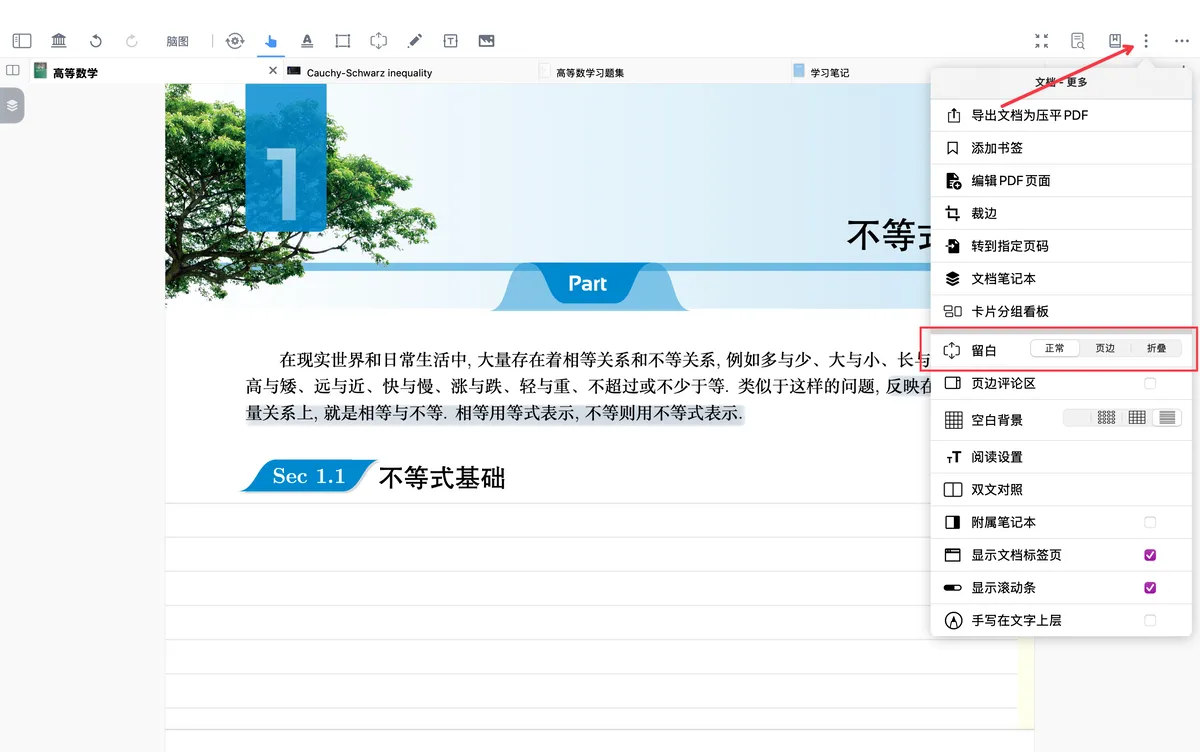
-
Margin
- Tap the Document - More button and check the box to set it to
Margin mode; themargin comment areaopens automatically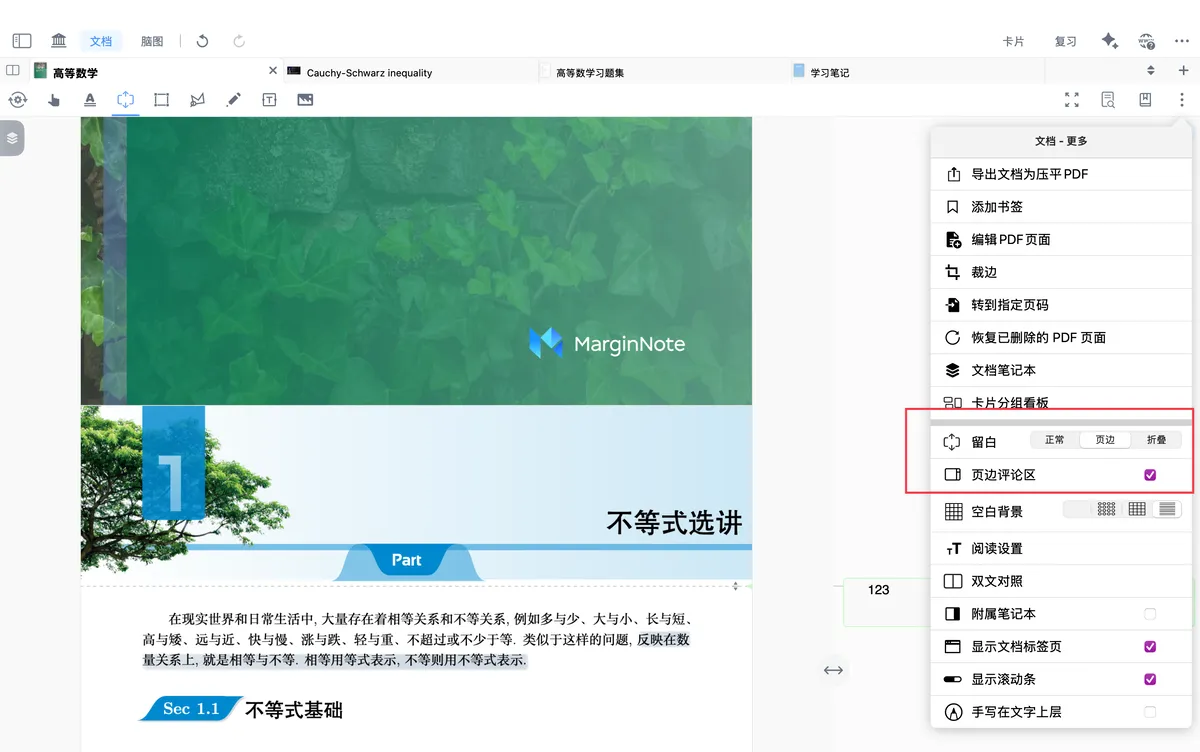
- After you create an extend note, it expands in the
margin comment area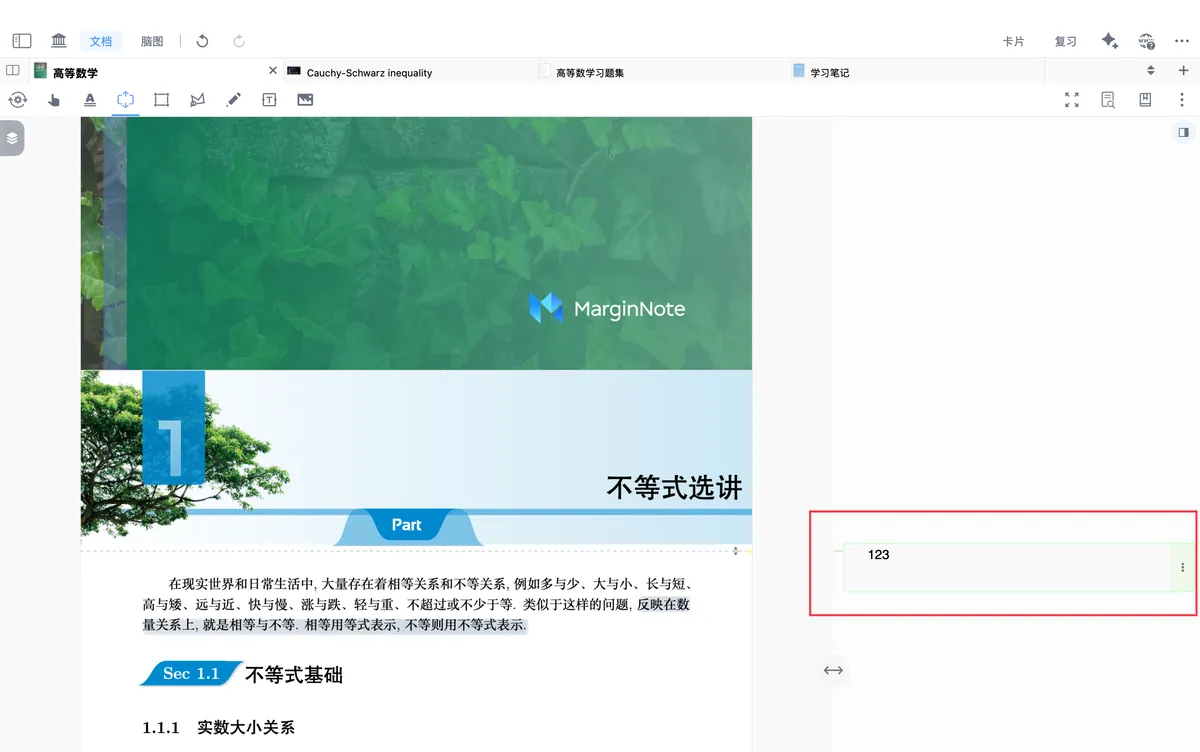
- Tap the Document - More button and check the box to set it to
-
Collapsed
- Tap the Document - More button and check the box to set it to Collapsed mode
- After you create an extend note and enter content, tap on the document, and the extend note appears in
Collapsed mode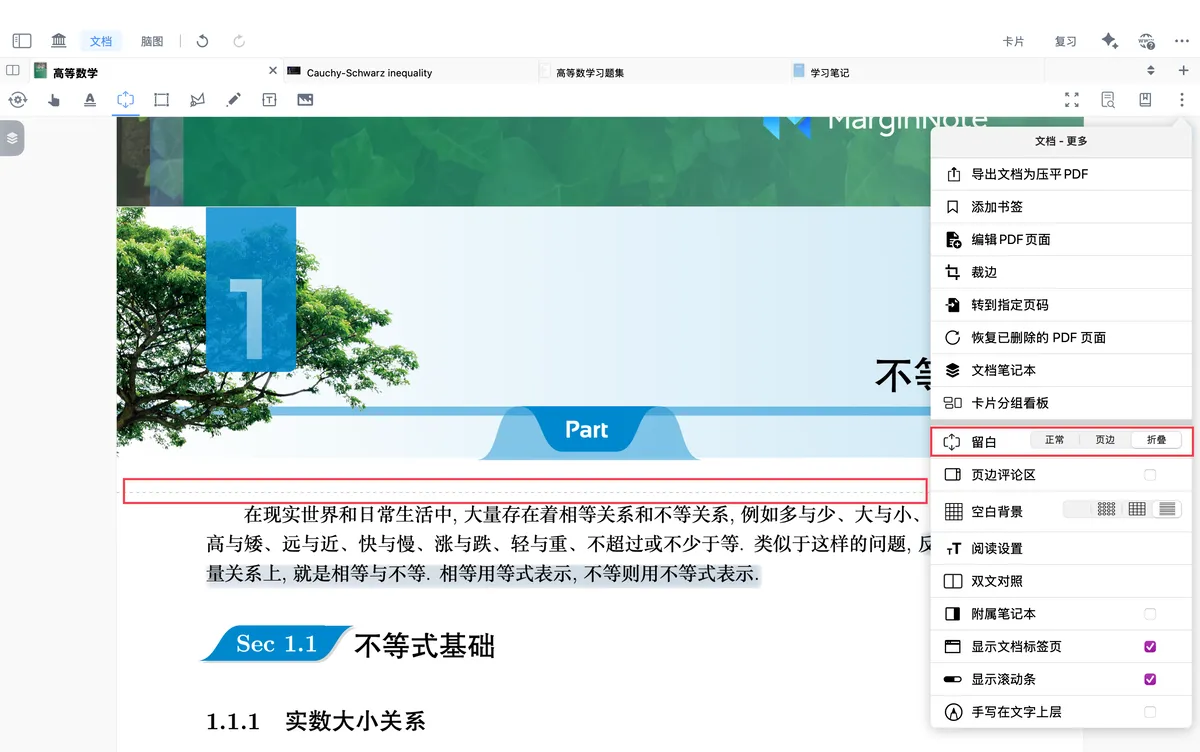
💡Continue to a use-case article for the
extend note: Extend Note ② | Use Cases: Managing Reading Notes in Layers