Research Browser View
1 Overview
Research
The Research Browser is a built-in MarginNote 4 tool for looking things up as you read. While you read documents and build mind maps, it lets you quickly call up several types of search and, at the same time, save web pages and compare content across sources — all without switching to an external app — so you can supplement and verify your knowledge in place. It is designed primarily for academic research, in-depth reading, and similar scenarios.
2 Core Features
2.1 Eight Search Tools
Video Search: Find related videos on Bilibili and YouTube with one tap, without switching to an external platform.Dictionary Search: Quickly look up word definitions, with support for multilingual translation.Text Search: Run a web-wide keyword search on the selected content.Academic Search: Connect to academic databases to precisely locate papers and literature.Question Search: Get targeted answers in a Q&A format.Image Search: Reverse-search for related resources based on image content.Translation: Supports translation between multiple languages, and you can customize the search URL to use your preferred translation tool.PDF Search: Search the web specifically for relevant PDF documents.

2.2 Saving Web Pages and Further Processing
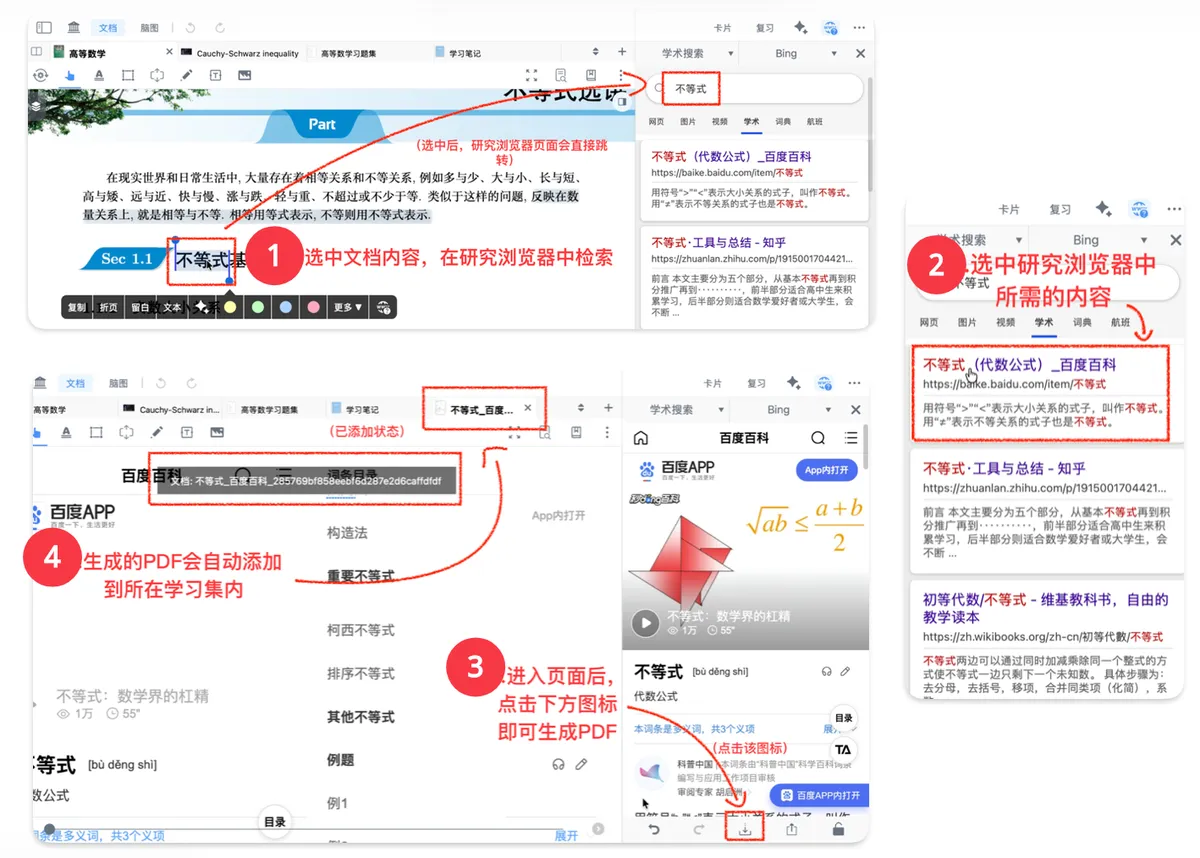

- You can convert useful web pages directly into PDF, download them to your local Document Library, and automatically add them to the current study set as supplementary study material.
- The converted PDF can be further processed directly using features such as annotation, excerpts, and mind map generation.
2.3 Linked Multi-Window Comparison
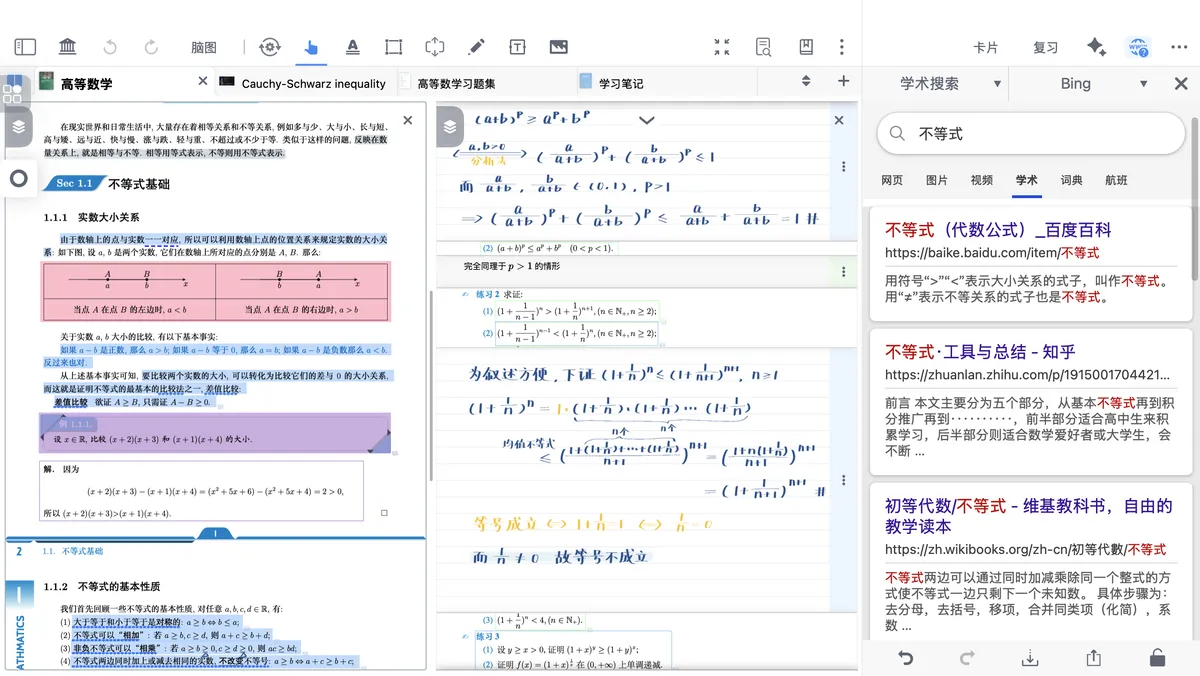

- You can view a document and the Research Browser side by side in split screen, reading and looking things up at the same time.
- It also supports multi-document bi-article comparison, building a closed-loop learning flow.
3 Basic Usage
3.1 Opening the Research Browser
There are two ways to open the Research Browser.
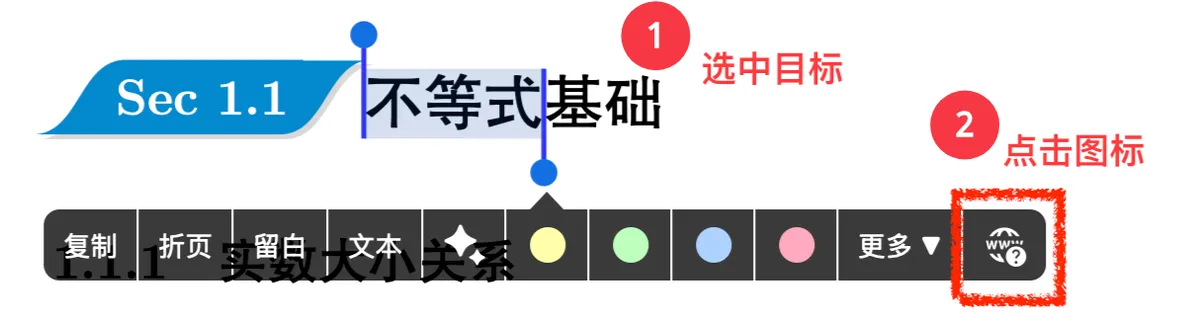
- Method 1: While reading a document, select the target text or excerpt to bring up the menu bar, then tap the
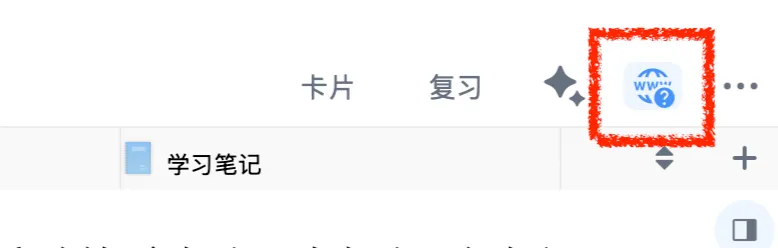
Research Browsericon to open the browser. - Method 2: Open it manually from the top-right corner of the study set >
Research Browser.
3.2 Choosing a Search Tool and Searching
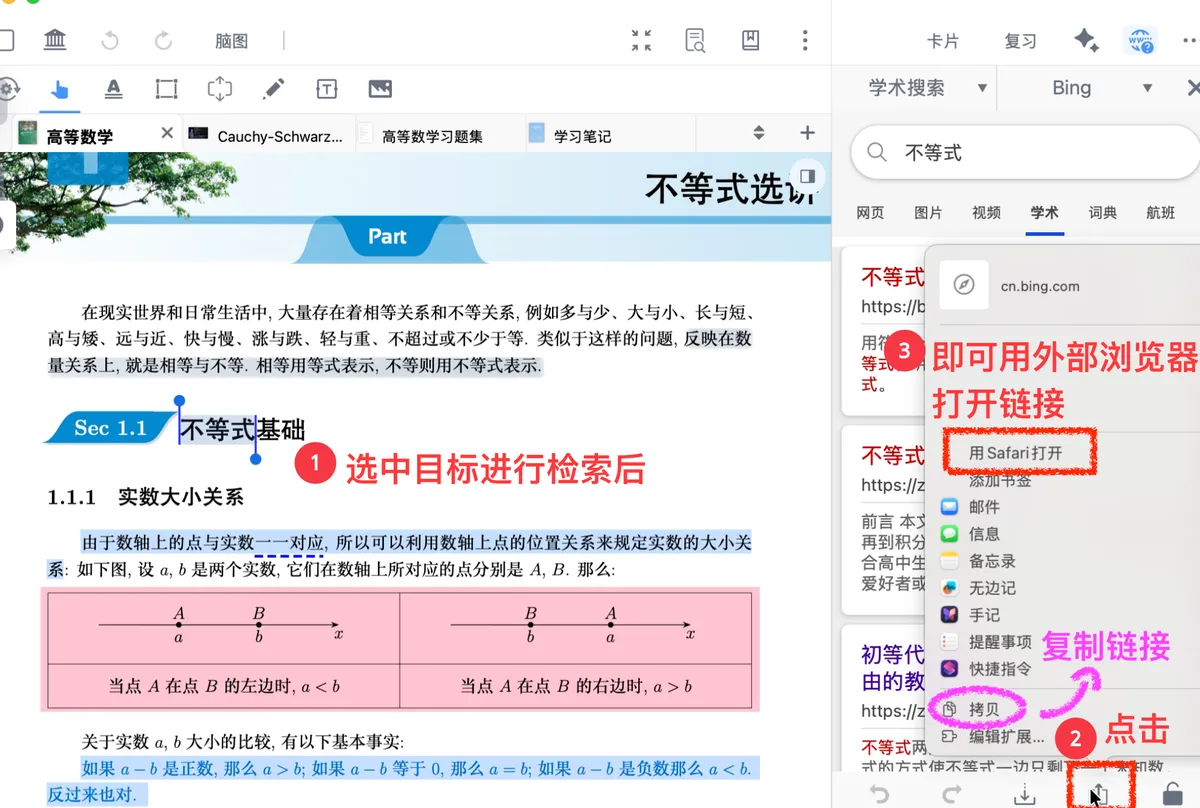
- Choosing a search tool: Once the browser is open, the icons for the eight search tools appear at the top. Tap an icon to start the corresponding search (for example, tap "Academic Search" to find specialized literature).


- Searching: If you tap the Research Browser icon within 5 seconds of selecting text, it searches the selected content directly; if no text is selected, you can type in keywords to search manually.
- Page forward and back: In the navigation bar at the bottom of the Research Browser, the first button on the left is "Back" and the second is "Forward"; they let you move through your page history within the current search session.
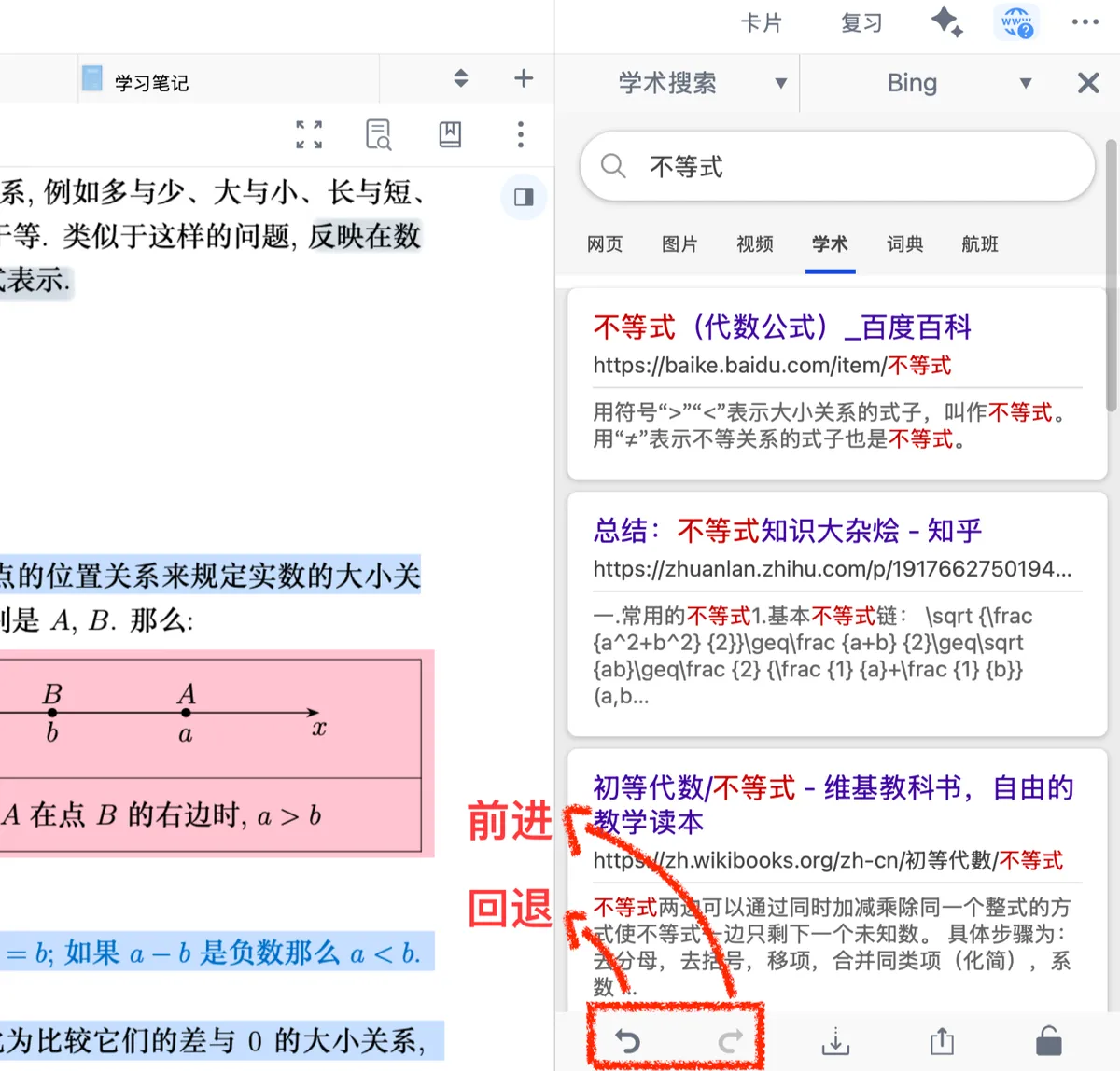
- Handling results: You can open a link in a new window, open it in an external browser, copy the link, or save it directly as a PDF and import it into the Document Library.

- Customize the search engine order: in the app, go to
Settingsand adjust the display order of the tools in theResearchsection, moving frequently used ones to the front.
3.3 Switching Window Modes
- Locking results: Tap the lock icon at the bottom of the Research Browser window to keep the current search content; tap it again to unlock, and it will automatically sync to newly selected text.
- Split-screen comparison: Splitting the screen between a document and the browser is supported natively.

3.4 Saving and Importing Web Pages

- Saving a single page: On the target web page, tap
Downloadin the top-right corner; the page is automatically converted to PDF and saved to theWebDownloadsfolder. - Locating the file: After saving, you can find the file in the
Document>WebDownloadsfolder; you can move it, rename it, and add tags.
4 Advanced Customization
4.1 Customizing Search Engines (with Academic Engine Examples)
- How it works: Replace the keyword in the search engine URL with the placeholder %s, and the system fills in your search content automatically.
- Path:
Settings>Research> select the target search type >Custom URL. - Saving: After entering the URL, tap OK to use your custom engine from the search toolbar.
-
Handy templates (copy and use directly):
4.2 Plugin Installation and Configuration (MN Browser)
MN Browser is the officially recommended plugin for enhancing the Research Browser. It breaks past the limits of the native feature — solving pain points such as fixed windows and video compatibility — and supports capabilities like split-screen layouts, greatly improving the flexibility and adaptability of "search while you learn." It is an efficient tool for academic research and for integrating content from multiple sources.
- Prerequisite: You must first install the required plugin MN Utils, or the plugin will not run.
- For the plugin installation steps, see: Handling MN Tasks Efficiently with Plugins