Mind Map Review ②: Mind Map Context (Backlink Navigation)
💡 Context navigation is a core feature of MarginNote. It lets learners conveniently backlink to the source while studying or reviewing, improving study efficiency.
1 Mind Map + Document Backlink Navigation
Backlink navigation between the mind map and the document is MarginNote's most basic and most essential navigation feature. The excerpt cards in a document and the excerpts themselves can navigate to one another.
Linkage Control
Click the Linkage Control button (as shown by the icon above) to switch the linkage state (4 states in total).
- ➡️
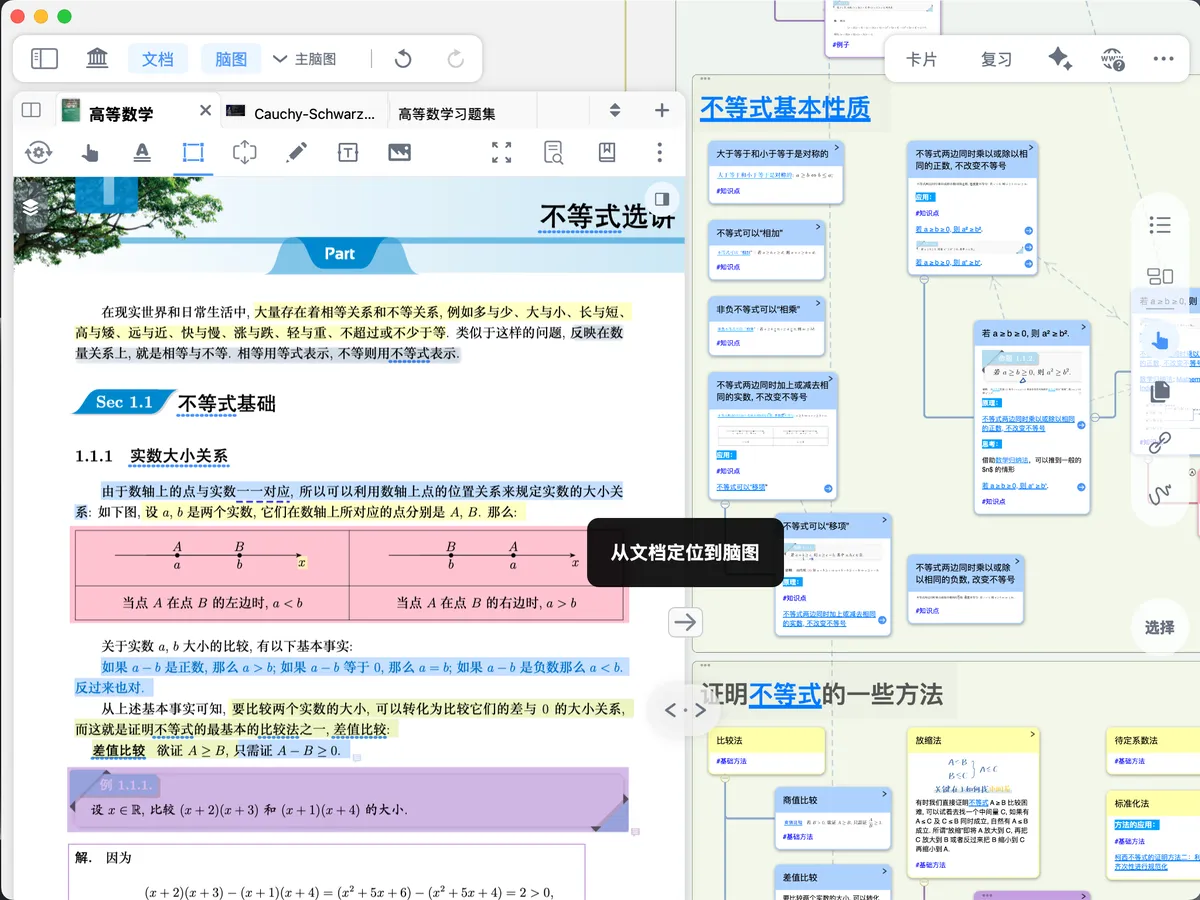
Locate from Document to Mind Map: When you click a document excerpt, it automatically navigates to the corresponding mind map card;
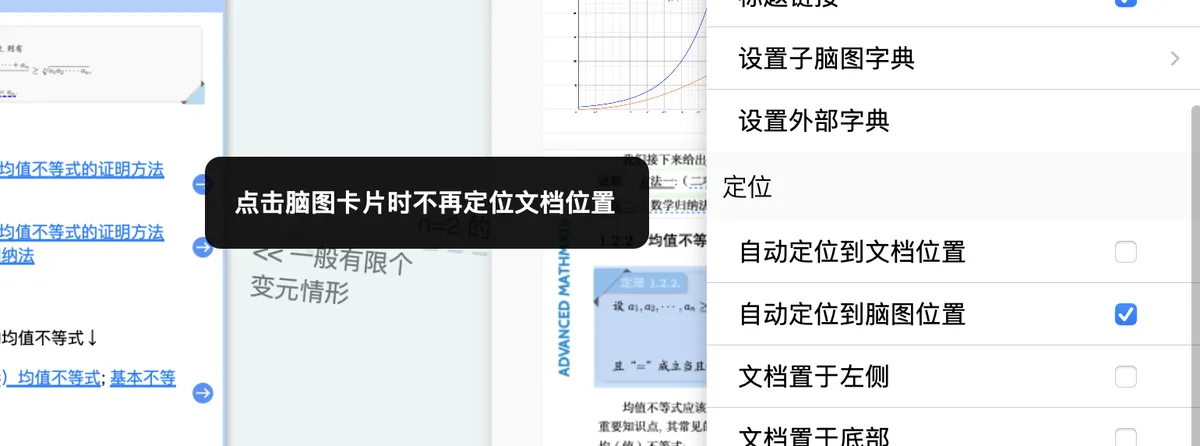
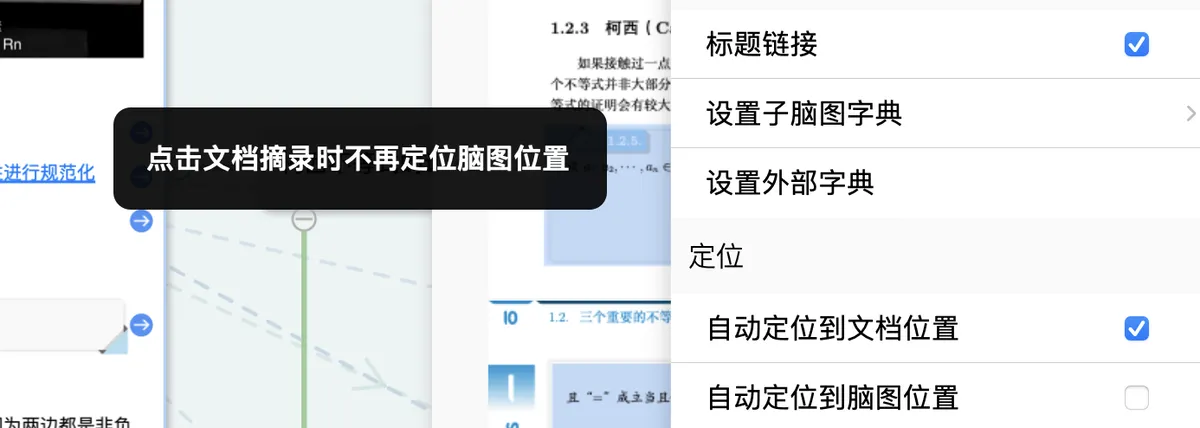
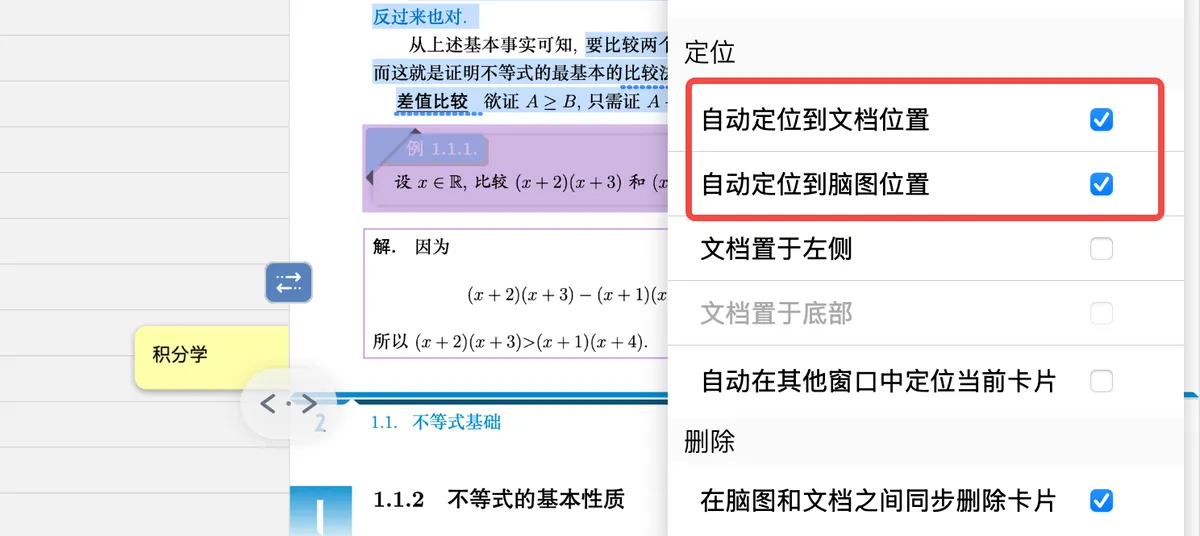
You can also click the horizontal three-dot menu in the top-right corner of the study set and configure it in the Study Set - More panel: turn off Auto-navigate to Document Position and turn on Auto-navigate to Mind Map Position.
- ⬅️


Locate from Mind Map to Document: When you click a mind map card, it automatically navigates to the corresponding document excerpt;
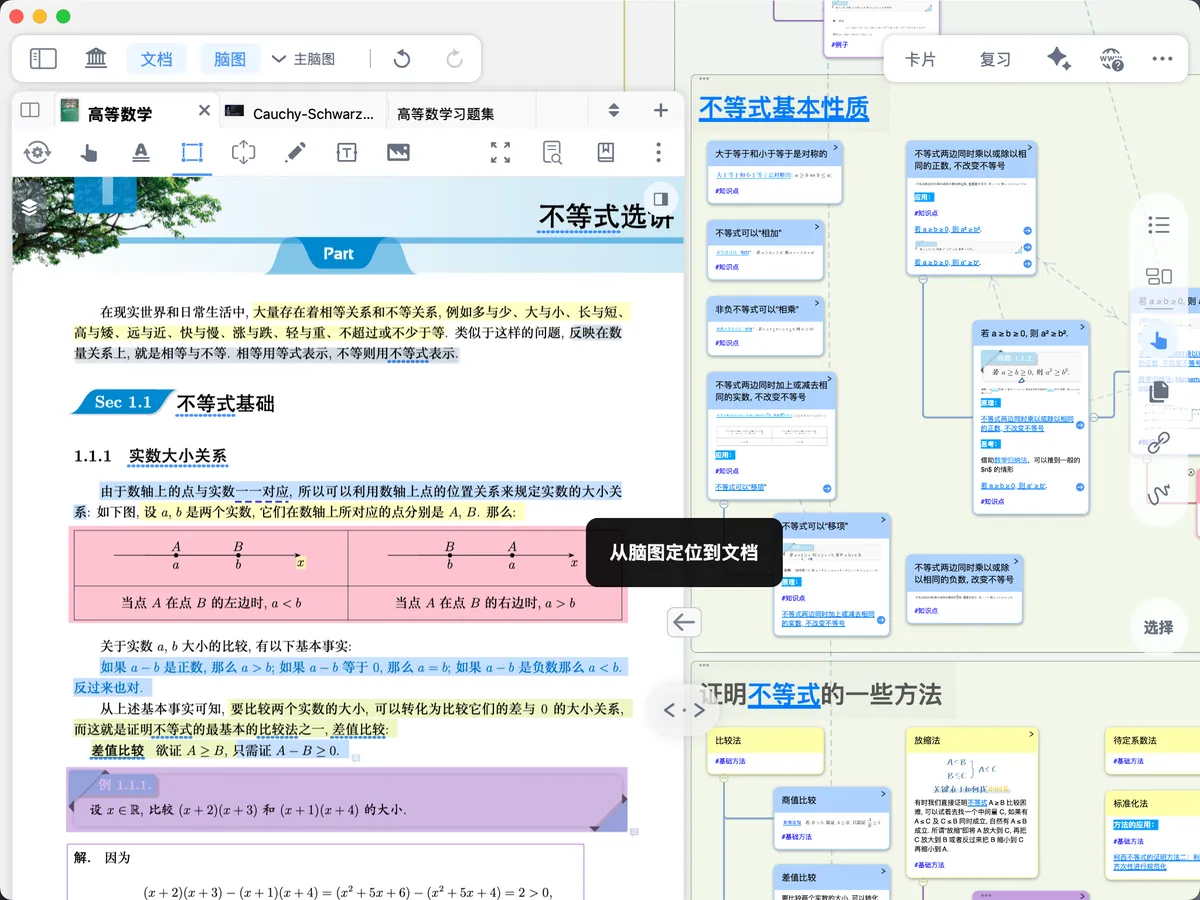
You can also click the horizontal three-dot menu in the top-right corner of the study set and configure it in the Study Set - More panel: turn on Auto-navigate to Document Position and turn off Auto-navigate to Mind Map Position.
- ↔️

Two-way Linkage: Provides the two-way navigation of both modes 1 and 2;
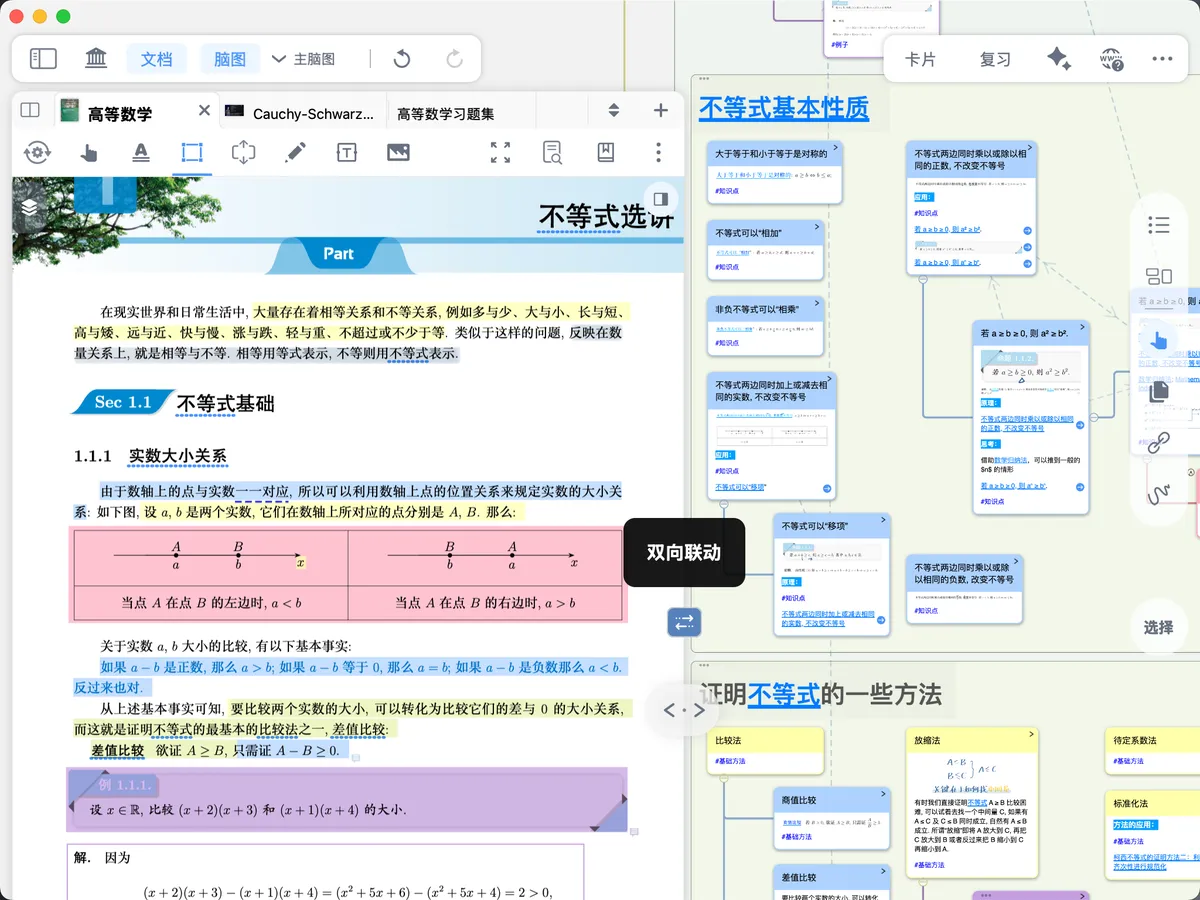
You can also click the horizontal three-dot menu in the top-right corner of the study set and configure it in the Study Set - More panel: turn on both Auto-navigate to Document Position and Auto-navigate to Mind Map Position.
- 🚫
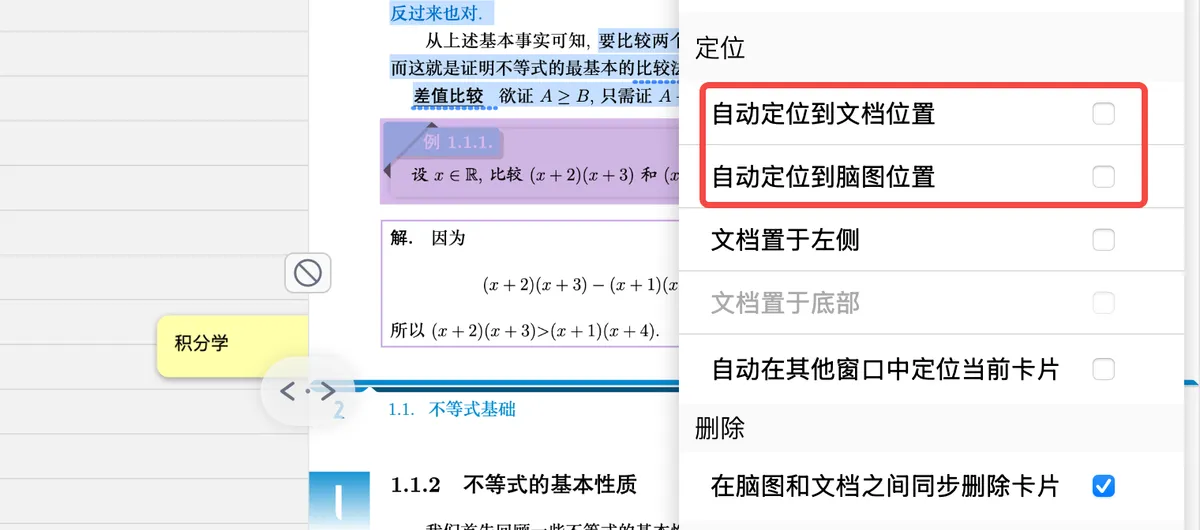
Linkage Off: Navigation between the document and the mind map is completely disabled.
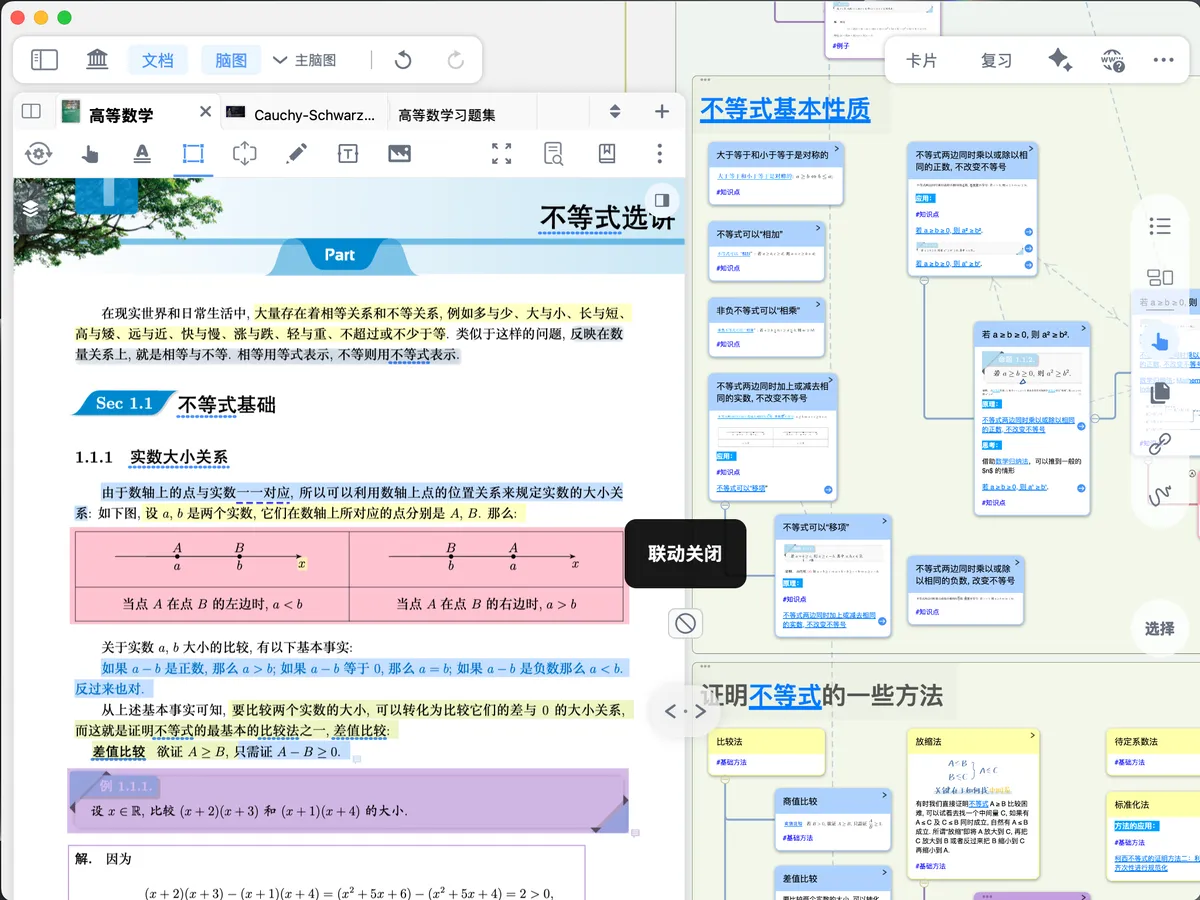
You can also click the horizontal three-dot menu in the top-right corner of the study set and configure it in the Study Set - More panel: turn off both Auto-navigate to Document Position and Auto-navigate to Mind Map Position.
1.1 Viewing Position Information in the Mind Map Context
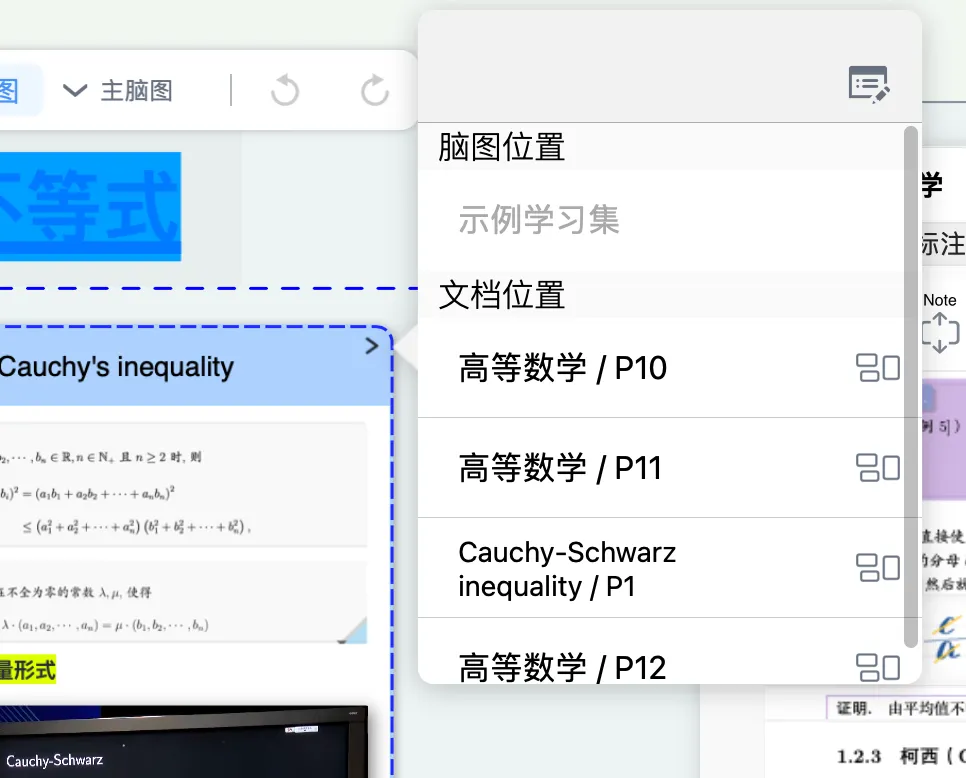

Click the > in the top-right corner of a card to view the card's mind map position and the document position of its excerpt.
1.1.1 Document Excerpt Cards
Click the document under Document Position to jump to the corresponding location in the document.
1.1.2 Reference Cards
Refer to the Sub-Mind Maps and Mind Maps in Other Study Sets sections below.
2 Mind Map + Mind Map Backlink Navigation
2.1 Sub-Mind Maps
2.1.1 Reference

If a card is referenced from a card in another sub-mind map within the same study set, click the > in the top-right corner of the card. The Mind Map Position section then shows the study set and mind map position of all cards (including the source card and the other reference cards); clicking them locates these cards in a floating view.
2.1.2 Link
Cards in different sub-mind maps within the same study set can also be located via links; see Navigating via Links.
2.2 Mind Maps in Other Study Sets
2.2.1 Reference

If a card is referenced from a card in a mind map in another study set, click the > in the top-right corner of the card. The Mind Map Position section then shows the study set and mind map position of all cards (including the source card and the other reference cards); clicking them locates these cards in a floating view.
2.2.2 Link
Cards in mind maps across different study sets can also be located via links; see Navigating via Links.
2.3 Navigating via Links

Single-click the link icon: the corresponding linked card is shown in a floating view.

Double-click the link icon: jump directly to the corresponding linked card.
3 Mind Map Outline Mode + Document Backlink Navigation
💡 Why use Outline Mode? When a mind map has too many nodes or too deep a hierarchy, zooming and dragging on the canvas becomes time-consuming. Switch to Outline Mode to display all cards as a list, so you can quickly browse the structure, search nodes, and perform batch operations. Click any outline row, and the mind map canvas on the right automatically navigates to and highlights the corresponding card.
Click the Outline icon
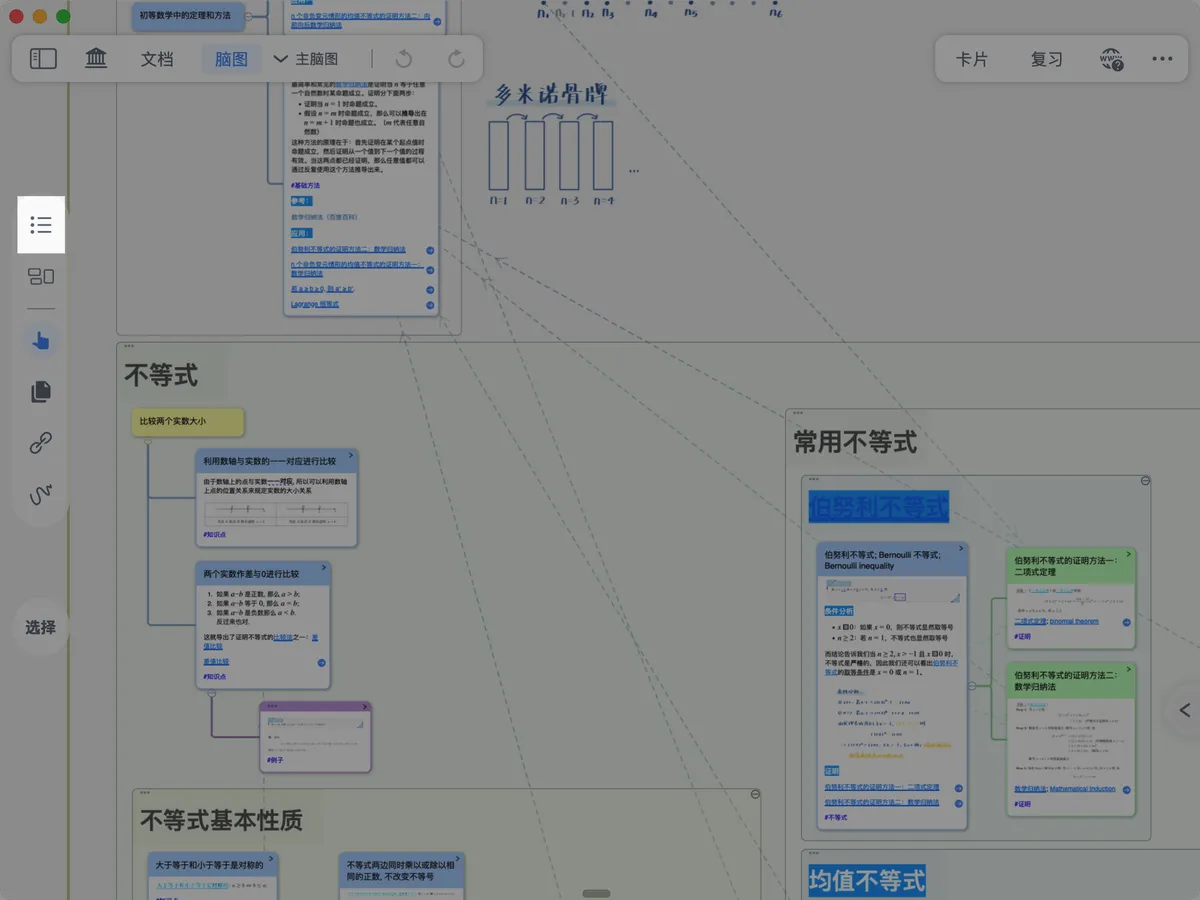
Enable Mind Map Outline
Now, clicking an outline node navigates to the mind map card.
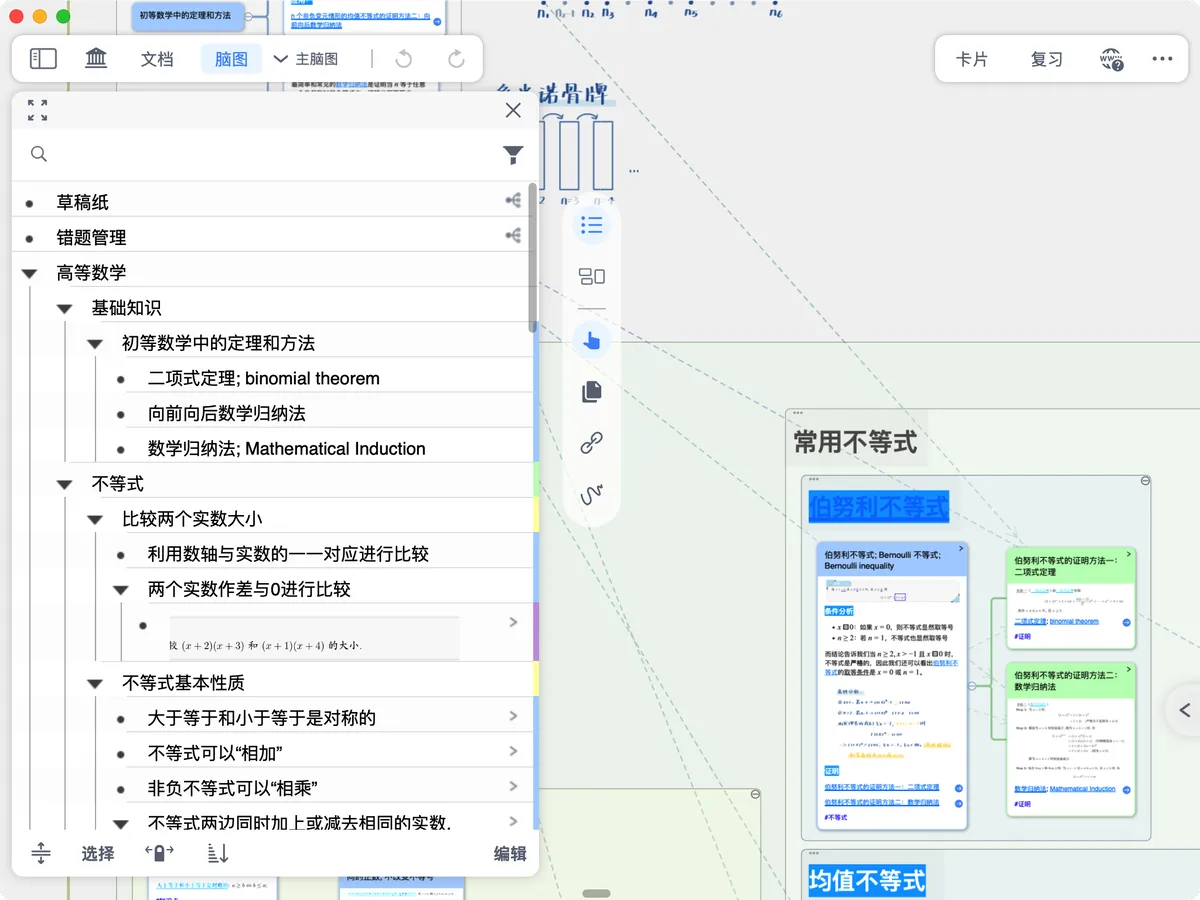
Now, clicking an outline node navigates to the mind map card.


Clicking a mind map card can also navigate to the outline node.

4 Zettelkasten-styled Card Box Search + Mind Map Backlink Navigation
Click a card in the Zettelkasten-styled card box search results, then click the study set beneath the mind map position in the pop-up view to locate that card in a floating view.
5 Card Board + Mind Map Backlink Navigation

Open the Card Grouping Board, click a mind map card, and the corresponding card on the board is selected accordingly, with a blue dashed outline around it.

Conversely, click a card in the mind map board to locate it in the mind map.