Document Tab Management
💡When to use this: When your study set has too many documents to fit in the tab bar; When you want to hide documents you are not currently studying to reduce distraction; When you want to keep frequently used documents at the front of the tab bar.
❗This page is based on the tab feature. Beyond tab management, there are other advanced ways to use it. For details, see the page New Blank Notebook, Comparison ①: Bi-article Comparison Window.
1 What Are Document Tabs?
A study set contains all the documents you have imported, while the tab bar only shows the documents you choose to open.
Just like browser tabs, each tab corresponds to one open document, letting you switch between them quickly.

Showing and hiding the tab bar:
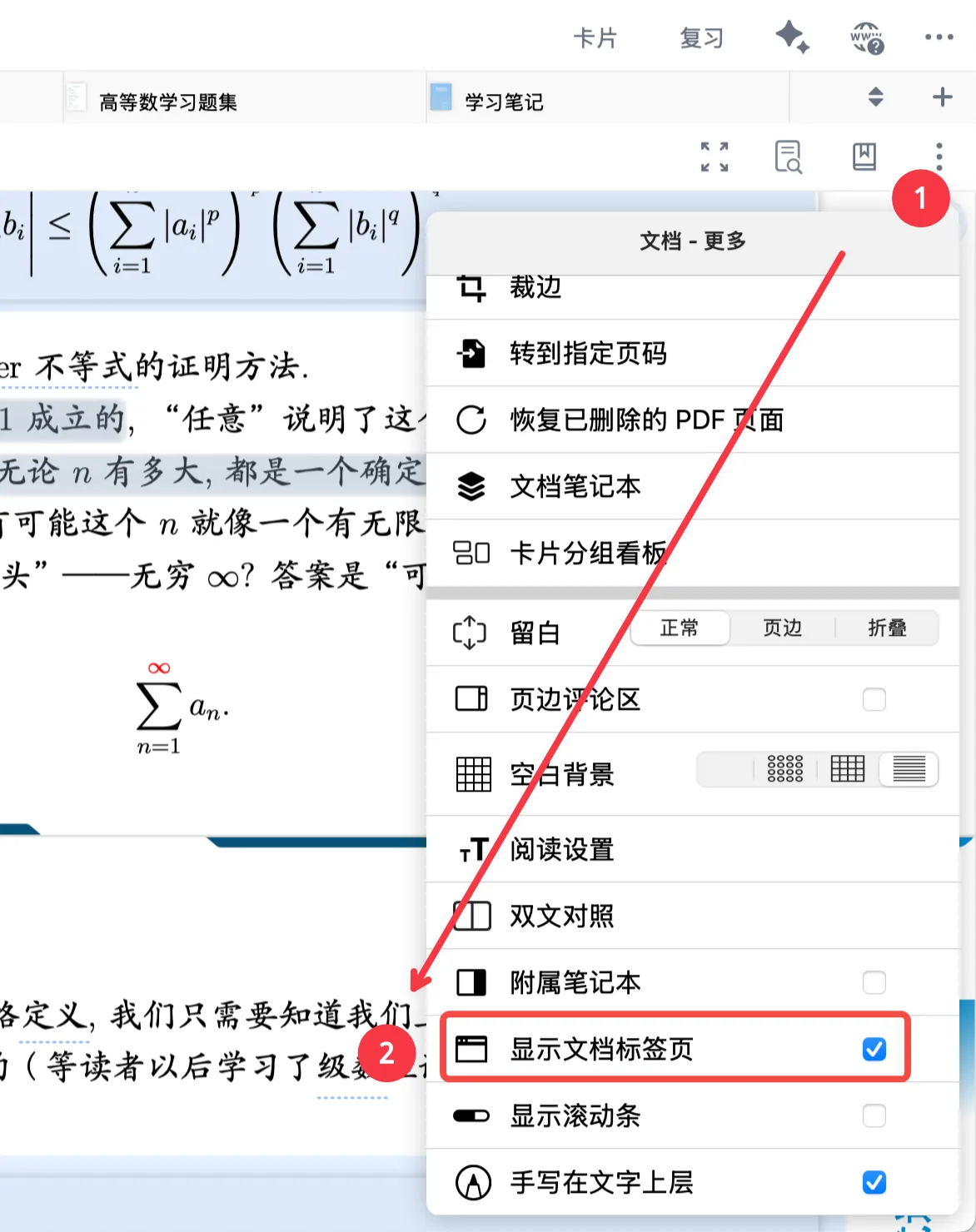
Tap Document - More (the vertical three-dot icon) in the top-right corner → Show Document Tabs to show or hide the tab bar.
2 Working with Document Tabs
2.1 Browsing and Opening Documents
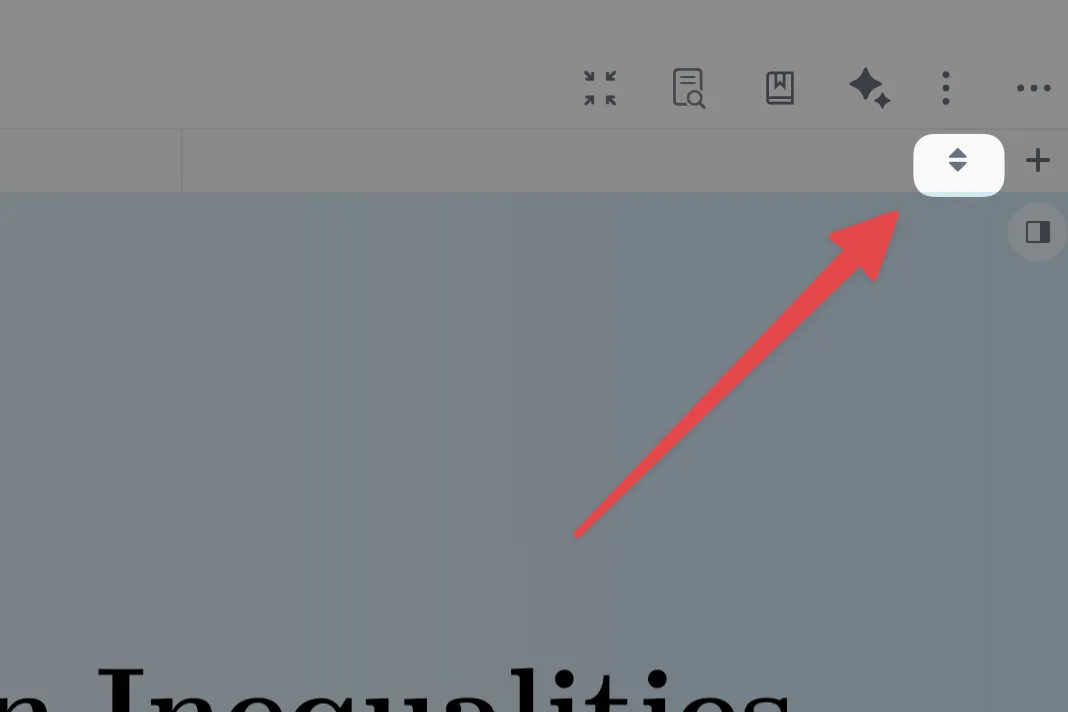
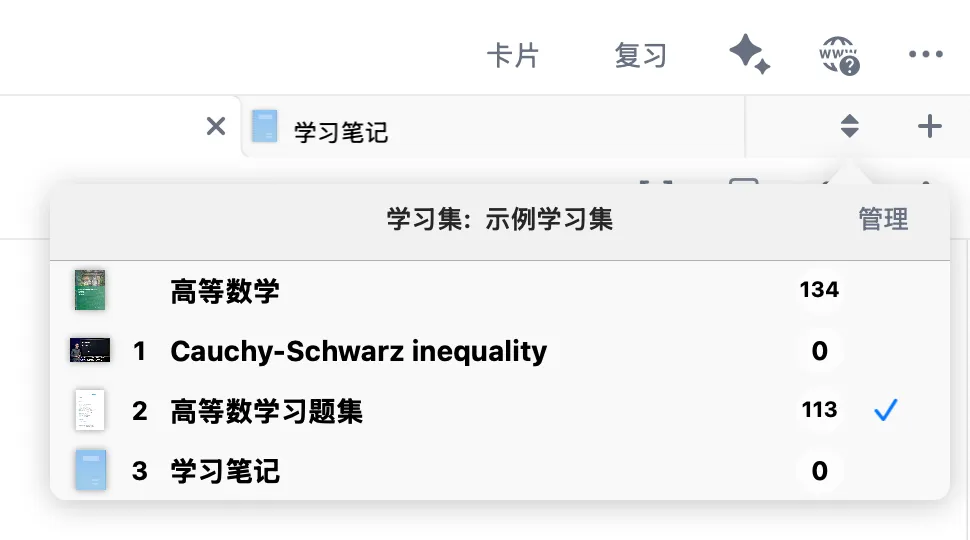
Tap the document list button on the right to open the document list.
- On this screen, you can quickly browse every document in the study set.
- Tap a document to open it instantly in the tab bar.
2.2 Closing Documents
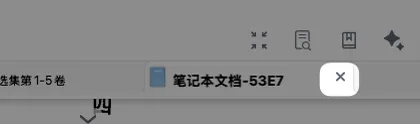
Tap the x on the right side of a tab to close that tab's document.
2.3 Importing Documents
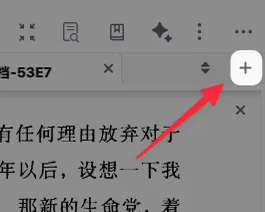
Tap the ➕ on the right side of the tab bar to import a document into the study set; the imported document opens automatically in the tab bar.
For the detailed steps, see: Importing Documents into a Study Set
3 Managing Document Tabs
Tap Manage to go to the tab management screen.
3.1 Closing a Document from a Tab
In the Documents in Tabs section, tap the x on the right side of a tab to close that tab's document. You can also close it directly in the tab bar; see: Closing Documents.
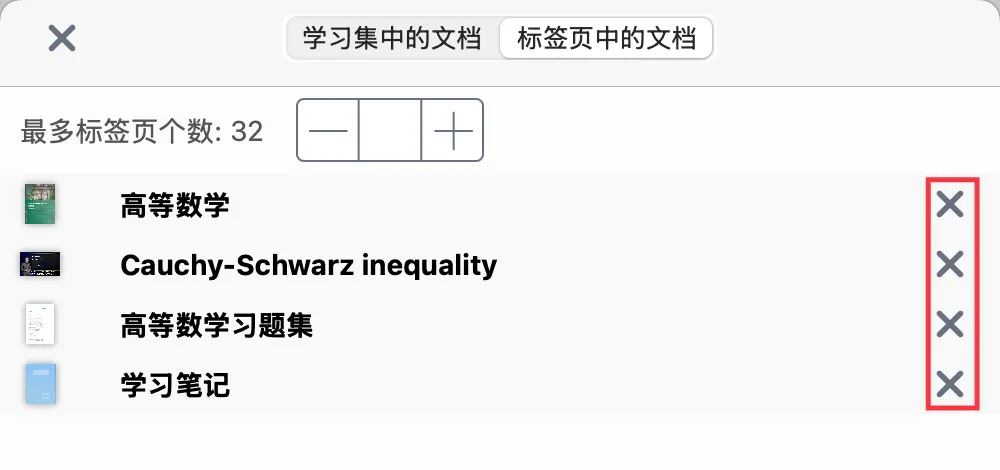
❗Closing a tab does not delete the document. You can reopen it at any time from the documents in your study set (see: Browsing and Opening Documents).
3.2 Removing a Document from a Study Set
As shown below, tap the ⛔️ on the tab management screen to remove the document from the study set.
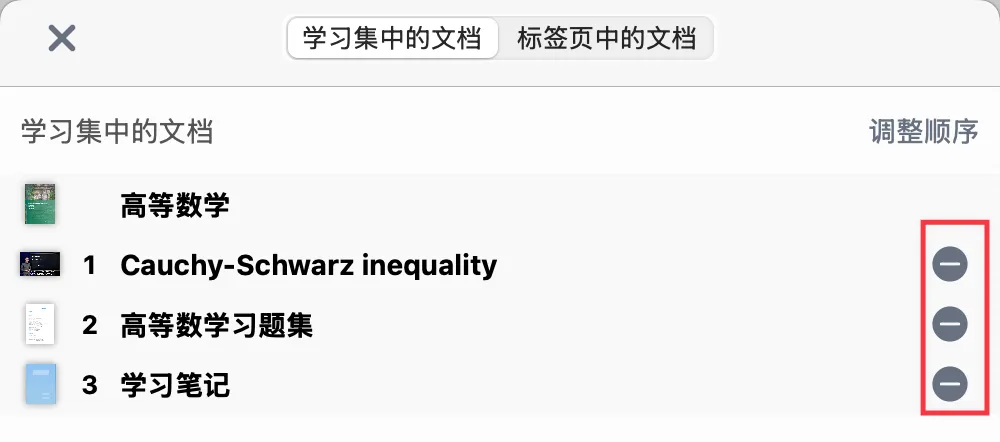
❗Note: This operation erases all links between the mind map and the document, and it may be impossible to undo. However, it does not delete the document from MarginNote. You can restore a document that has been closed from a study set but not deleted from the document library.
3.3 Reordering Tabs
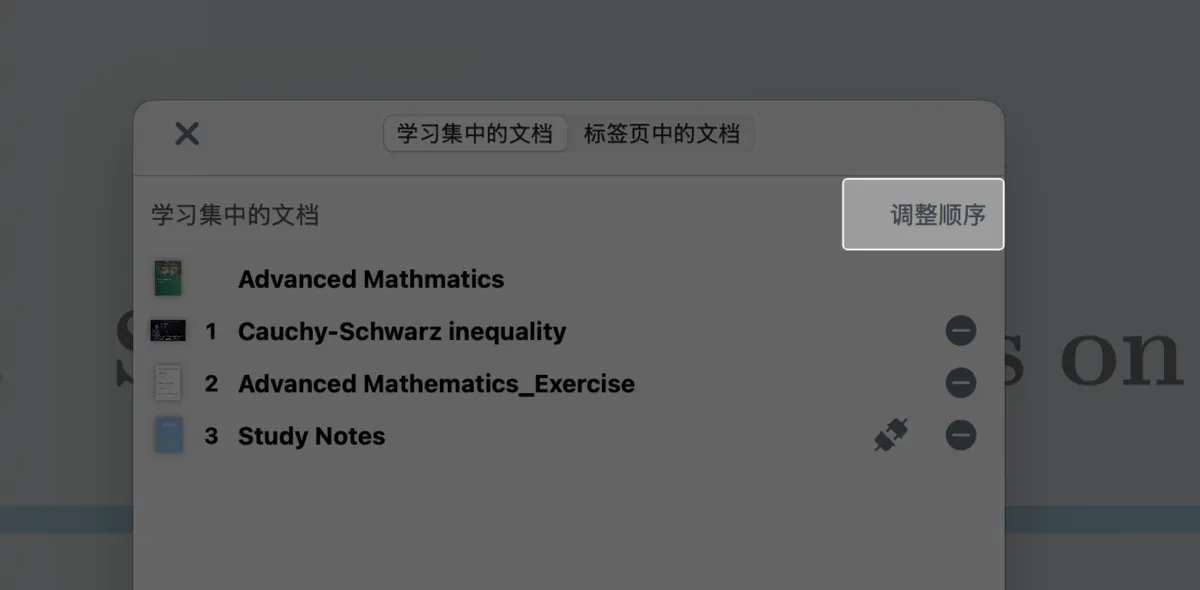
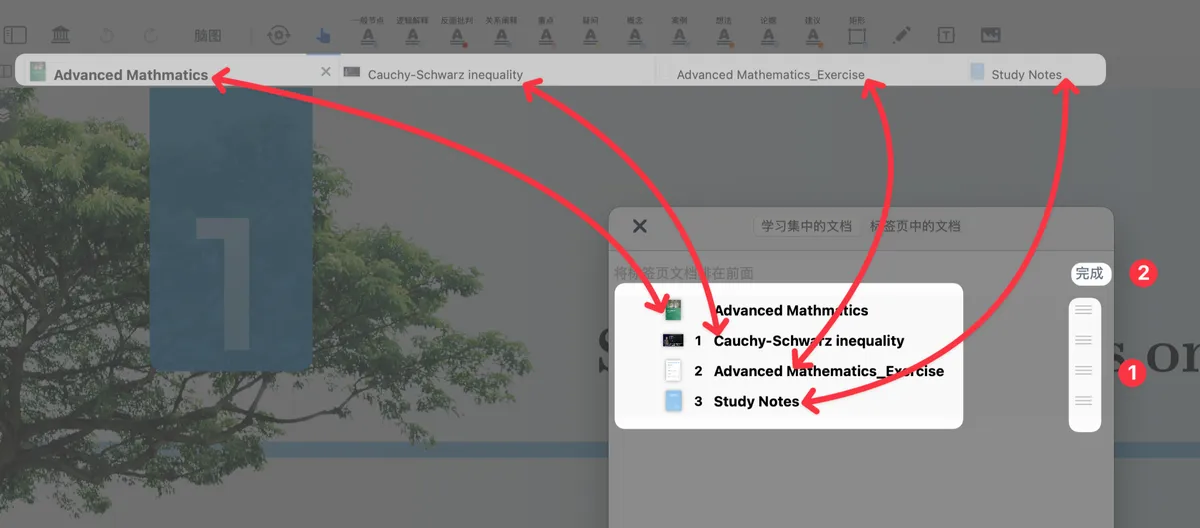
On the tab management screen, tap Reorder in the top-right corner to change the display order of the tabs:
After tapping Reorder, press and hold the "three-line handle" to freely drag the document tabs into the order you want. When you are done, tap Done.
3.4 Managing the Number of Tabs Shown
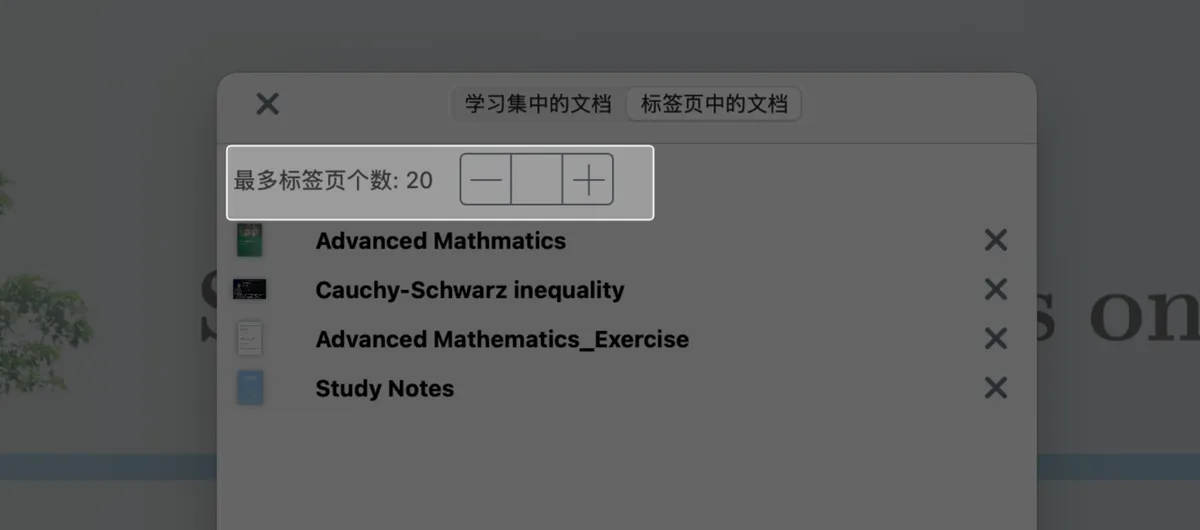
Sometimes a study set contains a large number of documents, which can be hard to manage. In that case, on the tab management screen under Documents in Tabs, set the Maximum Number of Tabs to control how many documents the tab bar shows. Documents beyond the limit are hidden but remain in the study set.
💡We recommend a setting of 3-7, adjusted to your screen size and the number of documents.