Extend Note ② | Use Cases: Tiered Management of Reading Notes
💡 While reading, the notes we jot in a book are not all equally important: some require a deep understanding of the original text (such as filling in derivation steps), while others are just passing thoughts (such as to-do items). MarginNote 4's
extend notefeature lets you flexibly choose where each note is displayed, based on its type.How to tell a note's type ⬇️:
Important notes (best embedded in the text):
- Filling in derivation steps omitted from the original
- Explaining hard-to-grasp concepts
- Recording key points you must master
- Content you need to review again and again
Secondary notes (best kept in the margin):
- Passing thoughts and inspiration
- Further reading material
- To-do items and reminders
- Content not closely related to your current studies
This page covers typical use cases for the
extend notefeature. If you're not yet familiar with the basics of extend note, please read this first: Extend Note ① | Basic Operations: Freely Open Up Note Space Between the Lines.
1 Scenario 1: Embed Important Notes in the Text
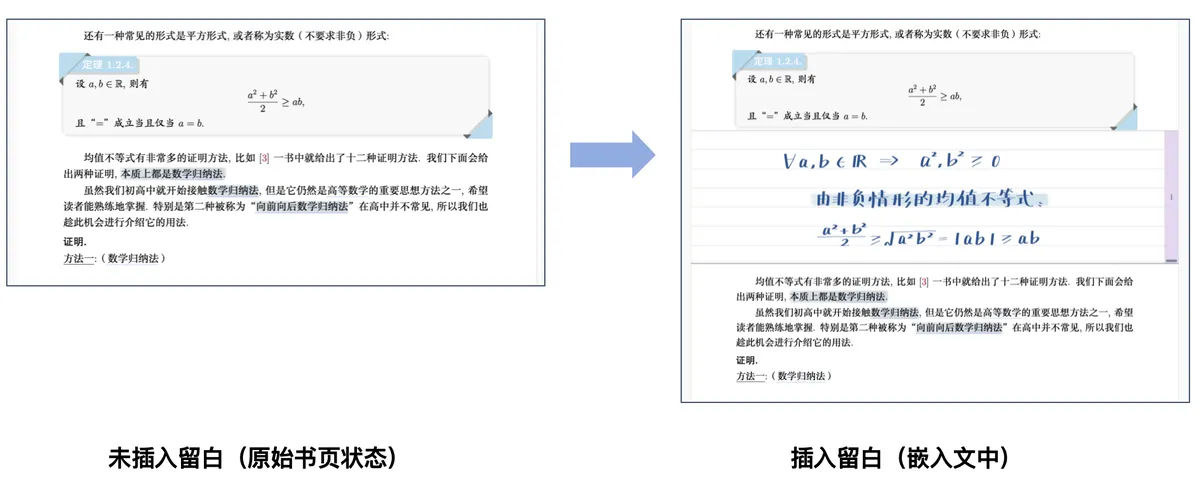


When reading a math textbook, the derivation of a theorem often skips the intermediate steps. You can use **extend note** to add the full derivation directly below the theorem, just as if you had "inserted" an extra blank note area into the textbook.
-
Result: 🖼️ Image
-
Advantage: When reviewing, the derivation and the original text stay within the same field of view, so there's no need to flip back and forth between pages to cross-check them.
2 Scenario 2: Park Secondary Notes in the Margin
When reading a paper, ideas may strike you at any time (e.g., "this point relates to such-and-such theory"), but these ideas aren't essential to understanding the original text. You can jot them down in the margin comment area, sticking them beside the page like sticky notes—they don't disrupt the layout of the original text and stay easy to compare against it whenever you like.
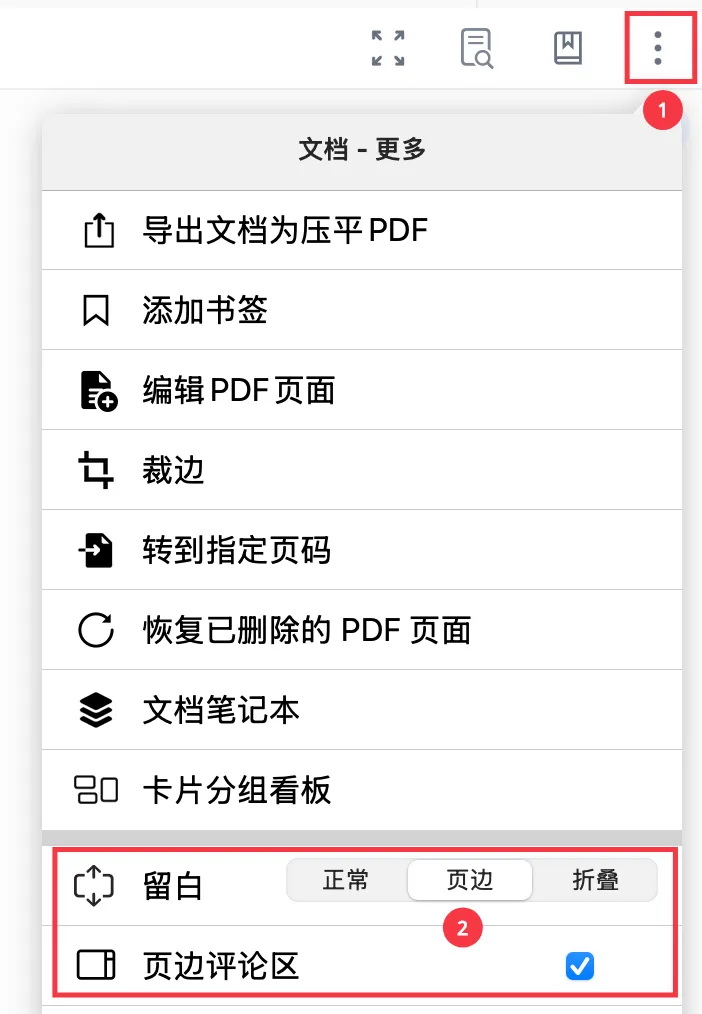
- How to do it: Tap
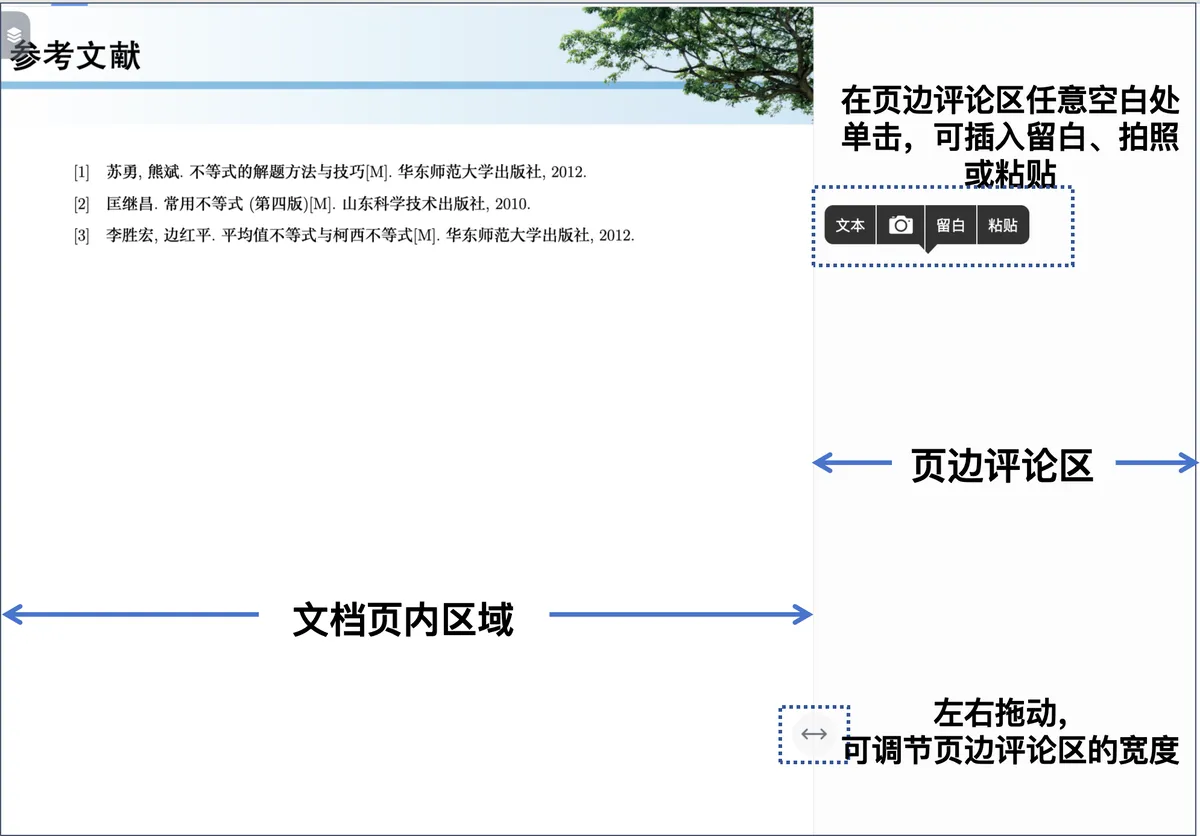

...(Document - More) in the top-right corner of the document → switchextend notetoMarginmode, and themargin comment areawill open automatically. Drag the ←→ button left and right to adjust the width of the margin comment area.
-
The margin comment area supports:
Text: insert a plain-text extend note📷: open the camera to take a photo (supports image correction, ideal for photographing slides)extend note: insert a handwritable extend notePaste: paste the clipboard contents
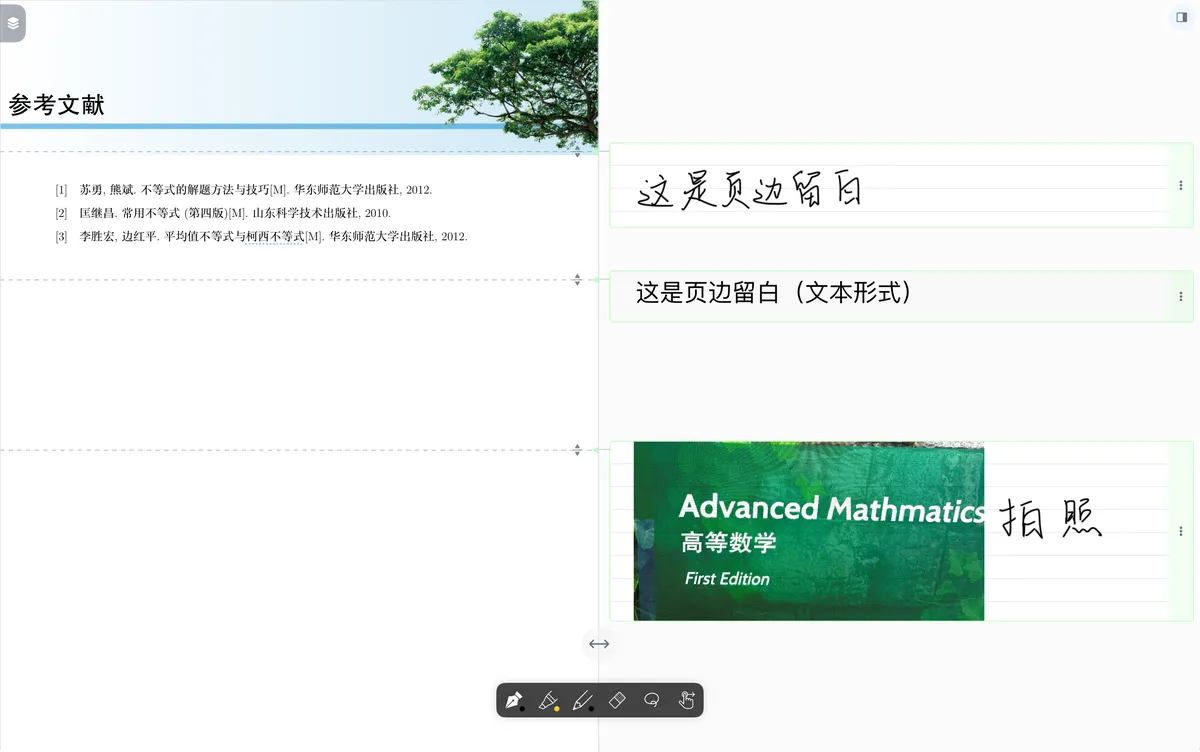
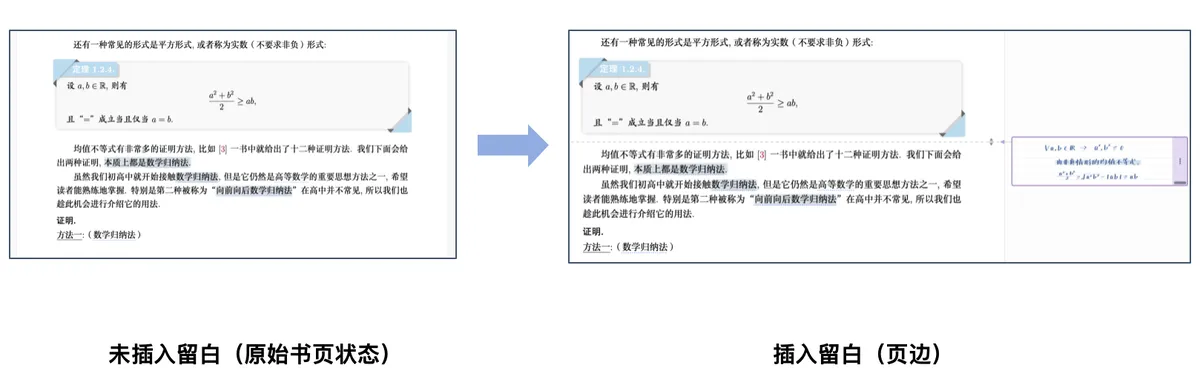
- Advantage: Margin notes don't affect the layout of the original text; you can view them anytime without interrupting your reading flow.
3 Scenario 3: Collapse ←→ Expand, Dynamically Adjust a Note's Position
A note's value changes as your studies progress. An idea you thought unimportant at first may later prove crucial; a detailed derivation you needed at the start may, once you've mastered it, only need to be collapsed and hidden.
3.1 Expand and Collapse
- Collapse a note: A note you don't need to see while reviewing can be
collapsedinto a dashed line so it doesn't get in the way of reading. - Expand a note: When you need it, tap the dashed line and the note
expandsinstantly.
3.2 Convert Between Embedded and Margin
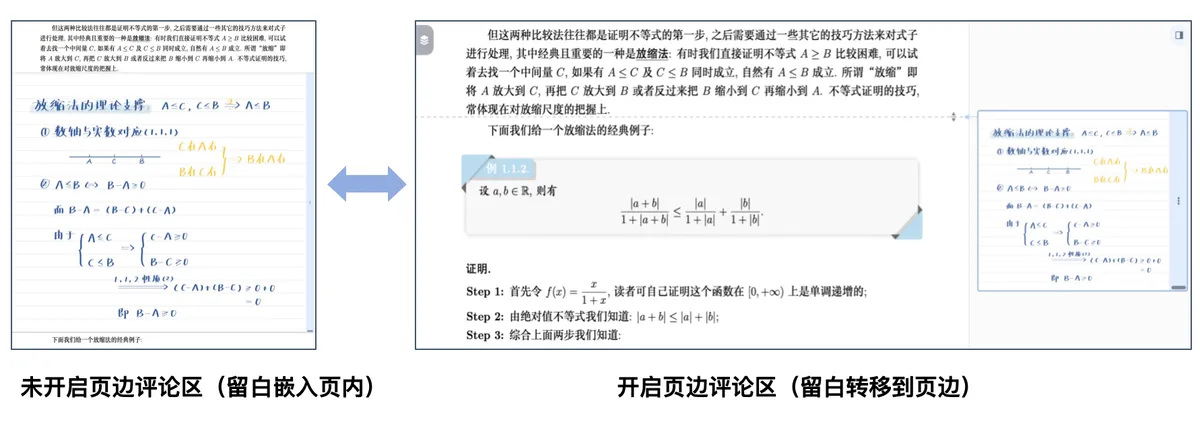
- Margin to Embedded: When you find a margin note is important, you can
expandit into an embedded note. - Embedded to Margin: Once the
margin comment areais enabled, acollapsedembedded note is automatically shown in the margin (instead of being hidden entirely).
💡** Important Notes**
- Margin mode is a global setting: Once you switch to Margin mode, every new extend note will appear in the margin. If you need to embed a note in the text, switch back to "Normal (Embedded)" mode.
- Use in moderation: Too many embedded extend notes increase page length and the chance of lag, hurting the reading experience. We recommend embedding only the comprehension notes you truly need.
- Detailed operations: For detailed operations such as creating, editing, and deleting extend notes, see: Extend Note ① | Basic Operations: Freely Open Up Note Space Between the Lines.