Review View
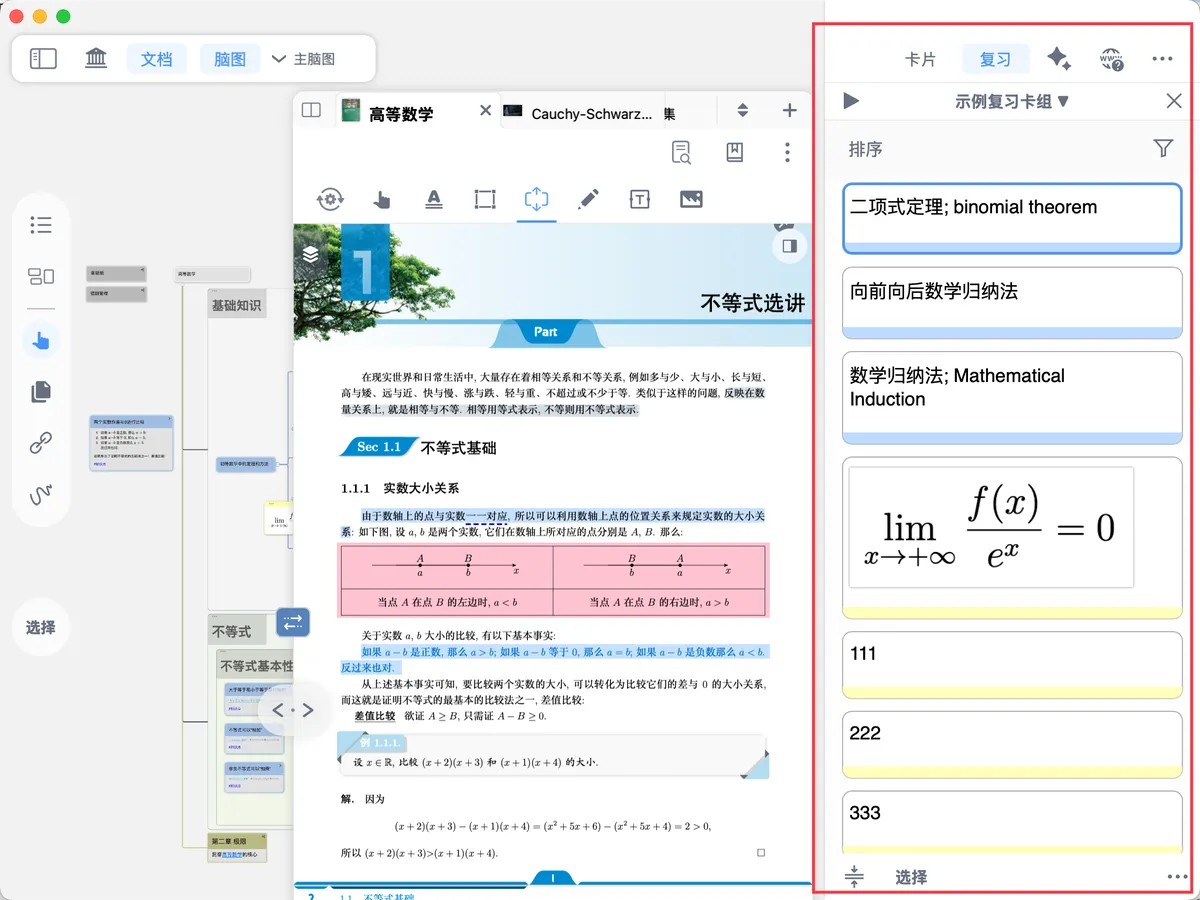
💡This page mainly explains the basic features of the "Review" view shown in the figure below. For the more advanced features of flashcard review, see: Flashcard Creation ①: Understanding Flashcards and Review Card Decks, Flashcard Review ①: Scientific Review Based on the FSRS Anti-Forgetting Algorithm
1 What Is the Review View
💡Review View — A Seamless Bridge Between Documents, Mind Maps, and Memory:
Without leaving the study set interface, you can start flashcard review directly. Note content is presented as cards, allowing learners to instantly retrieve, review, and reinforce their memory within the context of the original text. There is no need to constantly switch between study and review modes, so knowledge absorption and memory consolidation proceed in tandem, making the learning process more coherent and efficient.
2 Opening the Review View
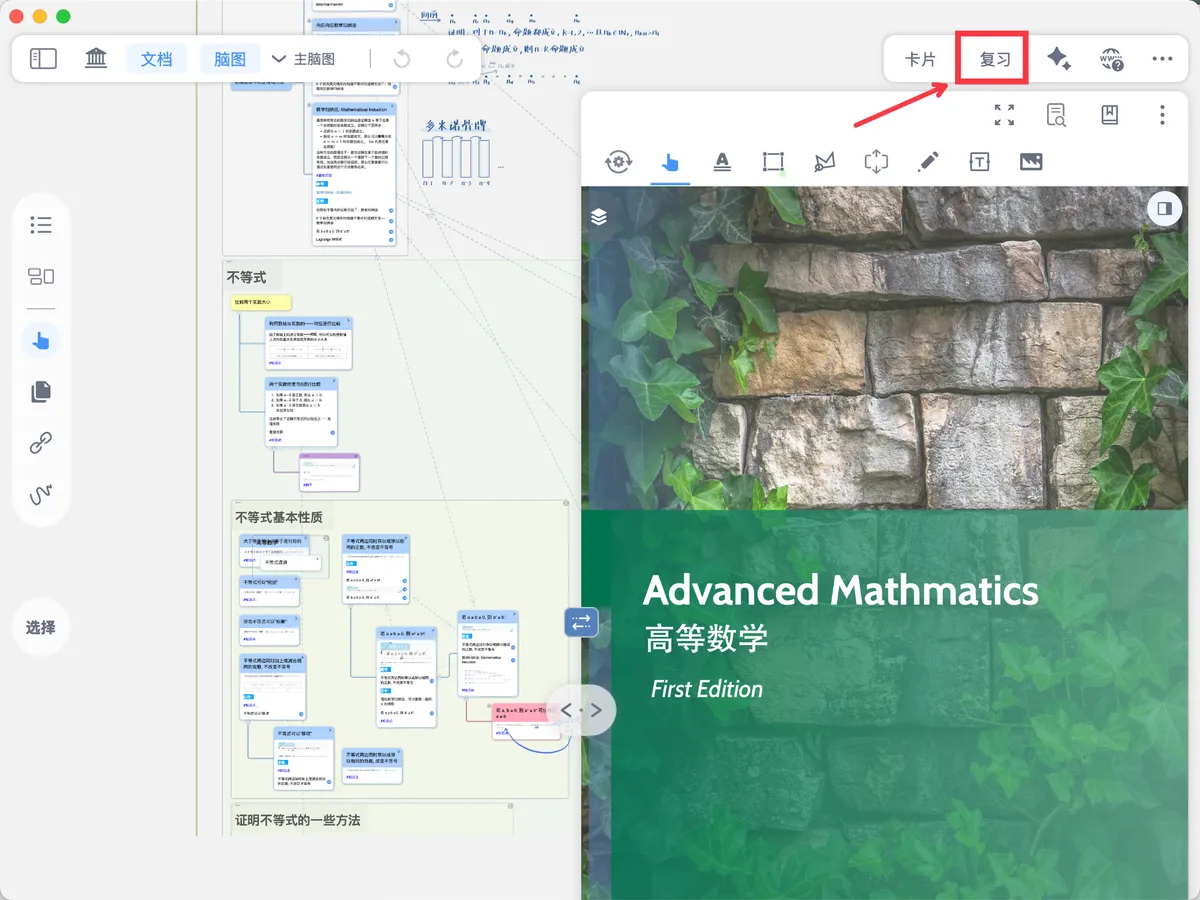
- In non-full-screen mode, tap the
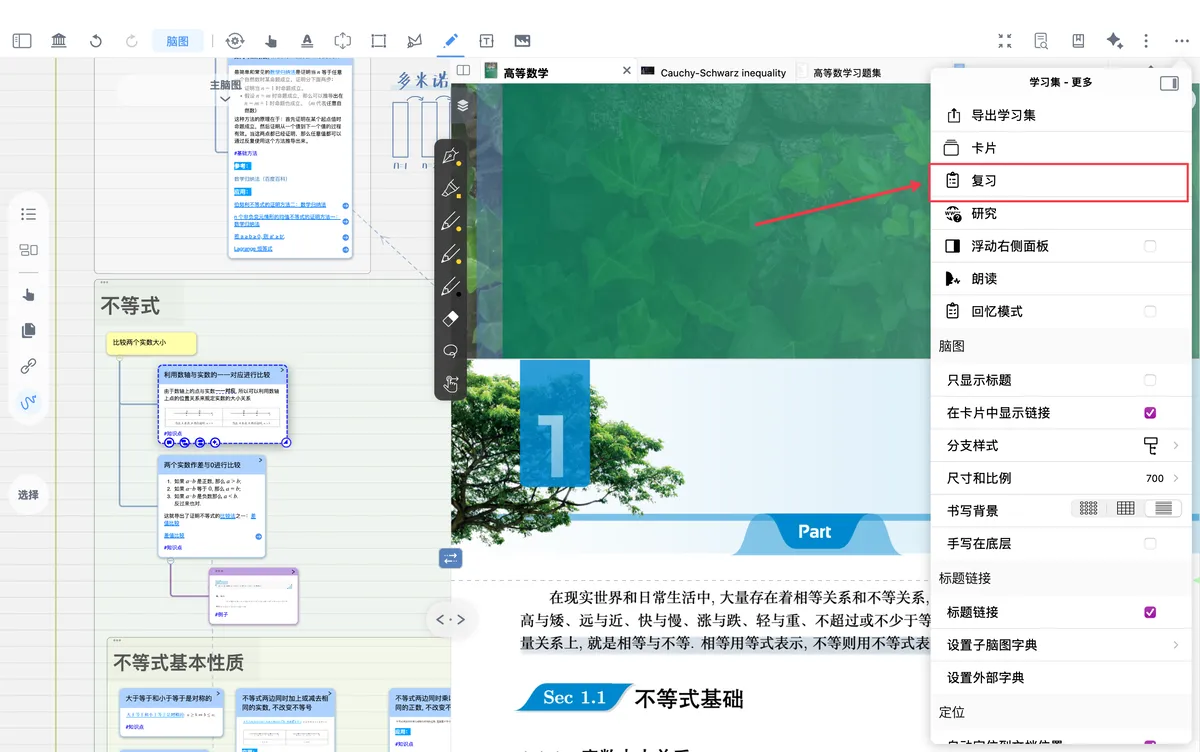
Reviewbutton in the top-right corner of the study set interface to open theReview view. - In full-screen mode, in the top-right corner of the study set interface, tap
...-Reviewin sequence to open theReview view.
3 Review View Operations
3.1 Review View
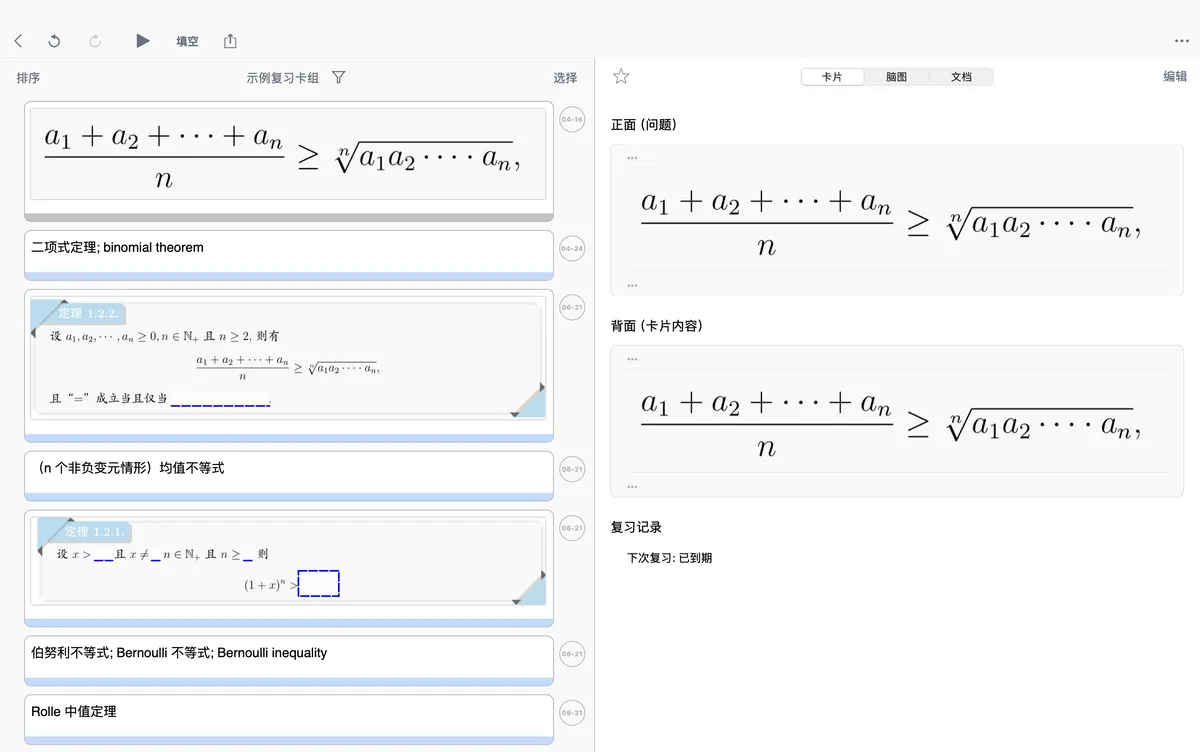
- The buttons inside the Review view are as follows:
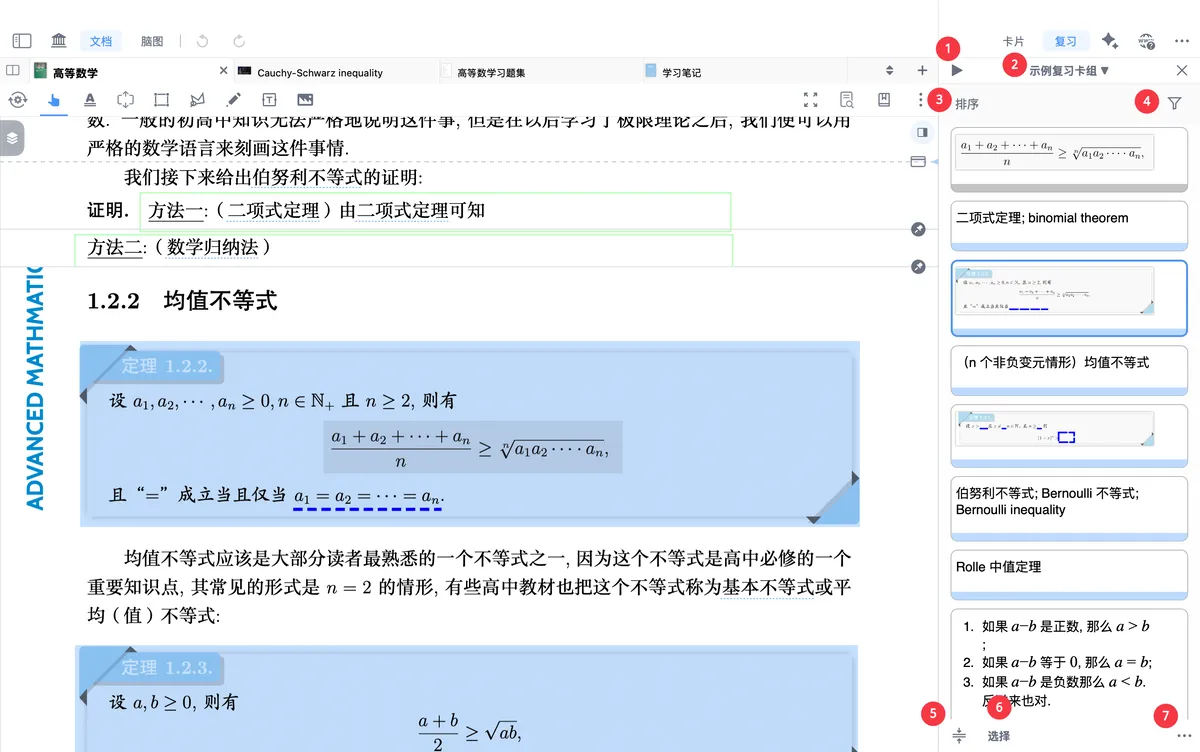
1 Start review
2 Switch the review card deck
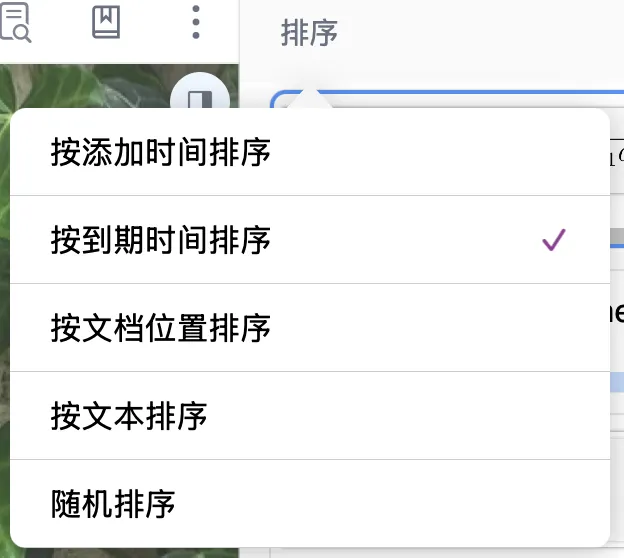
3 Sort cards (sort by Date Added/Due Date/Document Position/Text/Random)
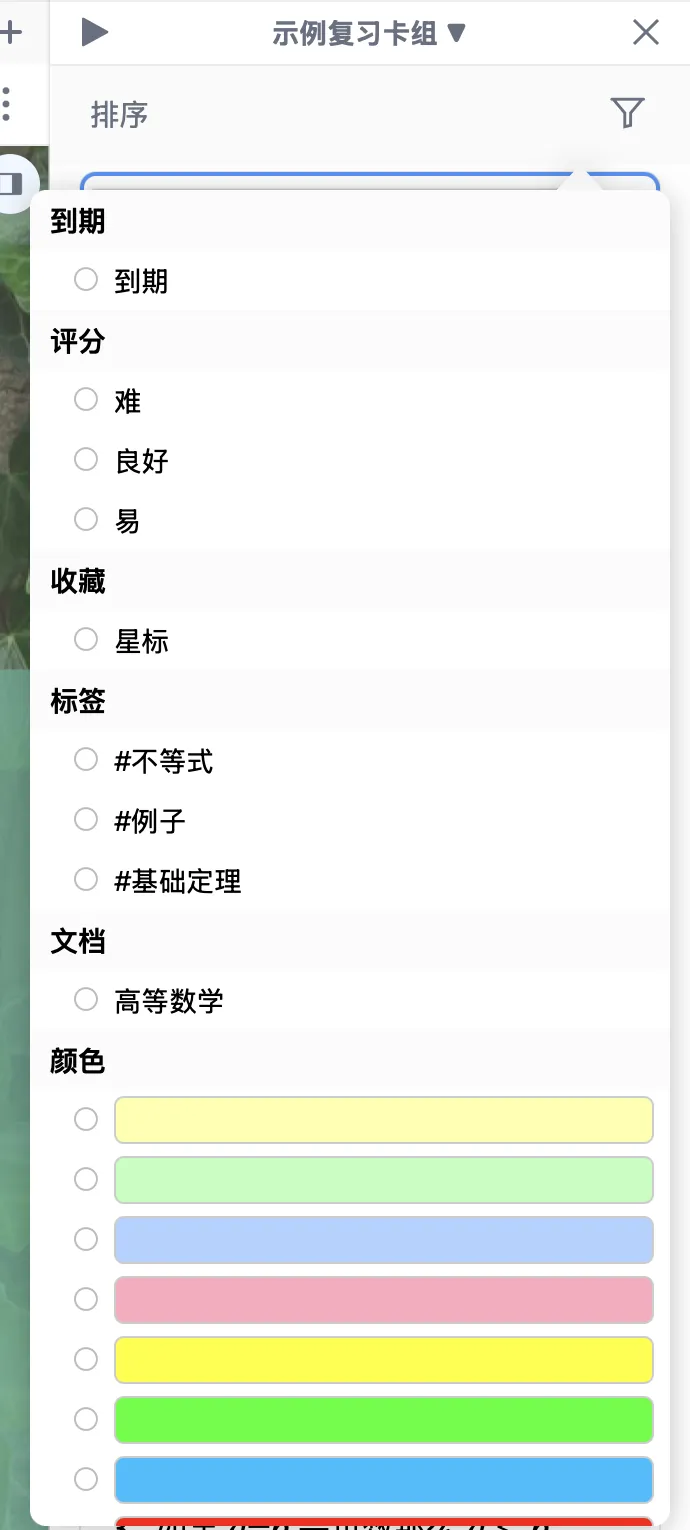
4 Filter cards (filter by Due/Rating/Favorites (Star)/Tags/Document/Color)
5 "Single-line display" button (shown by the icon below)
Single-line display
6 Multi-select cards
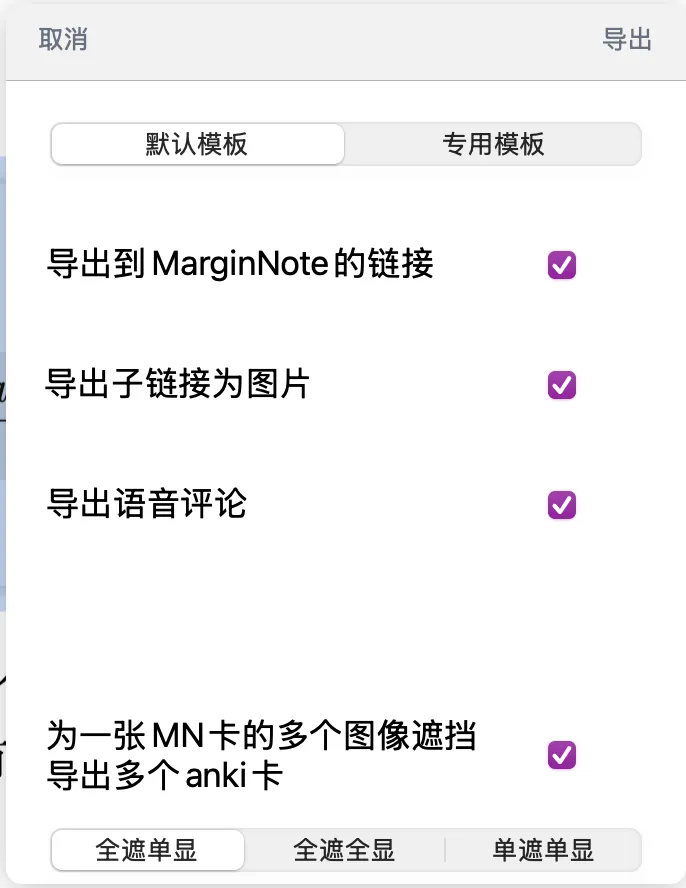
7 More: enter full-screen review mode / update card questions / export cards to Anki
💡
Update card questions: Used to sync modified content from the original note card to the corresponding review card. After the original card is adjusted, the update card operation keeps the content in the review card deck consistent with the latest notes, preventing the review content from becoming inconsistent with the original record due to repeated edits.
3.2 Further Operations on Cards
- Take a rectangular excerpt card with emphasis as an example:
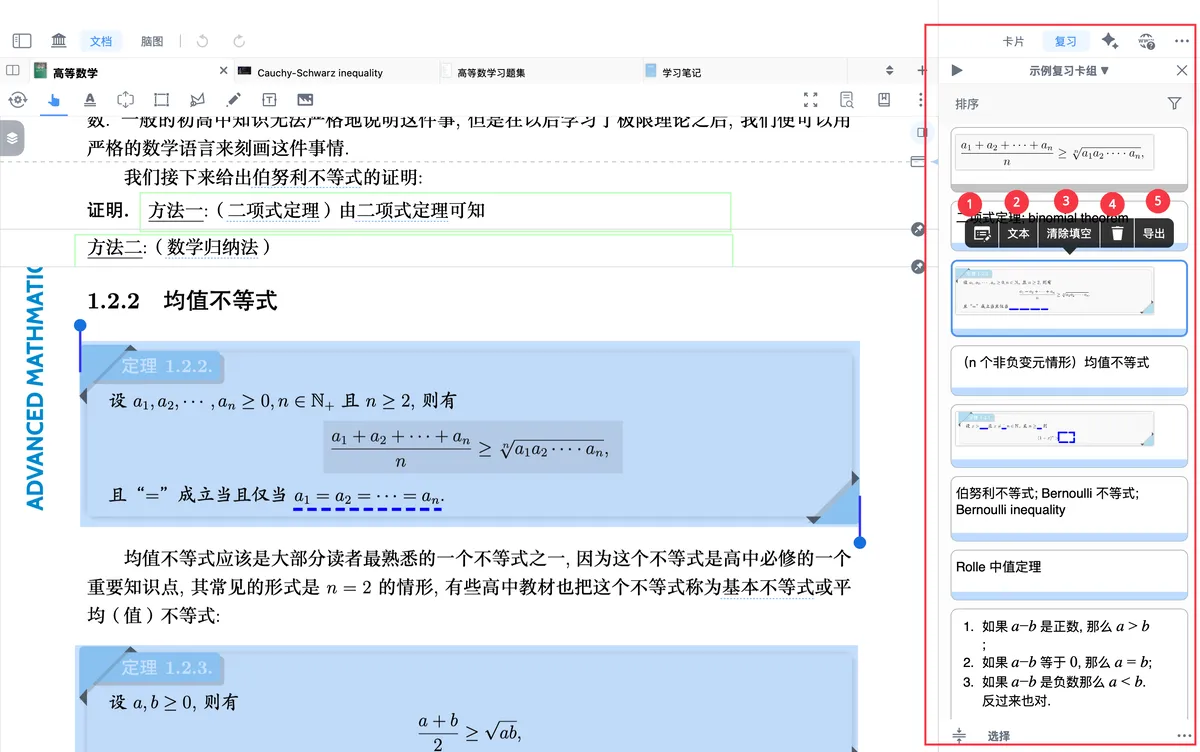
1 Open the card editor
2 Perform Text OCR on the card
3 Clear cloze (clear the emphasized content)
4 Delete the review card
5 Export this review card
❗
Delete the review card: This only removes the card from the current review deck; it does not delete the corresponding original note card. The original card remains in the study set or mind map, where it can still be viewed, edited, or added to review again.
4 Reviewing
4.1 Opening the Flashcard Review Interface
- In the
Review view, tap button 1 to open the flashcard view and start reviewing.
4.2 Inside the Flashcard Review Interface
- In the flashcard review interface
- The card is first shown front side up (left image)
- Tap
a blank area of the cardor (left image) button 4Show answer (emphasis / card back content) - The card then shows the back-side answer content (right image)
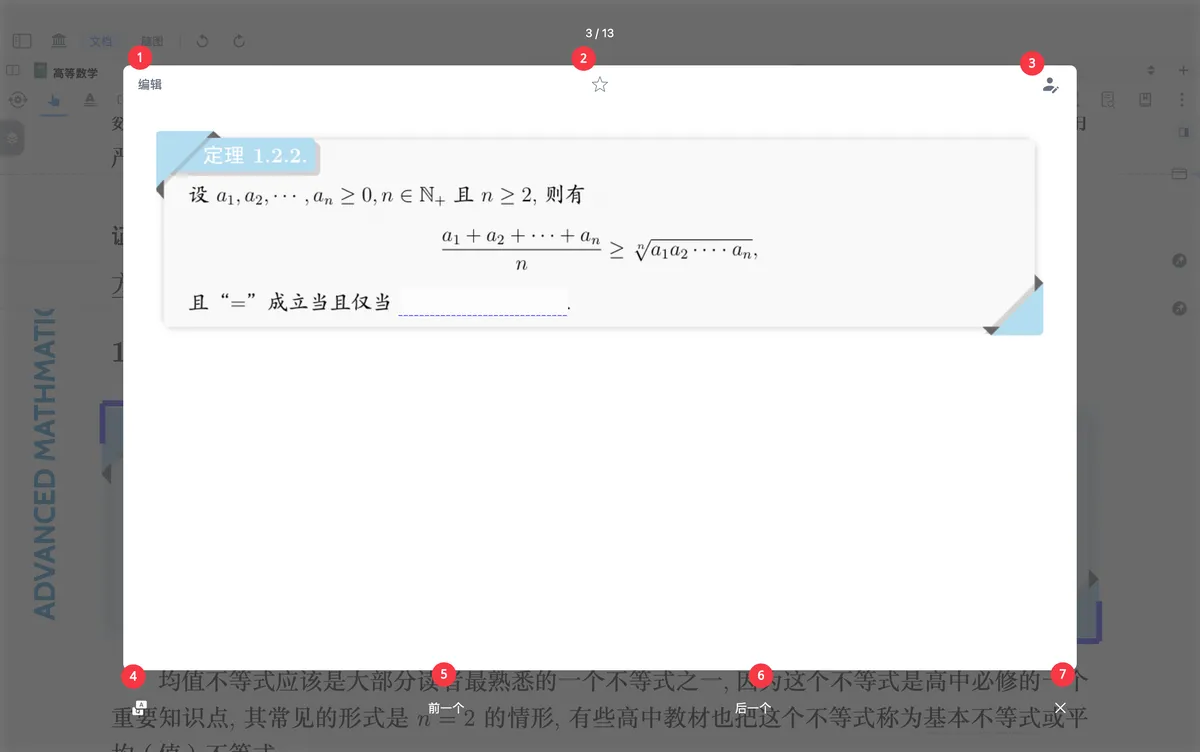
1 Edit the card
2 Star the card
3 Add a handwritten annotation
4 Show answer (emphasis / card back content)
5 Show the previous card
6 Show the next card
7 Close the flashcard review interface
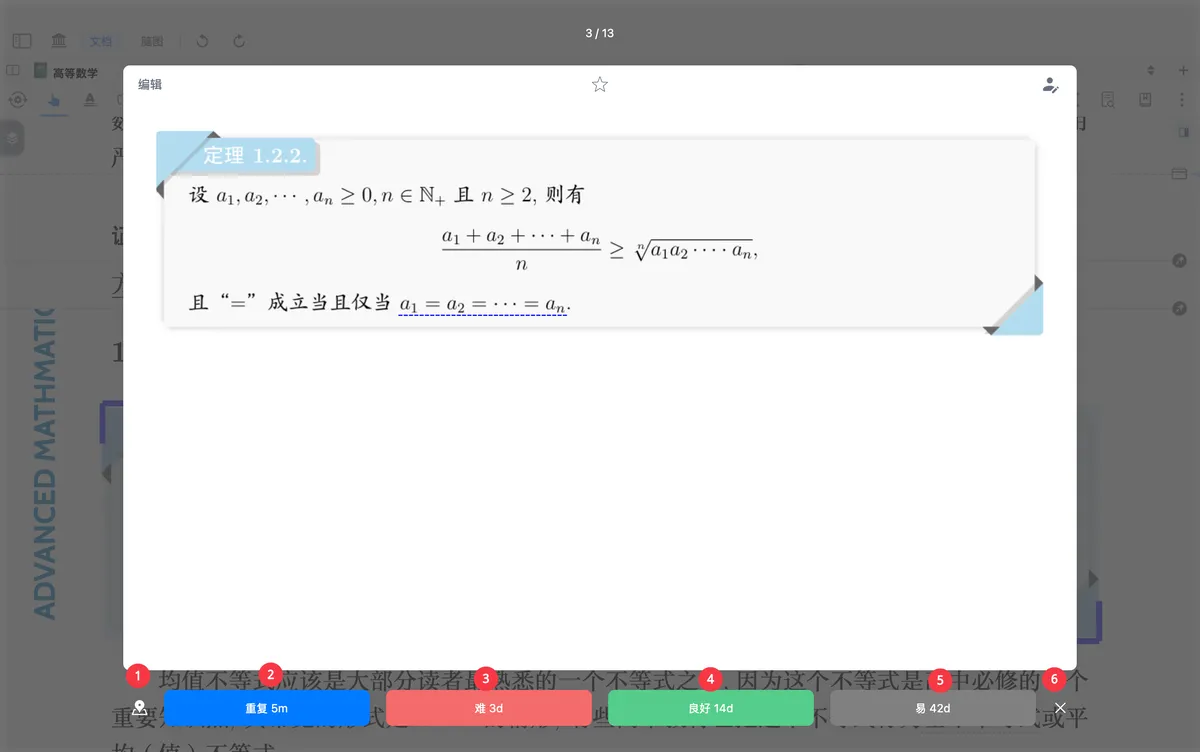
1 Locate the card's position within the document
2 Repeat 5m: the next review falls due in 5 minutes; suitable for flashcards you cannot recall at all
3 Hard 10m: the next review falls due in 10 minutes; suitable for flashcards you remember poorly
4 Good 1d: the next review falls due in 1 day; suitable for flashcards you remember fairly well
5 Easy 2d: the next review falls due in 2 days; suitable for flashcards you have firmly memorized
6 Close the flashcard review interface