Mind Map and Document Linked View
💡Mind map + document, true "side-by-side learning":
In MarginNote, your document materials and your mind map notes are not isolated from one another—they form a dynamic, interconnected whole.
Placed side by side in front of you, they build a two-way expressway between the knowledge points in your document and the logical structure of your mind map: tap anywhere in the document or the mind map, and the matching spot is pinpointed on the other side.
No more switching back and forth between two apps or windows—organizing your thoughts as you read becomes incredibly convenient.
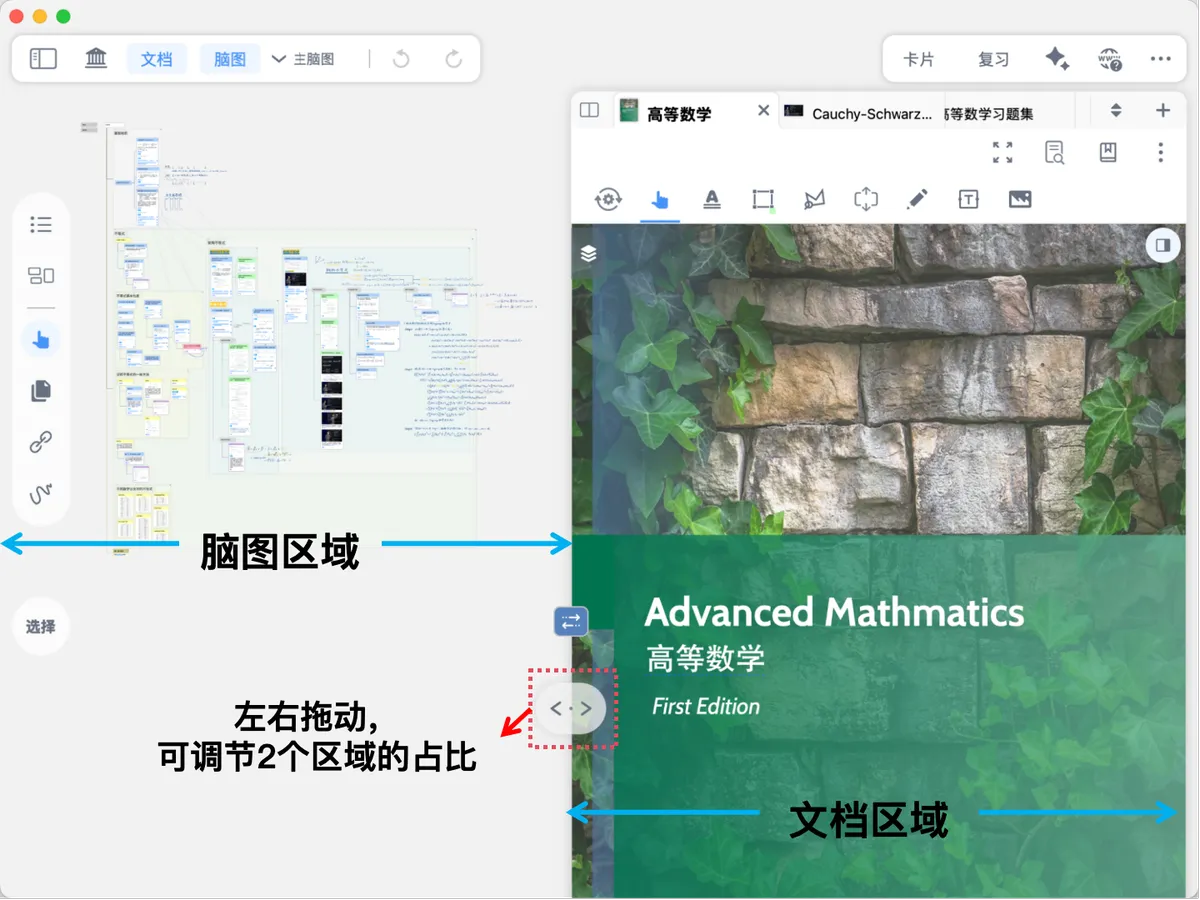
1 Adjusting the View Ratio
View adjustment
🖼️ Image

💡On Mac, ⌘ + scroll wheel zooms the mind map/document,** ⇧ + scroll wheel can move the view horizontally**
2 Single-View Mode
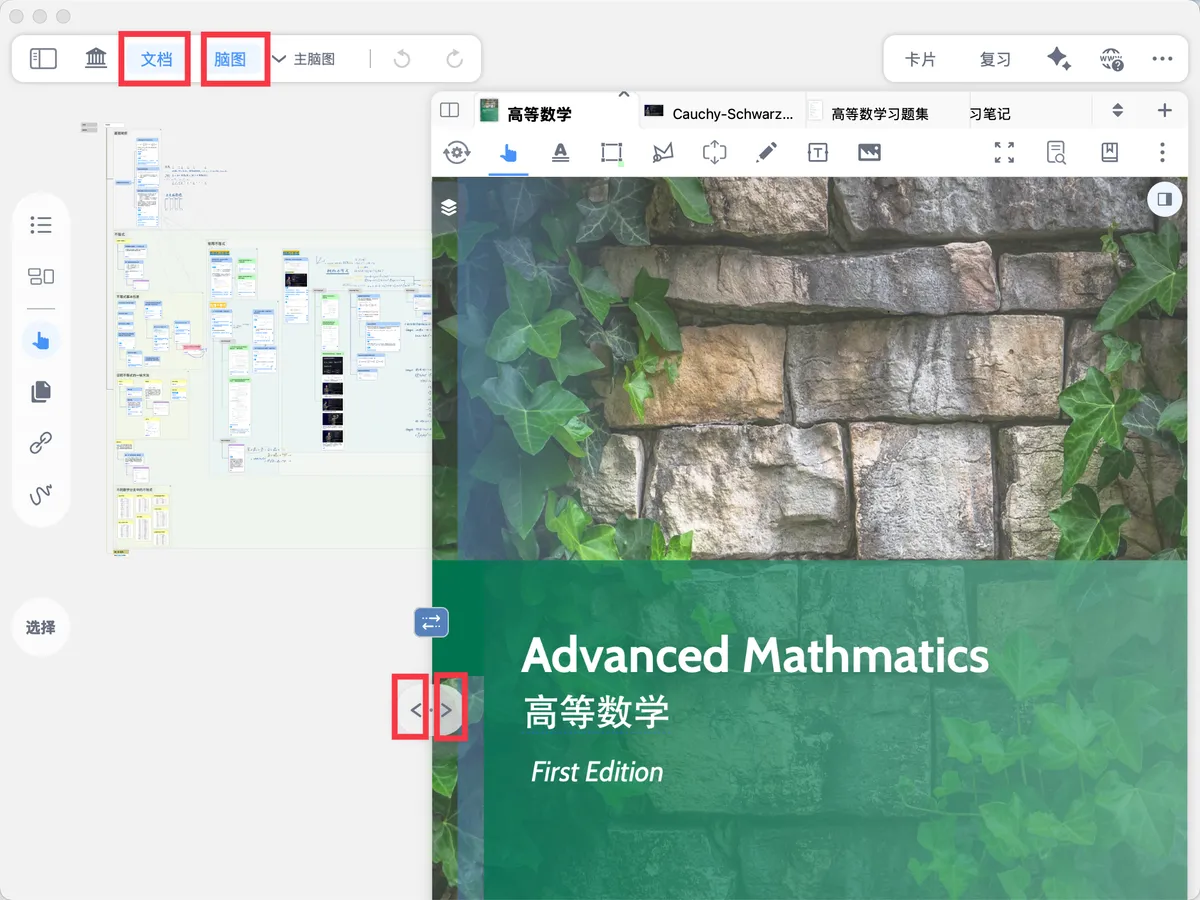
When you want a clean mind map or document interface, you can fully hide the other view: tap the Document or Mind Map button at the top of the study set, or tap the left arrow < or right arrow > on the view adjustment button, to hide the corresponding view (at the same time, the other view will be shown full screen).

3 Controlling View Linkage
Linkage control
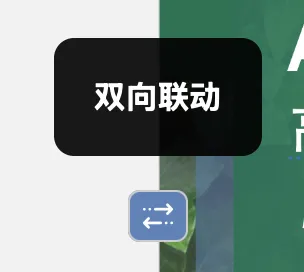
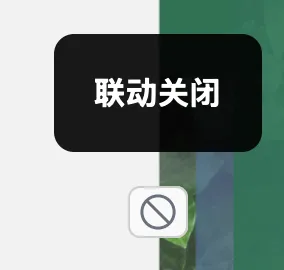
Tap the linkage control button to change the positioning relationship between document excerpts and mind map cards. There are four linkage modes in total:
- Document to mind map: when you tap a document excerpt, it automatically locates the corresponding mind map card;
- Mind map to document: when you tap a mind map card, it automatically locates the corresponding document excerpt;
- Two-way linkage: combines the positioning of both 1 and 2;
- Linkage off: positioning is completely turned off.


4 Full-Screen Mode

Full-screen mode
Tap the full-screen mode button (shown by the icon above) to enter Full-Screen Mode. The document toolbar will be placed at the top of the study set, and you can also go on to close the document tabs to gain the maximum screen space for your document.

5 Adjusting the Layout
In the images shown above, the document is always placed on the right; in actual use, you can change the layout as needed:
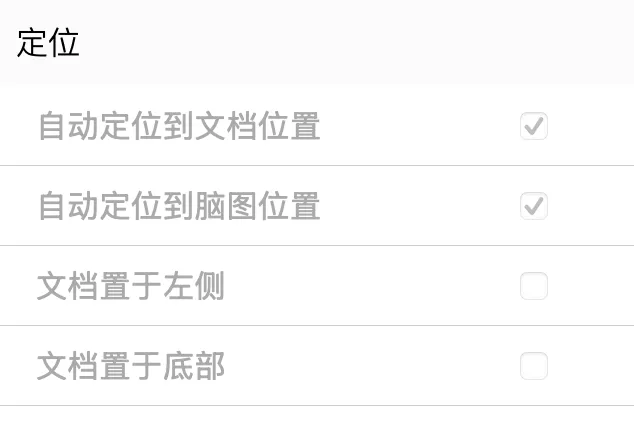
...(Study Set - More) → Document on the Left, Document at the Bottom; or press and hold an empty area of the document toolbar and drag the document to the left.
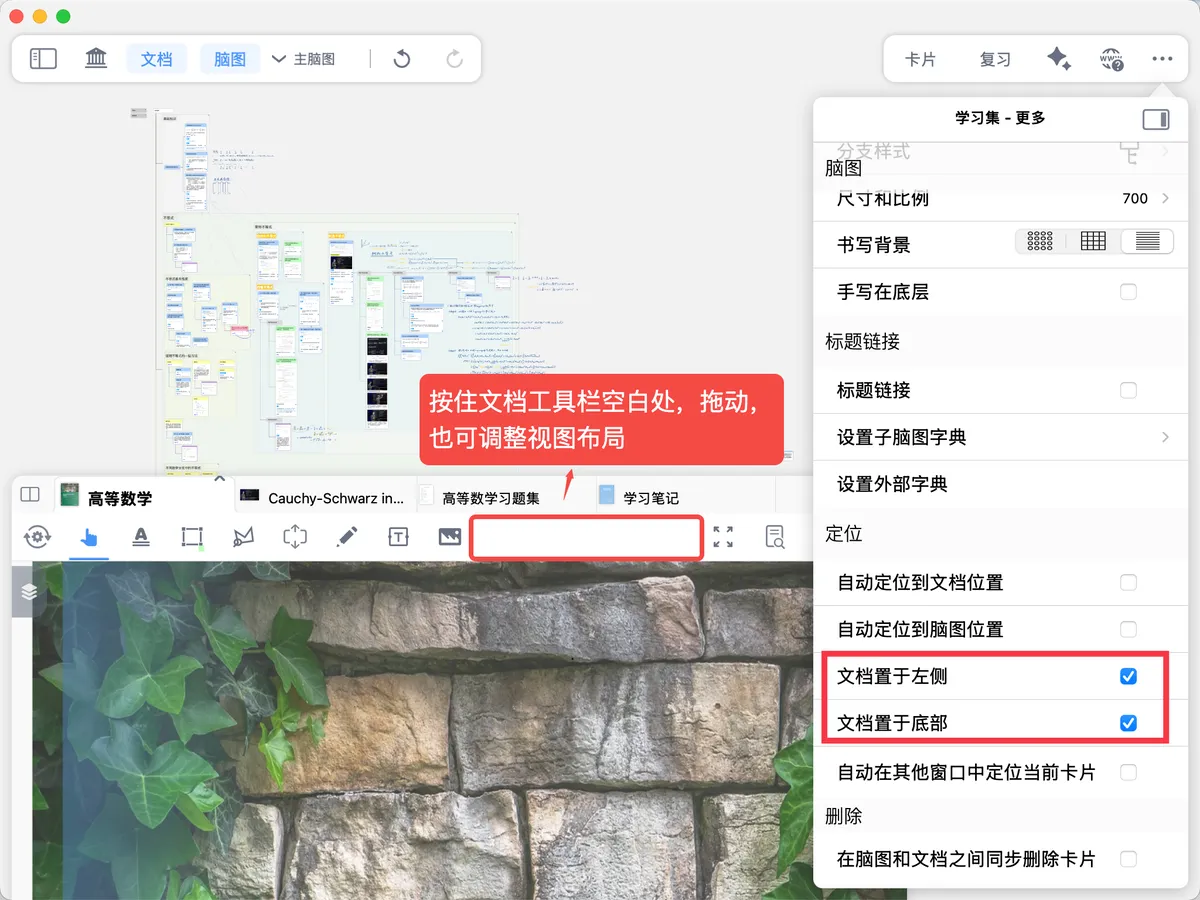
💡Tip: If the toggle appears grayed out and disabled as in the image below, it is because the document or mind map view is hidden. Turn both views on at the same time to restore normal behavior.