10 Branch Styles & Sub Mind Map Collapse
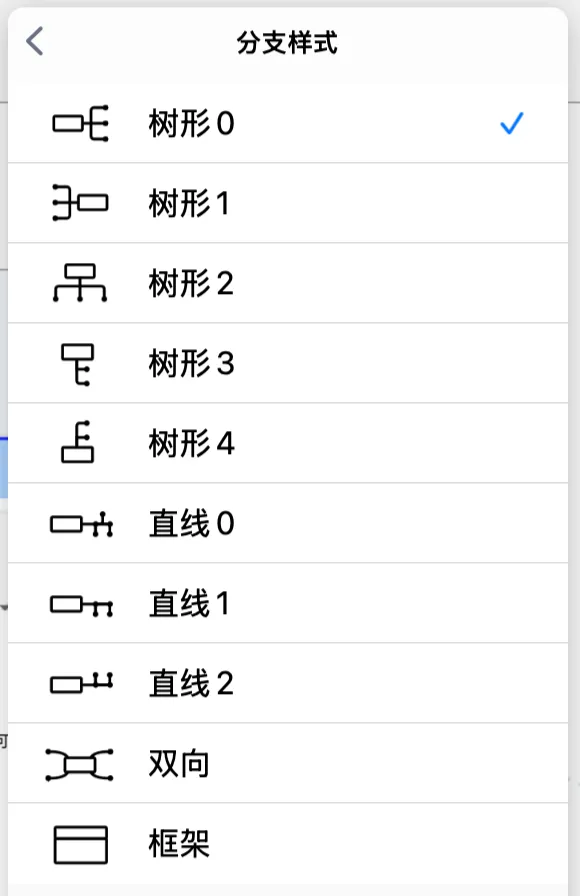
🧩MarginNote 4 supports many styles of mind map branches. Choose a branch style based on the structure of your content:
Hierarchical: topic → subtopic → key point
Tree 0/1/2/3/4
- Subject knowledge trees; topics and subtopics in literature reviews
Process / timeline: Step 1 → 2 → 3, or today → tomorrow
Line 0/1/2
- Study-plan timelines, project milestones, algorithm/operation step sequences, experiment process logs
Comparison: Option A vs B, pros vs cons
Two Way
- Requirements ⇄ implementation, goals ⇄ metrics, and other paired correspondences
Bundle into a group: put cards from the same module together
Framework
- Gather a set of nodes together to highlight them as a single "framework" unit
1 How to Switch Branch Styles
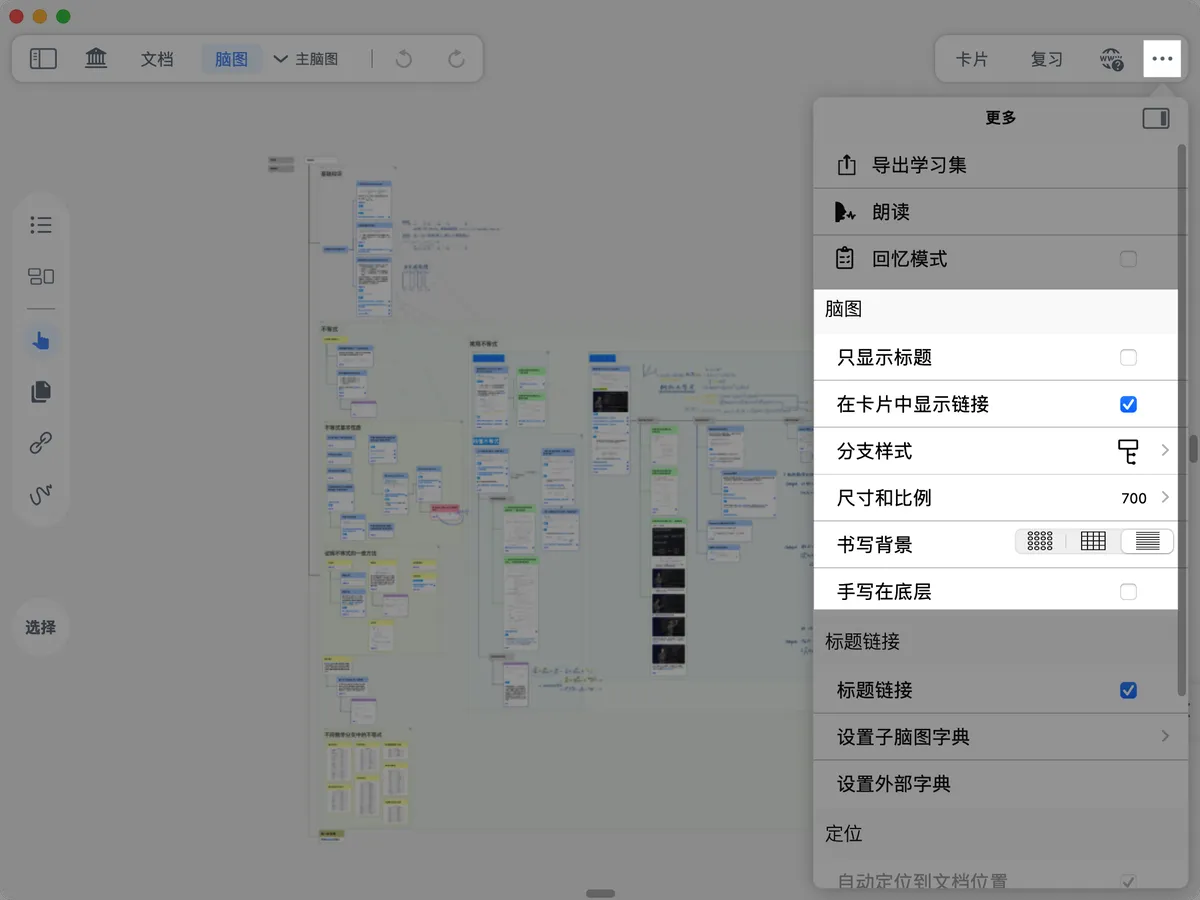
💡Global setting: After opening the
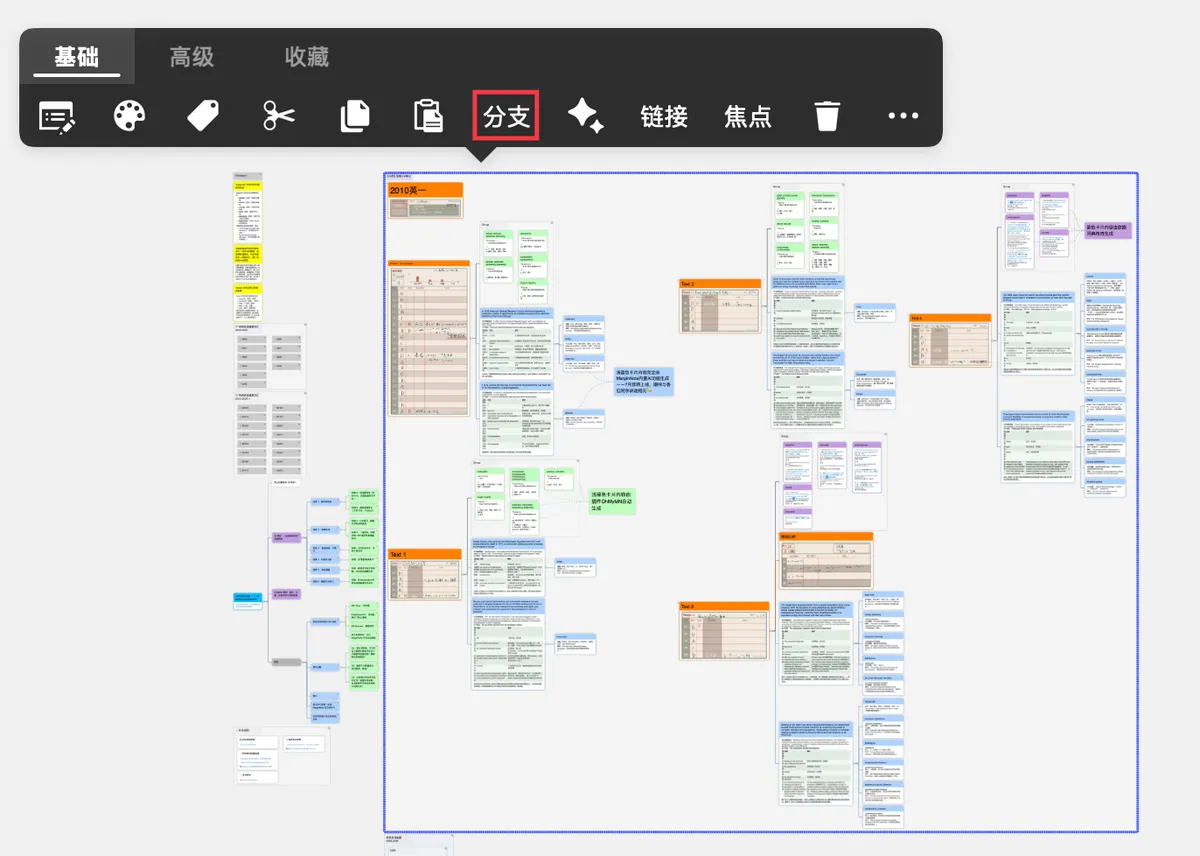
mind mapview, tap More -mind map-Branch Style. The change affects all nodes that have not been manually modified‼️.Single-card setting: card
pop-up menu-basic-...(More). The change affects only that single card.
1.1 Changing All Branch Styles
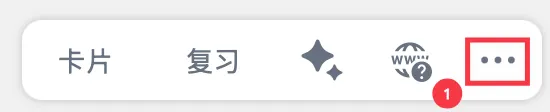
Tap the ... More in the top-right corner of the mind map view - Branch Style to change the branch style.
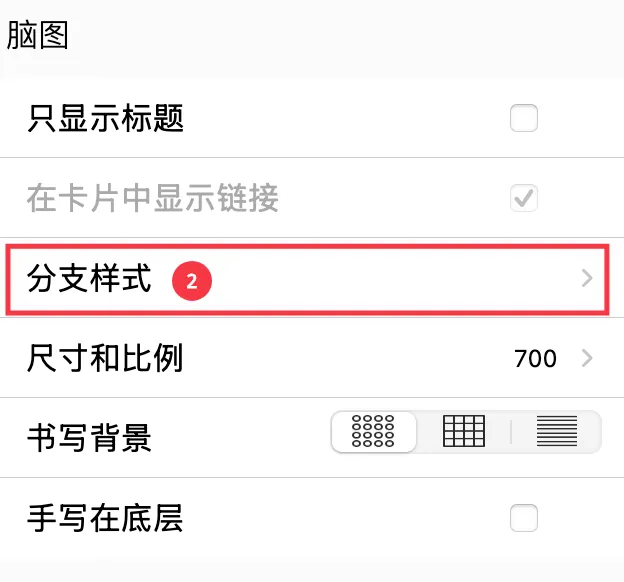
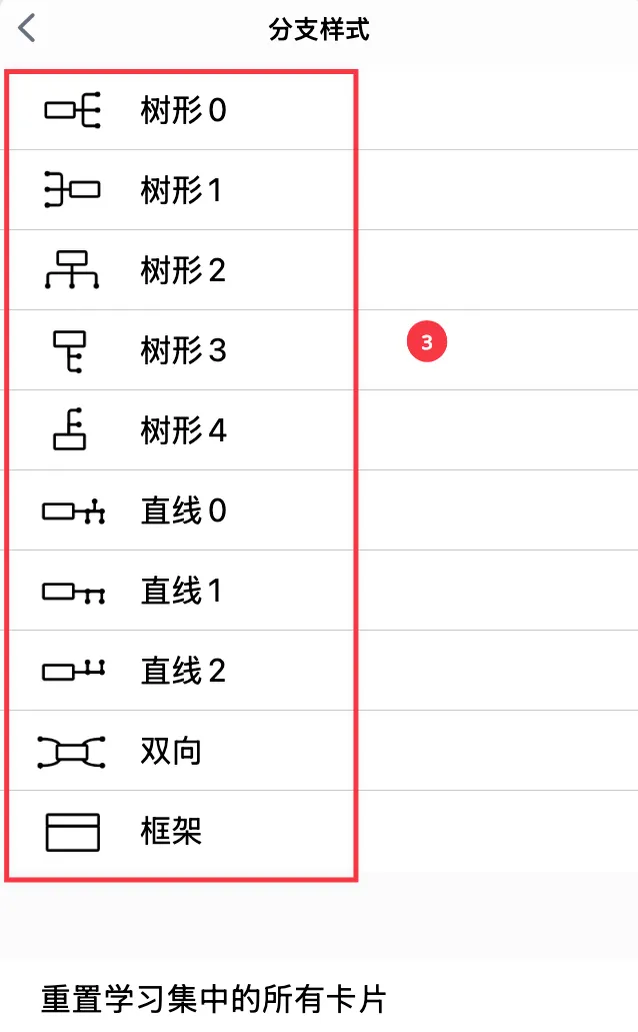
💡The
Branch Styleset in the mind map settings panel changes all nodes in the mind map that have not been manually modified. If you only want to modify a specific card and its child-card branches, you can do so via the cardpop-up menu→basic→Branch.
1.2 Single / Multiple Selection - Changing the Branch Style of Some Nodes
-

Select a single card, then tap
pop-up menu→basic→Branch. -
After selecting multiple cards, tap the bottom menu bar of the mind map and choose
...More-Branch Styleto change the branch style.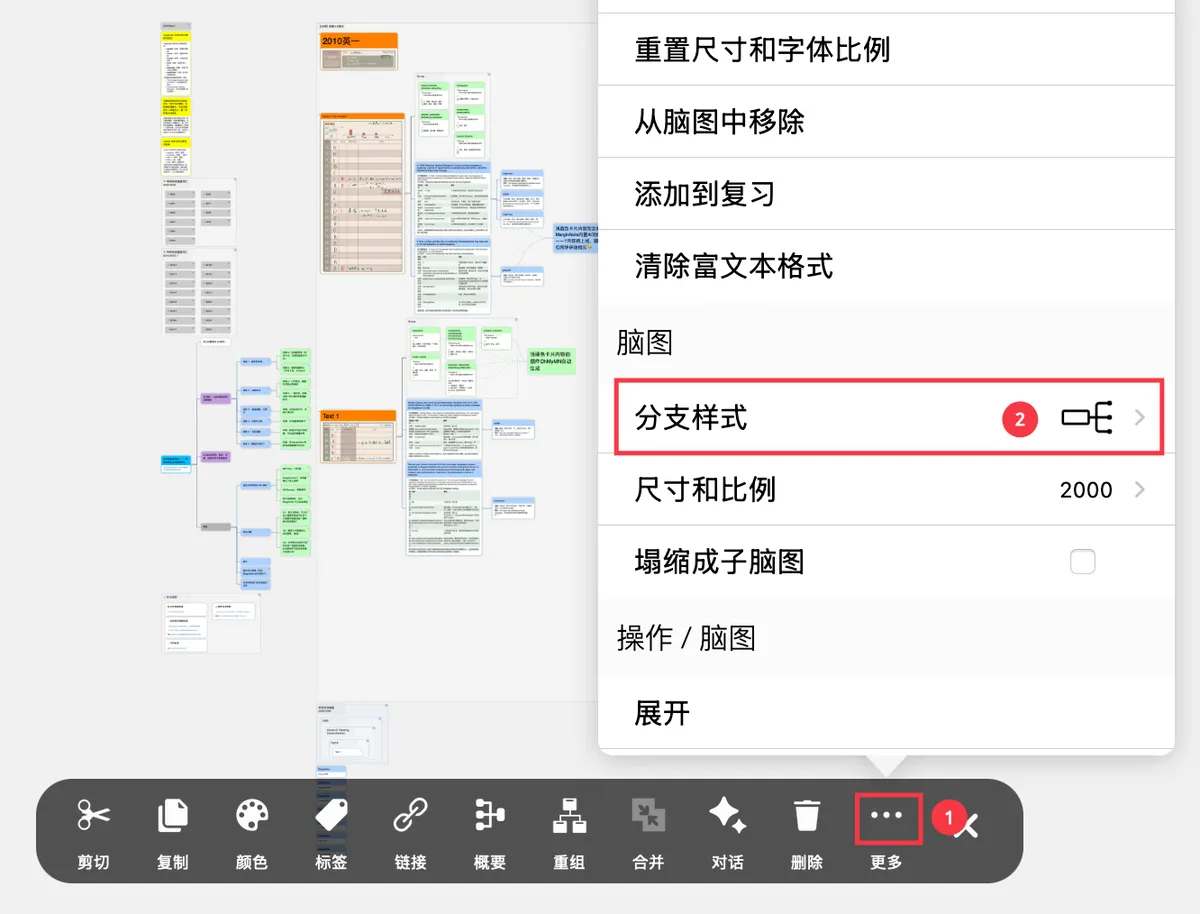
2 Showcase of the 10 Branch Styles
2.1 Tree
💡Tree is suited to hierarchical structures: topic → subtopic → key point
- For example: subject knowledge trees; topics and subtopics in literature reviews
2.1.1 Tree0
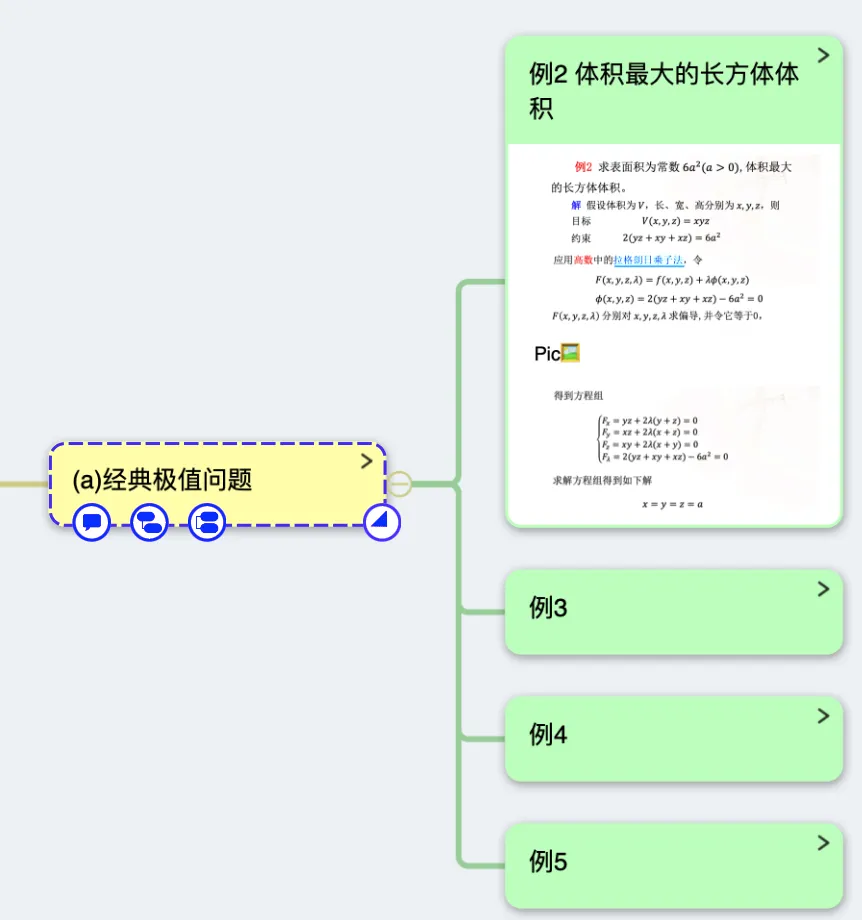
2.1.2 Tree1
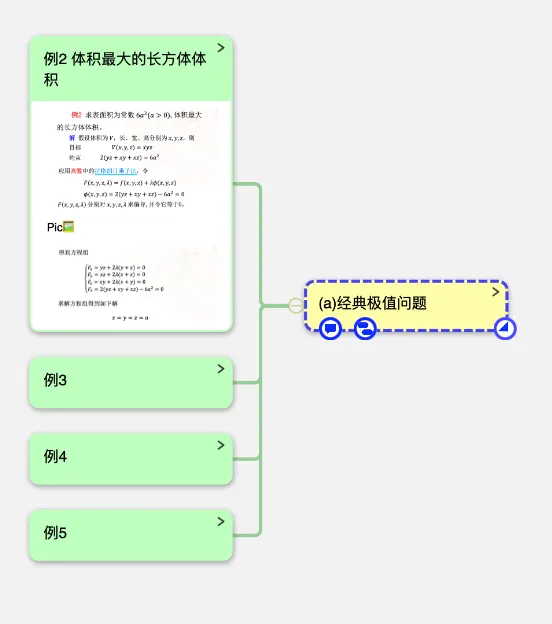
2.1.3 Tree2
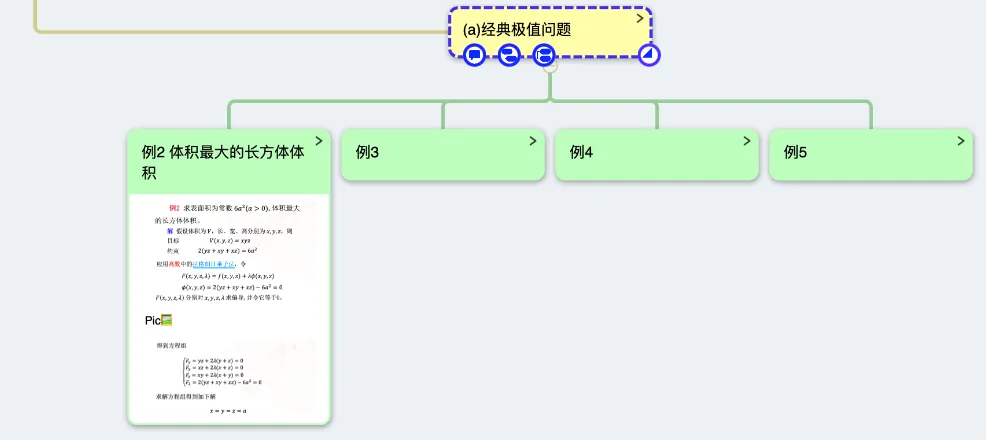
2.1.4 Tree3
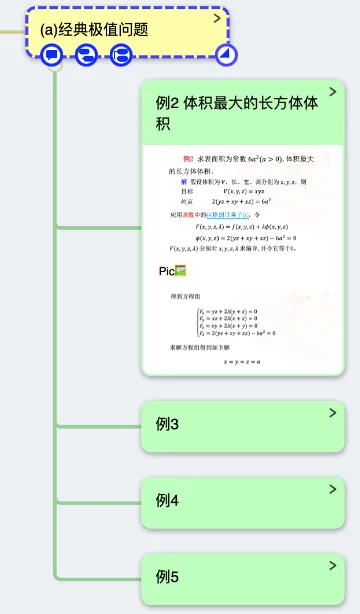
2.1.5 Tree4
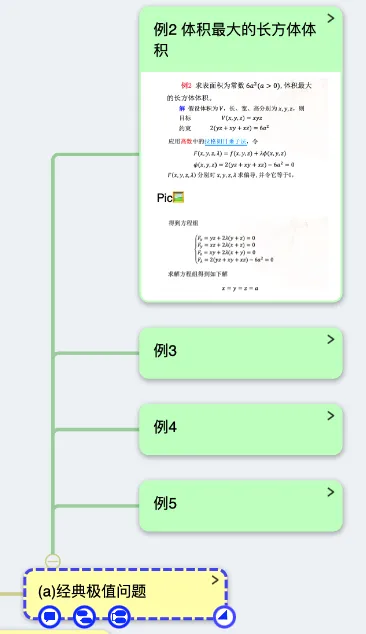
2.2 Line
💡Line is suited to processes / timelines: Step 1 → 2 → 3, or today → tomorrow
- Study-plan timelines, project milestones, algorithm/operation step sequences, experiment process logs
2.2.1 Line0
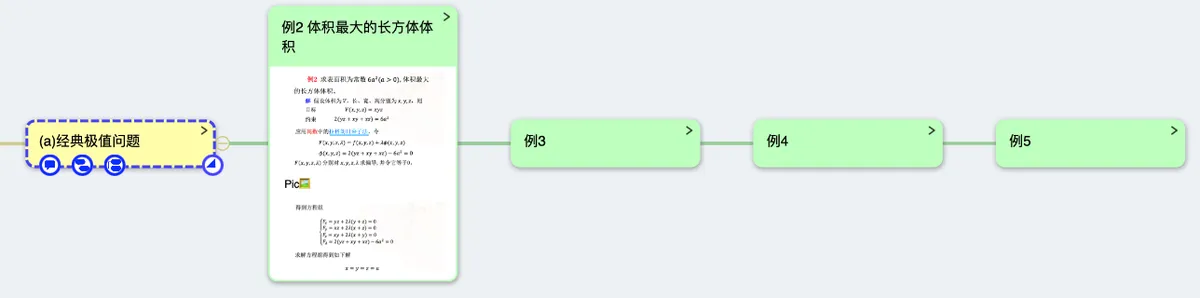
2.2.2 Line1
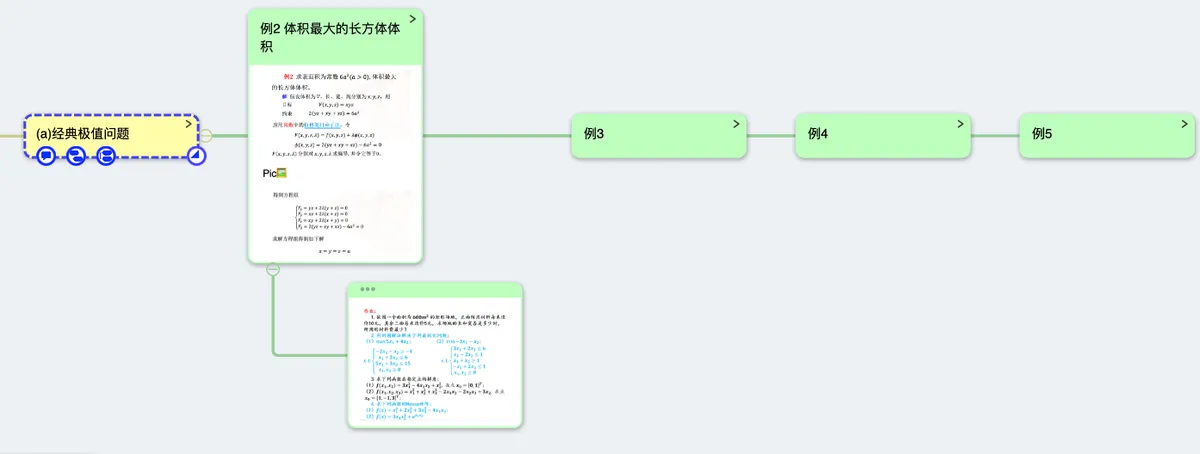
2.2.3 Line2
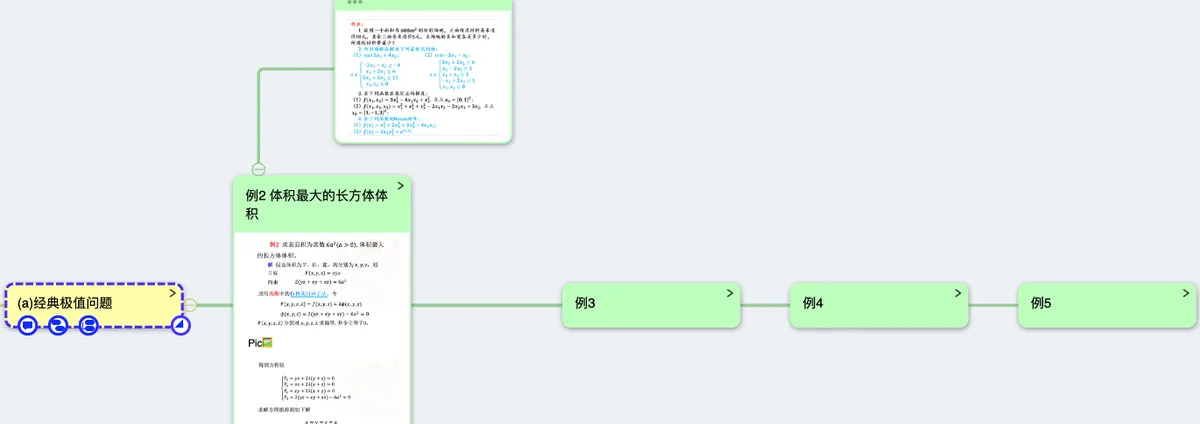
2.3 Two Way
💡Two Way is suited to comparisons: Option A vs B, pros vs cons
- Requirements ⇄ implementation, goals ⇄ metrics, and other paired correspondences
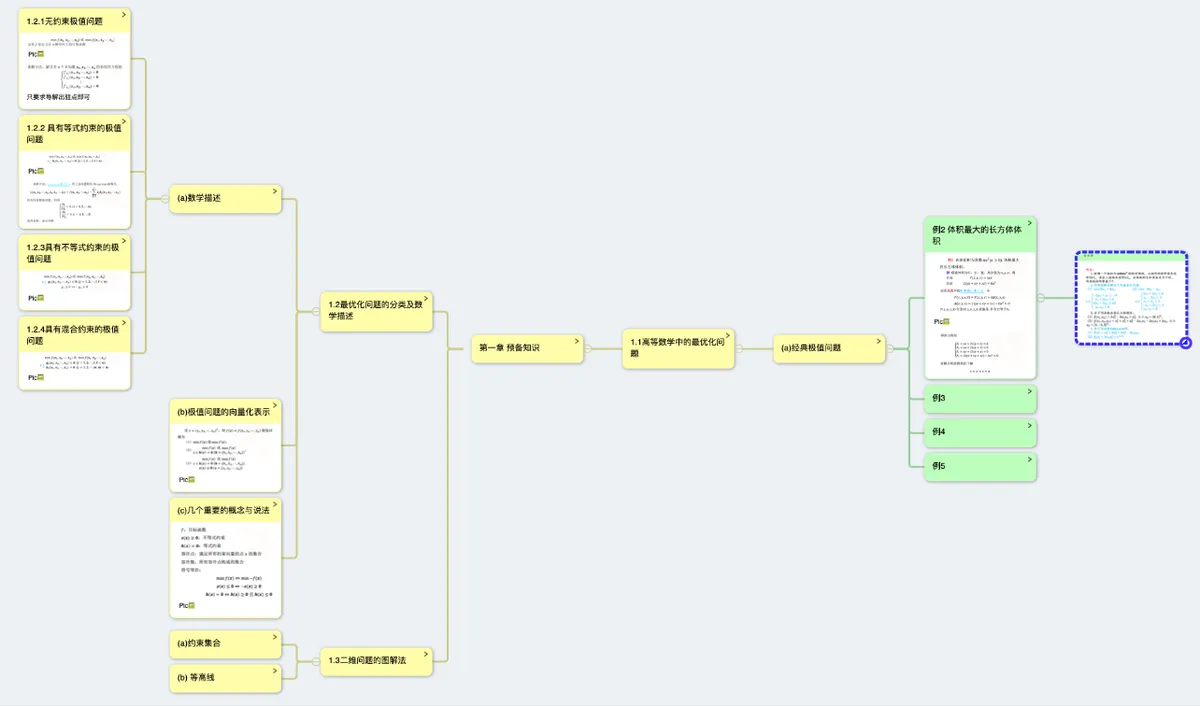
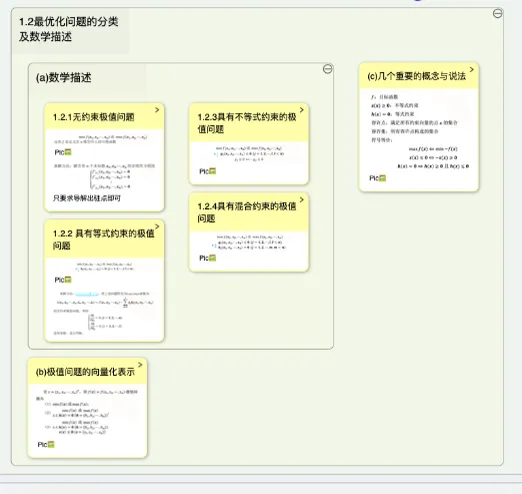
2.4 Framework
💡**
Frameworkis suited to bundling into a group** concept: put cards from the same module together
- Gather a set of nodes together to highlight them as a single "framework" unit
3 Lossless Conversion Between Branches and Sub Mind Maps
MarginNote 4 supports not only lossless conversion between branch styles, but also lossless conversion between branches and sub mind maps.
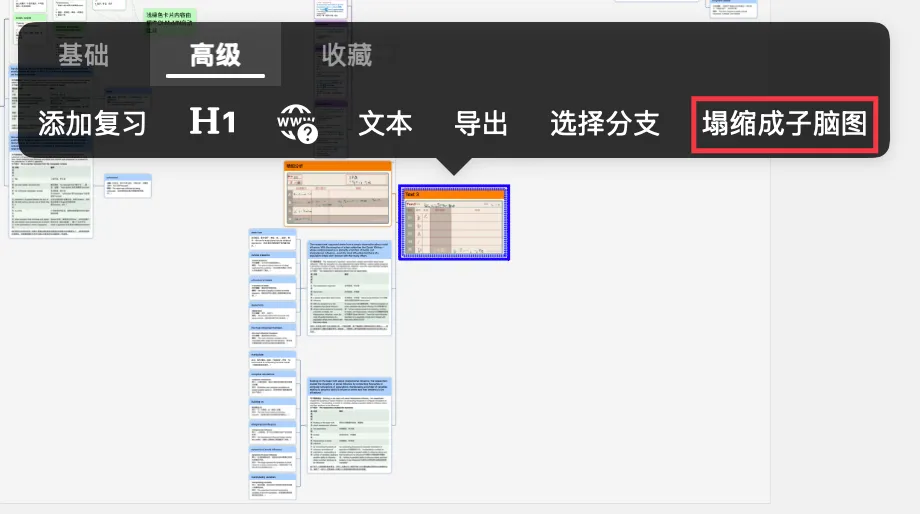
💡When a card node holds too much information, you can
collapse the branch into a sub mind mapto make the information easier to organize and read.
Select a card and tap pop-up menu - advanced - Collapse into Sub Mind Map. A "sub mind map card" (made up of that card and its child nodes) is generated in the original position.

💡For more about sub mind maps, see: Creating and Managing Sub Mind Map Levels