Note Database ②: Encrypted Sharing
📖Note Database Series Navigation
This series helps you master the Note Database features in MN4.
① Note Database ①: Creating and Managing Databases
② Encrypted Sharing (this page)
💡Why use encrypted sharing?
You may need to control who can access your notes in scenarios like these:
- Sharing paid notes so that only buyers can access them
- Sharing study materials within a small group while preventing wider distribution
- Protecting your intellectual property and the results of your hard work
- Precisely controlling each user's access permissions
The encrypted database feature uses public-key encryption technology so you can share notes securely. Each user needs a license that you authorize before they can gain access.
1 Understanding Encrypted Databases and the License System
1.1 What Is an Encrypted Database
An encrypted database is a special kind of note database with the following characteristics:
- Uses public-key encryption technology
- Requires a license to access
- Lets the sharer control access permissions
- Allows a specific user's access to be blocked at any time
💡Analogy: An encrypted database is like a safe with a lock. You can make many copies of the key (licenses) and hand them out, and you can also replace the lock cylinder at any time to invalidate a particular key.
1.2 How the License System Works
- License owner (you): Creates the database, generates licenses, and controls access permissions
- User (recipient): Imports the database, enters the license, and accesses the note content
2 The Complete Encrypted Sharing Workflow
2.1 Workflow Overview
The entire encrypted sharing workflow is divided into three stages:
Stage 1: Preparation (license owner)
- Create an encrypted database
- Generate licenses
Stage 2: Share the data (license owner → user)
- Package the database
- Share the database file + activation code with the user
Stage 3: Activate and use (user)
- The user imports the database
- The user enters the activation code
- Activation completes, and the user can start using it
2.2 Roles and Task Checklist
What the license owner needs to do:
- ✅ Create an encrypted database (if you don't have one yet)
- ✅ Generate enough licenses
- ✅ Package and share the database file
- ✅ Send the activation code to the user
- ✅ (For offline activation) Generate an offline activation code for the user
What the user receiving the database needs to do:
- ✅ Receive and import the database file
- ✅ Enter the activation code
- ✅ (Offline activation only) Send the installation code to the license owner
- ✅ (Offline activation only) Enter the offline activation code
3 Creating and Sharing an Encrypted Database
3.1 Creating Licenses
Steps:
- On the home page, open the sidebar and tap the menu button
- Tap
Data Sharing License - Tap the
➕button in the top-right corner - Enter the number of licenses you need (up to 100)
- Tap Confirm
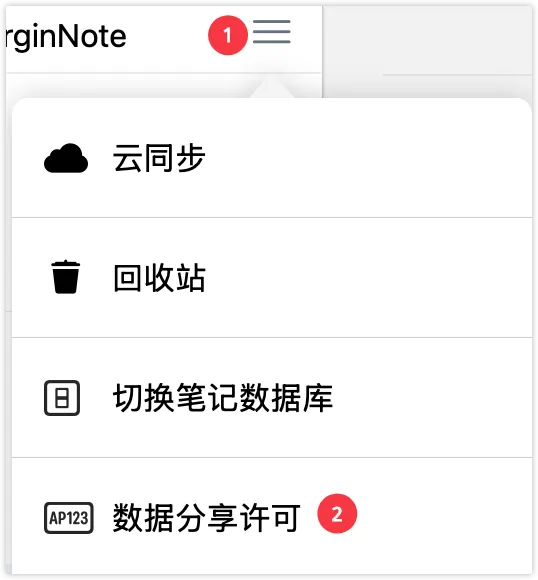
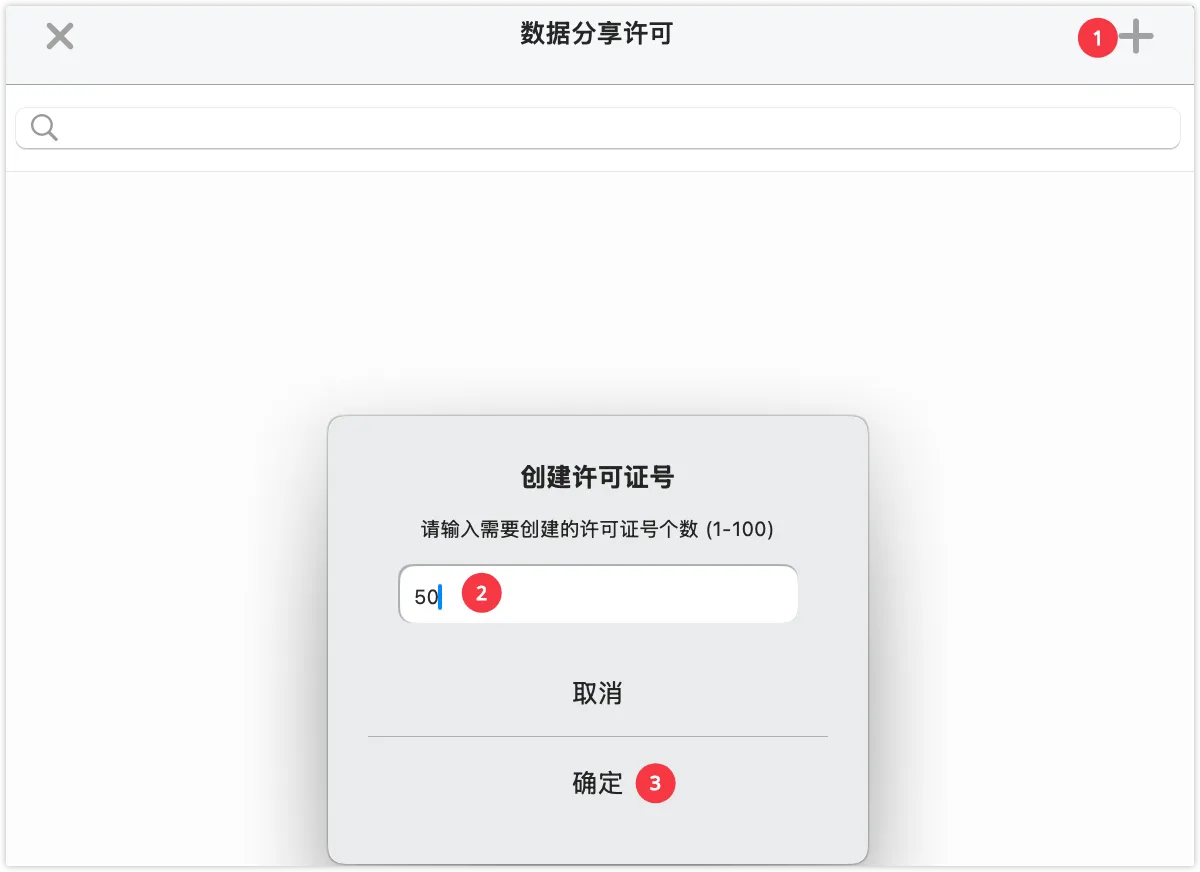
💡Tip: After you create licenses, each license generates a unique activation code.
⚠️Note: One license can authorize only one user. If you need to authorize 10 users, you must create 10 licenses.
3.2 Packaging the Database
Steps:
- On the home page, open the sidebar and tap the menu button
- Tap
Data Sharing Package - Once packaging is complete, tap
Open with Another App - Choose a sharing method (WeChat, email, cloud drive, etc.) or save it locally
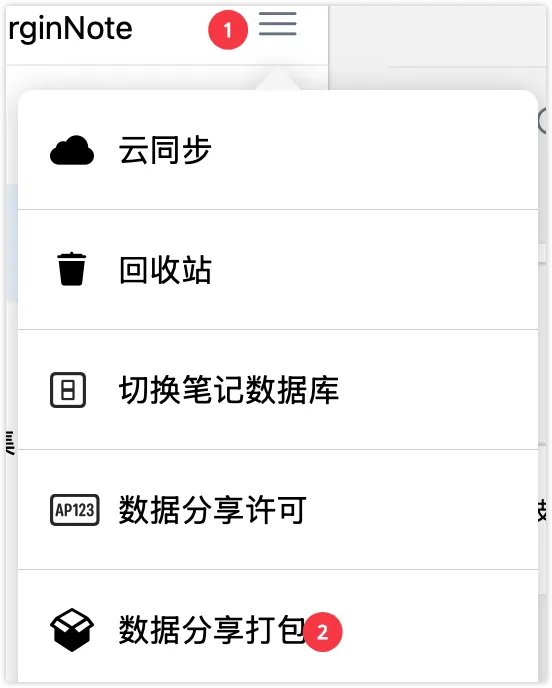
⚠️Important notes:
- The packaged file contains the entire encrypted database
- After importing it, the recipient still needs an activation code to gain access
- A received encrypted database does not support cloud sync by default (to protect privacy)
3.3 Sharing with Users
What you need to send to the user:
- The database file (the file packaged in 3.2)
- The activation code (copied from the license list)
4 Activating a License
4.1 Comparing the Two Activation Methods
| Activation method | Requirement | Pros | Cons | Recommendation |
|---|---|---|---|---|
| Online activation | User must be online | - Simple to use - Instant activation - No extra communication needed | Must be online | ⭐⭐⭐⭐⭐ Strongly recommended |
| Offline activation | User is offline | Can be used offline | - Complicated - Requires multiple rounds of communication | ⭐ Special cases only |
💡Recommendation: Unless the user truly cannot get online, online activation is strongly recommended.
4.2 Online Activation (Recommended)
4.2.1 Steps for the User Receiving the Database
⚠️Prerequisite: The user's device is connected to the internet
- Receive the database file shared by the license owner
-
Import the database file into MarginNote 4
- On iPad: Open the database file in the "Files" app and choose "Open with MarginNote 4"
- On Mac: Double-click the database file, or drag it into MarginNote 4
-
During import, a prompt appears:
This data requires authorization to use - Enter the activation code provided by the license owner
- Tap the
Activatebutton; the system verifies it automatically, and activation succeeds
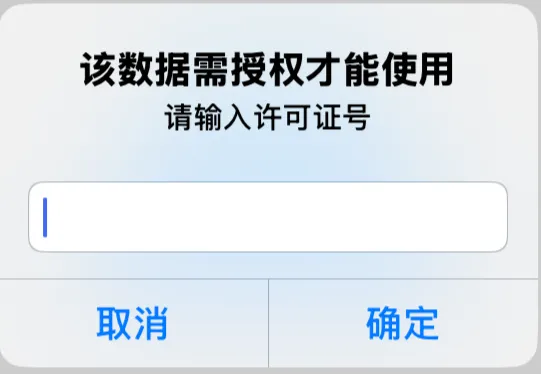
✅ After successful activation:
- You can access all content in the note database normally
- You can study, review, and perform other operations
- You cannot use cloud sync or export the database (to protect privacy)
4.3 Offline Activation (Special Cases Only)
⚠️ Note: The offline activation process is fairly complex and involves multiple interactions between the user and the license owner. Use it only when the user truly cannot get online.
4.3.1 Steps for the User Receiving the Database
-
Receive and import the database file
- On iPad: Open the database file in the "Files" app and choose "Open with MarginNote 4"
- On Mac: Double-click the database file, or drag it into MarginNote 4
-
During import, a prompt appears:
This data requires authorization to use - Enter the activation code provided by the license owner
- Because you are offline, a prompt appears:
Requires activation by the license owner - Record or take a screenshot of the installation code shown in the dialog (a string of digits/characters)
- Send the installation code to the license owner
- Wait for the license owner to send back an offline activation code
- Enter the offline activation code on the offline activation page
- Tap Confirm to complete activation
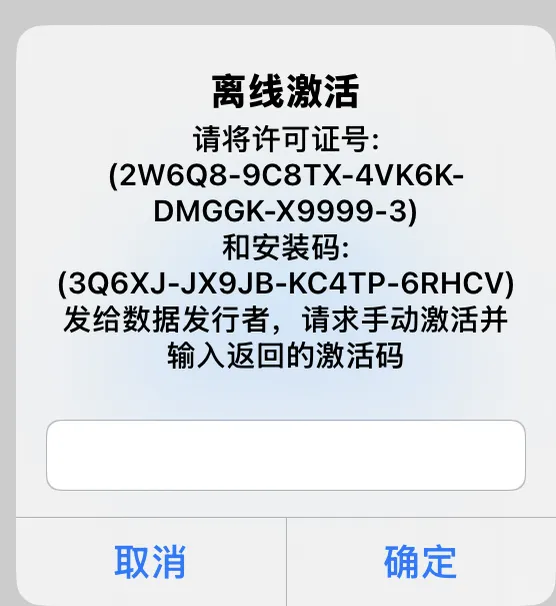
4.3.2 Steps for the License Owner
💡Prerequisite: You have already created a license for the user and given them the activation code
- On the home page, open the sidebar and tap the menu button
- Tap
Data Sharing Licenseto open the license management page - Find the relevant license and tap the
Activatebutton - On the page that appears, enter the installation code the user sent you
- Tap
OK, and the system generates an offline activation code - Copy the offline activation code and send it to the user; the user can then complete offline activation as shown in the 🖼️ image.
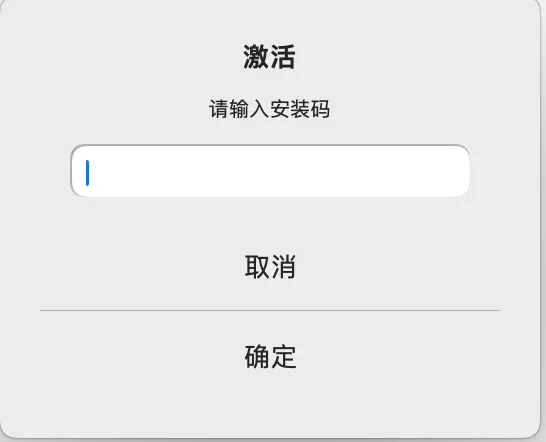
💡Tip: Each installation code corresponds to one offline activation code, and different users have different installation codes.
5 Managing and Controlling Licenses
5.1 License Operations
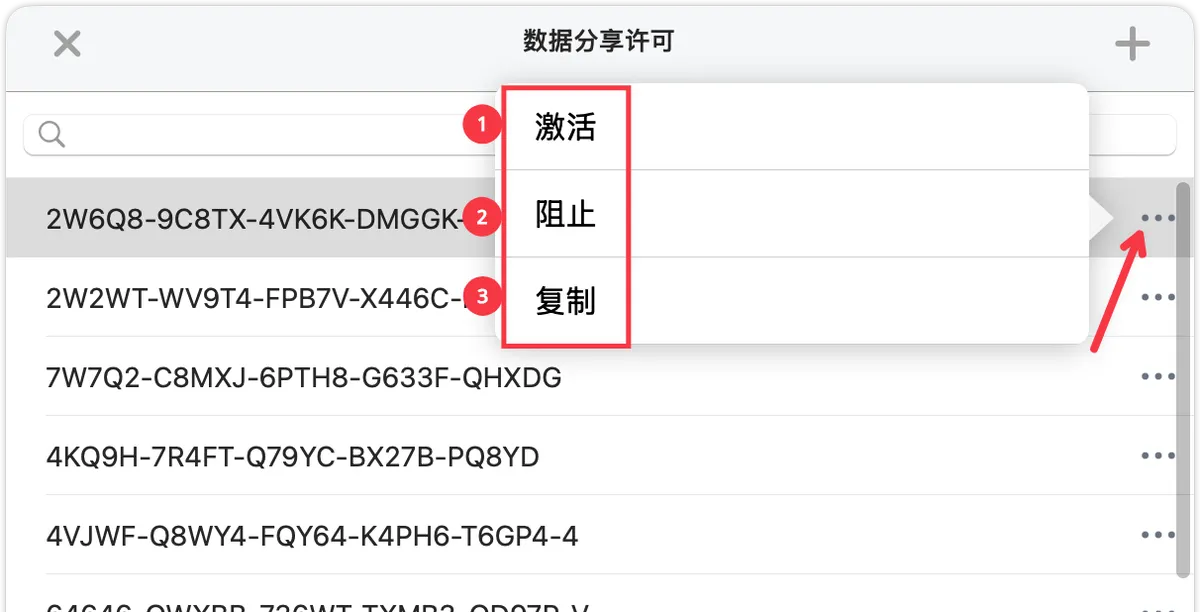
For each license, you can perform the following operations:
| Function | Operation | Purpose / Effect | Use case |
|---|---|---|---|
| Activate (offline) | Tap the Activate button |
Generates an offline activation code for an offline user | The user cannot get online and needs offline activation (see 4.3) |
| Block access | Tap the Block button |
The user can no longer access the database; the user sees the message "License is no longer valid" | The user violates the usage agreement; the user requests a refund or cancels their subscription; the license is found to have been stolen; you need to restrict a particular user's access |
| Copy activation code | Tap the Copy button |
Copies the activation code to the clipboard so you can send it to the user | Providing an activation code to a new user |
5.2 Managing License Quantities
How do you know how many licenses are still available?
On the license management page, you can see:
- The total number of licenses created
- The number of activated licenses
- The number of unused licenses
What if you run out of licenses?
- Tap the
➕button in the top-right corner - Enter the number of additional licenses you need and tap Confirm
⚠️Limit: You can create up to 100 licenses at a time. If you need more, you can create them in multiple batches.
6 Frequently Asked Questions
Q1: What is the difference between an encrypted database and a regular database?
A: The main difference is access control:
- Regular database: Anyone can access the shared data
- Encrypted database: A license is required to access it
The creation process is exactly the same; the difference is whether the license system is enabled.
Q2: Can one license be used by multiple people?
A: Not recommended. In theory, one license can generate multiple offline activation codes, but this makes it impossible to control access precisely. We recommend one license per user.
Q3: After a user activates the database, can they share it with someone else?
A: No. Once activated, the database is bound to the user's device, and data the user exports cannot be imported and used by anyone else.
Q4: How do you revoke an activation code you have already sent out?
A: You cannot revoke the activation code itself, but you can "Block" the corresponding license to invalidate the activation code.
Q5: What if a user switches devices?
A: Re-activation is required. The user imports the database on the new device and uses the same activation code (online activation), or you generate a new offline activation code for the new device.
Q6: What if you forget which activation code you sent to which user?
A: We recommend keeping a record when you distribute activation codes—for example, noting "User A - Activation code XXX - 2026-01-13" in a memo. The license management page cannot show user information.
Q7: Can you set an expiration time for a license?
A: Automatic expiration is not currently supported. If you want to limit the usage period, you need to manually "Block" the license after it expires.
Q8: Can a license be restored after it has been blocked?
A: Yes. After blocking, select Unblock from the ... menu to the right of the corresponding license.
Q9: Can the offline activation code generated for offline activation be reused?
A: No. Each offline activation code can be used only once and is bound to a specific device (installation code).
Q10: How do you count how many people are using your database?
A: Just check the number of "activated" licenses on the license management page.