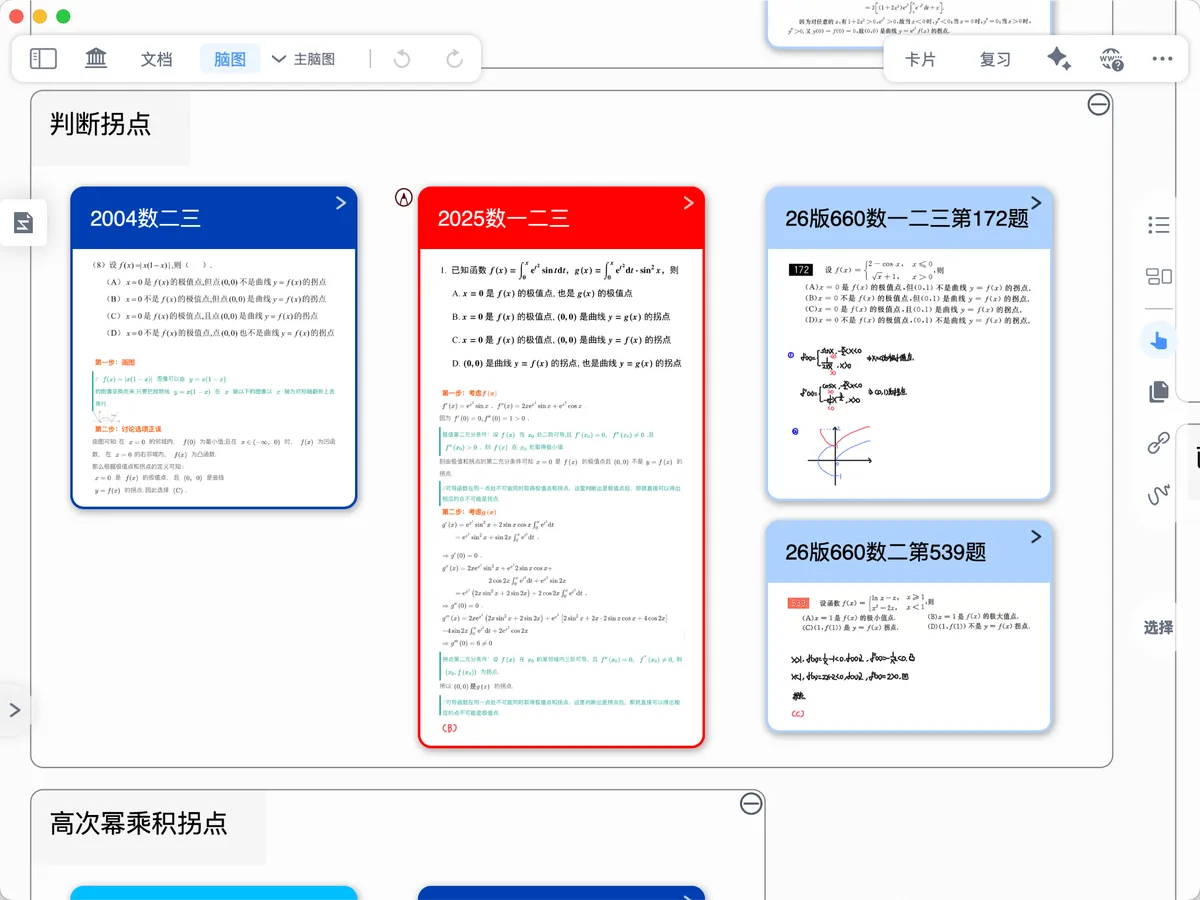
Mind Map Focus
1 Use Cases
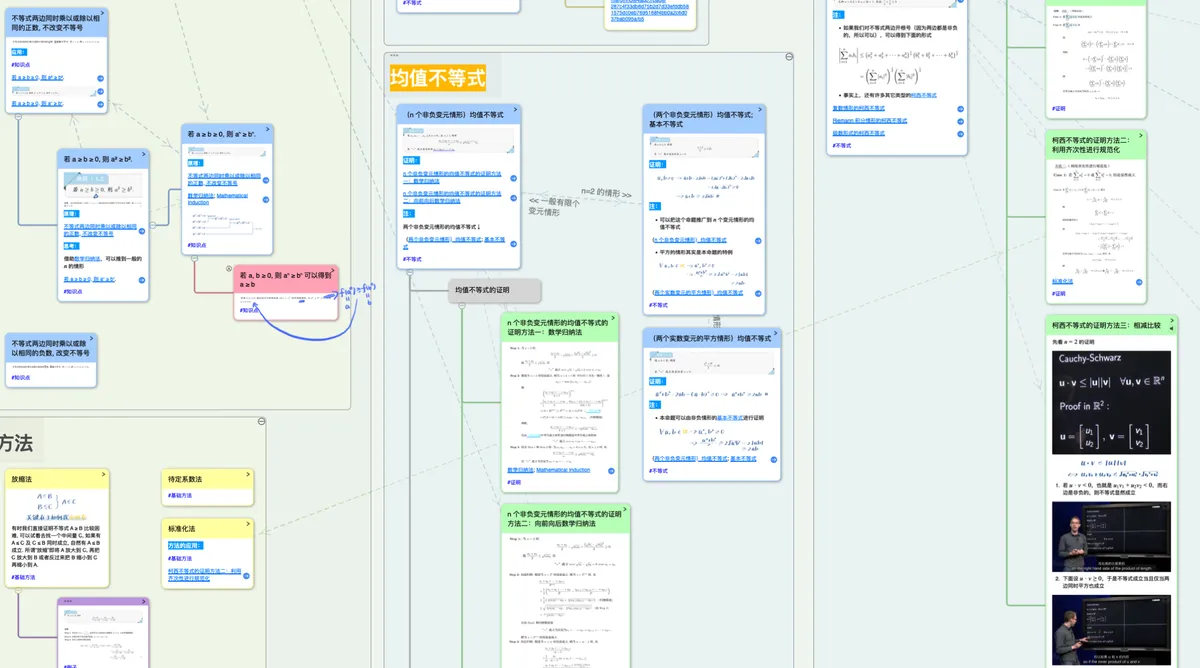
💡 As your mind map fills up with more and more cards, studying within it can sometimes feel distracting. For example, when your main task is to study the knowledge points on a single card, the surrounding cards may compete for your attention while you write. In this case, you can enter
Focusmode for that card: every card except this one and all of its sub-cards is hidden, so you can concentrate on studying the current card.
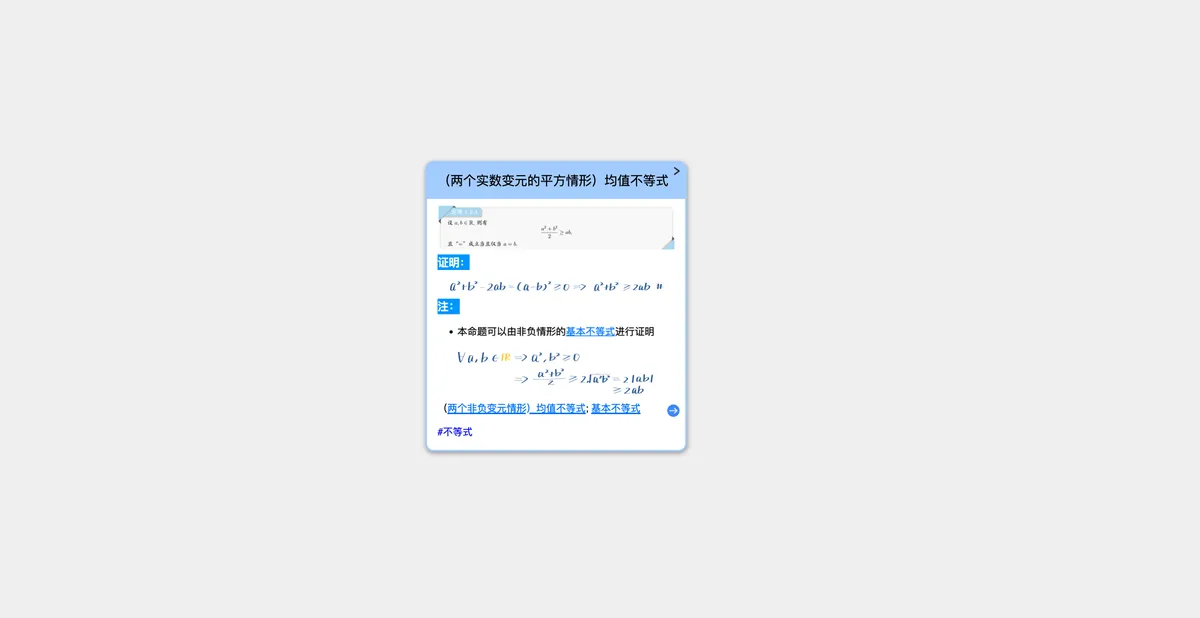
2 How to Enter a Card's Focus Mode
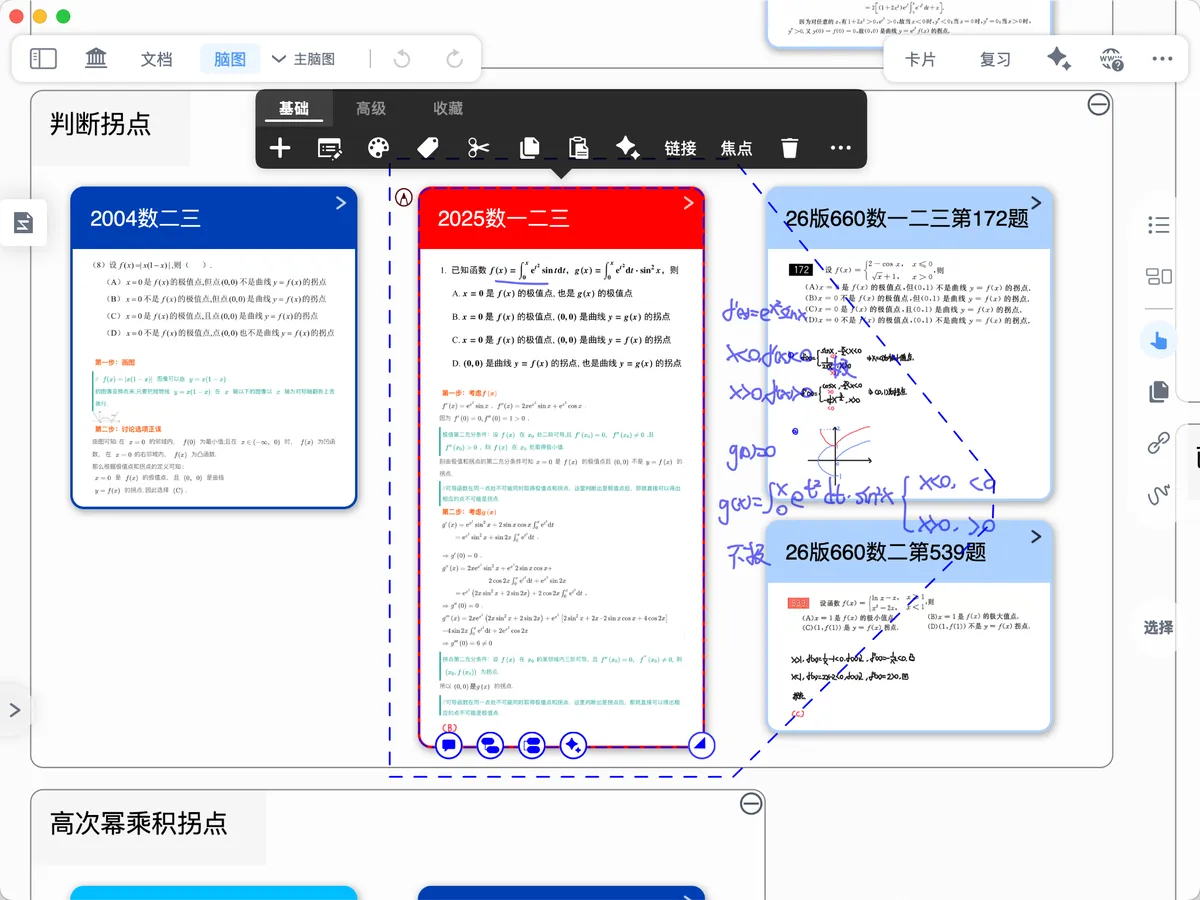
2.1 Method 1: Tap a card to bring up the pop-up menu, then choose Advanced - Focus to enter Focus mode
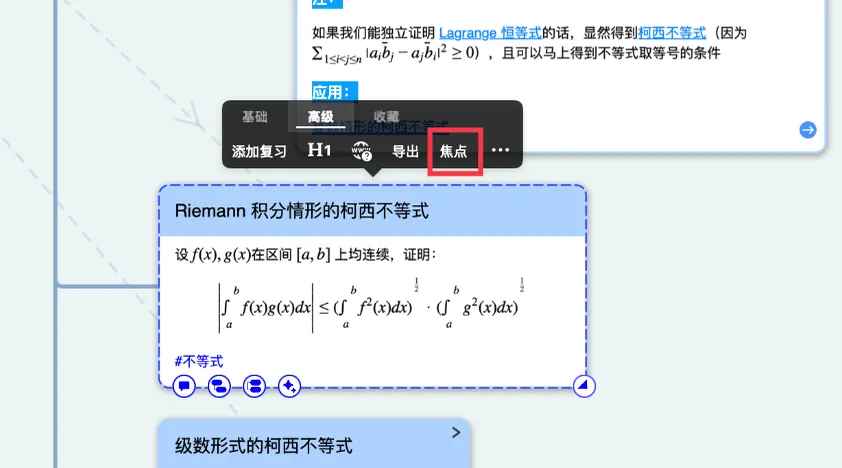
2.2 Method 2: Double-tap a card while in MindMap handwriting mode to enter Focus mode (recommended)
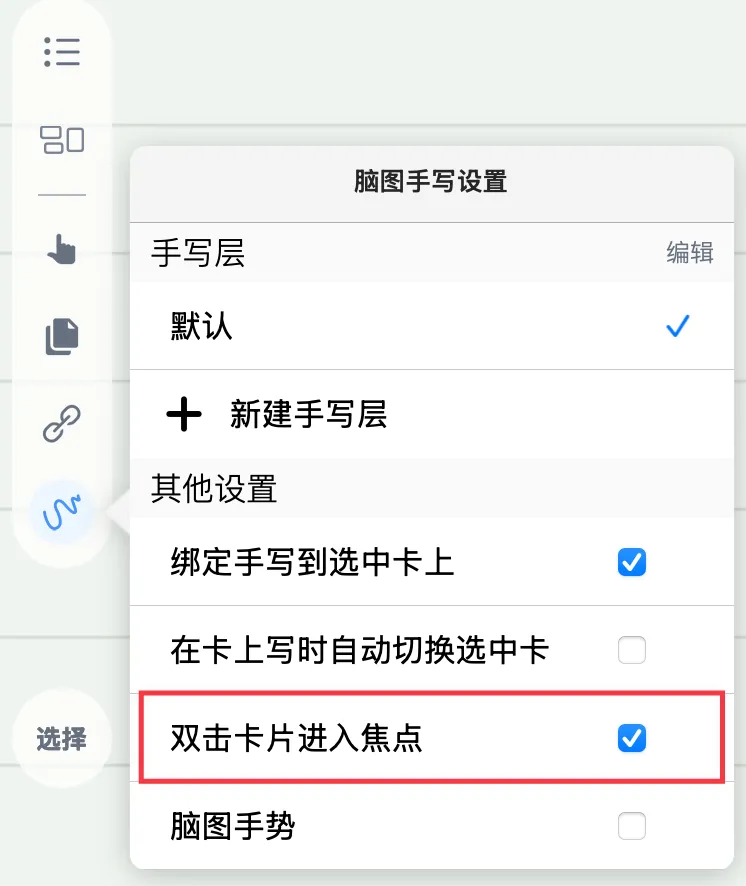
MindMap Handwriting tool
Double-tap the MindMap Handwriting tool icon (shown above) to open the MindMap Handwriting Settings panel and check Double Tap the Card to Enter the Focus. From then on, double-tapping a card will quickly take you into that card's Focus mode.
3 Exiting a Card's Focus Mode
You can exit by double-tapping a blank area around the card, or by double-tapping the focused card.
After you exit Focus, the handwriting inside the focus is hidden by default so it does not clutter the mind map view. Tap the focused card to show the handwriting inside the focus.

Take the red "2025 Math I/II/III" card in the image below as an example: after you exit Focus, the handwriting inside the focus is hidden by default, keeping the mind map view tidy; single-tap the card to display the handwriting inside the focus.