Flashcard Review ②: Tracing the Source Context
💡📖 Flashcard Series Navigation This series helps you master flashcard creation and scientific review in MN4.
Creating flashcards:
- Beginner essentials: ① Getting to know flashcards and the Review Card Deck ② Adding cards to a review card deck
- Advanced: ③ Setting the front and back of a flashcard
Scientific review:
- Beginner essentials: ① Scientific review based on the FSRS anti-forgetting algorithm
- Advanced: ② Tracing the source context (this page)
💡On This Page
This is an advanced review feature. This page will teach you:
- Why you need to view a card's context
- How to see a card's position in the mind map and document while reviewing
- When to use the context review feature
What Is Context Review?
A card is an isolated fragment of knowledge. When you review it again after forgetting it for a long time, the concepts or wording on the card may feel unfamiliar. At that point, you need to return to the context in which the card was created to aid recall and understanding.
Context includes:
- Document context: the surrounding content of the card within the source material
- Mind map context: the card's position and connections within your knowledge structure
MN4 lets you view both kinds of context at the same time while reviewing, helping you understand the "full picture" behind each card.
💡When Do You Need to View Context?
You don't need to view context every time you review. The following situations are especially suited to it:
- ✅Long time since review: more than a month without review, with hazy memory
- ✅Hard-to-understand concept: the card alone isn't enough to grasp the meaning
- ✅Need associative recall: you need to recall the connections between related knowledge points
- ✅Reviewing mistakes: you need to go back to the original problem to review the solution approach
⚠️Note: If you can recall the answer directly from the card's content, there's no need to view context—this keeps your review efficient.
2 Comparing the Two Review Methods
MN4 offers two review methods, each suited to a different scenario:
| Review method | Shows context? | Best for | Entry point |
|---|---|---|---|
| Method 1: Review Card Deck | Hidden by default; can be toggled on | Quick daily review | MN4 home sidebar → Review Card Deck |
| Method 2: Reviewing within a study set (mind map + document) | Always shows the mind map and document | Deep review, memorization through understanding | Top-right of the study set view → Review button |
💡How to Choose?
- Daily review: Use Method 1 (Review Card Deck) to focus on the cards themselves and review more efficiently
- Deep review: Use Method 2 (study set), which is more convenient when you need to understand context
- Mixed use: Use Method 1 for quick everyday review, and switch to Method 2 to view context when you hit a difficult point
3 Viewing Context in the Review Card Deck
This is the most commonly used review method. Context is hidden by default during review, but you can toggle it on at any time.
3.1 The Three-Pane Layout of the Review Card Deck
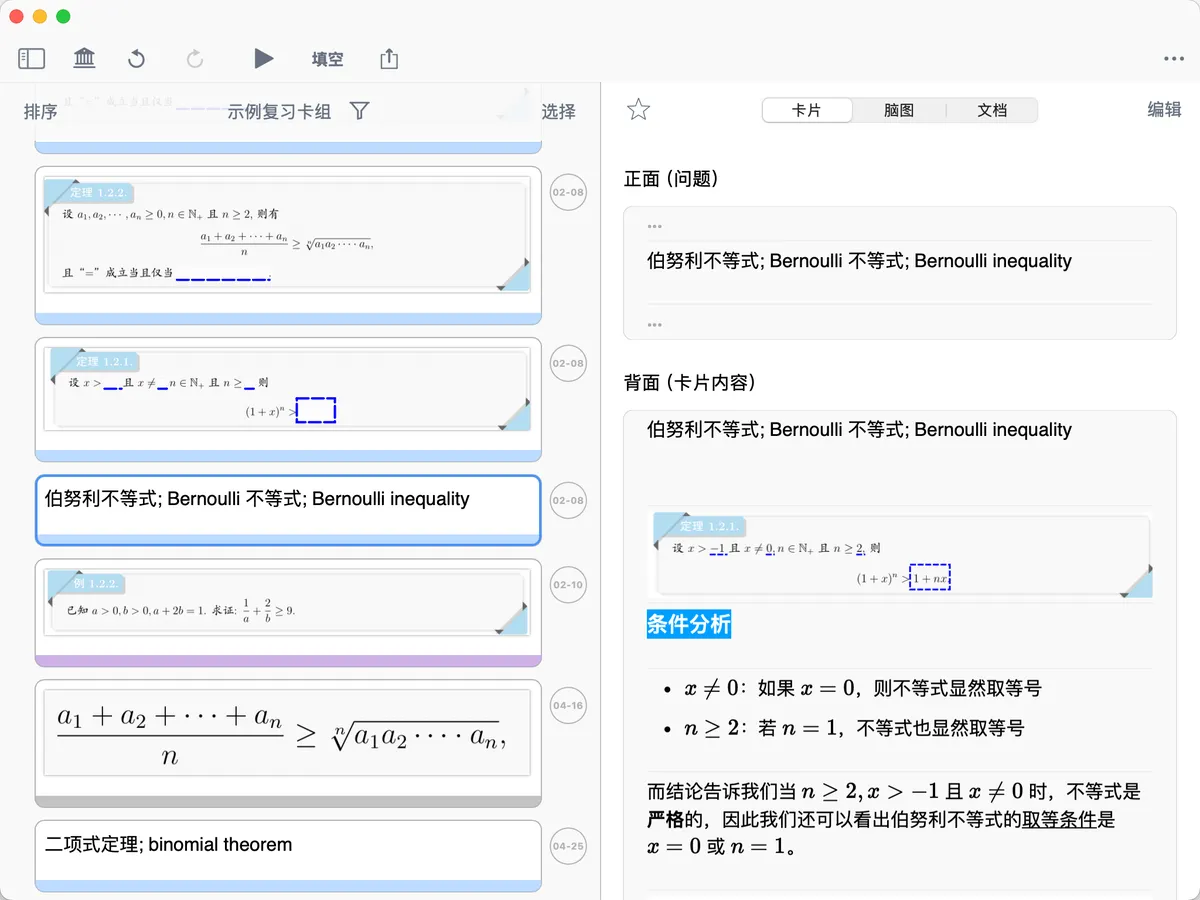
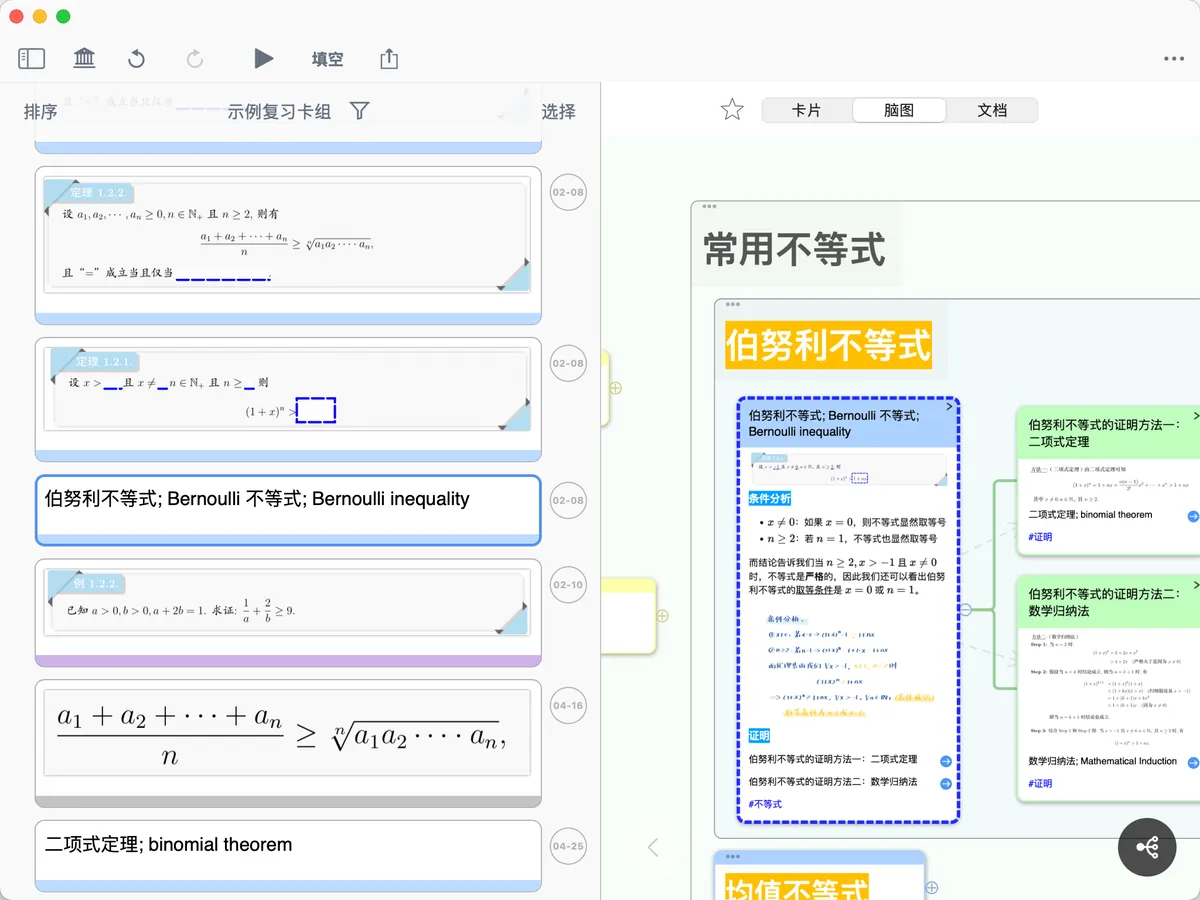
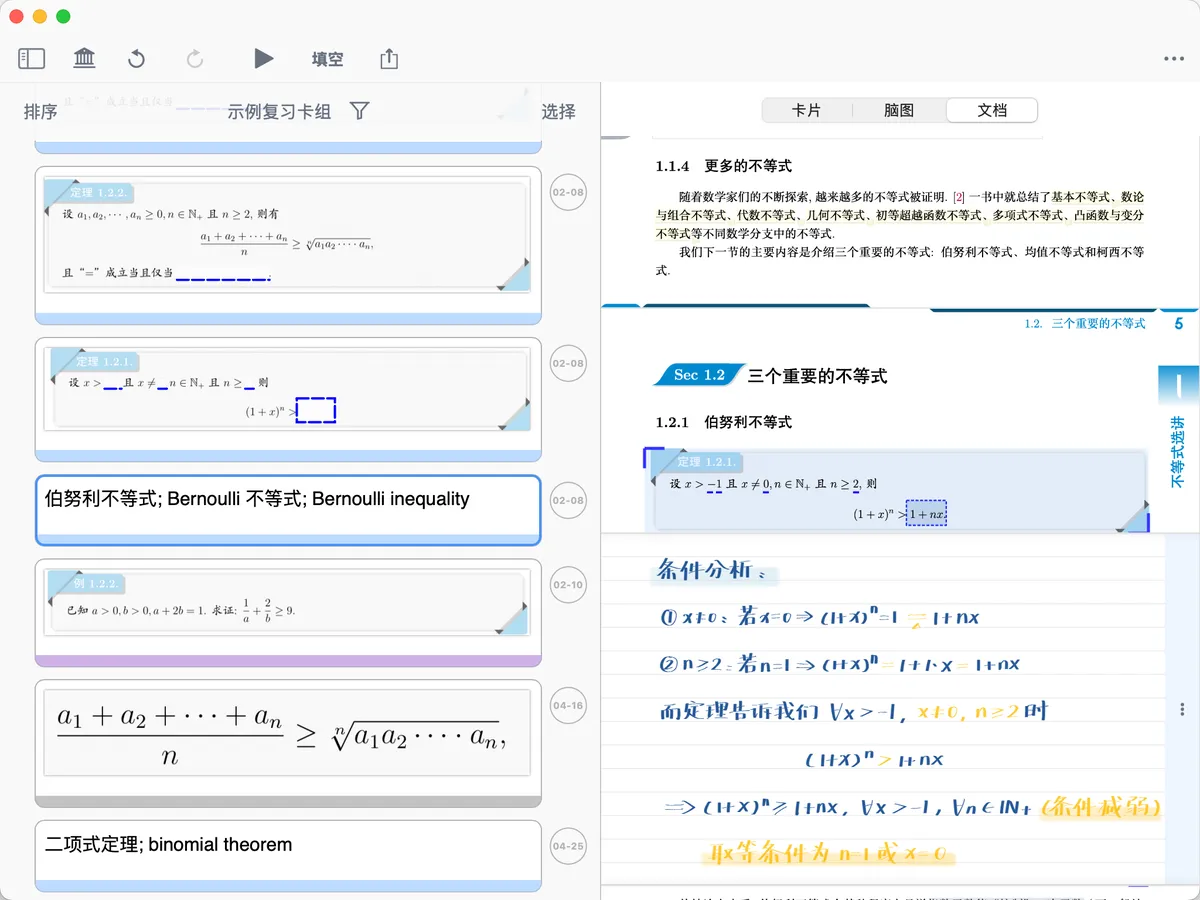
In the Review Card Deck (not full-screen review mode), the interface is split into a left and a right section:
Left: flashcard list
- Shows the front (question) of every card
Right: three-pane detail view
- Card pane: shows the front and back of the flashcard
- Mind map pane: locates the flashcard's position in the mind map
- Document pane: locates the flashcard's position in the document
💡Advantages of the Three-Pane Layout
This design lets you:
- See the mind map and document positions at the same time while browsing cards
- Switch cards quickly while the mind map and document automatically jump to the matching position
- Edit the card, mind map, and document directly during review, without switching screens
For details, see Flashcard Creation ①: Getting to Know Flashcards and the Review Card Deck, section 3.1
3.2 Viewing Context in Full-Screen Review Mode

If you're using full-screen review mode (the Anki-style review you enter by tapping ▶), you can view context after flipping a card:
Steps:
- In full-screen review mode, flip the card
- At the top of the card, switch to the mind map and document
- When you're done, swipe right to continue to the next card
4 Reviewing Within a Study Set's Context (Recommended for Deep Review)
This method shows the mind map and document from the very start, making it ideal for deep review where you frequently need to check context.
4.1 Entering Study Set Review Mode
Steps:
- Open a study set
- Tap the
Reviewbutton in the top-right corner of the study set view - Tap **▶** in the top-left corner of the review view to enter review mode
✅ Once inside, you'll see the card, mind map, and document displayed at the same time
4.2 Using a Study Set's Context to Support Review
In study set review mode, you can:
View mind map context:
- Tap the locate icon in the bottom-left of the review card to highlight the card's position in the mind map
- See the card's parent, child, and sibling nodes in the mind map
- Understand the card's place within your knowledge structure
View document context:
- Tap the locate icon in the bottom-left of the review card to jump to the corresponding excerpt in the document
- See the text before and after the card in the source material
- Read the full paragraph or section
Three-Way Linkage:
- The card, mind map, and document are all linked to one another
- Tap content in any one pane, and the other two automatically jump to the matching location
-
Achieve seamless cross-referencing across "card - mind map - document"
💡To enable or disable linkage, see: Linkage Controls

💡Note: In study set review mode, the mind map is read-only and edits cannot be saved. To edit it, exit review mode.
5 Tips for Context Review
5.1 Try to Recall First, Then View Context
Recommended review flow:
- Step 1: Look at the front of the card and try to recall the answer
- Step 2: Flip the card to see the answer
- Step 3: If your memory is hazy, then view the context
- Step 4: Understand the full content in the mind map or document
- Step 5: Choose a review interval based on how well you remembered
⚠️Avoid Over-Relying on Context
Don't view context right from the start—doing so weakens the effect of active recall. Only view context to aid understanding when you genuinely can't remember.
5.2 Use Context to Improve Your Cards
If you notice during review that a particular card never sticks, you can:
- View the card's mind map and document context
- Analyze why it's hard to remember (is key information missing?)
- Edit the card directly in the three-pane layout to add the necessary context
- Or adjust the card's question settings (for details, see Flashcard Creation ③: Setting the Front and Back of a Flashcard)
💡Optimization tip: Reshape hard-to-remember cards into a form that's easier to understand, rather than relying on context every time.
6 FAQ
Q1: Which of the two review methods is better?
A: Neither is absolutely better—it depends on your review goal. Use Method 1 for quick daily review and Method 2 for deep, comprehension-focused review. Choose flexibly based on card difficulty.
Q2: Can I view context in full-screen review mode?
A: Yes. After flipping the card, switch to the mind map and document panes at the top of the card to view the context.
Q3: Does viewing context affect the FSRS algorithm's interval calculation?
A: No. FSRS calculates intervals based only on the recall rating you choose (Again / Hard / Good / Easy), regardless of whether you view context.
Q4: Why is the mind map read-only in study set review mode?
A: To prevent accidental changes. Review mode is focused on memorization, so editing the mind map at the same time isn't recommended. To edit it, exit review mode.
Q5: Can I show only the document and not the mind map? (or vice versa)
A: Yes. You can turn on the mind map view or the document view on its own, or adjust the ratio between the mind map and document views. For details, see Linked Mind Map and Document View.
Q6: What if my card has no associated document?
A: If the card was created manually and not excerpted from a document, the document pane won't jump to a location automatically. In that case, you can only view the mind map context.