Markdown and Formulas
1 What Is Markdown
Markdown is a lightweight markup language designed for collaboration. Using simple, easy-to-understand syntax, it converts plain text into formatted HTML documents, helping learners format their text quickly as they write so they can focus better on the content itself;
With the help of various tools, Markdown documents can be easily converted into many file types such as TXT, PDF, Word, HTML, and ePub.
2 How to Enable Markdown Input in MarginNote?
In MarginNote 4, while editing a text comment on a card, learners can tap the Markdown option on the keyboard input bar to toggle Markdown mode for that comment. When you add a new text comment afterward, the Markdown mode on/off state carries over from the previous setting.


⚠️Note: If you enable Markdown mode, the rich-text formatting (such as font and text size) edited in a text comment under Html mode will be lost. Even if you turn it off again immediately after enabling it, the original style settings will not be restored, so please be careful before enabling it.
3 Markdown Syntax Basics
3.1 Headings
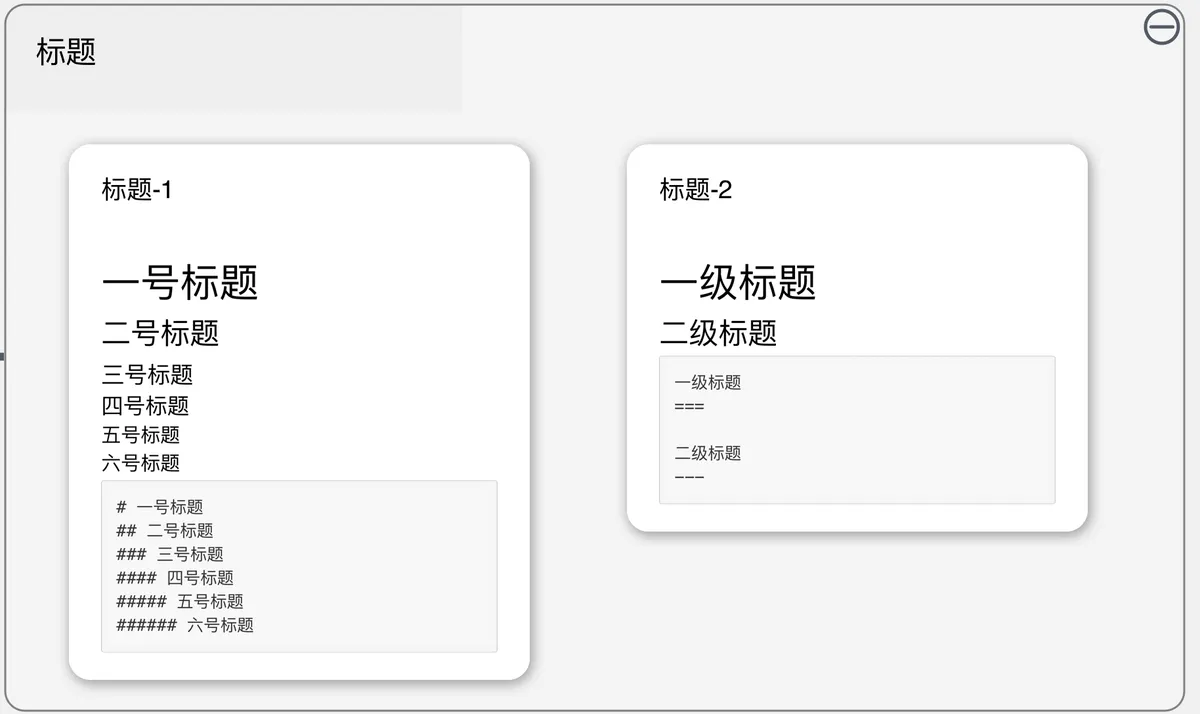
There are two ways to write them:
-
#+ space + heading textType a # at the beginning of the line, add a space, then type the heading text.
# Heading 1
## Heading 2
### Heading 3
#### Heading 4
##### Heading 5
###### Heading 6
This syntax supports up to six heading levels, but in MarginNote 4 the size difference between level-5 and level-6 headings is minor.
-
Heading text +
===/---Heading 1 === Heading 2 ---This syntax supports only two heading levels.
3.2 Text Styles
3.2.1 Bold
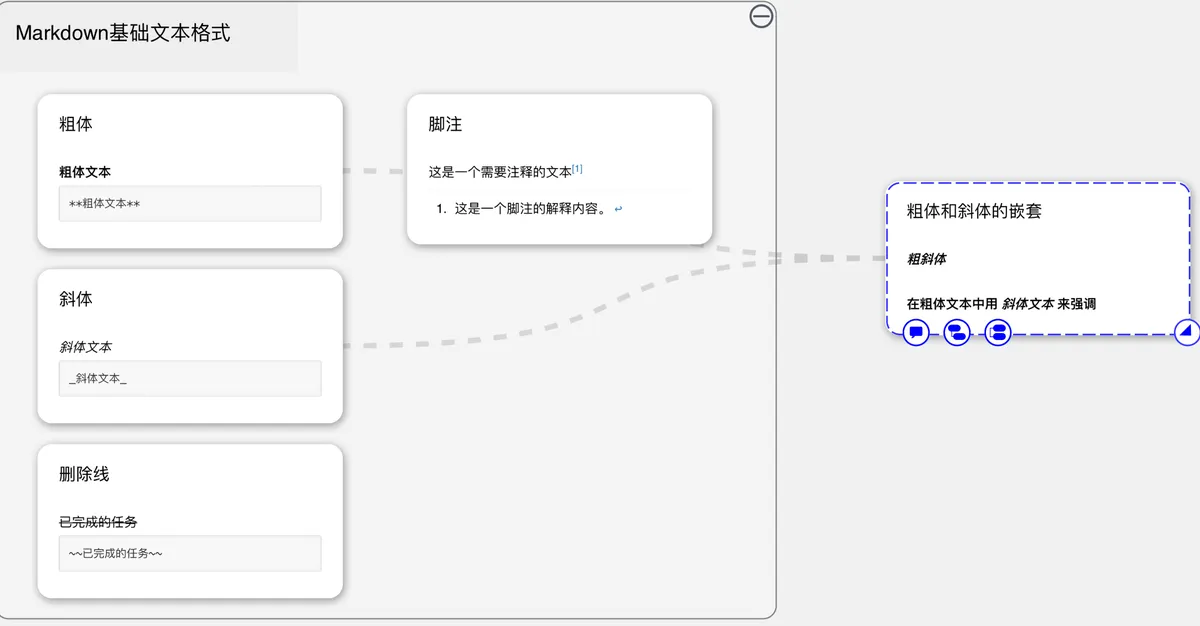
Bold text
**Bold text**
3.2.2 Italic
Italic text
_Italic text_
📌Nested usage of bold and italic
Bold italic
__*Bold italic*__Emphasize with italic text inside bold text
**Emphasize with _italic text_ inside bold text**
3.2.3 Strikethrough (Not yet supported in MN4)
~~Completed task~~
~~Completed task~~
3.2.4 Footnotes (Not yet supported in MN4)
This is text that needs a note1
(Due to differences in rendering, the footnote content for this page is displayed at the very bottom of this page.)
This is text that needs a note[^1]

[^1]: This is the explanatory content of a footnote.
💡If learners want to use Markdown to achieve additional text formatting effects such as underline, highlight, superscript and subscript, font size, font color, background color, and text alignment, please refer to the section on embedding HTML and CSS.
3.3 Paragraphs and Line Breaks
A paragraph in Markdown consists of one or more lines of text. In MarginNote 4, starting a new line marks a new paragraph; when using the keyboard, press O``ption+Enter to start a new line. In the current MN4 display, the spacing of a single line break and a blank line may look the same.
3.4 Lists
-
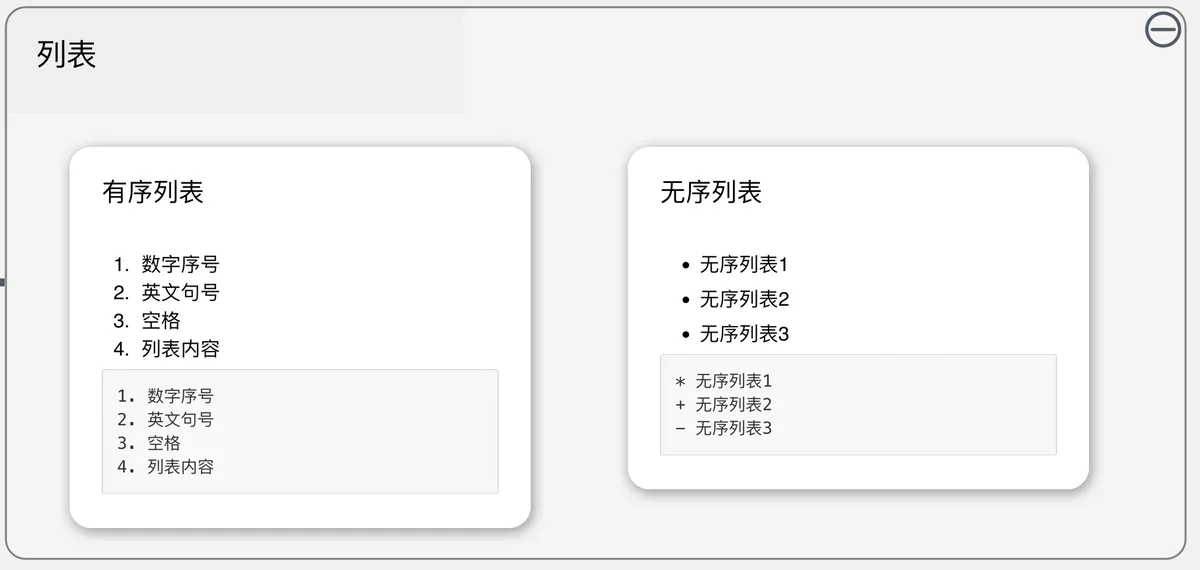
Ordered list: number + period + space + list content
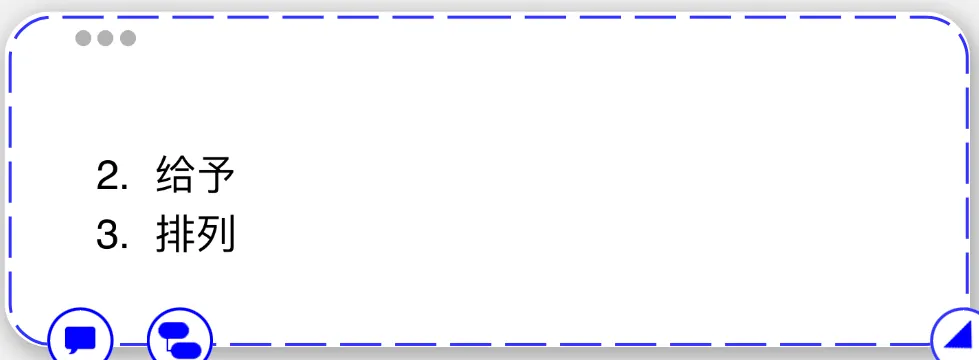
The first list number determines how the subsequent numbers are arranged.
-
Unordered list: "asterisk
*/ plus+/ minus-" + space + list content
💡Tips: Ordered lists and unordered lists can be nested within each other.
3.5 Blockquotes
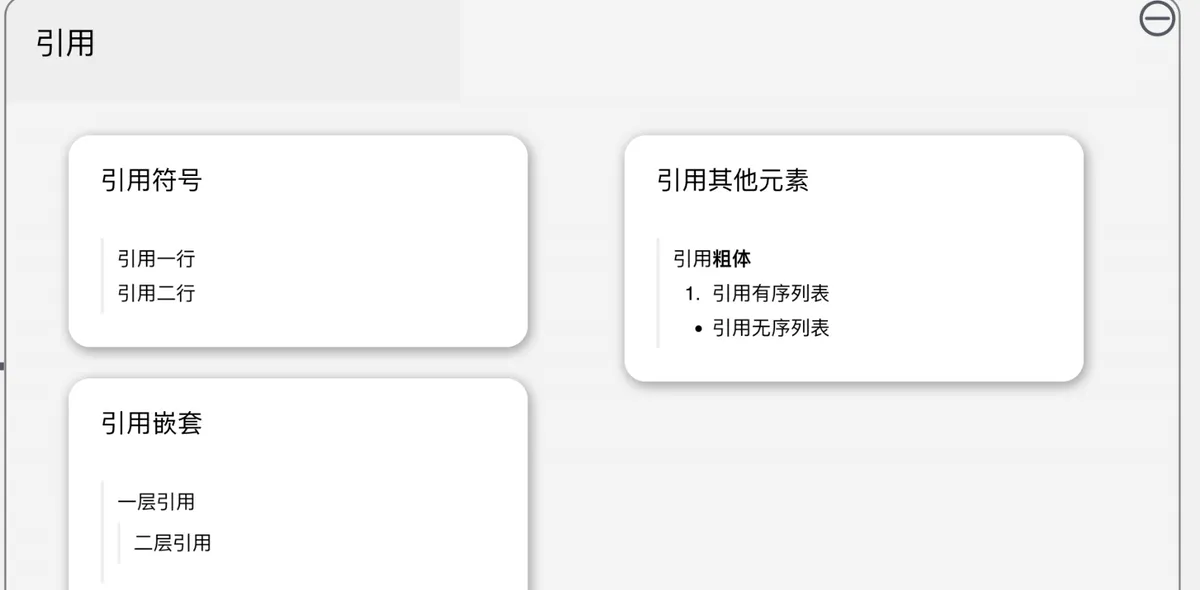
-
Blockquote marker: greater-than sign
>+ space.> Quote line one > > Quote line two -
Nested blockquotes
> First-level quote > > Second-level quote -
Quoting other elements
> Quote **bold**
> 1. Quote an ordered list
> - Quote an unordered list
3.6 Horizontal Rules

When learners want to create a dividing line between two paragraphs, the line in between must contain only three or more asterisks (*), underscores (_), or three space-separated minus signs (-).
Before the divider
- - -
***
___
After the divider
3.7 Code
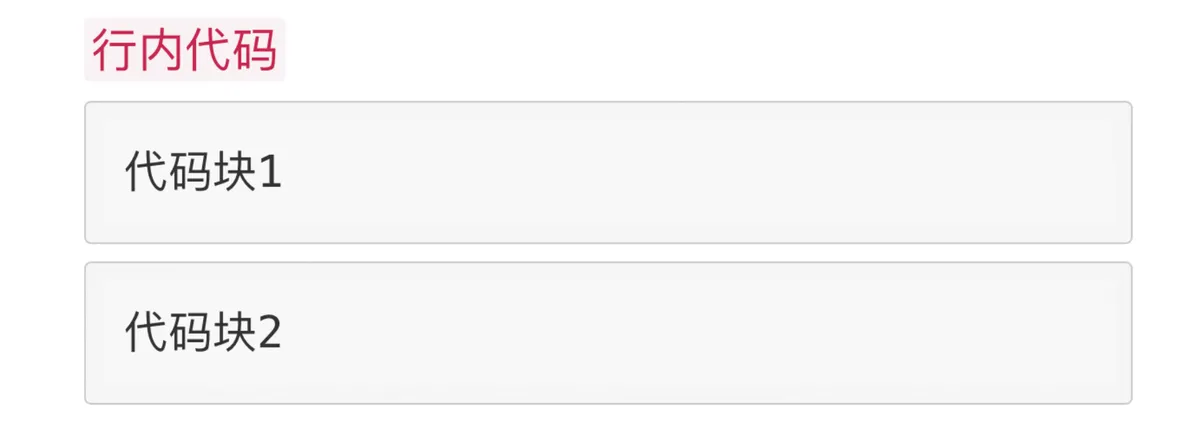
-
Inline code: backtick (
`) + code content + backtick (`)`Inline code` -
Code block:
-
Three backticks (
`) + line break + code content + line break + three backticks (`)Code block 1
-
Four spaces /
tab+ code contentCode block 2
-
💡Tips: When learners want to type certain marker symbols in the Markdown editor but don't want those symbols to be rendered, they can use a backslash to escape them:
\!\"\#\$\%\&\'\(\)\*\+\,\-\.\/\:\;\<\=\>\?\@\[\\\]\^\_\`\{\|\}\~
3.8 Hyperlinks
Links typed directly in the Markdown editor are converted into hyperlinks (wrapping a web address or email address in <> also converts it into a hyperlink). When multiple links look cluttered and unattractive, learners can use the following methods to make link expressions more elegant:
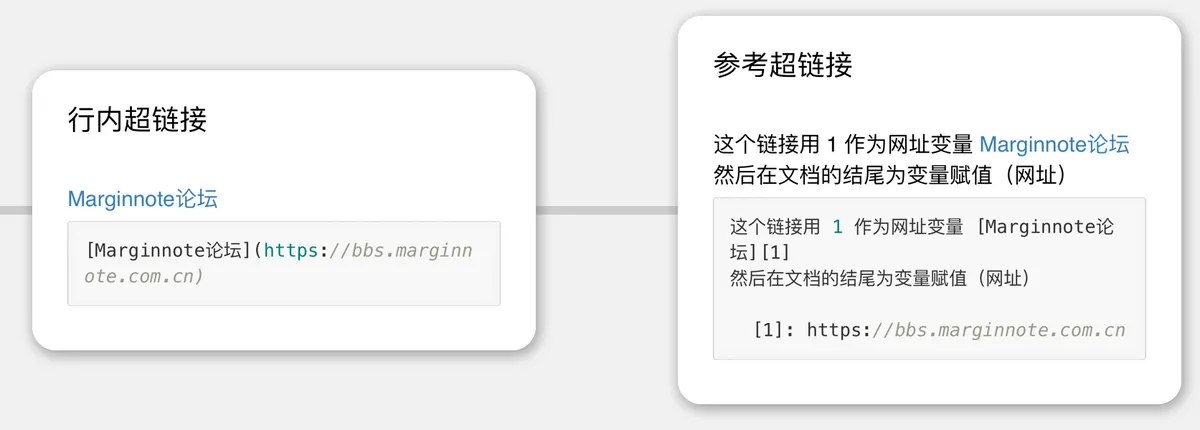
-
Inline hyperlink:
[link text](link URL)[MarginNote Forum](https://bbs.marginnote.com.cn) -
Reference hyperlink (not yet supported in MN4):
[link text][link identifier], then define[link identifier]: link URLin another paragraphThis link uses 1 as the URL variable [MarginNote Forum][1] Then assign a value (URL) to the variable at the end of the document [1]: https://bbs.marginnote.com.cn
Hyperlinks now support card URLs; for details, see Card Links ⑤ | Inline Links.
3.9 Images (Not yet supported in MN4)

3.10 Tables
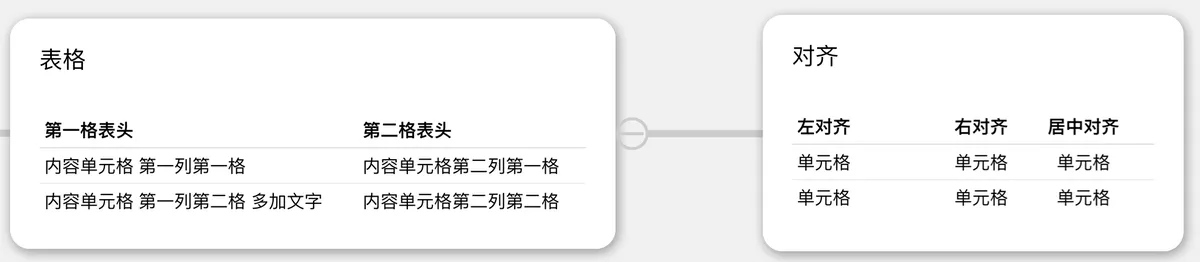
-
Table
Header cell 1 | Header cell 2 --------- | ------------- Content cell, column 1 row 1 | Content cell, column 2 row 1 Content cell, column 1 row 2, with extra text | Content cell, column 2 row 2 -
Table alignment
| Left-aligned | Right-aligned | Center-aligned |
| :-----| ----: | :----: |
| Cell | Cell | Cell |
| Cell | Cell | Cell |
4 Advanced Markdown Syntax
4.1 Formulas
The Markdown editor in MarginNote 4 supports entering formulas using LaTeX, KaTeX, MathJax, and HTML tags. Learners who want to know how to edit formulas with Markdown can learn the syntax for Markdown formulas through the Help Documentation, or directly generate the Markdown code for a formula using the web editor tool.
4.2 Embedded HTML and CSS
4.2.1 Underline

<u>Underline</u>

<span style="border-bottom:5px dashed green;">Underline 2</span>
4.2.2 Highlight

<mark>Highlighter</mark>
4.2.3 Background Color

<table><tr><td bgcolor=yellow>Background color yellow</td></tr></table>
4.2.4 Text Alignment

<center>Center</center>
<p align="left">Left-aligned</p>
<p align="right">Right-aligned</p>
4.2.5 Font Size

<small>Small font</small>
Normal font
<big>Large font</big>
4.2.6 Text Color

<font color=red>Red</font>
<font color=#008000>Green</font>
Tips: Combined use of text and color

<font size=5 color=red>Red text with size=5</font>
4.2.7 Superscript and Subscript

This is <sup>superscript</sup> text

This is <sub>subscript</sub> text
Images and tables can also be further beautified with HTML and CSS. For more tutorials on beautifying with HTML and CSS, refer to w3scnool and RUNOOB Tutorial.
4.3 Forum Plugin Extensions
Plugins created by users on the MarginNote Forum provide many features not yet supported in MarginNote 4's Markdown. For example, learners who need more advanced Markdown functionality can also use the Milkdown plugin. If you want to quickly create diagrams within a card, you can also use the Excalidraw plugin, as well as plugins like CKEditor and myMarkDown to help beautify cards.
-
This is the explanatory content of a footnote. ↩