Card Grouping Board ①: Precisely Filter Cards from a Massive Collection
💡 The
Card Grouping Boardis an extremely powerful card filter. You can filter the cards you need out of a massive collection by multiple attributes such as card source, color, tag, and creation date, then browse, edit, and manage them all in one place.
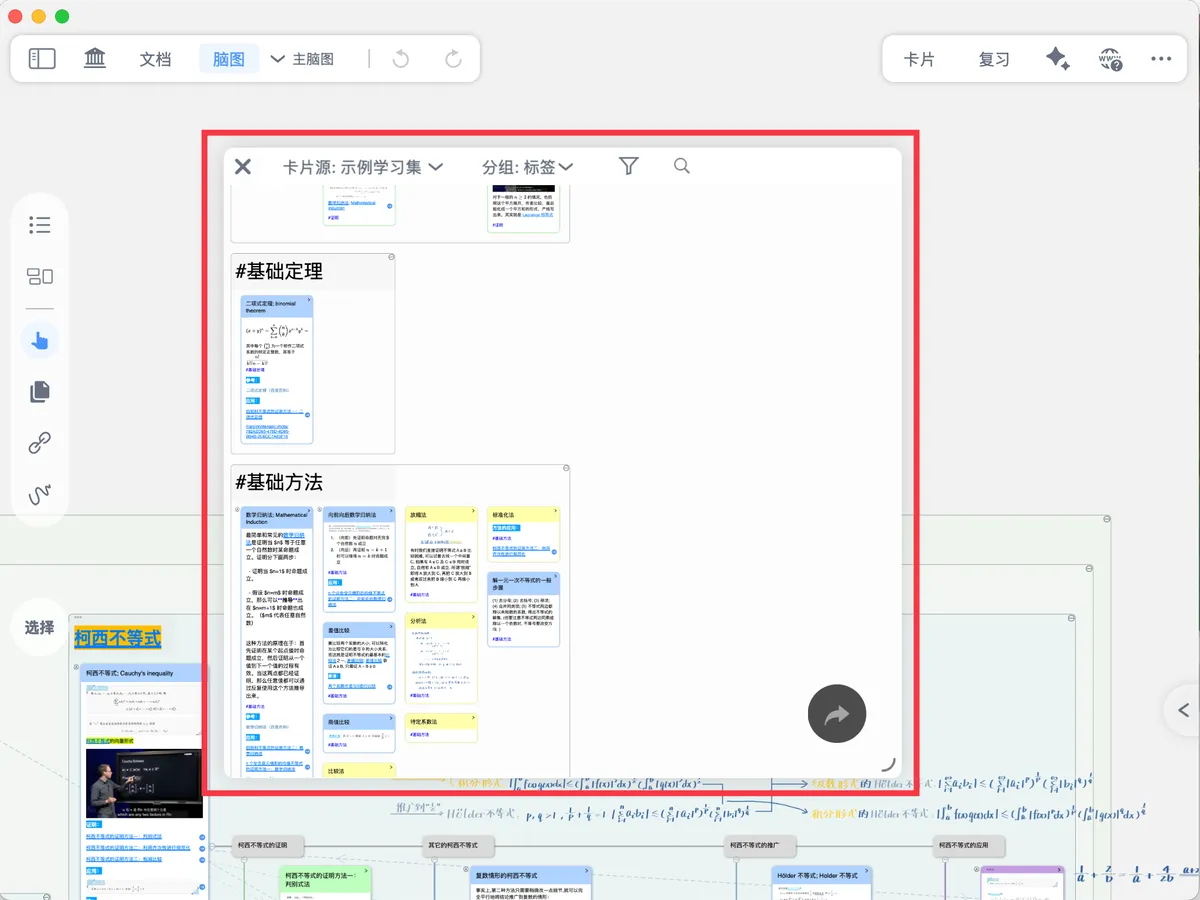
1 How to Open the Card Grouping Board

Card Grouping Board
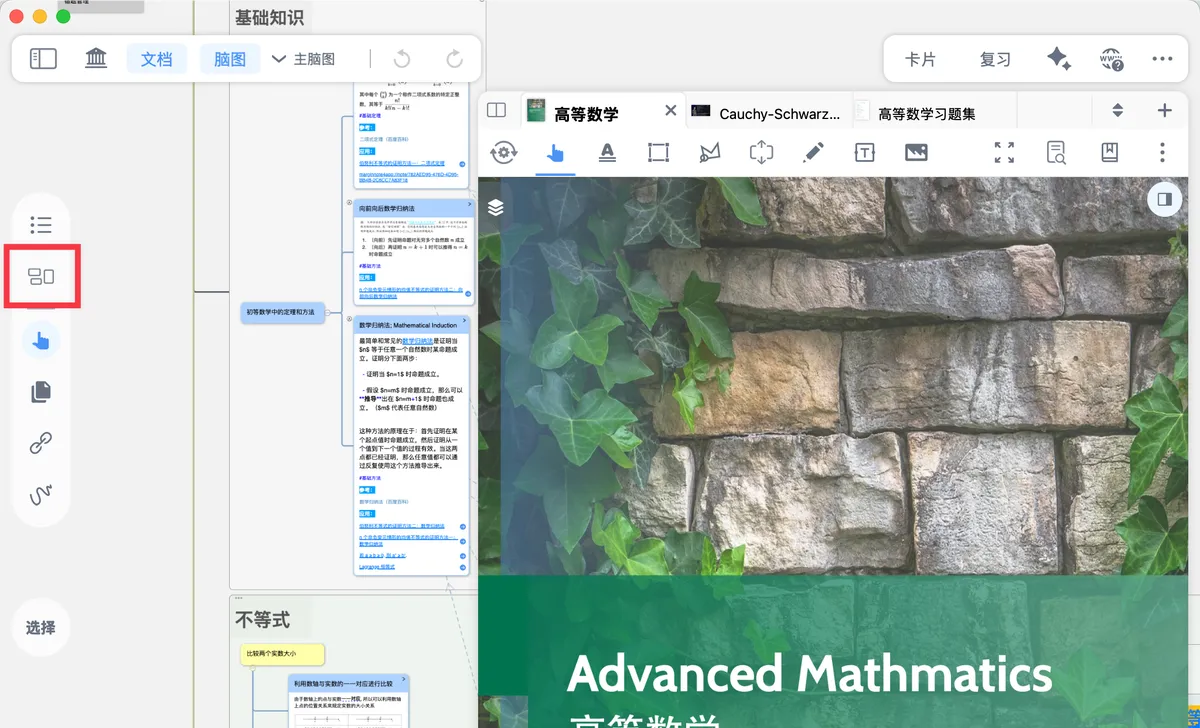
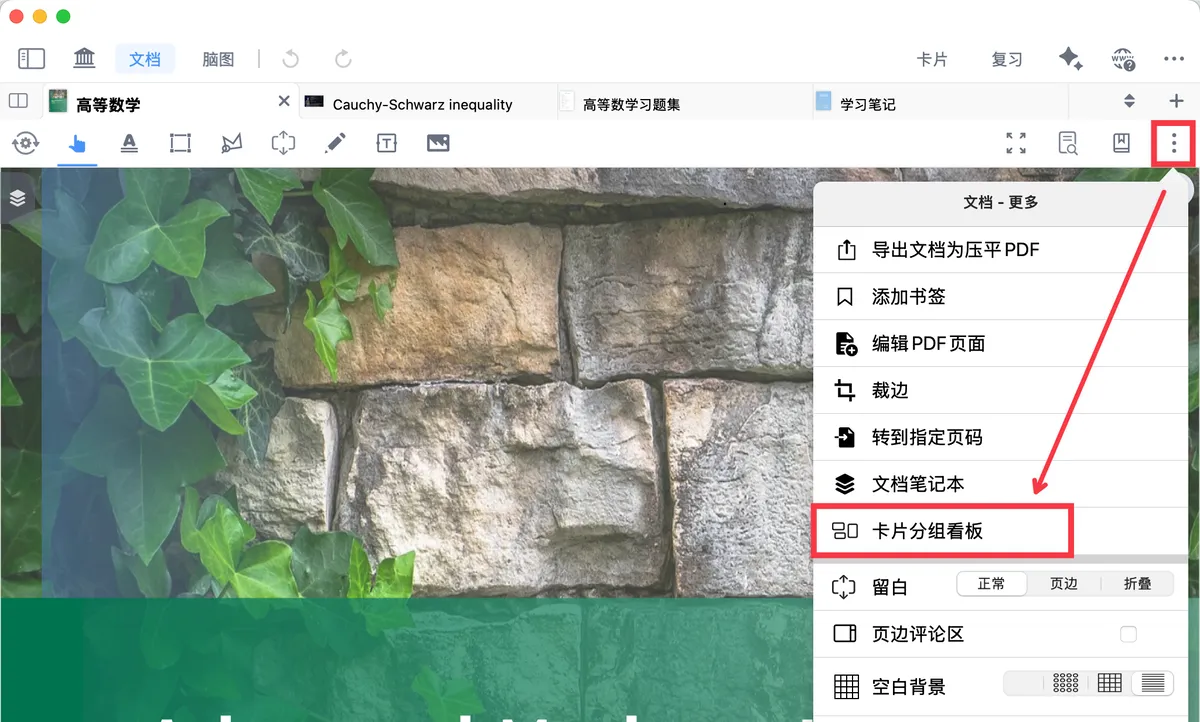
In the mind map sidebar, click the card icon (as shown above).
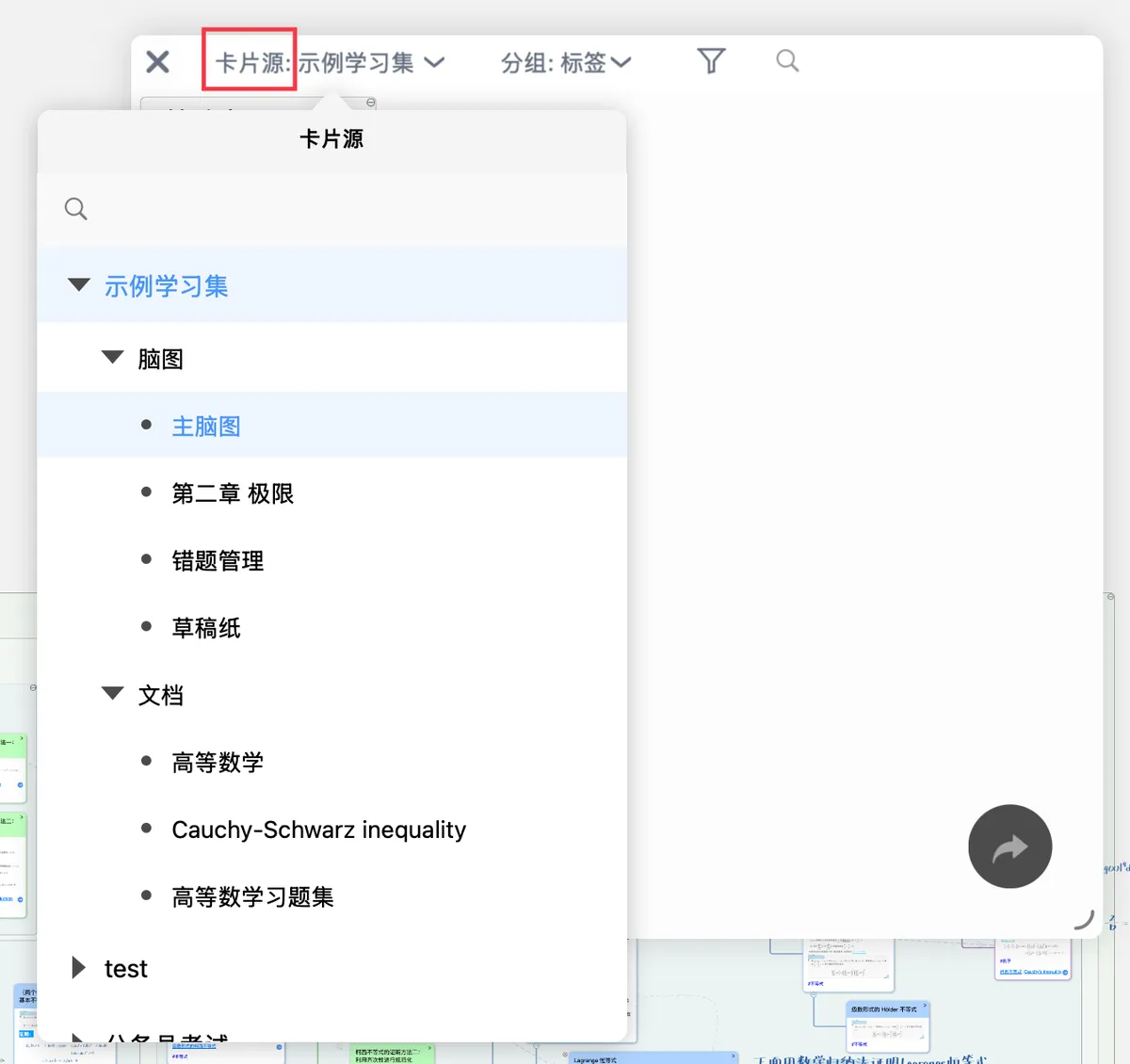
2 Filter the Cards of a Specific Study Set / Mind Map / Document by card source
Filter for specific cards by their source — study set, document, or mind map — and you can refine the results further using group conditions.
3 Filter Specific Cards by group
MarginNote supports a variety of card grouping conditions so you can quickly find the specific cards you need.
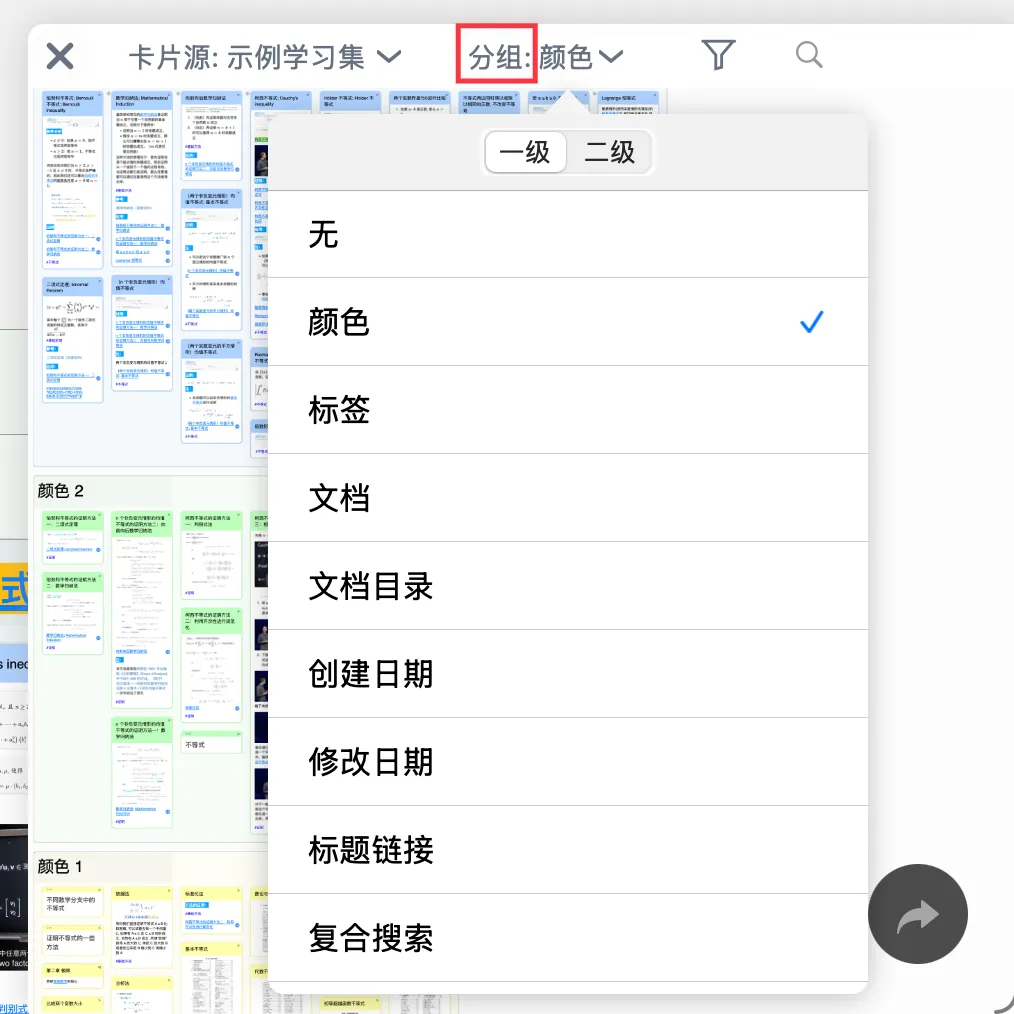
3.1 Which Card Attributes Can You Group By?
color |
🖼️ Image. MarginNote offers 16 selectable card colors in total. | |
|---|---|---|
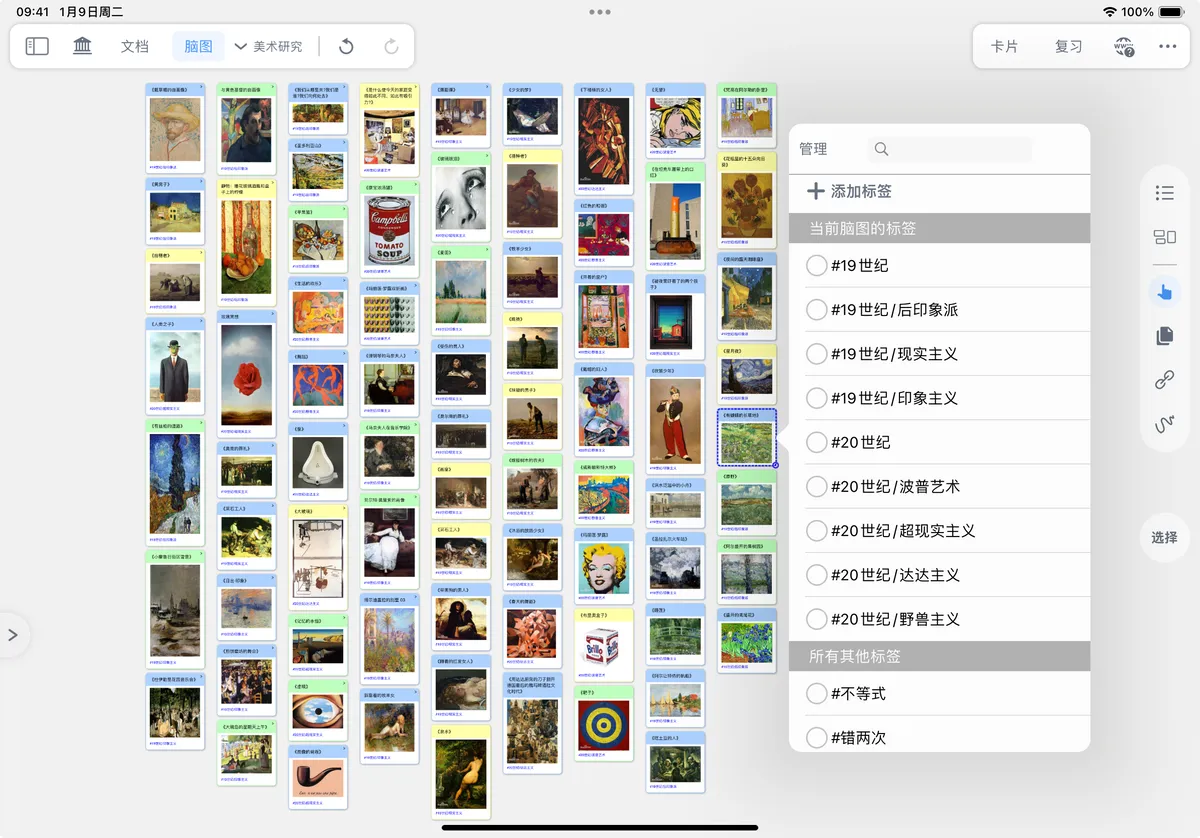
tags |
- 🖼️ Image - 🖼️ Image - 🖼️ Image | |
document |
🖼️ Image > ⓘ If card source is already set to a document, there will be only one group here. |
|
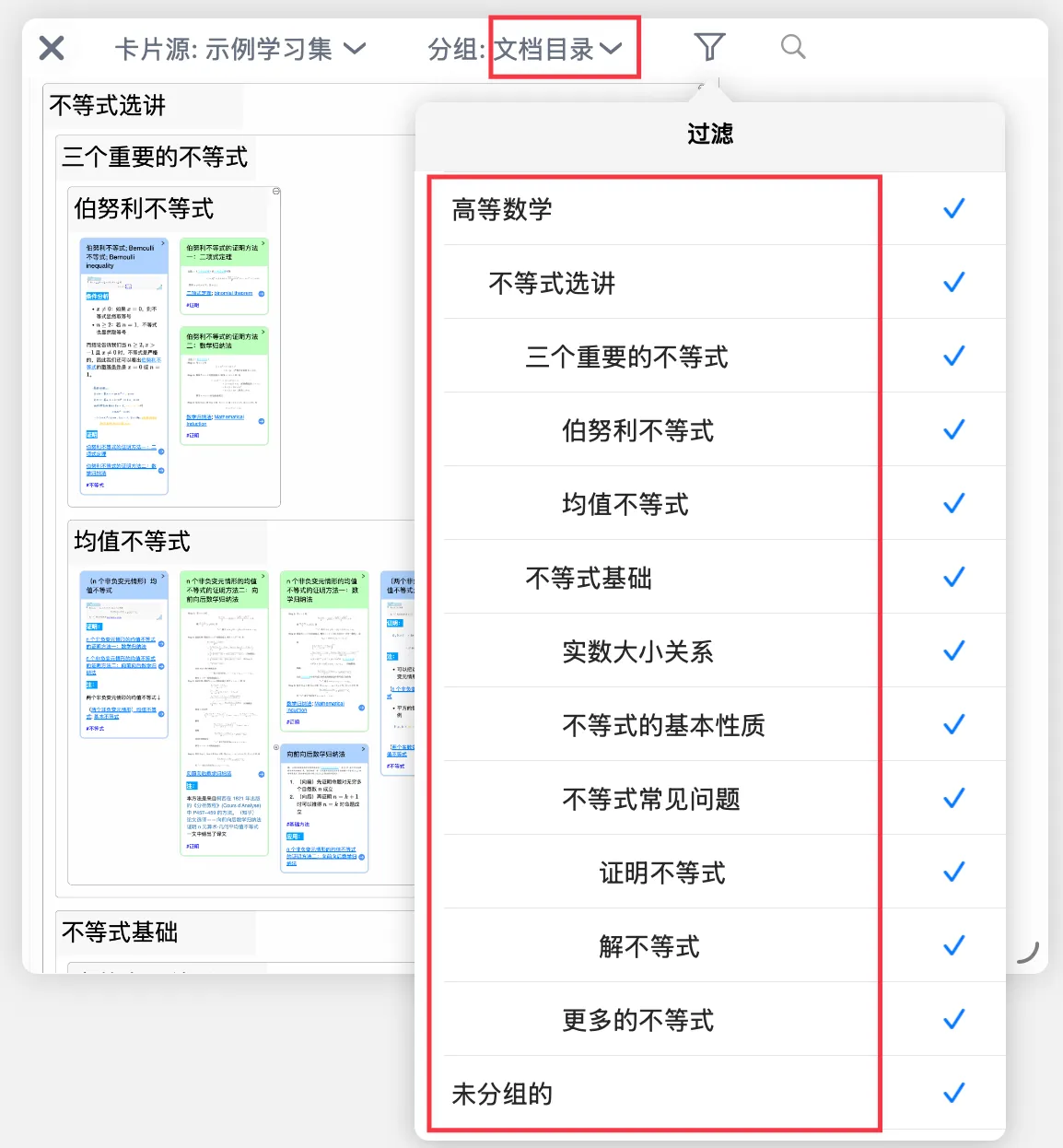
document table of contents |
🖼️ Image > ⓘ If the table of contents contains indentation, the corresponding groups will be nested accordingly. | |
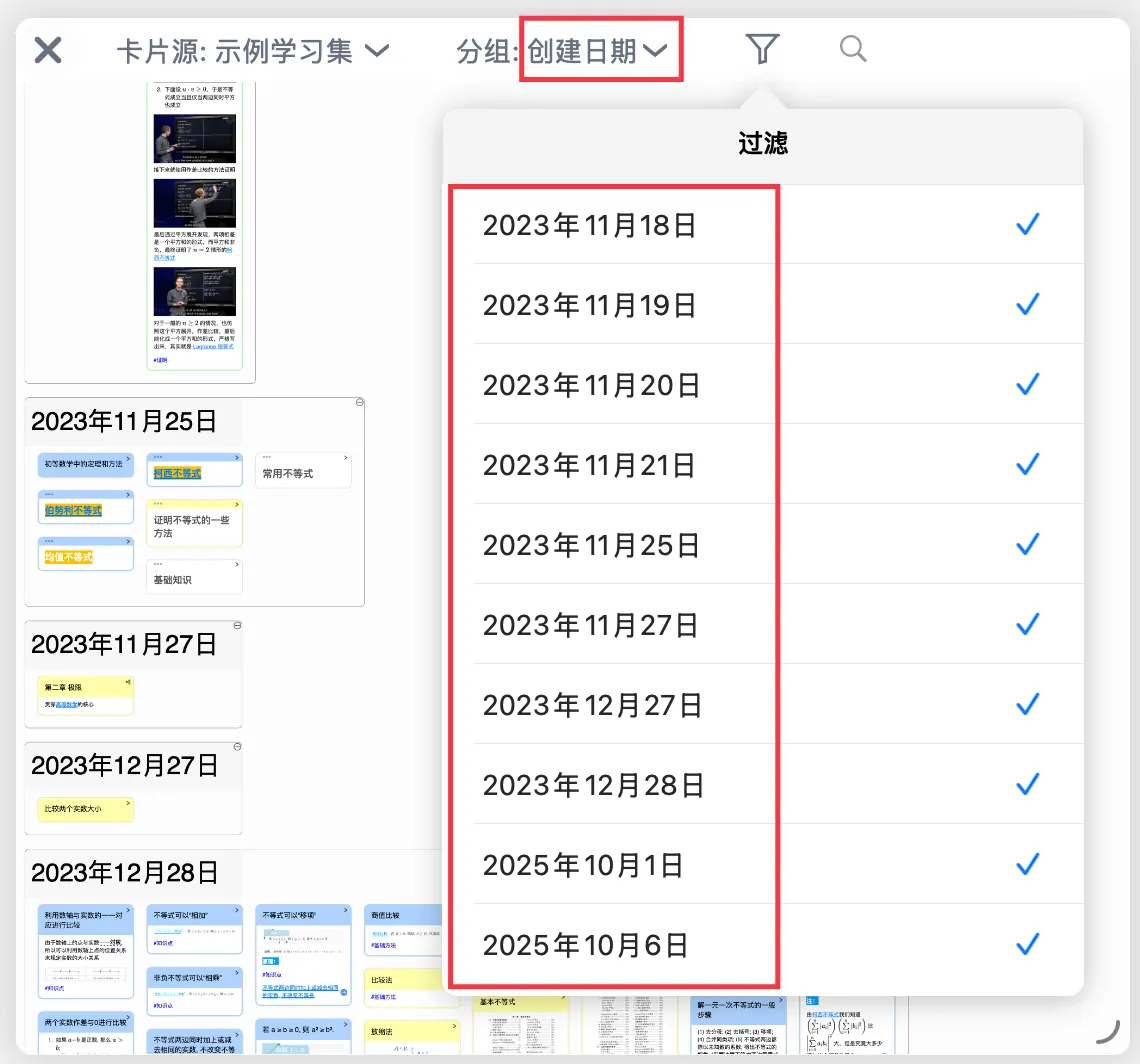
creation date |
🖼️ Image | |
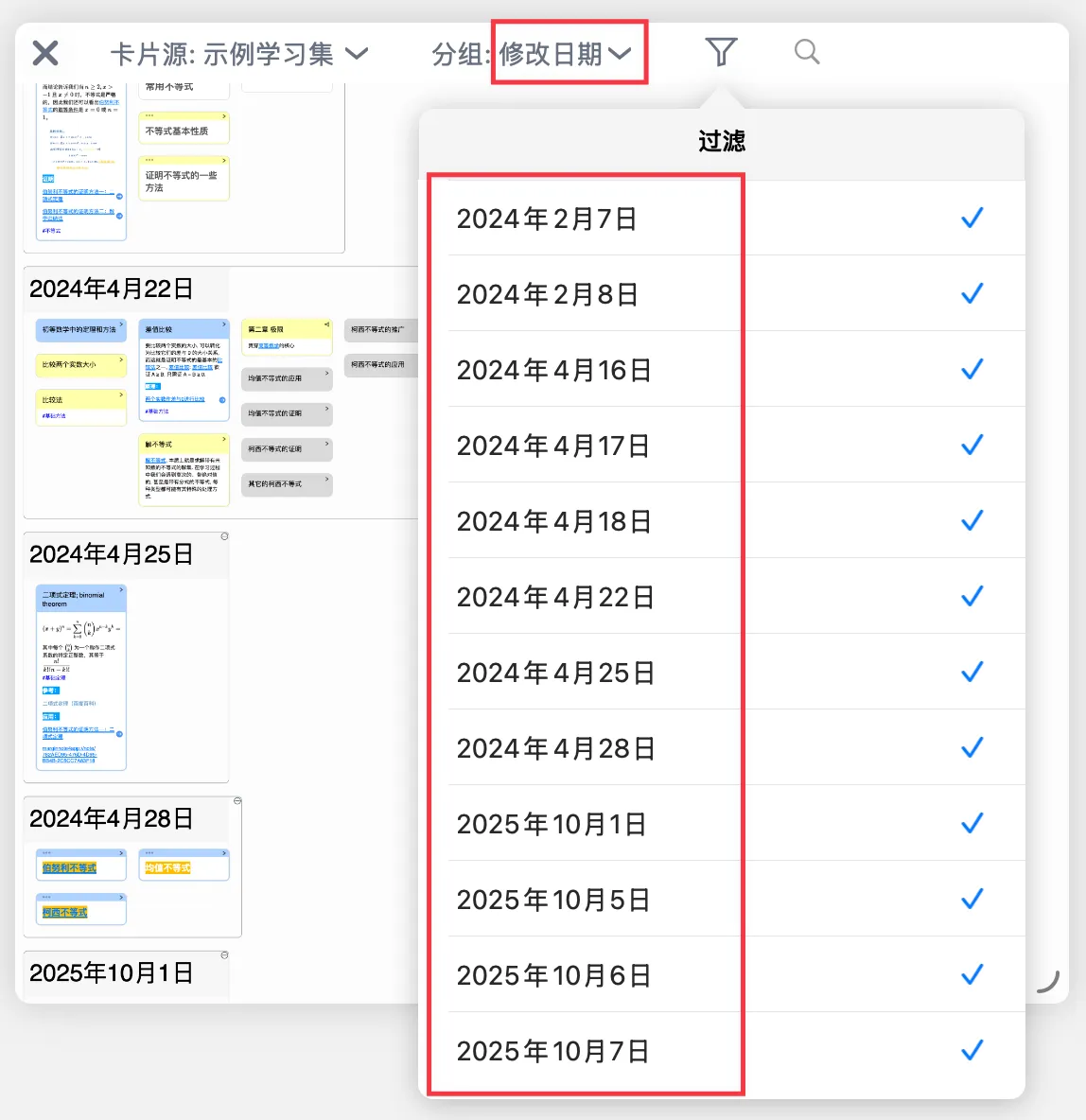
modification date |
🖼️ Image | |
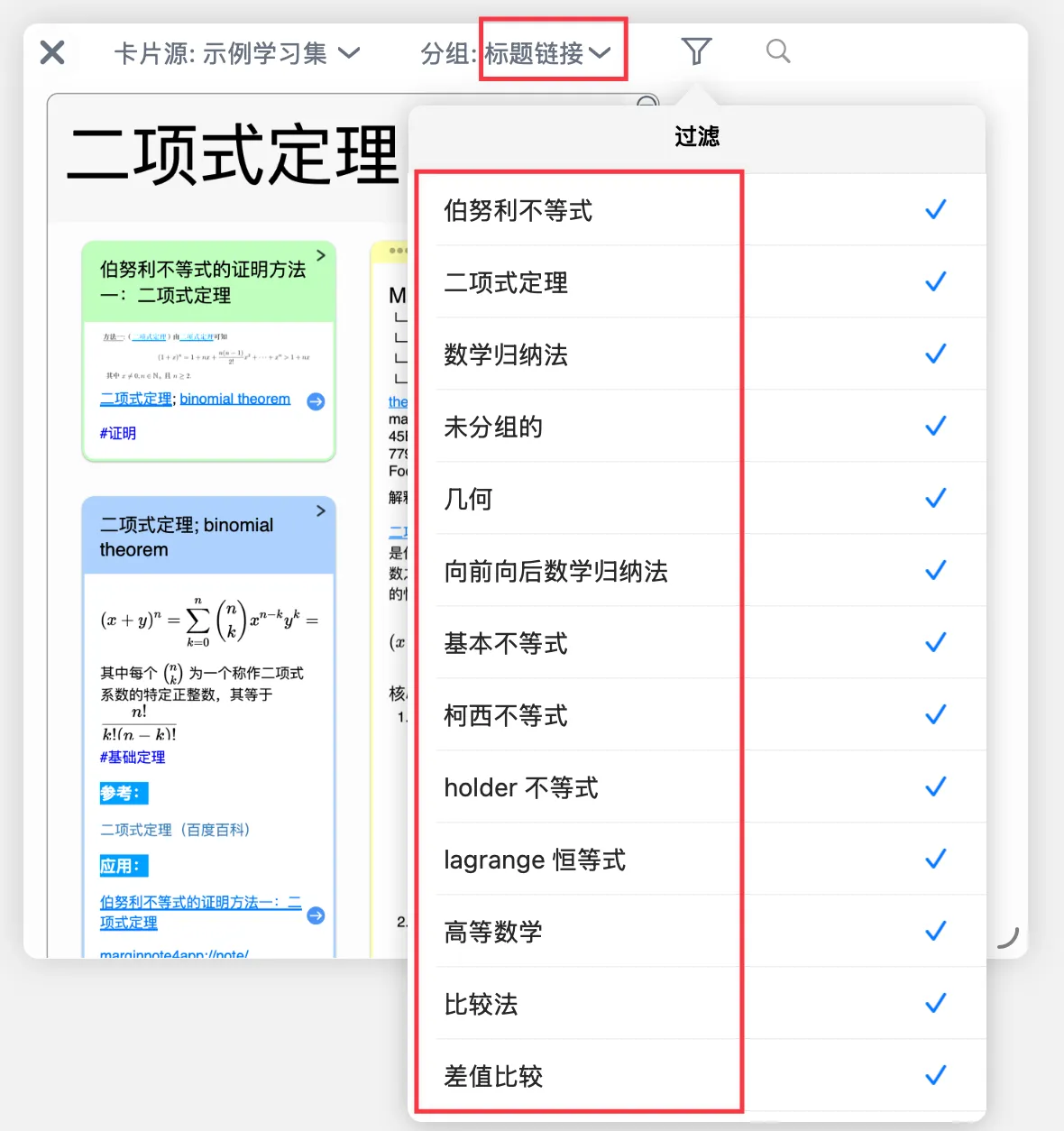
title link |
🖼️ Image > ⓘ For more about title links, see: [Card Links ④ | Keyword Title Links: Build Your Personal Dictionary](../card-links-keyword-title-links-build/index.md). |
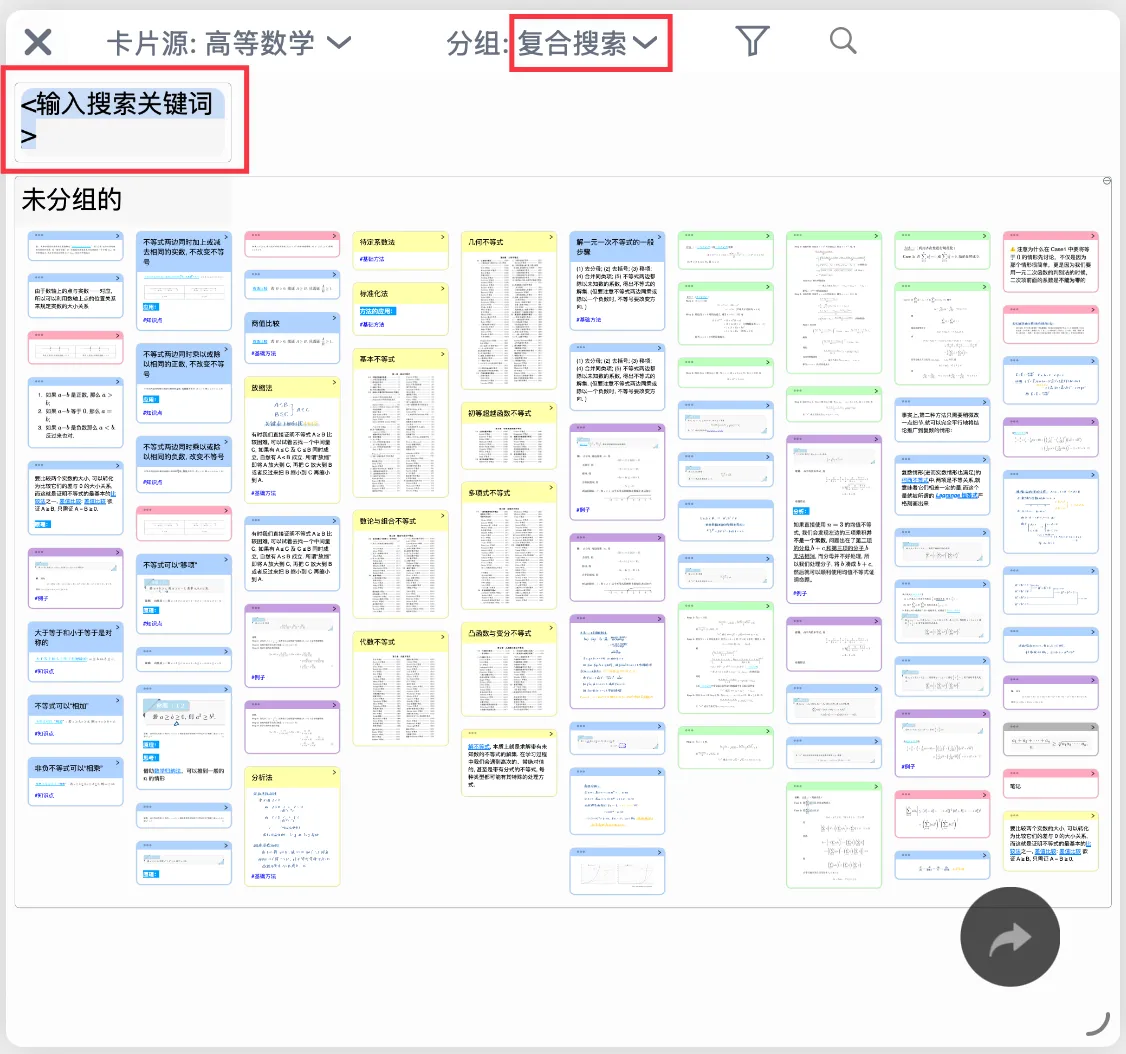
compound search |
🖼️ Image > ⓘ Includes both the card's title and content. | |
When you select a specific document while filtering by card source, grouping additionally supports 2 more card attributes: |
||
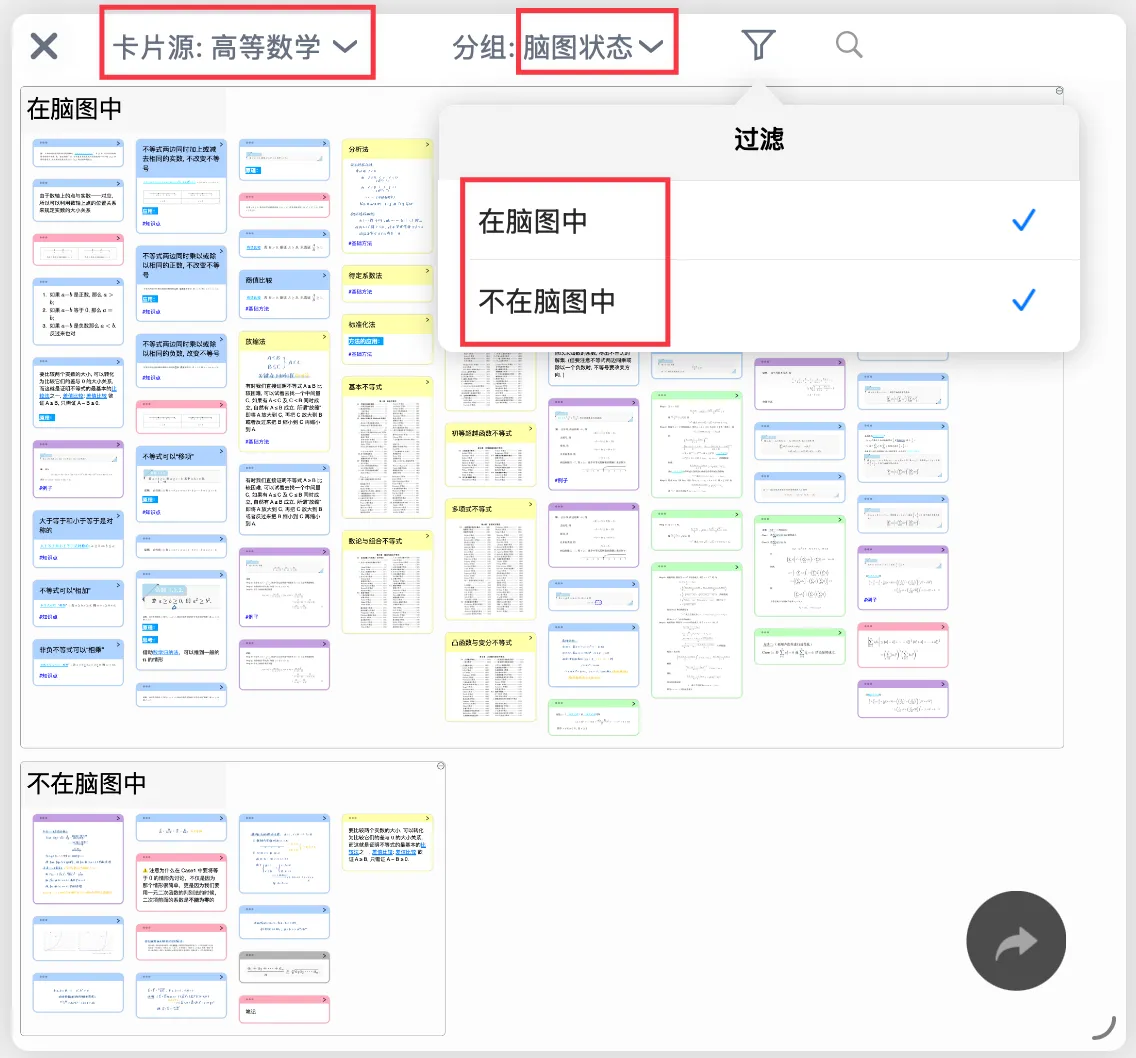
mind map status |
🖼️ Image | |
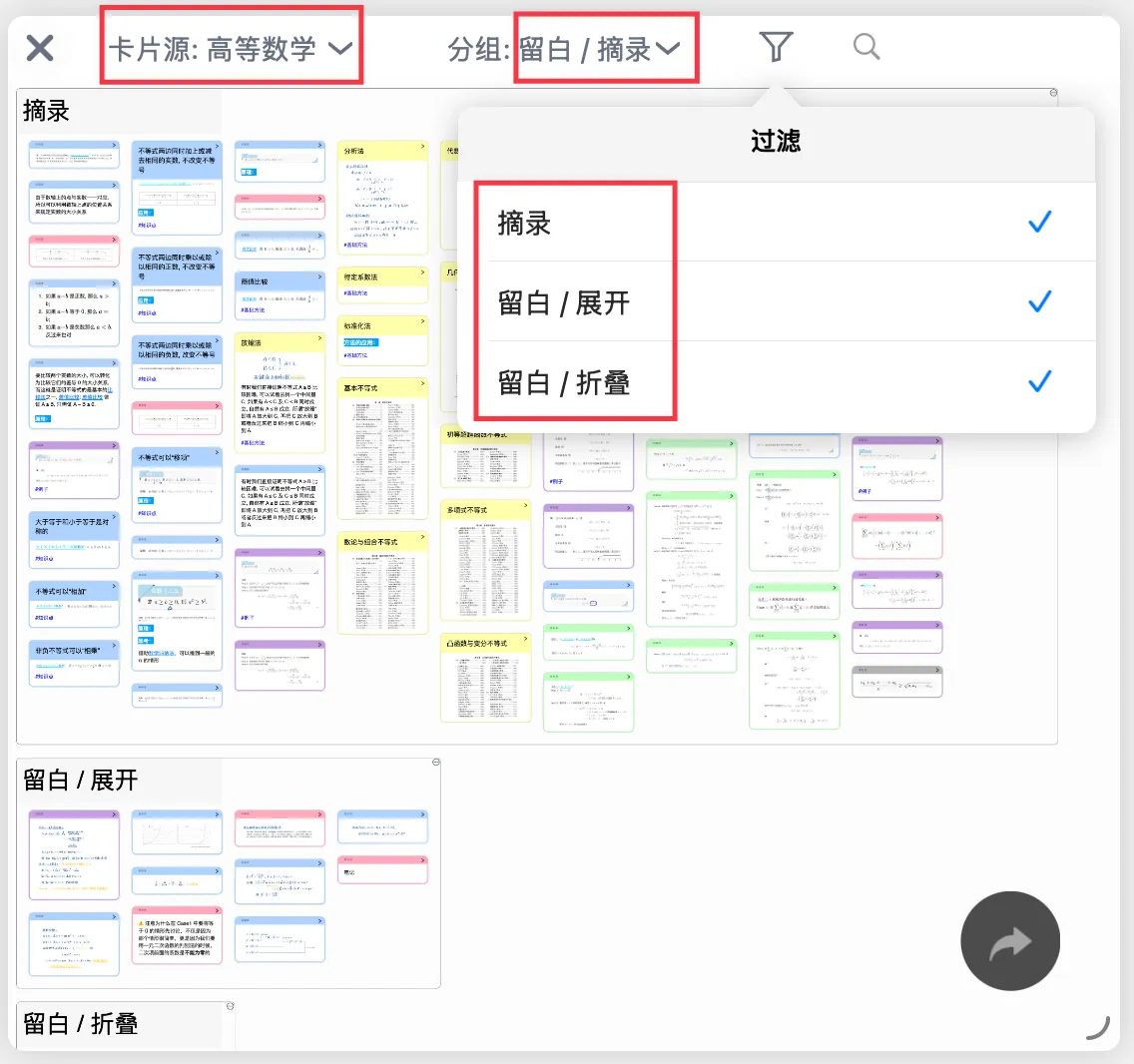
extend note/excerpt |
🖼️ Image |


After setting your grouping conditions, click the funnel icon on the right to filter for the groups you need:
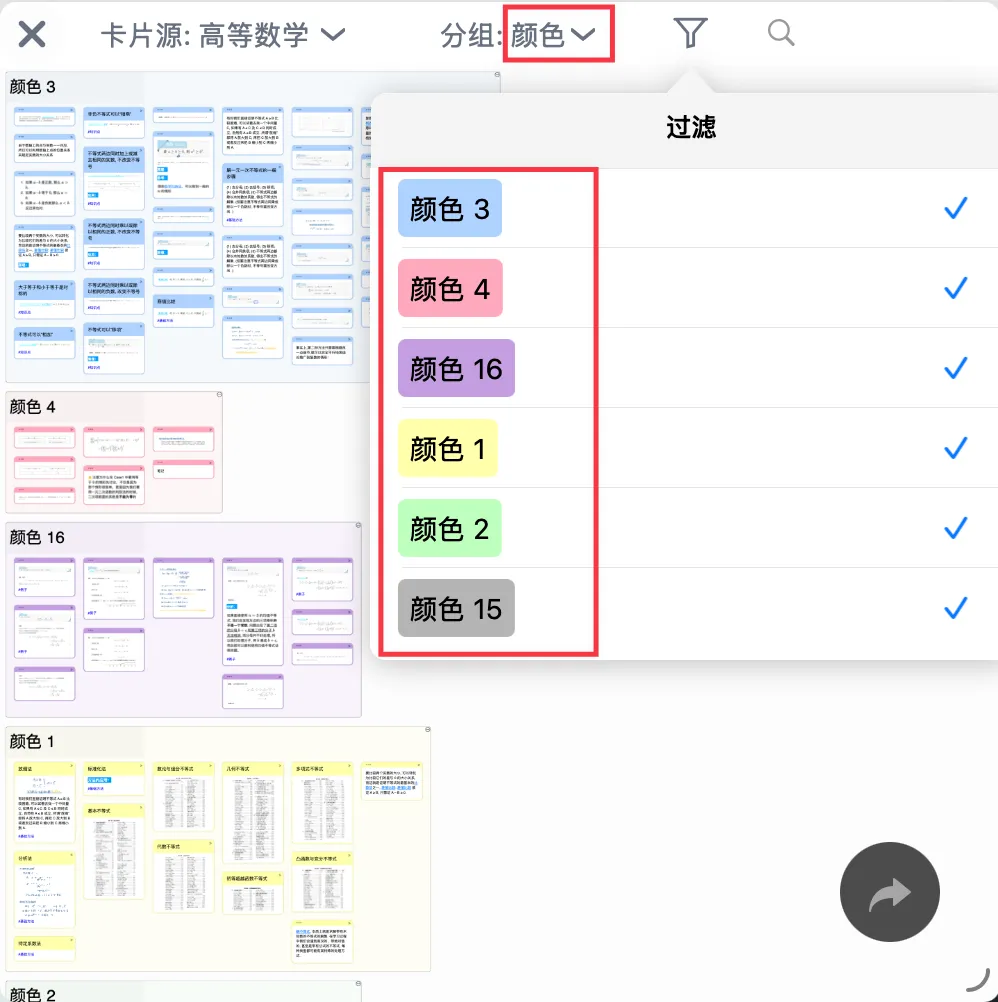
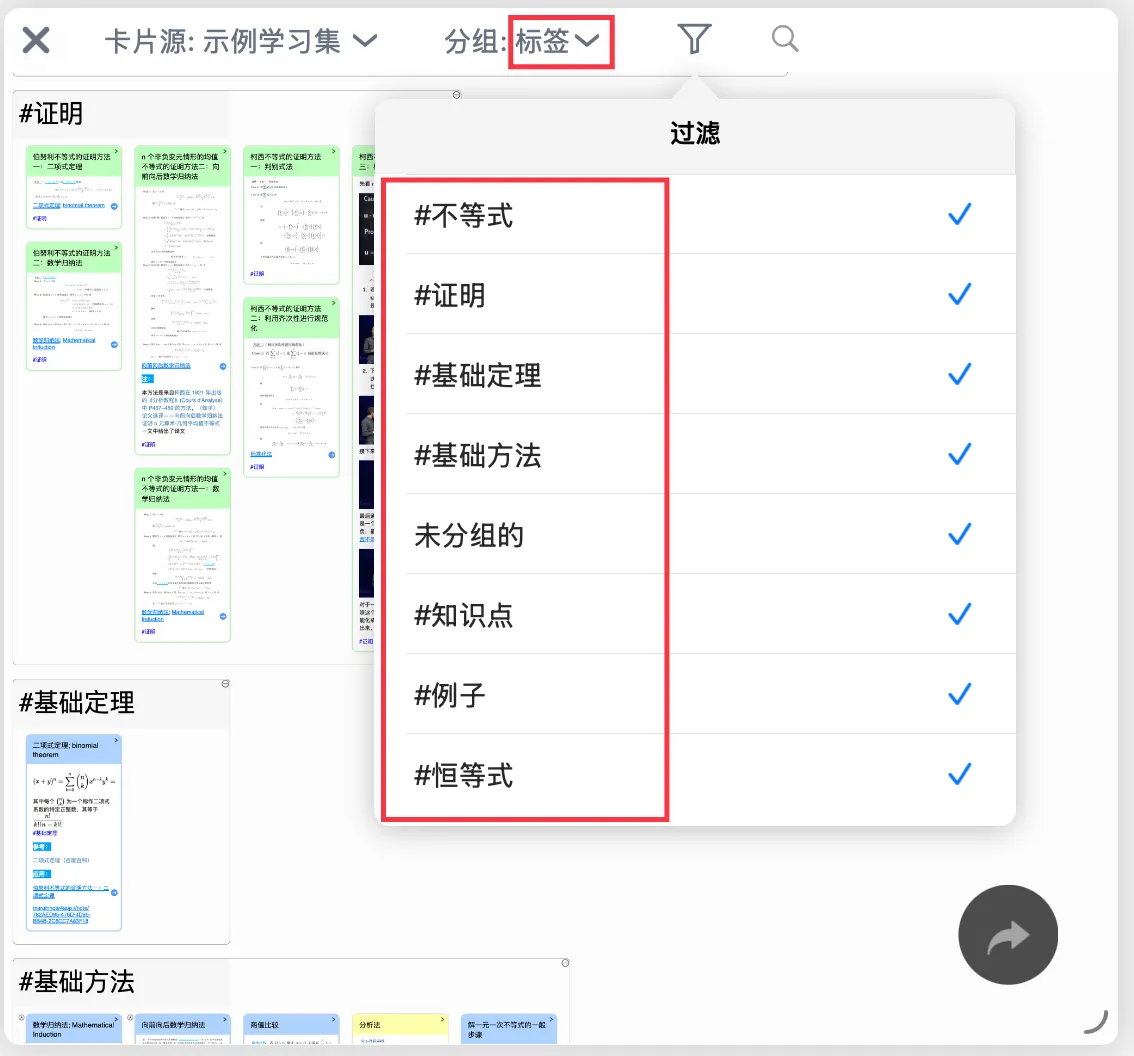
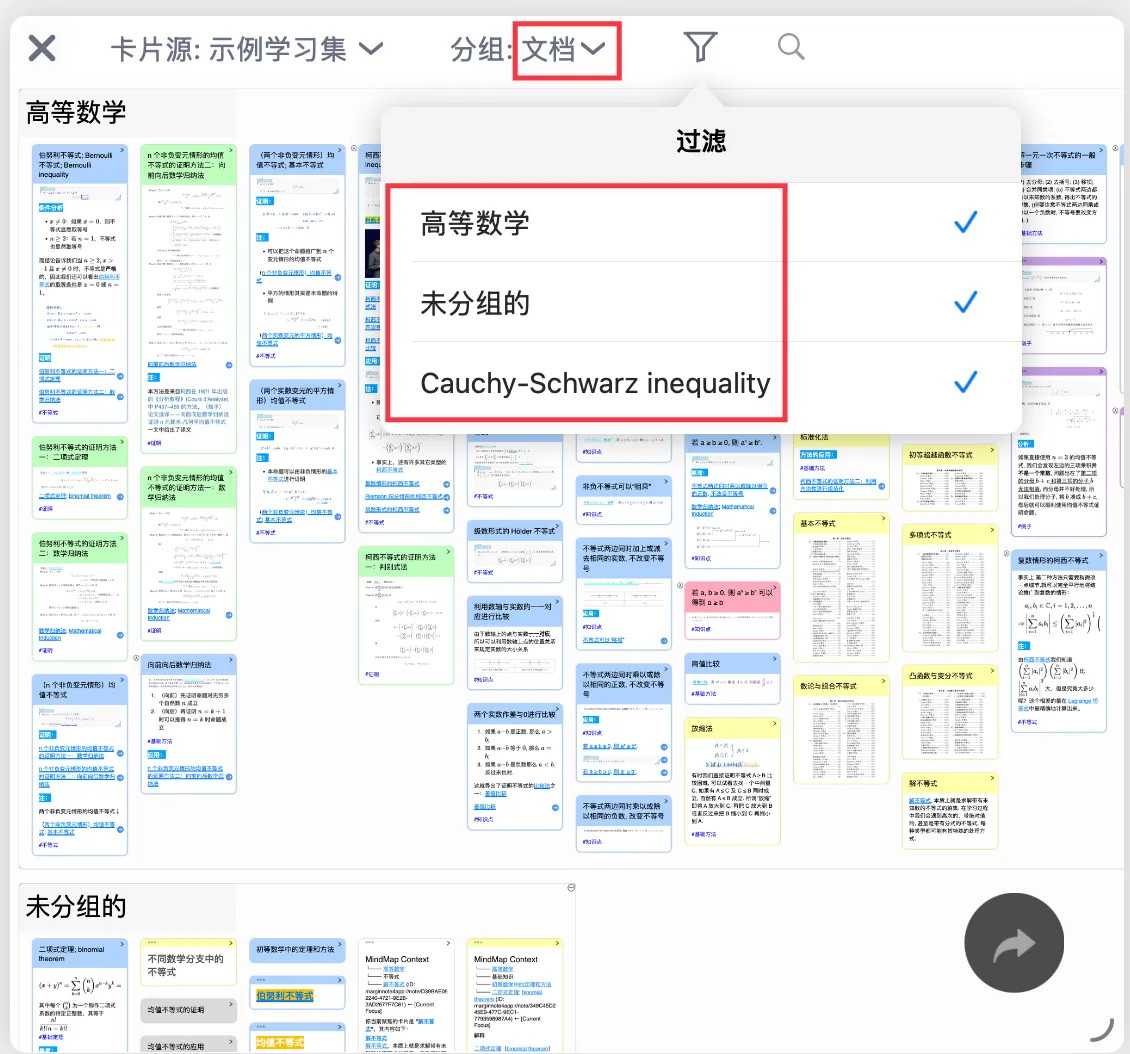
3.2 Why Are There first-level and second-level Groups?
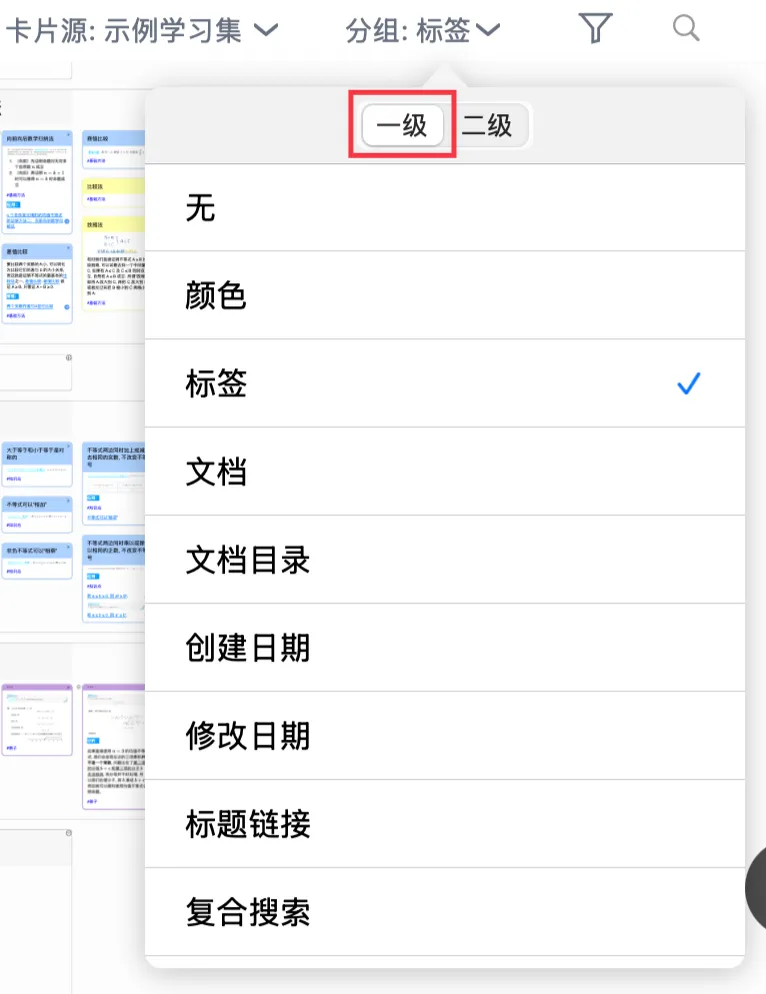
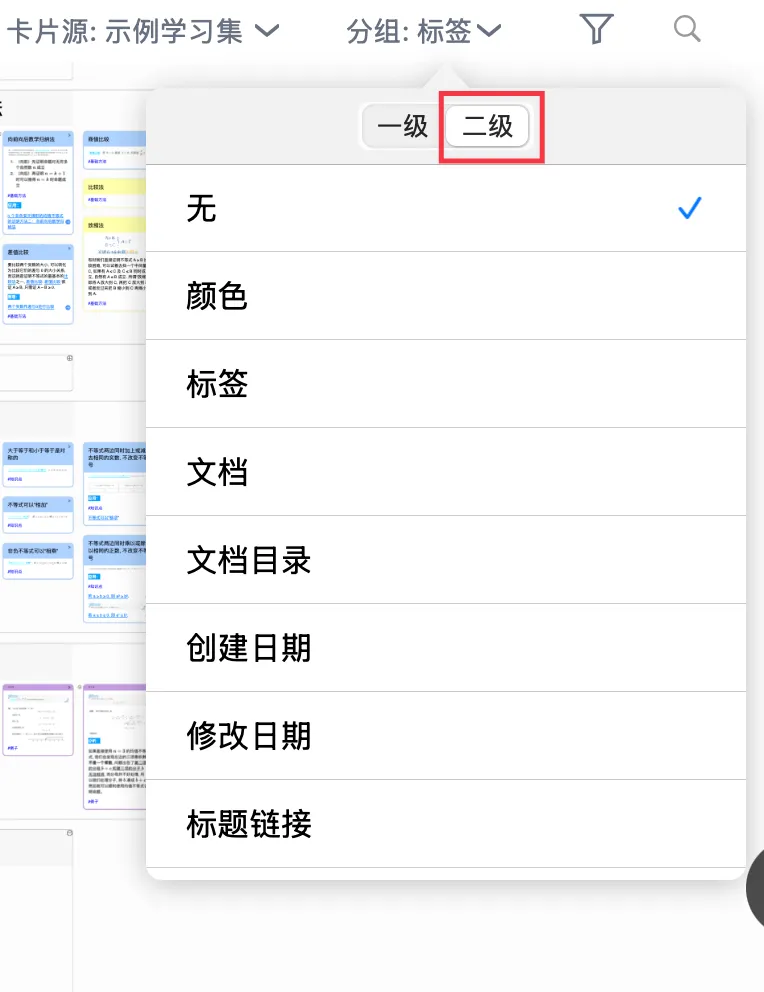
Grouping supports two levels of nesting, making card filtering more efficient and precise. For example:
- To filter the red cards in Document A: set the first-level group to
documentand the second-level group tocolor. - To filter the blue cards that carry the #high-frequency-exam-point tag: set the first-level group to
colorand the second-level group totags.
4 Search Cards
You can search cards by keyword; the search covers a card's entire content (title + comments). Search can be used together with card source and group.
5 Edit and Manage Cards
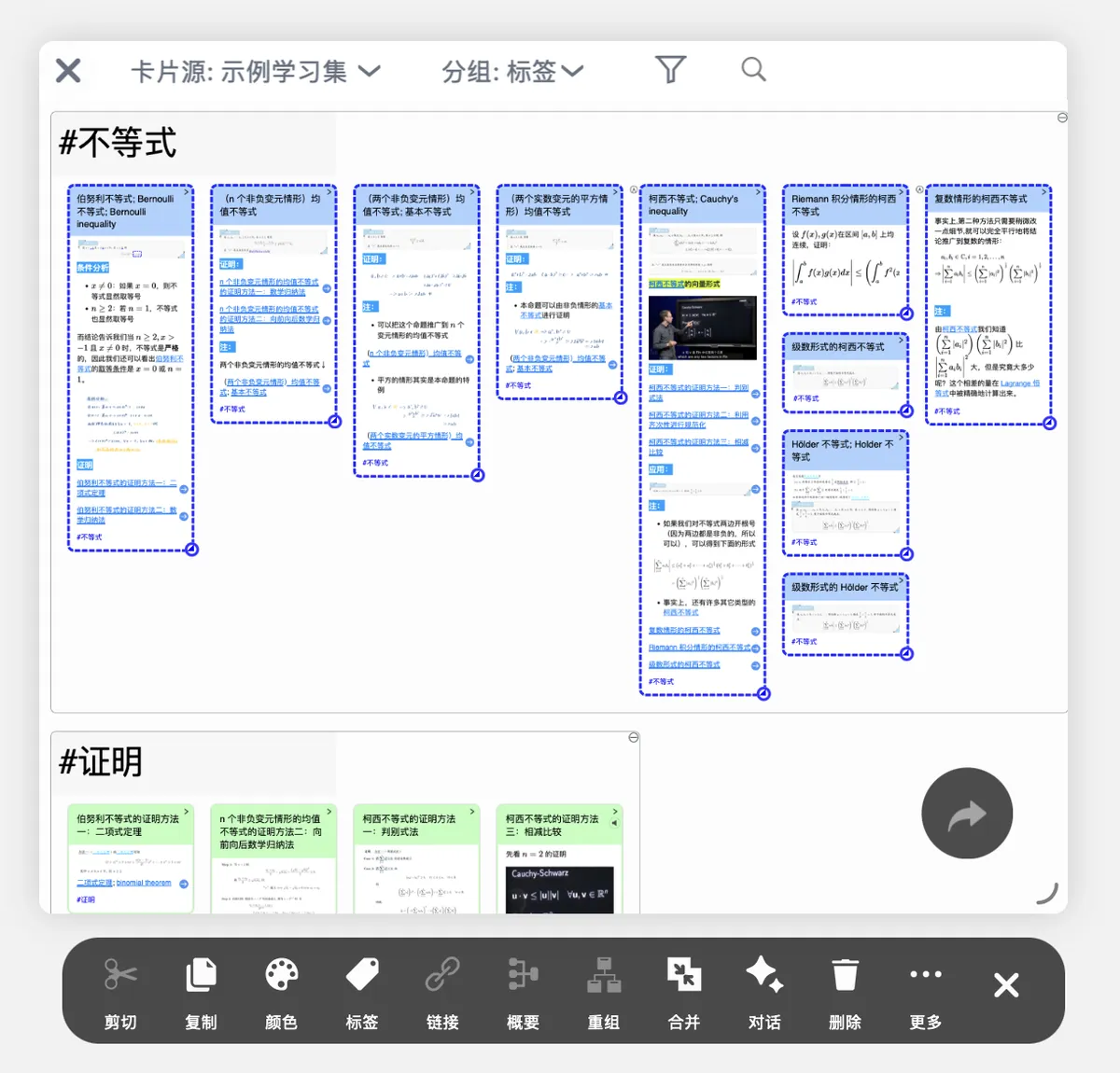
Once you have filtered out the specific cards you need in the board, you can multi-select them for batch editing and management — for example, changing their color or tags, or applying merge, delete, and more.
6 Generate a Mind Map from the Board
Select cards in the board and drag them outside the board to automatically generate a new mind map structure (as a copy). This is ideal for organizing your own personal collections (such as a mistake notebook, an art album, and so on). For details, see: Card Grouping Board ②: Automatically Generate a Mind Map from the Board to Build a Personal Knowledge Collection.