Document Reading Settings
💡MarginNote offers a rich set of document reading settings, delivered through three main modules: first, fine-grained adjustment of parameters such as page brightness, Turn Document Page, the 5 theme colors, and the reading progress bar (including view navigation); second, document table of contents editing for quickly jumping to a target section; third, two reading modes—general reading and focused reading (where focused reading mode provides the maximum reading space).
1 Document Reading Settings
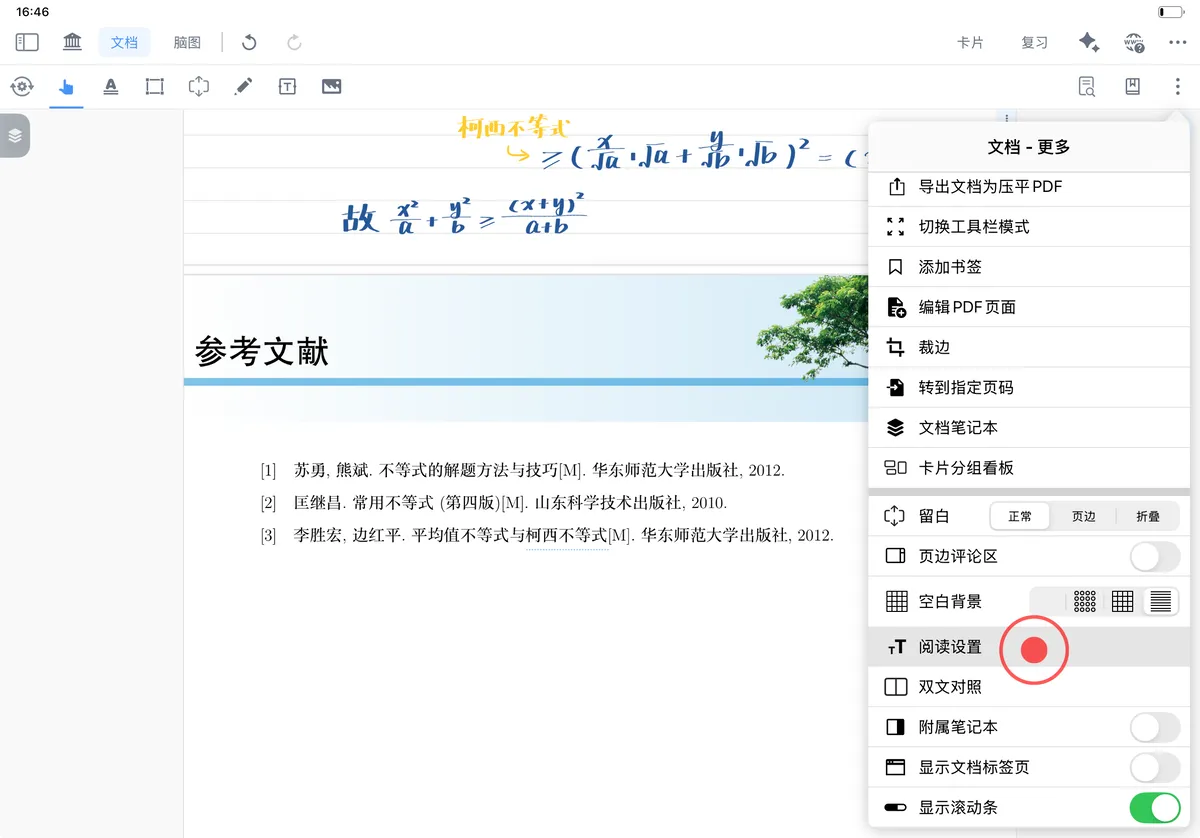
Reading Settings
Tap the "More" button in the top-right corner of the document and find Reading Settings (shown by the icon above) to adjust page brightness, Turn Document Page, and the theme colors.
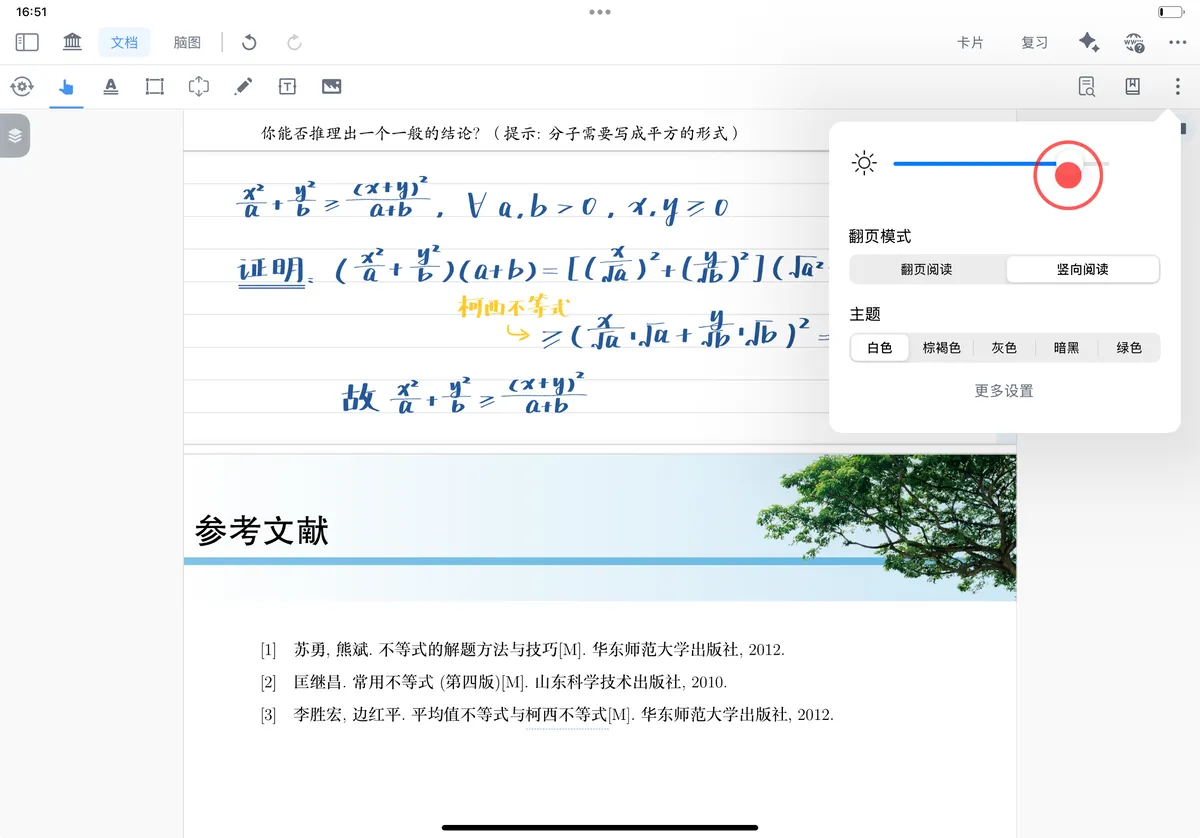
1.1 Brightness Adjustment
- Press and hold the dot and slide left or right to adjust screen brightness.
1.2 Turn Document Page
horizontal flip:
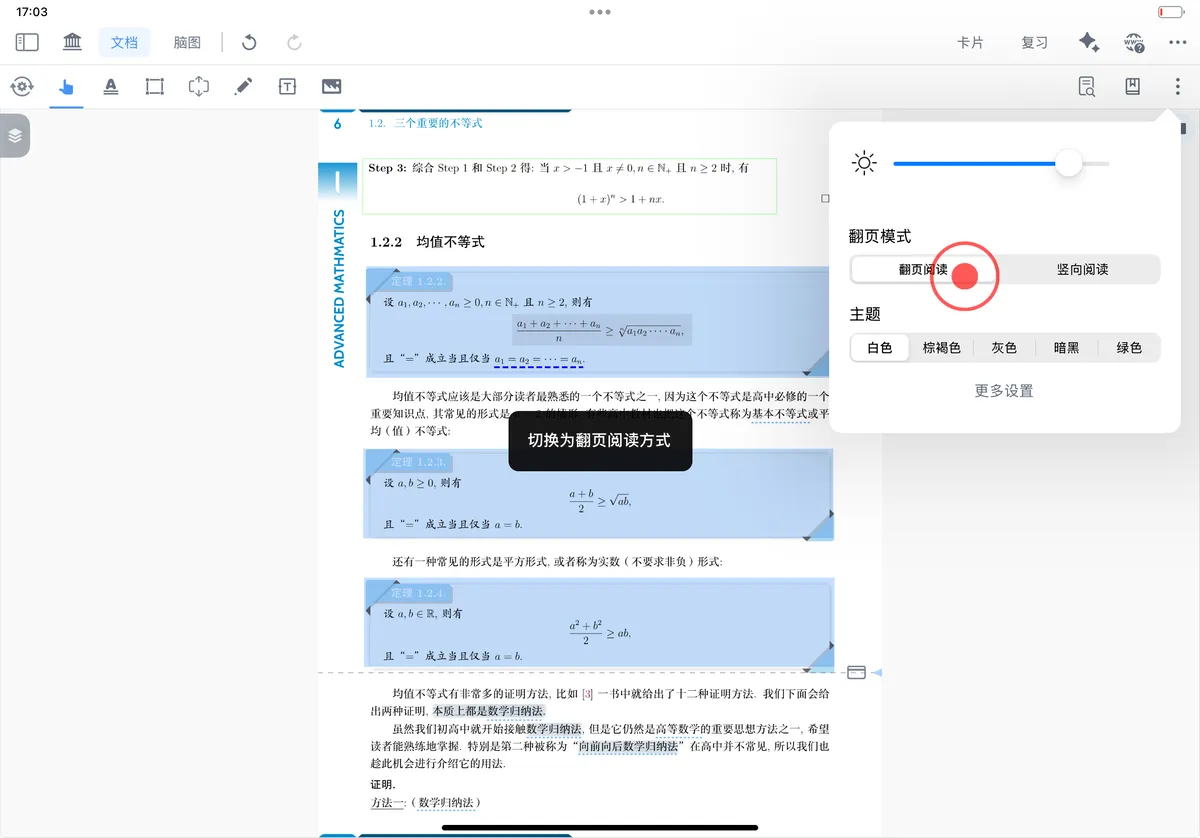
💡Note: In horizontal flip mode, extend notes can only be displayed as pop-ups:
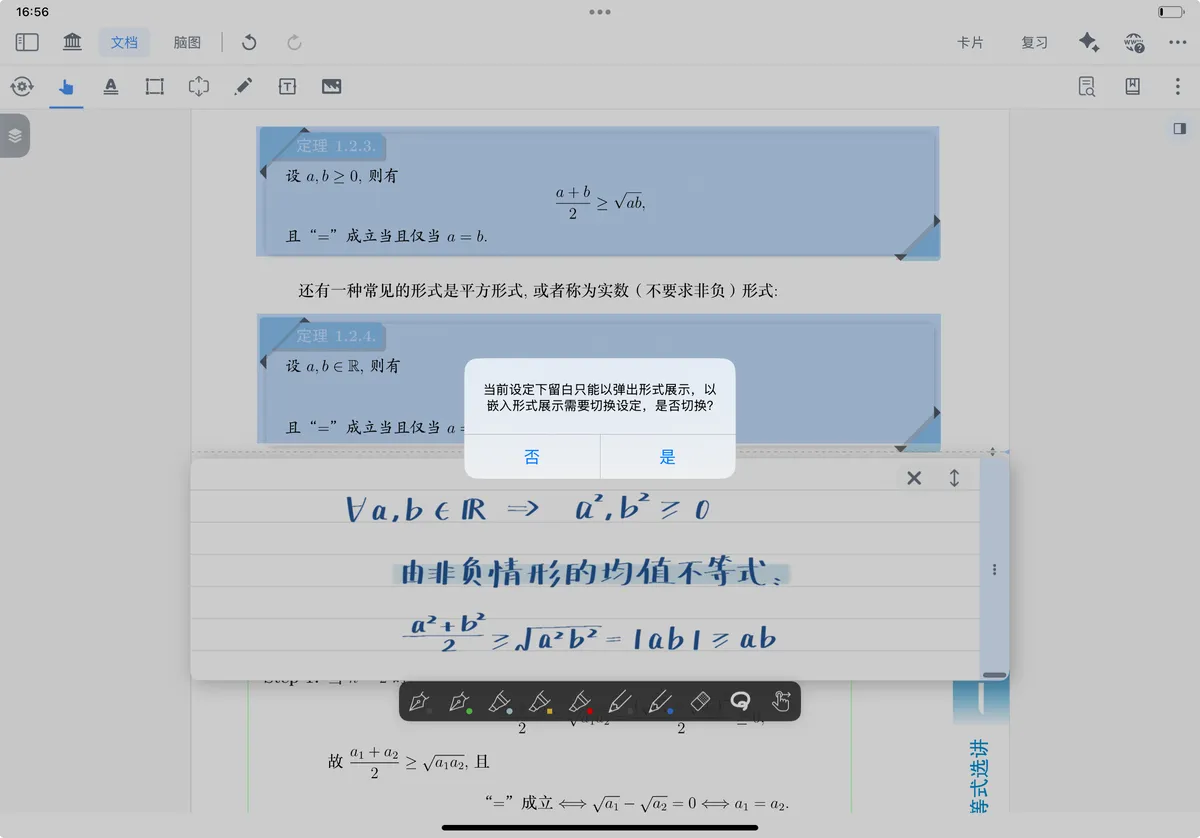
Two-Page mode:
In horizontal flip mode, you can further enable Two-Page mode.
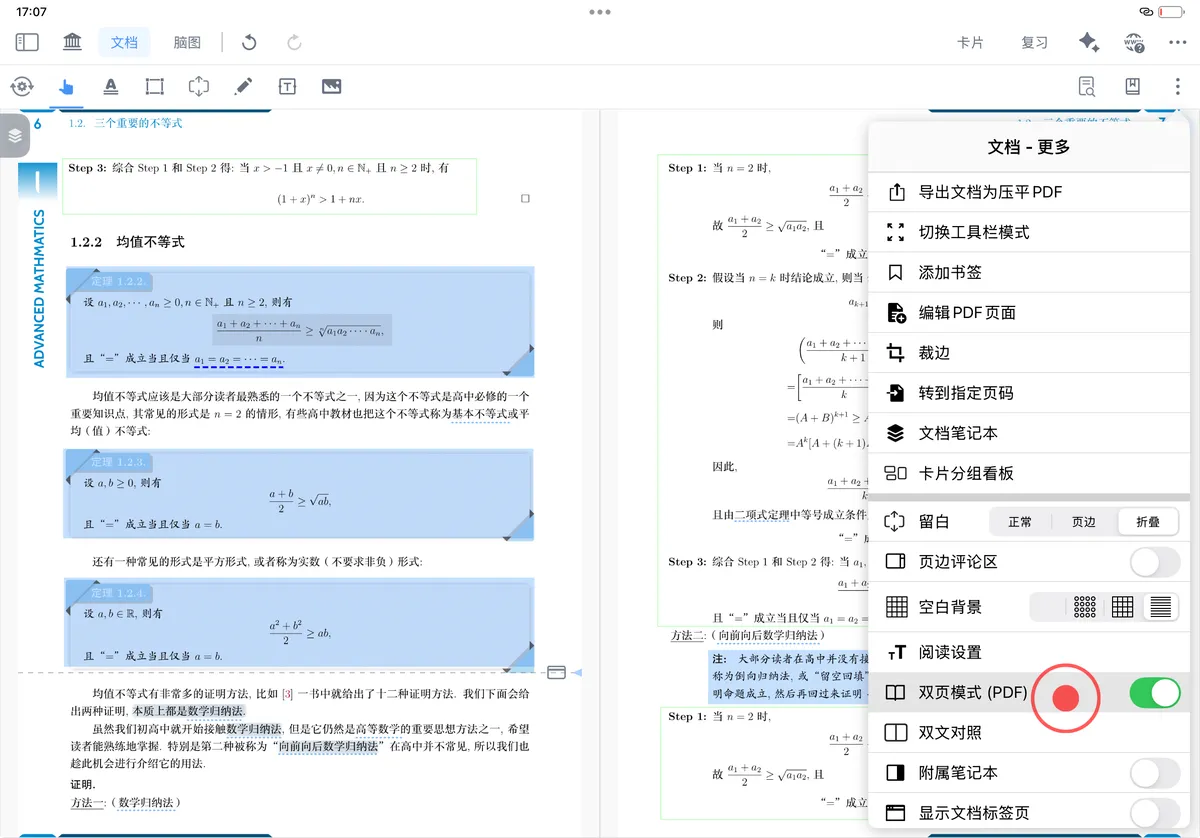
💡Note: When a page is too wide (or after the page has been extended), display constraints may prevent
Two-Page modefrom being enabled.
1.3 Document Scroll Bar
Show Scroll Bar
In the Document - More panel, enable Show Scroll Bar (shown by the icon above) to view the page progress of the current document. As you scroll, a reading progress bar appears at the bottom of the document, making it easy to track your reading progress in real time.
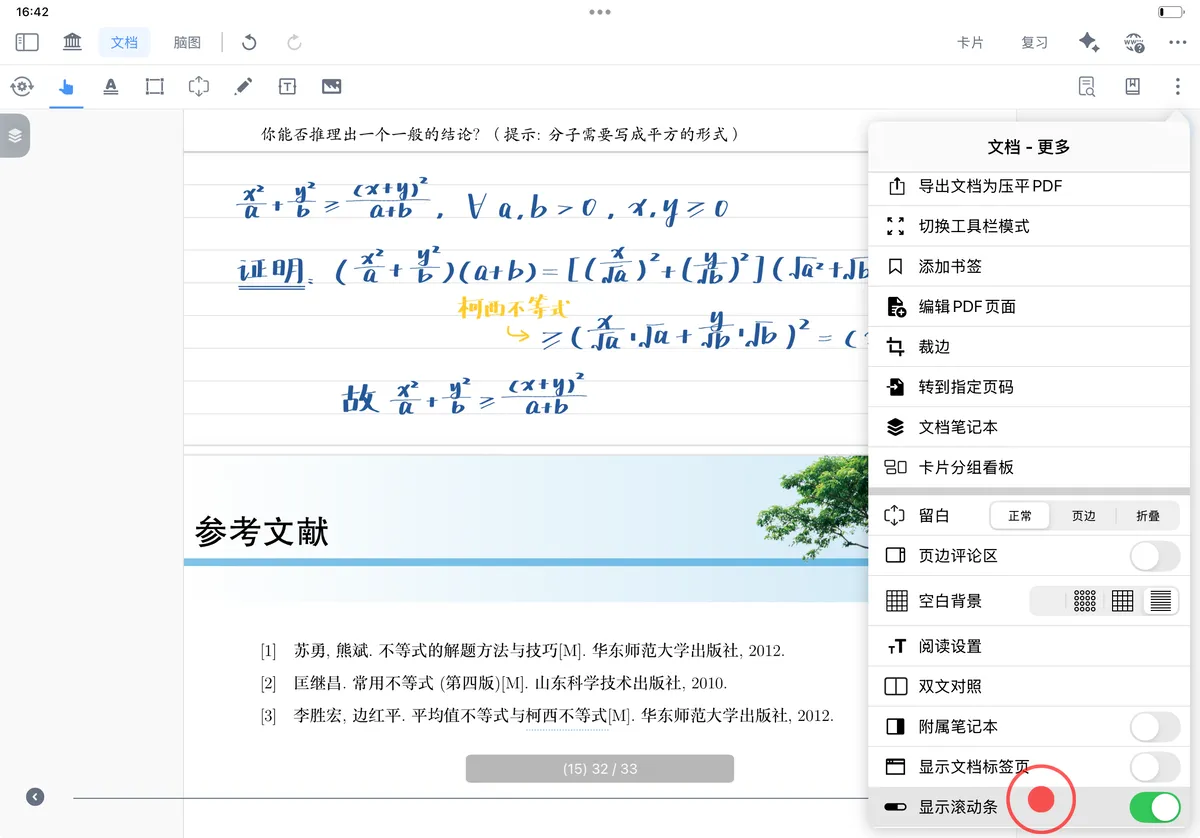
Tap the arrow buttons at either end of the scroll bar to quickly jump between the previous and next views.

💡Note: The arrow buttons at either end of the scroll bar jump between views; they are not page-turn buttons.
1.4 Theme Color
1.4.1 Switching Themes in General Reading Mode
To switch the theme color:
Reading Settings → Theme → switch the "Theme Color".

Five theme colors are available: White, Sepia, Gray, Dark, and Green:
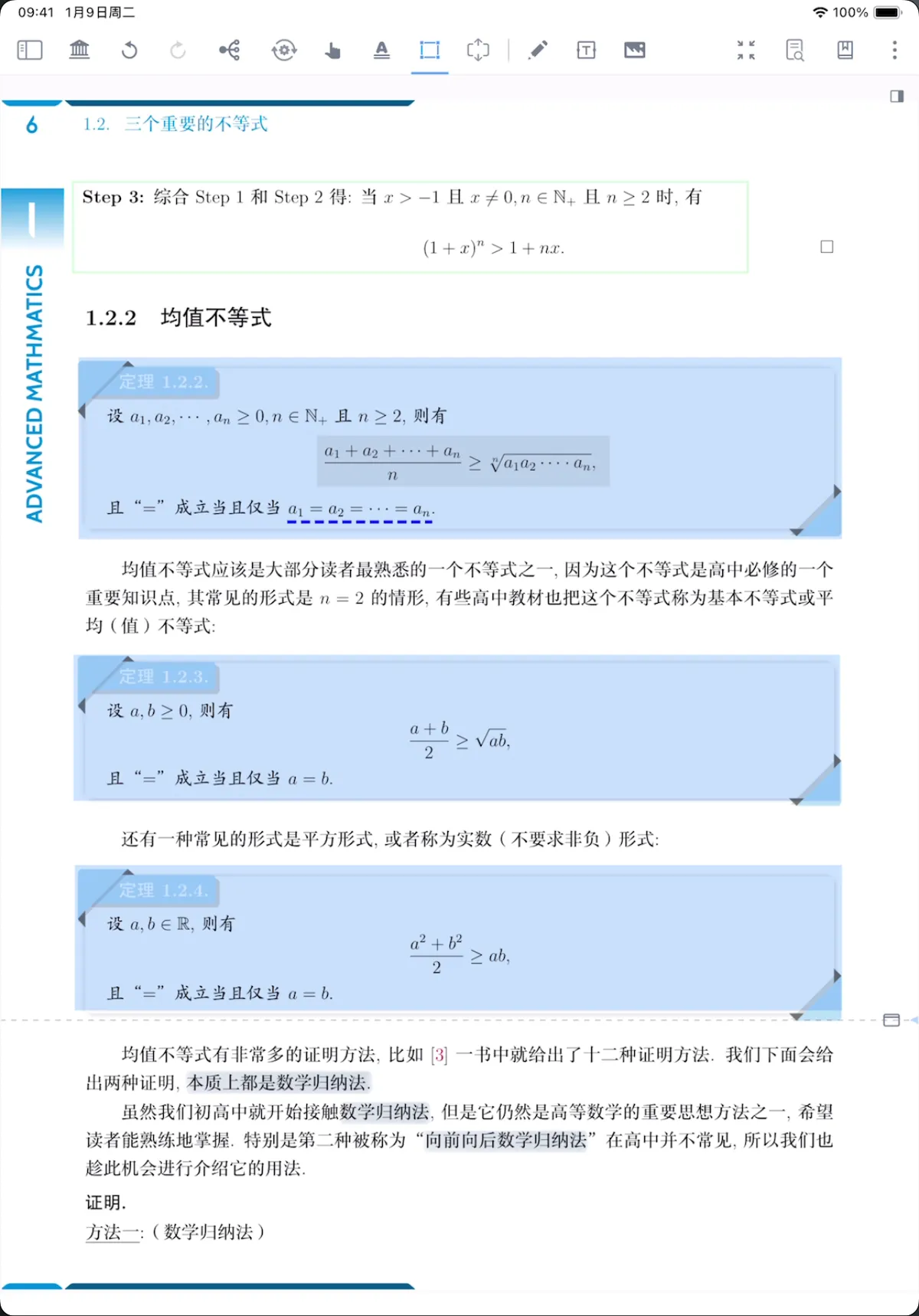
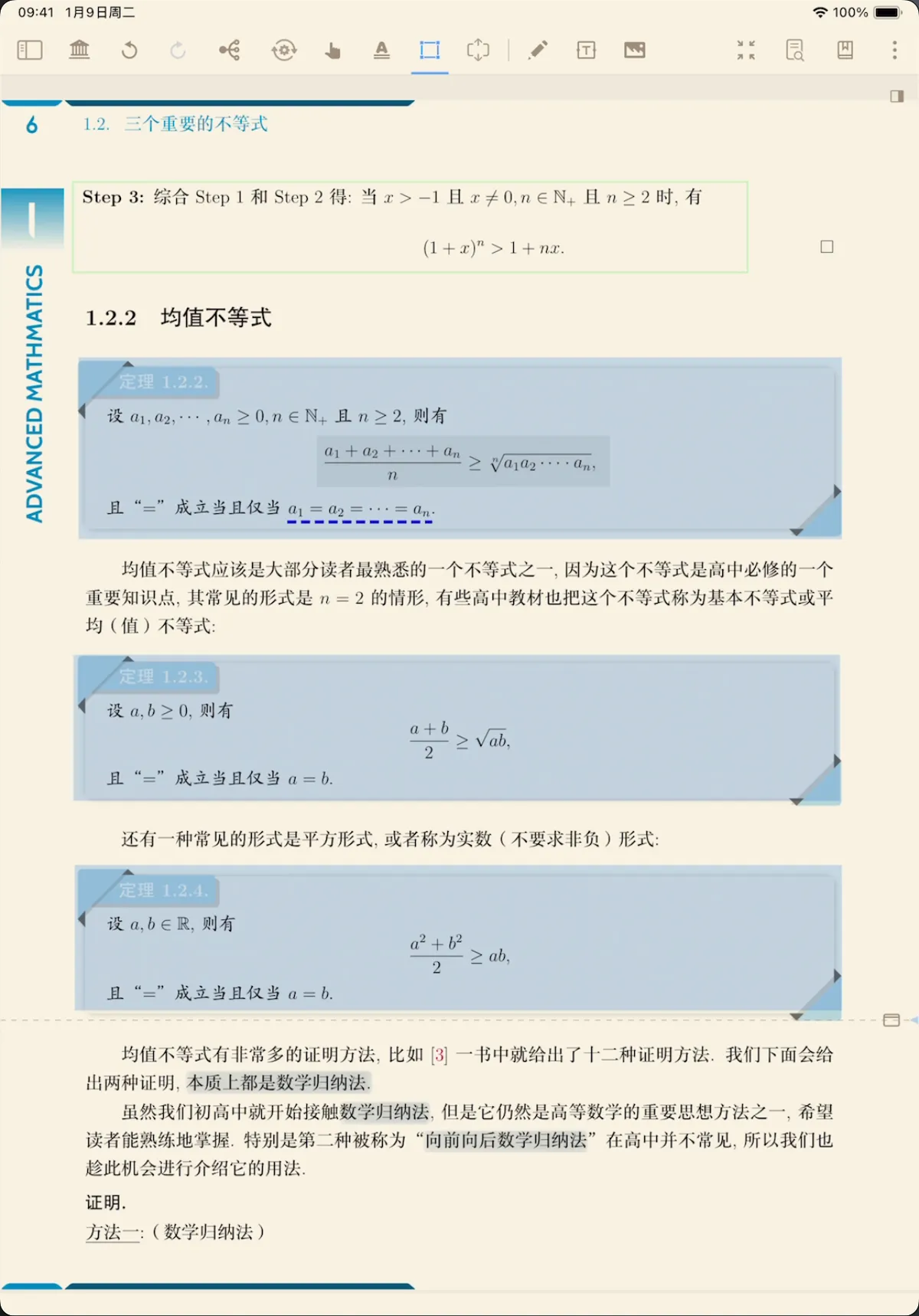
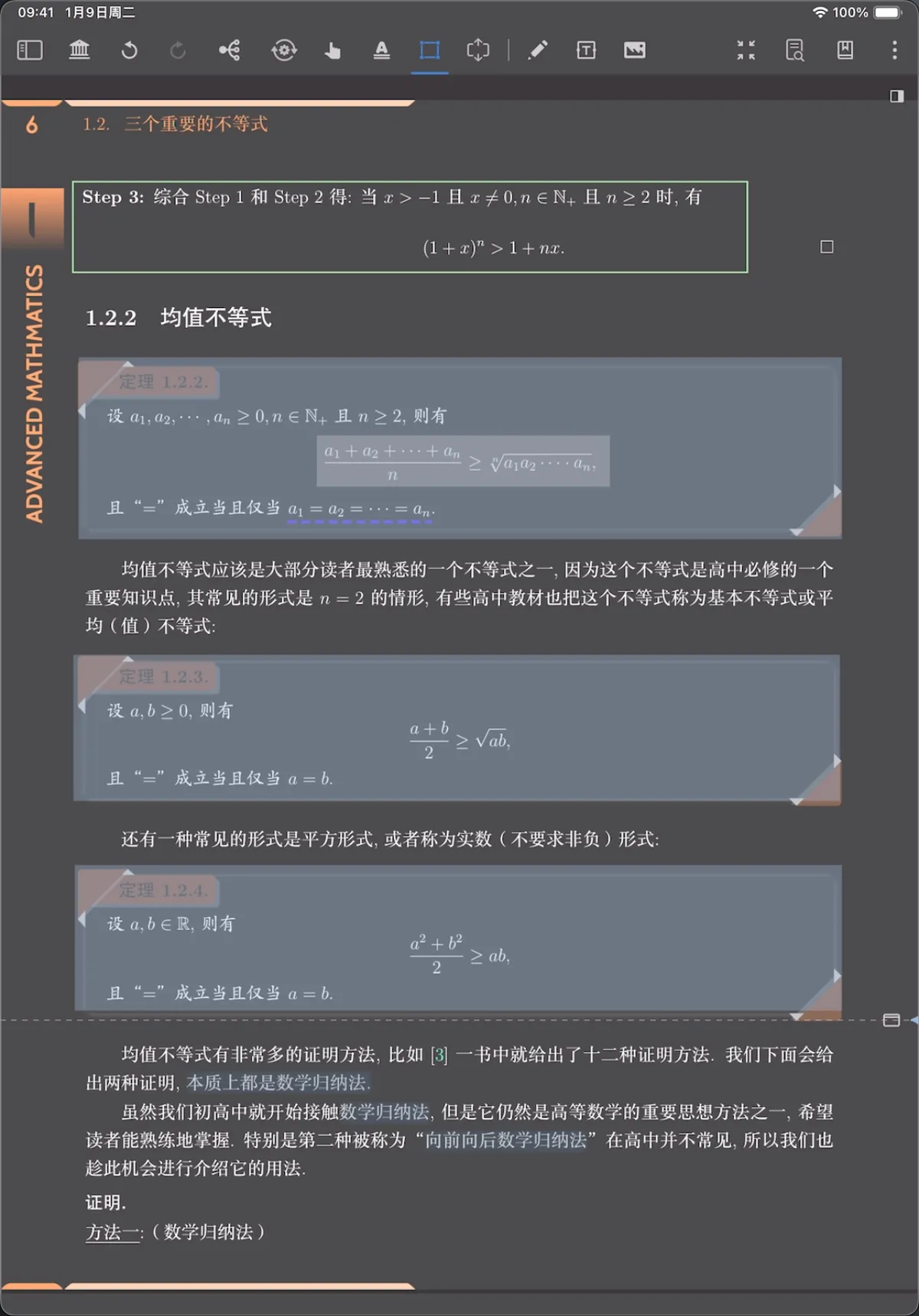
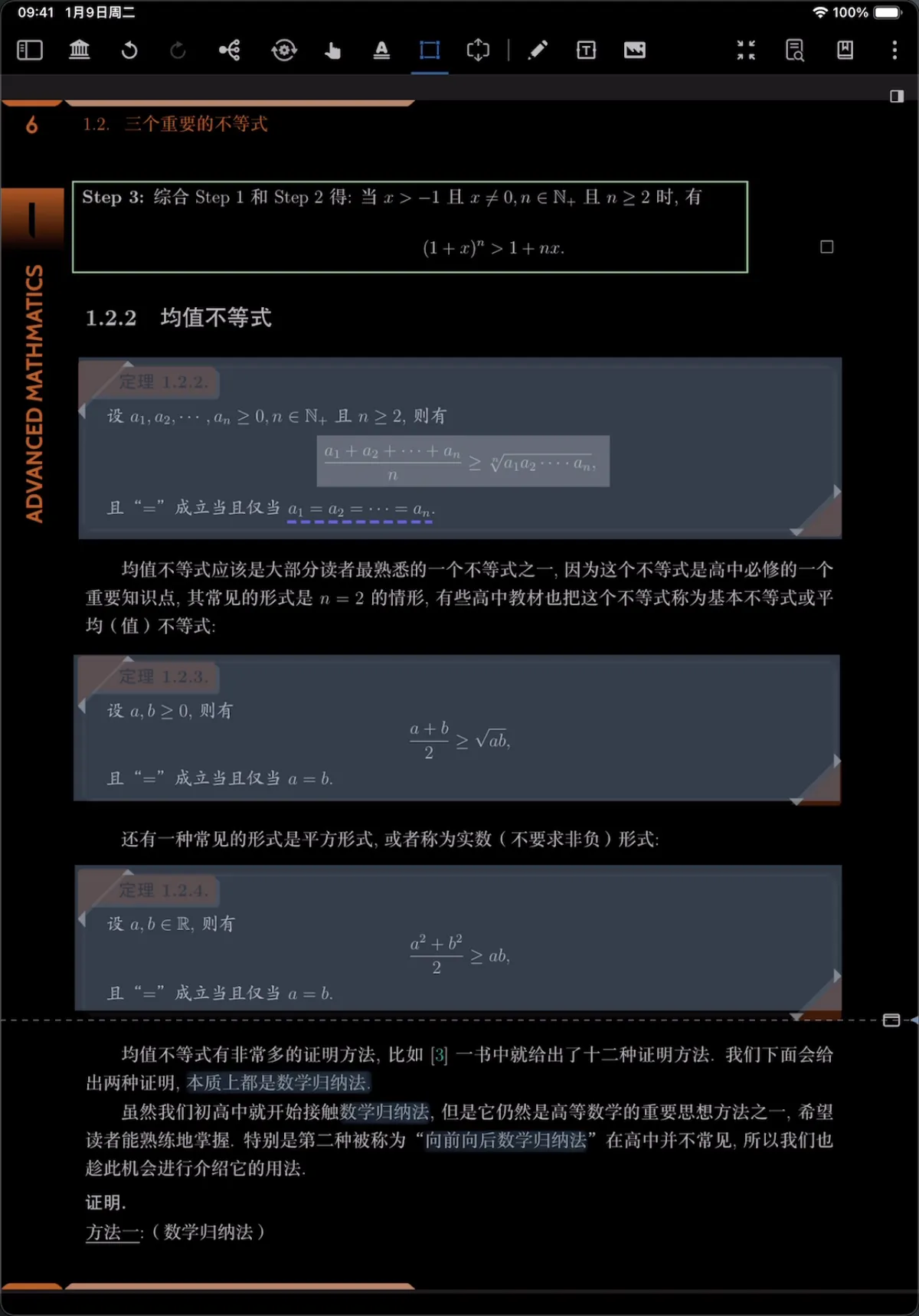
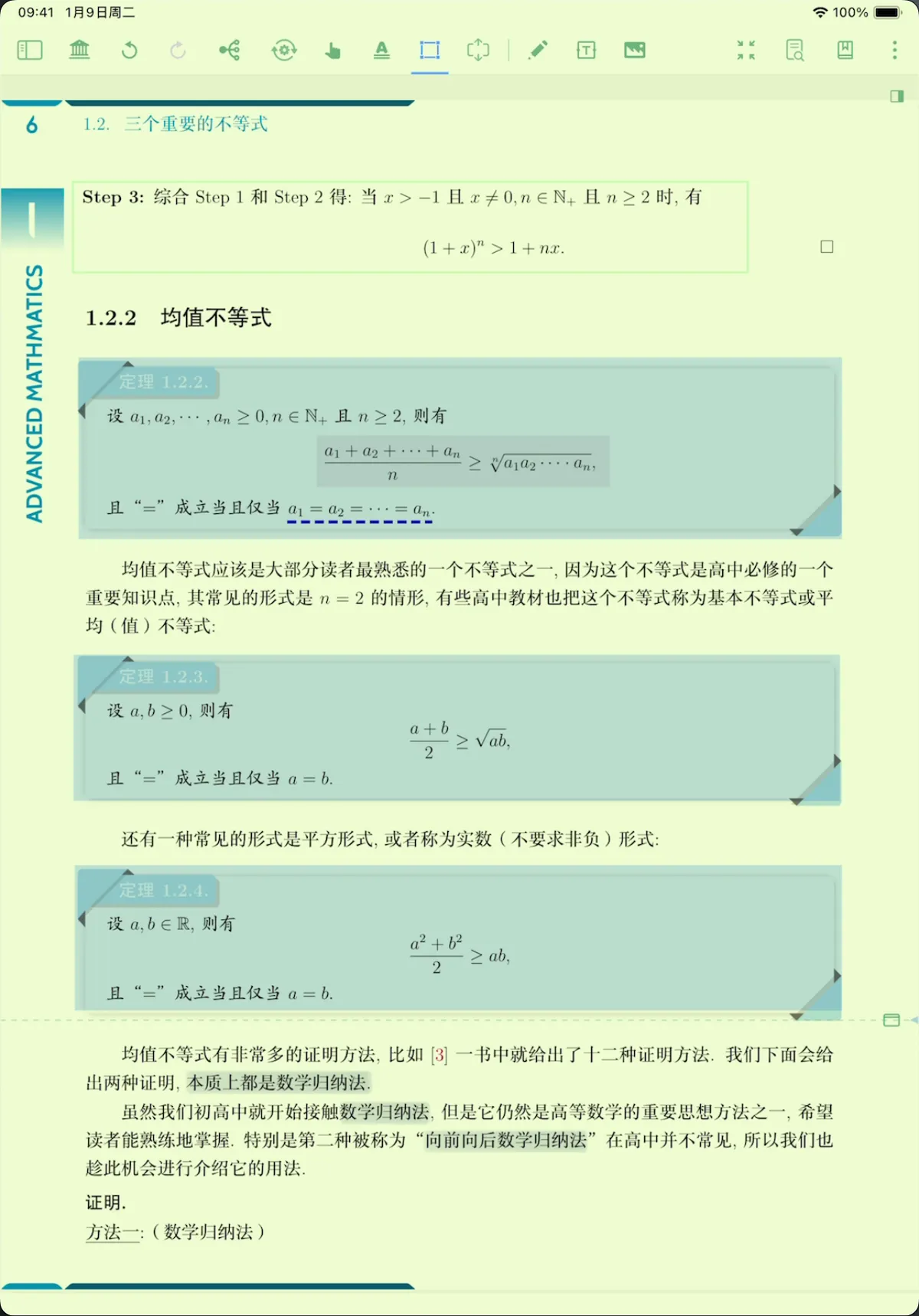
1.4.2 Switching Themes in Immersive Mode
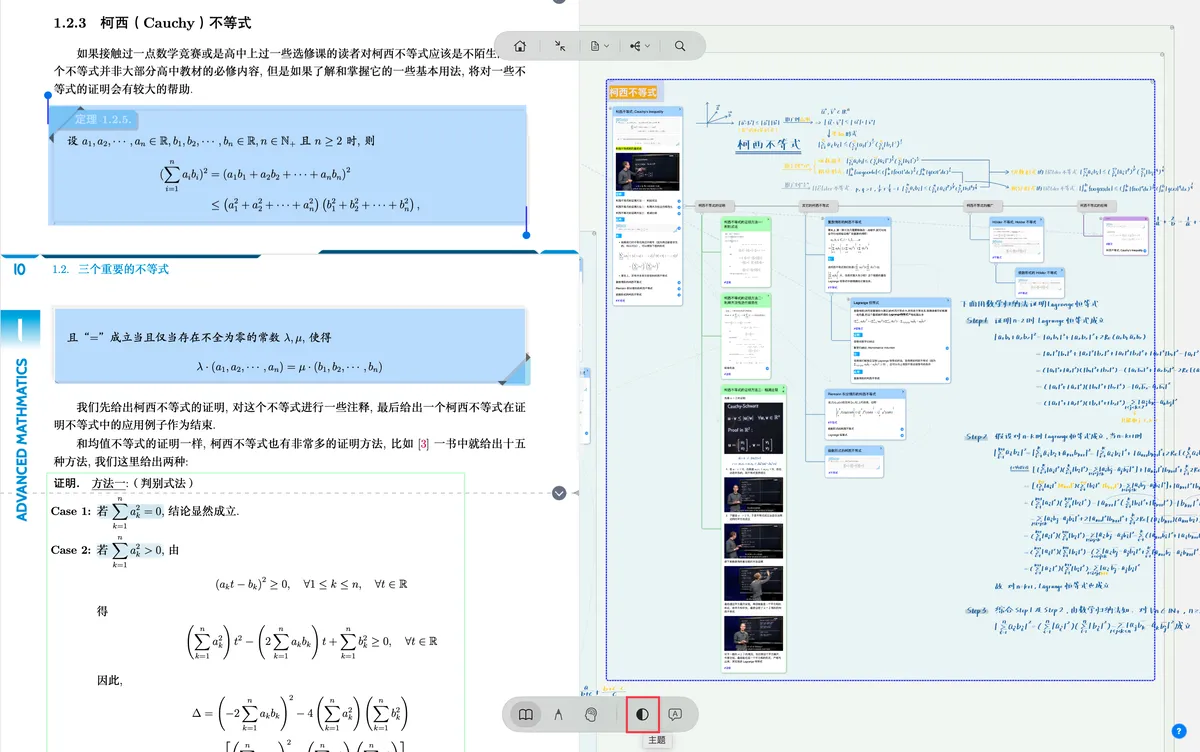
Tap the theme toggle button repeatedly to cycle through the White, Sepia, Gray, and Dark themes in order.
1.5 Image Color Correction in Dark Mode
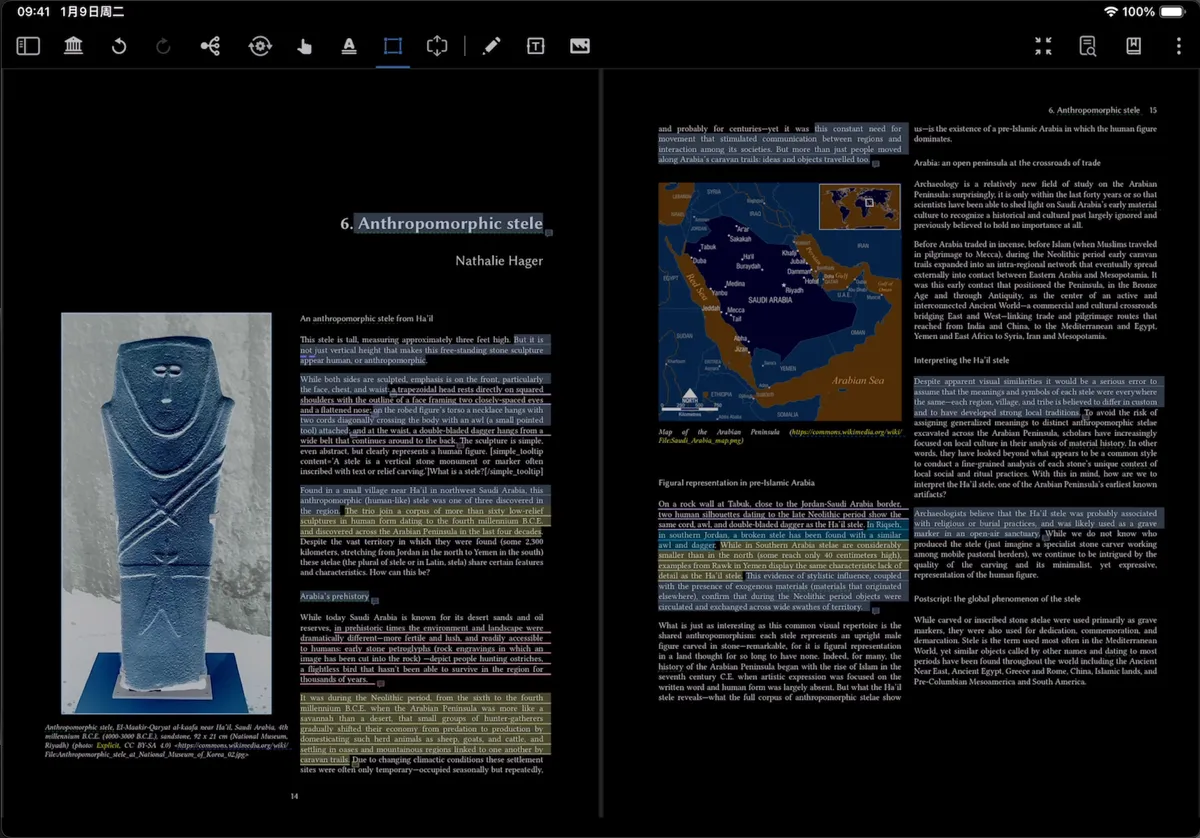
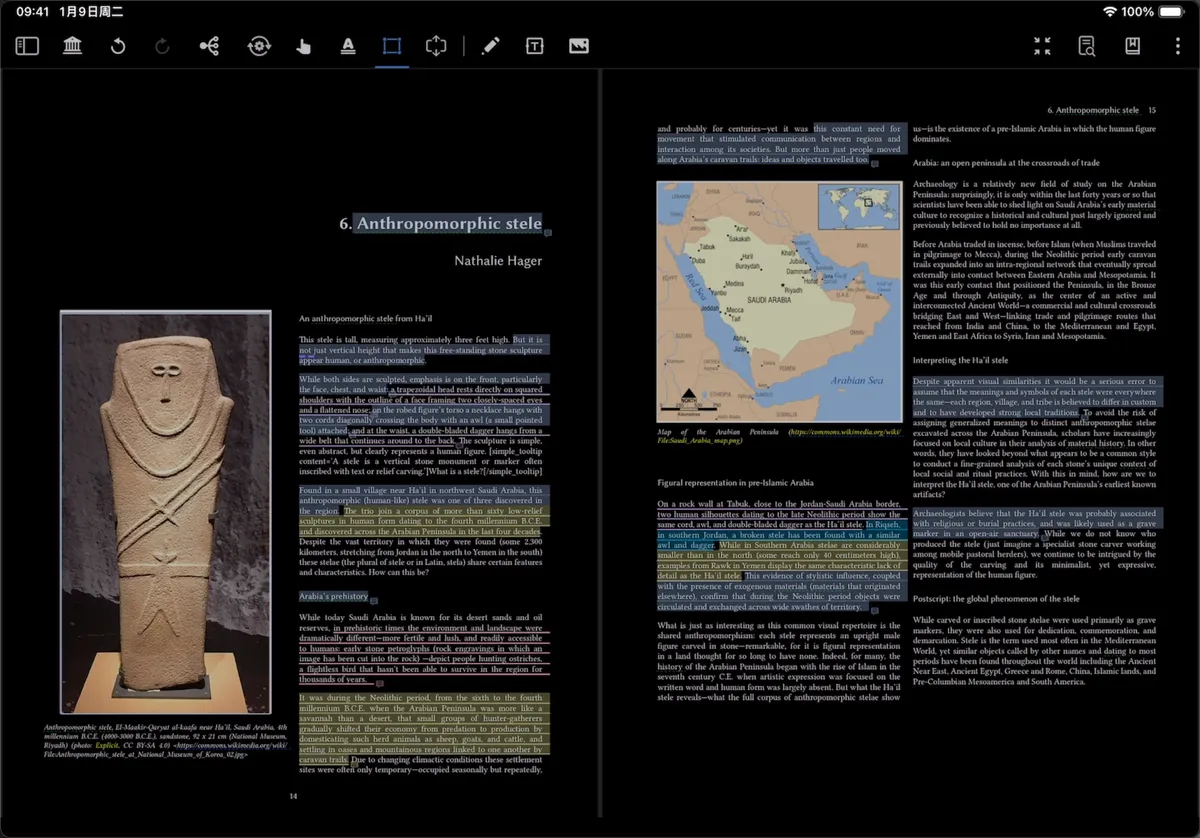

💡The image color correction feature in Dark mode restores images to their original colors while text is converted to white-on-black, preventing color charts and illustrations from being inverted and distorted in Dark mode and improving reading comfort for image-rich textbooks and literature.
- Preview:
- How do I enable color correction?
Reading Settings → More Settings → Interface Template → enable Image Color Correction in Dark Mode.
2 Document Table of Contents Settings
MarginNote 4 lets you create a document table of contents manually or have AI generate one, making it easy to jump to sections via the TOC while reading.
For details, see Manually & Automatically Generate a Document Table of Contents.
3 Document Reading Modes
3.1 General Reading Mode (Classic Mode)
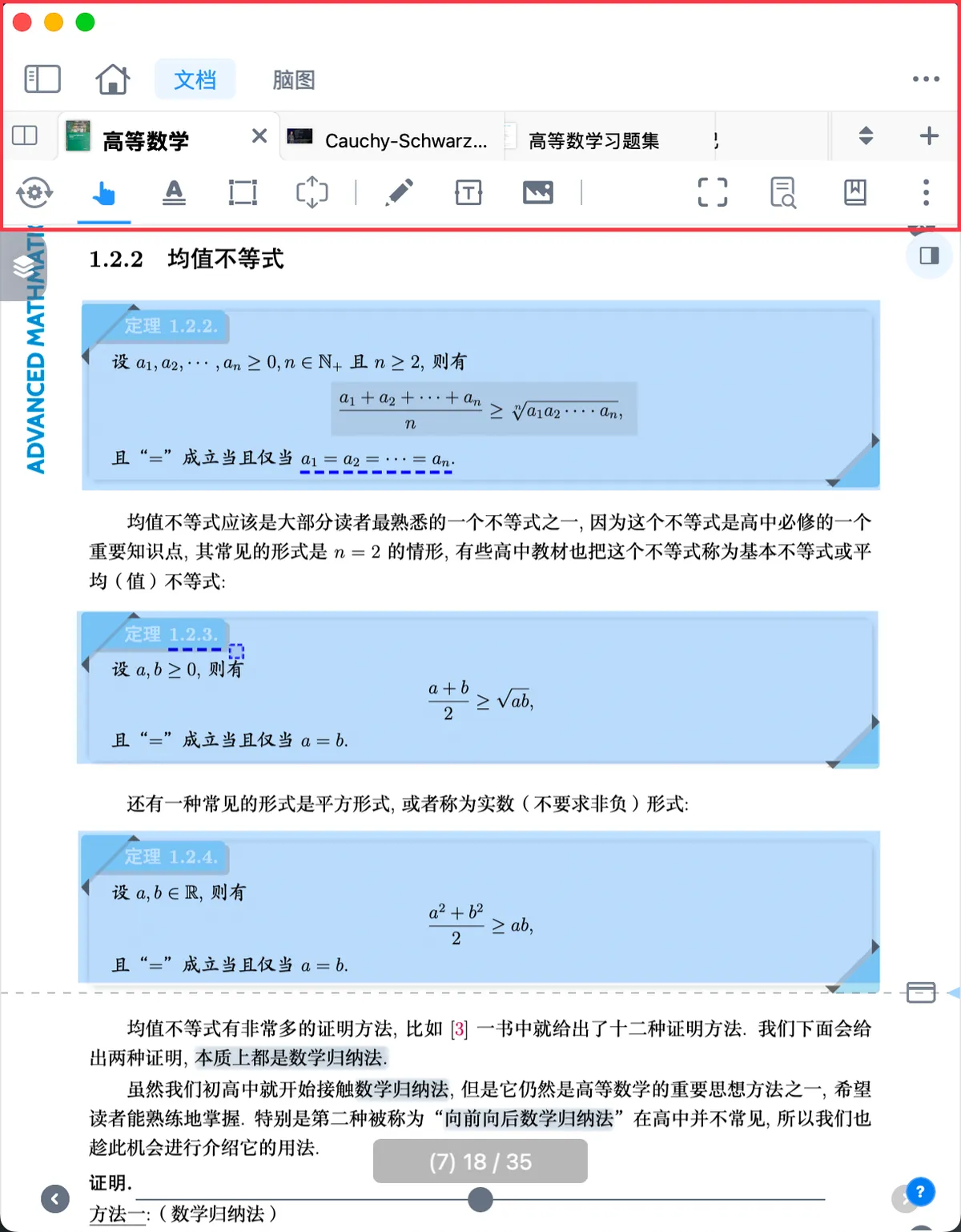
In the general reading mode interface, the toolbars can be divided into:

- Layer 0: Top navigation bar
- Layer 1: Tab bar
- Layer 2: Document toolbar and document settings area
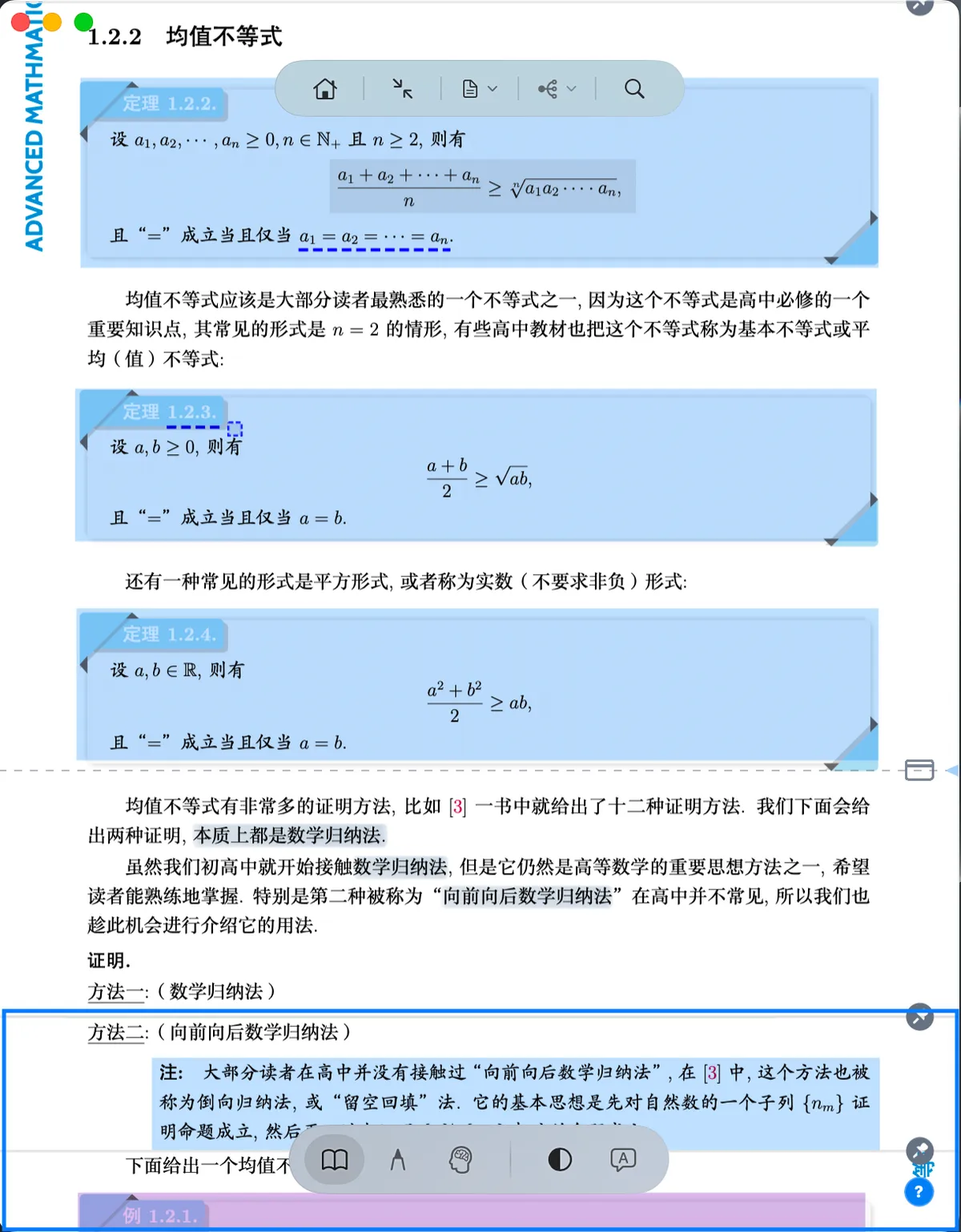
3.2 Immersive Mode
💡To help you focus more on reading, simplify the toolbars, and significantly improve screen-space efficiency for a larger reading space.
By tapping the Immersive mode icon in the Layer 2 document settings area, you can hide Layer 0 (top navigation bar), Layer 1 (tab bar), Layer 2 (document toolbar + document settings area), the system status bar, and the document scroll bar, significantly improving screen-space efficiency.
For details, see Immersive Mode.