Search ②: View the Document Table of Contents / Thumbnails / Bookmarks / Handwriting Annotations / Cards
💡MarginNote's Page Finder brings together five search methods: Table of Contents, Thumbnails, Bookmarks, Handwriting Annotations, and Cards, so you can quickly locate the page you need for any given situation.
1 The Page Finder Feature and How to Use It
Page Finder
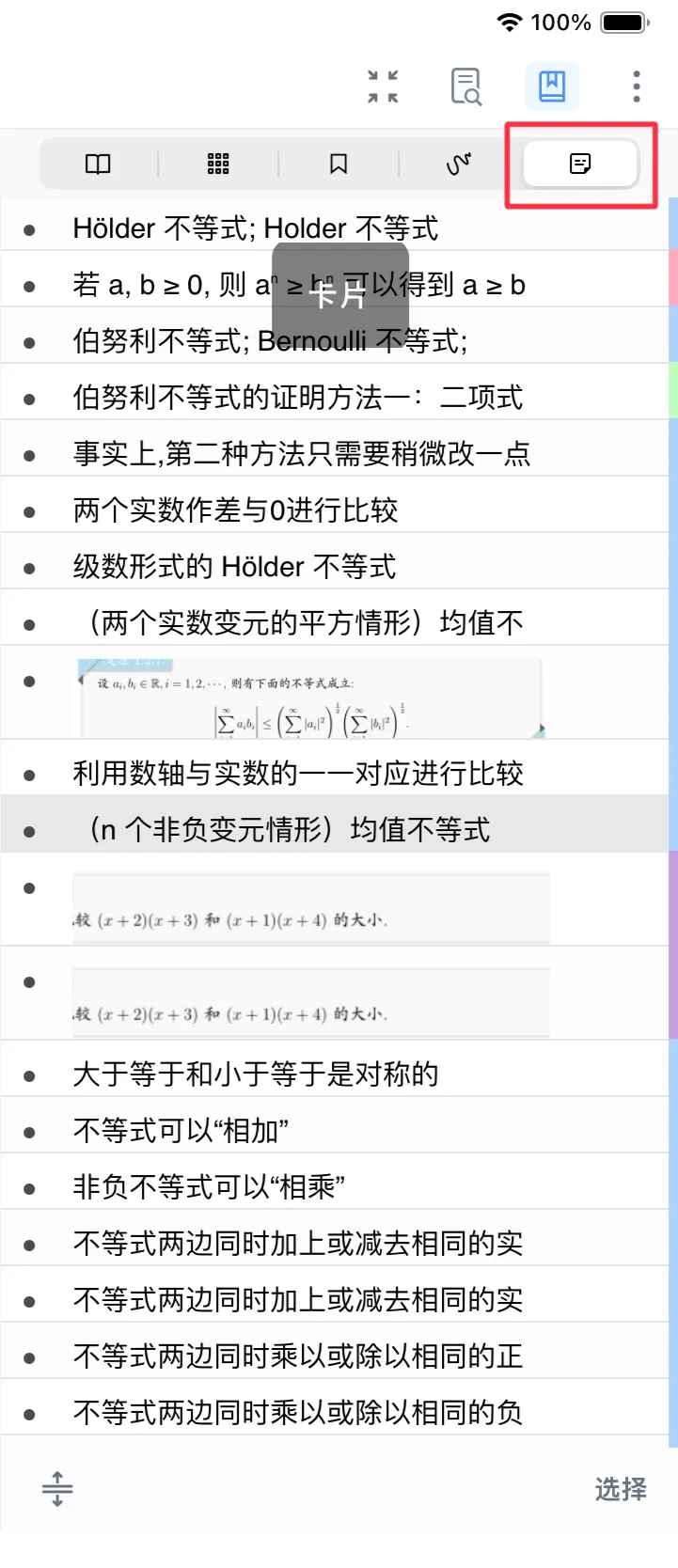
Tap the Page Finder button in the top-right corner of the document. From left to right, the options are: Table of Contents, Thumbnails, Bookmarks, Handwriting Annotations, and Cards.
💡How to choose a search method:
What you currently know Recommended search method Why You know the chapter title Table of Contents Fastest structural jump You roughly remember how the page looks Thumbnails Efficient visual locating You bookmarked it earlier Bookmarks Jump straight to a key anchor You remember marking it up by hand Handwriting Annotations Go straight to your study marks Tracing source text from a card Cards Two-way note-source link
1.1 Find by Table of Contents
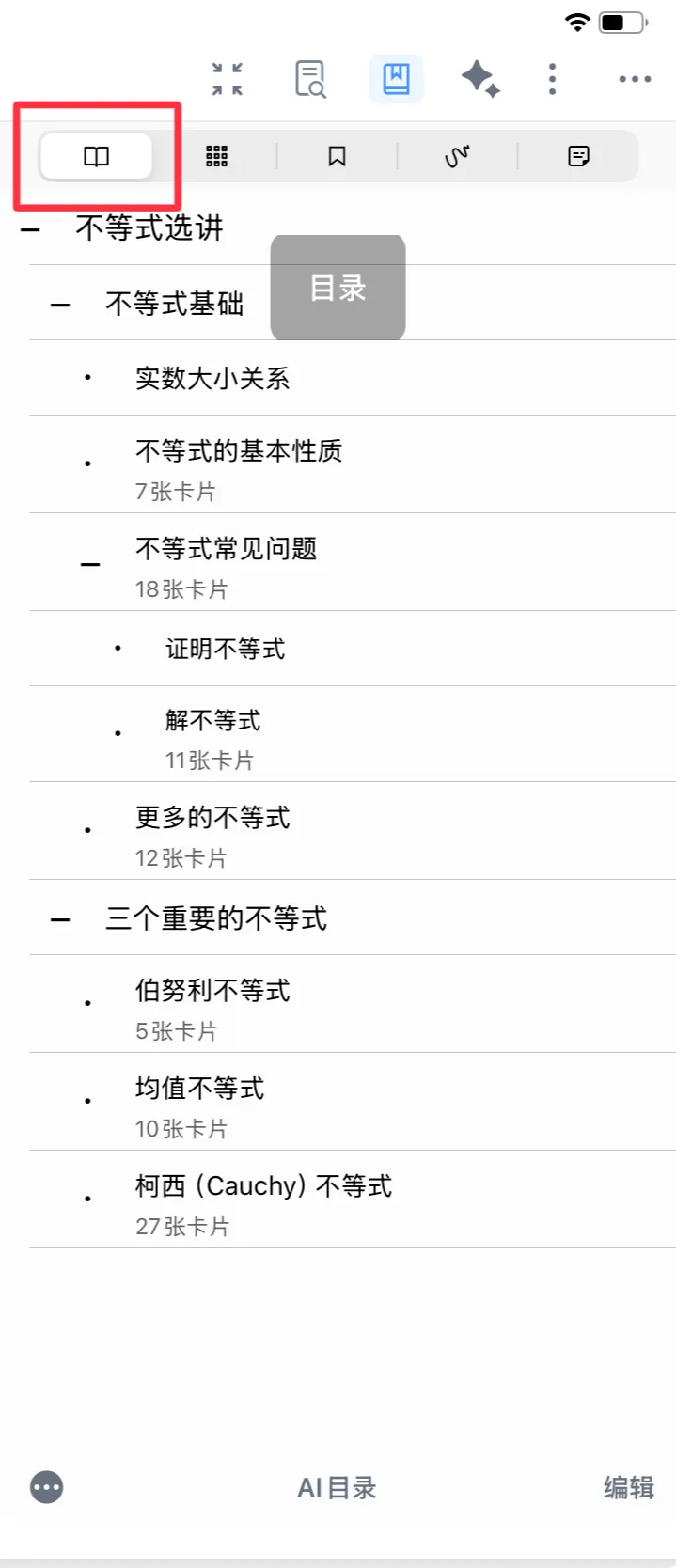
- Overview: Searches using the document's built-in hierarchical chapter outline; tap a chapter to jump to its page. (If the document has no table of contents, you can generate one manually & automatically.)
- Best for: Reading highly structured documents such as textbooks and long papers, where you need to quickly locate a specific chapter.

1.2 Find by Thumbnails
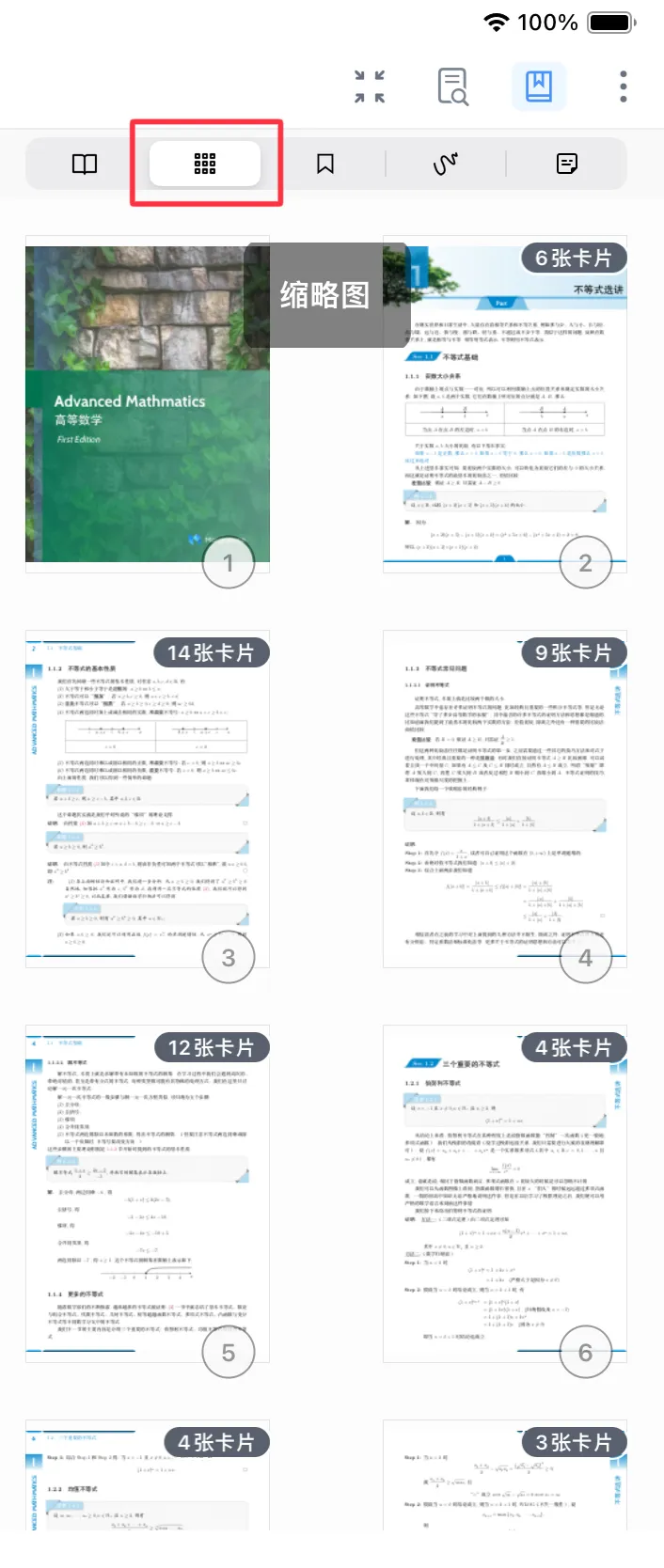
- Overview: Displays the entire document as page thumbnails; swipe to browse and tap a thumbnail to jump to that page.
- Best for: Quickly jumping between pages and comparing across pages; not suited to precise keyword searches.

1.3 Find by Bookmarks
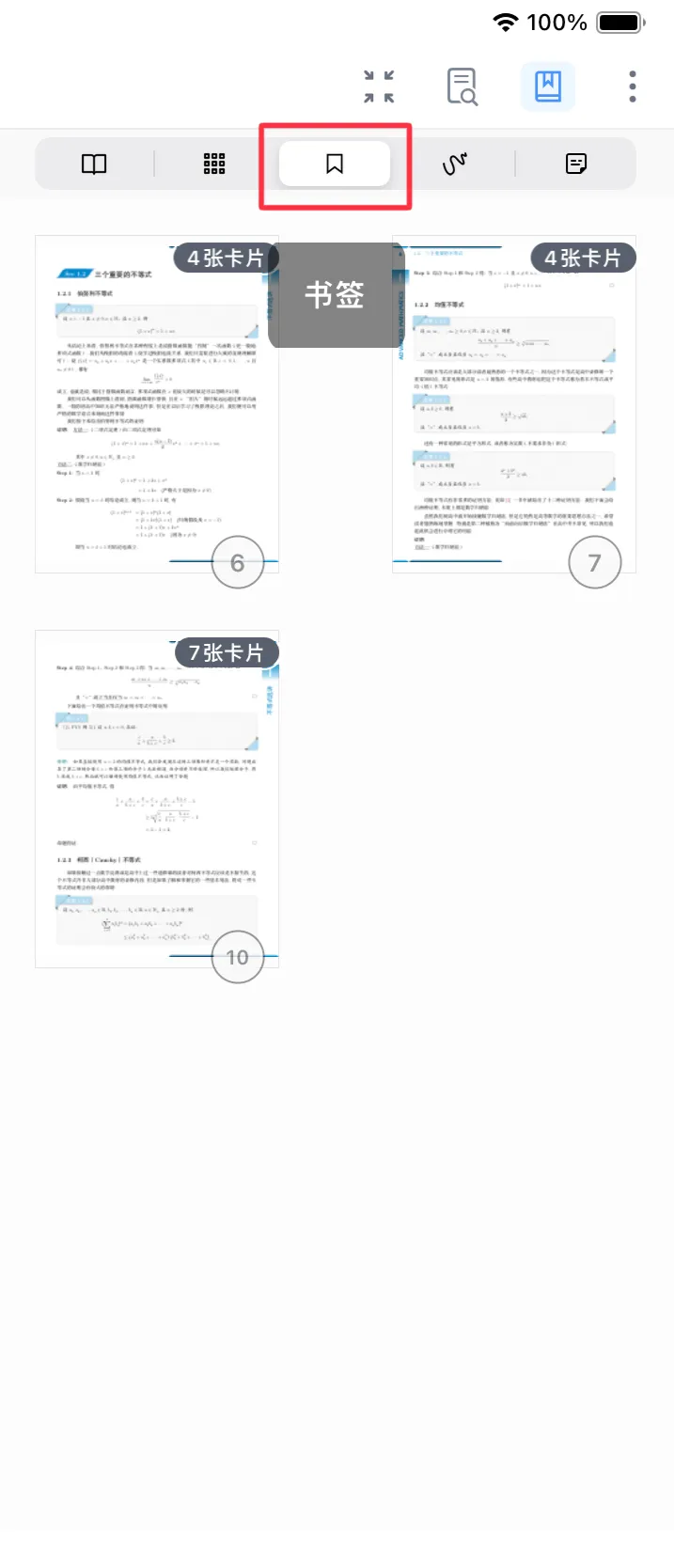
- Overview: Searches the bookmarks you've added manually and jumps to a key marked page with a single tap.
- Best for: Locating already-marked key points and difficult passages without flipping through the whole document again.
1.4 Find by Handwriting Annotations
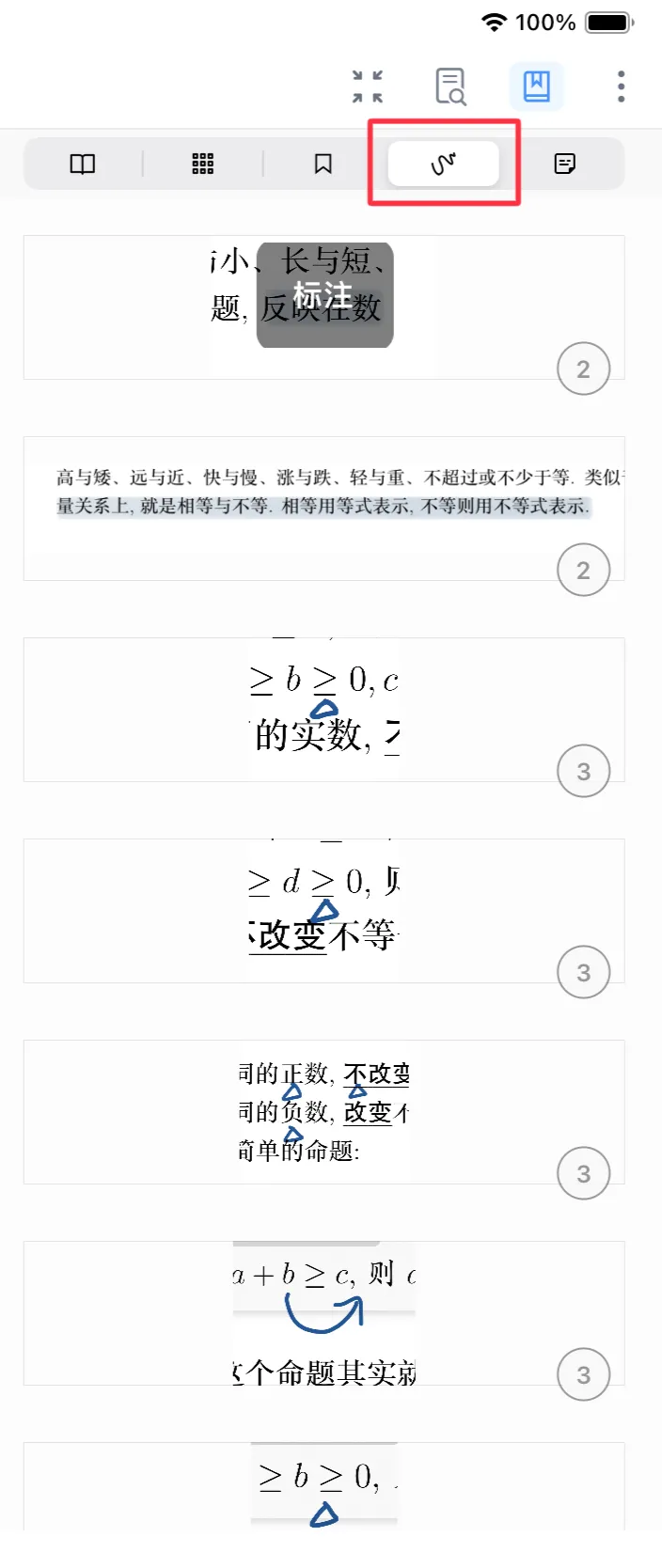
- Overview: Searches regions that contain handwriting annotations, quickly surfacing the content you've taken notes on.
- Best for: Quickly reviewing the key points and error-prone spots you annotated during the review stage.
1.5 Find by Cards
- Overview: Searches the note cards generated from excerpts on the page and jumps to the original document page each card is linked to.
- Best for: Tracing a note back to its source while reviewing—especially suited to "making a card, then using the backlink to verify against the source."
2 Related Feature: Page Reorganization
Page Reorganization is a "rearrange pages after finding them" capability, ideal for reorganizing the pages you've found into study material.
Press and hold a Table of Contents entry, Thumbnail, Bookmark, or Annotation in the Page Finder and drag it onto the tab bar to reorganize PDF pages as well (creating a new document or merging into an existing one). See Page Reorganization for details.
3 FAQ
-
Why can't I find certain content in the table of contents?
The table of contents depends on the document's outline structure. If the original outline is incomplete, switch to Thumbnails or full-text search.
-
What does Find by Handwriting Annotations show?
It shows the page regions that contain handwriting annotation marks.
-
When is Find by Cards useful?
It's ideal for quickly returning from an excerpted card to its source, for review and context checking.
-
When you want to search for information, how do you choose between OCR search and the Page Finder?
- You know the keyword, term, or exact sentence → use OCR search (Search ①: Full-text OCR + search positioning, so even scanned books are a pleasure to read)
- You don't know the keyword but know the chapter / rough page or section / that you annotated it → use the Page Finder (Search ②: View the Document Table of Contents / Thumbnails / Bookmarks / Handwriting Annotations / Cards)
- Complex cases: use ② for rough positioning first, then ① for a precise search