The Hand Tool Pop-up Menu Bar and Its Customization
💡The Hand Tool: One Menu Bar for Every Action
Hand Tool - Document

Core capability: When you select text or an area in a document, the hand tool automatically pops up a quick menu so you can complete actions in place—copy, excerpt, extend note, translate, ask, and more—without switching back and forth in the toolbar.
Smart detection: The hand tool automatically tells whether you've selected text or an image/area, and shows only the functions currently available.
Typical scenarios:
- While reading a PDF, you come across an important definition → select the text → tap
Extend Note→ make handwritten annotations in the extend note.- You see an excerpt and want to set a sentence within it as the excerpt's title → first select the existing excerpt card → then select that sentence → tap
As Title.- You need to add an image in a blank area of the page → long-press the blank area → choose
Image.
1 Three Ways to Bring Up the Hand Tool Menu Bar
After selecting the hand tool, there are three ways to invoke it:
| How to Trigger | Steps | What the Menu Is For | Typical Scenario |
|---|---|---|---|
| Direct selection | Drag to select a passage of text or a rectangular area → the menu pops up | Excerpt, copy, translate, etc. on the selection | Quickly excerpt a definition or chart from a textbook |
| Select an excerpt (card) first, then select an area | ① Tap to select an existing excerpt card in the document ② Then select new text/area → the menu pops up | Set the new content as the title or comment of the excerpt (card), or merge it into the existing excerpt (card) | Add a worked solution as a comment to a missed question |
| Long-press a blank area | Long-press a blank area of the page (until a blue circle appears) → the menu pops up | Insert an extend note, text box, image, TOC, and more | Add a summary note at the end of a chapter |
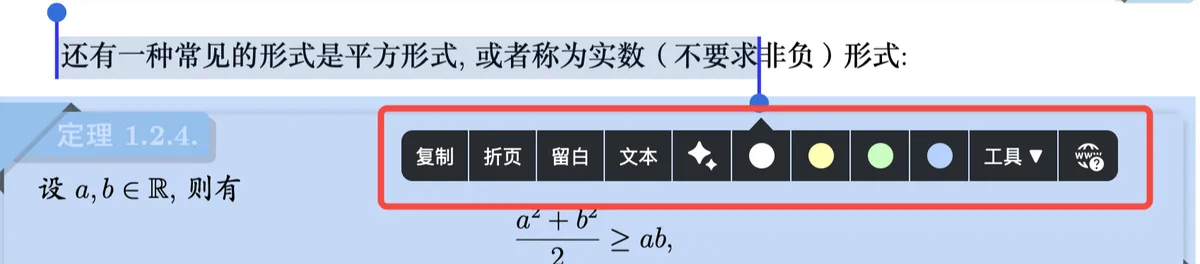
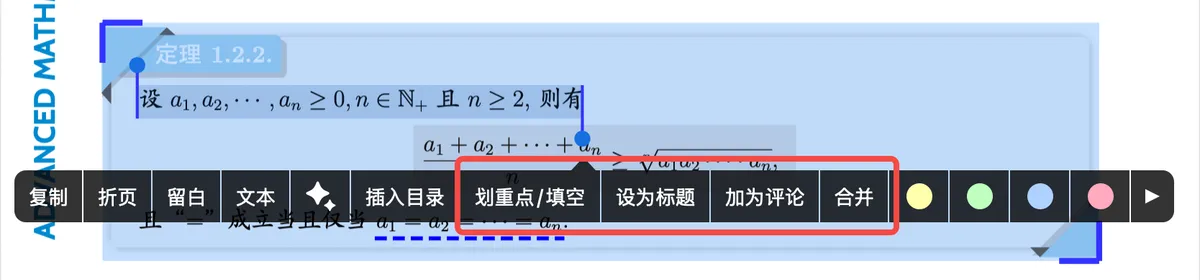

⚠️Note: The function options shown in the menu change automatically based on the current target. For example, when you long-press a blank area, the "Set Color" option does not appear (because there is no excerpt whose color could be set).


2 Hand Tool Menu Bar Function Quick Reference
2.1 Operating on a Text/Image Selection (Appears with a Direct Selection)
| Function | What It Does | Notes | Customizable? | |
|---|---|---|---|---|
| Copy | Copies the selected text or image to the clipboard | Text is copied as plain text and images as images; can be pasted into other apps | ||
| Fold | "Folds" the selection into a dashed line | Good for hiding large blocks of original text and keeping the document tidy. For details, see: Page Folding | ✅ | |
| Extend Note | Inserts a blank note space here for handwritten annotations. | One of the most-used functions; good for handwritten notes. For details, see [Extend Note ① | Basics: Freely Open Up Note Space Between the Lines](../extend-note-basic-operations-freely-open/index.md) | ✅ |
| Text | Inserts a blank note space here for typing text. | One of the most-used functions; good for annotations that require typing. For details, see [Extend Note ① | Basics: Freely Open Up Note Space Between the Lines](../extend-note-basic-operations-freely-open/index.md) | ✅ |
| Translate | Translates the selection and automatically attaches the result alongside as an extend note | A powerful tool for reading foreign-language literature | ✅ | |
| Ask AI | Opens the AI Ask popup and sends the selection to the AI as a question | Have the AI explain concepts or summarize key points. For details, see Getting to Know the Ask Popup (Ask): Asking the AI in Place in Documents and Mind Maps | ✅ | |
| Insert into TOC | Inserts the selected text as a heading into the document's table of contents | ✅ | ||
| OCR | Recognizes text in an image selection and copies the recognized result | Rectangular selection only. Good for image text in scanned PDFs | ✅ | |
| Select Color | Creates an excerpt (card) and lets you choose the excerpt (card) color | One of the most-used functions | ✅ | |
| Define | Looks up the definition in the iOS built-in dictionary | Text only | ✅ | |
| Speech | Reads the selection aloud (images are OCR'd first, then read) | ✅ | ||
| Research | Searches the selection in a browser | Good for quickly looking things up. For details, see Search ③: Document and Research Browser Integration |
2.2 Appears with an Existing Excerpt Card + a New Selection (Select the Card First, Then the Selection)
| Function | What It Does | Customizable? |
|---|---|---|
| As Title | Sets the new selection as the title of the current excerpt (card) | ✅ |
| As Comment | Adds the new selection as a comment on the current excerpt (card) | ✅ |
| Merge | Merges the new selection into the current excerpt (card) | ✅ |
2.3 The Menu Bar from Long-Pressing a Blank Area
| Function | What It Does | Notes | Customizable? | |
|---|---|---|---|---|
| Split & Fold | Manually select an area and fold it | For details, see Page Folding | ✅ | |
| Extend Note | Inserts an extend note in a blank area (handwriting or text type) | For details, see [Extend Note ① | Basics: Freely Open Up Note Space Between the Lines](../extend-note-basic-operations-freely-open/index.md) | ✅ |
| Insert into TOC | Inserts a TOC entry at the current position, with a customizable entry title | Useful when the current page has no text, or the text is hard to recognize. For details, see Manually & Automatically Generating a Document TOC | ✅ | |
| Text Box | Inserts a text box in a blank area | For details, see New Text Box / Image / Photo | ✅ | |
| Camera | Opens the camera to take a photo and inserts it here | ✅ | ||
| Image | Inserts a photo from your library here | ✅ | ||
| 🖼️ Image | Tap to choose other functions hidden in the menu bar, or to customize the pop-up menu bar |
3 Customizing the Pop-up Menu Bar
3.1 Customizing Pinned Options
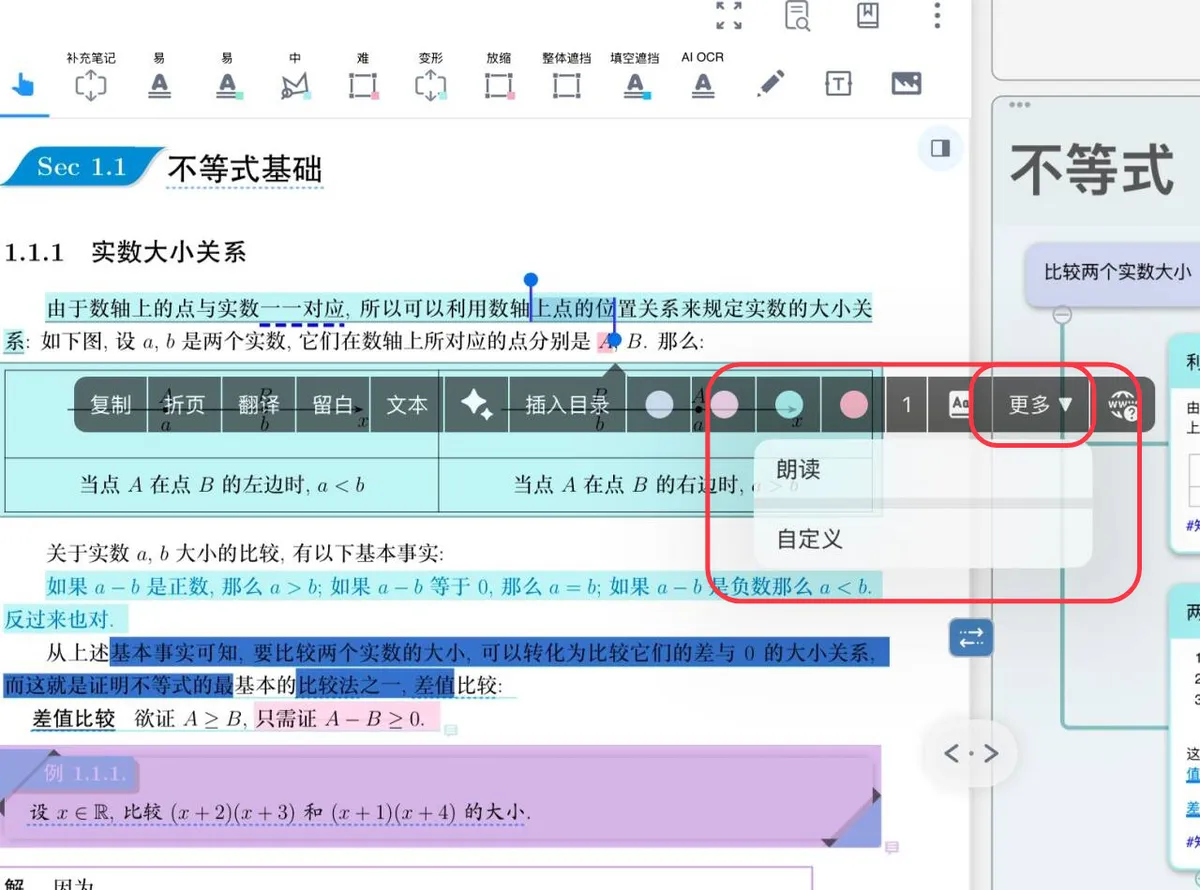
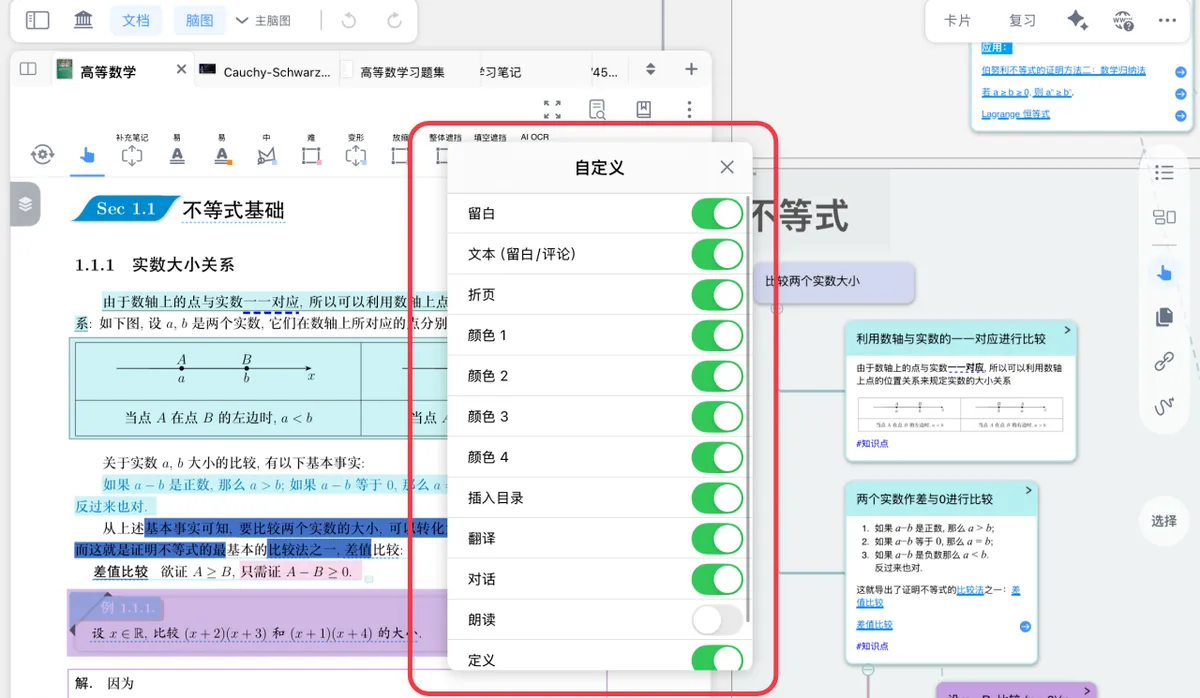
The hand tool's pop-up menu bar shows only a limited number of icons. If a function you use often is hidden under "More", you have to take an extra tap every time, which is inconvenient. You can customize the menu bar to pin frequently-used functions directly on it.
Steps:
- Bring up the hand tool menu bar (for example, by selecting a passage of text).
- Tap **
Moreon the right side of the menu bar, then in the secondary menu that pops up, selectCustomize**. - In the customization screen, you'll see a list of all functions that support customization.
- Turn on the switch next to a function → it will be pinned directly on the menu bar; turn off the switch → it will be tucked away under the "More" menu.
💡Tips:
- We recommend turning on the most-used functions such as "Extend Note", "Copy", and "Translate".
- You can turn off less-used functions (such as "Research" and "Speech") to keep the menu bar clean.
- Some functions don't appear in the customization list because the current target doesn't support them (for example, when no excerpt is selected, "As Title" won't appear).
3.2 Adding Quick Menus
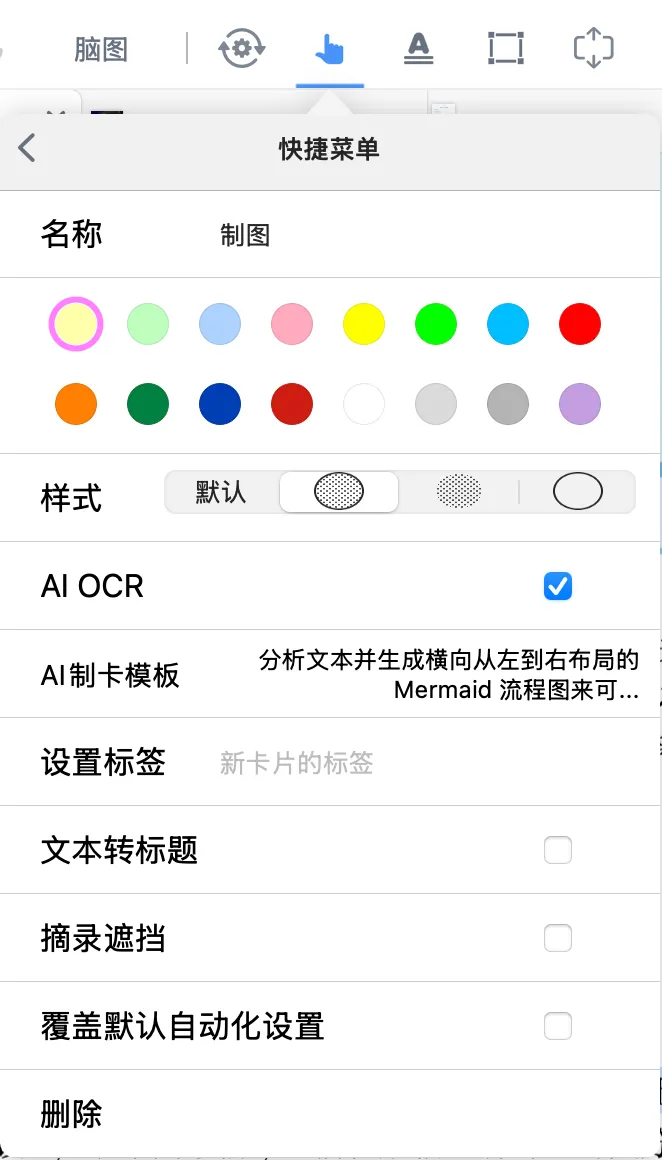
By default, the hand tool's pop-up menu bar only shows a fixed set of functions (Copy, Extend Note, Translate, etc.). If you normally prefer the excerpt tool and already have your own preferred setup (such as text-to-title, excerpt occlusion, specific colors & styles, and so on), but don't want to keep switching back and forth between the hand tool and the excerpt tool, you can use the Quick Menu feature to create new function options on the hand tool menu bar that replace the excerpt tool you usually use.
For example, when reading science and engineering books, you may frequently need the AI OCR function to produce Mermaid flowcharts and Markdown tables. This requires setting up two separate AI OCR templates (and switching back and forth between two excerpt tools). How can you meet both needs using only the hand tool?
Steps:
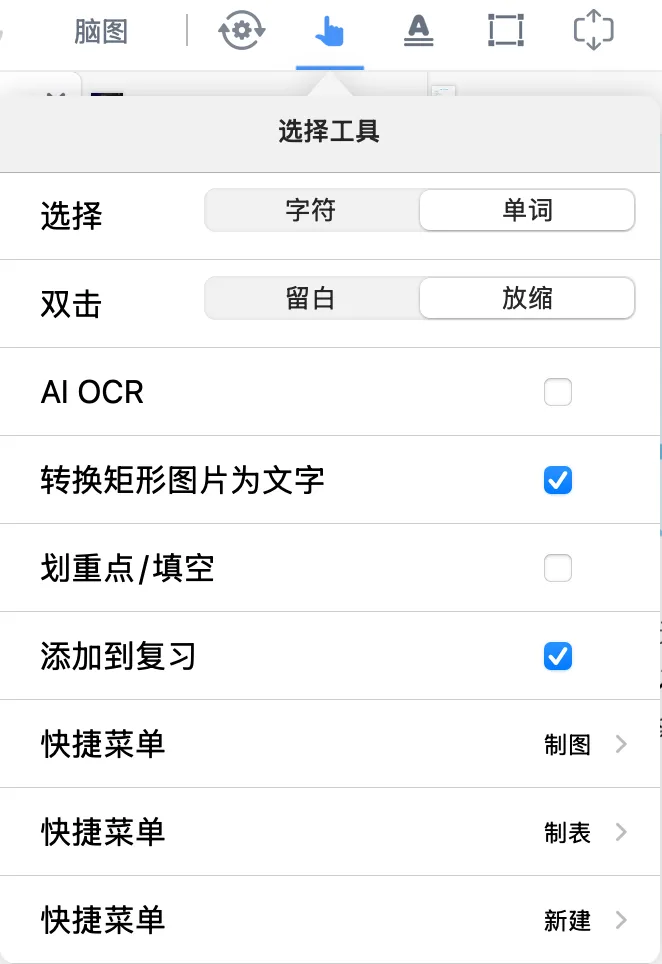
- Double-tap the hand tool to open the settings panel, find
Quick Menu, and tapNew. -
Create two Quick Menus
Enter an easily recognizable name, for example "Make Diagram" and "Make Table".
-
Configure the Quick Menu template (using AI OCR as an example)
-
In the "AI card creation template", enter or select your preset prompt template, for example:
"Analyze the selected text and generate Mermaid flowchart code with a horizontal left-to-right layout."
-
Set options such as "Tags", "text-to-title", and "excerpt occlusion" as needed.
-
-
Use the Quick Menu
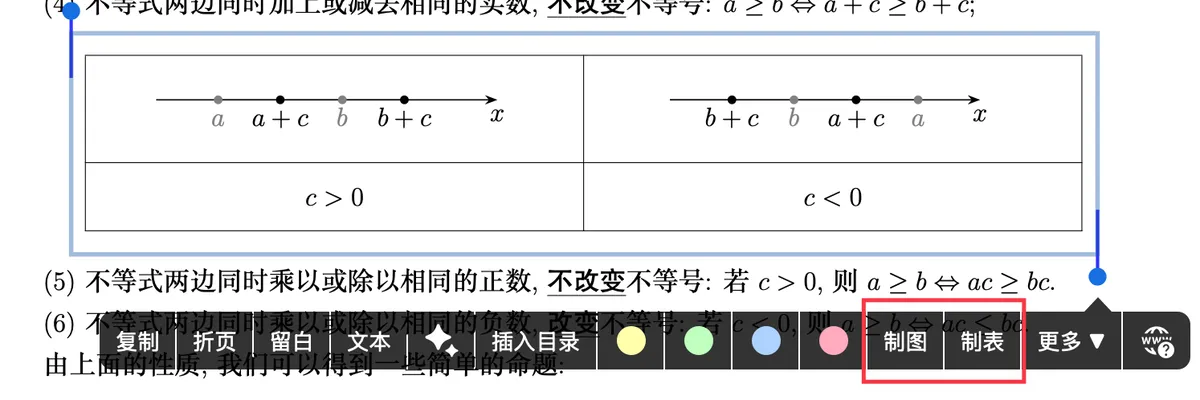
The next time you select text or an area in a document, the hand tool menu bar will show the names of the Quick Menus you created (such as "Make Diagram" and "Make Table"); tap one to run it in a single step.
If you're familiar with the excerpt tool, you'll notice that the 🖼️ Image panel and the excerpt tool panel look almost identical. In fact, you can think of it this way: a Quick Menu = mounting a particular excerpt tool (including its settings) onto the hand tool menu bar.
4 Frequently Asked Questions
Q: After I select text, why does the pop-up menu bar differ from what the manual describes? A: The menu contents depend on how you trigger it and the type of your current selection. Check whether you made a direct selection (without selecting any card) or selected a card first and then made a selection. Also, if you selected an image area, text-only functions such as "Translate" and "Define" will not appear.
Q: I enabled the customization option for a function, but it still doesn't show up on the menu bar? A: This may be because the menu bar currently has limited space, or the current selection doesn't support this function.