
Multi-Window Linking ①: Opening Multiple MN4 Windows on the Same Device
1 What Are Linked Multi-Window Notes
💡Linked Multi-Window Notes — An Efficient Study Space for Cross-Boundary Collaboration:

The multi-window feature supports synchronized actions and collaborative note-taking across different views, letting you display different content on multiple screens or windows at once — for example, viewing the mind map on one side while reading the source text or editing notes on the other.
Data is automatically synchronized and updated across all windows with no manual syncing required, keeping content consistent at all times. Whether you are studying a textbook alongside its mind map in parallel or consolidating and organizing materials from different apps, everything can be done efficiently within one unified system, delivering a truly multitasking study experience.
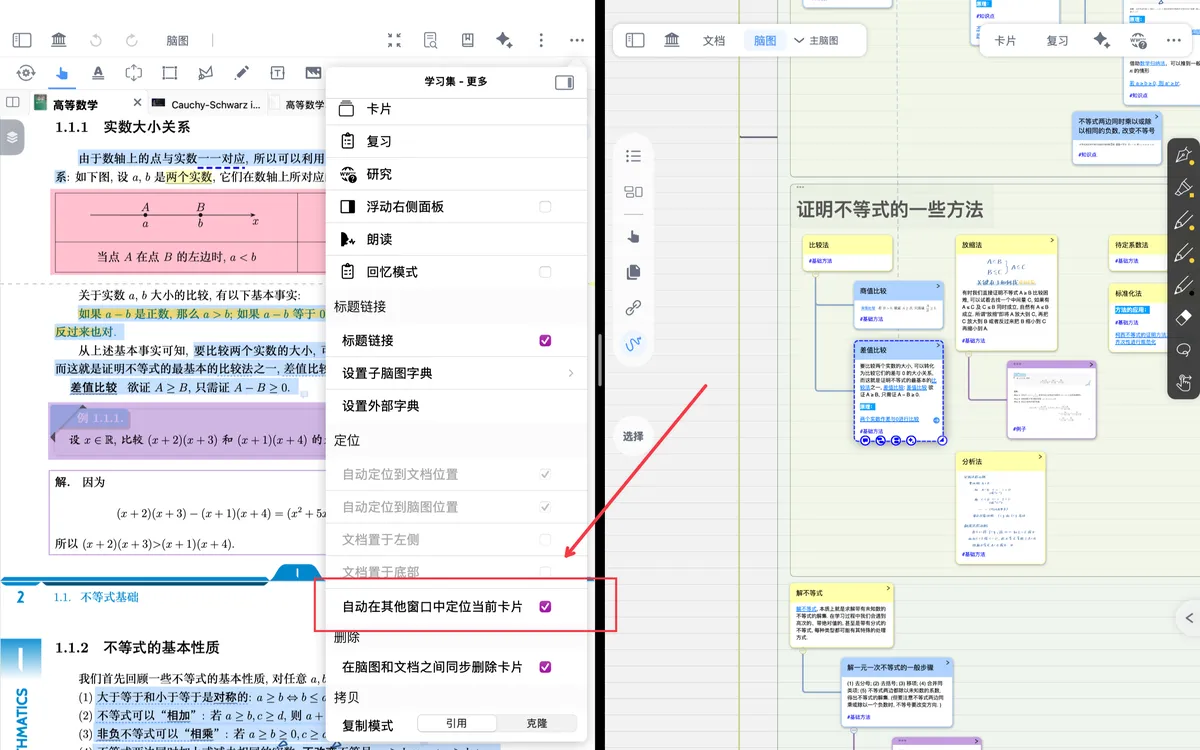
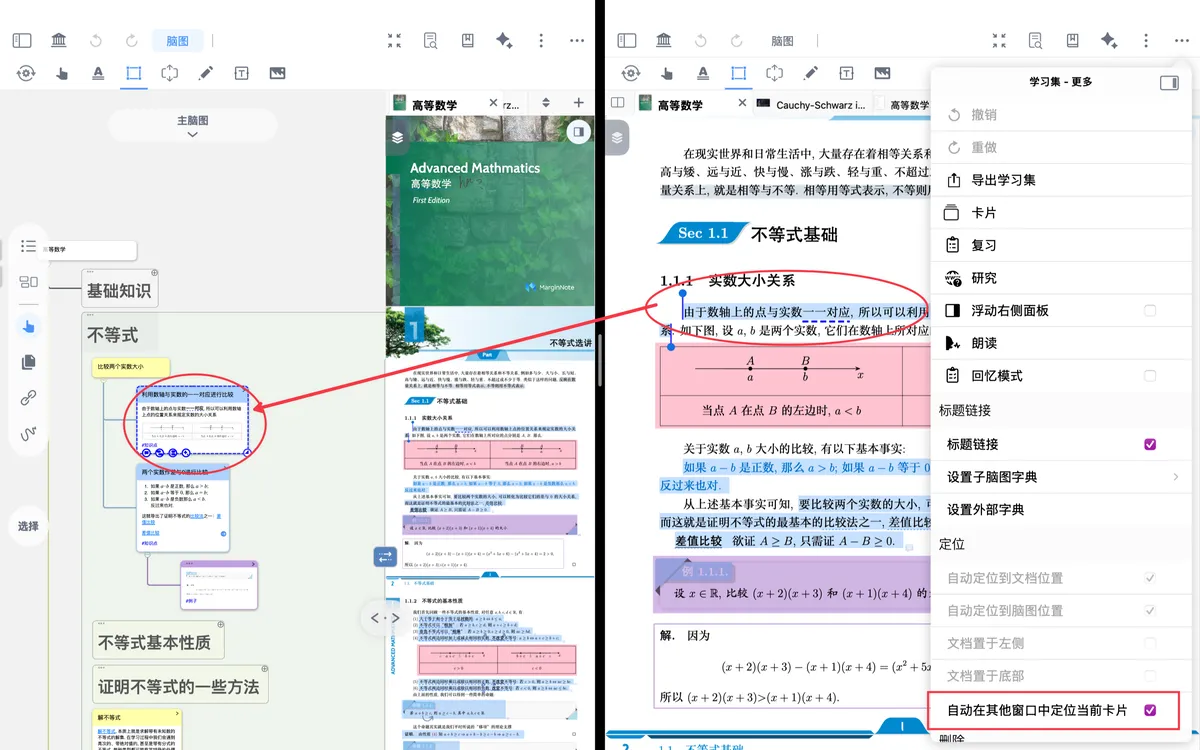
❗To achieve backlink synchronization for linked multi-window notes, make sure to turn on
Automatically Locate Current Card in Other WindowsConversely, if you want to work within different study sets without backlink interference, turn off
Automatically Locate Current Card in Other Windows
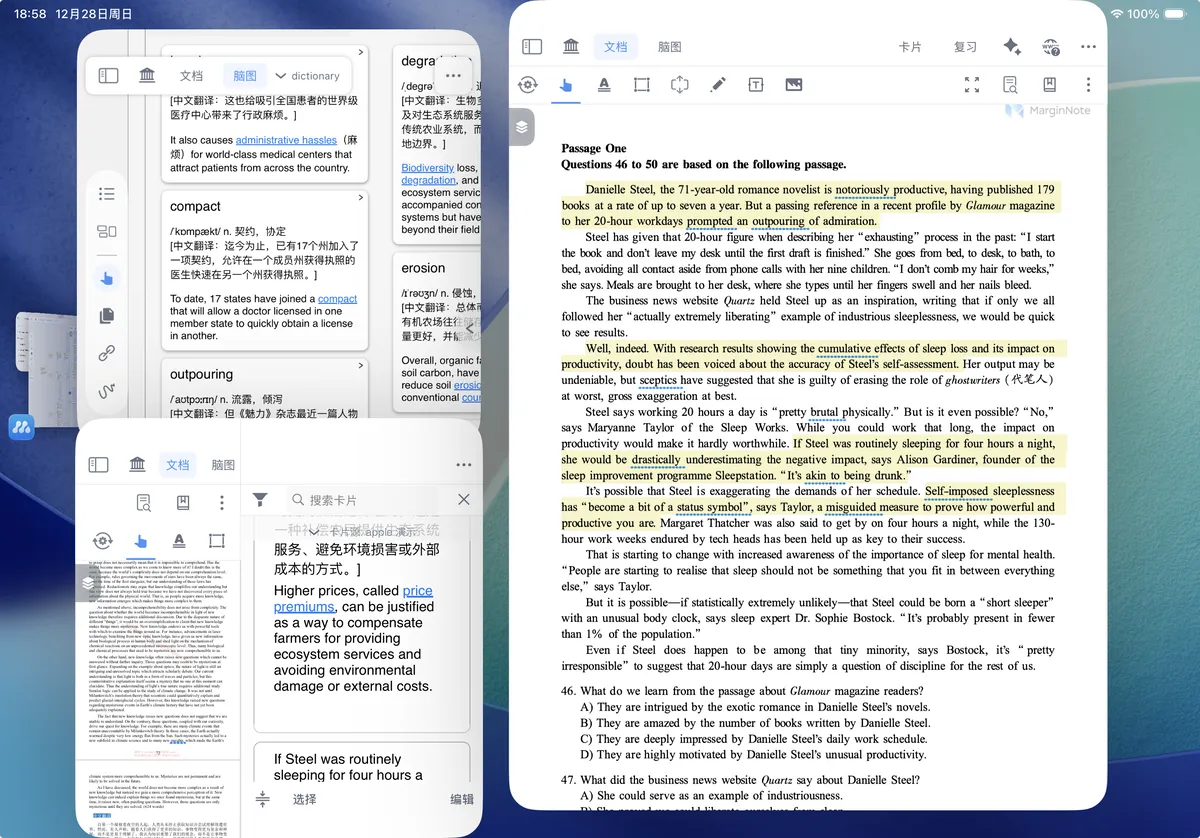
How to Use Linked Multi-Window Notes
2.1 Opening Multiple Windows in MarginNote 4
💡On iPad: long-press the MN icon → New Window
On Mac: Cmd+N to open a new window
- After opening multiple windows, tap the horizontal three-dot menu in the top-right corner of the study set
- Turn on Automatically Locate Current Card in Other Windows to locate cards via backlink across different windows
2.2 MarginNote 4 + Third-Party Apps

- With MN4 and another app open side by side
- You can drag handwritten annotations into the MN4
document interfaceto create new images and handwritten annotations;
- For apps that support native PencilKit notes
- Select a handwritten annotation and drag it; its content remains editable in MN
- For apps that do not support native PencilKit notes
- Select and drag a handwritten annotation / document content, and it appears as a non-editable image / handwritten annotation


- Select and drag a handwritten annotation / document content, and it appears as a non-editable image / handwritten annotation
- You can also drag content into the excerpt area to automatically add it as a card comment