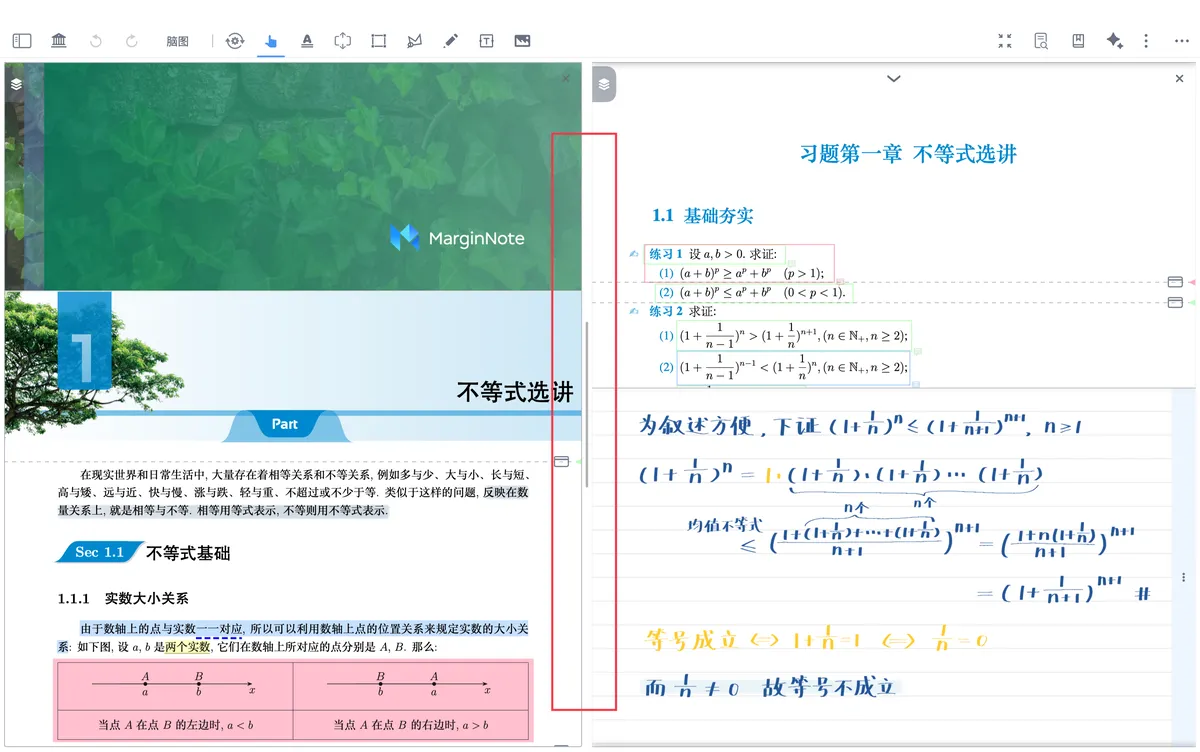

Comparison ①: Bi-article Comparison Window
1 What Is Bi-article Comparison
💡Bi-article Comparison — A New, Efficient Way to Study Side by Side:
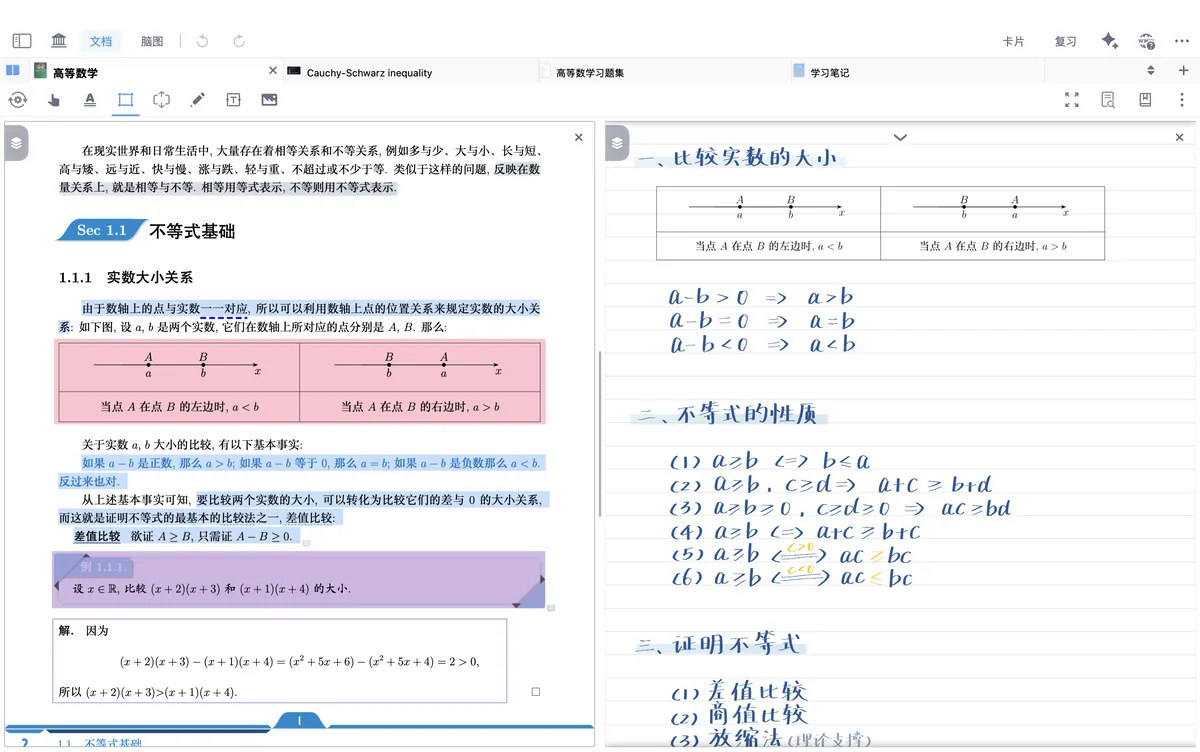
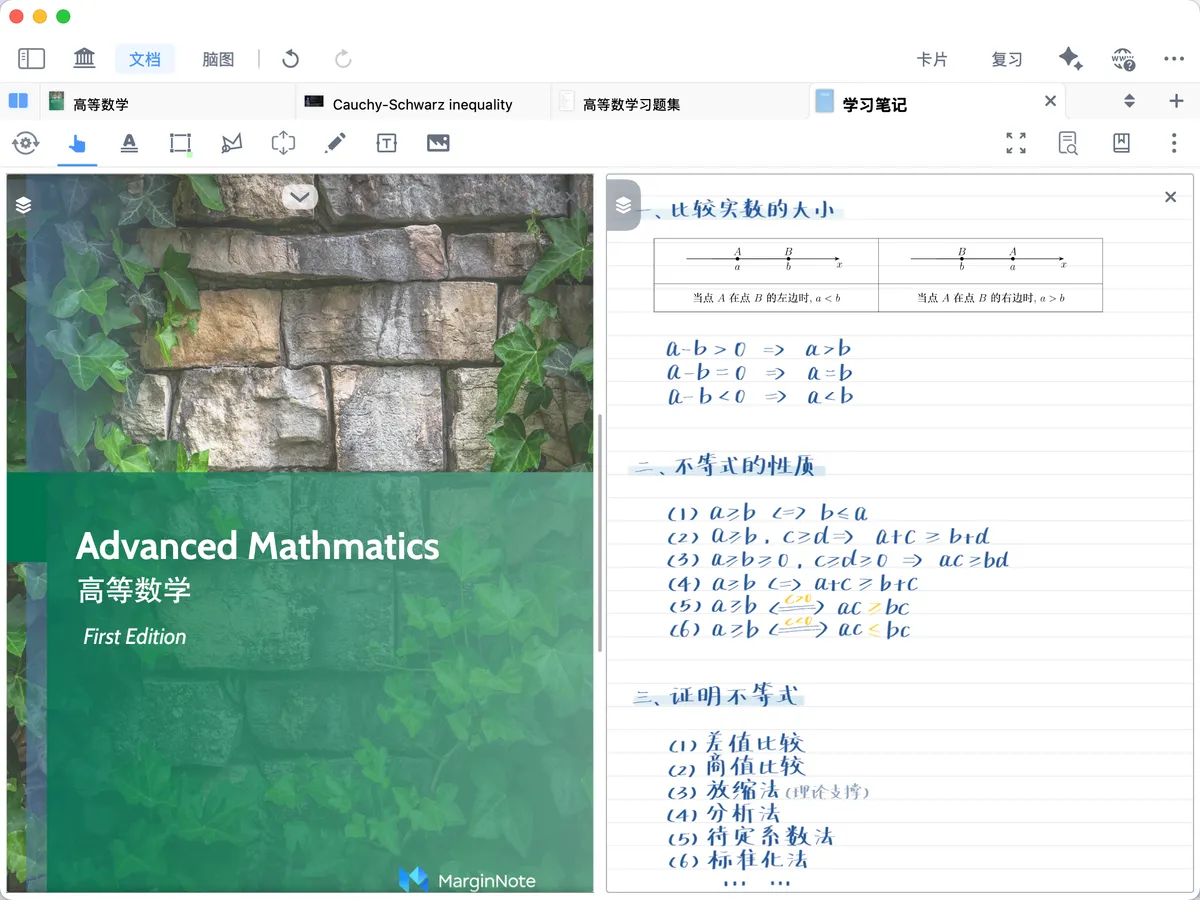

The Bi-article Comparison window lets you open two materials at once and read them side by side, so you can truly focus on two things at the same time. Whether it's a textbook and a video, a workbook and its answer key, the source text and your notes, or two different places in the same document, everything can be shown side by side, letting you shift your gaze and compare content with ease.
The two-column layout can be saved at any time and quickly reopened via the mini sidebar icon in the top-left corner, helping you locate information efficiently, deepen your understanding, and organize knowledge across complex materials.
Opening Bi-article Comparison
2.1 Opening the Bi-article Comparison Window
💡"Document" is used here in a broad sense and includes materials such as PDFs and MP4 videos, all of which can be placed in
Bi-article Comparisonusing the methods below.
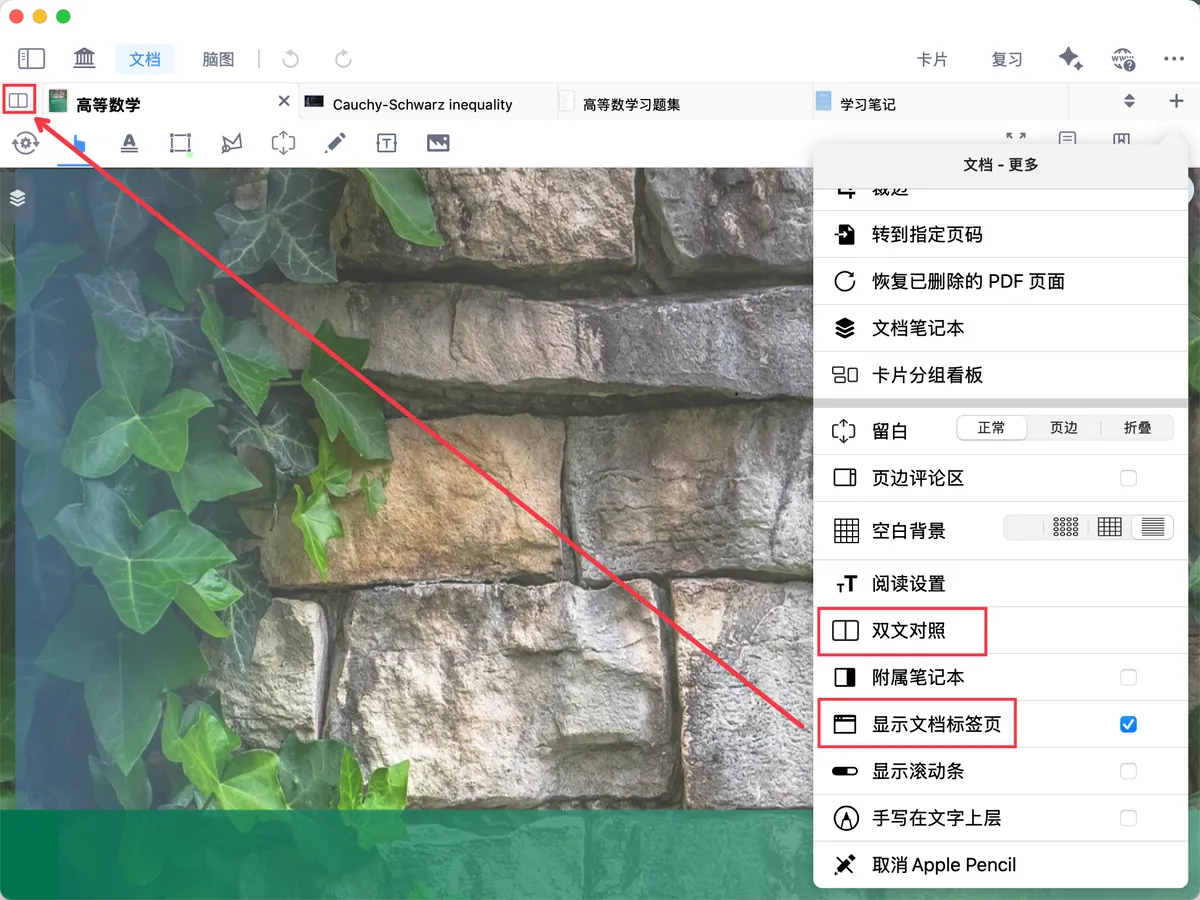
- In the top-right corner of the document view, tap

Document - More(the vertical three-dot icon) -Bi-article Comparison; or tap theBi-article Comparisonbutton on the left of the document tabs (the document tabs toggle must be enabled). - By default, the document used in your last comparison is reused. If the current document is being compared for the first time, it is used as the comparison document by default (the same document opened twice).
2.2 Switching the Comparison Document
2.2.1 Method 1: Choose a Document to Compare from the Tabs
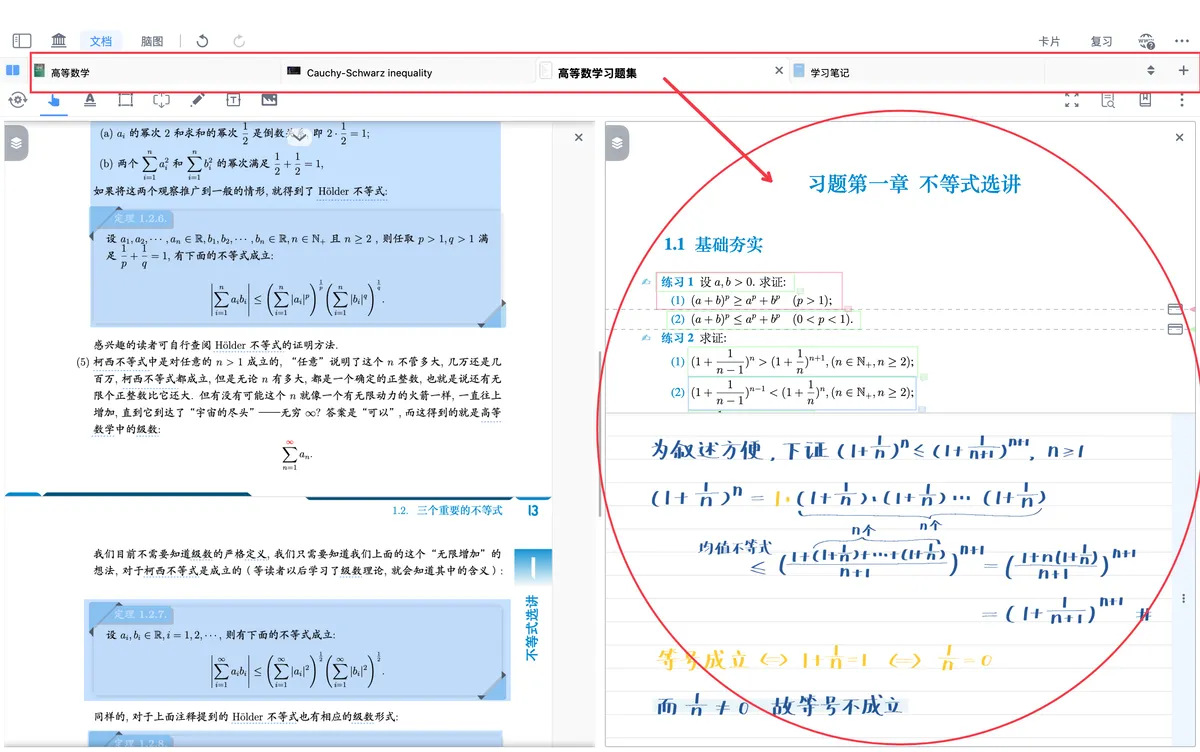
- From the document tabs, long-press a document and drag it directly into the comparison view to form a
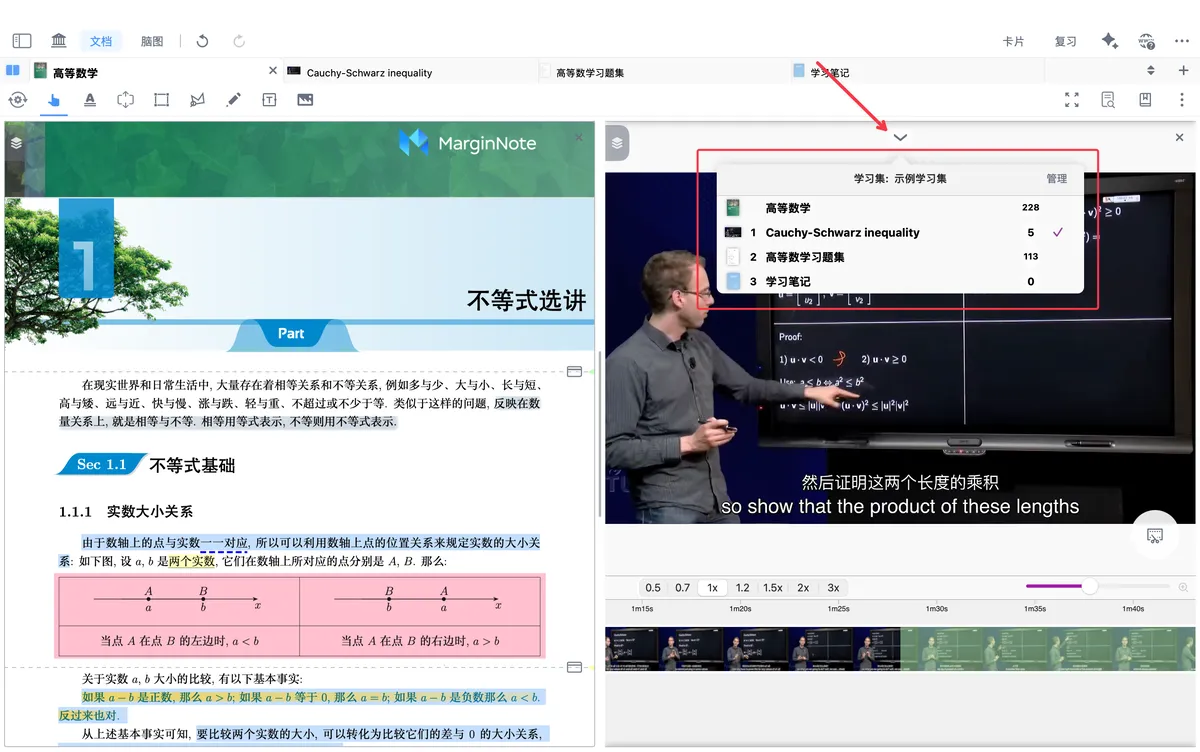
Bi-article Comparison(as shown below); the demo is the same as: 🖼️ image - Or tap the
dropdown listat the top of the document and select the document you want to compare from the list
2.2.2 Method 2: Choose a Document to Compare from the Sidebar
-
Tap the
Sidebarbutton (shown by the icon below), then select a document and drag it to form aBi-article ComparisonSidebar
💡Dragging from the sidebar is useful when you need to compare documents across study sets;
For more ways to use the sidebar, see Sidebar Quick Switching and Global Search

3 Bi-article Comparison Window Operations
-
With the
Bi-article Comparisonwindow already open, there are two ways to open theBi-article Comparisonoperation bar:Method 1: Go to
Document - More(the vertical three-dot icon) → chooseShow Document Tabs→ tap theBi-article Comparisonbutton at the far top-leftMethod 2: Go to
Document - More(the vertical three-dot icon) → choose theBi-article Comparisonbutton
3.1 Number of Comparison Views
- Open the
Bi-article Comparisonoperation bar using either of the two methods above
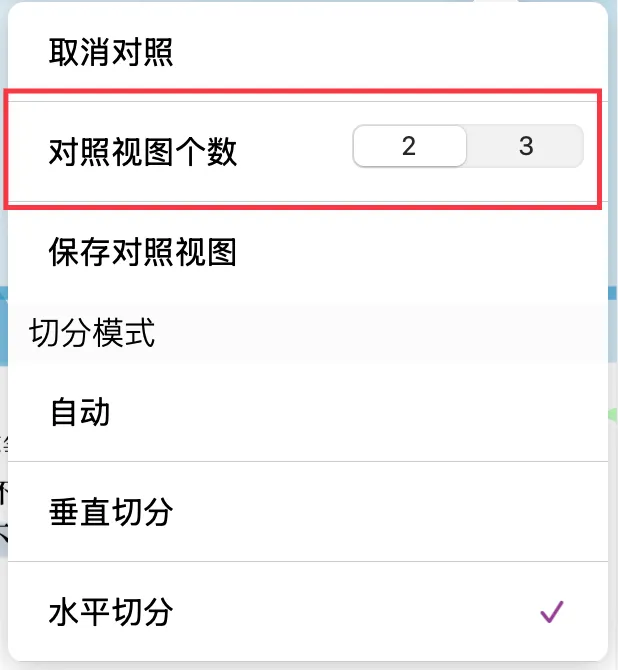
- Choose the
Number of Comparison Views; you can compare two or three documents
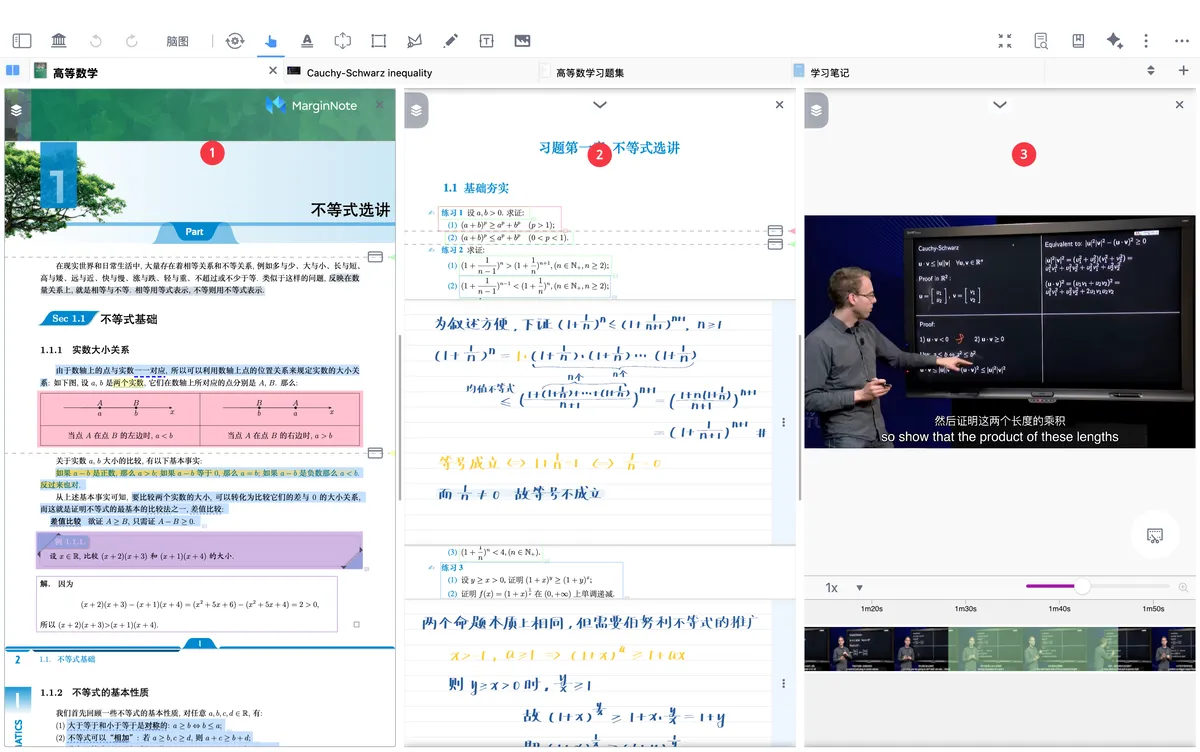
3.2 Split Mode
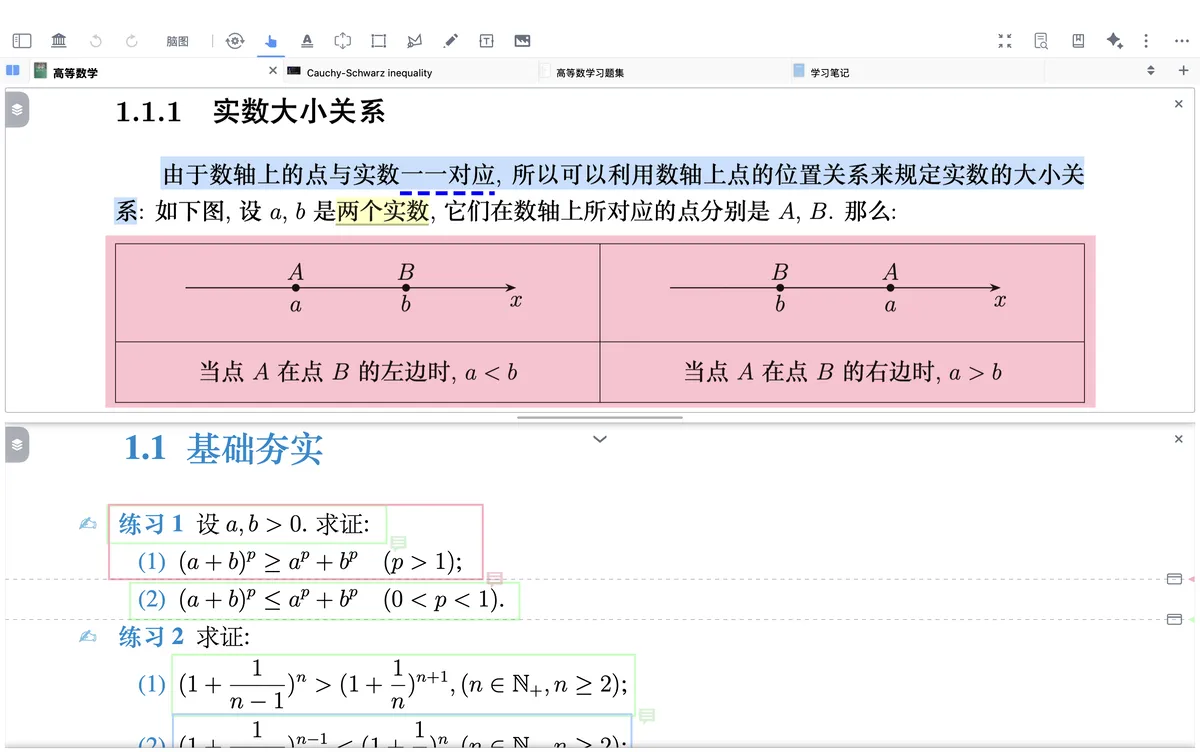
- Choose the automatic, vertical, or horizontal split mode based on the document content
3.2.1 Saving a Comparison View
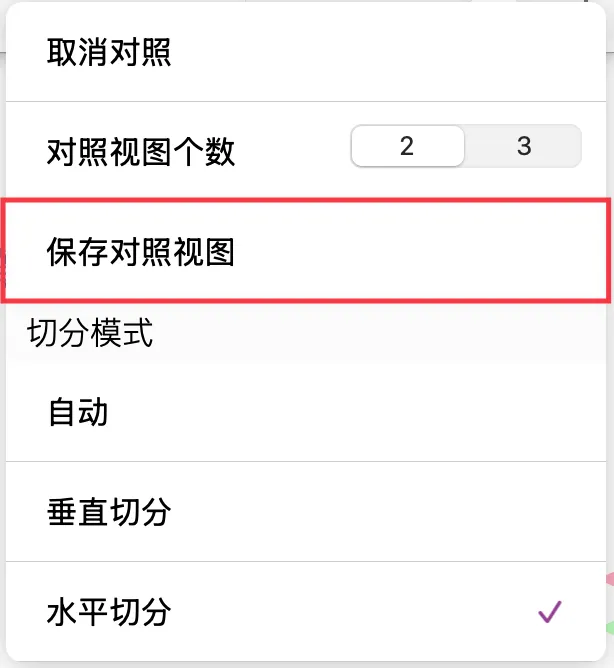
💡For more about the supplementary notebook, see Comparison ③: Supplementary Notebook
- After setting up the
Bi-article Comparisonlayout, tapSave Comparison Viewto create a binding relationship between the two documents. - Once saved, the comparison view appears as a standalone
Supplementary Notebookentry point. You can tap it directly in the document view to quickly restore your previous comparison layout, with no need to reselect or rearrange the documents.
❗Note:
Save Comparison Viewis not available when there are three comparison views
3.3 Adjusting the Bi-article Comparison Window Proportions
- Long-press and drag the
Bi-article Comparisonwindow divider to adjust theBi-article Comparisonwindow proportions