Card Linking ② | Unique Card ID and URL: Linking Across Mind Maps and Study Sets
Author: 夏大鱼羊
1 Links Within a Single Mind Map No Longer Suffice
In , learners learned the basic operations of one-way and two-way links, but as they dig deeper, they may encounter the following situations (for the child mind map feature, see ):
-
Cards in different child mind maps within the same study set need to be linked
- For example, in the "Advanced Mathematics" study set, "Chapter 1" and "Chapter 2" are two separate child mind maps used to organize the knowledge points of each chapter. Theorem card A in Chapter 1 is applied to example problem card B in Chapter 2, and now you want to link card A to card B.
-
Cards in two different study sets need to be linked
- For example, "Advanced Mathematics" and "Linear Algebra" are two different study sets. While studying, you find that theorem card A in the "Advanced Mathematics" study set can be applied to theorem card B in the "Linear Algebra" study set, and now you want to link card A to card B.
In other words, links within the same mind map, like those demonstrated in , no longer meet the need. For the two linking situations described above, however, MarginNote 4 can still satisfy them, and the core of this lies in the card's ID and URL.
2 Card ID and Card URL
2.1 What Is a Card ID
Simply put, a card ID is like an identity number for each card, corresponding one-to-one with the card.
An ID generally has the structure *-*-*-*-*, where each * represents a certain number of uppercase letters and digits, for example E097A792-4E65-46B5-834B-BDDC8A71E254.
2.2 What Is a Card URL
A card's URL is the card's ID with the prefix marginnote4app://note/ added. For example, the URL corresponding to the ID mentioned above is marginnote4app://note/E097A792-4E65-46B5-834B-BDDC8A71E254.
From the concepts of card ID and card URL, you can see that the two are essentially the same: obtaining either one gives you the other. MarginNote 4 provides a way to copy a card's URL to the clipboard.
2.3 How to Get a Card's URL
2.3.1 On iPad
2.3.1.1 Getting It from the Card Editor
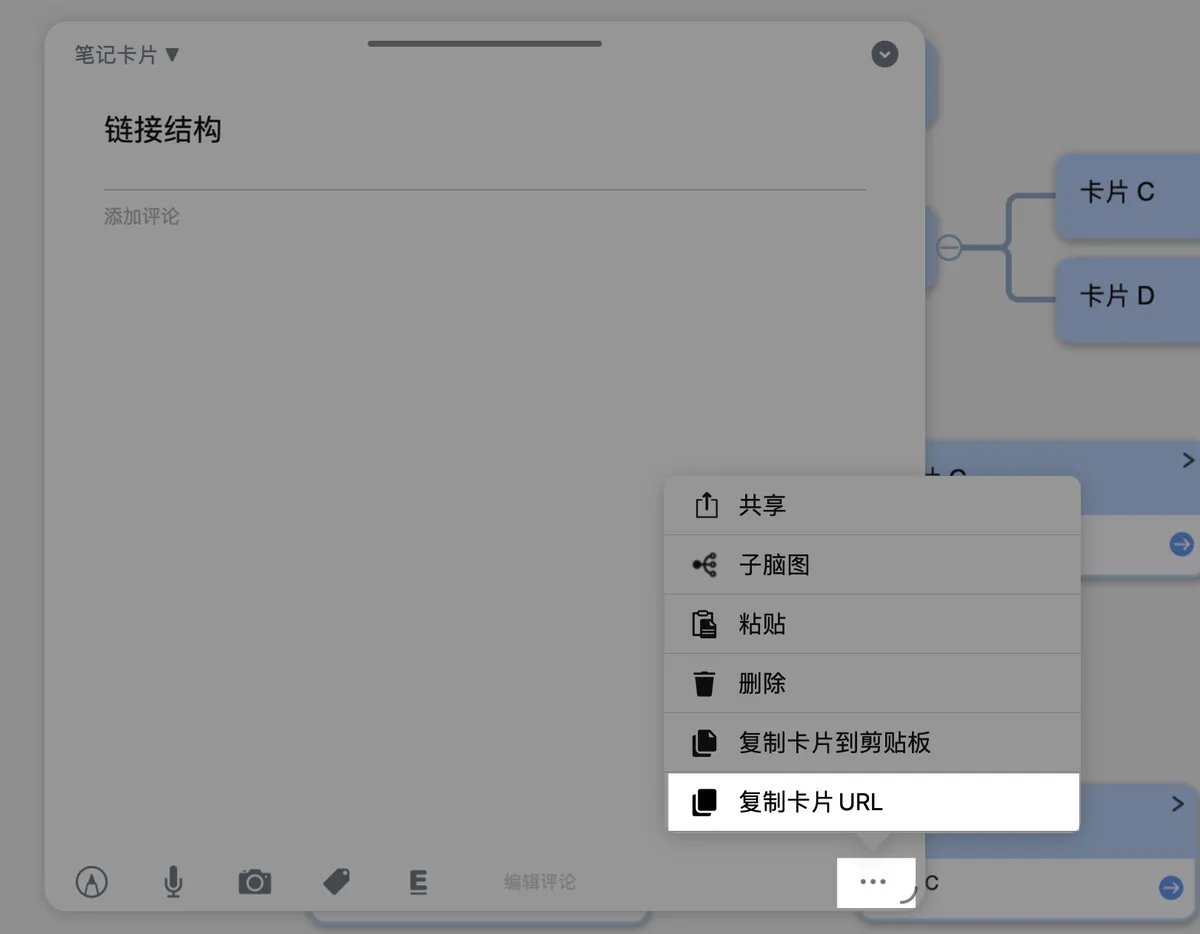
Tap the target card to open the card editor, tap the ... in the lower-right corner, and choose Copy Card URL from the pop-up menu.
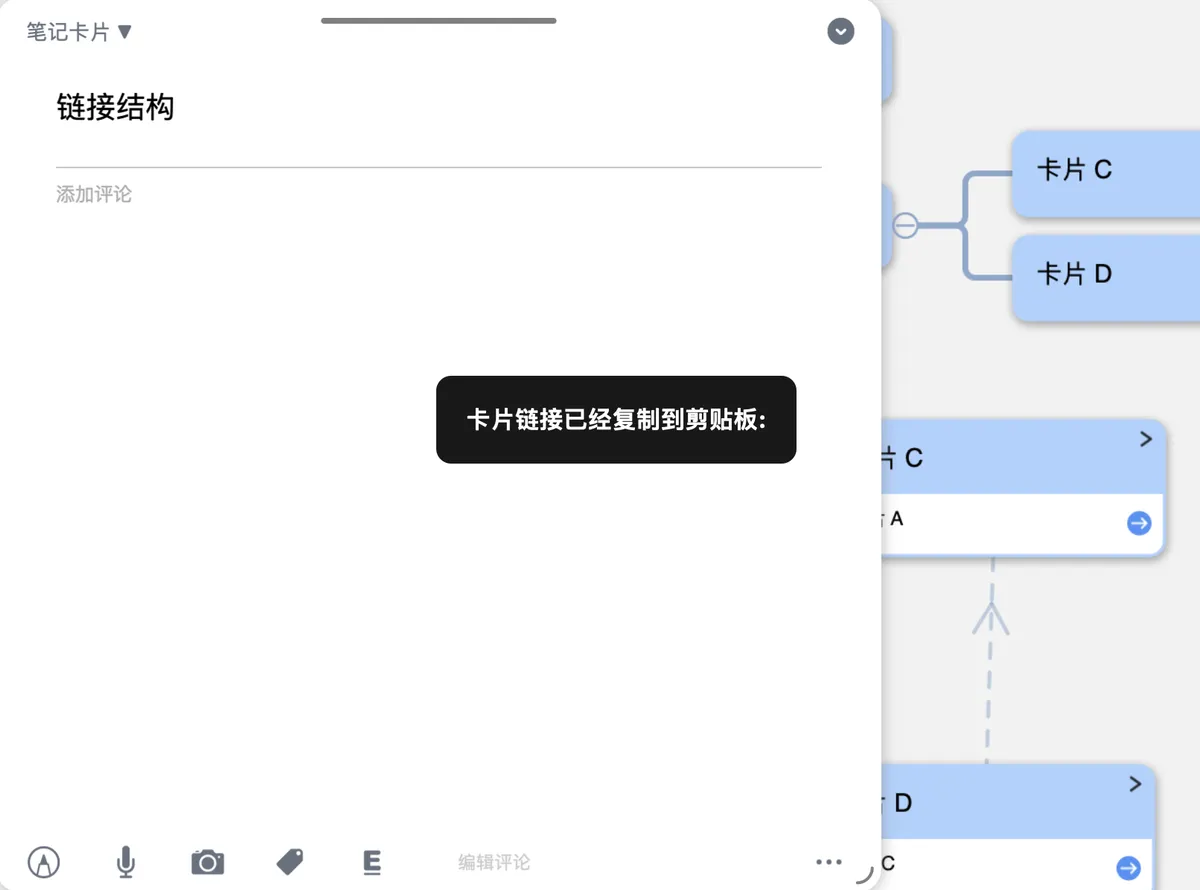
You will then see the prompt Card link copied to clipboard:
2.3.1.2 Getting It with a Keyboard Shortcut
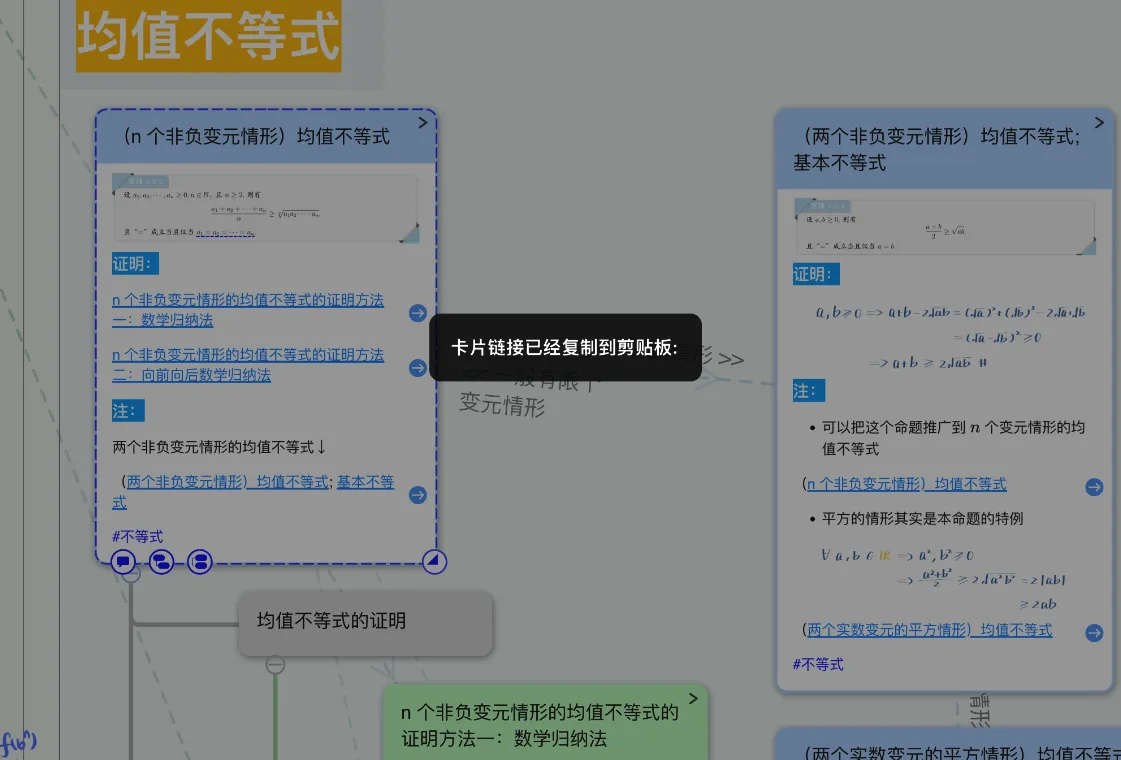
If your iPad is connected to an external keyboard, you can copy the card URL with the command+shift+c shortcut, and you will see the prompt Card link copied to clipboard:.
2.3.2 On Mac
On Mac, in addition to the same two methods above, you can also use MarginNote 4's top menu bar. The exact steps are as follows:
- In the mind map, click to select the target card.
- In the app's top menu bar, choose
Card. -
Click
Copy Card URLon the third row.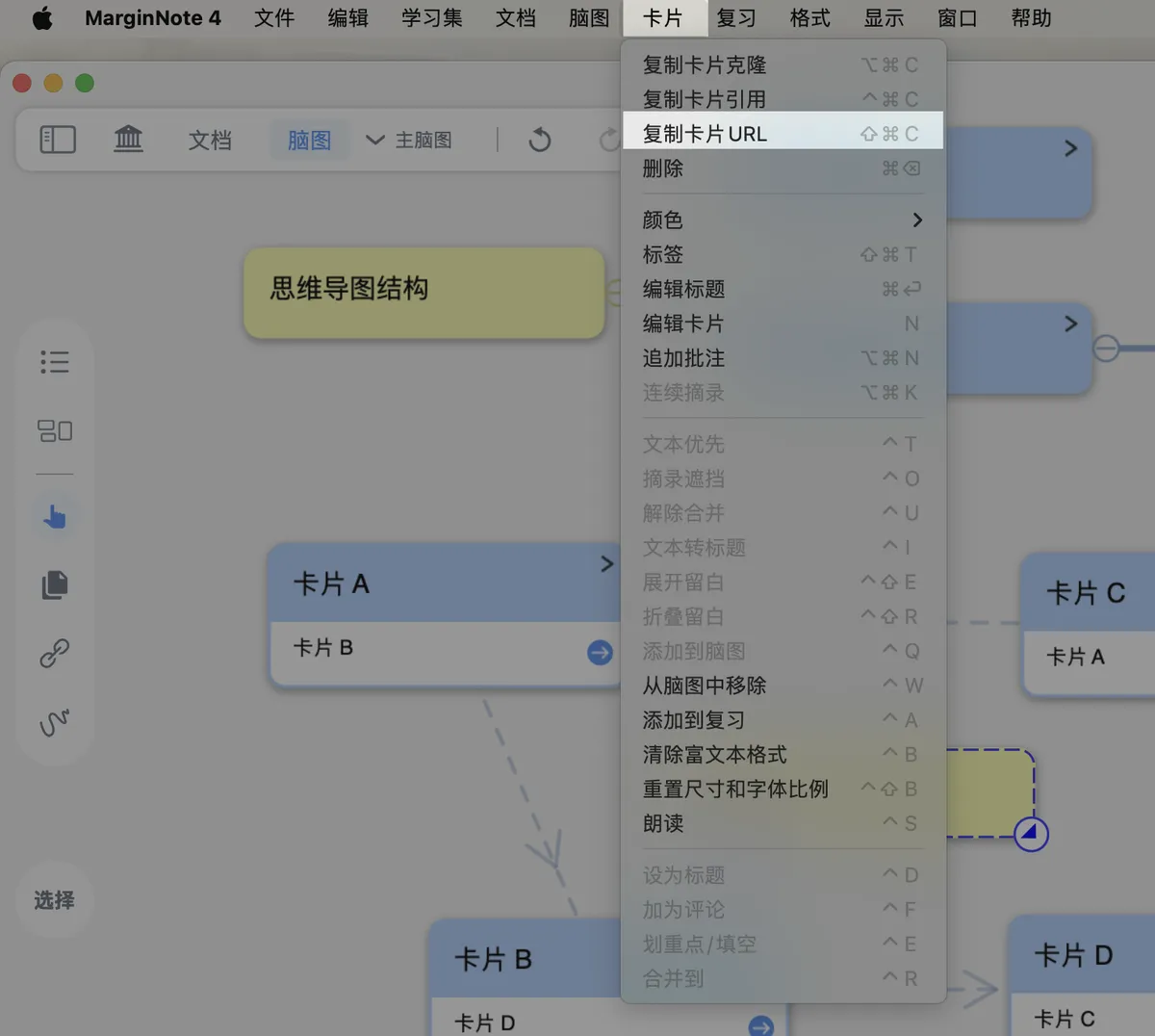
-
If the prompt
Card link copied to clipboard:appears, the card URL has been copied successfully.
3 The Essence of Linking
Note: what we discuss below is the essence of how the linking feature is implemented in MarginNote 4, not the role links play in the learning process.
From the explanation above, learners can see that a card and its ID correspond one-to-one. From a card we can obtain the card's URL, and through the card's URL we can locate that card; this locating is precisely what a link achieves.
The essence of the linking feature is simply the text of some card's URL—it's just that MarginNote 4 renders it into the link style that learners see.
Learners can thus understand the essence of linking by dragging cards and linking with the link ball: in , we introduced two ways to create links—dragging cards and the link ball, where the link ball creates a two-way link. From our analysis above, we can see that dragging card A onto card B to create a one-way link is essentially copying card A's URL and pasting it into card B's comments, after which the URL is rendered into the link style. The same reasoning explains using dragging to create a two-way link as well as linking with the link ball.
4 Linking Any Two Cards
Now that we know a link is essentially the URL text of a card, we can create a link between any two cards.
4.1 Method 1: Both Cards Must Appear at the Same Time



This method first requires getting both cards onto "the same screen"—for example, in the same mind map view, or by opening two instances of MarginNote 4 in split-screen. See the illustrations below for details.
4.1.1 First, Get Both Cards onto the Same Screen
Any two cards can be summarized into three scenarios:
4.1.1.1 Same Study Set, Same Mind Map
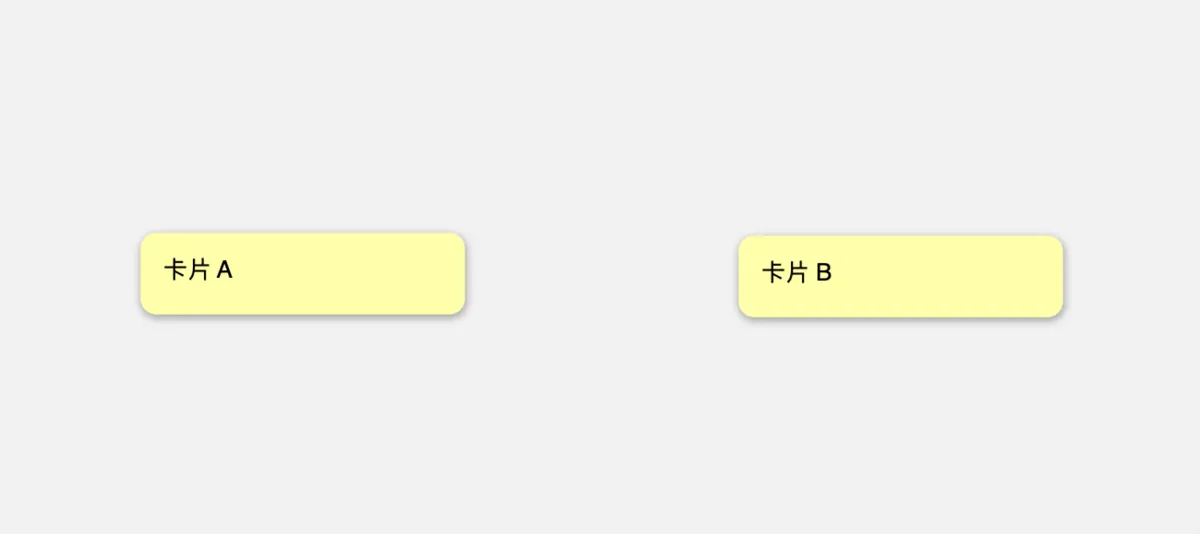
4.1.1.2 Same Study Set, Different Child Mind Maps
-
Method 1: Use the child mind map's
Open in Floating Viewfeature.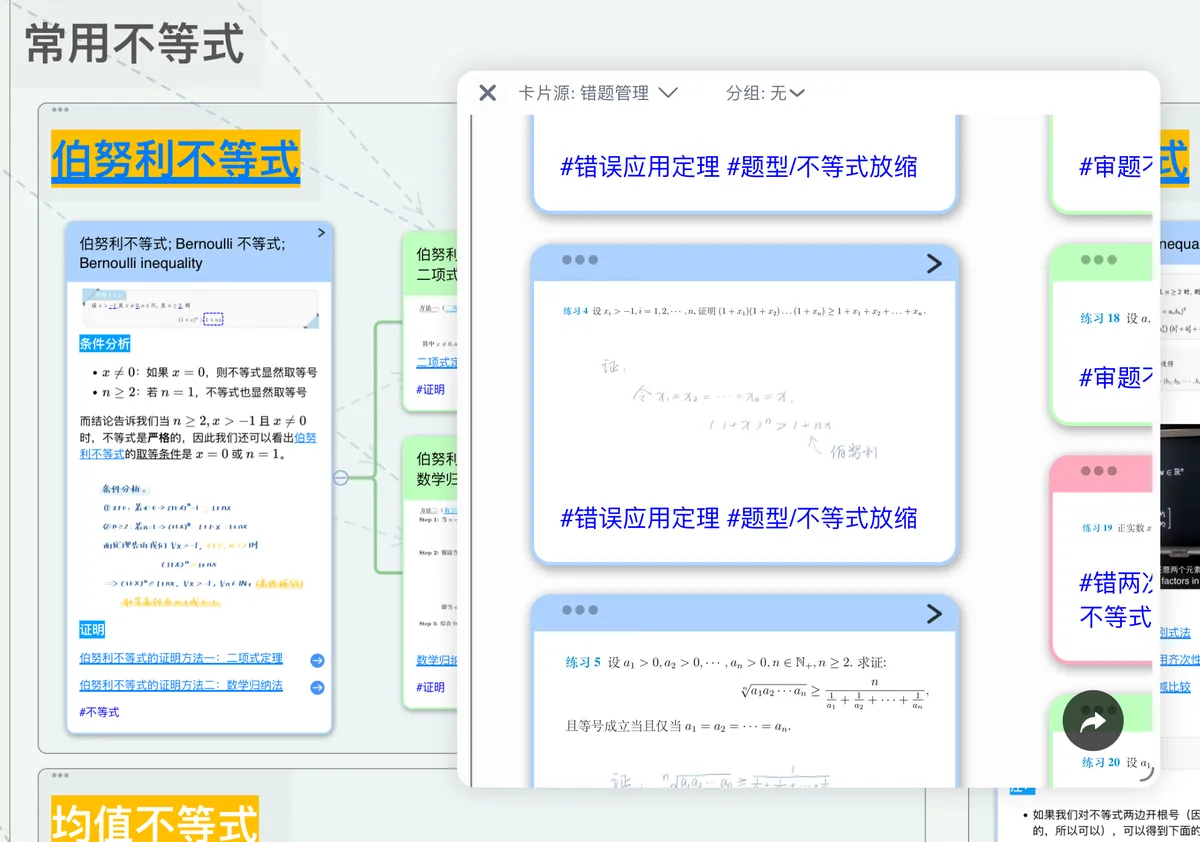
-
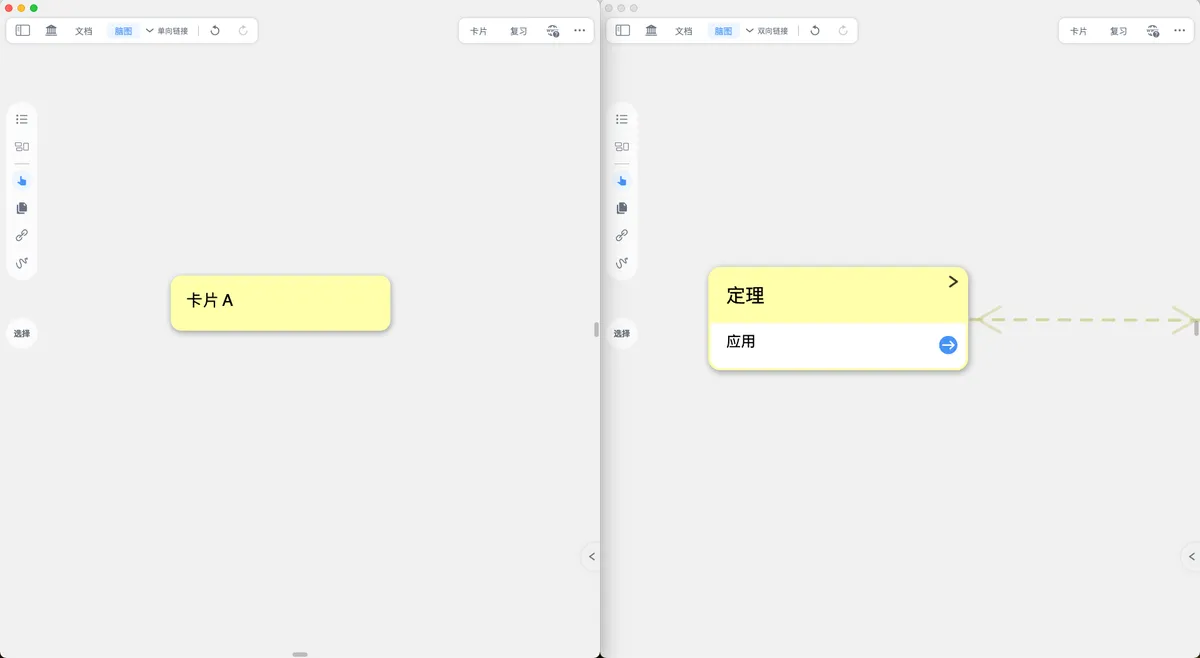
Method 2: On iPad, you can open two instances of MarginNote 4 in split-screen.
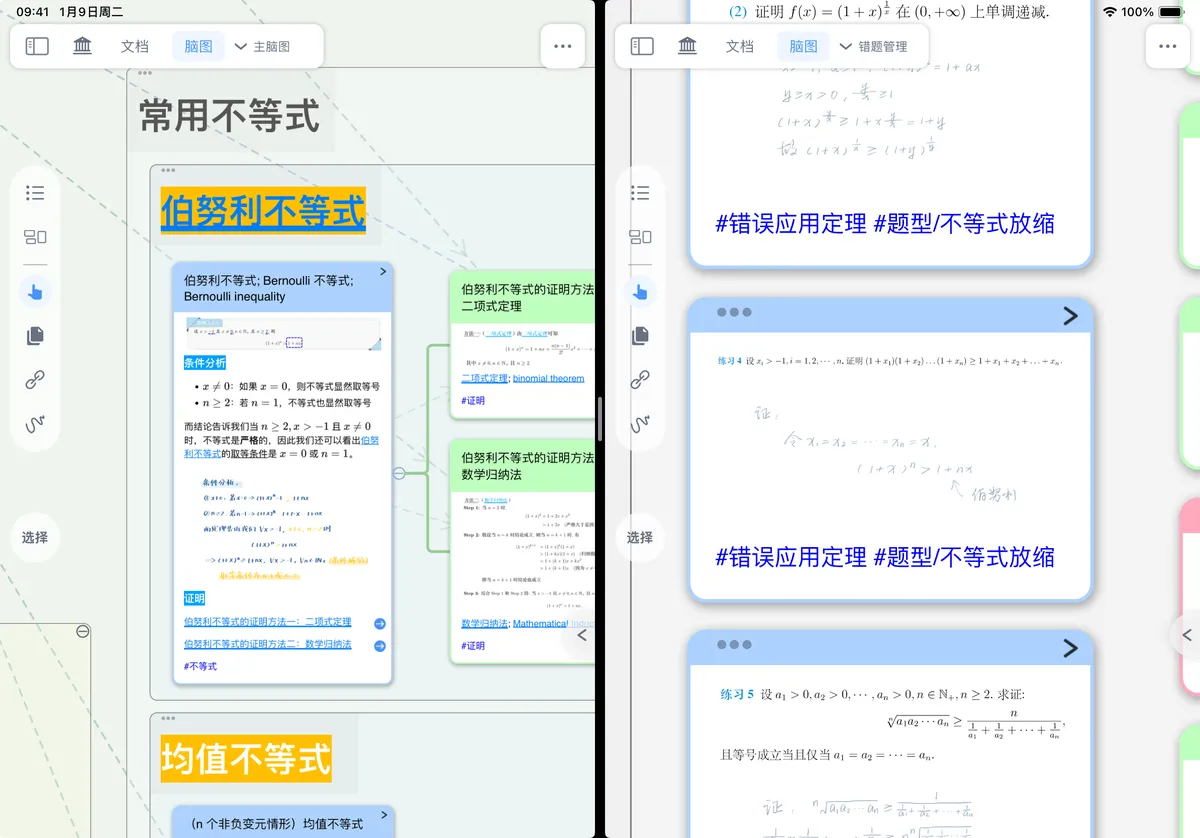
-
Method 3: On Mac, you can open two instances of MarginNote 4 side by side on the screen.
4.1.1.3 Different Study Sets
In this case the mind maps are necessarily in different locations, so there is no need to break it down further.
-
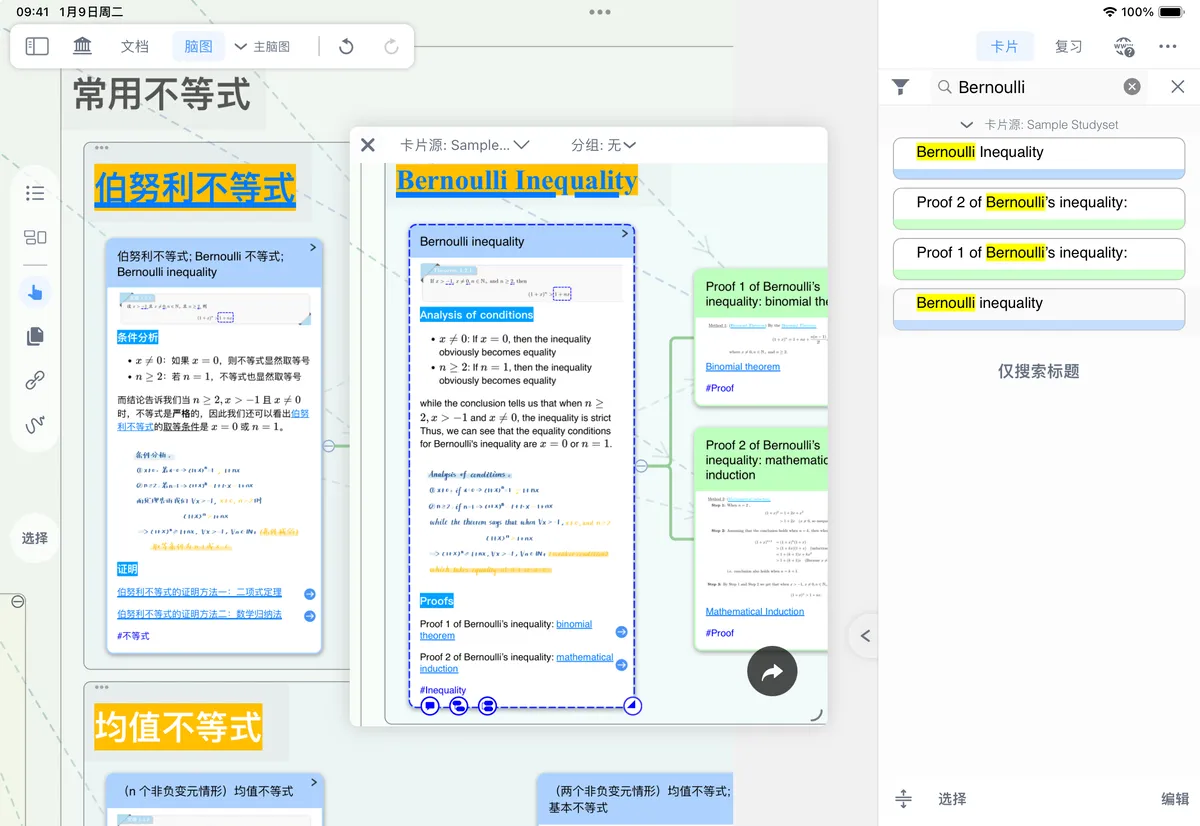
Method 1: Use the Zettelkasten-styled card box to find the other card and open it in floating view.
-
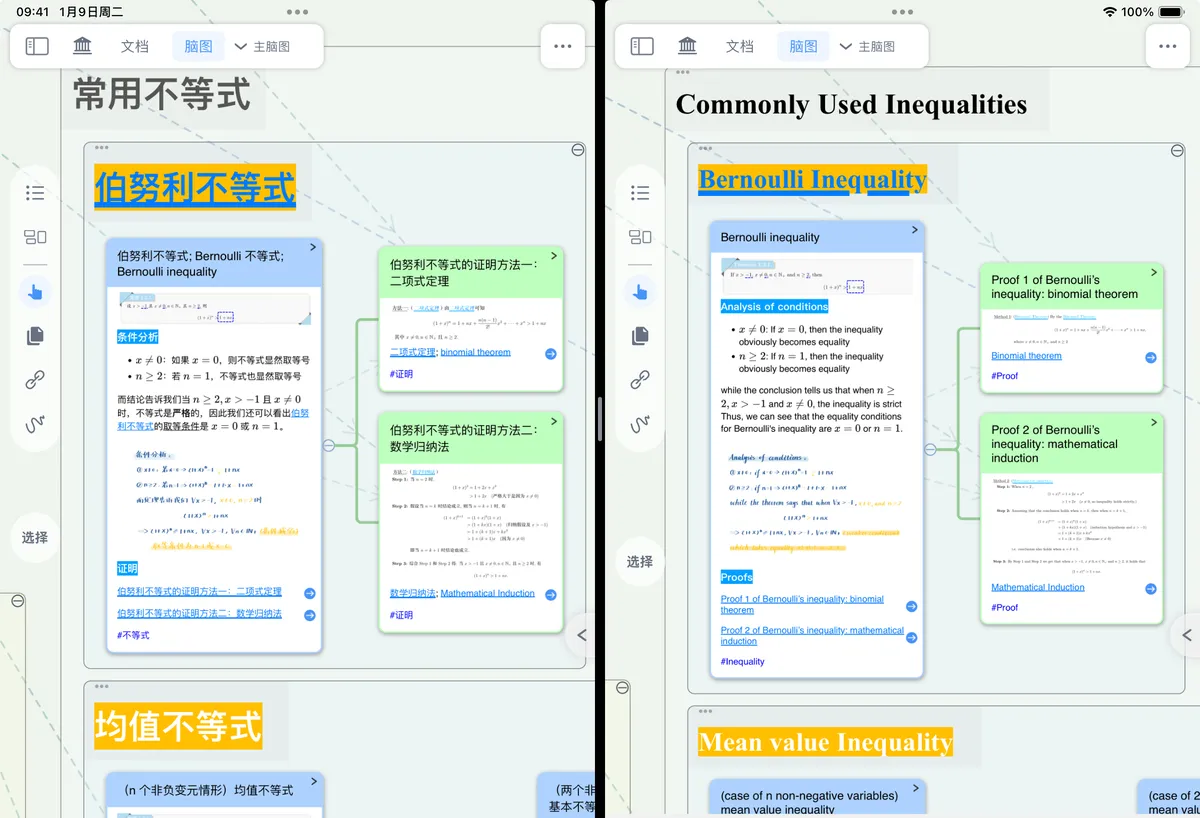
Method 2: On iPad, you can open two instances of MarginNote 4 in split-screen.
-
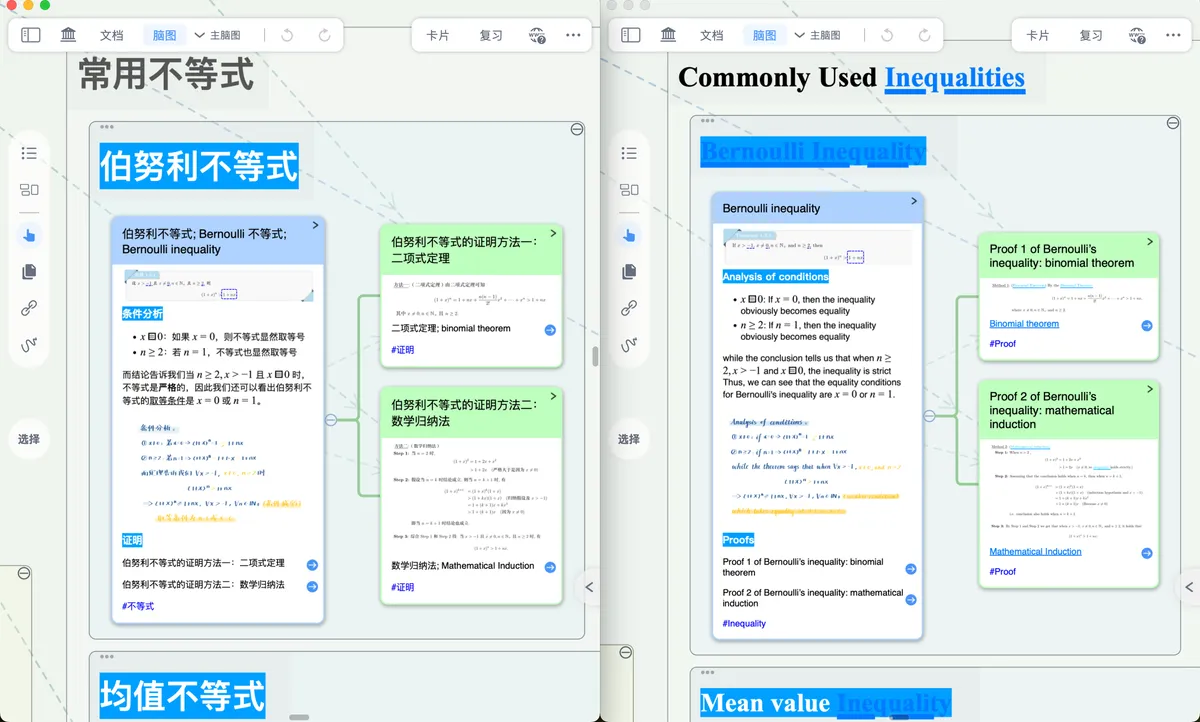
Method 3: On Mac, you can open two instances of MarginNote 4 side by side on the screen.
4.1.2 Then Link the Two Cards
The link ball, dragging cards, and dragging cards introduced in still apply, but note that when you open two instances of MarginNote 4 in split-screen on iPad or Mac as mentioned above, you cannot link with the link ball:
But dragging cards still works:
4.2 Method 2: The Two Cards Do Not Need to Appear at the Same Time
4.2.1 First, Copy the Card's URL
First copy the card's URL by following the "How to Get a Card's URL" section.
4.2.2 Then Paste It into Another Card's Comments
Find the target card by switching study sets or mind maps, etc. (at this point the card whose URL you copied does not need to be on screen), then:
-
Method 1: Tap the target card and, in the pop-up card menu, tap Paste—or use the keyboard shortcut
command+v—to paste it into the target card's comments.
-
Method 2: Paste the URL directly into the target card's comment input field.