Creating a Study Set: Start Theme-Based Learning
💡In the previous chapters, you have already learned how to take all kinds of notes on a document—excerpting key points, adding extend notes, marking with handwriting, searching and locating, and comparing multiple documents. These features let you read and annotate a single document efficiently.
But real study scenarios are often more complex. When preparing for a course exam, you might be reading the textbook, doing practice problems, and watching video lectures all at once; when researching a topic, you flip through multiple papers and reference books. You not only need to take notes on each piece of material, but also to extract the knowledge points scattered across different documents, connect them into a system, and review them regularly to consolidate them.
This is exactly the problem that the **
study set** is designed to solve.A study set is a dedicated space you create around a single study topic. Within this space, MarginNote **integrates the three stages of reading, organizing, and memorizing into one coherent workflow:
-Documents:the PDF, EPUB, video, and other study materials you need to read are all gathered here
-Mind map: the key points you excerpt while reading automatically become cards, which you can drag and organize in the mind map to build the knowledge framework for the topic
-Review: cards you need to memorize can go straight into spaced repetition review without leaving the current screen
Within a study set, documents and the mind map are dynamically linked—tap an excerpt in a document and the mind map automatically jumps to the corresponding card; tap a card in the mind map and the document automatically turns to the original passage. You no longer need to switch back and forth between "reading" and "organizing notes"; instead, you build your knowledge system as you read.
1 Study Set Interface and Functional Modes
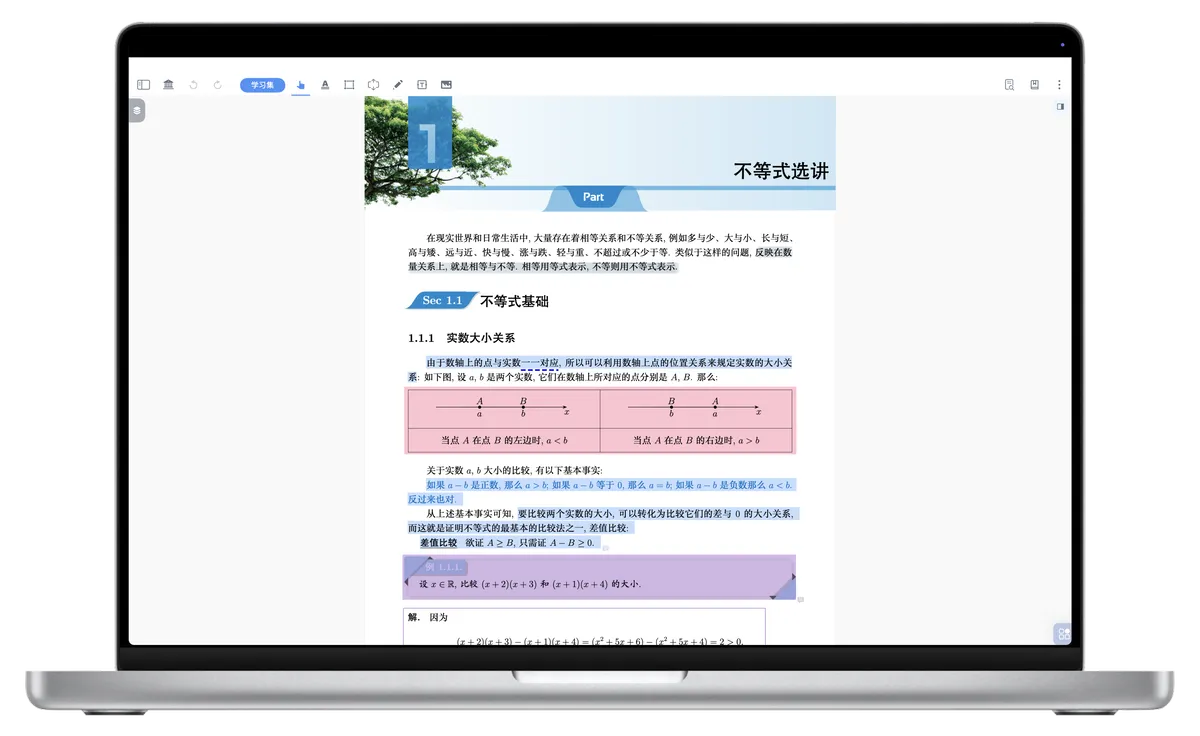
You may have noticed that the document reading interface used in the previous chapters shows only the document itself, with no mind map editing area. That is MarginNote 4's "document-only reading mode"—suited for quick browsing and temporary marking.
Study sets, by contrast, offer a different interface: the document and the mind map are displayed side by side and linked in real time. This is MarginNote 4's core study mode. To enter this mode, you first need to create a study set.
1.1 Document-Only Reading Interface (No Mind Map Editing)
- Features: This interface is mainly for pure document reading and basic annotation. You can highlight, underline, add simple annotations, and excerpt text on a document, but you cannot directly create or edit a mind map from excerpts.
- When to use: Choose this mode when you just want to browse a document quickly, make some temporary marks, or don't need to build a complex knowledge system.
1.2 Document + Mind Map Editing Interface (With Mind Map Editing)
- Features: This is MarginNote 4's core study mode. In this interface, you can not only read and annotate documents, but more importantly, you can turn excerpts from a document directly into "excerpt cards" and build and edit your knowledge framework in the mind map area on the right. (See also: Linked Mind Map and Document View, Generating a Mind Map from Manual Excerpts)
- When to use: When you need to study deeply, organize your knowledge structure, create mind maps, and connect and review knowledge, this mode is your best choice.
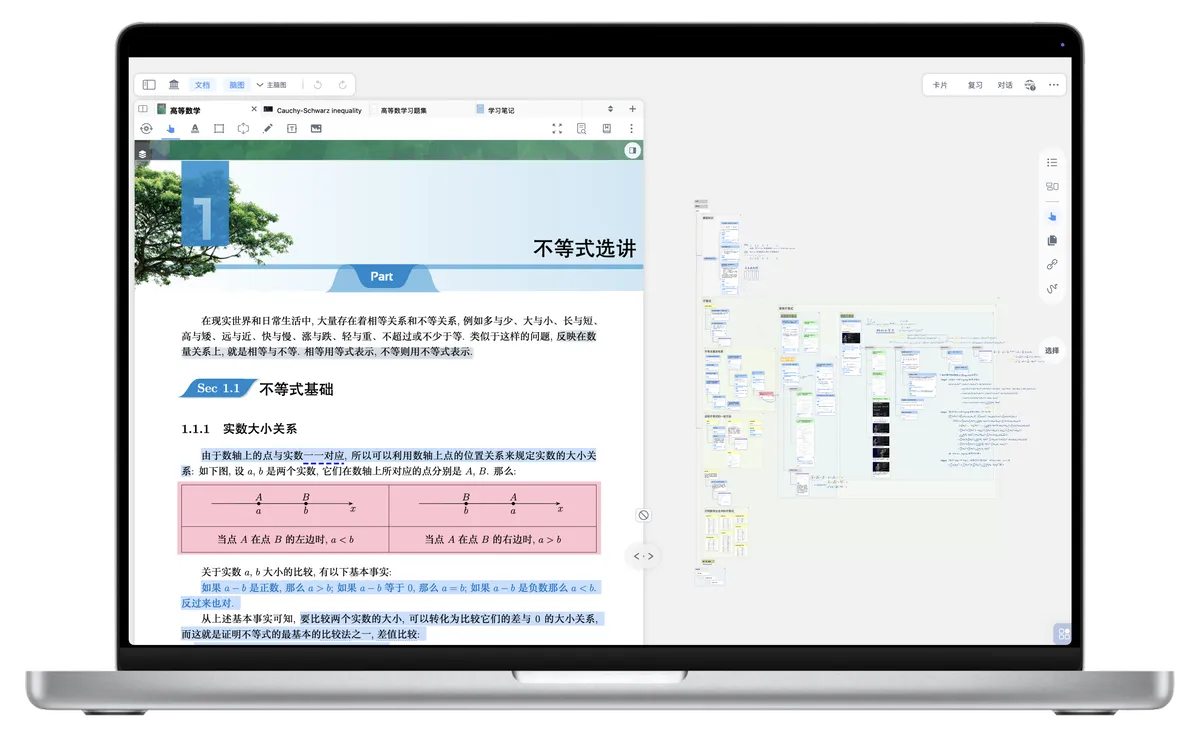
❗A mind map exists only as part of a study set—without a study set, you cannot create a mind map. So if you want to build a knowledge framework while you read, the first step is to create a study set and then import documents into it. The specific creation methods are described below.
2 Creating a Study Set
Creating a study set is the first step toward efficient learning in MarginNote 4. There are 2 main methods.
2.1 Method 1: Create a Study Set from Scratch

- Open the Study Set Library: In MarginNote 4's left sidebar, tap
Study Set Libraryto open the study set management page. - Tap New: In the top-right corner of the Study Set Library page, find and tap the
Newbutton. - Enter a name: In the dialog that appears, enter a name for your new study set
- Confirm creation: Tap the
OKbutton, and your new study set is created.
2.2 Method 2: Build a Study Set from a Document
For a document you are currently studying, you can create a study set directly from it, and the new study set will automatically include that document.

- Open a document: First, open a document you want to study to enter the "document-only reading interface".
- Tap the "Study Set" button in the toolbar: In the top toolbar of the document reading interface, find and tap the
Study Setbutton. - Select "Open in New Study Set": In the menu that appears, tap the
Open in New Study Setoption. - Automatic or custom naming: MarginNote 4 then automatically creates a study set with the same name as the current document and adds the document to it. You can also choose to enter a custom study set name.
3 Overview of the Sections in a Study Set
After creating a study set, you will see that it contains three core sections:
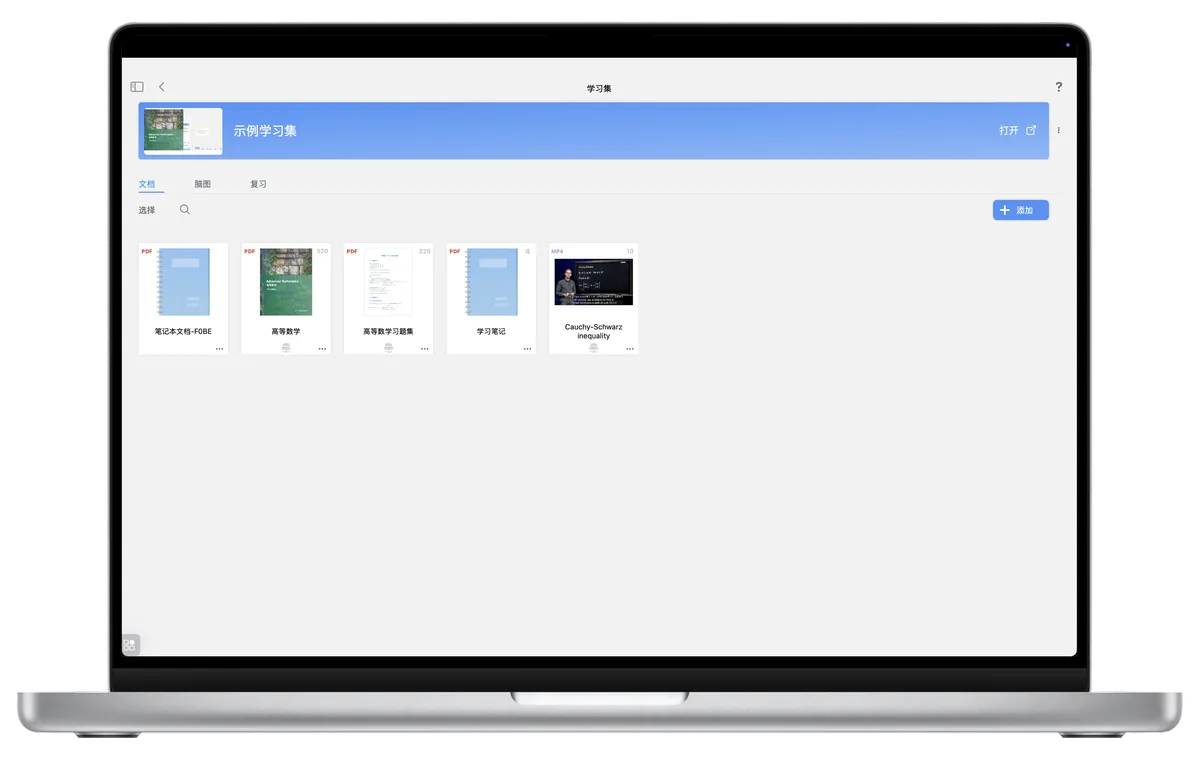
- Documents: all the study materials you've imported (PDF, EPUB, video, blank notebooks, etc.)
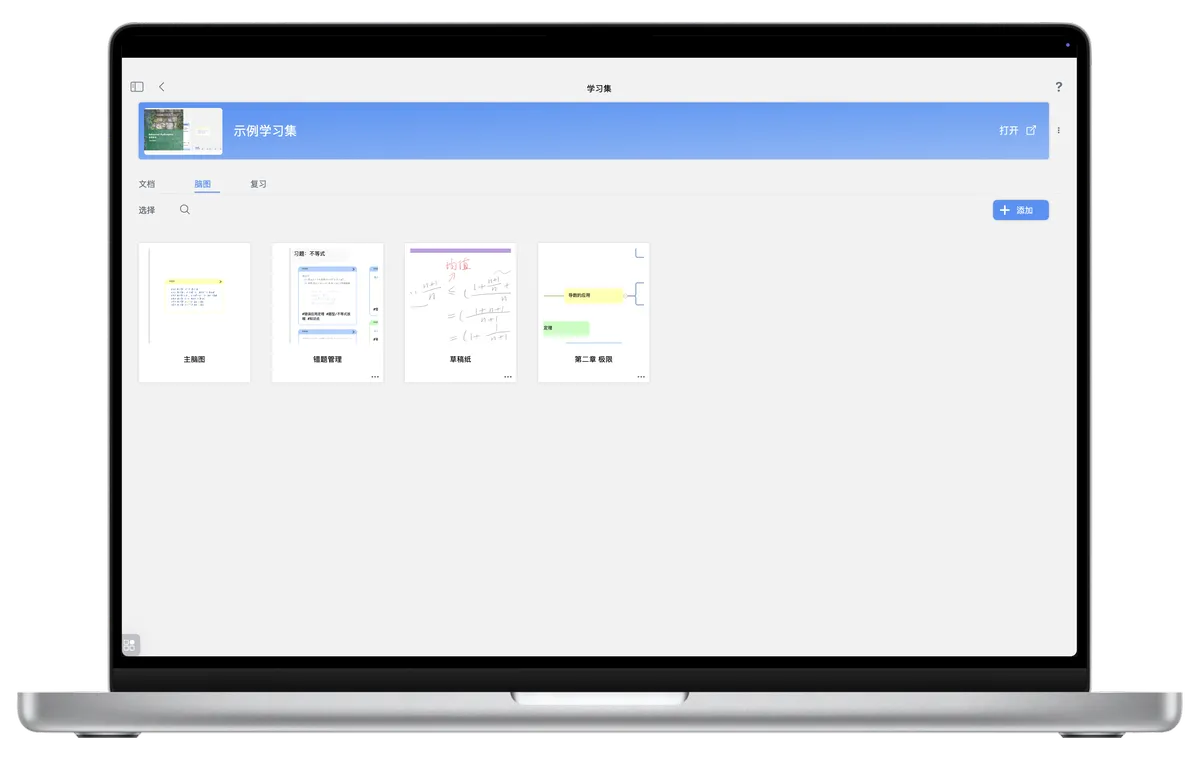
- Mind map: the mind map generated from excerpts during reading—a visual representation of your knowledge framework
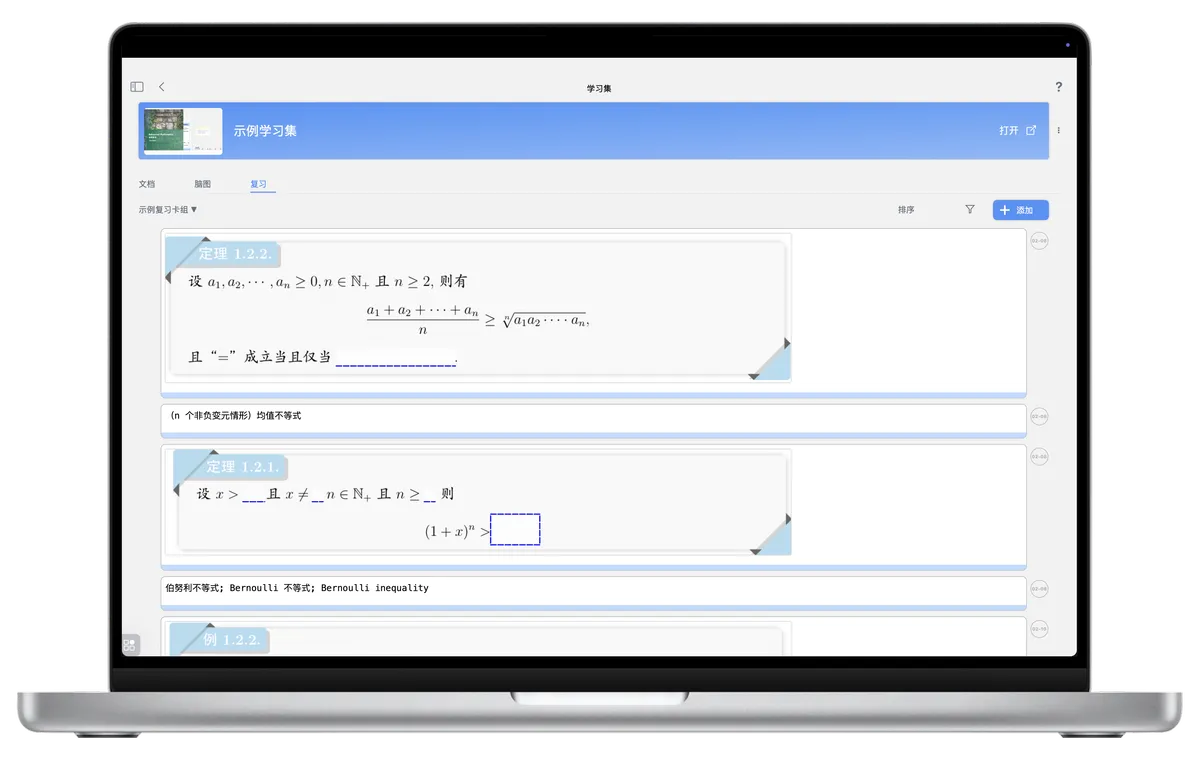
- Review: cards you mark for memorization, reviewed scientifically with the spaced repetition algorithm
These three sections are not independent of one another but interconnected: excerpts in documents become cards in the mind map, cards can be added to a review plan, and during review you can jump back to the original passage with a single tap. This interconnection is exactly what sets a study set apart from an ordinary folder.
3.1 Importing Documents into a Study Set
- Select a study set: First, in the Study Set Library, tap to open the study set you want to work with.
- Go to the "Documents" section: At the top of the study set interface, tap the
Documentssection. - Tap the "Add" button: In the Documents section, find and tap the
Addbutton. -
Choose an import method: Several ways to import documents are available:
From Files,New Document as Notebook,From Web,From Document Library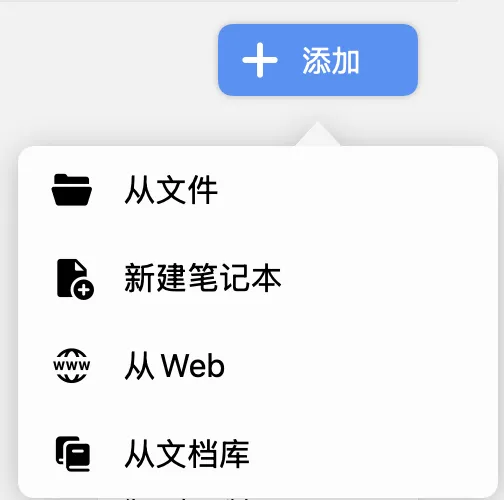
3.1.1 From Files
- Function: Lets you select document files (such as PDF, EPUB, mp4, etc.) from an external folder on your device and import them into the current study set.
- Steps: Tap
From Files, then browse and select the document you want to import.

❗Temporary opening In MarginNote 4, an added document is first imported into your "Document Library" and temporarily added to the current study set. It becomes a permanent part of the study set only after you start excerpting or annotating it, or manually tap the "Add" button to formally add it to the study set.

3.1.2 Create a Blank Notebook
- Function: Creates a blank notebook file directly in the
Documentssection of the current study set. This notebook can be used for free writing, drawing, or pasting content, serving as a standalone piece of study material. - Steps: Tap
Addand selectNew Notebook, and a blank notebook is created immediately.

3.1.3 From Web
- Function: Using MarginNote 4's built-in browser, you can search web content directly and import it into a study set as a document. Imported web files are automatically saved in the
WebDownloadsfolder in your device's local folder. - Steps: Tap
From Web, enter a URL or search keywords in the built-in browser, find the target web page, and import it.
💡Temporary opening In MarginNote 4, an added document is first imported into your "Document Library" and temporarily added to the current study set. It becomes a permanent part of the study set only after you start excerpting or annotating it, or manually tap the "Add" button to formally add it to the study set.


3.1.4 From Document Library
💡The Document Library is the central storage for all the files you import.
- Function: Lets you select an already-imported document from MarginNote 4's Document Library and add it to the current study set.
- Steps: Tap
From Document Library, then select the document you want to add.
3.2 Adding a Sub-Mind Map

- Function: A sub-mind map is an independent branch under the main mind map. It can be thought of as a node in the main mind map, but it has its own separate mind map editing space. Sub-mind maps are very useful when your study topic is large and you need to separate out a portion for more detailed organization. (See also: Creating a Sub-Mind Map)
- Steps: In the "Mind map" section of the study set interface, tap the
Addbutton and enter a name for the sub-mind map to create a new Creating and Managing Sub-Mind Map Hierarchies1.
3.3 The Review Section

- Function: The
Reviewsection is where you review and reinforce knowledge points. You can add excerpt cards created during study here for regular review. (For more on reviewing, see: Flashcard Review ①: Scientific Review Based on the FSRS Anti-Forgetting Algorithm) - Steps: In the "Review" section of the study set interface, tap the
Addbutton. The system displays a list of cards you have excerpted, from which you can select cards in bulk to add to your review plan.
4 Adding Documents to a Study Set via the Document Library
The Document Library is the central storage area for all imported files (books, videos, etc.) in MarginNote 4. It makes it convenient to manage and access all your study materials in one place.
💡Compared with MarginNote 3, MarginNote 4's Document Library has been enhanced in the following ways:
- Reusing notes and cards: You can easily drag a document from the Document Library into different study sets, so that the notes and cards of the same document can be reused seamlessly across multiple study sets. This means you don't need to repeatedly import a document or recreate notes for each study set.
- Sharing note cards: The note cards already accumulated on a document (including excerpts, annotations, etc.) are shared in the study set's "Zettelkasten-styled card box", available for tools such as the mind map, flashcard decks, and boards to exchange and use freely, greatly improving the utilization of knowledge.
Once you have created a study set, if you want to add documents from the Document Library to an existing study set, there are several convenient ways:
4.1 Drag-and-Drop Import

- Function: MarginNote 4 lets you drag a PDF document directly from the Document Library to a target study set for quick import.
-
Steps:
- In the Document Library, find the PDF file you want to import.
- Press and drag the file onto the name of the target study set in the left sidebar, or directly into an already-open study set interface. See also: Study Set Sidebar.
- Release the mouse, and the file is imported into that study set.
❗This drag-and-drop import feature currently supports only PDF files

4.2 Adding from the Document Library
- Open the Document Library: Tap the
Documents>Categoriesicon in the left sidebar. - Select a file: In the Document Library, find the file you want to add.
-
Tap "Study Set – More": In the bottom-right corner of the file, tap the More button.
More
-
Select "Open in Study Set": In the menu that appears, select
Open in Study Set. - Select the target study set: The system lists all your study sets; tap the name of the target study set you want to import into to complete the import.
4.3 Adding from the Document Reading Interface

- Open a document: In the document reading interface, make sure you have a document open.
-
Tap the Import button: On the right side of the document tab bar, find and tap the
Importbutton.Import
-
Select a file: In the interface that appears, select the document you want to import.
- Click the file: Click the selected file, and it is added to the current study set.
4.4 Drag-and-Drop Import from Another Study Set

You can drag documents between different study sets to quickly share and copy documents.
-
Steps:
- Open the source study set: Open the source study set that contains the document you want to move or copy, and go to the
Documentssection. - Select the document: Find and press the document you want to import.
- Drag it to the target study set: Drag the document onto the name of the target study set in the left sidebar, or directly into the already-open target study set interface.
- Release the mouse, and the document is added to the target study set.
- Open the source study set: Open the source study set that contains the document you want to move or copy, and go to the
5 Importing a Ready-Made Study Set File

If you have previously backed up or exported a MarginNote 4 study set file (.marginpkg), or received a .marginpkg study set file shared by someone else, you can import them directly.
Export backup
- Locate the study set file: Find the study set backup file on your computer or device.
-
Choose how to open it: Double-click the file, or right-click the file and select
Open With, then chooseOpen with MarginNote 4.- New study set: If the name of the imported study set does not conflict with an existing study set, it is imported directly and shown in the Study Set Library.
-
Study set conflict: If the imported study set has the same name as an existing study set, the system prompts you to choose an import setting:
Replace: The newly imported study set completely overwrites and replaces the old one. Choose carefully, as this loses all content in the old study set.Merge: The content of the newly imported study set is merged with the content of the old study set, usually to update or consolidate study materials.
-
A sub-mind map is like a branch of a mind map and can be seen as a node under the main mind map. ↩