Auto-Generate Mind Maps ①: One-Tap Excerpting with AI Models
MarginNote's one-tap excerpt model can recognize text, titles, images, image captions, tables, table captions, headers, footers, references, and formulas, so you no longer need to manually draw and adjust selection boxes. Assistive Excerpt helps you select the elements you need more quickly and accurately.
💡 Quick overview of this page's features:
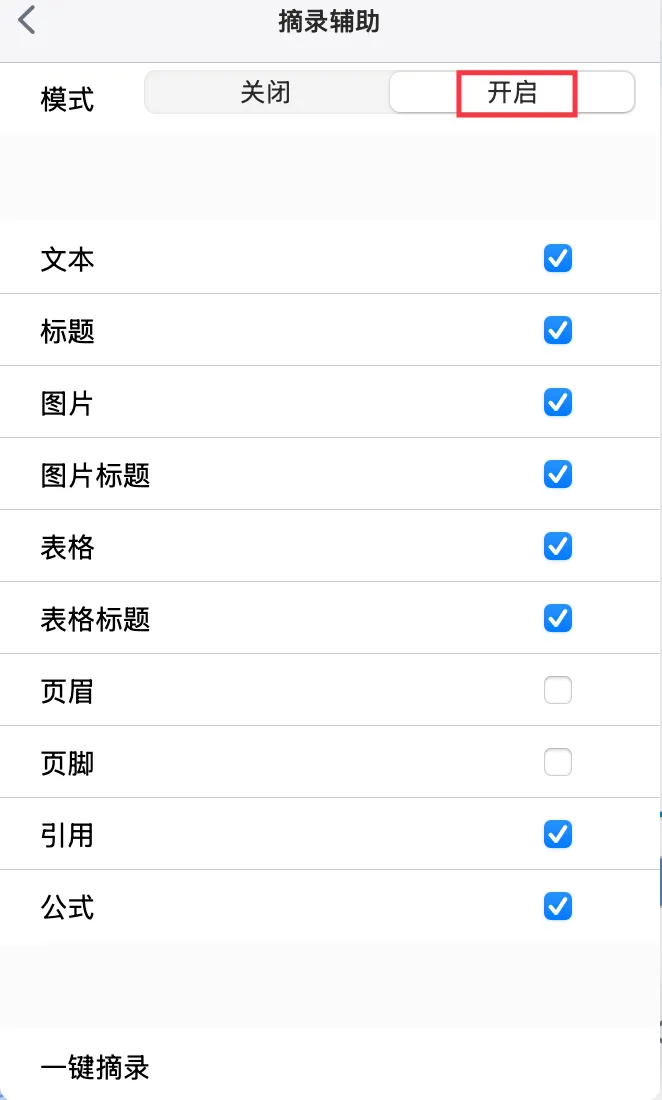
- Assistive excerpt settings: automatically recognize elements in the document such as "text, titles, images, image captions, tables, table captions, headers, footers, references, and formulas"
- Content block assisted recognition: double-tap a thin dashed box to make a single excerpt; or tap the top-right icon to organize with
Merge Cards,Become a Child Card, and more- One-tap excerpt (Max feature): batch-excerpt the excerptable elements already shown to quickly generate cards
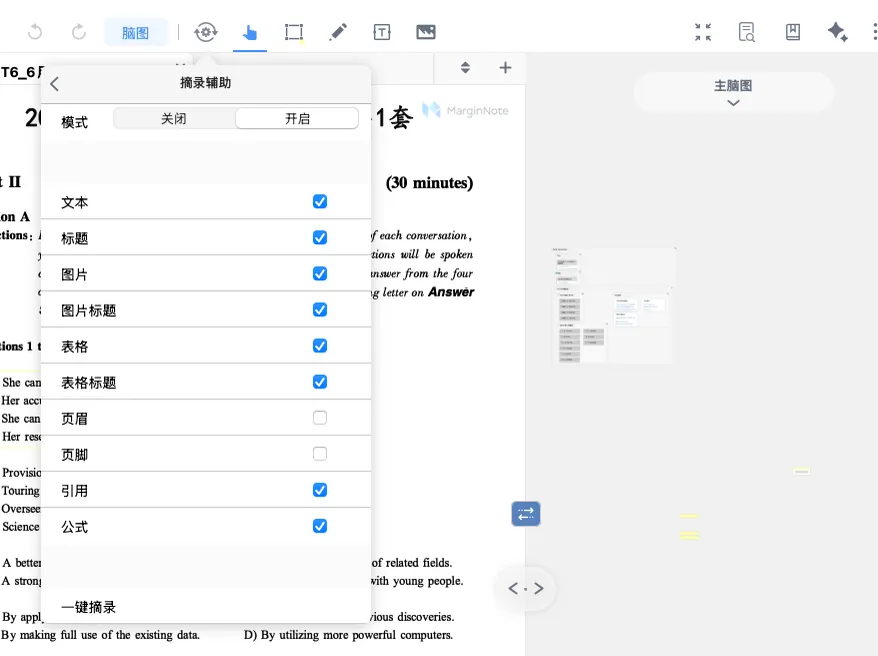
1 Assistive Excerpt Settings
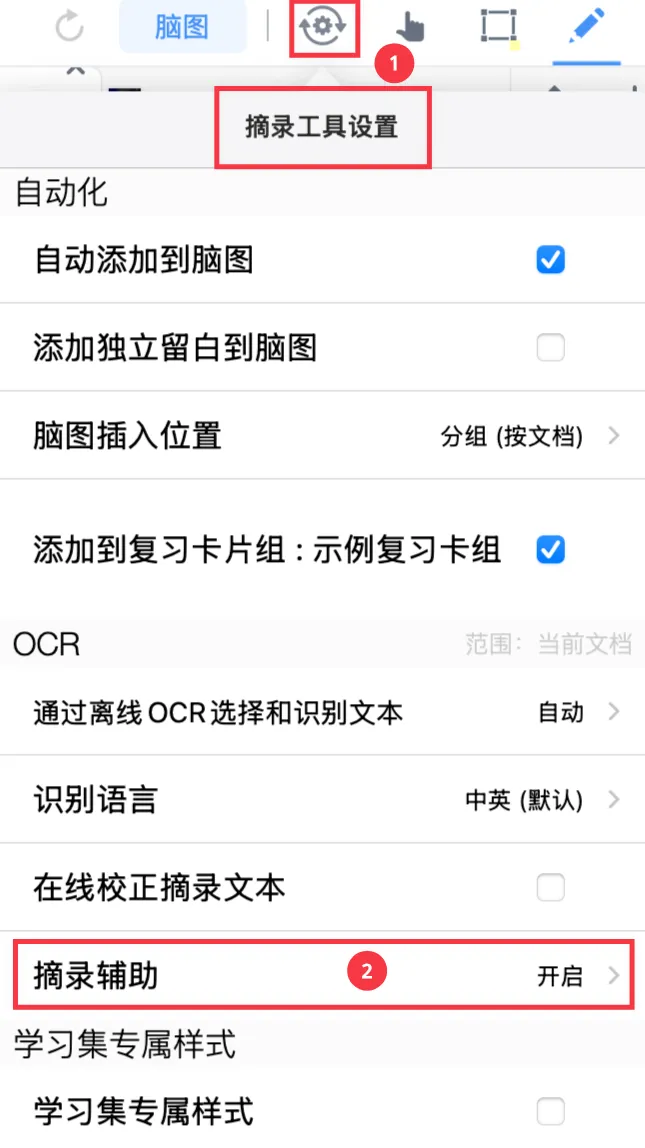
Excerpt Tool Settings
💡 Recommended excerpting principle: filter your elements first, then excerpt efficiently.
- Tap
Excerpt Tool Settings- enableAssistive Excerpt
- In the element toggles, keep only the elements you need.
-

In the document:
- Tap once to show the assistive excerpt regions;
- Double-tap a region to select it and bring up the
menu bar; - Double-tap again to excerpt it into a card.
💡 Suggestions for common scenarios
- Excerpting papers: enable only
Title,Text,Image,Image Caption,Table,Table Caption,Reference, andFormula.- Course handouts that mix text and images: enable
Image,Image Caption, andText, do a quick one-tap excerpt, then organize them into child cards.- Formula-heavy textbooks: enable
FormulaandBody Text, and use single excerpts to keep expressions accurate.⚠️ Note: the assistive excerpt feature increases power consumption and may cause crashes on some low-performance devices, so we recommend enabling it only when you truly need it.
2 Content Block Assisted Recognition
💡 Beyond quick excerpting, MarginNote 4 supports one-tap recognition of content blocks, so you no longer need to manually box-select images and formulas.
- After enabling
Assistive Excerpt, tap a target element, then tap the top-right icon to bring up thepop-up menu bar.
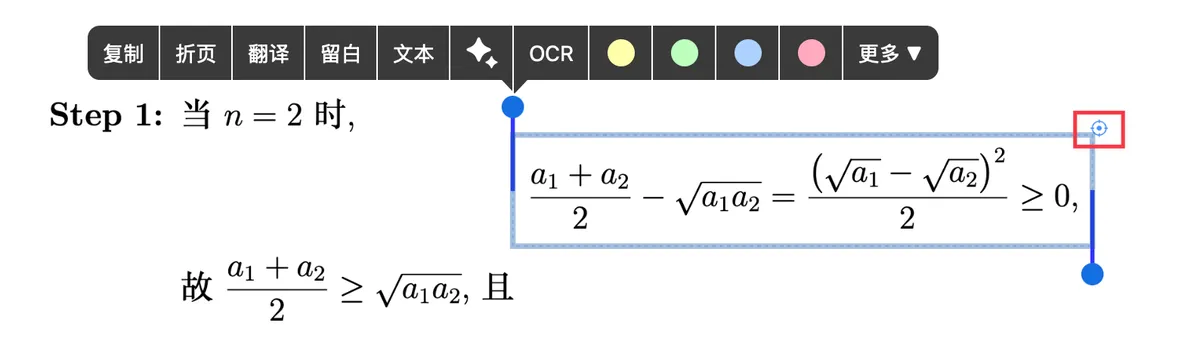
- Quickly act on the target content.
2.1 Merge Cards
Building on content block assisted recognition, tap the top-right icon to select the target content, then drag to merge cards.

2.2 Become a Child Card
Building on content block assisted recognition, tap the top-right icon to select the target content, then drag to merge cards or set it as a child card.

3 One-Tap Excerpt (Max Feature)
💡 Best for: excerpting short papers and quickly generating cards from every element in an entire document.
Select the elements you want to excerpt, then tap One-Tap Excerpt in Assistive Excerpt.

💡 After excerpting, cards of the same element type are given the same color.
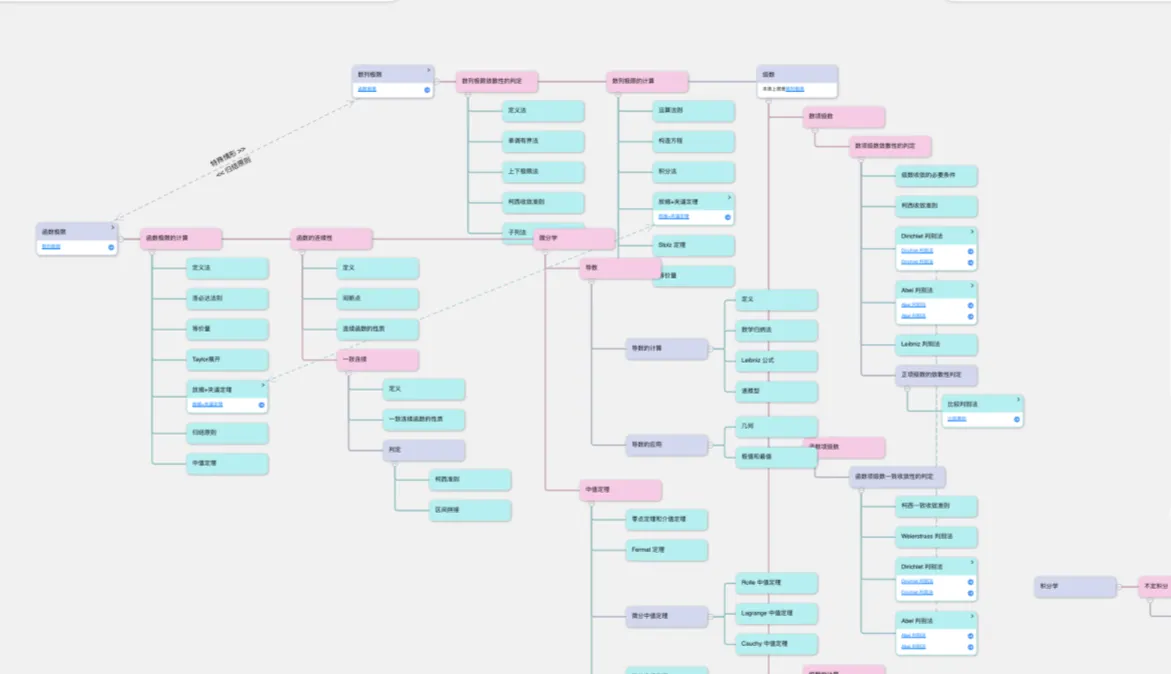
💡 Read your cards in the mind map; manually Mind Map Cards ②: Move, Merge, Regroup, and use Card Links ① | One-Way & Two-Way Links: Free Association Across Hierarchies to organize the connections between mind map cards and strengthen memory visually.
4 FAQ
-
Can't see the thin dashed boxes?
- Make sure
Assistive Excerptis enabled and that the element toggles aren't all turned off.
- Make sure
-
One-tap excerpt grabbed too much content you don't need?
- Go back and turn off the toggles for the unneeded elements, then use
One-Tap Excerptagain to select only the useful ones.
⚠️ Note: the assistive excerpt feature increases power consumption and may cause crashes on some low-performance devices, so we recommend enabling it only when you truly need it.
- Go back and turn off the toggles for the unneeded elements, then use