Document Review: Occlusion, Cloze, and Recall Mode
1 What Is Recall Mode?
Recall mode: an immersive review experience for building long-term memory
Create occlusions and clozes in cards, rectangular areas, or text passages to practice retrieving knowledge and strengthen memory connections. You can choose the area and style of occlusion, from a single formula to an entire passage, to focus your recall practice on exactly what you want to learn.
Turning on recall mode activates occlusions throughout the study set. Tap to reveal answers, repeating the cycle of recalling, checking, and reinforcing what you know.
2 Turn On Recall Mode
2.1 Turn On Recall Mode in Immersive Mode
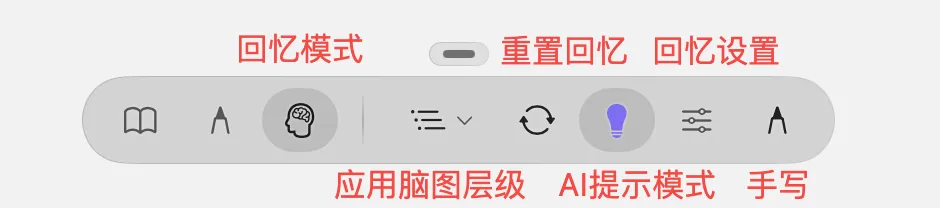
Enter Immersive mode, then tap the person icon on the bottom toolbar to enable Recall mode. See the recall mode toolbar for its available controls.
2.2 Turn On Legacy Recall Mode
-
In MarginNote, go to
Settings>LEGACY FEATURESand enableRecall Mode (Legacy).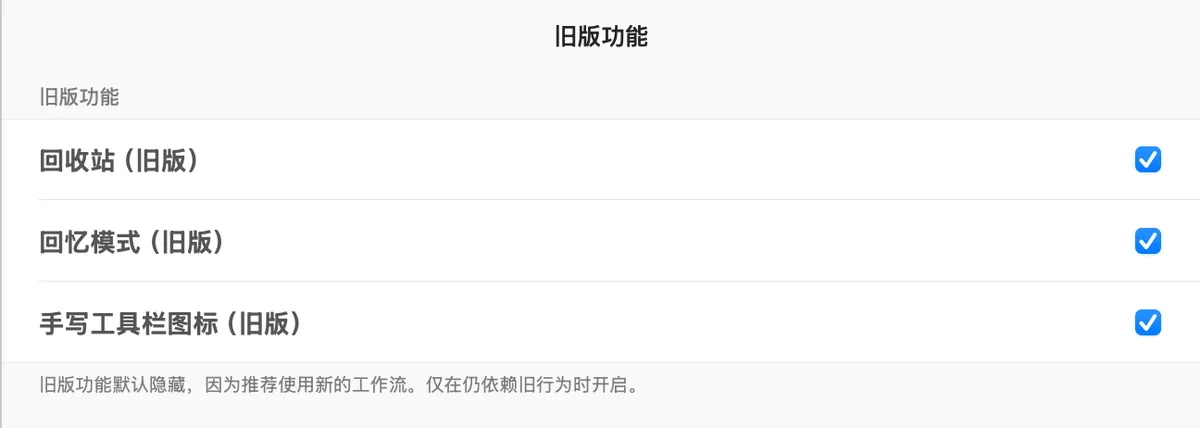
-
Tap the study set's
Moremenu in the top-right corner and turn onRecall Mode (Legacy).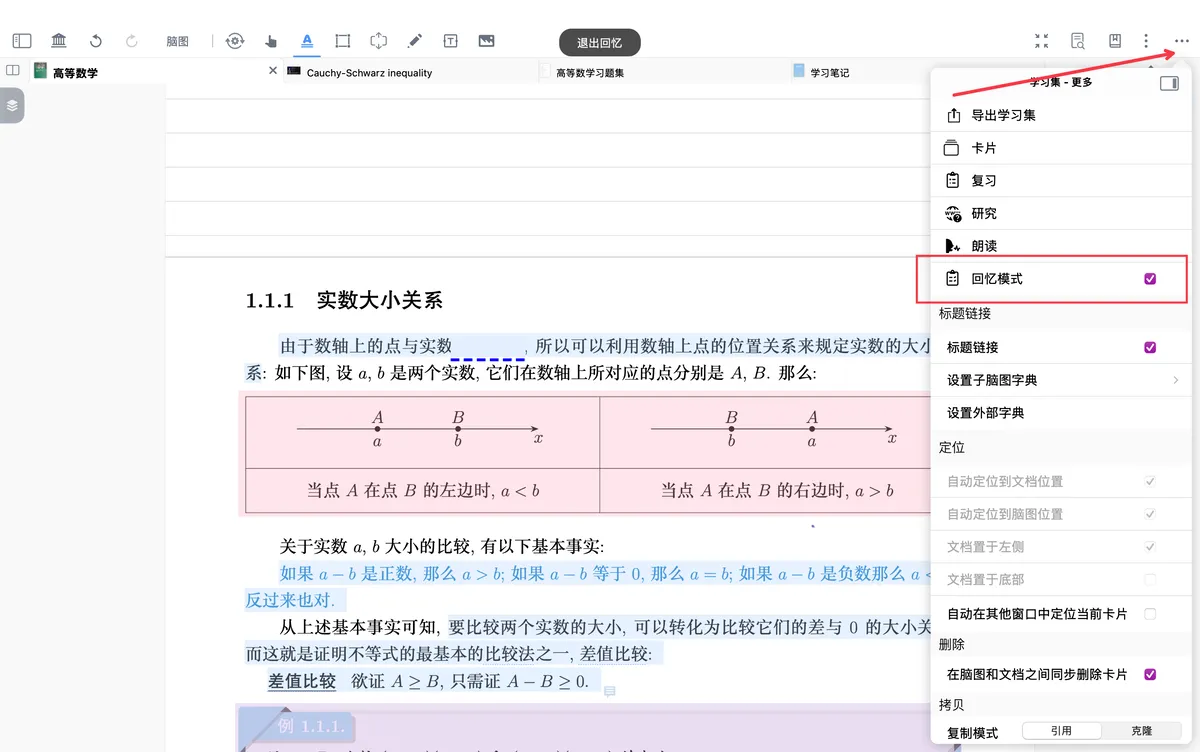
-
Once
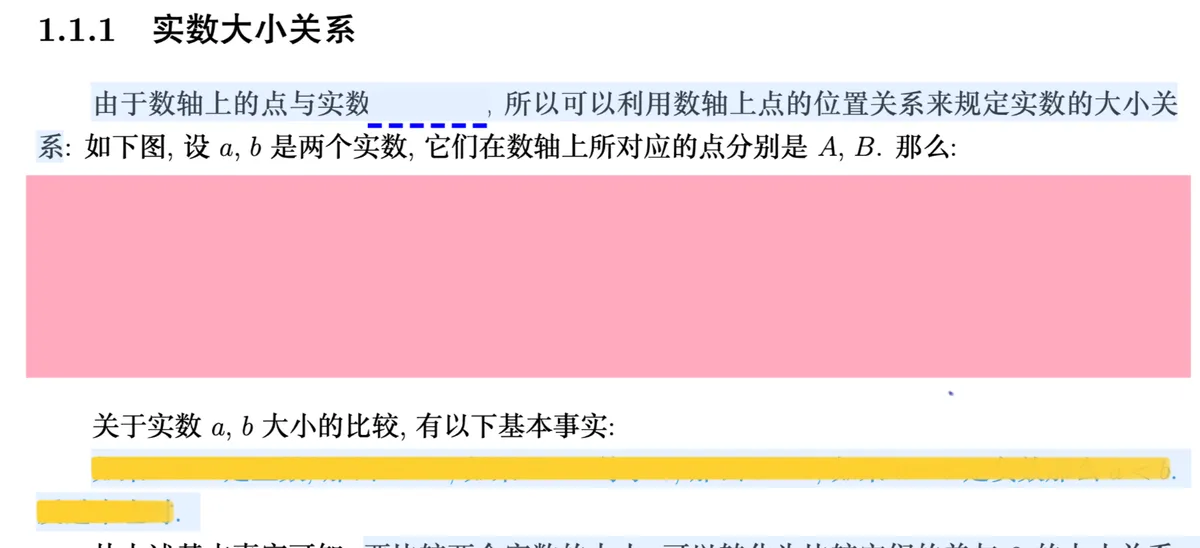


Recall Mode (Legacy)is on, occluded content is hidden. - Try to recall the hidden content, then tap the occluded area to reveal it.
- Tap the area again to restore the occlusion.
3 Choose What to Hide for Recall Practice
3.1 Hide an Entire Excerpt
3.1.1 Use Excerpt Occlusion to Hide the Whole Excerpt
- With
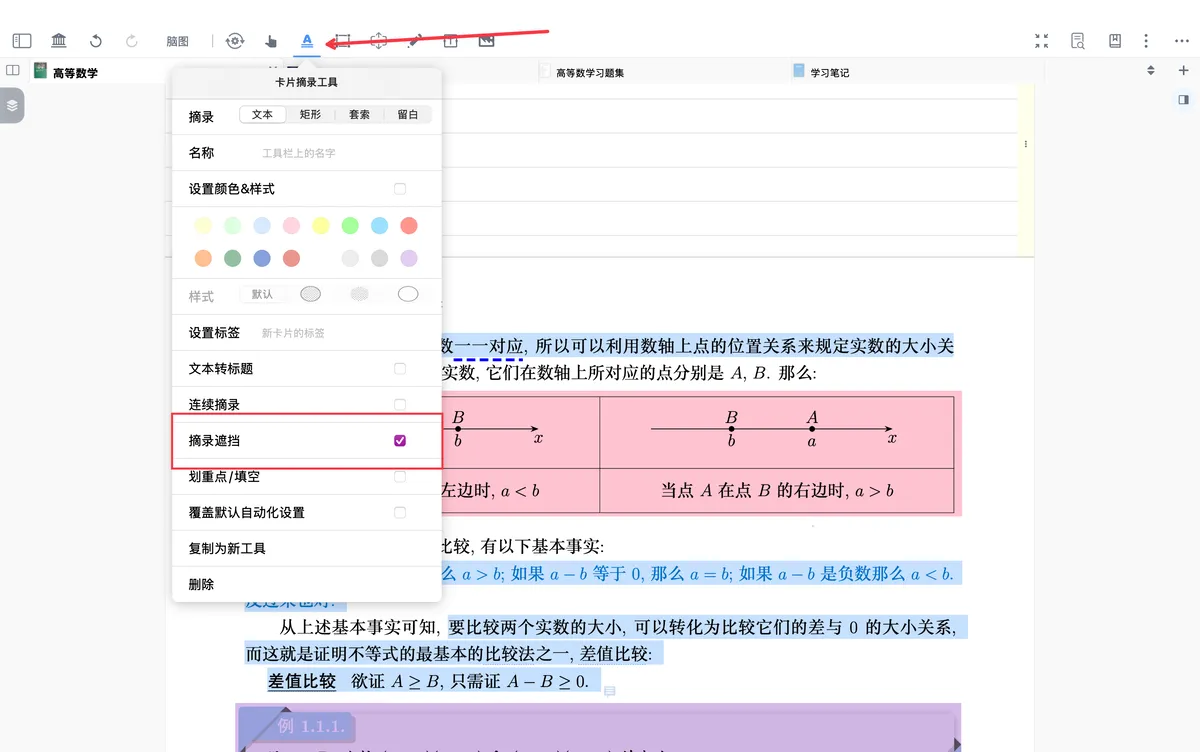
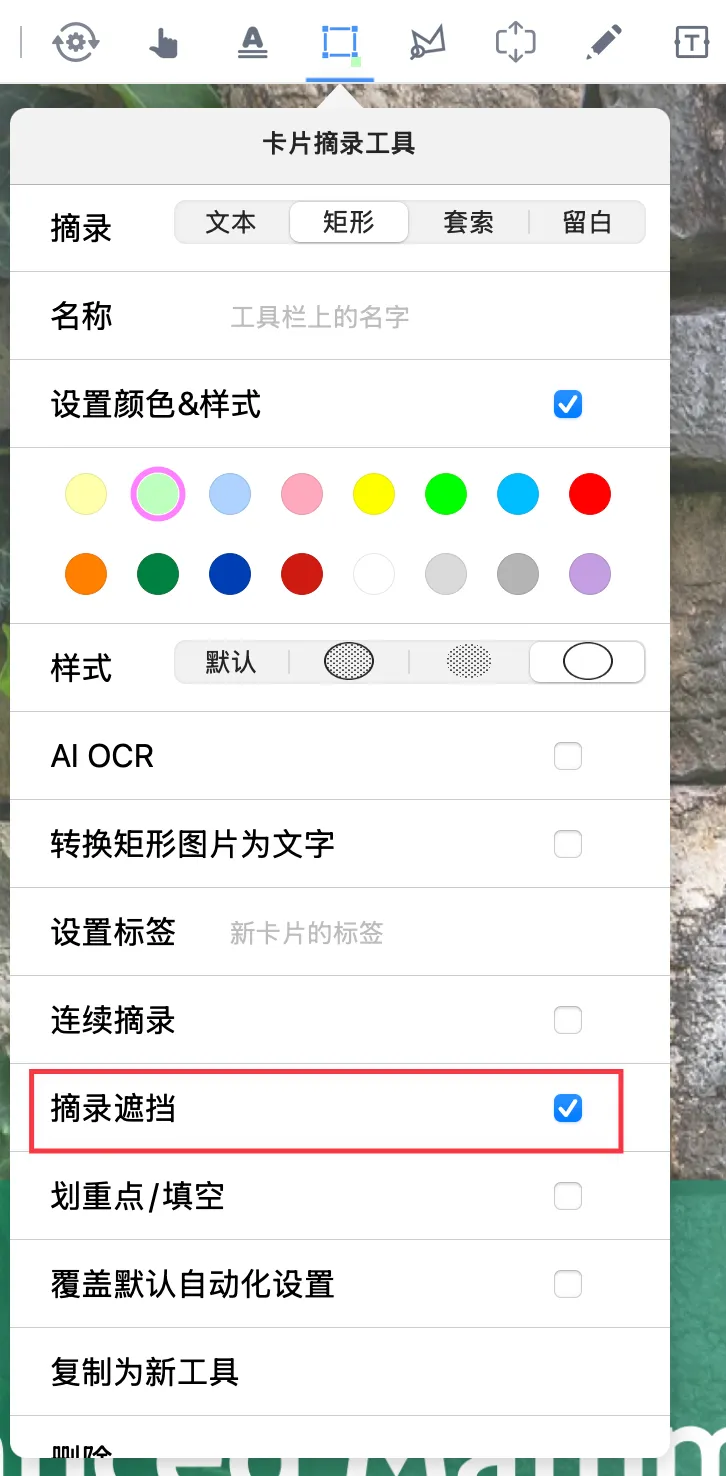
Excerpt Occlusionenabled, select theText Excerpt Tool,Rectangle Excerpt Tool, orLasso Excerpt Tooland make an excerpt.


3.1.2 Turn Excerpt Occlusion On or Off
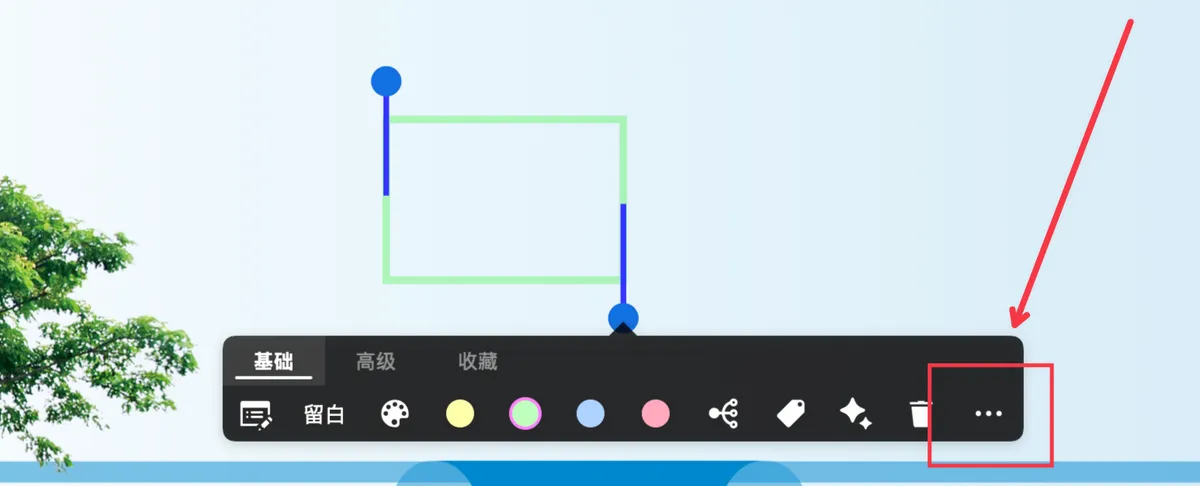
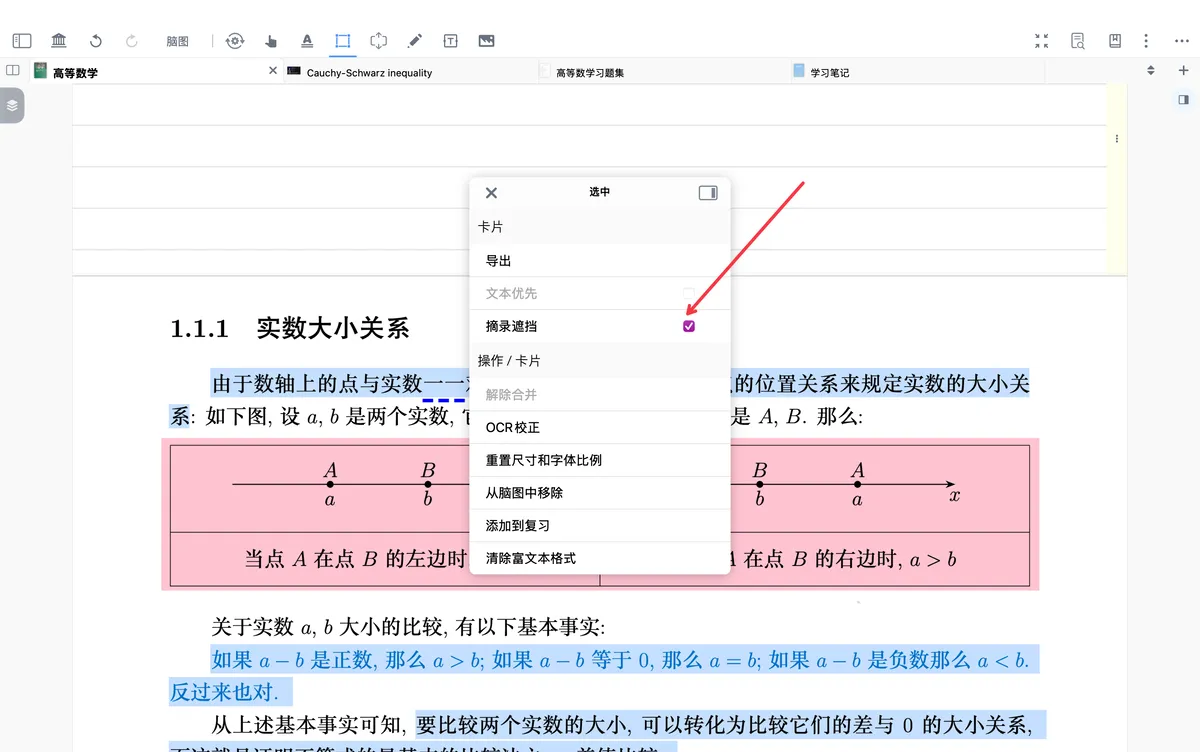
- Tap an existing excerpt area, then choose
Basic - Morein the pop-up menu to turnExcerpt Occlusionon or off.
3.2 Occlusion with Emphasize

- Select the

Rectangle Excerpt ToolorText Excerpt Tool, enableEmphasize, and excerpt the area you want. After excerpting, tap the characters you want to hide.
The Difference Between Emphasize Occlusion and Excerpt Occlusion
1. Emphasize Occlusion
- Start with an excerpt and mark key areas within it for occlusion. The key content remains within its full context, making it easier to follow the surrounding logic.
- When you add the card to review, the context is automatically retained, and the emphasized areas become clozes on the review card.
- Best for content that depends on context, such as memorizing course material, explaining concepts, and studying ideas with closely connected reasoning.
2. Excerpt Occlusion
- Hides the entire excerpt, which can be a short passage, a single word, a formula, or an image. The resulting card contains only the excerpted content, without the surrounding sentences from the original document.
- Best for content that does not depend on context, such as definitions, terminology, standalone formulas, and diagrams.
3.3 Three Ways to Create Occlusions and Clozes

3.3.1 Handwriting Highlighter
Select the hand tool in the document, switch to the highlighter, and draw over the text or image area you want to hide.
3.3.2 Rectangle and Lasso Excerpts

- Select the
Rectangle Excerpt ToolorLasso Excerpt Tooland enableExcerpt Occlusionto hide areas containing text, images, or handwritten annotations.
3.3.3 Text Excerpts
Select the Text Excerpt Tool, enable Excerpt Occlusion, and excerpt the text you want to hide.