Migrate Notes from MarginNote 3
💡MarginNote 4 supports quickly migrating notes from MarginNote 3. If your database is large, we recommend migrating the data manually.
💡Backup data is only backward-compatible
MarginNote 4 can read MarginNote 3's note backups perfectly, but not the other way around: when MarginNote 3 reads a MarginNote 4 note backup, the new note types cannot be displayed and data may be lost.
1 Migrate All Notes (All Note Data + Documents)
1.1 One-Tap Migration
💡Prerequisite: MarginNote 3 is installed on the device, and the MN3 version is 3.7.26 or higher
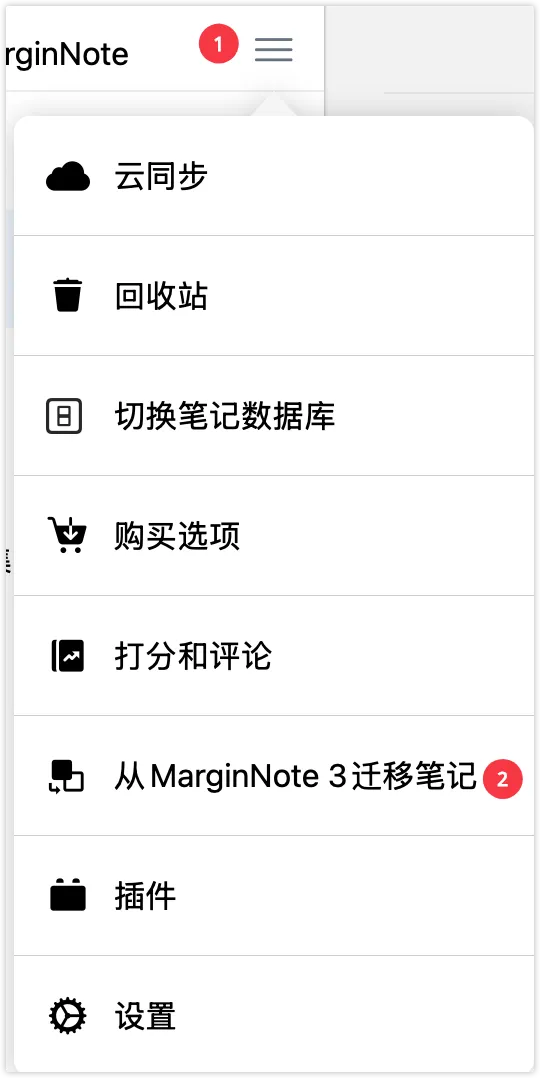
Once the prerequisites are met, open the sidebar in the MN4 main interface, tap the menu button, and select Migrate Notes from MarginNote 3 to complete the one-tap migration.
💡Before migrating, make sure your remaining storage space is more than twice the size of the database. If the database is too large, migration will take quite a while, in which case we recommend migrating manually.
1.2 Manual Migration

- In MarginNote 3, tap the "..." More button at the bottom of the home screen.
- In the sub-page that appears, tap
Settings. - In Settings, tap
Backup & Restore. - Select
Back Up Note Database and All Documents. -
Import the backup file from step 4 into MN4.
- On Mac: Click
Open in Another Appto save the backup file locally, then open it with MarginNote 4 (right-click the file and choose MN4 under Open With). - On iPad: Tap
Open in Another Appand select MarginNote 4; for the database, we recommend choosing Replace (when MarginNote 4 has no note data).
- On Mac: Click
2 Migrate a Specific Study Set (That Study Set's Note Data + Documents)
In MarginNote 3, export a study set backup (*.marginpkg) from the target study set, then send it to MarginNote 4.