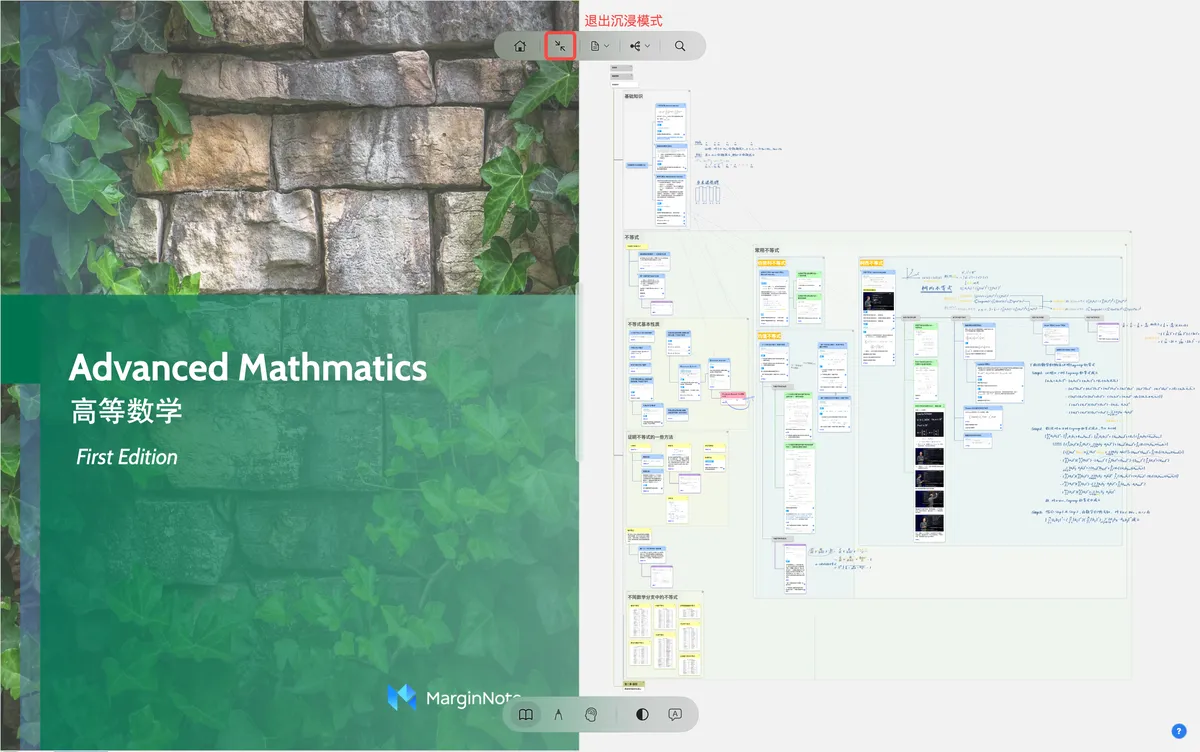
Immersive Mode
💡Immersive Mode
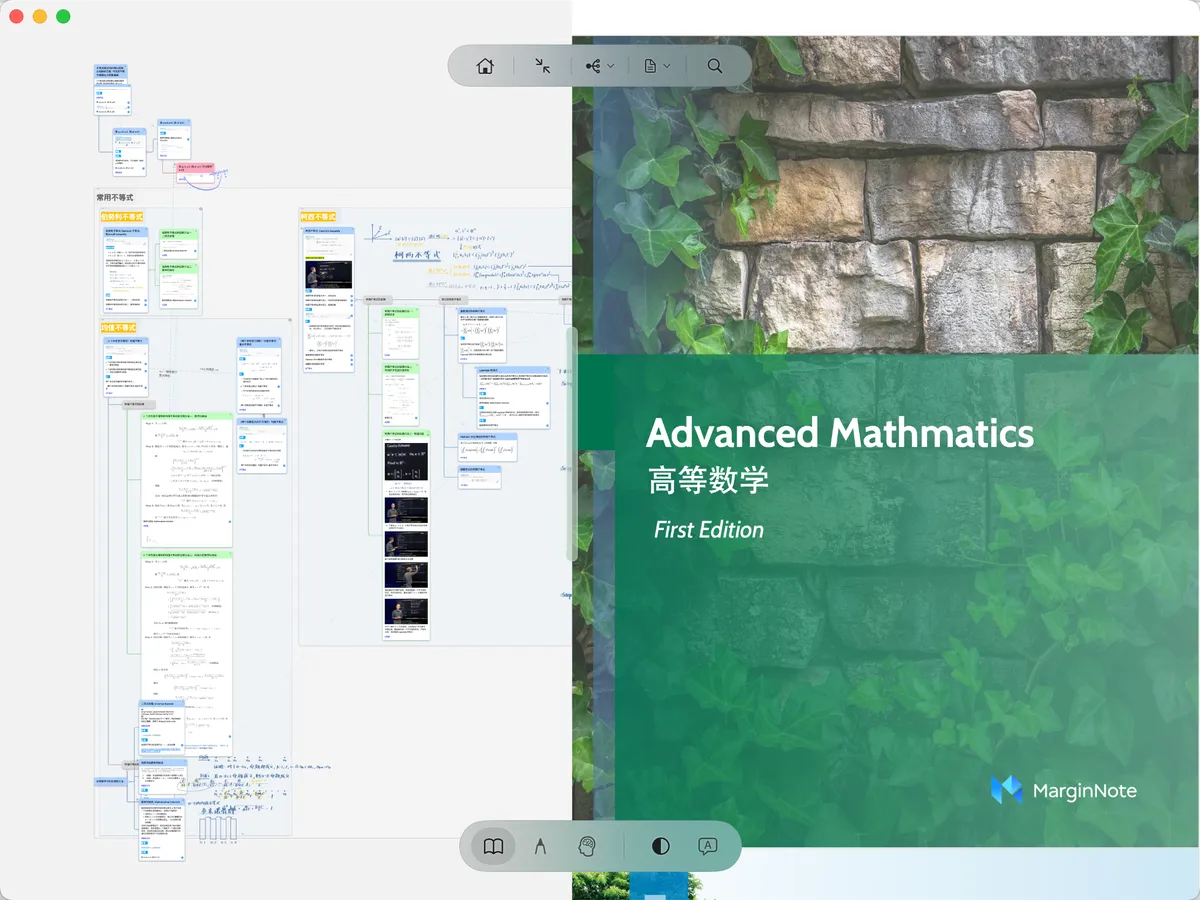
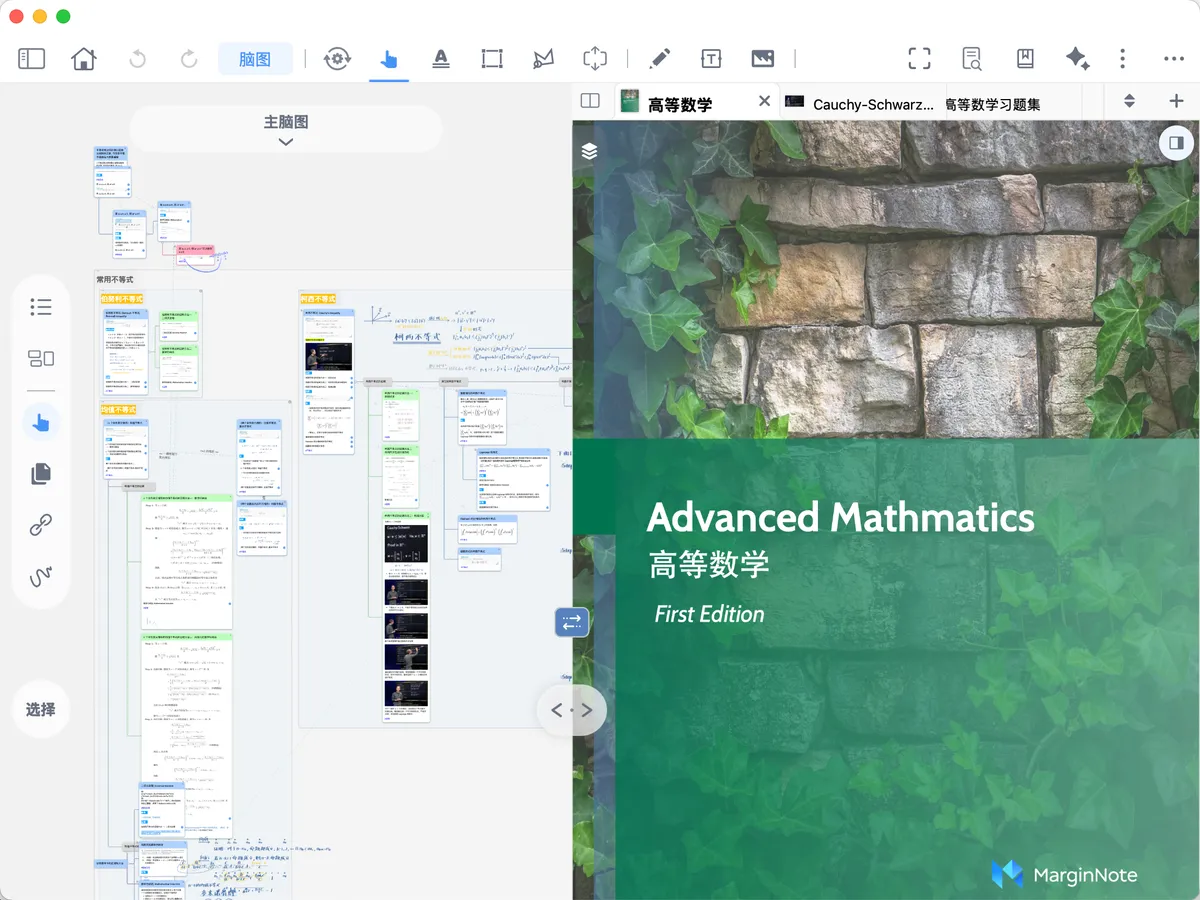
In Immersive mode, the toolbar is simplified and the interface is clean and uncluttered, making the most of the available screen space. It is designed specifically for "working through excerpt content over long, continuous, focused sessions."
When you don't want to be interrupted by irrelevant buttons and menus and want to make steady progress in your studying and work, that's when you should enter Immersive mode.
1 Entering Immersive Mode
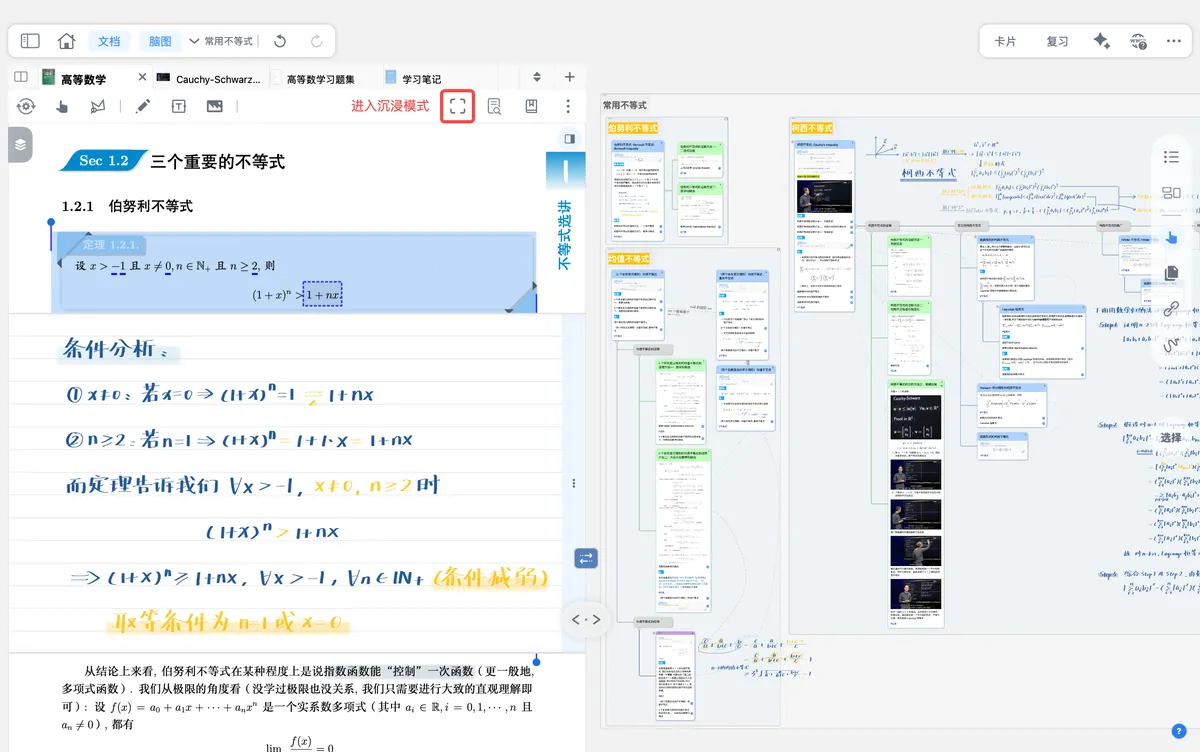
You can enter Immersive mode by tapping the Immersive mode icon in the document settings area. The system status bar, top navigation bar, first tab bar, document toolbar + document settings area, and document scroll bar are all hidden, significantly improving screen-space efficiency.
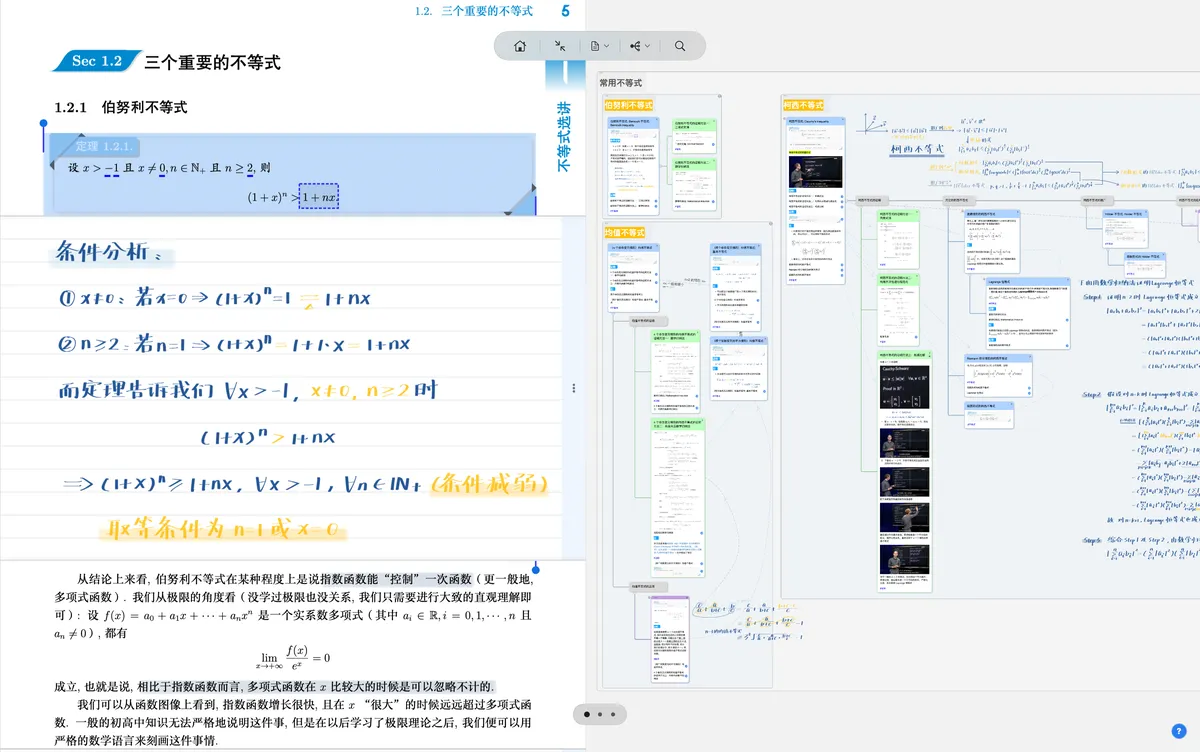
2 Immersive Mode Features
2.1 The Immersive Mode Toolbar
In Immersive mode, the toolbar is simplified into a top toolbar + bottom toolbar.
2.1.1 Top Toolbar

Bookshelf: returns to the MarginNote 4 home page.
Exit Immersive Mode: returns to the Classic mode layout.
Document: toggles/switches the currently displayed document.
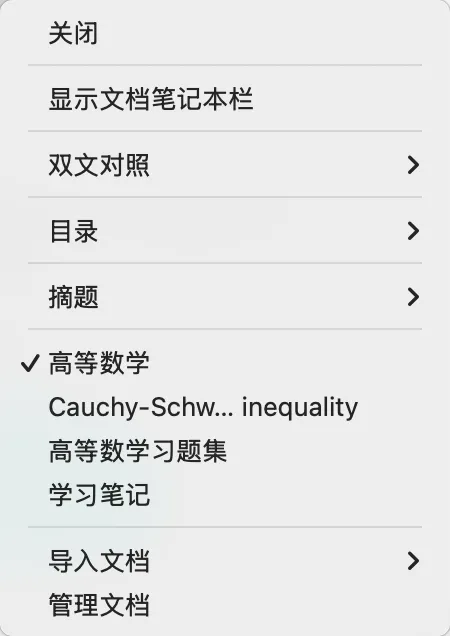
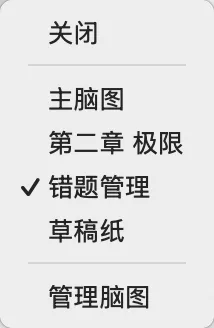
Mind Map: toggles/switches the currently displayed mind map.
Search: search or browse the Table of Contents, or find an entered keyword within the mind map/document.
2.1.2 Bottom Toolbar
In Immersive mode, the bottom toolbar changes depending on the current mode.
2.1.2.1 Reading Mode Toolbar

Theme: by repeatedly tapping the theme toggle, you can cycle in turn through the white, sepia, gray, and dark themes. See Theme Colors for the exact appearance.
Title Link: turns title links on/off for the current study set. For details, see Card Link ④ | Keyword Title Links: Build Your Personal Dictionary.
Block Selection: block-selection condense (assistive excerpt is enabled by default): recognizes PDF text blocks and supports batch selection of multiple regions.
2.1.2.2 Writing & Editing Mode Toolbar

Excerpt Tools: for details on each excerpt tool, see The Four Excerpt Tools. You can adjust the order of the tools under > More Excerpt Tools.
Handwriting Annotation Tools: brush + lasso + eraser. For details on each handwriting annotation tool, see Handwriting: Write Freely in Documents, Mind Maps, and Cards.
Hand Tool: drag the mind map canvas and browse document pages. For details, see The Hand Tool Pop-up Menu Bar and Its Customization. You can adjust the order of the brushes under > More Brushes.
Undo and Redo: revert or redo the previous step.
2.1.2.3 Recall Mode Toolbar
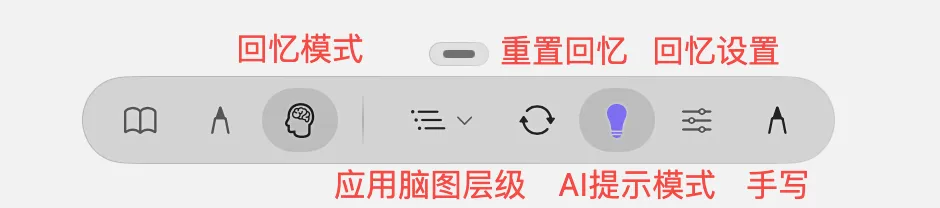
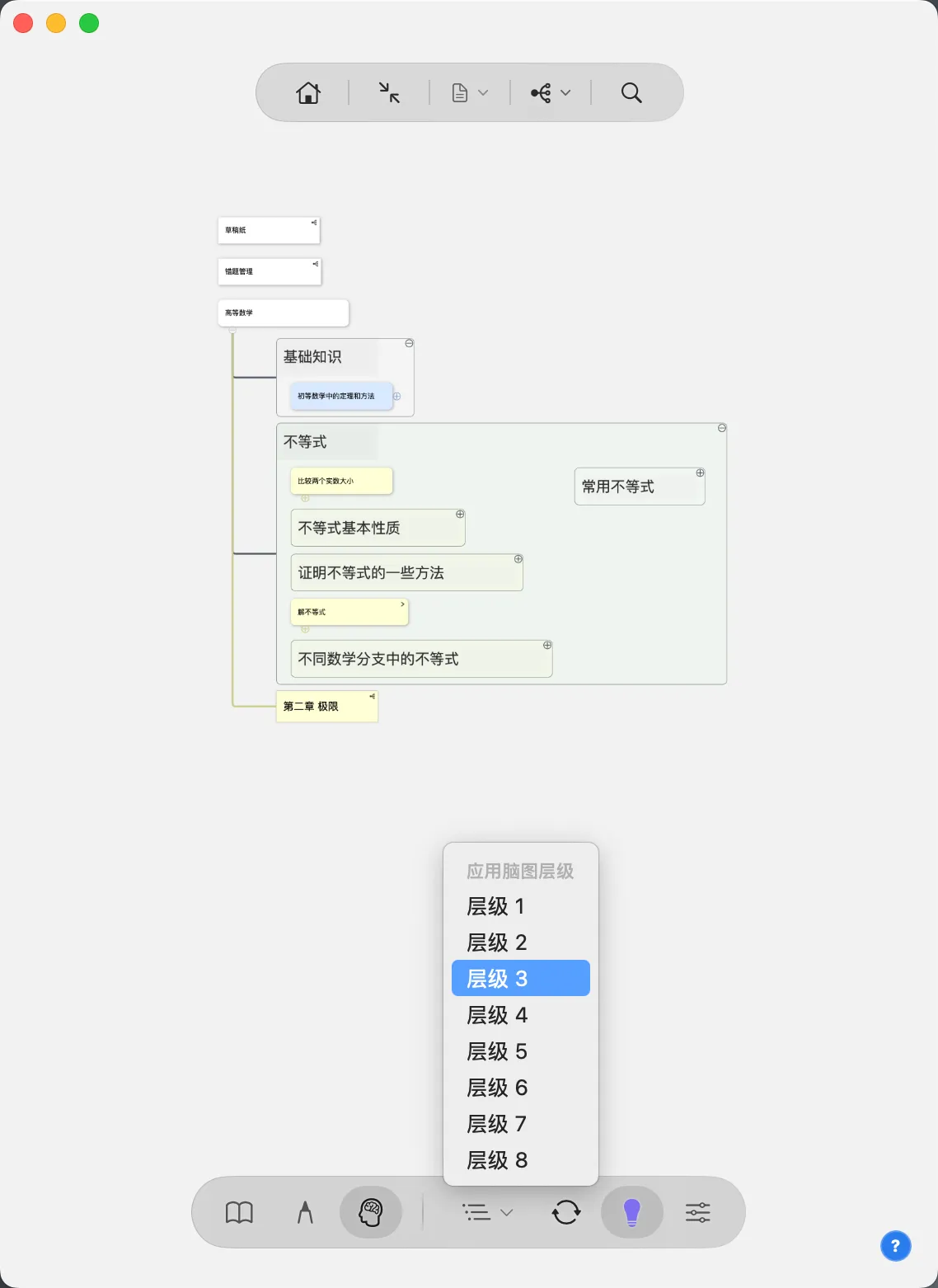
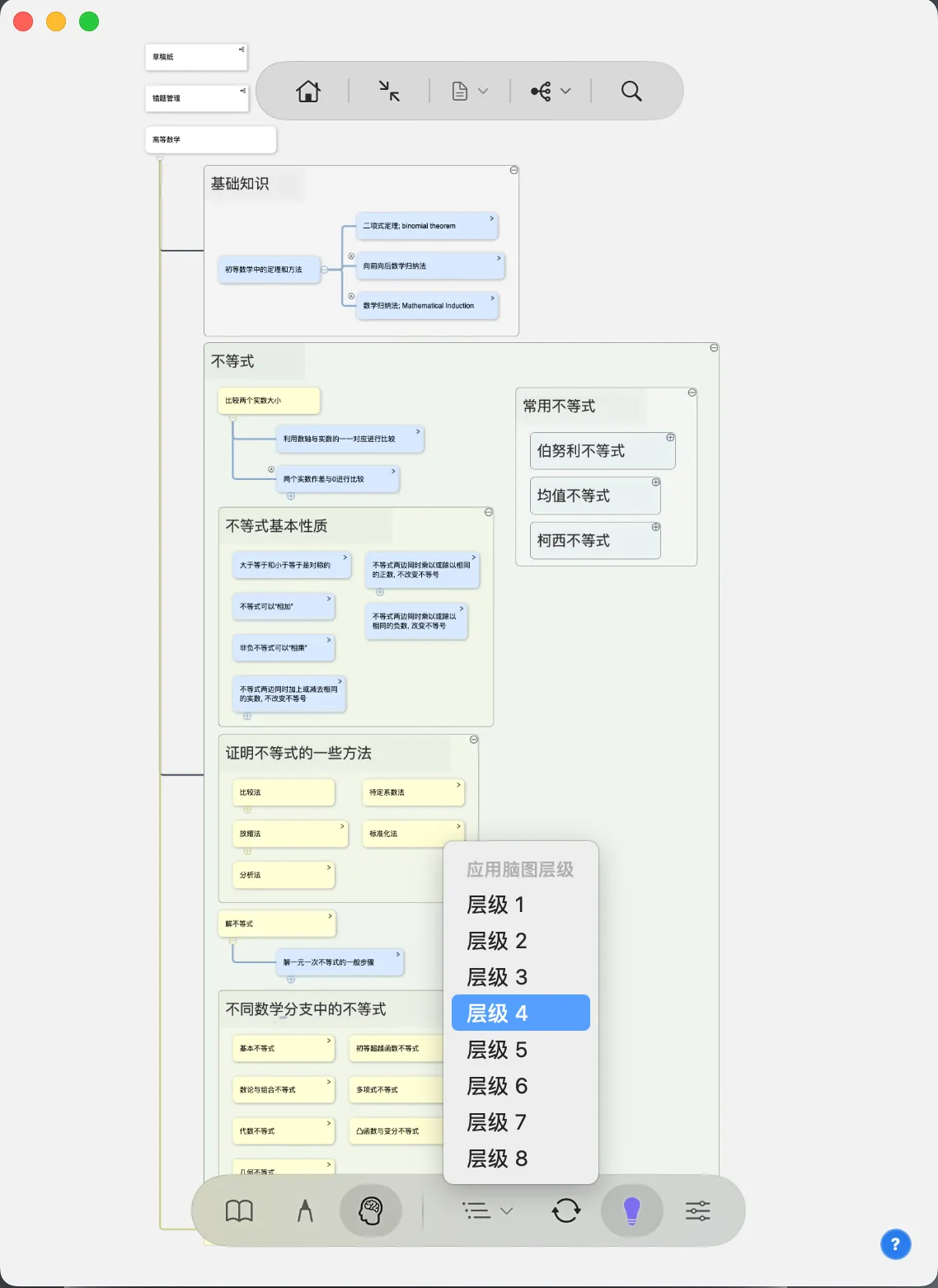
Apply Mind Map Hierarchy: in recall mode, the mind map can show card levels as needed.
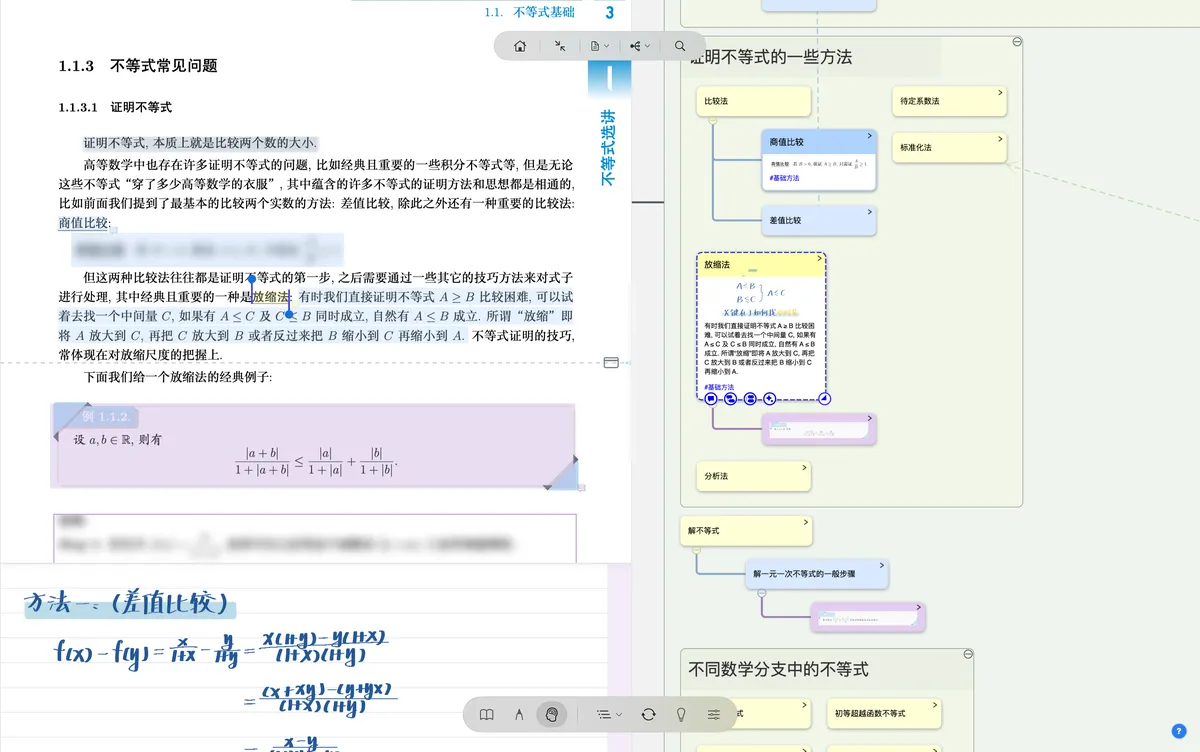
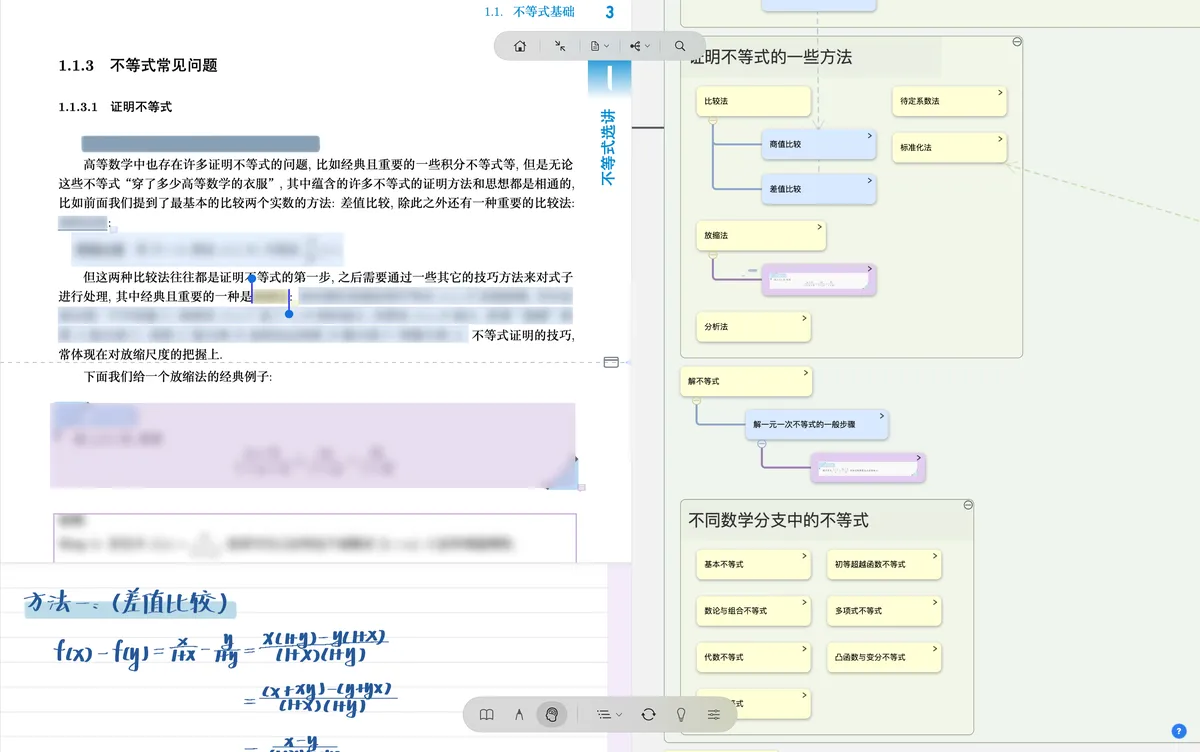
Reset Recall: in recall mode, after randomly revealing clozes/emphases/mind map cards, this button resets to the initial recall mode state.
Disable AI Prompts: tapping cloze content reveals it directly.
Enable AI Prompts: cloze content first opens an AI prompt.
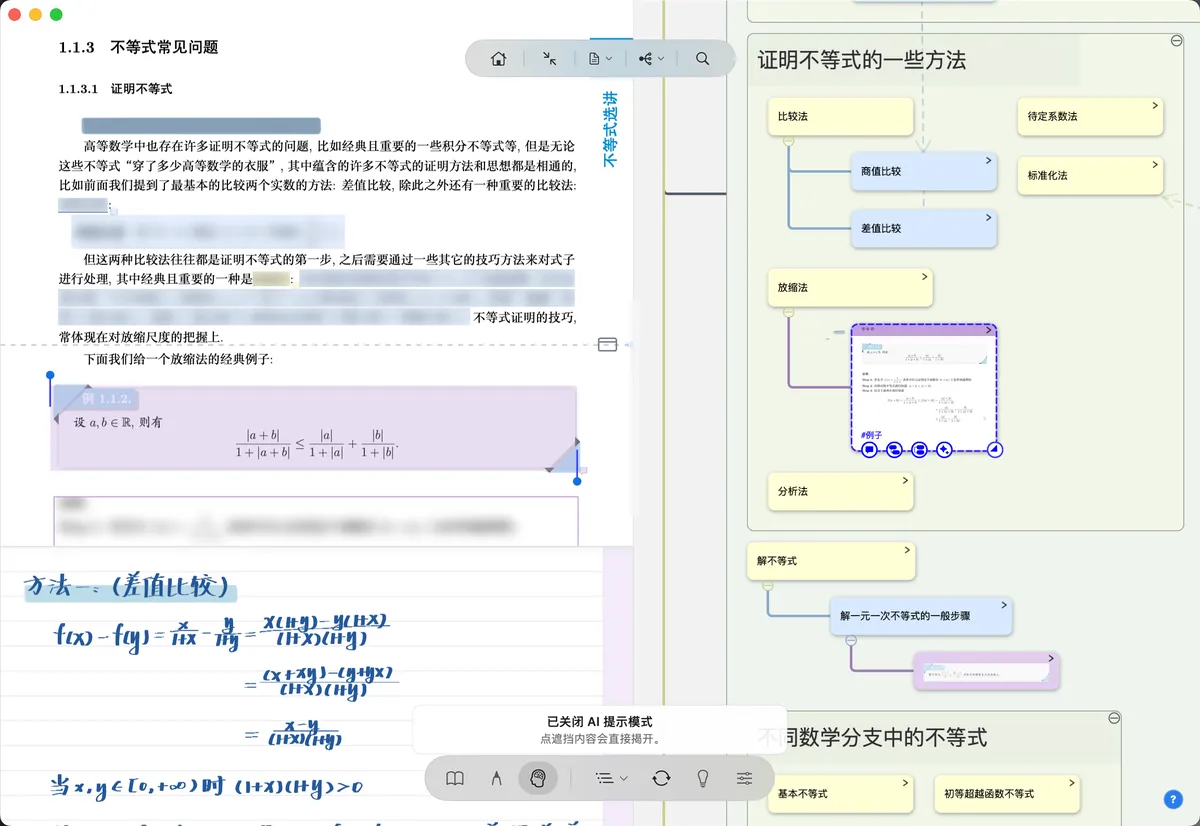
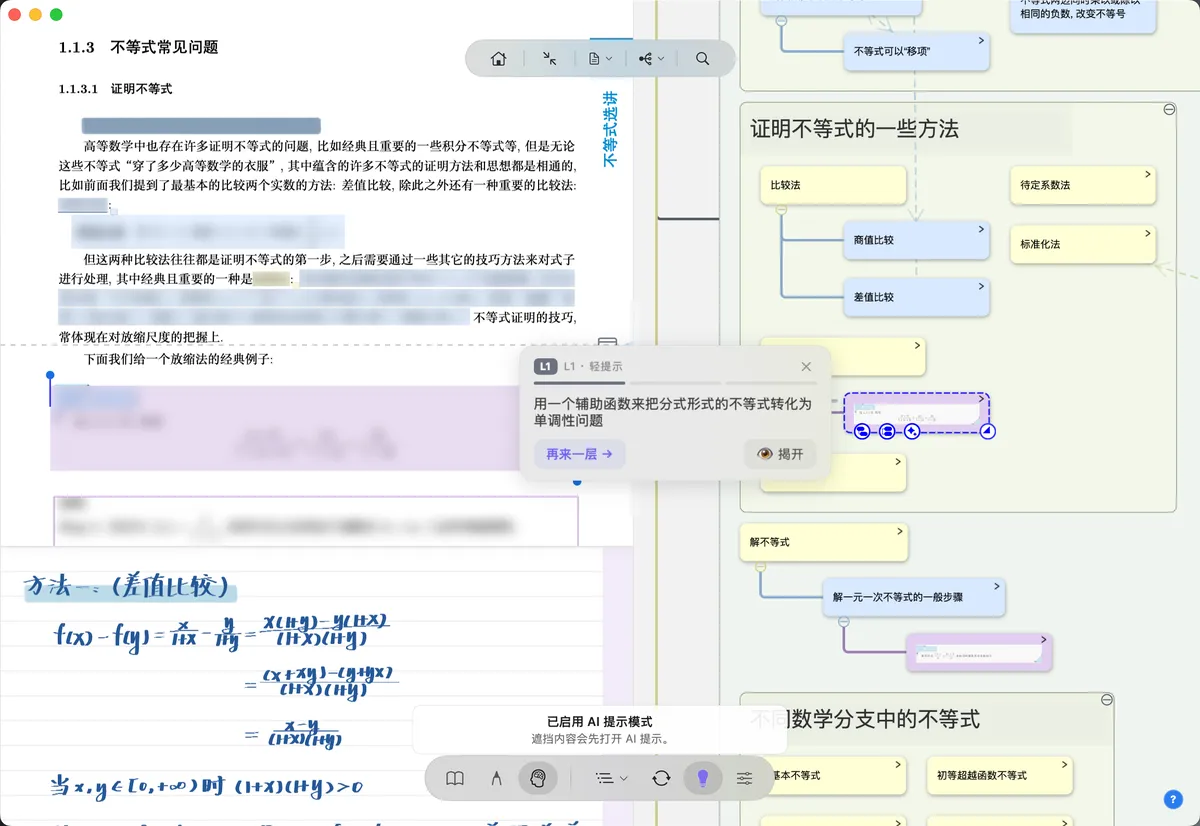
Recall Mode Settings: lets you customize the recall area and AI prompts.
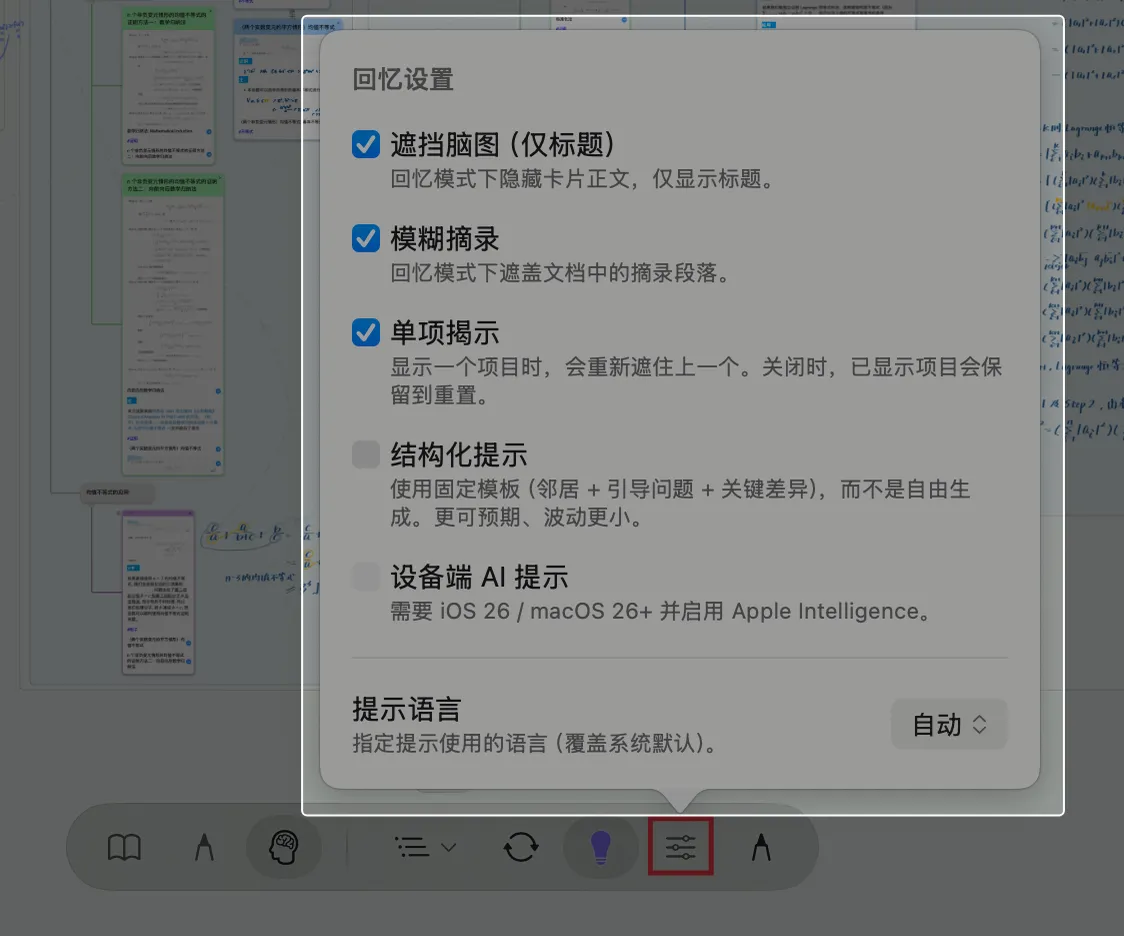
Cloze Mind Map (Title-Only): in recall mode, hides card bodies and shows only titles.
Blur Excerpts: in recall mode, covers the excerpt passages in the document.
Single-Item Reveal: when the next item is shown, the previous one is covered again. When turned off, revealed items stay until reset.
Structured Prompts: uses a fixed template (neighbors + guiding questions + key differences) instead of free generation. More predictable, with less variation.
On-Device AI Prompts: requires iOS 26 / macOS 26 or later with Apple Intelligence enabled.
Prompt Language: specifies the language used for prompts (overriding the system default). The prompt language can be switched among Auto (follow system) / Simplified Chinese / Traditional Chinese / English / English / Japanese / Korean / Spanish / French / German.
Handwriting Tool: supports handwriting in recall mode.
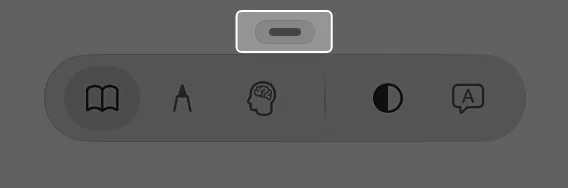
2.1.2.4 Simplifying the Bottom Toolbar
The bottom toolbar can be collapsed into a small three-dot control, further reducing on-screen clutter.

2.2 Adjusting the Document/Mind Map View Ratio in Immersive Mode
Press and hold the divider between the document and the mind map and drag it to either side to quickly adjust the document/mind map view ratio.
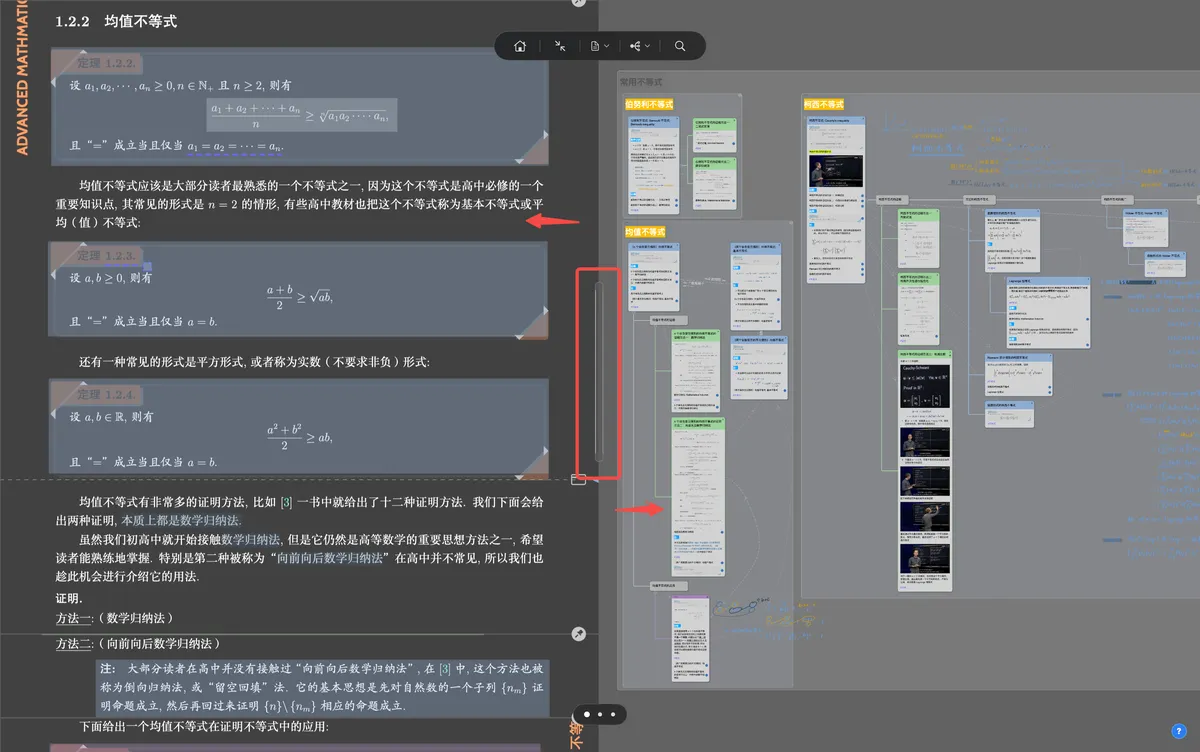
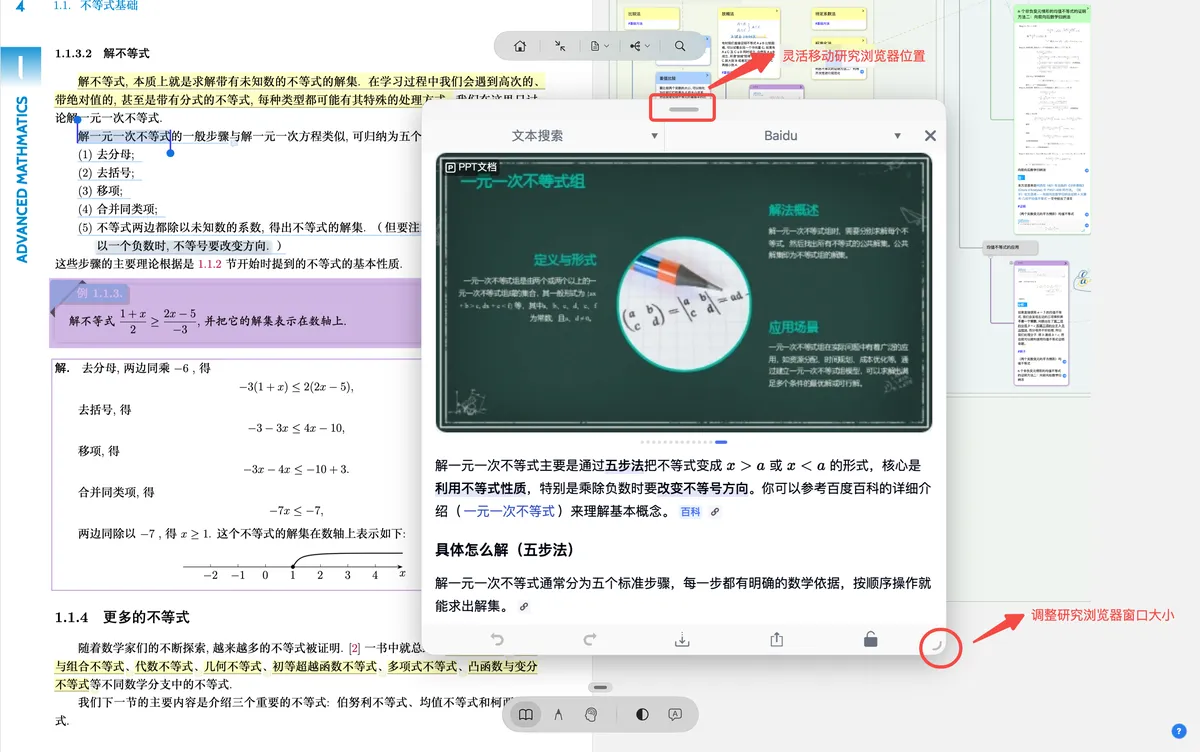
2.3 The Research Browser in Immersive Mode
In Immersive mode, opening the Research Browser panel for selected text, a document excerpt, or a mind map card displays it as a floating window. The window is resizable, making it easy to look up references while you read. For the full features of the Research Browser, see Research Browser View.

2.4 The Document Side Locator Bar in Immersive Mode (Vertical Scrolling)
In Vertical Scrolling & Immersive mode, the document side locator bar lets you drag to jump quickly between pages. It shows the page number while you drag and fades out automatically while you read.
3 Exiting Immersive Mode
Tap the Exit Immersive Mode icon in the top toolbar to exit Immersive mode and return to the Classic mode layout.