Card Links ④ | Keyword Title Links: Build Your Personal Dictionary
1 What Is the Title Link Feature?
Learners who have browsed Wikipedia may have noticed the following:
- Some words in the text are hyperlinks
- When you hover the mouse over certain words, a small pop-up window appears containing a summary of the hyperlink; clicking it jumps to the corresponding entry

MarginNote 4 can achieve a similar effect; this feature is called the title link.
- Treat mind map card titles as keywords/entries to build your own personal "knowledge dictionary"
- Once enabled, whenever the same title text appears again in a document or in other cards, a short blue dashed underline (the link indicator) automatically appears beneath the text
- Tap the dashed-underlined text to pop up the corresponding card directly, achieving one-tap navigation and lookup

2 How to Enable the Title Link Feature
Tap Study Set - More (the horizontal three-dot icon) in the top-right corner of the study set, then turn on the title link switch.
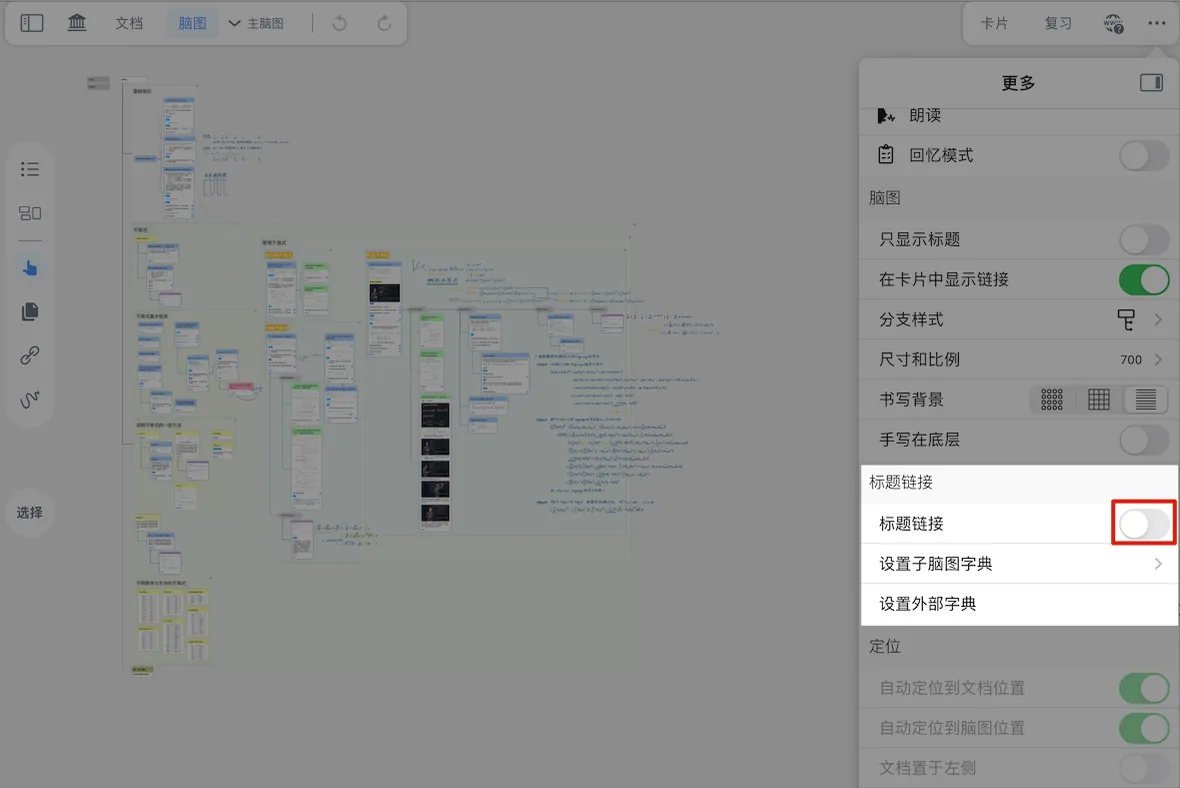
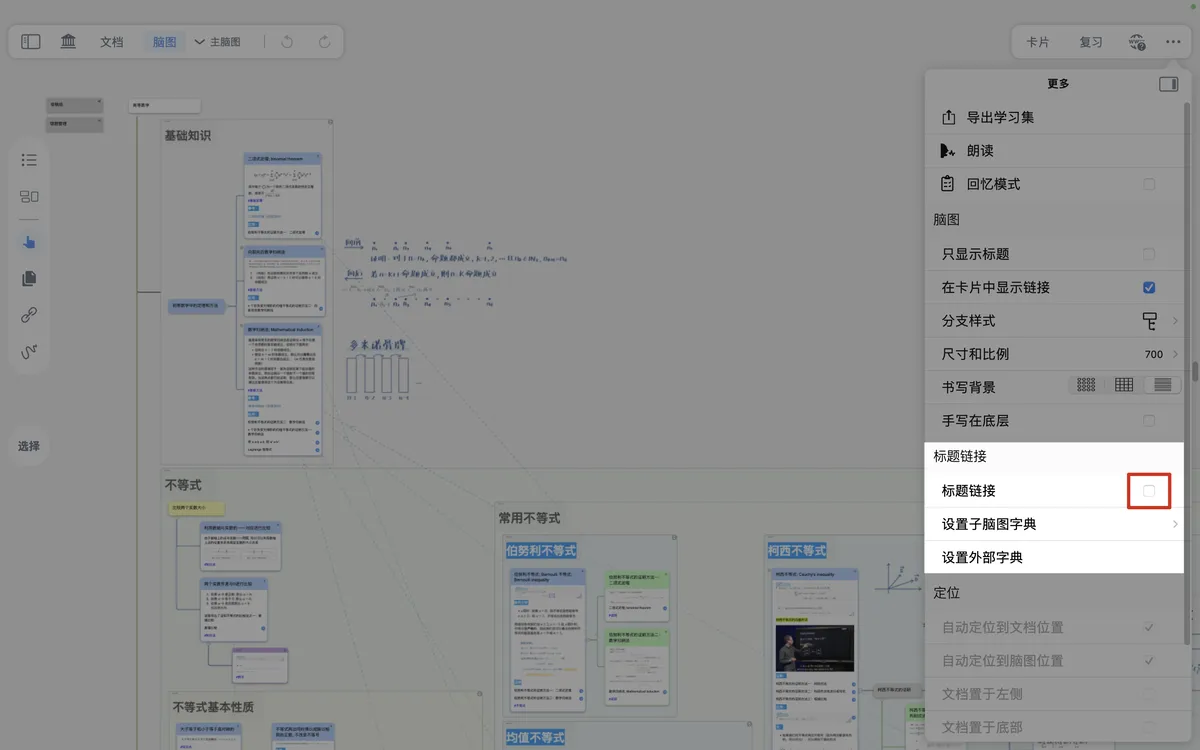
Now a blue dashed underline appears beneath certain words in the study set's documents, and tapping it pops up the card content.
💡Tapping a title link may pop up not just one card, but the content of several cards.
2.1 When Does a Card Trigger the Title Link Feature?
For a card to be found by the title link feature, two conditions must be met:
- The card's title contains a keyword (title links use exact matching: for example, if the title is only "conditional probability," the word "probability" in the text will not trigger it; but if the title is written as "conditional probability; probability," then "probability" can trigger it)
- The mind map the card belongs to is a dictionary source
These two points are explained below:
2.1.1 Keywords

Keywords in a card title are usually separated by a Western semicolon ;, for example keyword 1; keyword 2. Here keyword 1 and keyword 2 are this card's keywords. When keyword 1 appears in a document within the study set, the title link is triggered, and tapping it pops up all cards whose titles contain keyword 1.
💡MarginNote 4 automatically optimizes how semicolons in titles are handled: even if you type a Chinese semicolon
;, or if there are no spaces or several spaces between a keyword and the semicolon, it is automatically normalized to a Western semicolon followed by a single space—a convenience for learners as they type.
2.1.2 Setting the Keyword Source: The Dictionary
A card that has keywords alone is not necessarily recognized by the title link feature; one more condition must be met: the mind map the card belongs to is a dictionary of that study set. In MarginNote 4, the mind map that serves as the keyword source is called a dictionary.
2.1.2.1 Setting a Sub-Mind Map Dictionary
Tap Set Sub-Mind Map Dictionary to bring up the study set's sub-mind map menu bar.
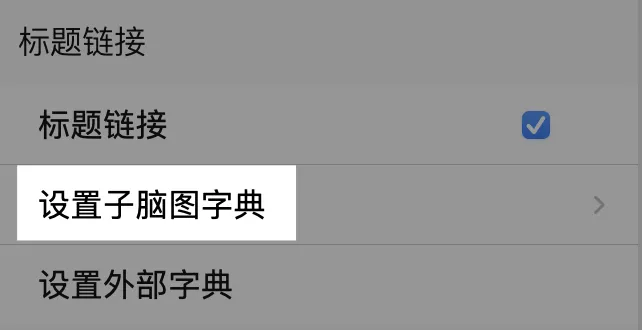
The selected sub-mind map serves as the dictionary for title links. By default, the main mind map is selected, in which case the content of all sub-mind maps within the main mind map is also included in the dictionary.
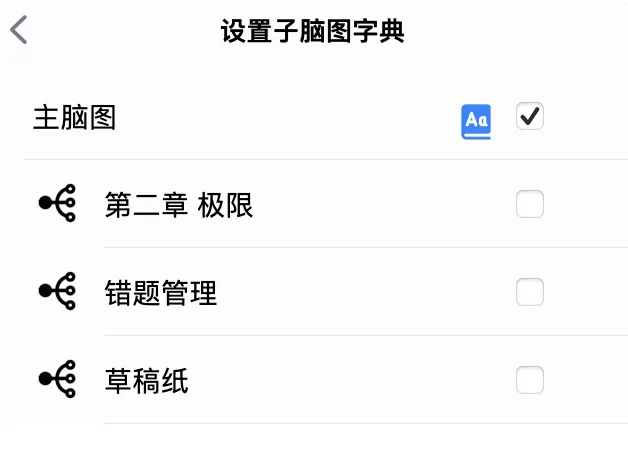
If you don't want certain sub-mind maps' content added to the dictionary, you can turn off the main mind map dictionary and individually turn on specific sub-mind map dictionaries.
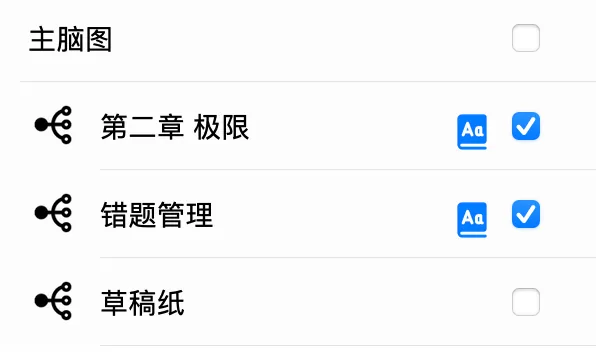
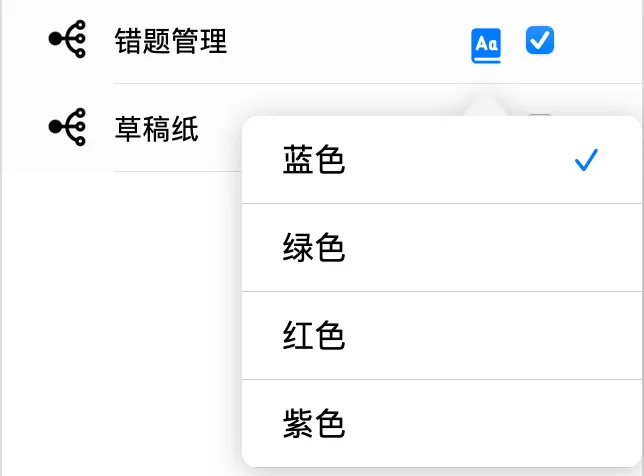
In addition, different sub-mind maps used as dictionary sources can be assigned different keyword colors:
- Blue
- Green
- Red
- Purple
- Blue

- Green

- Red

- Purple

2.1.2.2 Setting an External Dictionary
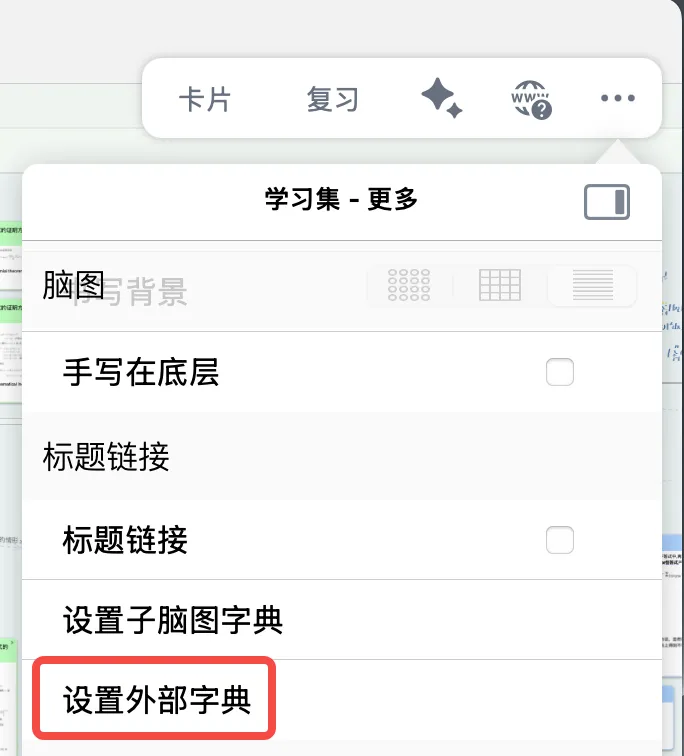
- To add an external dictionary, tap
Set External Dictionary:
- The
Add/Remove External Dictionary Study Setslist pops up:
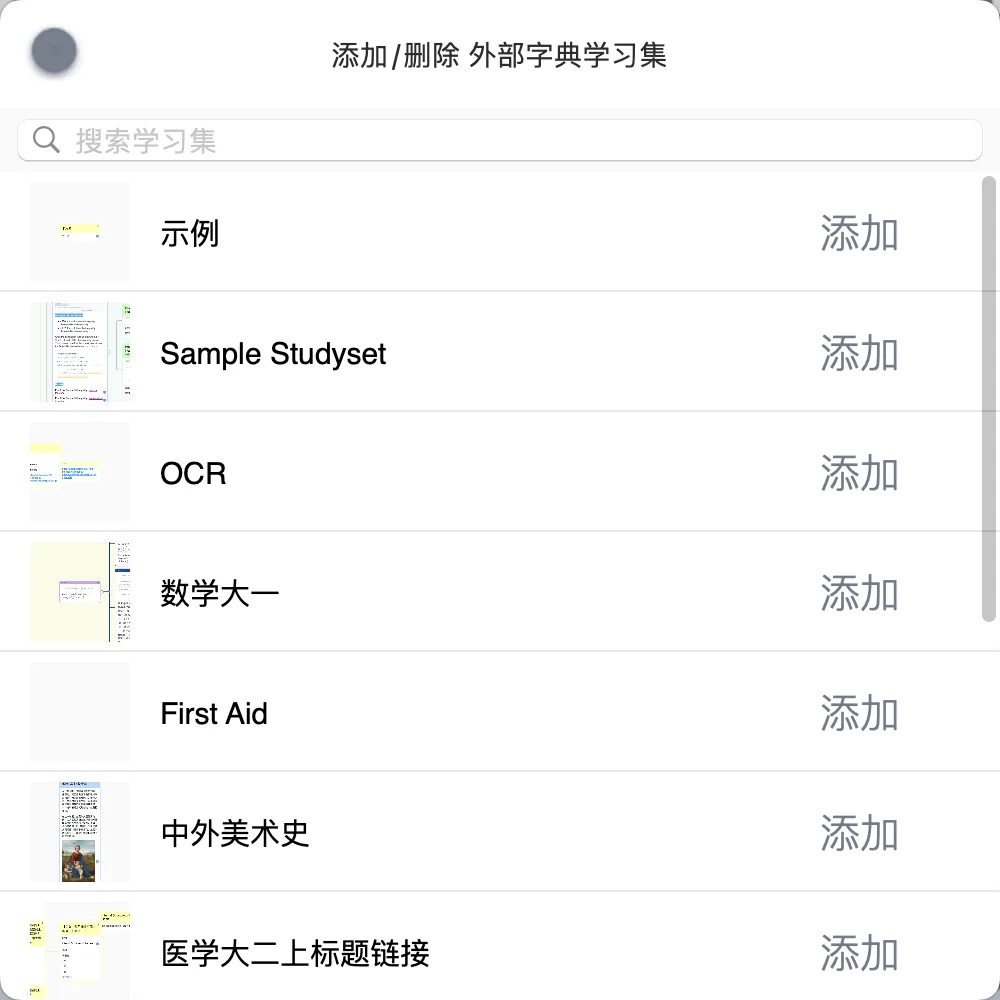
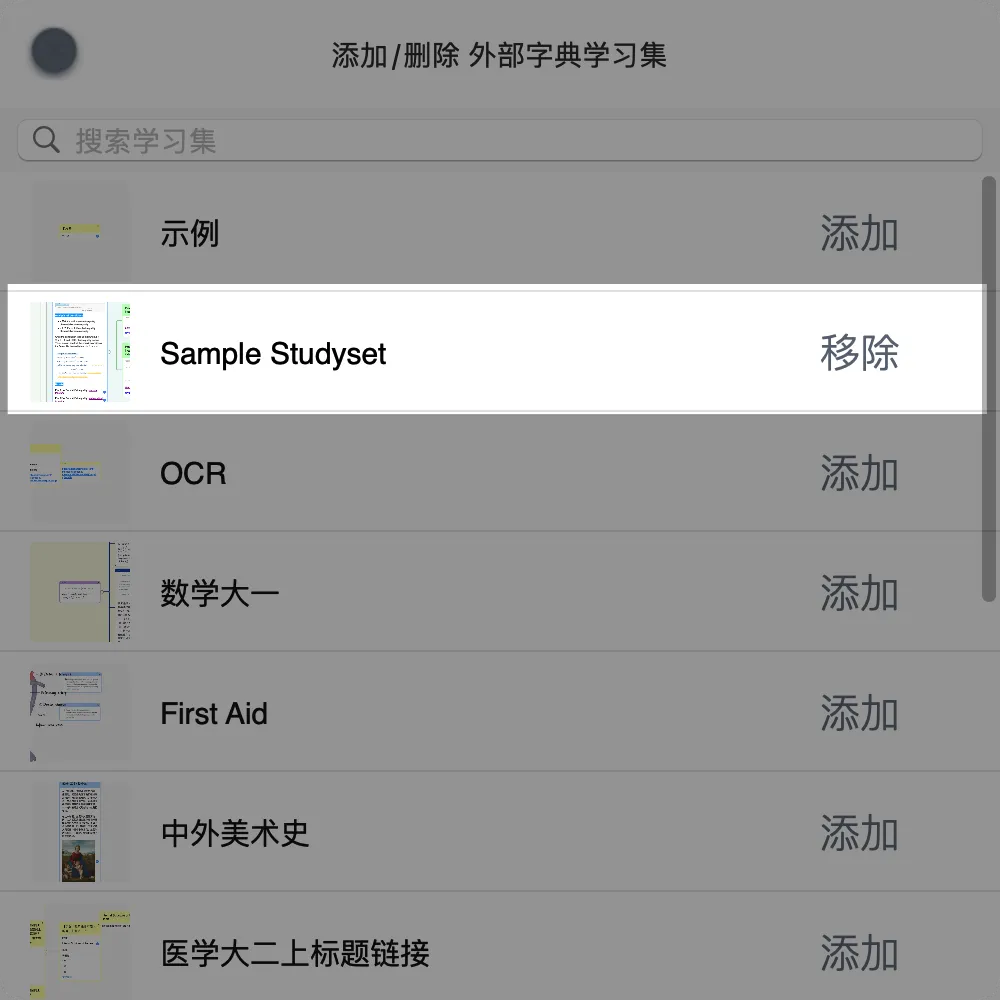
- You can add the dictionaries of one or more other study sets to the current study set. After you tap
Add,Addchanges toRemove, indicating that the study set has been successfully added to the current study set's dictionary.
2.1.2.3 Removing an External Dictionary
Tap Remove; if Remove changes to Add, the dictionary has been removed.
3 Features of the Title Link Pop-up

3.1 Opening the Card Editor
Tap a title link to open and edit that card in the card editor:
3.2 Searching the Zettelkasten-styled Card Box for This Keyword
- Tap the 🔍 search icon in the bottom-right corner of the title link pop-up
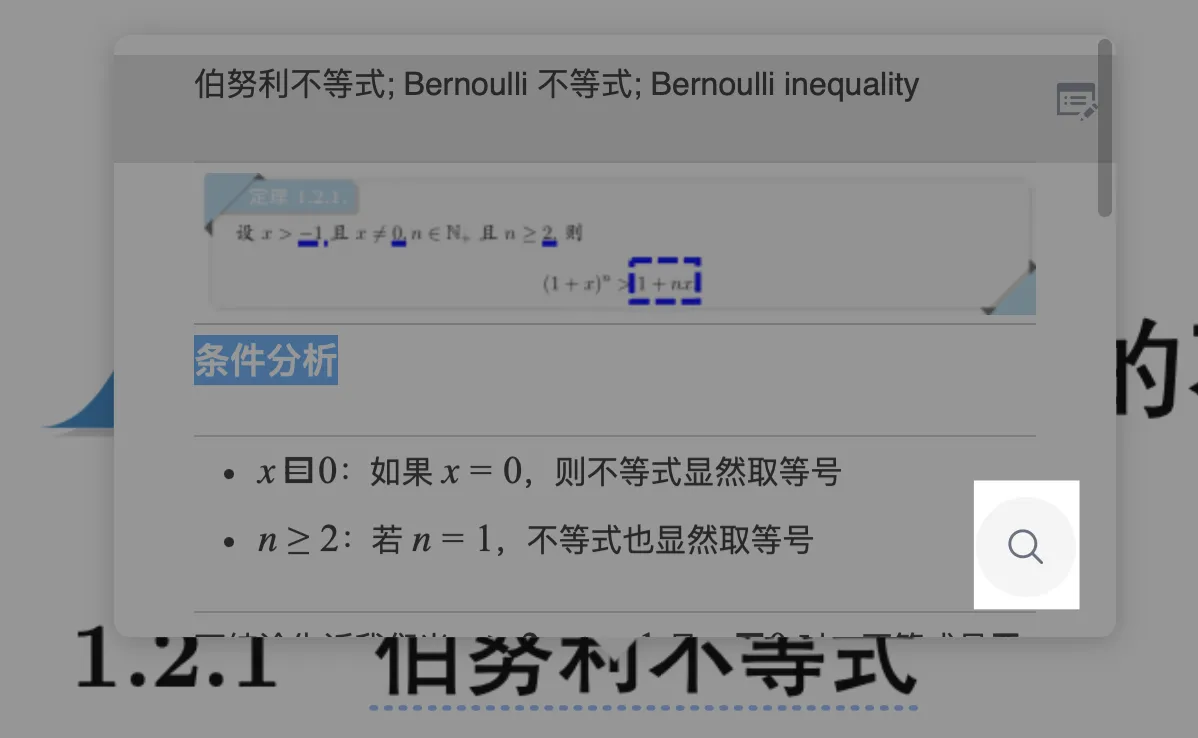
- A condensed view of the search results for this keyword in the Zettelkasten-styled card box pops up
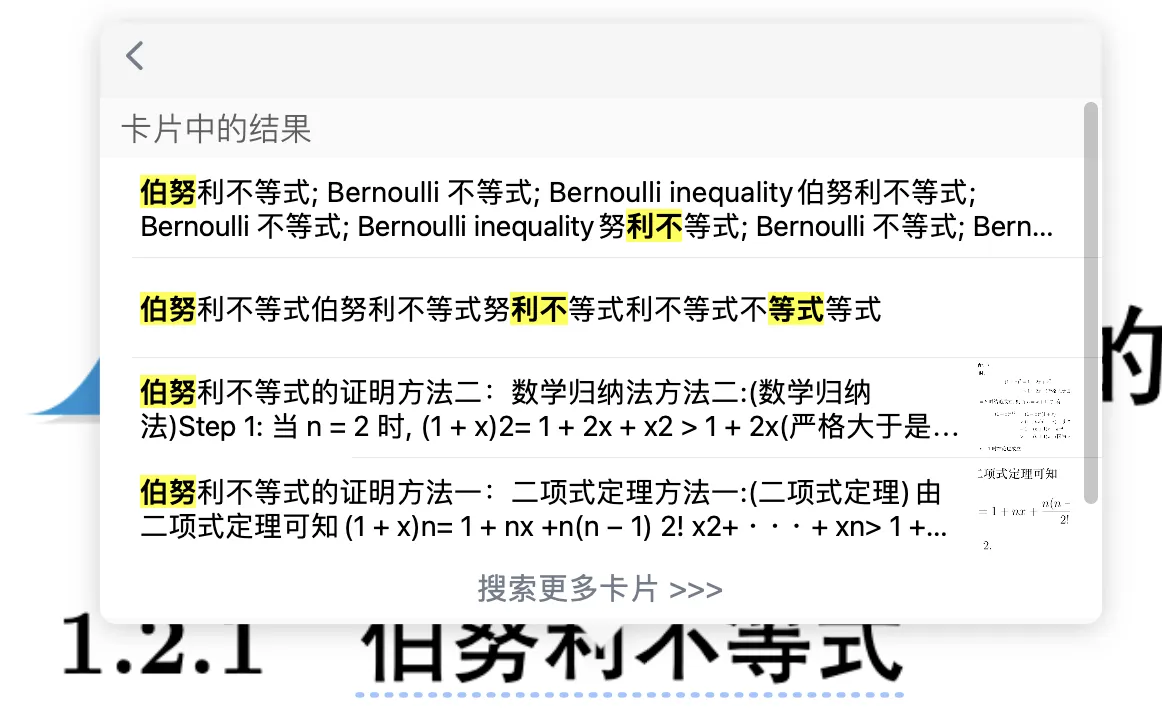
- Tap
Search for more cards >>>to search the Zettelkasten-styled card box for this keyword. A single keyword may match multiple cards, which is normal; you can keep filtering and navigating within the pop-up.

4 Title Link Grouping in the Card Grouping Board
Cards are grouped by the title link keywords in their titles—that is, cards whose titles contain the same keyword form one group.
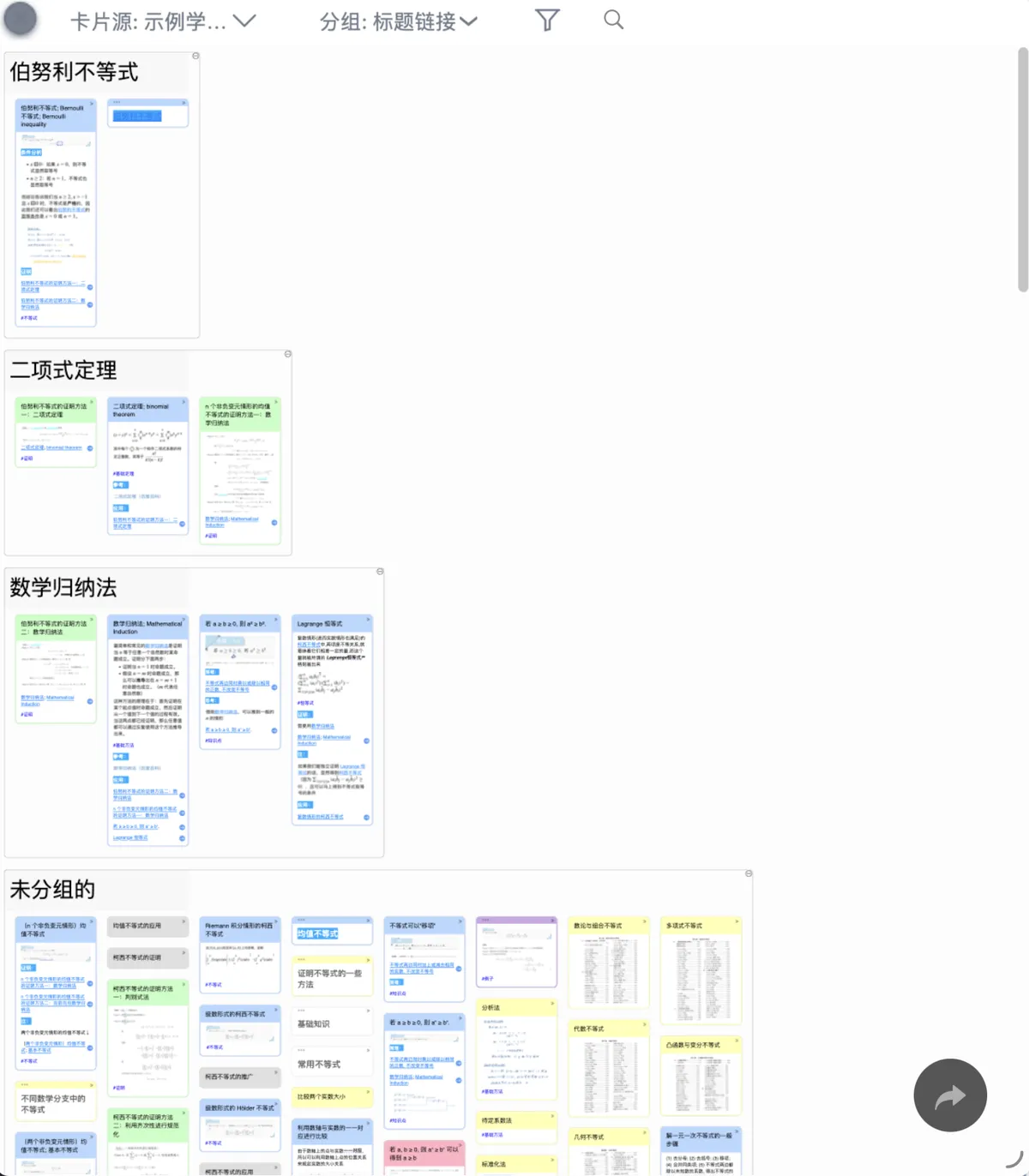
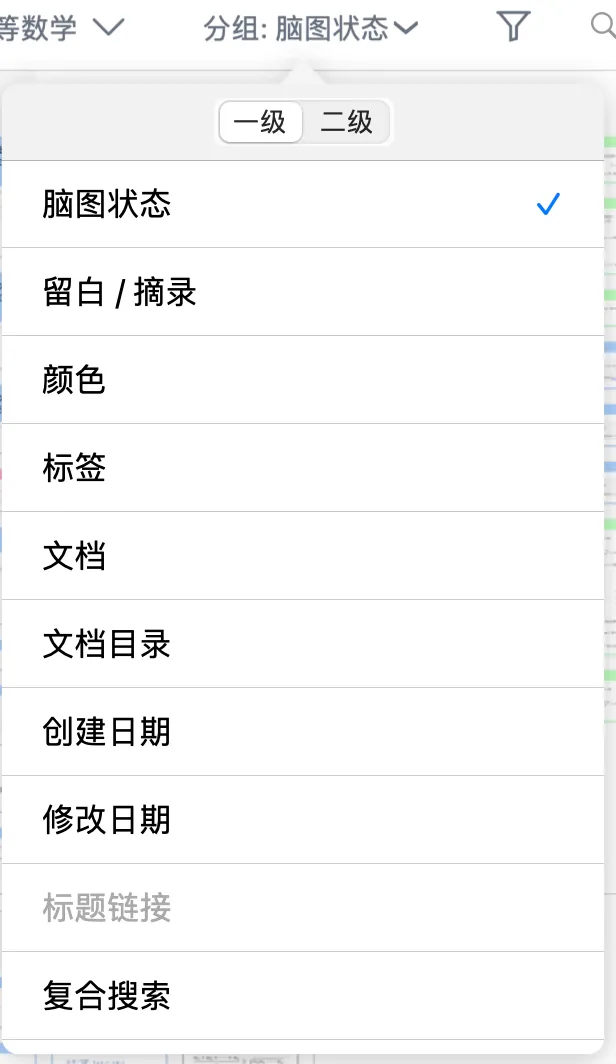
💡You first need to enable the title link feature; otherwise the
title linkoption in the grouping is greyed out, meaning it is disabled:
5 AI Breakdown - Smart Dictionary | Title Link Automation
Preset the keywords you want to extract, and the AI automatically grabs the core content from the document and generates structured notes with title links. The advantages are as follows:
- No manual excerpting: say goodbye to excerpting and making cards one by one—the AI handles in minutes what used to take hours
- Automatic indexing: title links let you trace back to the source text with one tap, so you don't have to flip through mountains of documents when reviewing
- Cross-study-set reuse: your self-built word bank can be opened in other study sets, seamlessly linking your knowledge system
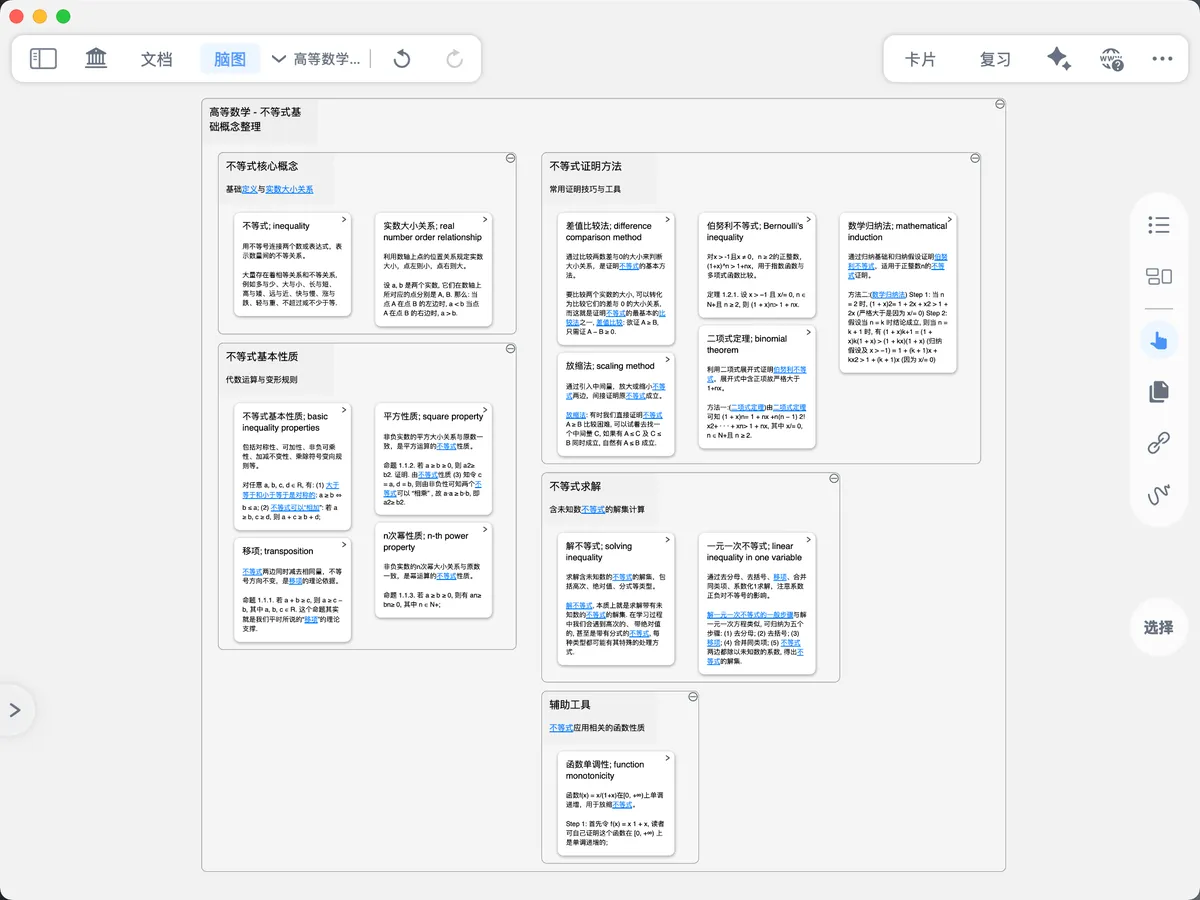
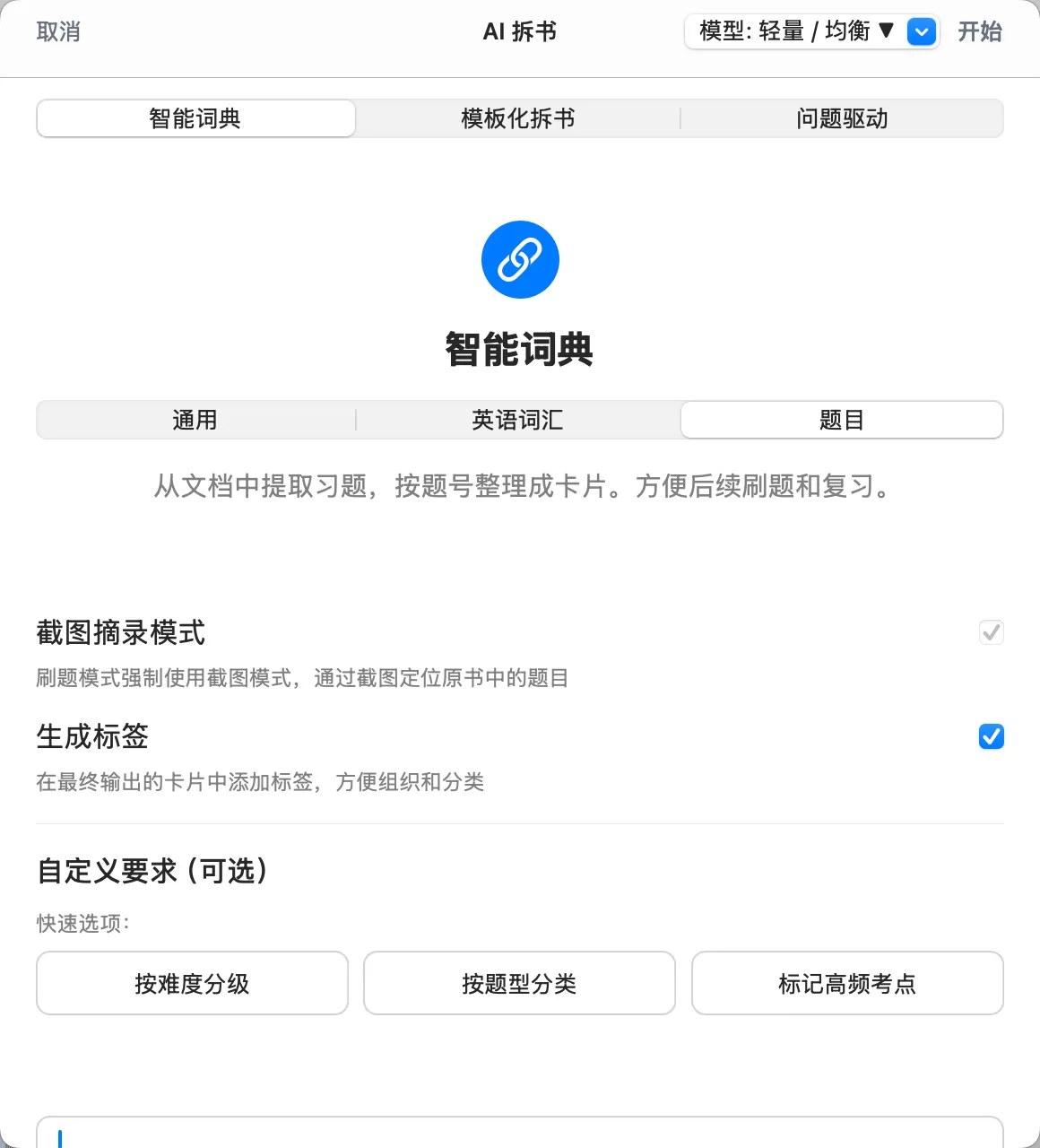
Three modes to fit every scenario:
- General mode: structured extraction of concepts, theorems, names of people, and more
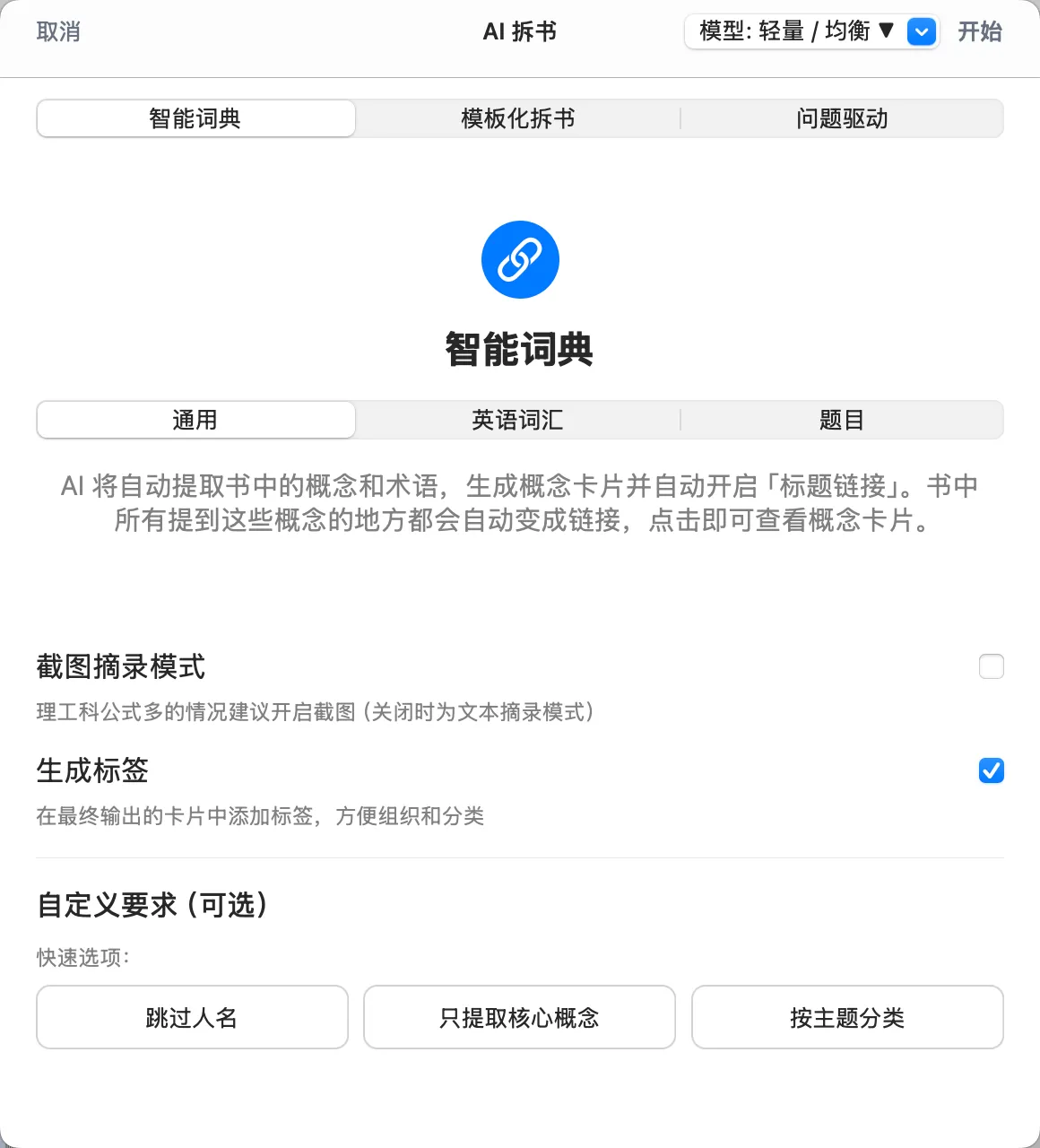
- English mode: targeted extraction of vocabulary/key points for more efficient language learning
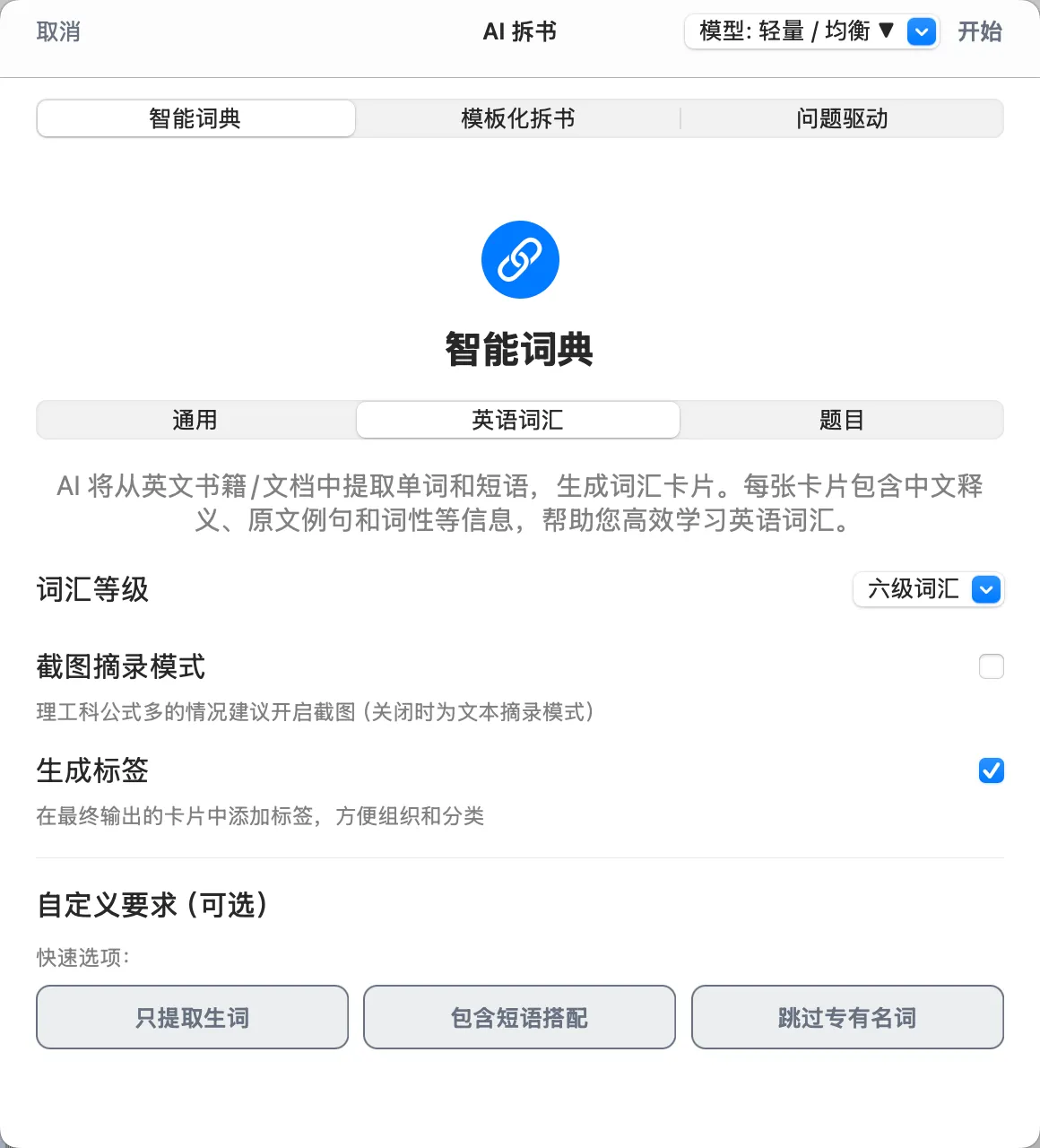
- Problem-drilling mode: automatically organizes practice problems into cards, making drilling and review super convenient
5.1 How to Use the Smart Dictionary to Create Title Links Automatically in Bulk?
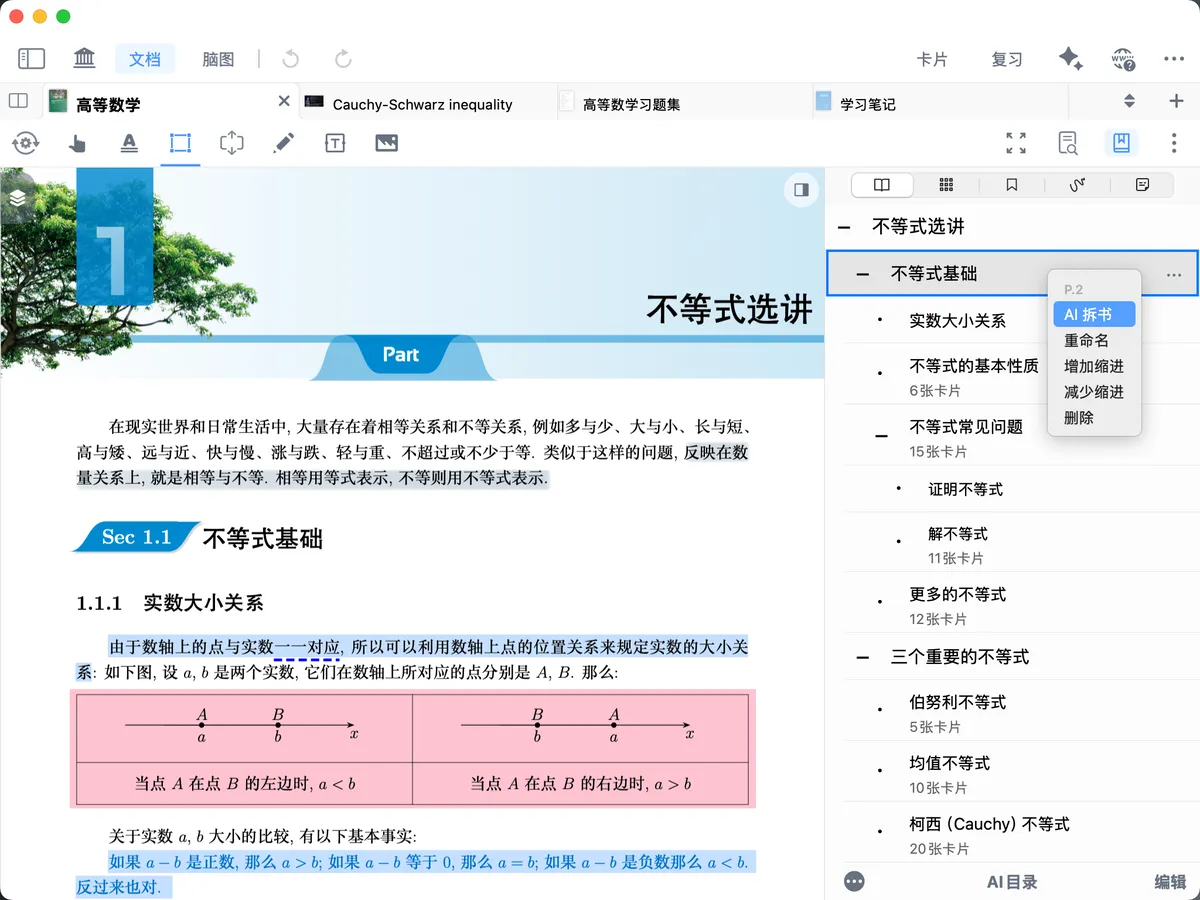
- Open the
Table of Contents, and enable theAI Breakdownfeature for the corresponding TOC entry;
- Choose the scenario that matches the document content: General, English vocabulary, or Problems;
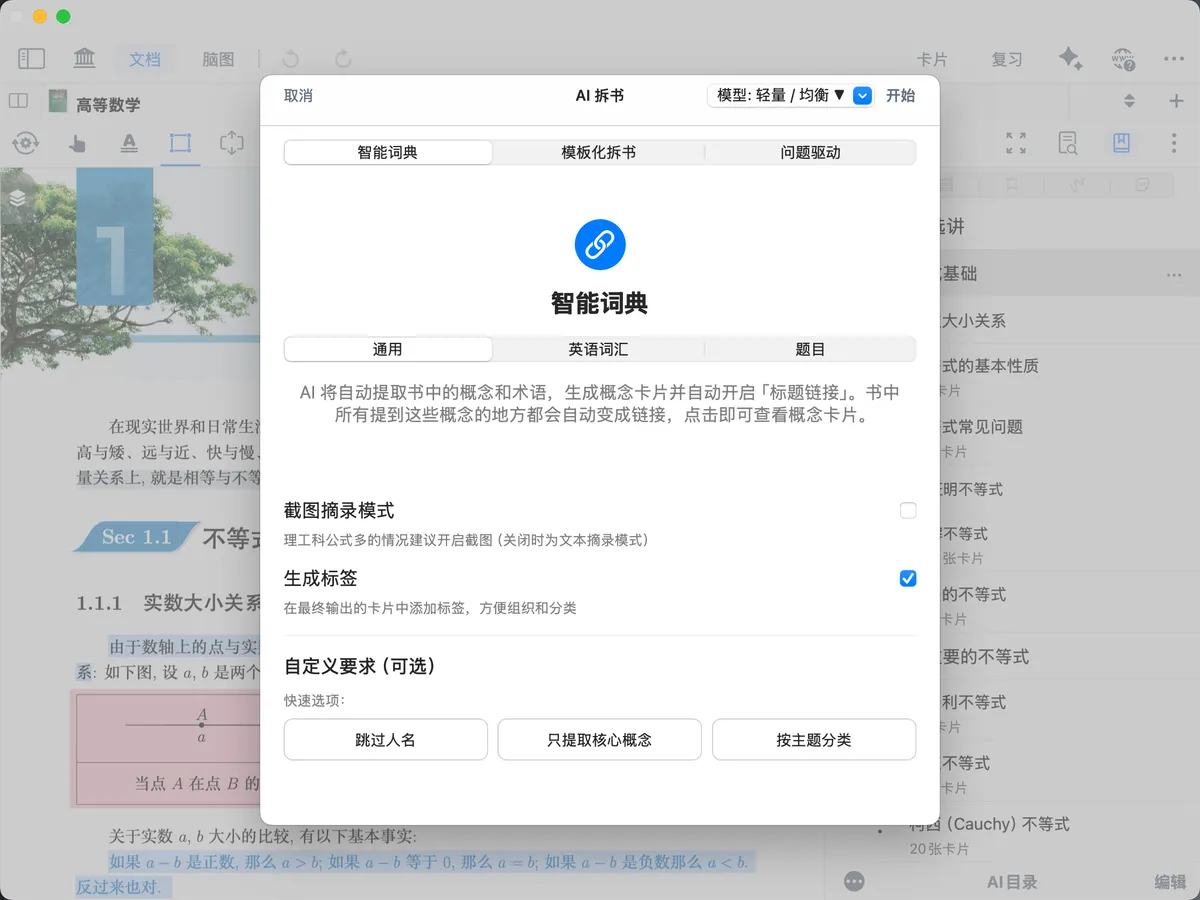
- Start the AI Breakdown to create the Smart Dictionary;
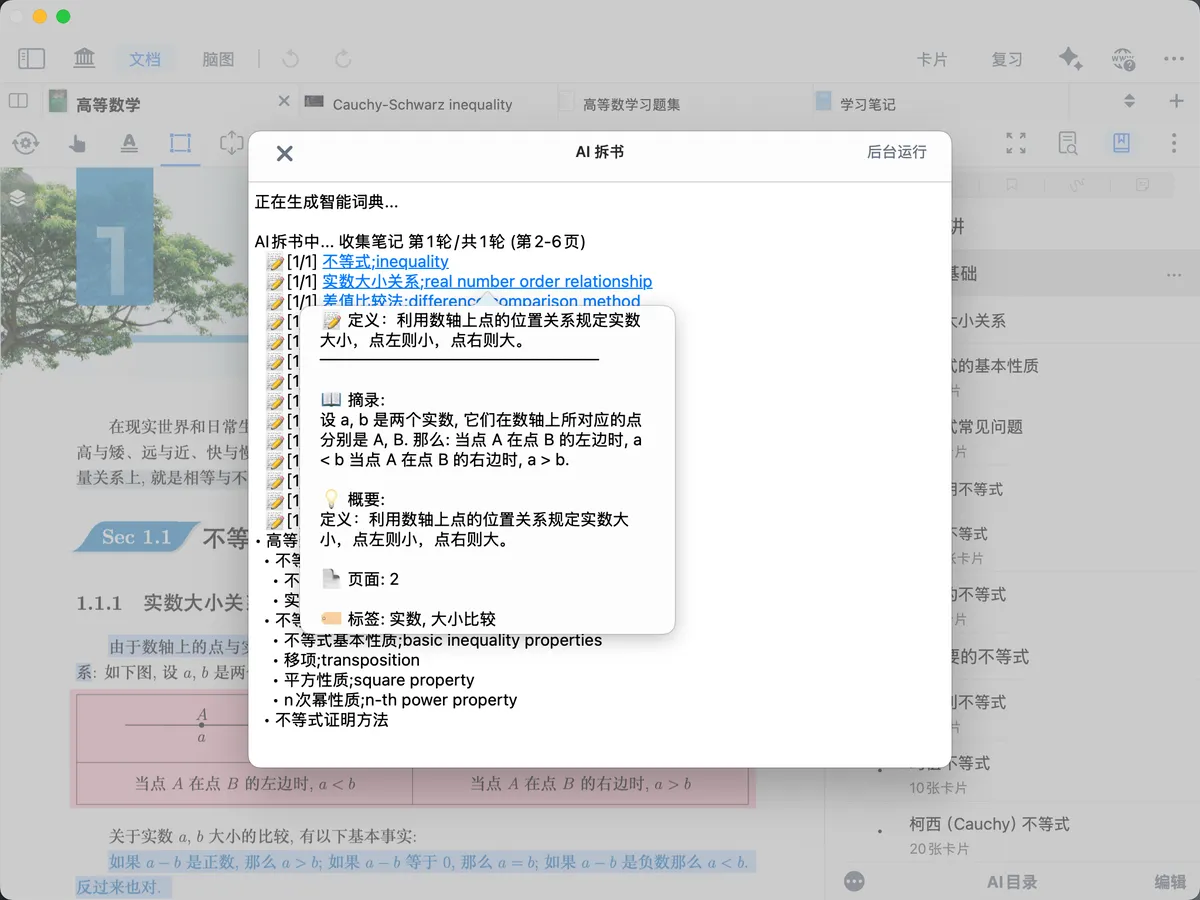
- Wait for the breakdown to finish, completing the Smart Dictionary creation.
6 Usage Examples: How Keyword Title Links Fit into Your Study Workflow
6.1 Scenario 1: Exam Review (frequent term look-ups, less page-flipping)
When reviewing for graduate or certification exams, a common problem is this: a familiar term appears in a question, but you can't immediately recall the definition, pitfalls, and worked examples you once compiled for it.
In this case, you can maintain card titles as keywords in their "complete term" form (e.g., conditional probability; total probability formula; Bayes' formula). When these complete entries appear again in a PDF or your notes, a blue underline automatically appears. Tap it to pop up the corresponding card and quickly review the definition, formula, and summary of error causes, without searching back and forth between the mind map and the document.
The value of this is that it turns "see a word → flip through materials" into "see a word → recall and verify instantly," making your review pace much faster.
6.2 Scenario 2: Close Reading of Papers (linking the concept network, avoiding a fragmented view)
When reading papers or lengthy textbooks, many concepts recur across chapters. The traditional approach—manually annotating and then hunting down old notes—easily breaks the chain.
With keyword title links, you can turn core concepts into entry cards (e.g., instrumental variable; endogeneity; difference-in-differences) and set the relevant mind maps as dictionary sources. When you encounter these words while reading, the blue underline signals "there is an existing knowledge node here." Tapping it instantly pops up the card you compiled earlier, letting you see directly how that concept is defined in your knowledge system, along with its examples and connected nodes.
The value of this is that it upgrades "linear reading" into "networked reading," building connections between concepts as you read.
6.3 Scenario 3: English Learning (linking vocabulary, context, and notes)
In English learning, a common pain point is that you've memorized a word but still react slowly when you meet it again in an article, or you remember only the Chinese definition and not the context.
You can set card titles as complete entries (e.g., abandon; abandon oneself to) and put the meaning, collocations, example sentences, and easily confused words in the card. Later, when you encounter an exactly matching entry in your reading material, just tap the blue underline to pop up the entry card and quickly bring back your own semantic notes and contextual example sentences.
The value of this is that it turns "looking up a word" into "retrieving from your personal dictionary," reducing mechanical dictionary lookups and reinforcing long-term memory.