
MarginNote 4 User Manual
From reading documents and making excerpts to mind maps, cards, and spaced repetition — the complete guide to MarginNote 4.
Documents
Whether you're working with a PDF textbook, scanned lecture notes, or an EPUB e-book, the features in the Document section help you read efficiently, take notes, find content, and manage pages. If you've used another reader or note-taking app before, this is the most familiar place to start.
Quick Notes on Documents
Make excerpts on PDFs, insert notes, and add handwritten annotations to quickly capture your reading ideas.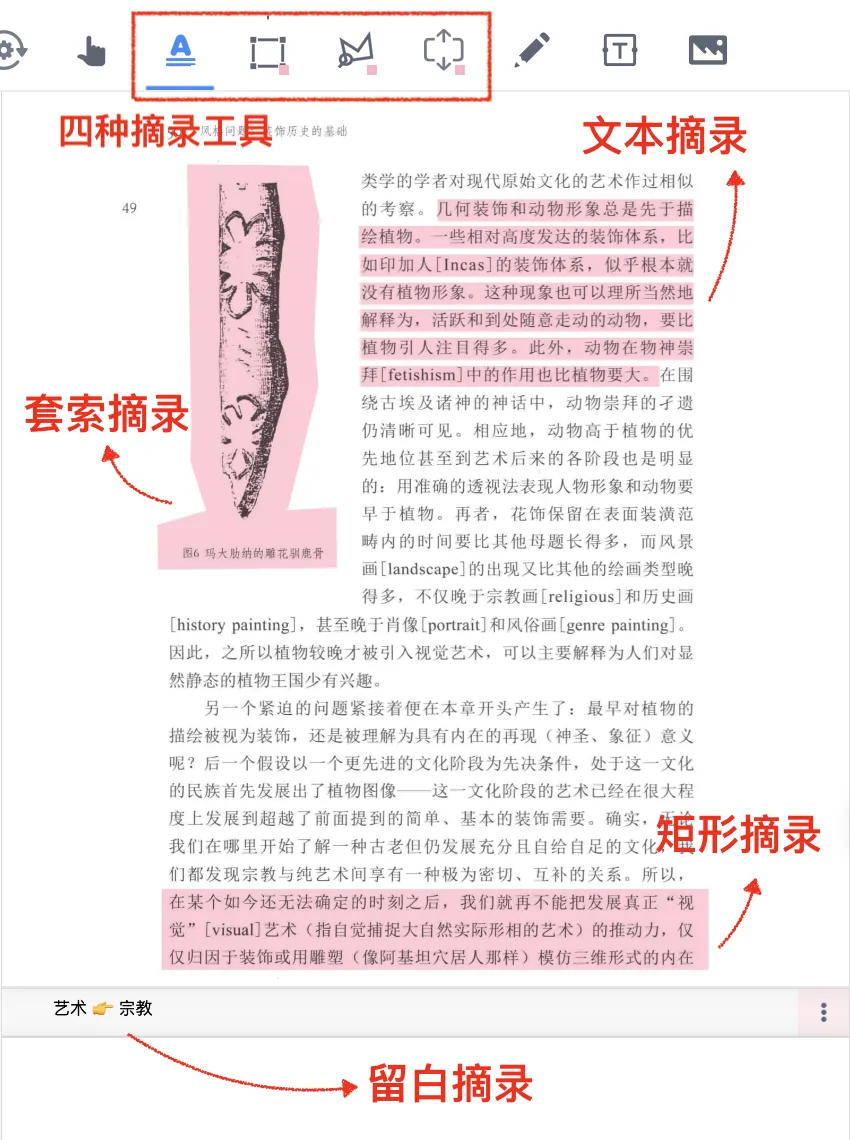
Excerpts: Capture the Key Points of a Document
Excerpts are the core feature for document reading notes in MN4. Without binding to a mind map framework, you can efficiently extract, manage, and reuse key information. They are both editable and easy to reuse, fitting a wide range of reading scenarios.

Creating Text Boxes, Images, and Photos
Text box – annotate in place: write supplements, key points, and questions right next to the original text, so your ideas don't get scattered elsewhere. Image – illustrate a process: insert screenshots or diagrams that can be resized, copied, cut, and deleted for clearer information. Photo – instant capture for classes, meetings, and book study: turn paper pages…
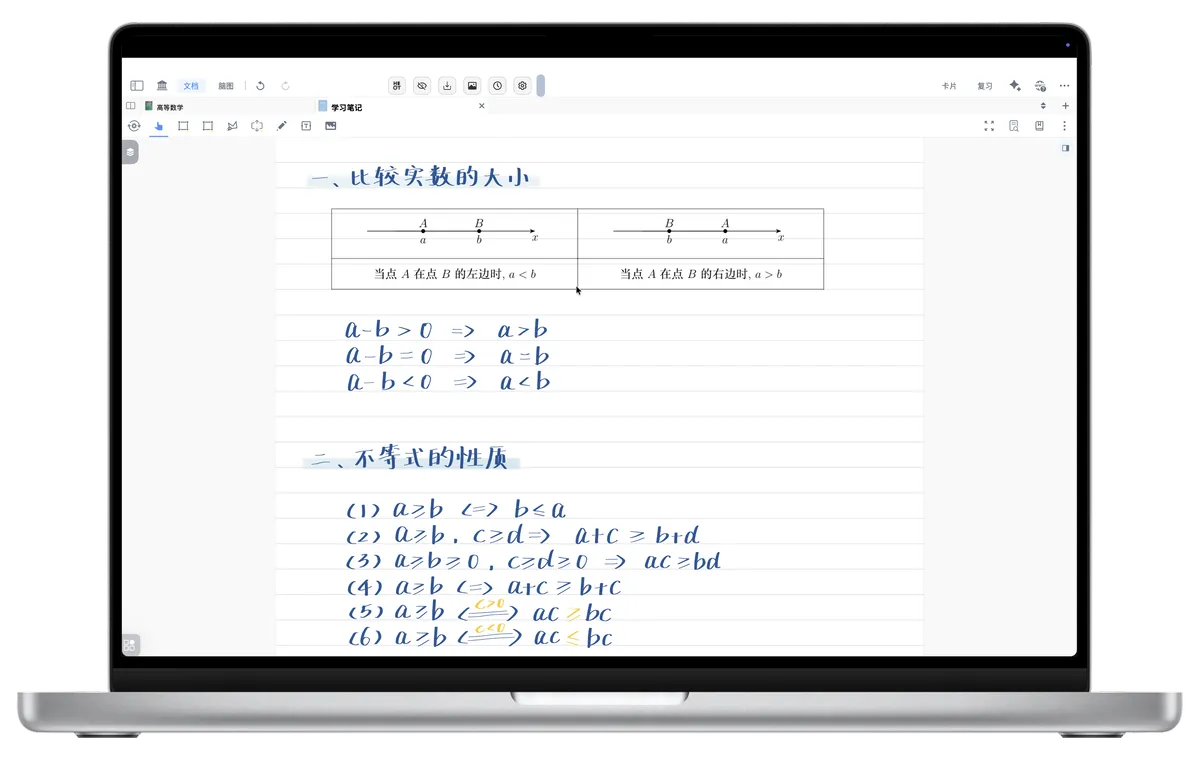
Create a Blank Notebook
New Notebook is a feature in MarginNote 4 that lets you create a standalone blank notebook within a study set, for after-class notes, drafts, handwritten sketches before building a mind map, and more. Just like taking notes directly on a PDF, its content can be turned into cards and incorporated into the mind map, …
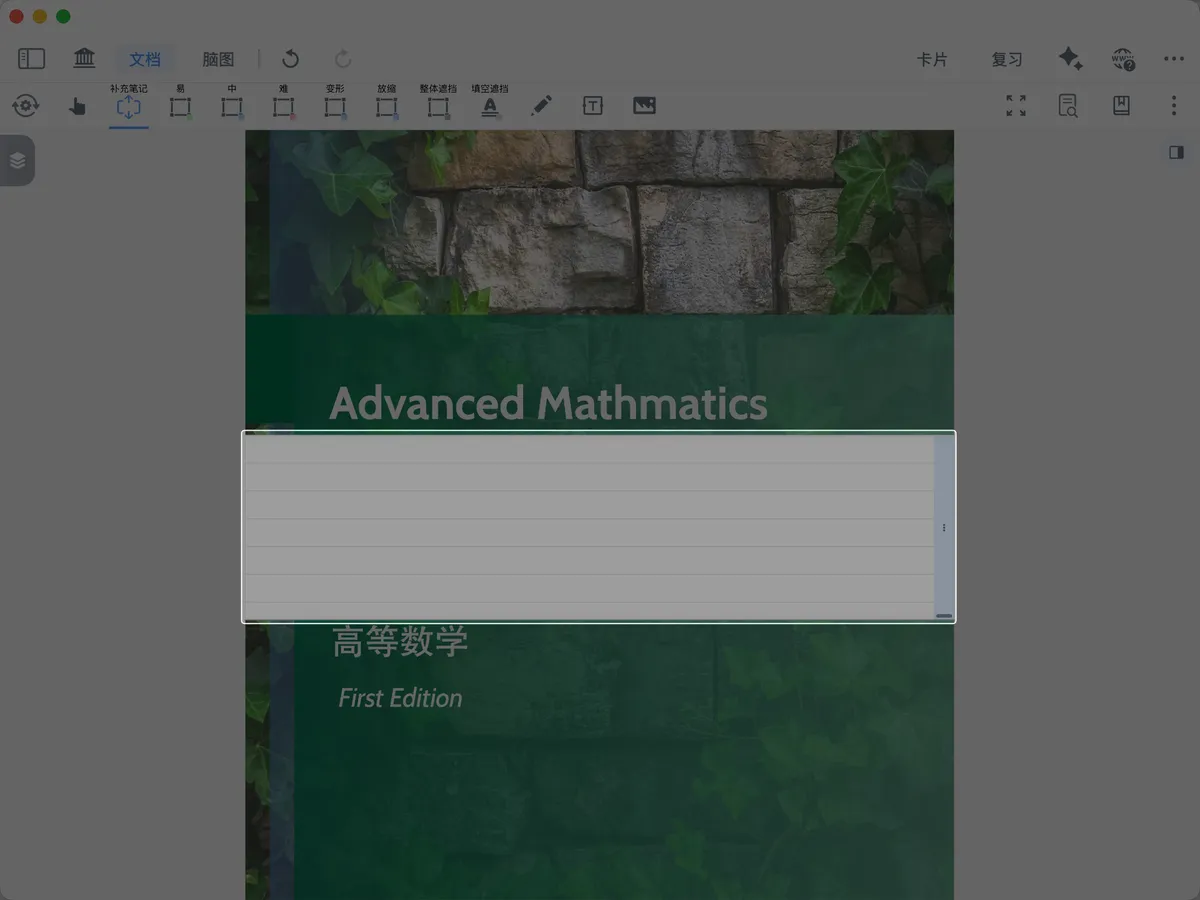
Extend Note ① | Basic Operations: Freely Open Up Note Space Between the Lines
The extend note feature lets you insert a blank note area anywhere in a PDF—for adding explanations, recording your thoughts, placing related material, or raising questions—without changing the original layout.
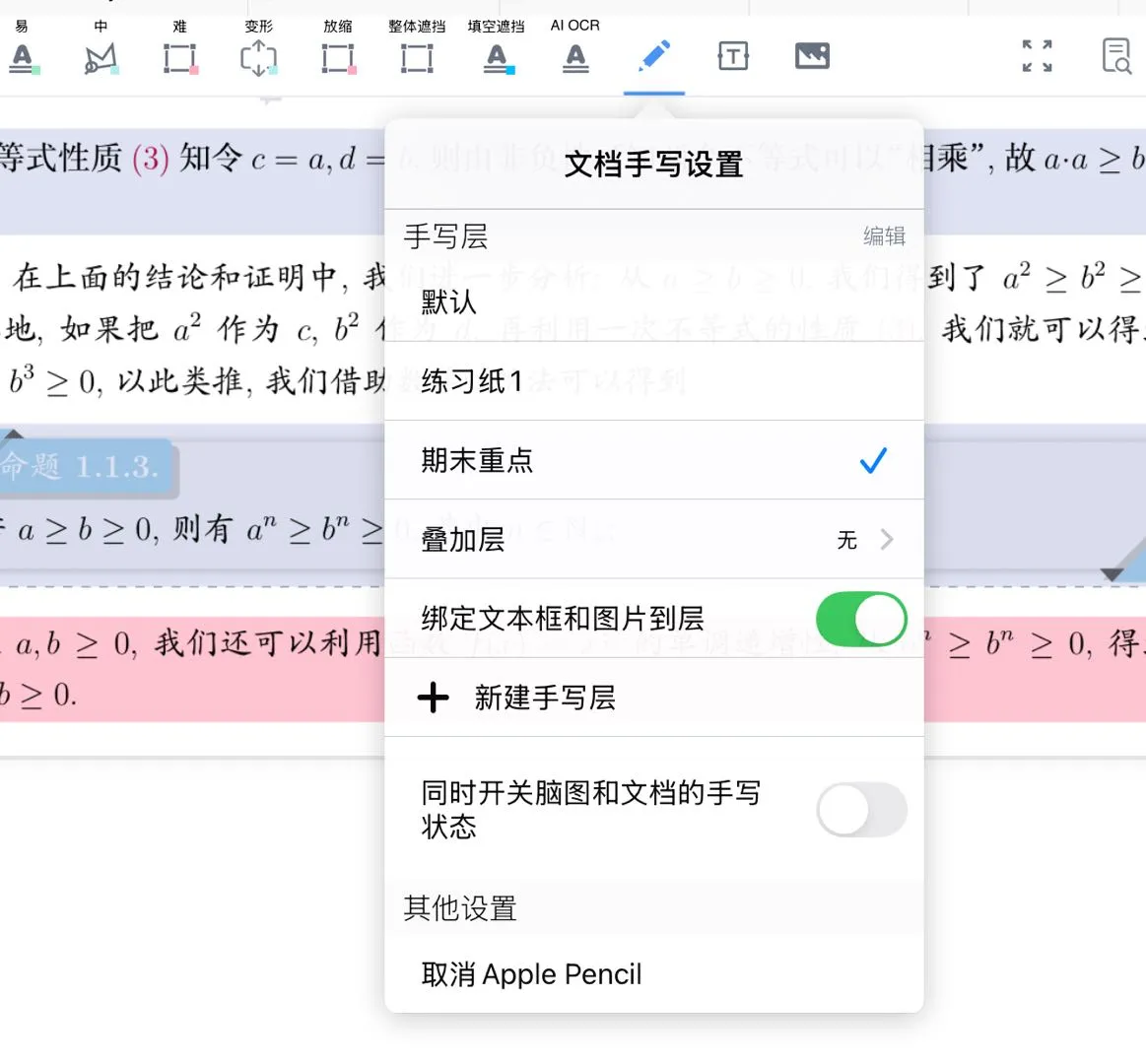
Handwriting: Write Freely in Documents, Mind Maps, and Cards
Write anywhere! Supports handwriting layers, Vanish Mode, smudge-erase, and AI text conversion, and you can duplicate a brush with one tap or import parameters others have configured.

Layers: Document Notebooks & Handwriting Layers
Like tracing paper: layer multiple overlays on a single original PDF to take notes. An exclusive tiered-layer design keeps your study records sensibly partitioned.
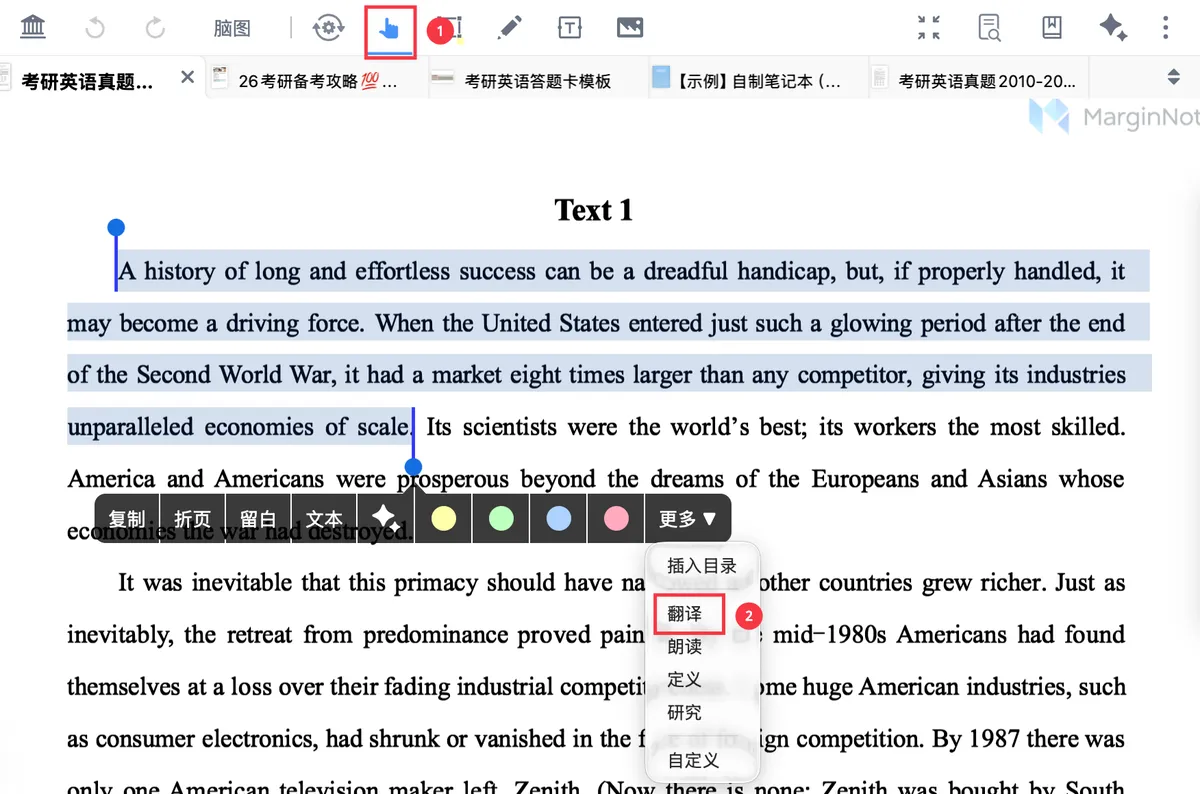
Translating and Saving Translations
Four ways to translate and save translations: instant in-document translation, AI translation with AI OCR, the research sidebar (including custom URLs), and plugin translation. You can insert a translation as an extend note, copy it to the clipboard, or save it as a card for side-by-side comparison and later organization.
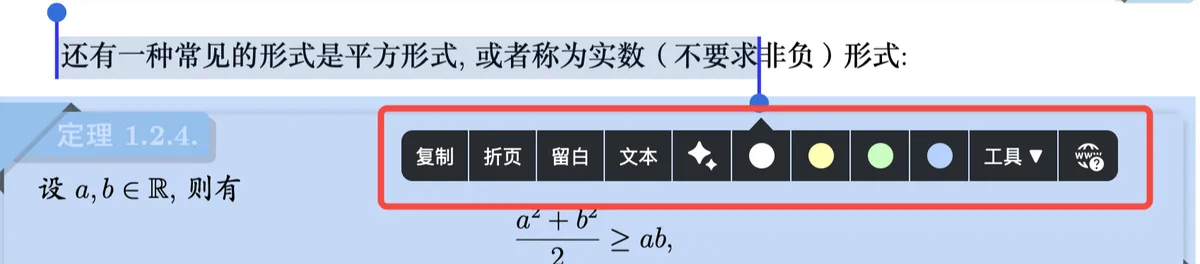
The Hand Tool Pop-up Menu Bar and Its Customization
No need to switch toolbars repeatedly—after selecting text or an area, the hand tool lets you make an excerpt, translate, add an extend note, and more with a single tap. The menu bar supports customizable pinned options, or you can create your own shortcut buttons to put frequent actions a step ahead.
Document Reading: Annotation, Search, and Comparison
Read a book in depth: full-text search, bi-article comparison, and cross-document referencing with backlinks.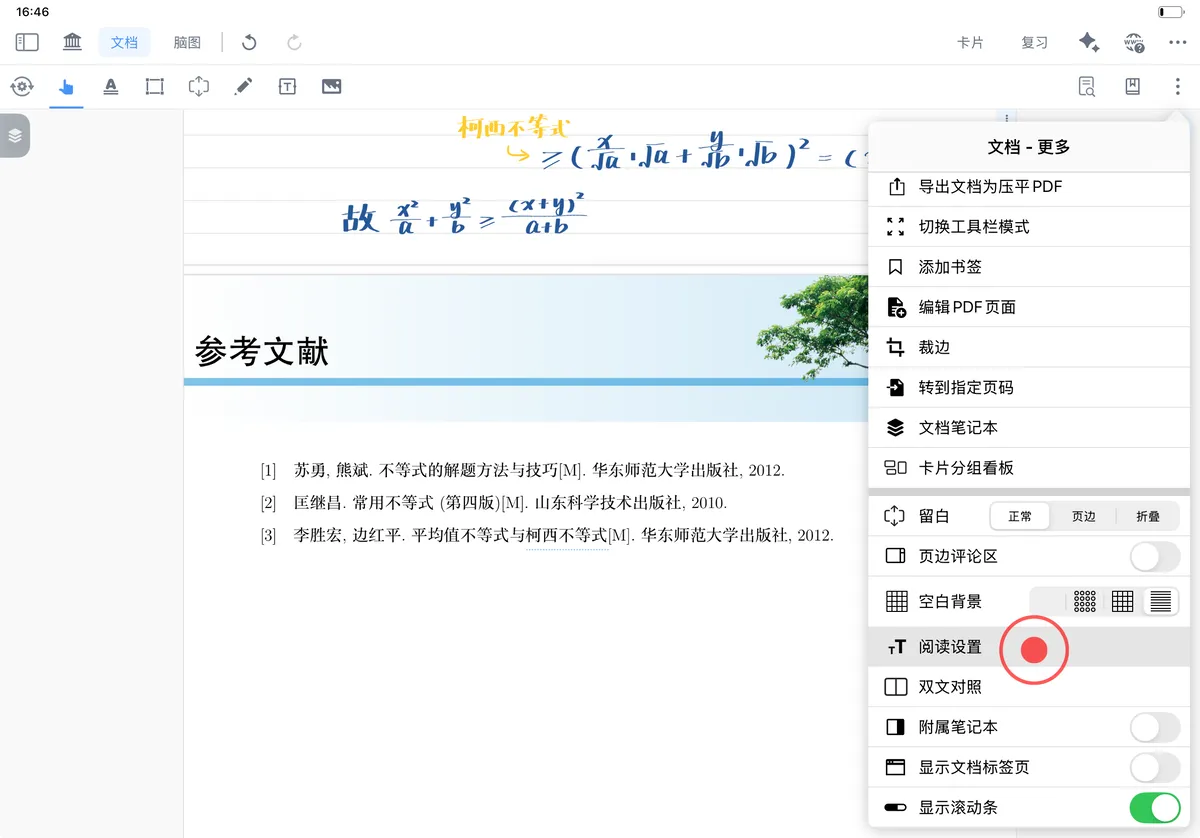
Document Reading Settings
MarginNote offers rich document reading settings, delivered mainly through three modules: the first supports adjusting document page brightness, the page-turning mode, 5
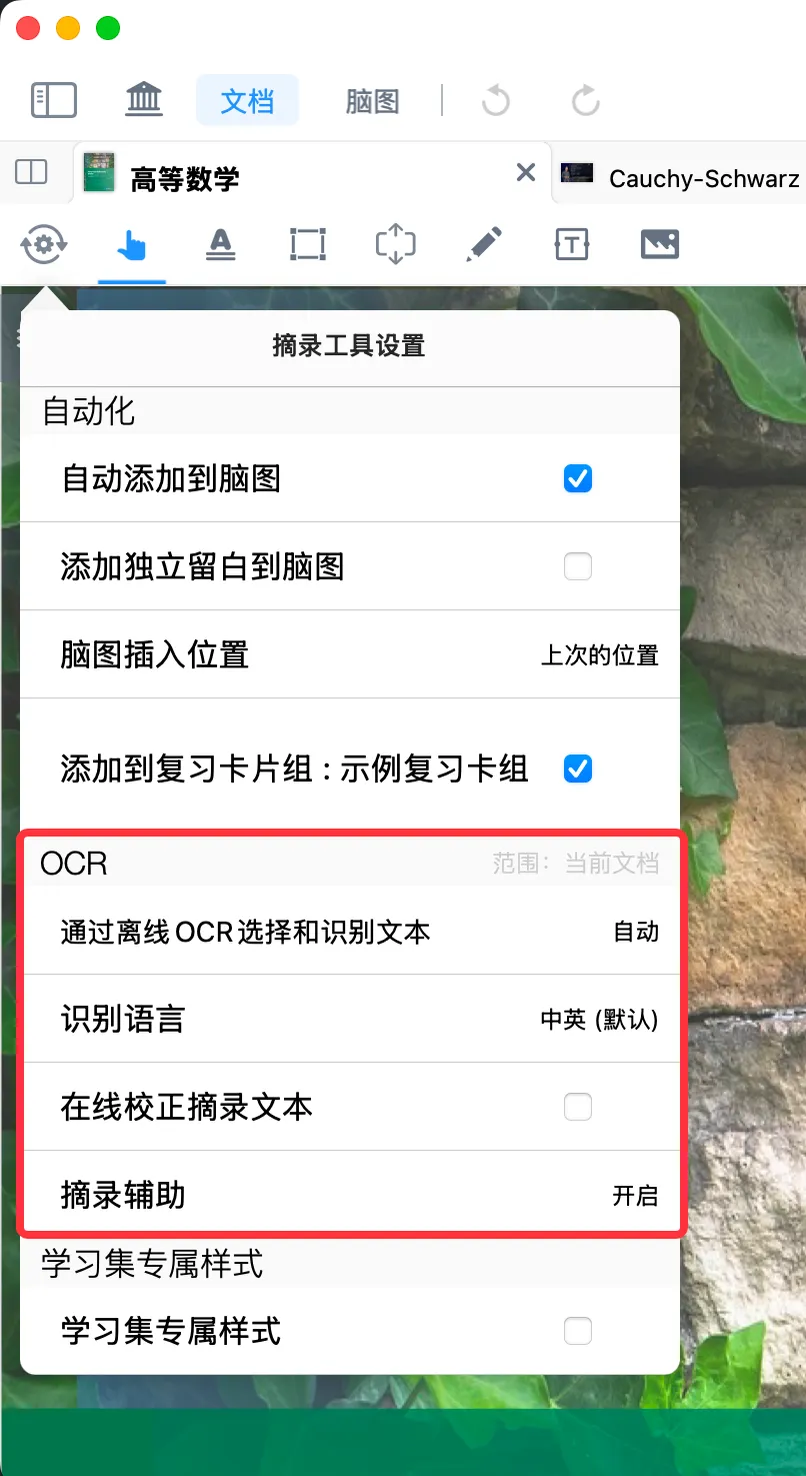
Search ①: Full-Text OCR + Search & Locate, Enjoy Reading Scanned Books Too
Searchable! Accurate! Locatable! Multilingual OCR recognition and correction make e-book reading worry-free and searching smooth.
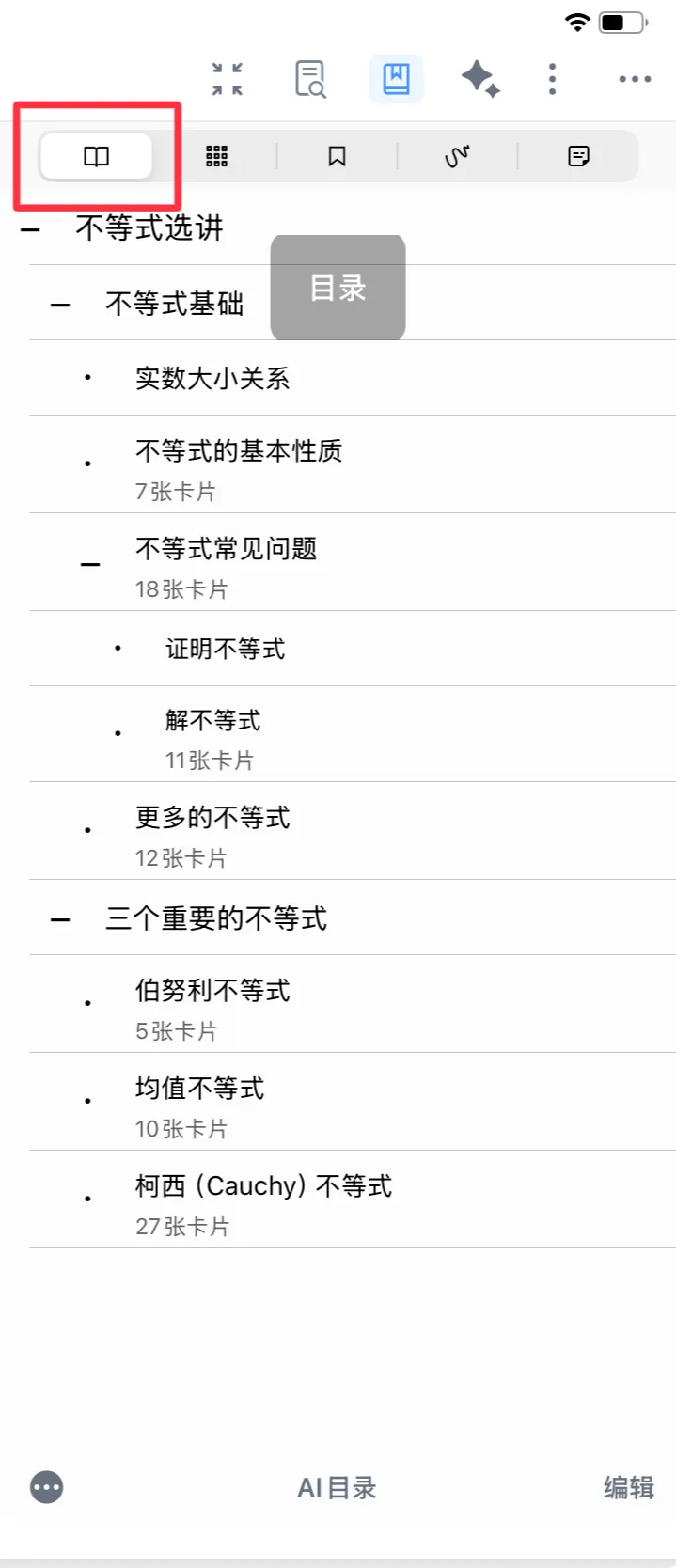
Search ②: View the Document Table of Contents / Thumbnails / Bookmarks / Handwriting Annotations / Cards
MarginNote's page-finding feature brings together five search methods—Table of Contents, Thumbnails, Bookmarks, handwritten annotations, and cards—so you can quickly locate the target page for different needs.
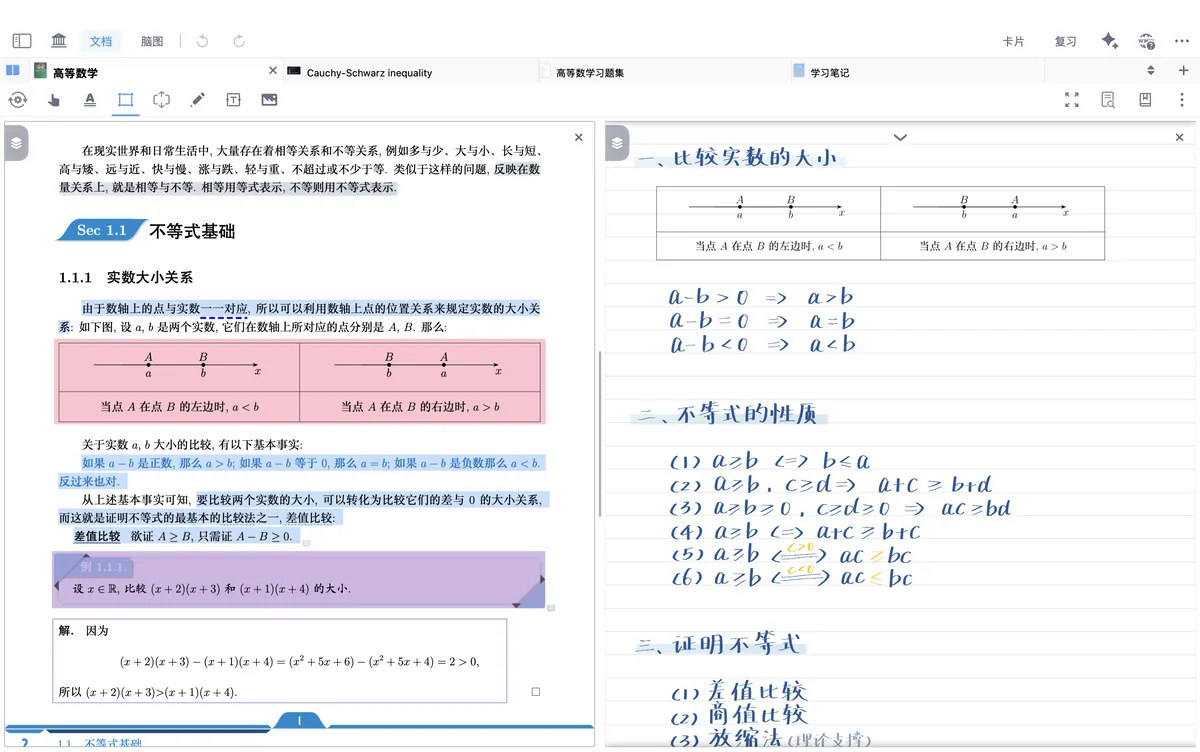
Comparison ①: Bi-article Comparison Window
Whether it's a textbook and a video, a workbook and its answer key, the original text and your notes, or different positions in the same document, you can display them side by side and switch easily. The comparison view state can be saved at any time.

Comparison ②: Cross-document Reference & Backlink
What are a 'reference' and a 'backlink'? A reference, simply put, is citing content from a different context. There are two cases: 1. within the same document position; 2. citing content from another document at a position in this document. A backlink is the feature that jumps from the citation back to the original source.
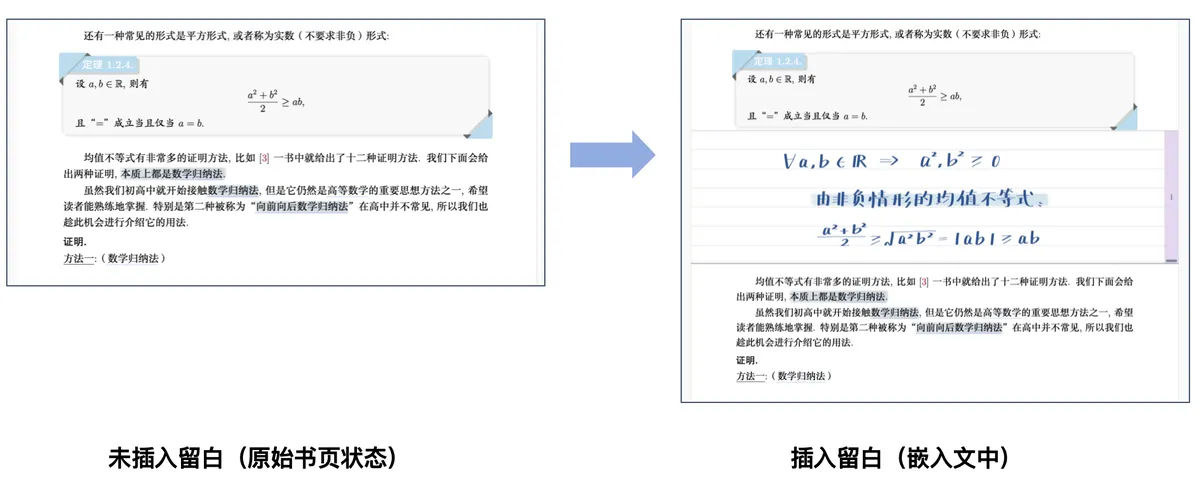
Extend Note ② | Use Cases: Tiered Management of Reading Notes
Embed important notes within the text and park secondary notes in the margins, with the position of an extend note flexibly adjustable.

Comparison ③: Attached Notebook
The strokes, annotations, and note content written in a companion notebook are automatically bound to the corresponding page and position in the original PDF. Tap any note or stroke in the companion notebook to instantly locate and jump back to its original position in the PDF, achieving precise source tracing and comparison between notes and the original text.
Document Layout and Page Editing
Fold chapters, reorganize pages, and crop the paper to reshape a PDF into the version that suits you best.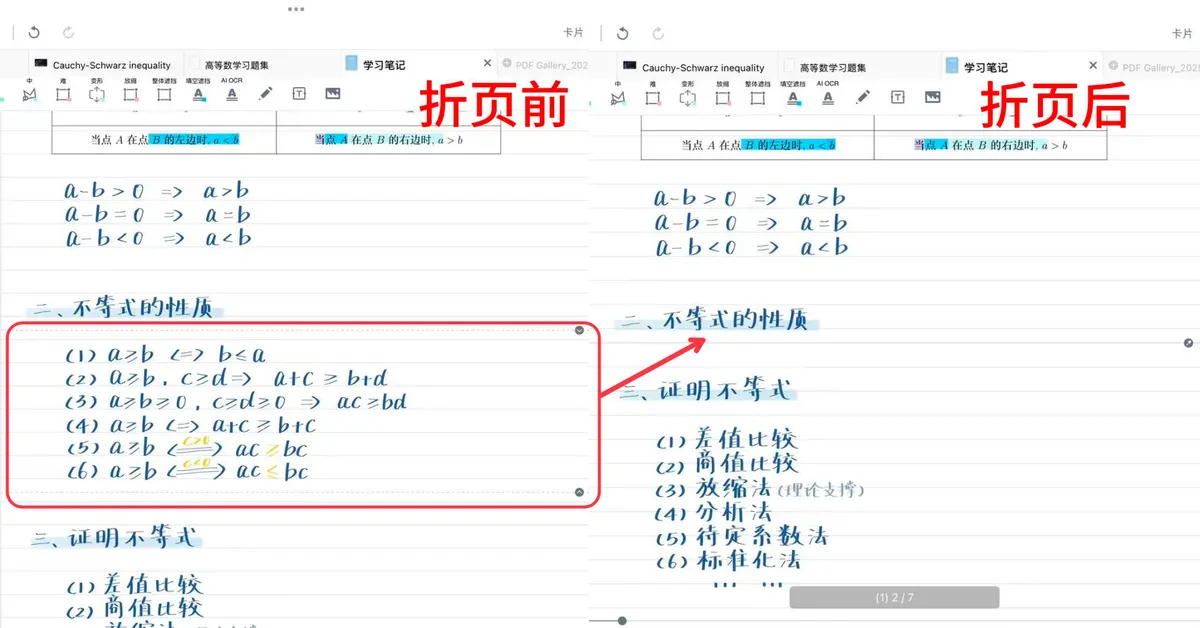
Page Folding
Hide content you don't need in a document—fold by chapter or manually fold a local area. After folding away headers and footers you can make excerpts smoothly across pages, and hiding answers keeps you from seeing the solution early. You can expand at any time, making it more flexible than deleting pages.
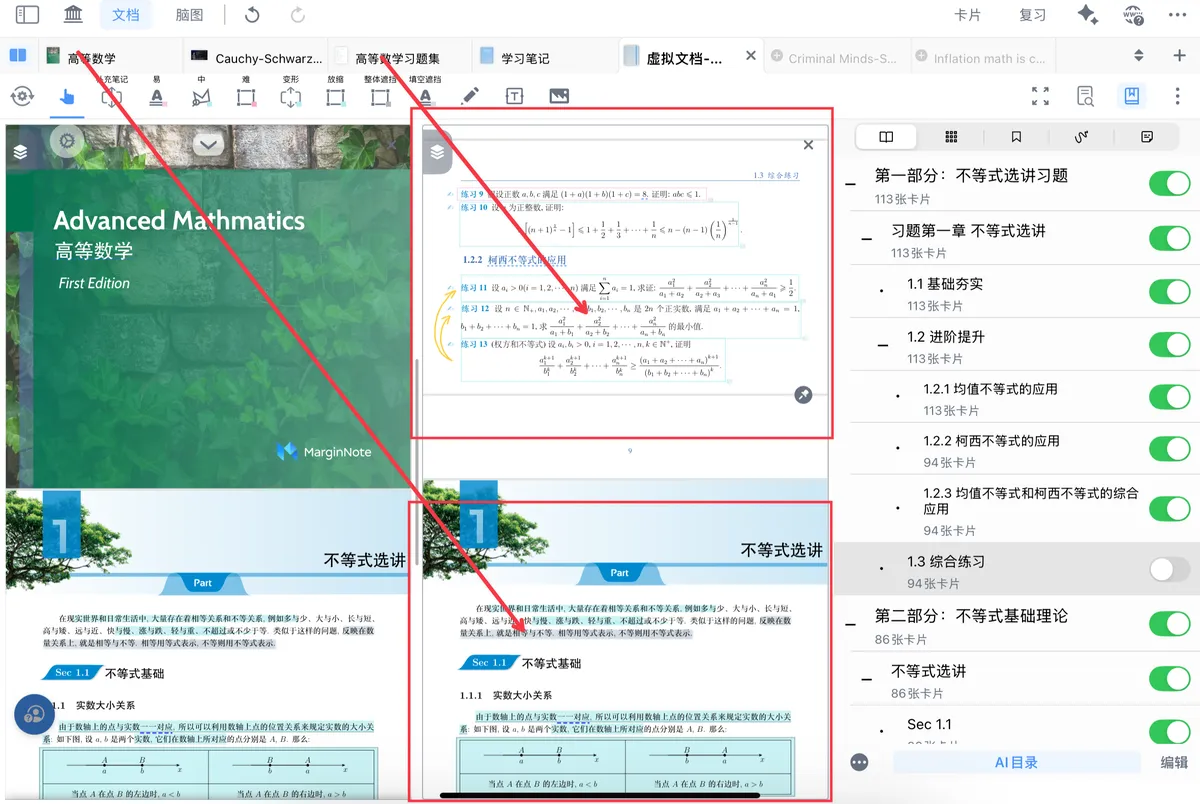
Page Reorganization
Drag and drop pages from different documents to combine them into a virtual document, splitting and recombining at the page level. It references pages without copying the original files—ideal for extracting chapters from multiple textbooks to build your own study material.
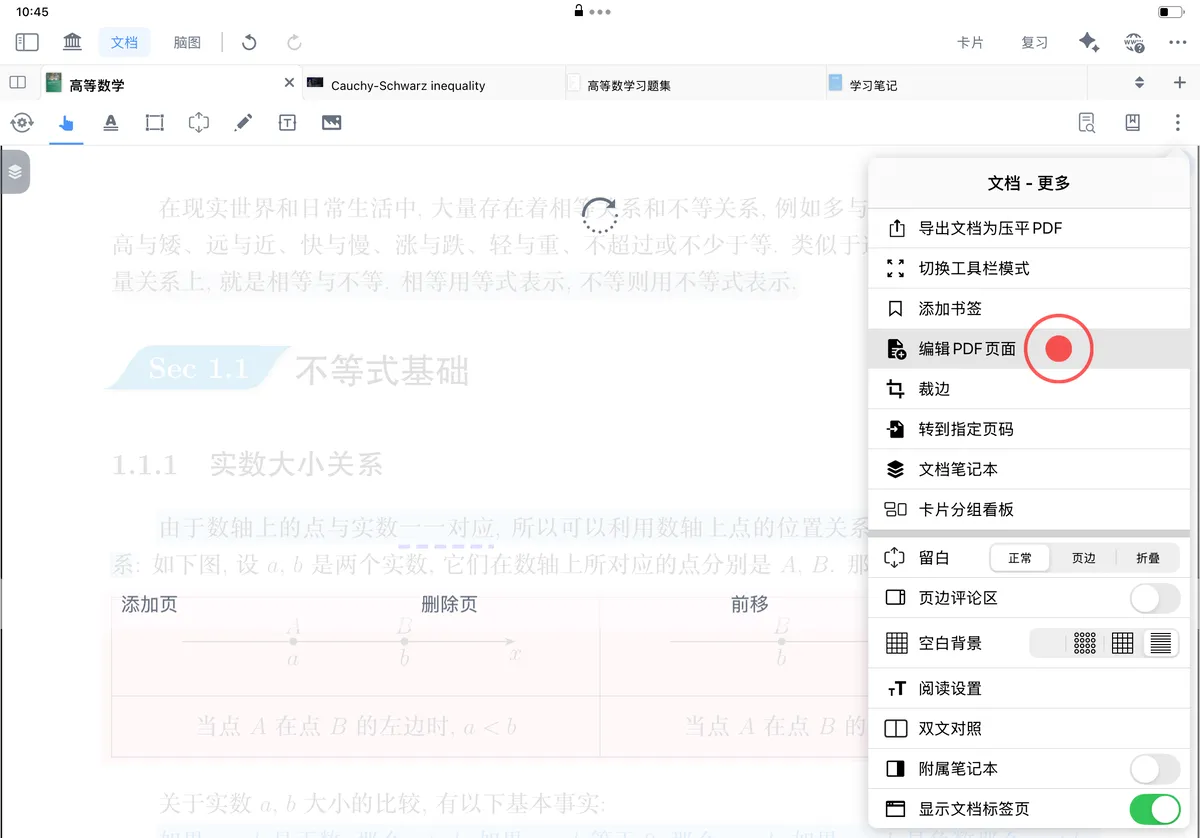
Adding/Deleting Pages and Cropping the Page
Rotate, add, and delete pages, crop redundant margins, headers, and footers, or extend a page to make room for notes. Batch-fix textbook layout problems to make documents better suited for study.
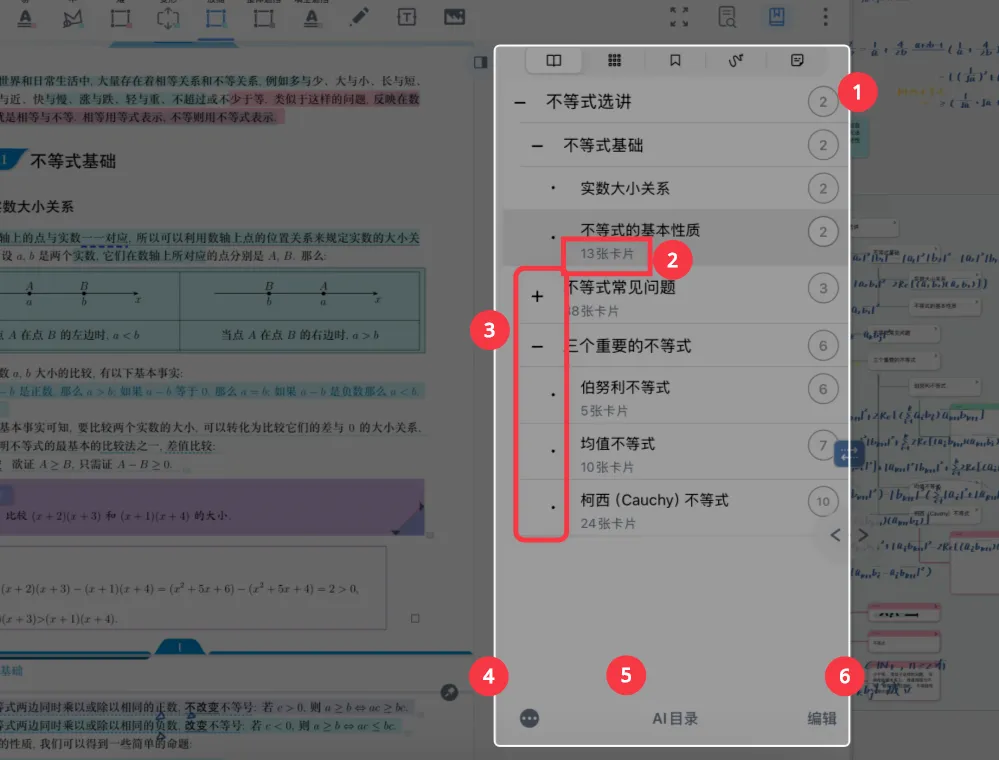
Manually & Automatically Generating a Document Table of Contents
Build a clear chapter hierarchy for PDFs that lack a table of contents. Supports manual creation and AI auto-generation, and the table of contents can be turned directly into a mind map structure. The virtual table of contents doesn't modify the source file and can be reset at any time.
Mind Maps and Study Sets
Once you've read your documents and made your annotations, what's next? This part covers the core strength of MarginNote 4—how to extract knowledge points scattered across different documents, organize them into a visual mind map structure, and complete the full loop of reading, organizing, and reviewing in a single interface. If you want to do more than just 'read' and truly 'learn,' this part is the key.
Start Theme-Based Learning with a Study Set
Put multiple materials into one subject space, link the mind map with your documents, and begin systematic learning.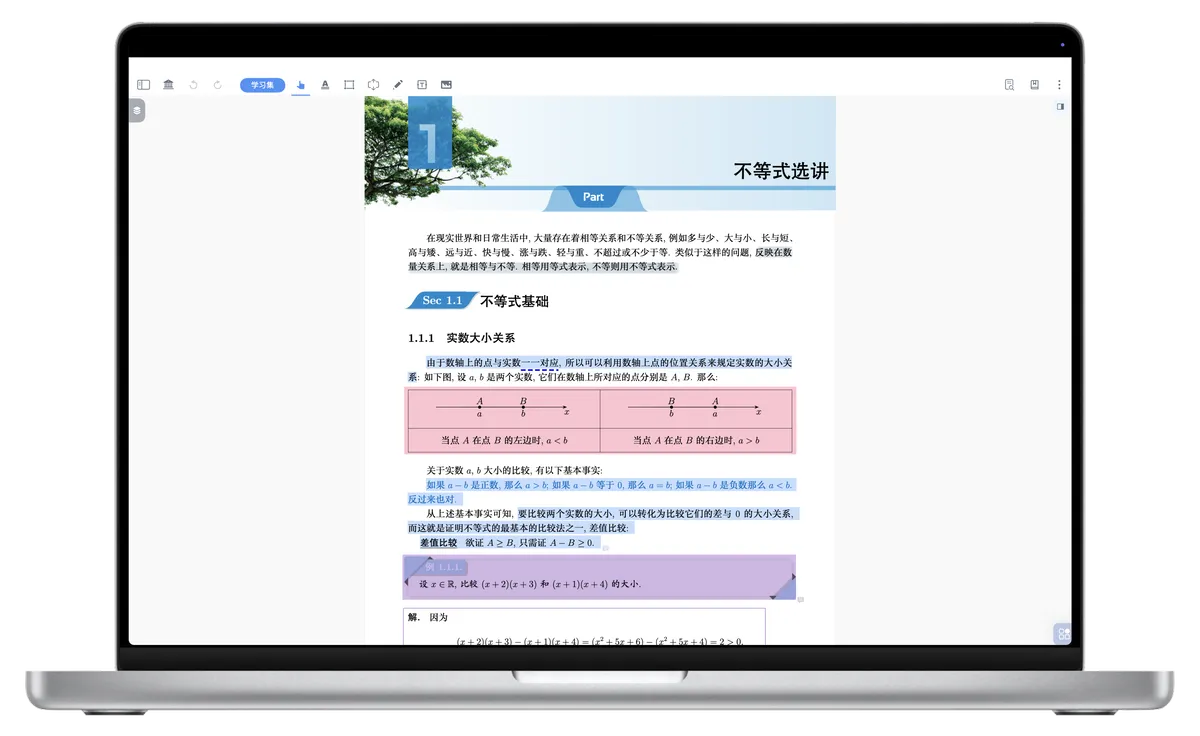
Creating a Study Set: Start Theme-Based Learning
A study set is a dedicated space that brings documents, mind maps, and review cards together around a single topic. This article teaches you to create a study set, choose an interface mode, and import documents—the starting point for using MN4's deep learning features.
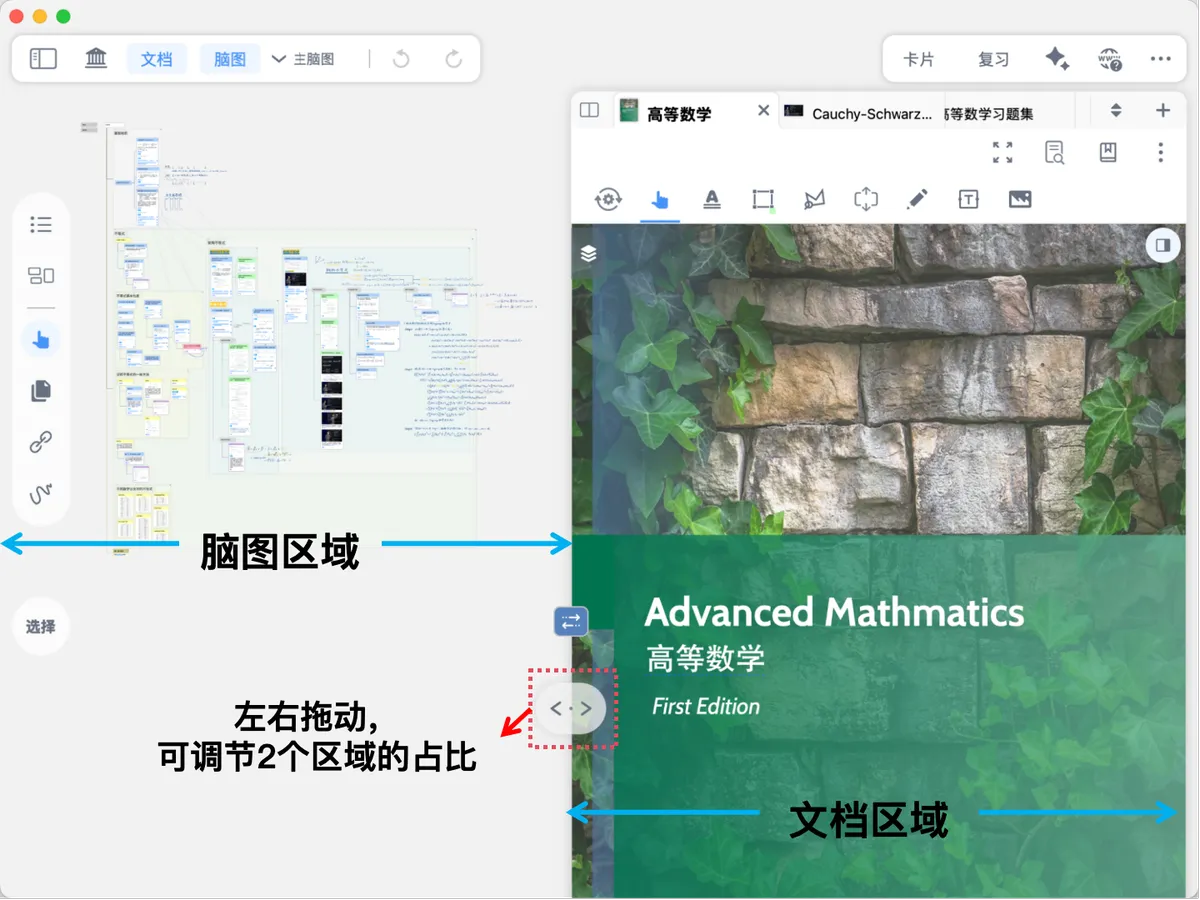
Mind Map and Document Linked View
Organize your mind map while reading documents, with the two views linked in real time. You can adjust the ratio and switch the link direction (document→mind map, mind map→document, two-way, or off), without constantly switching windows.

Document Tab Management
Manage multiple open documents like browser tabs. Quickly switch, reorder, and control how many are shown, solving the problem of managing too many documents.
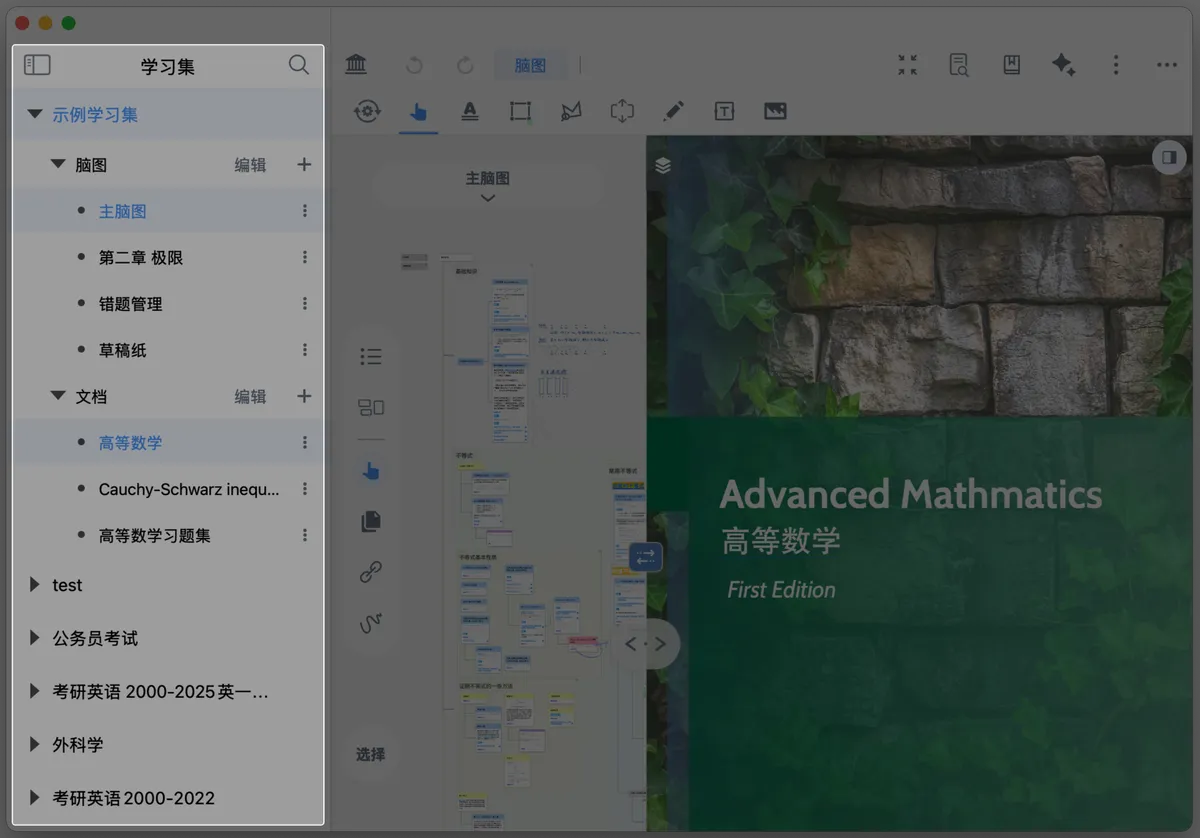
Quick Sidebar Switching and Global Search
Navigate quickly through the document sidebar and the study set sidebar, with support for global search (advanced rules such as AND/OR/NOT), opening a sub-mind map in a floating view, and searching by file name. Find anything you need, fast.
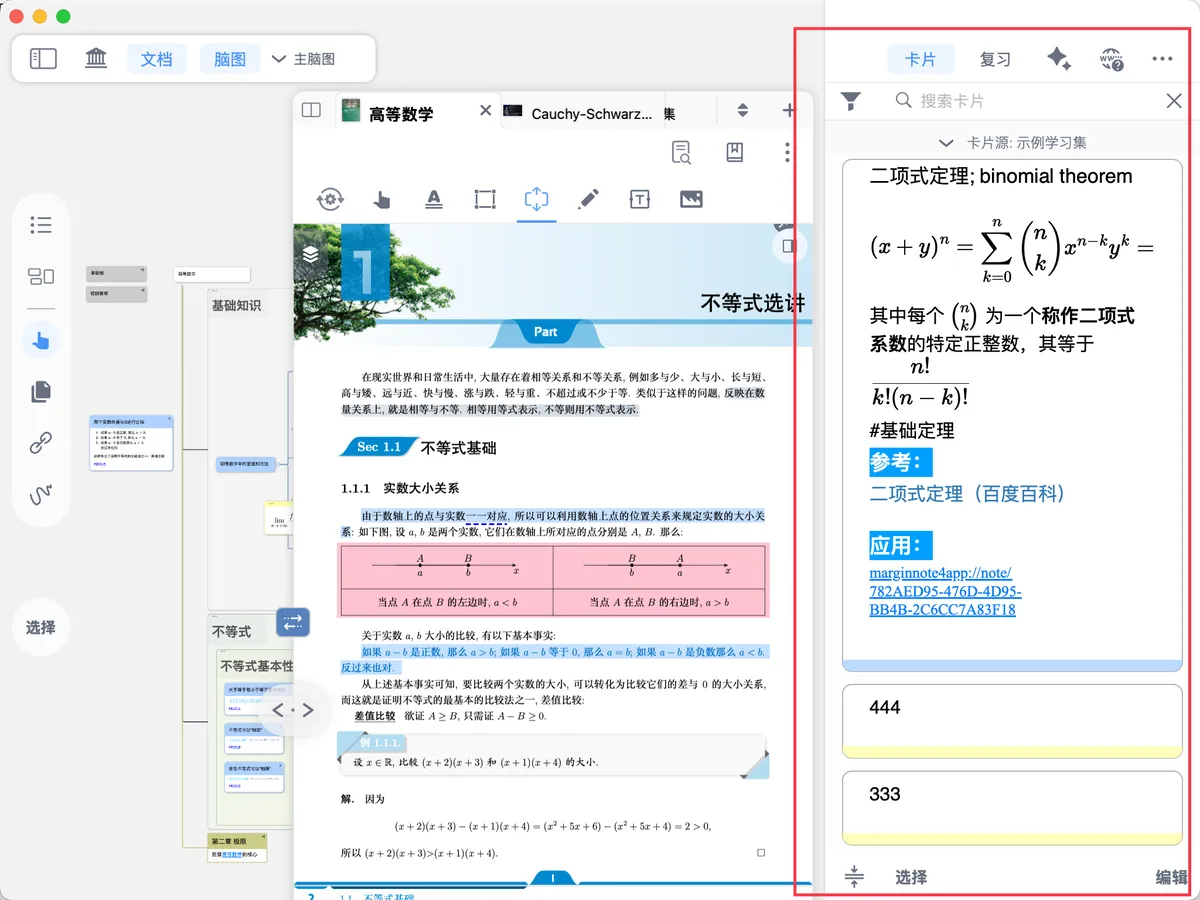
Zettelkasten-styled Card Box View
A central area that manages all your note cards in one place, connecting a study set with multiple mind maps. It supports filtering, searching, and batch editing; tap a card to backlink to its position in a mind map or document, achieving cross-document knowledge integration.
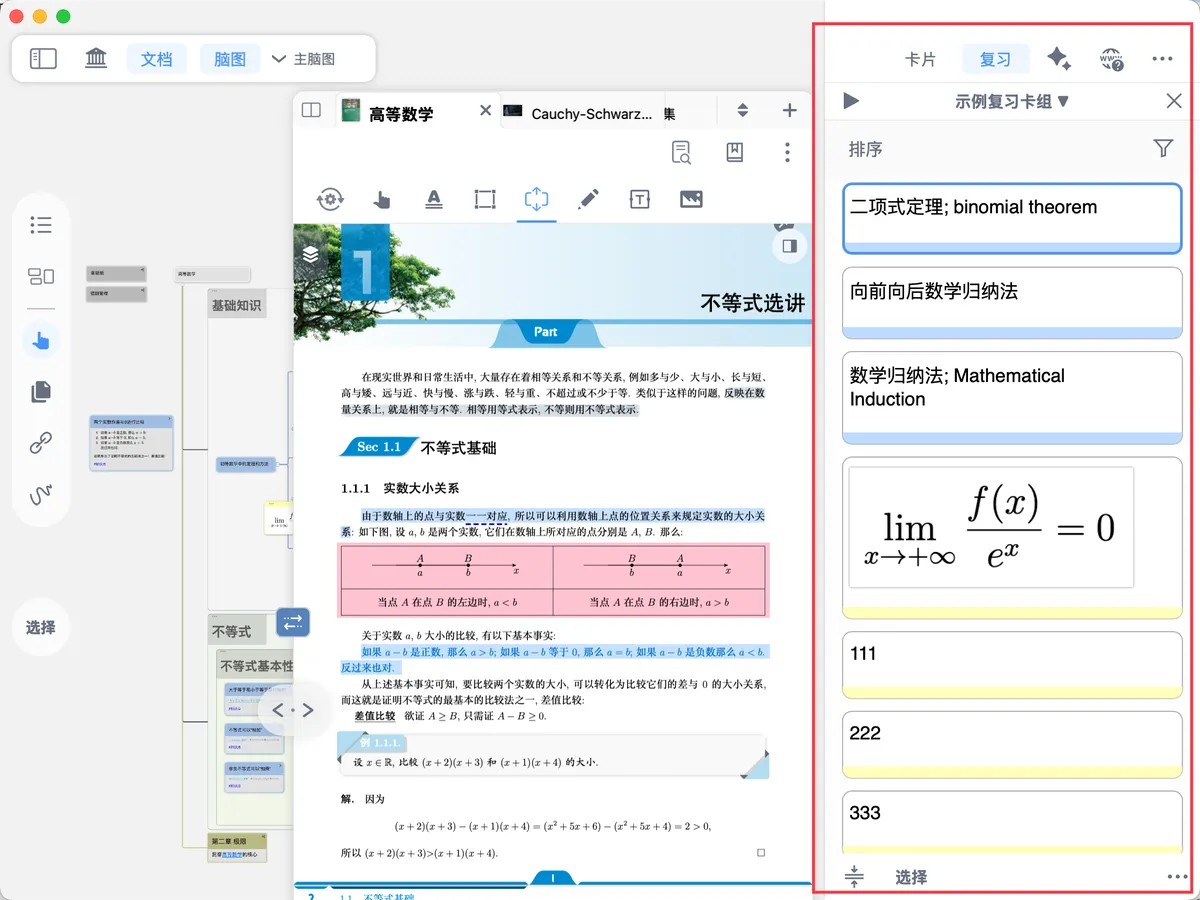
Review View
Start flashcard review directly without leaving the study set interface. It supports sorting, filtering, and a full-screen review mode, and uses the FSRS algorithm to schedule review intervals scientifically, seamlessly connecting documents, mind maps, and memory.
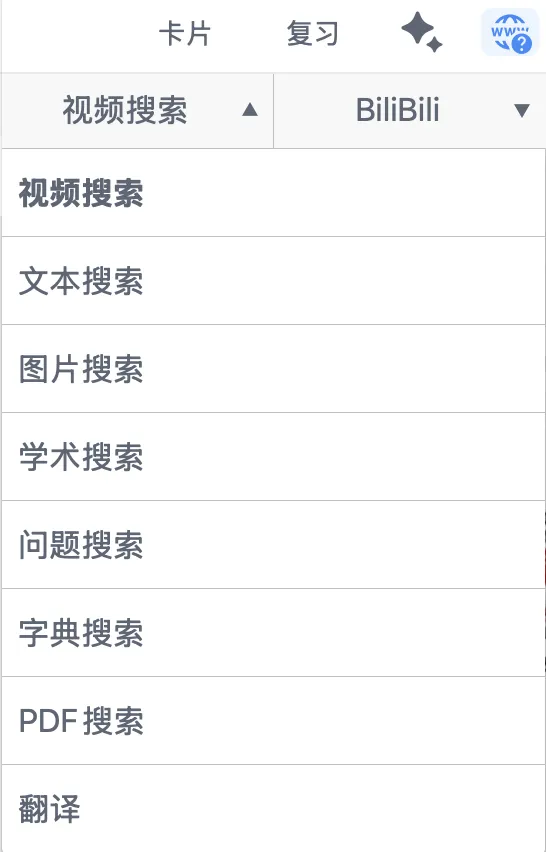
Research Browser View
A built-in look-up-while-you-read tool with 8 major functions, including video search, dictionary, academic search, translation, and PDF search. Web pages can be saved as PDFs with one tap and imported into your document library, so you can fill knowledge gaps without switching to external apps.
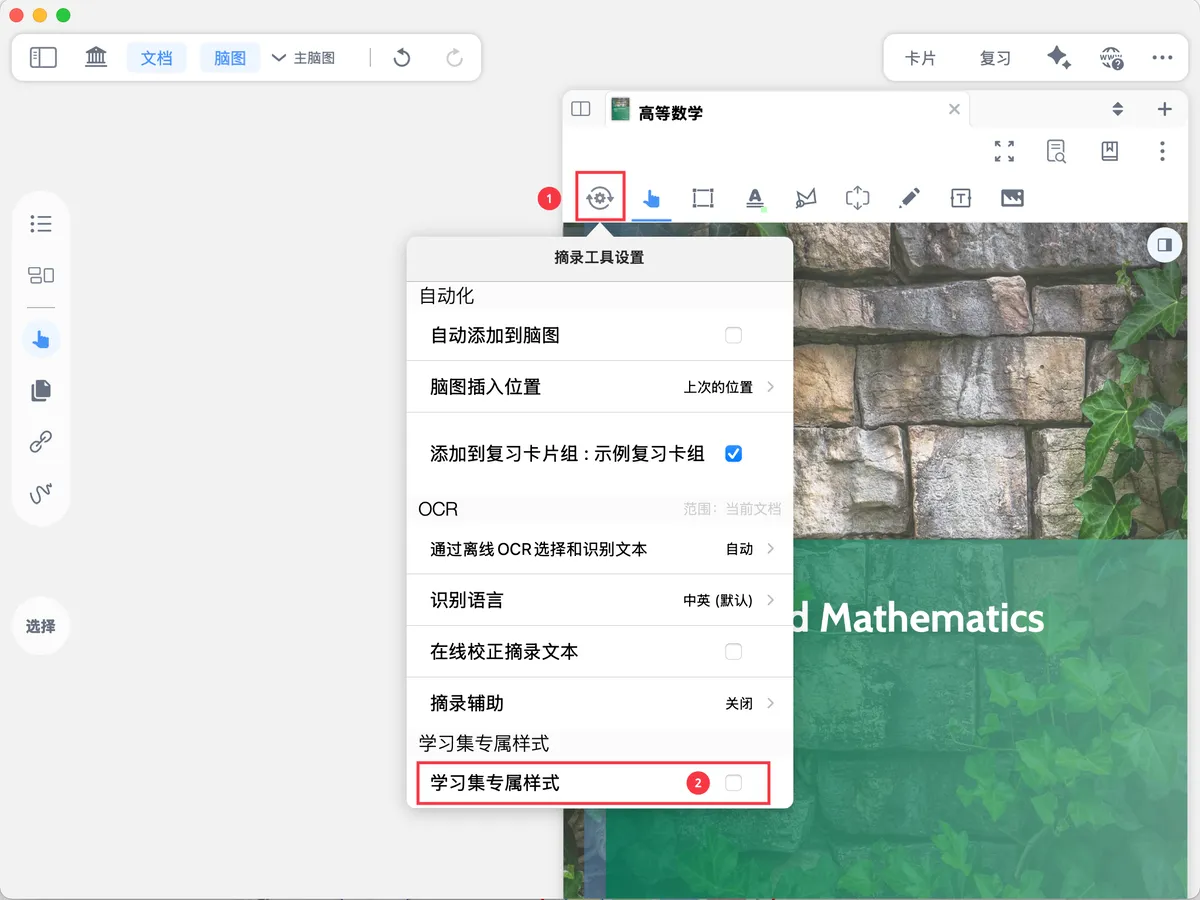
Studyset-Specific Styles: Build Your Own Learning Space
Customize excerpt colors, excerpt tools, handwriting tools, and the pop-up menu for each study set. Configurations can be exported to share or imported from others, and tools switch automatically when you switch study sets, lowering the cost of getting started.
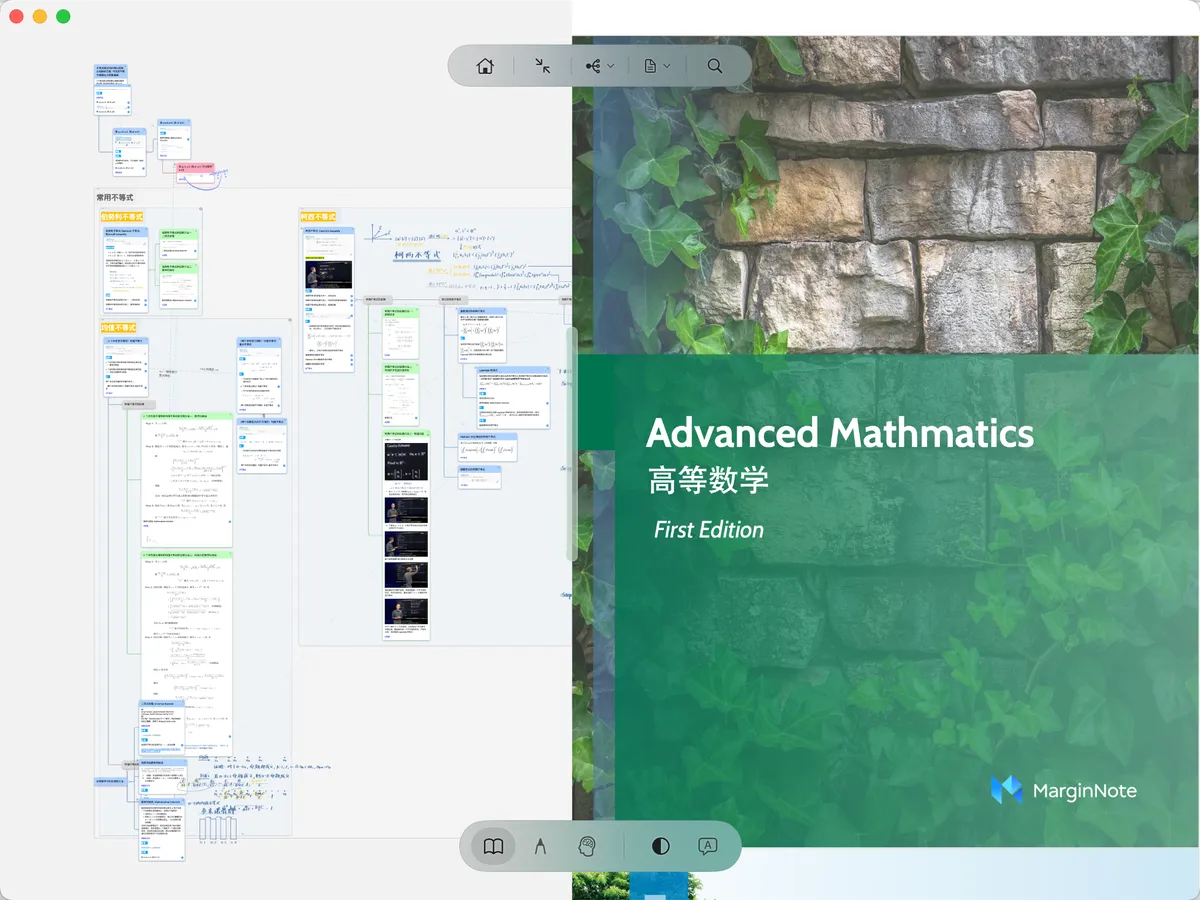
Immersive Mode
Immersive Mode. In Immersive Mode the toolbar is simplified and the interface is clean and tidy, maximizing use of screen space. It's designed specifically for 'handling excerpt content over long, continuous, focused stretches.' When you don't want to be interrupted by irrelevant buttons and menus and want to steadily advance your study and work…
Build a Mind Map from Documents
Use AI to excerpt document content with one tap and automatically generate a structured mind map.
Manually Generate a Mind Map from Excerpts
Making excerpts is only the first step. Many learners run into this confusion: they've excerpted a lot of content, but the cards are scattered across the mind map with no idea how to organize them; or they want to organize a textbook's notes into a clear framework but don't know where to begin. MarginNote 4 offers three paths, …
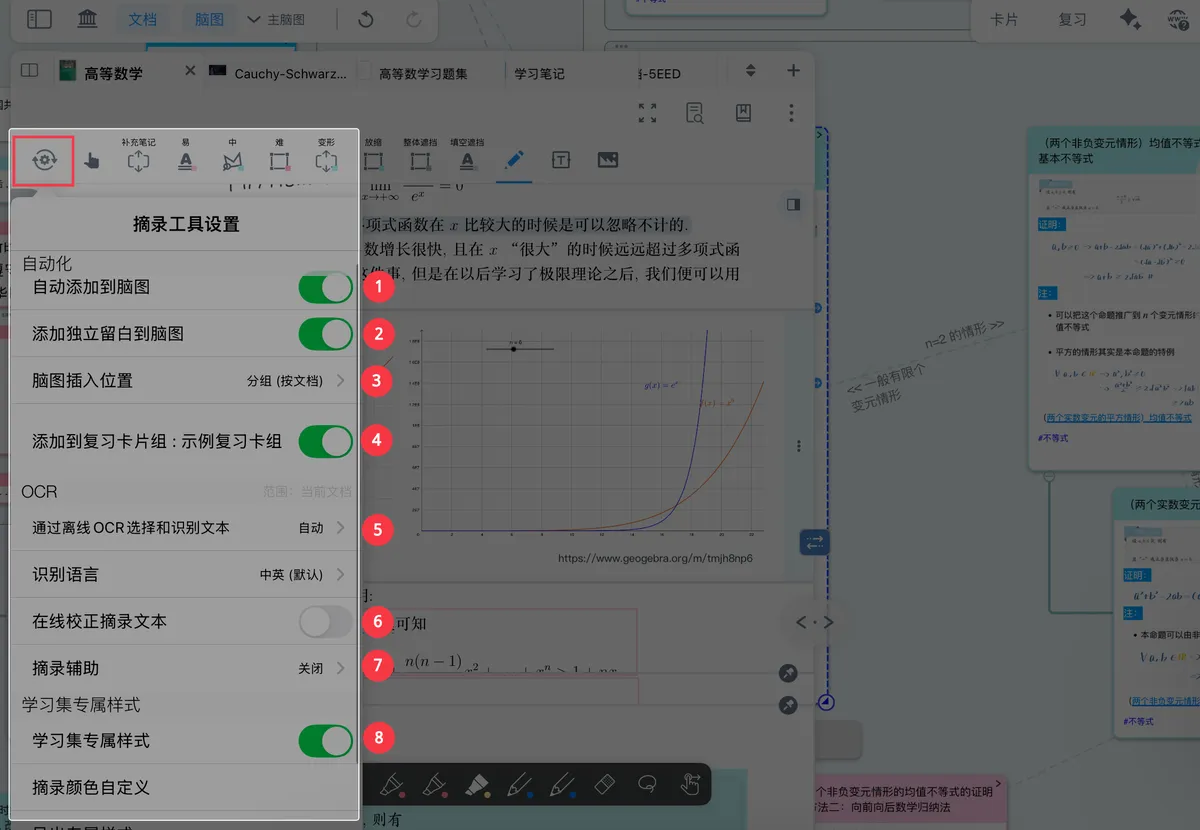
Excerpt Tools and Their Automation
When using the excerpt feature there are some routine actions—such as handling image excerpts, processing all excerpts, or setting tags and colors for excerpt cards. These sequential workflows can be automated through the excerpt tool settings in the document navigation bar.
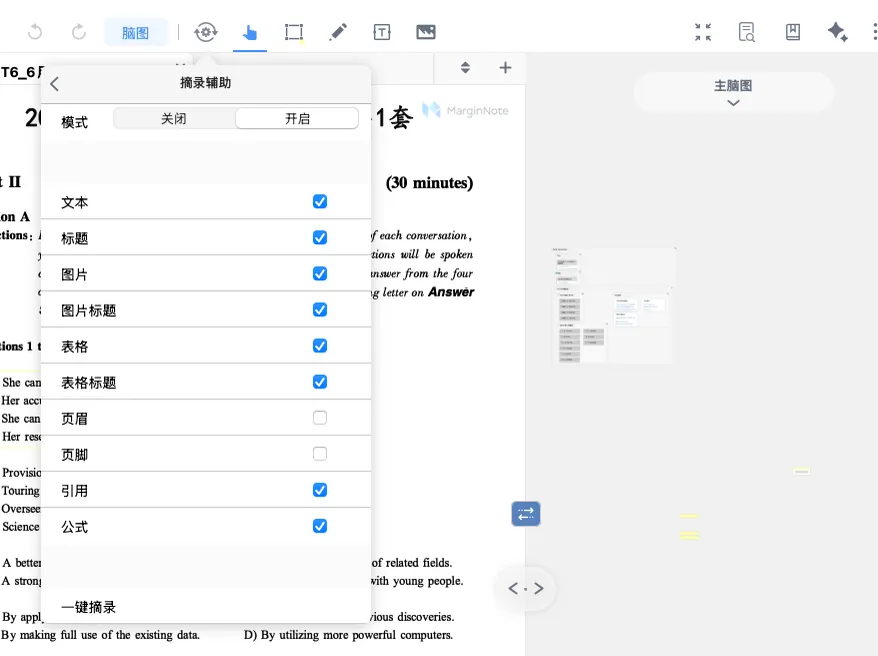
Auto-Generate Mind Maps ①: One-Tap Excerpting with AI Models
AI automatically recognizes 10 types of elements in a document—titles, images, tables, formulas, and more. Single-tap to reveal, double-tap to excerpt into a card, and batch-generate a mind map. It's especially suited to excerpting papers and course handouts that mix text and images.
Quick Notes with Mind Maps and Cards
Create, edit, and organize cards on the mind map canvas to build a hierarchical structure of knowledge.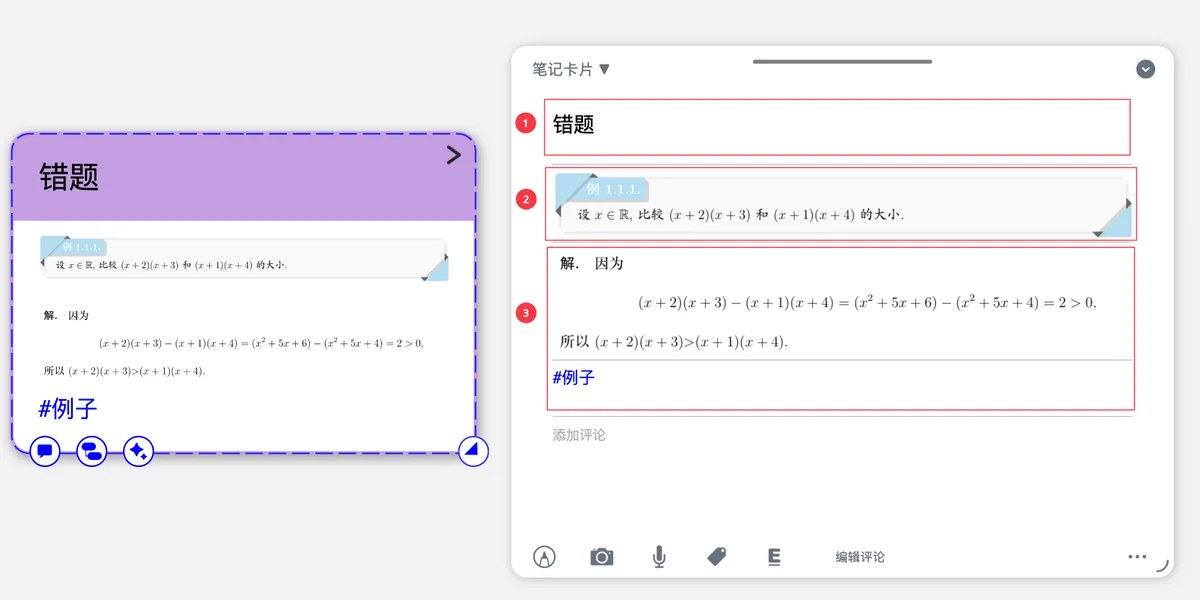
Mind Map Card ①: Creating and Editing Cards
Master the 5 ways to create cards (blank, from a node, from the outline, from a document excerpt, and with AI) and how to edit them. With support for rich-text formats such as Markdown, LaTeX, and code blocks, this is the foundation of mind map note-taking.
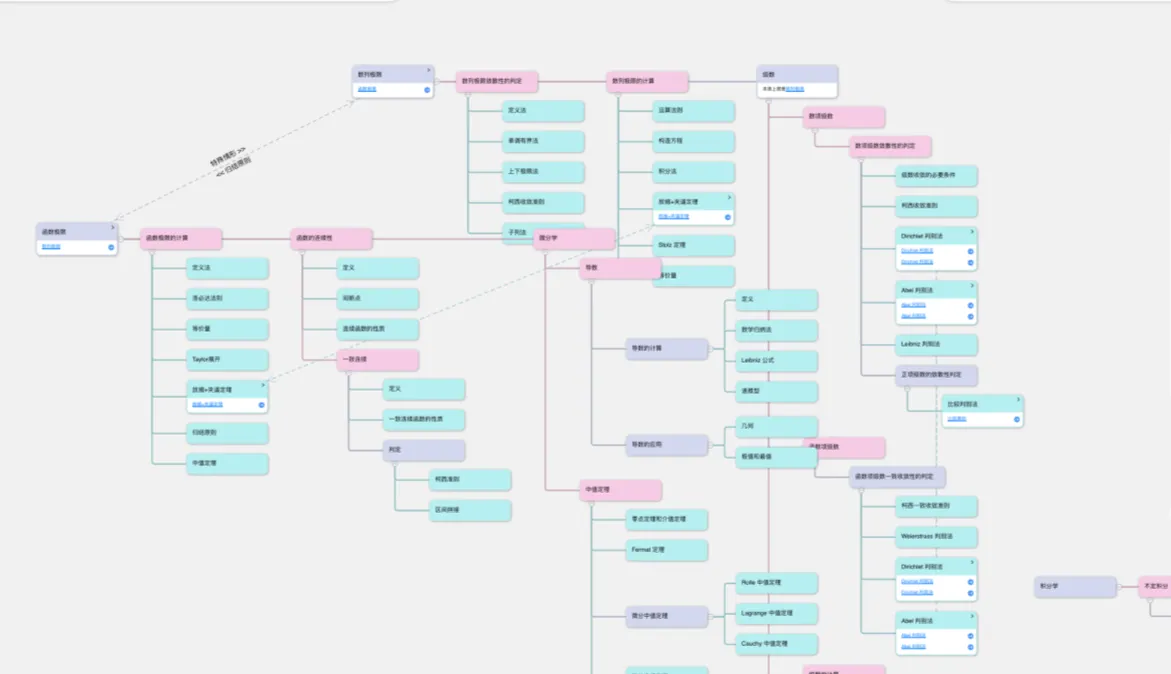
Mind Map Cards ②: Move, Merge, and Regroup
Organize scattered cards into a structured knowledge system. Drag to move, merge multiple cards, split and regroup nodes, and even auto-organize the card hierarchy by the document's table of contents.
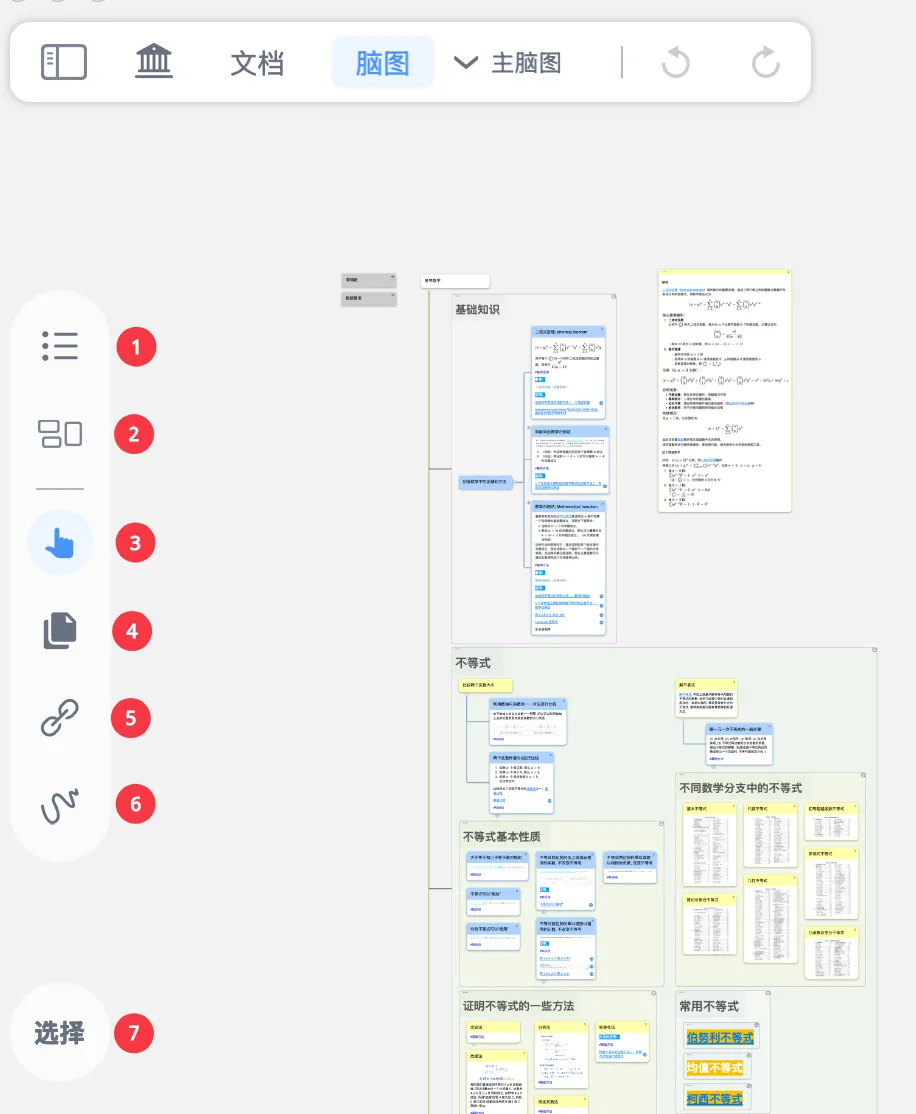
Mind Map Side Toolbar
An overview of the 7 tools: outline, board, hand, copy, link, handwriting settings, and select. Double-tap to bring up the settings panel and customize shortcut options for efficient editing and management of your mind map.
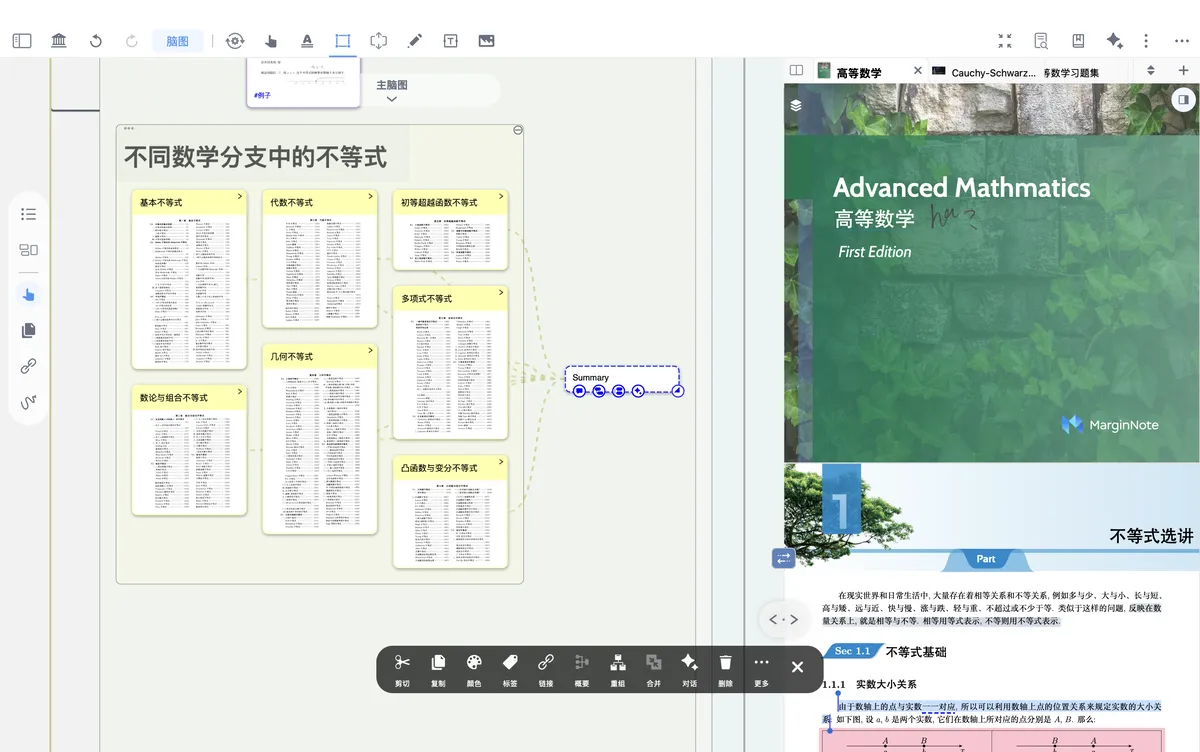
Mind Map Summary: Create Summary Nodes Across Branches and Extend Them into New Branches
Summarize multiple cards to generate a summary card that captures the core content. A summary card can be further expanded into a new branch, enabling vertical integration and horizontal comparison of knowledge.
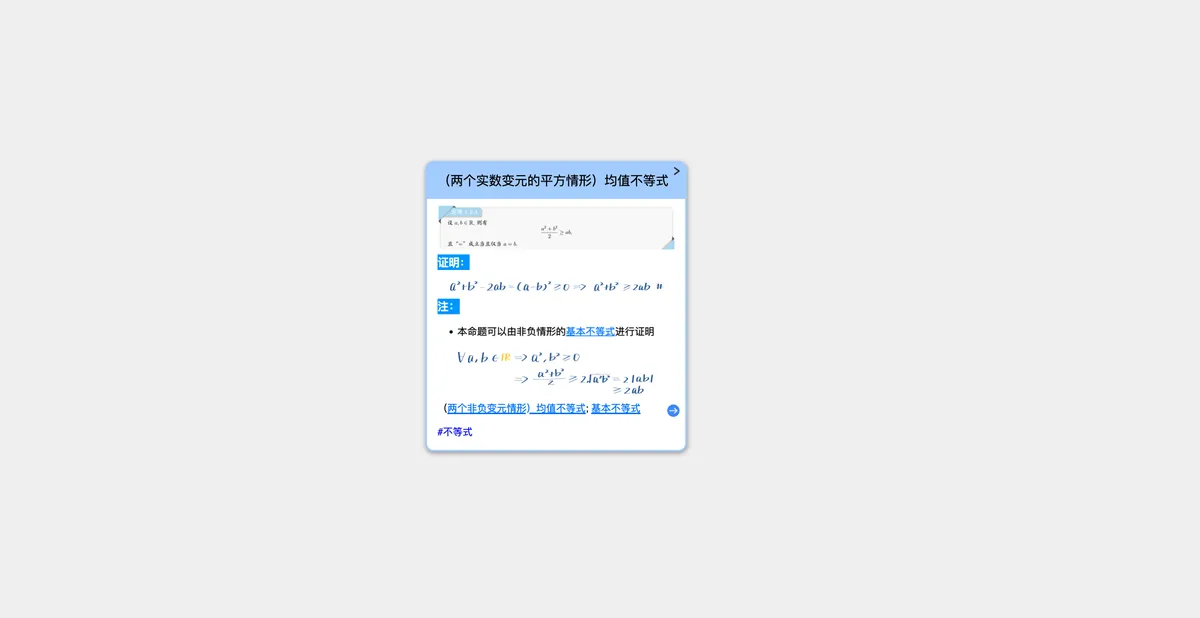
Mind Map Focus
Hide all other cards and show only the current card and its descendants. Focus your attention on a specific knowledge point within a complex mind map; after you exit, handwriting is hidden by default to keep your view clean.
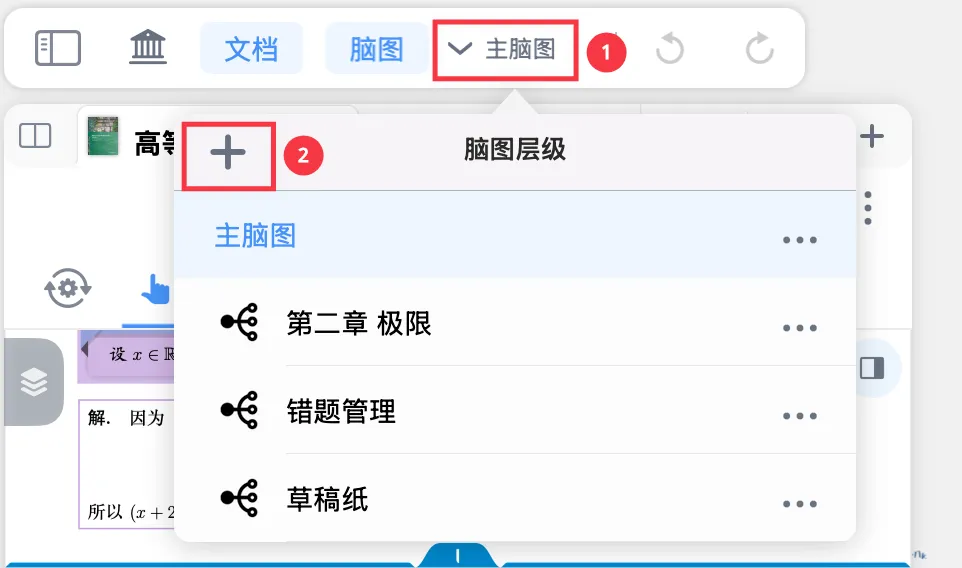
Creating and Managing the Child Mind Map Hierarchy
Too much content for a single mind map? Create sub-mind maps to organize by chapter or topic in layers. Supports management actions such as creating, collapsing a branch into a sub-mind map, opening in a floating view, and restoring it back to a branch.
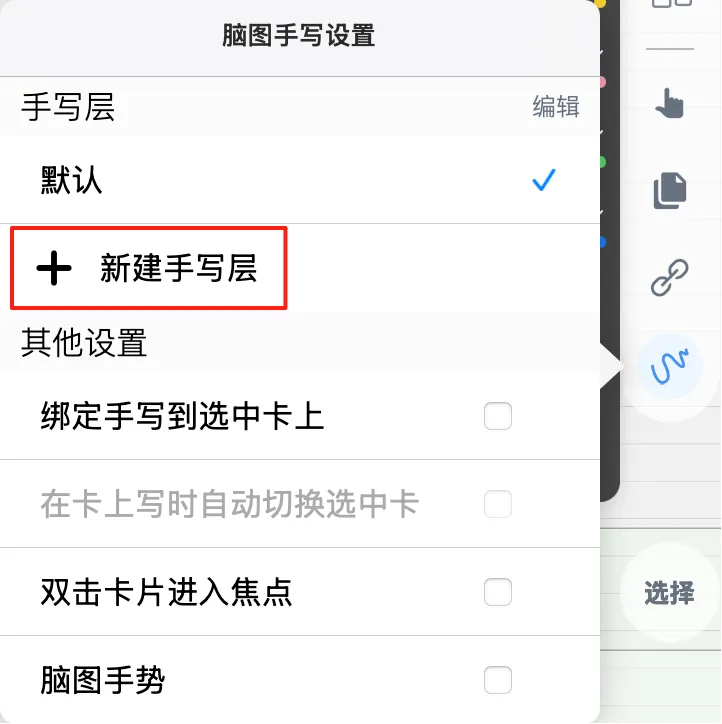
MindMap Handwriting Layers: Manage Your Annotations in Layers
A layer feature similar to Photoshop's—create multiple handwriting layers, use a different layer for each round of review, and overlay them to compare differences in problem-solving approaches. Supports switching, merging, renaming, and semi-transparent overlay display.

Markdown and Formulas
Use Markdown to format notes in cards, with support for basic syntax such as headings, lists, tables, and code blocks, as well as LaTeX/KaTeX/MathJax formula input and advanced HTML/CSS formatting. You can also extend functionality further with forum plugins.
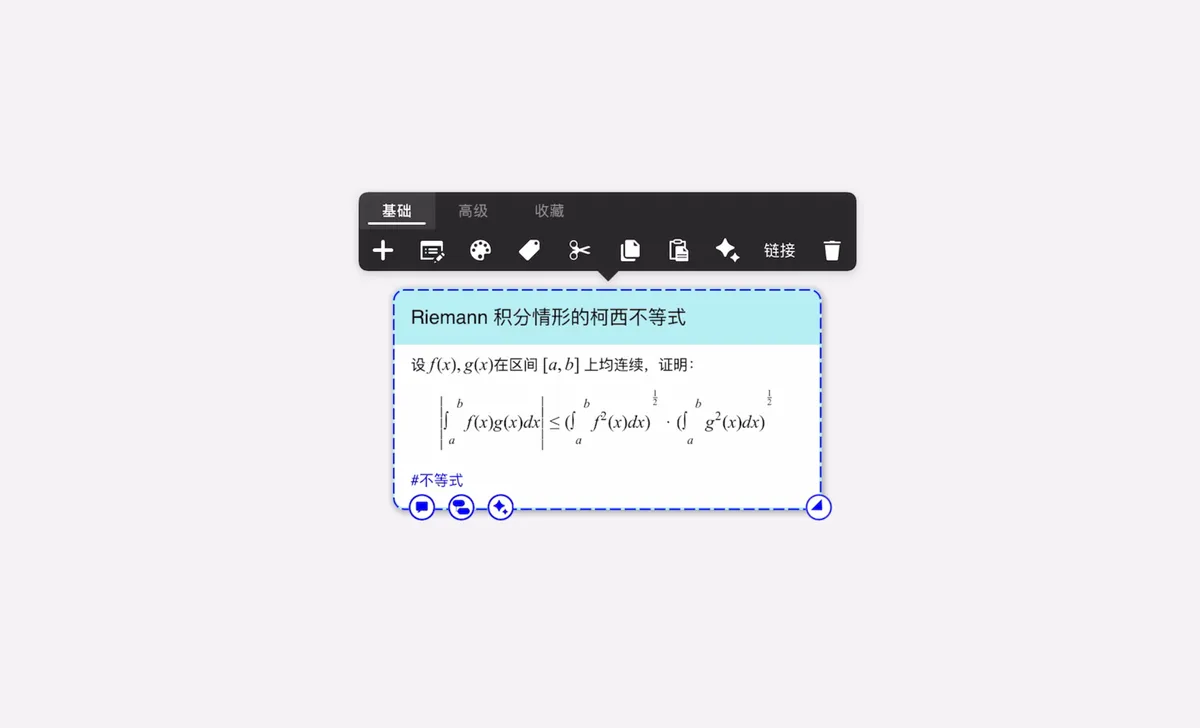
The Card Pop-up Menu Bar and Its Customization
A quick rundown of real scenarios: after creating a card, you sometimes need to organize its content and distinguish cards by color, tags, and the like to enrich them; sometimes you also need to create deeper links from a card's content; and when organizing the mind map outline, you need to adjust a card's hierarchy level and cut, copy, and paste cards. You may also need…
Edit a Mind Map from the Outline
Edit a mind map as an outline list—better suited for rigorous, logical hierarchical organization.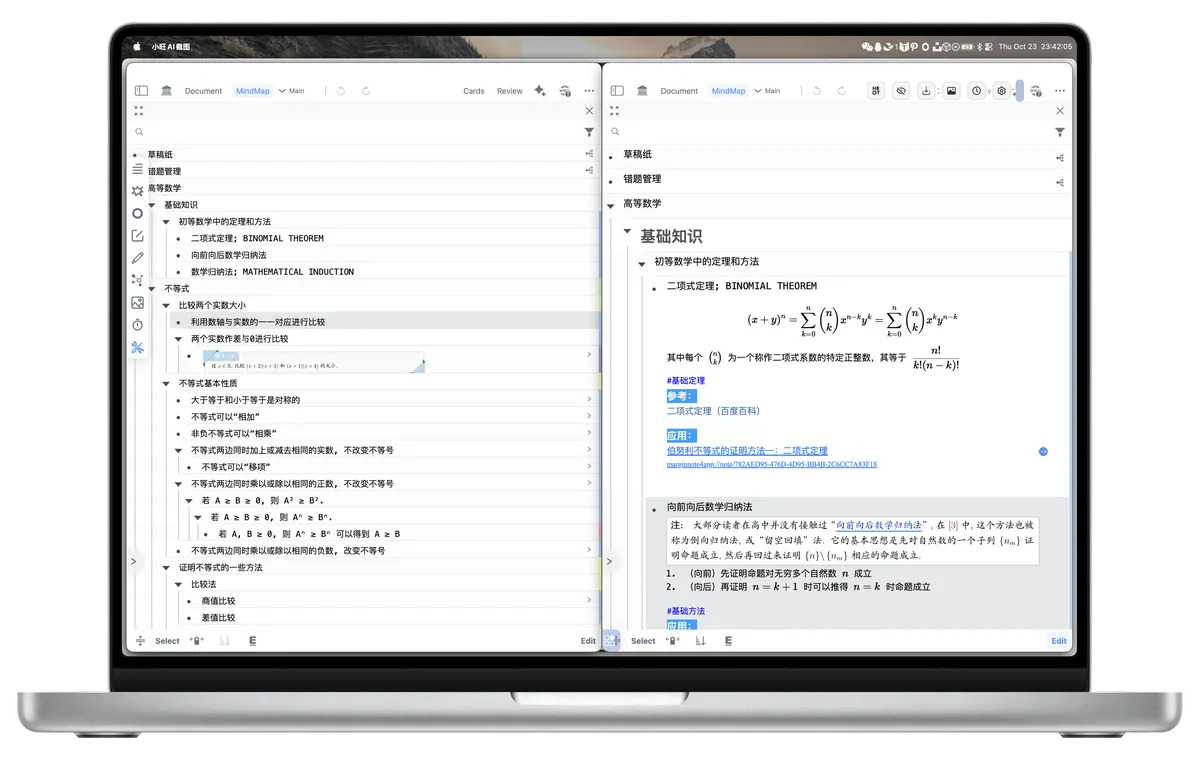
Outline Display and Sorting
Control how the outline is displayed—single-line compact mode, collapse/expand all, manual drag-to-reorder, and automatic sorting by document page order or creation date. Quickly browse and adjust the mind map structure.
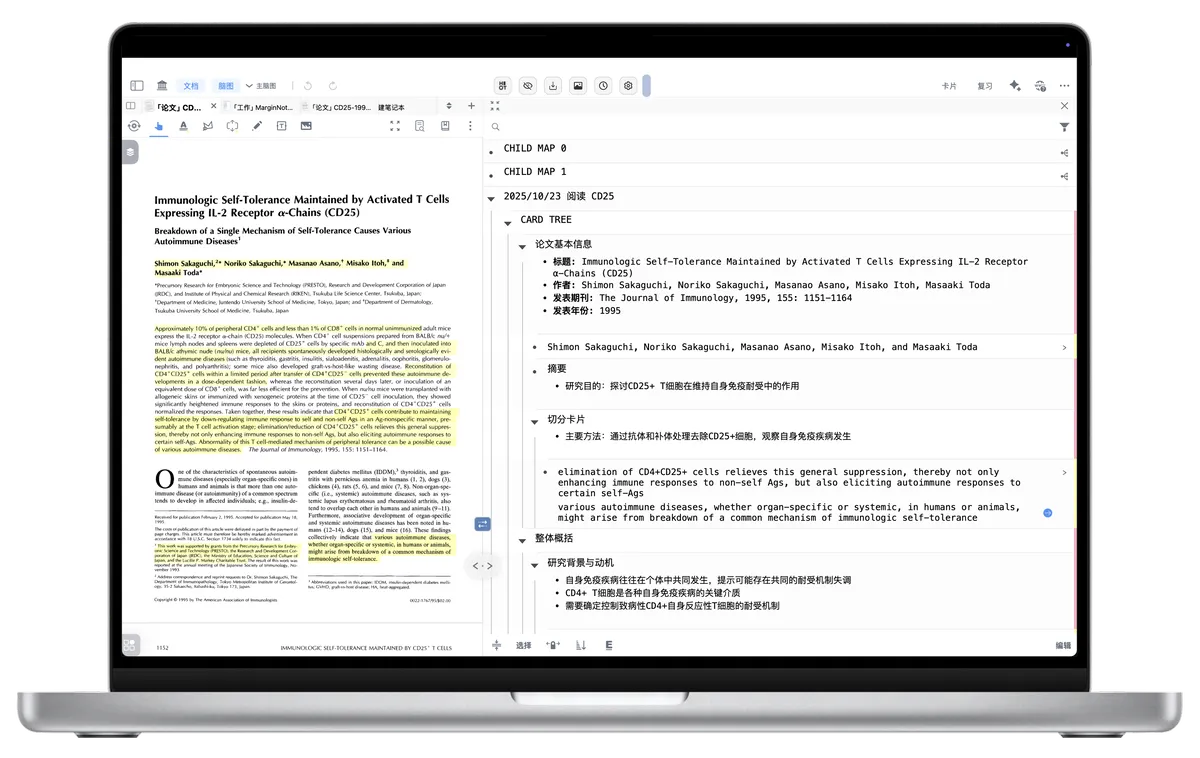
Outline Editing and Indentation
Quickly create and edit nodes in the outline view. Use Tab/Shift+Tab to adjust the hierarchy, Enter to split content, and Delete to merge nodes—more efficient than dragging on the mind map canvas.
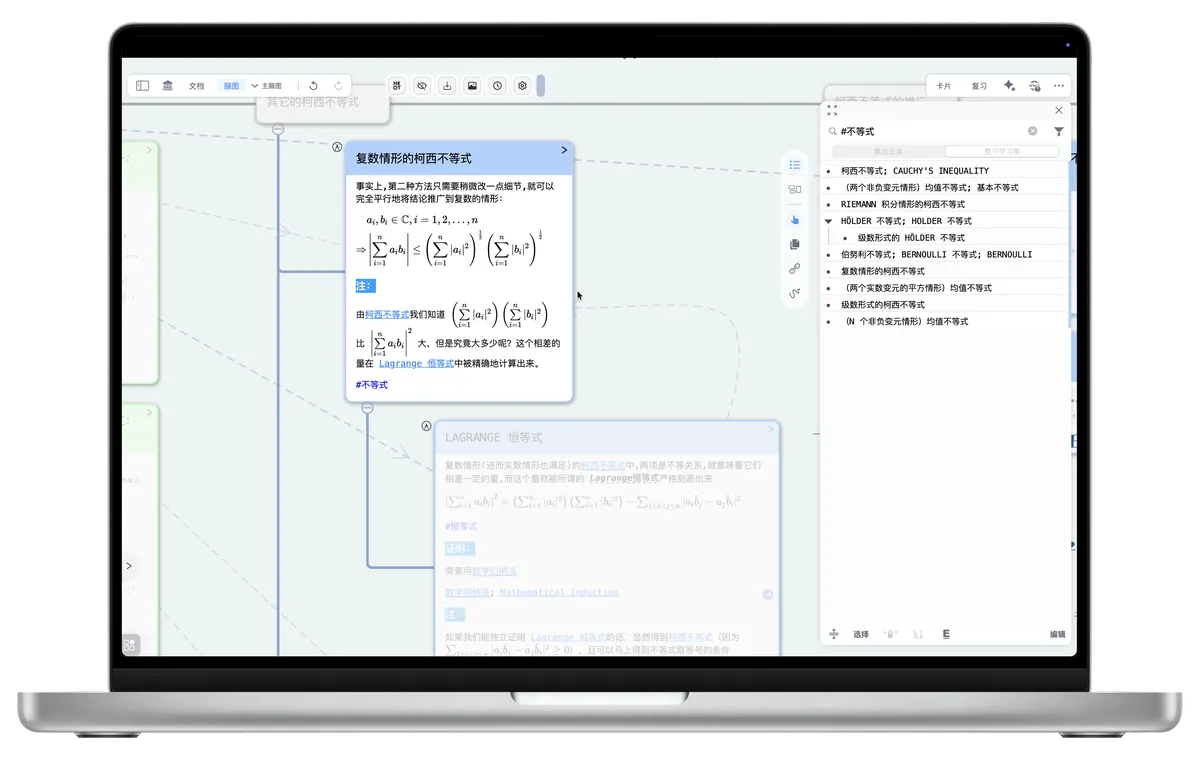
Outline Filtering and Search
Quickly locate items among large volumes of notes—filter by tag, document, or excerpt color (with union/intersection support), or search card titles, excerpts, and comments in real time by keyword.
Mind Map Layout and Styling
Adjust branch styles, fonts, and backgrounds to make your mind map clearer and better suited for presentation.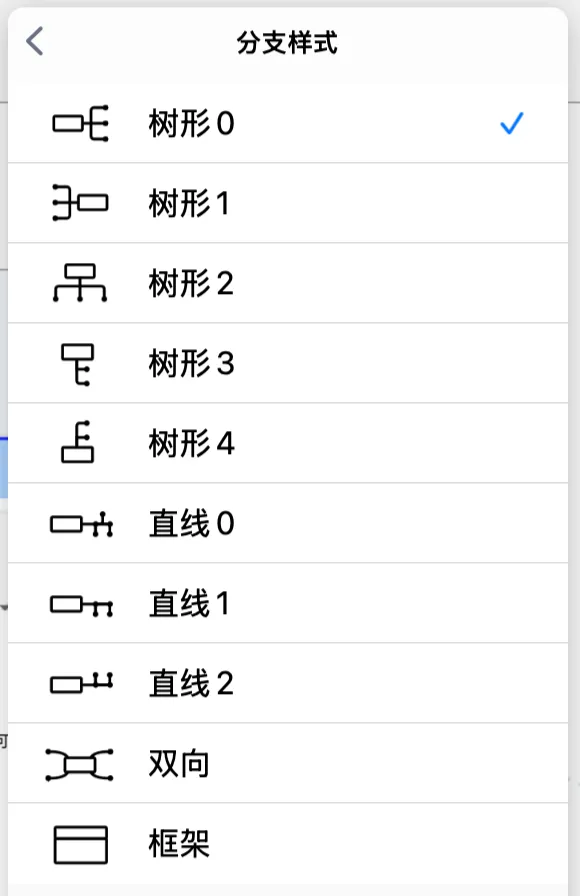
10 Branch Styles & Sub Mind Map Collapse
Choose the visual style that fits your mind map best, with 10 branch styles for different scenarios. The sub-mind map collapse feature keeps complex mind maps tidy.
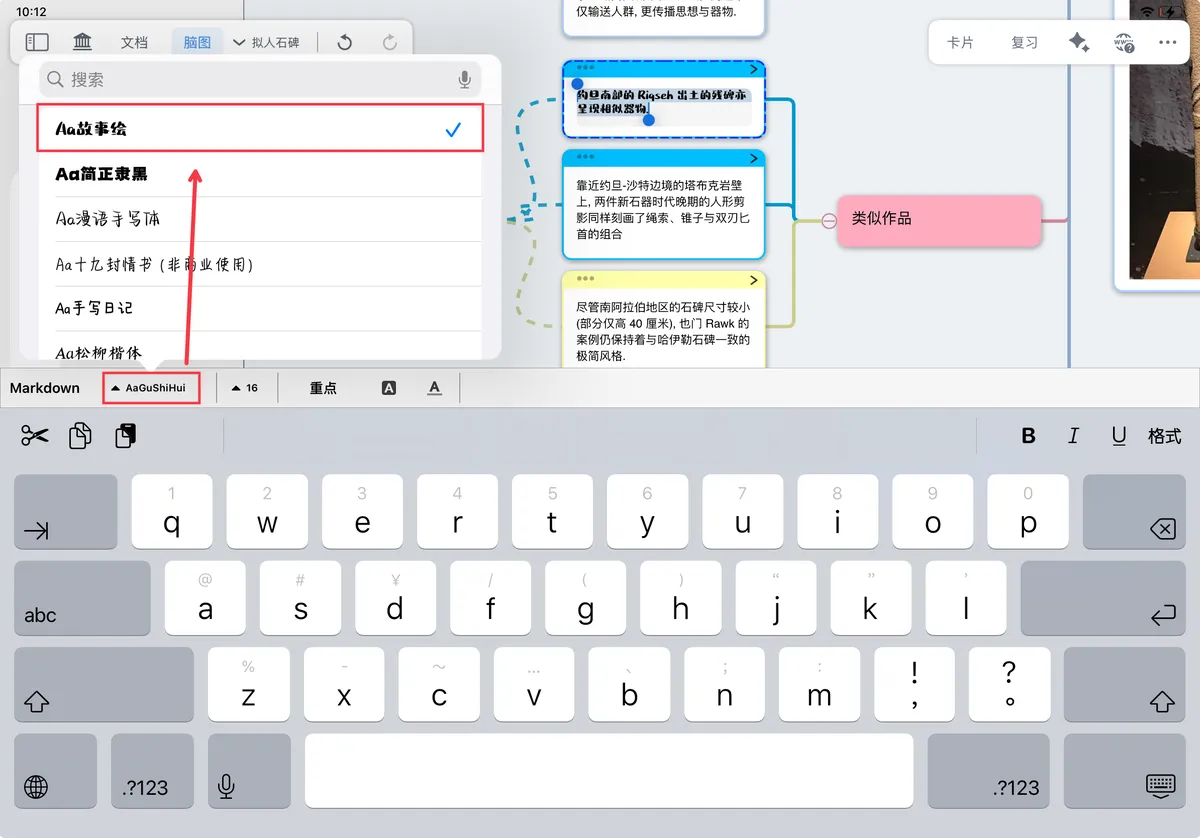
Custom Card Fonts
Break past your device's default font limits and install custom fonts on Mac and iOS. Includes recommended font-download sites, installation tutorials, and solutions to common problems, plus a 'write-as-you-go' option that automatically turns handwriting into printed text.
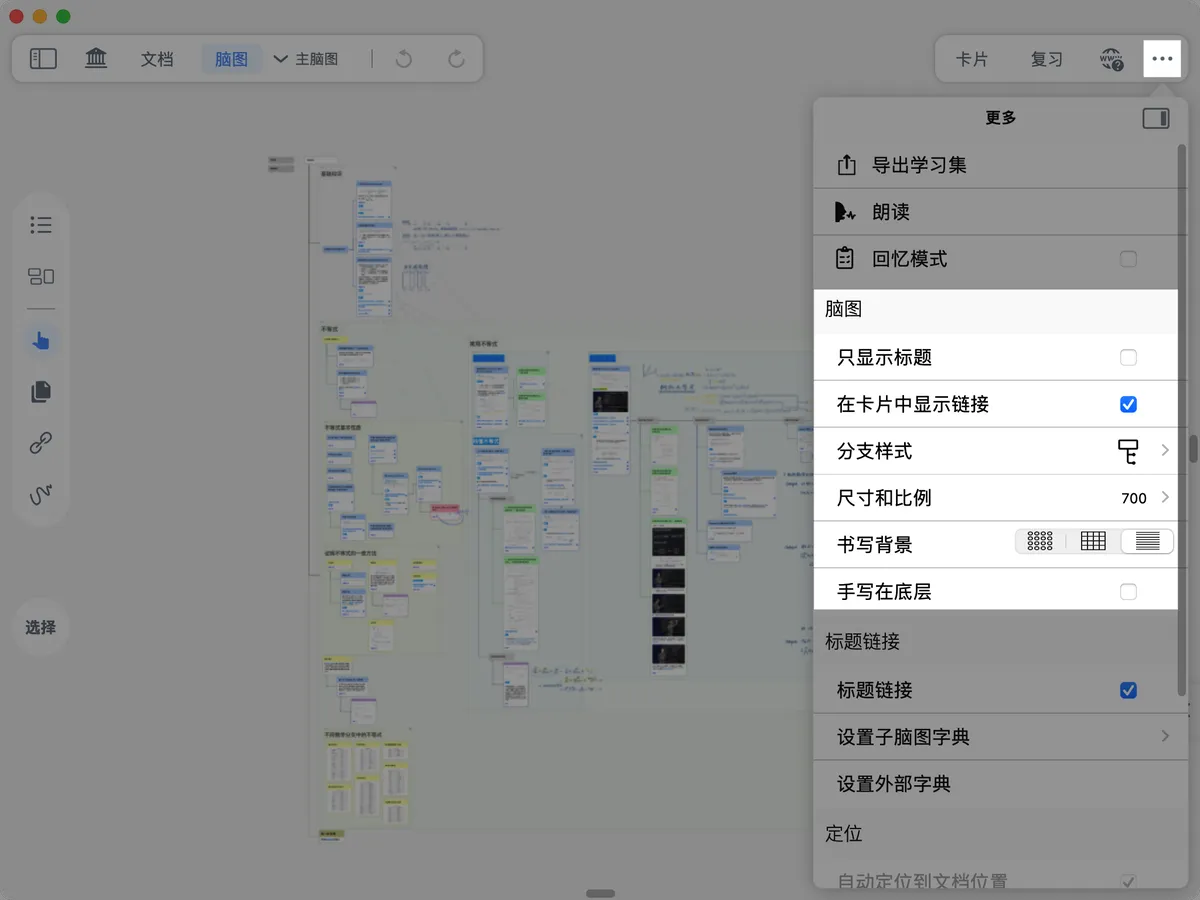
Mind Map Handwriting Background and Card Size Settings
Adjust card display options (title-only, compact width), the handwriting background (dots/grid/lines), and card size to optimize your mind map's visual effect and presentation efficiency.
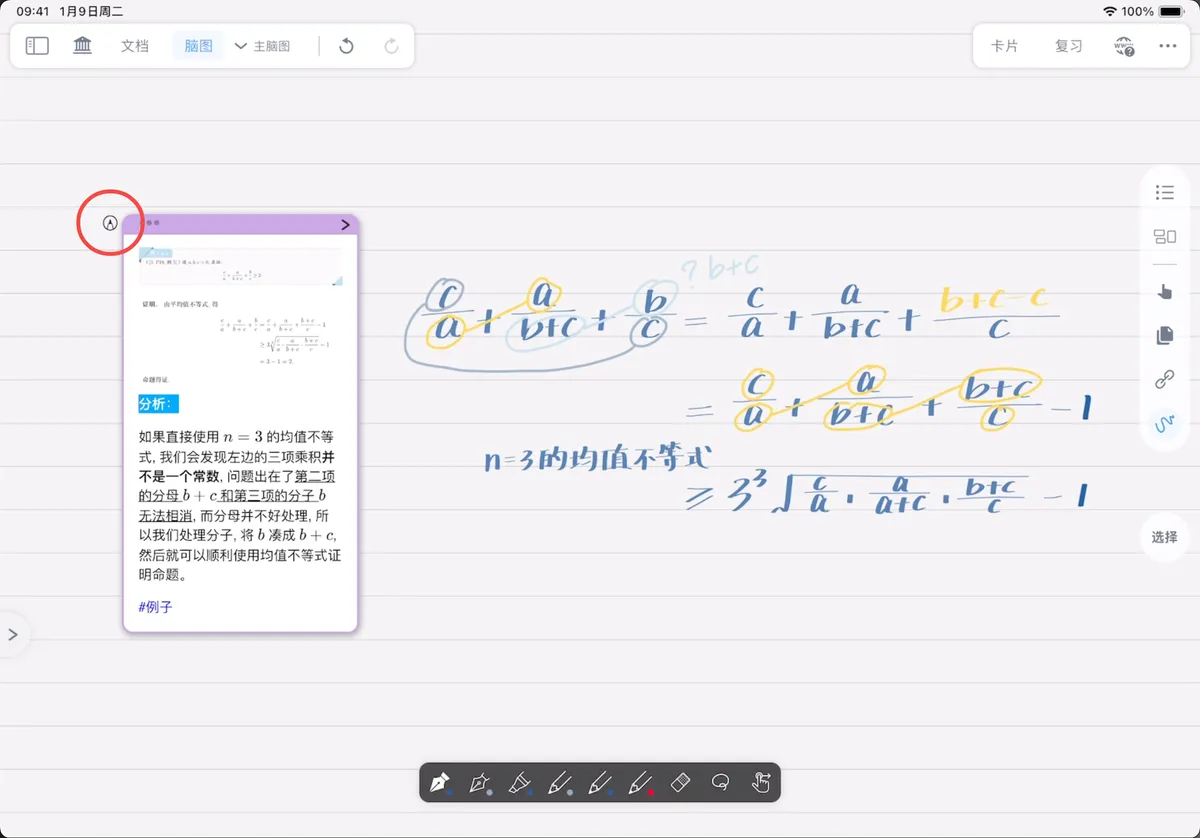
MindMap Handwriting Follow-Along Binding
Make handwritten annotations follow the card. Three binding modes—automatic binding, focus binding, and manual binding—keep handwriting moving in sync when you move a card, so it never gets misaligned.
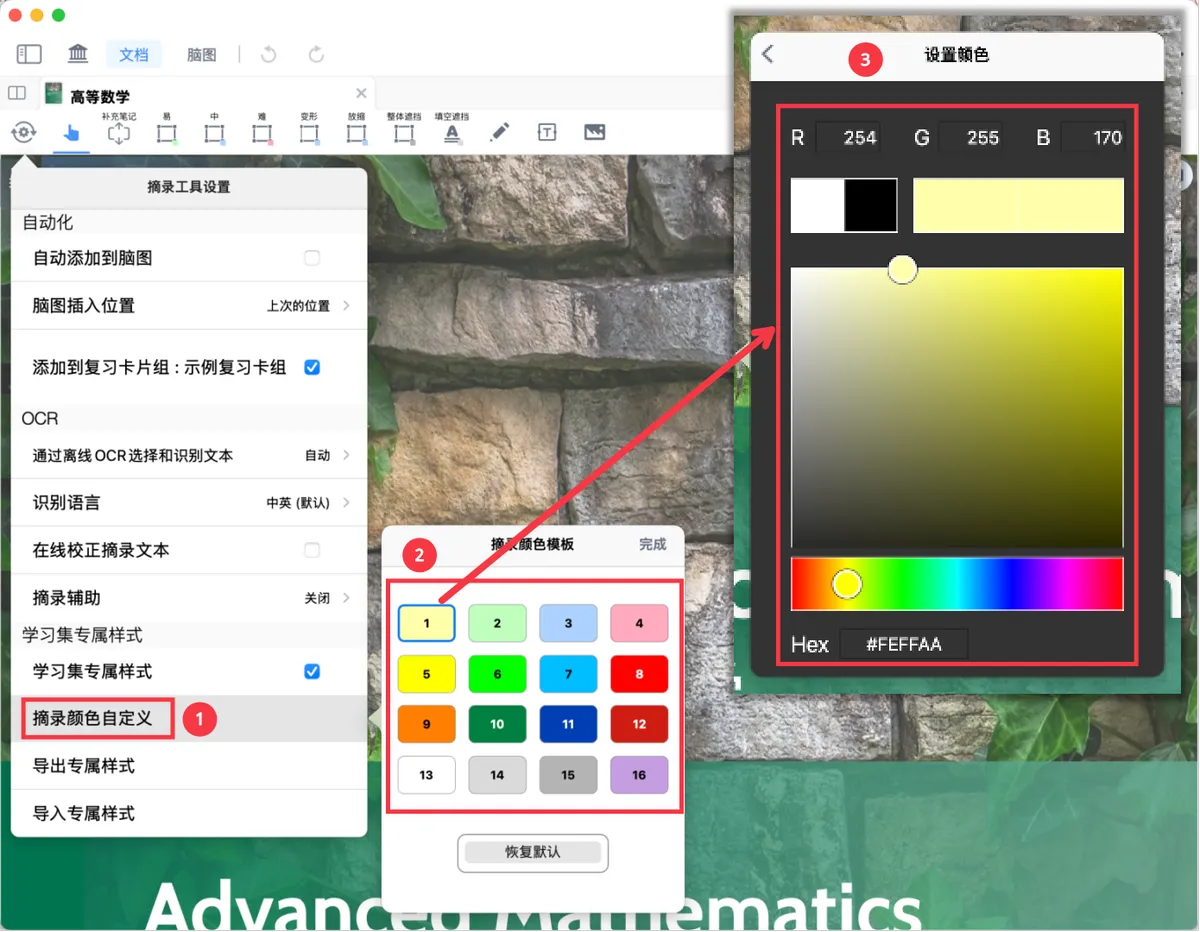
Customize Card Excerpt Colors
Customize the 16 preset excerpt colors individually using RGB or Hex values and color controls, or import an excerpt color template from a .mbtoolstyle file to update the palette at once.
Card Links and Reusing Your Note Library
Create associations between cards, filter and group them, and reuse them across study sets to bring your accumulated notes to life.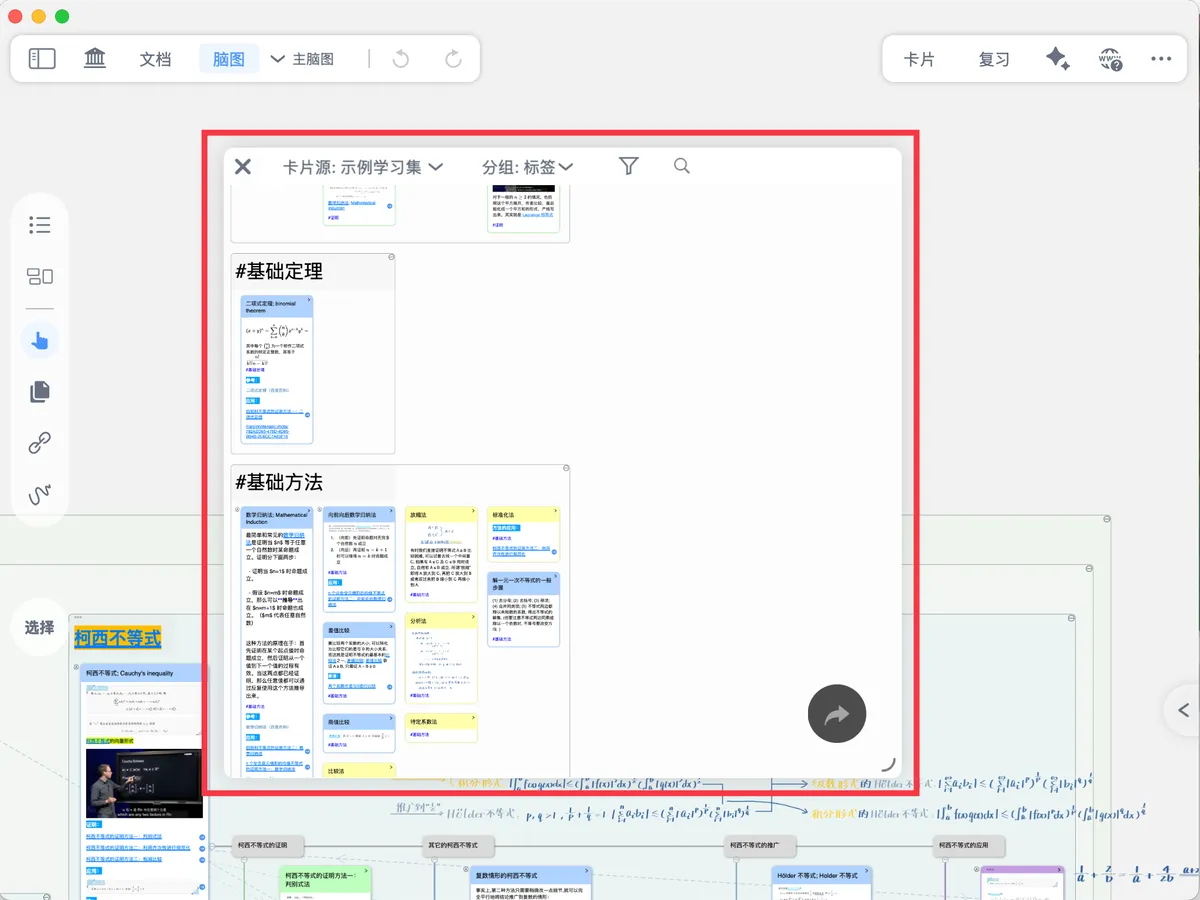
Card Grouping Board ①: Precisely Filter Cards from a Massive Collection
Filter cards across multiple dimensions—source, color, tag, document, date, and more—with support for two-level nested grouping and batch editing. Quickly find what you need among a huge number of cards.

Card Links ④ | Keyword Title Links: Build Your Personal Dictionary
Hyperlinks like Wikipedia's—set keywords in a card title, and when those words appear in a document they automatically show a blue dashed underline; tap to pop up the explanation card. Great for exam review, close reading of papers, and English study.

Card Grouping Board ②: Auto-Generate Mind Maps from the Board to Build Your Personal Knowledge Collection
After filtering out the cards you need, drag them to the mind map to auto-generate a new mind map. Ideal for building dedicated collections such as a mistakes notebook, a core-concept quick reference, or a compilation of past exam questions.
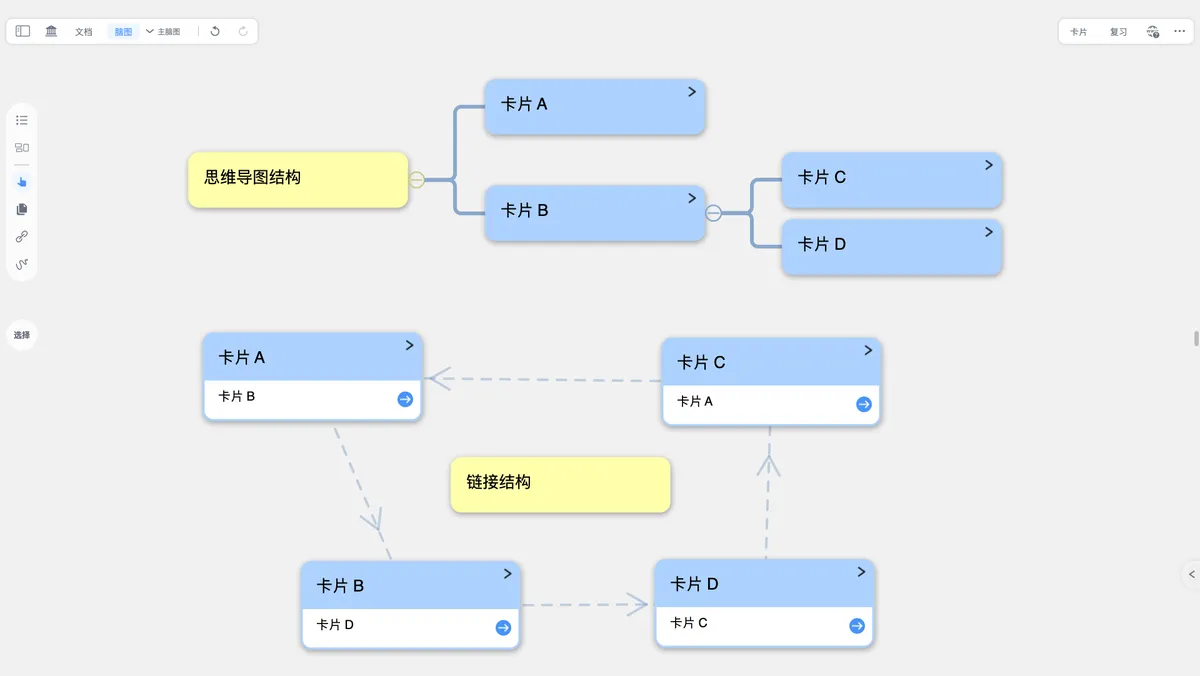
Card Links ① | One-Way and Two-Way Links: Free Association Across Hierarchies
Beyond the 'relatively fixed' node structure of parent-child relationships, cards also have a more 'free' structure—the link. The advantage of a link is that it doesn't restrict the positions of the two cards: they can come from different sub-mind maps, or even different study sets, and you can jump between them at any time.
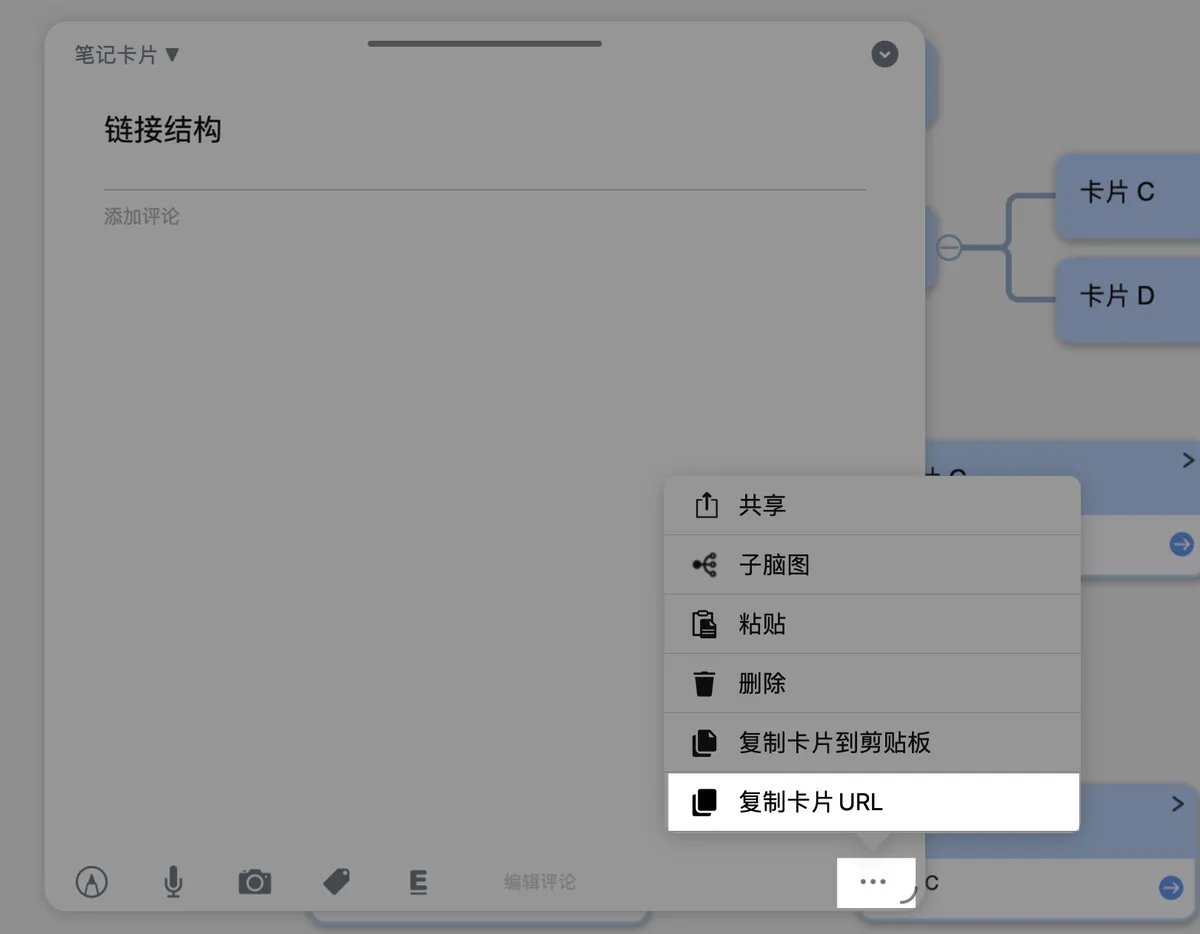
Card Linking ② | Unique Card ID and URL: Linking Across Mind Maps and Study Sets
The essence of the link feature is a card's URL
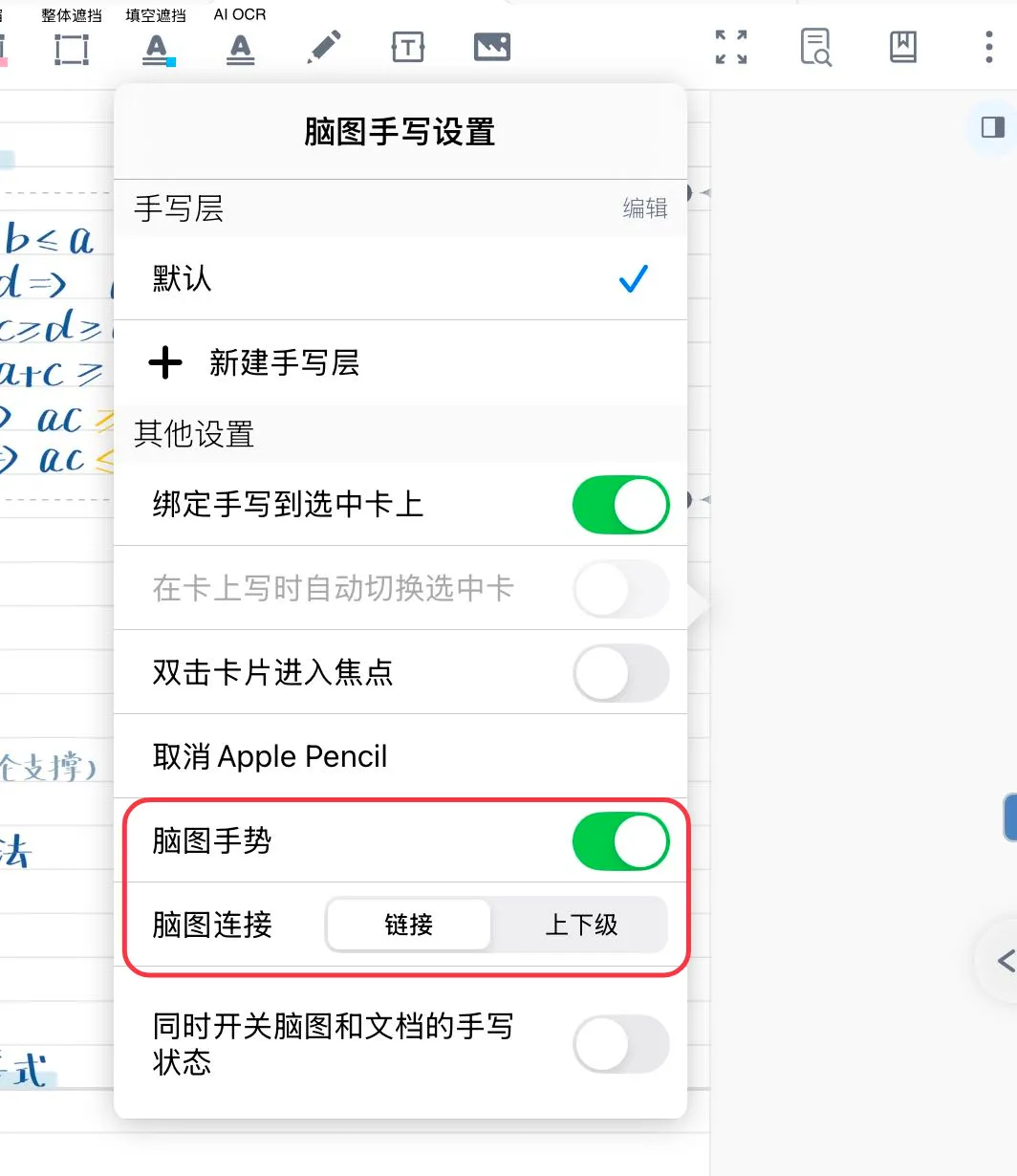
Card Links ③: Hand-Drawn Curve Links
Quickly adjust the mind map structure with handwritten strokes—draw a line to create a link, a zigzag to delete a link, and a circle to select a card. No need to switch modes constantly, which boosts mind map editing efficiency.
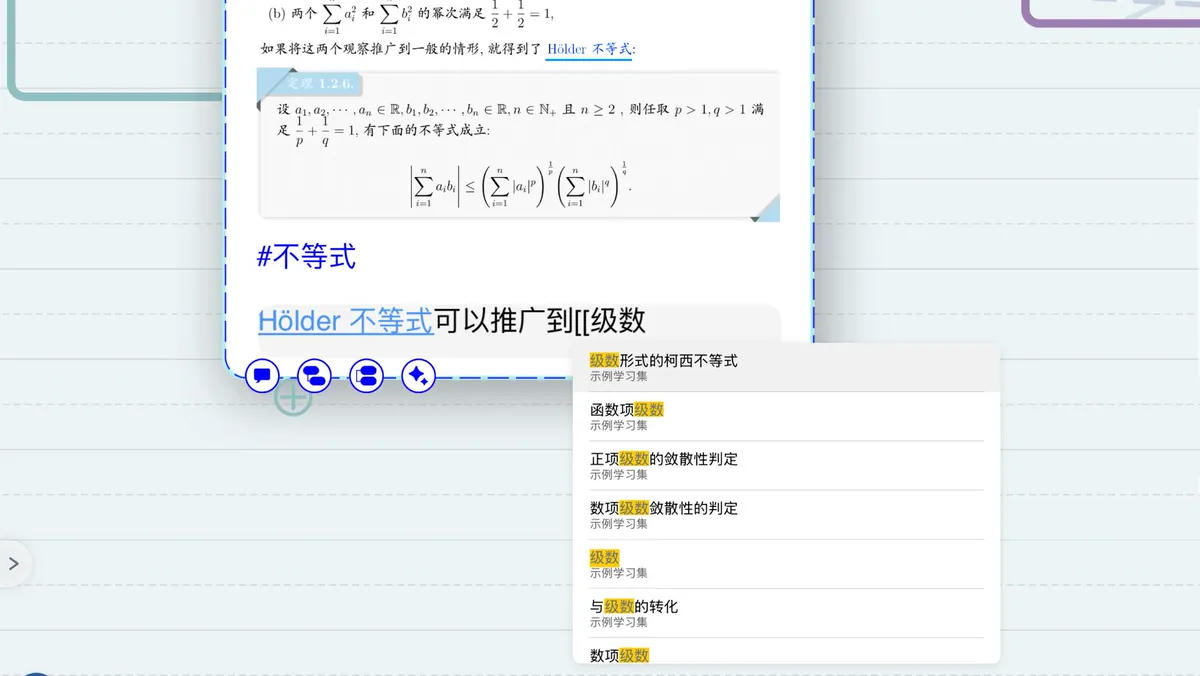
Card Link ⑤ | Inline Links
Link to other cards in Markdown format within a card's comment, with support for [[ search and custom display text. This meets the need to precisely reference a specific card within text.
Review
Knowledge you've organized will soon be forgotten if you don't review it. This part explains how to review scientifically using mind maps and flashcards—including methods such as active recall, spaced repetition, and tracing back to the source text—to help you turn short-term memory into long-term mastery.
Context-Based Review with Mind Maps and Documents
Use cloze occlusion within the mind map structure to recall, or jump back to the original context to review with situational context.
Document Review: Occlusion, Cloze, and Recall Mode
Turn on recall mode and practice active recall with excerpt occlusion or Emphasize clozes. Learn how the two approaches differ and how to create occlusions with the highlighter, rectangle, lasso, and text excerpt tools.
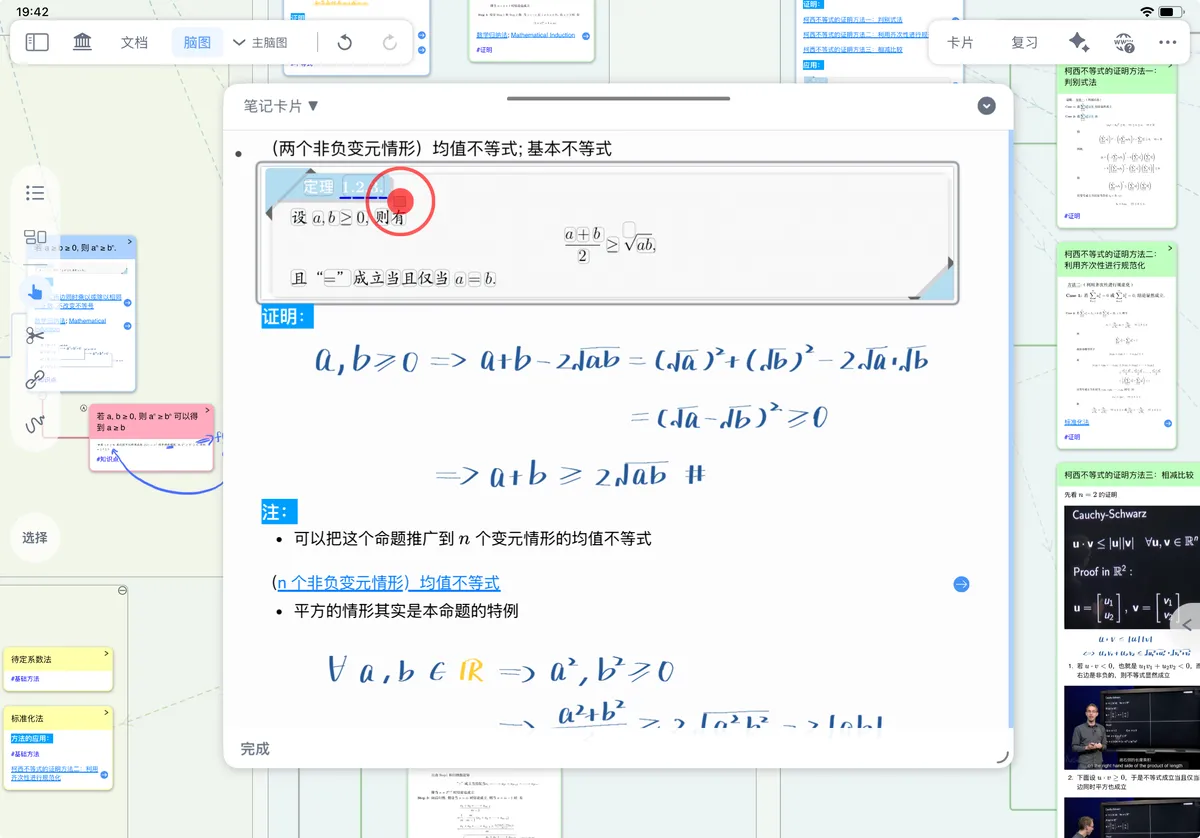
Mind Map Review ①: Active Recall and Self-Testing Methods
Four mind map review methods: cloze recall (tests details), title spot-checks (test the main structure), expanding nodes level by level (tests structure), and writing out a sub-mind map from memory (tests complete knowledge). It's best to locate weak points first, then strengthen them in a targeted way.
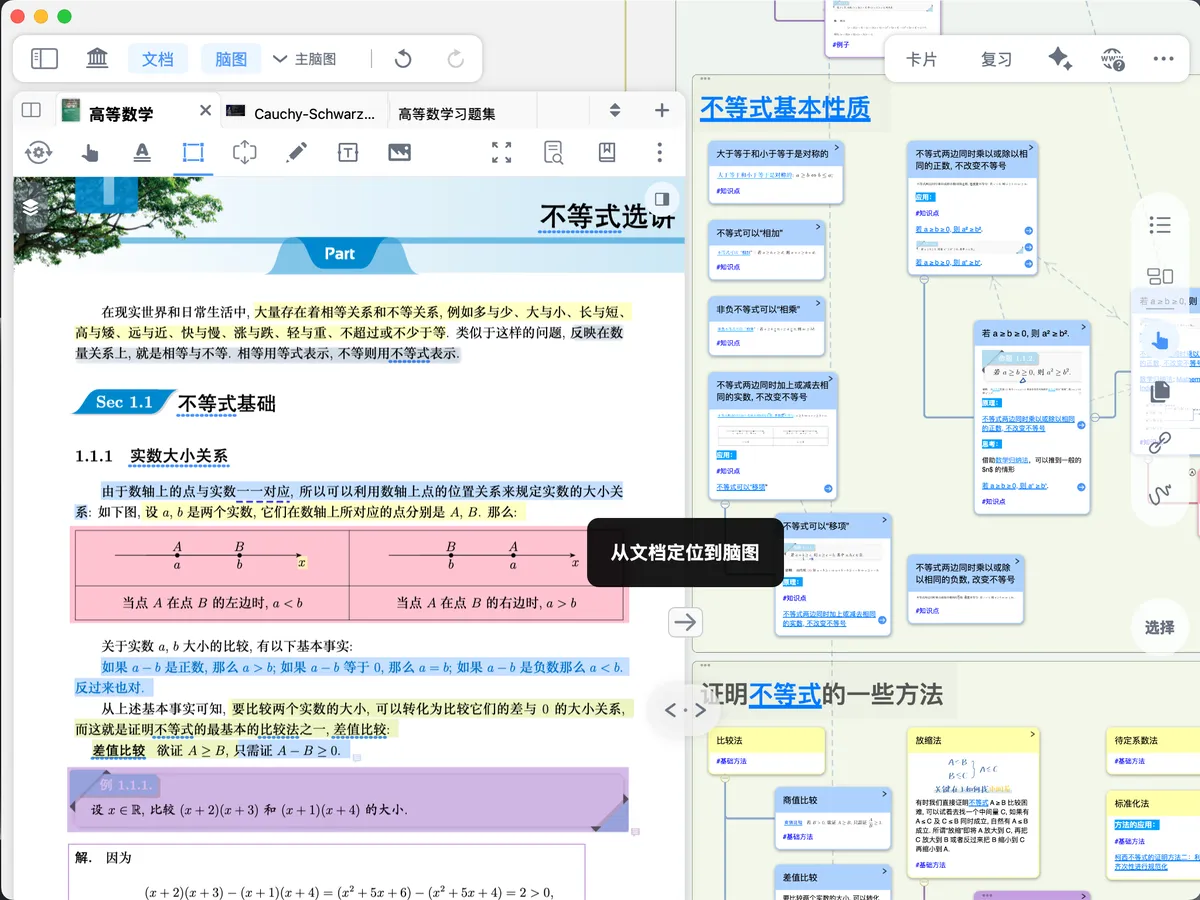
Mind Map Review ②: Mind Map Context (Backlink Navigation)
Trace back to the original text with one tap while reviewing. Supports four mind map↔document linking modes, and you can also locate cards through the outline, card box, board, and more, to quickly view the context of a knowledge point.
Making and Reviewing Flashcards
Create flashcards with a front and back, and use the FSRS algorithm to automatically schedule review intervals, fighting forgetting scientifically.
Making Flashcards ①: Understanding Flashcards and Review Card Decks
Learn the basic concept of flashcards—the front is the question, the back is the answer. Learning to create a review card deck, add cards, and preview your flashcards is the first step to using the spaced repetition feature.
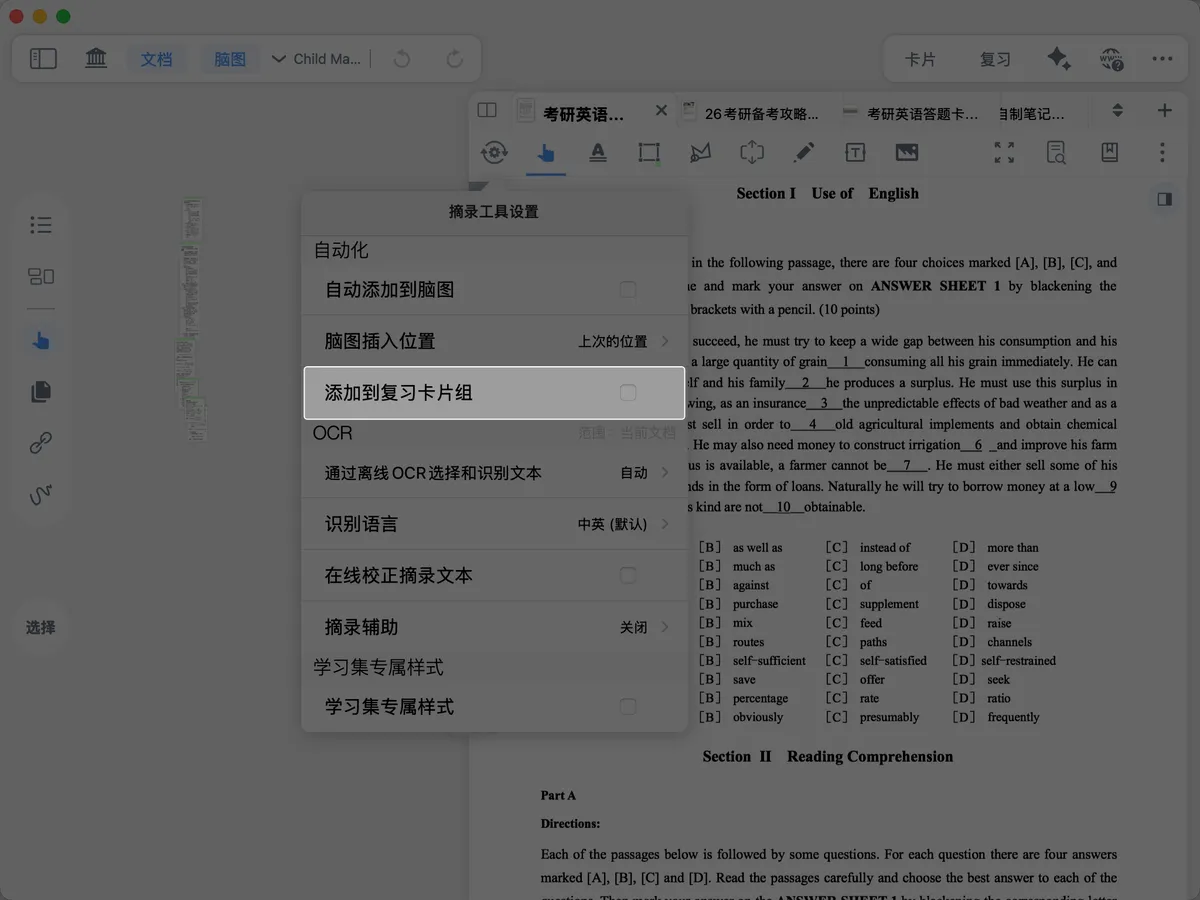
Making Flashcards ②: Adding Cards to a Review Card Deck
Multiple efficient ways to make cards: add manually, batch-filter from the board, auto-add while excerpting, and create cards with AI OCR and AI chat. Presetting excerpt attributes can greatly reduce the cost of making cards.
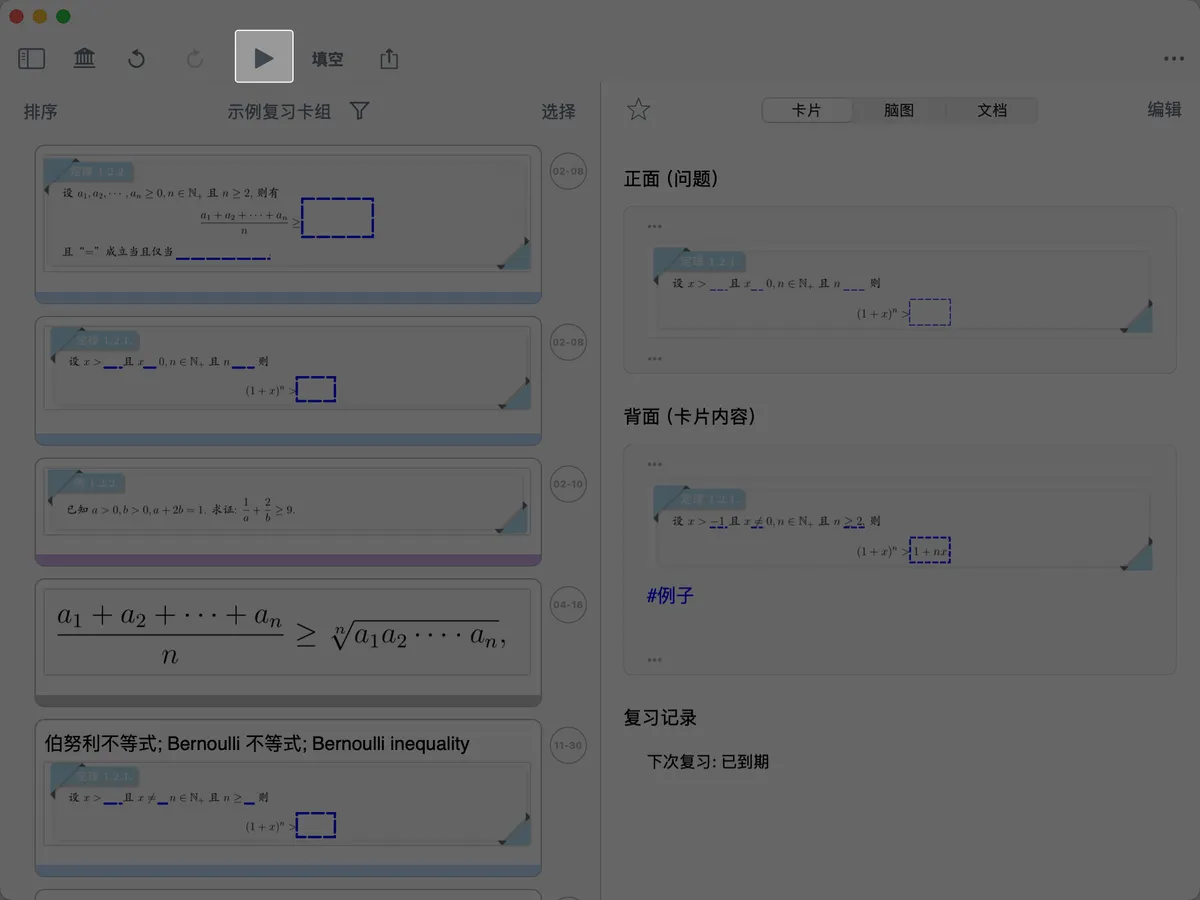
Flashcard Review ①: Scientific Review with the FSRS Anti-Forgetting Algorithm
The FSRS algorithm automatically calculates the optimal review time based on your memory feedback. Master the full-screen review mode, the meaning of the four memory-level options, and helper features like favorites and annotations to make review more scientific and efficient.
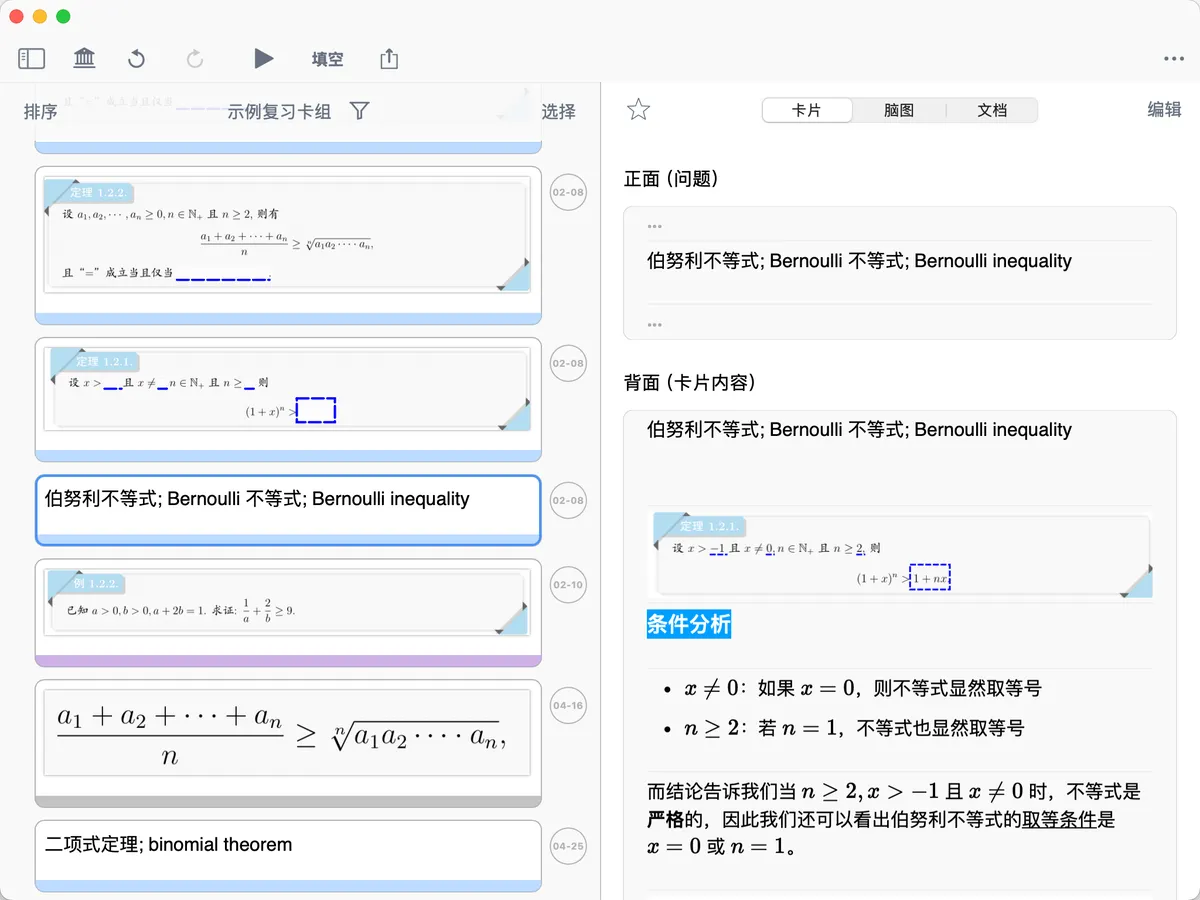
Flashcard Review ②: Tracing the Source Context
Can't recall something during review? Switch to the mind map or document view to see the card's context. A comparison of two review approaches—quick daily review vs. deep-understanding review—with cards, mind maps, and documents working together as a unified whole.
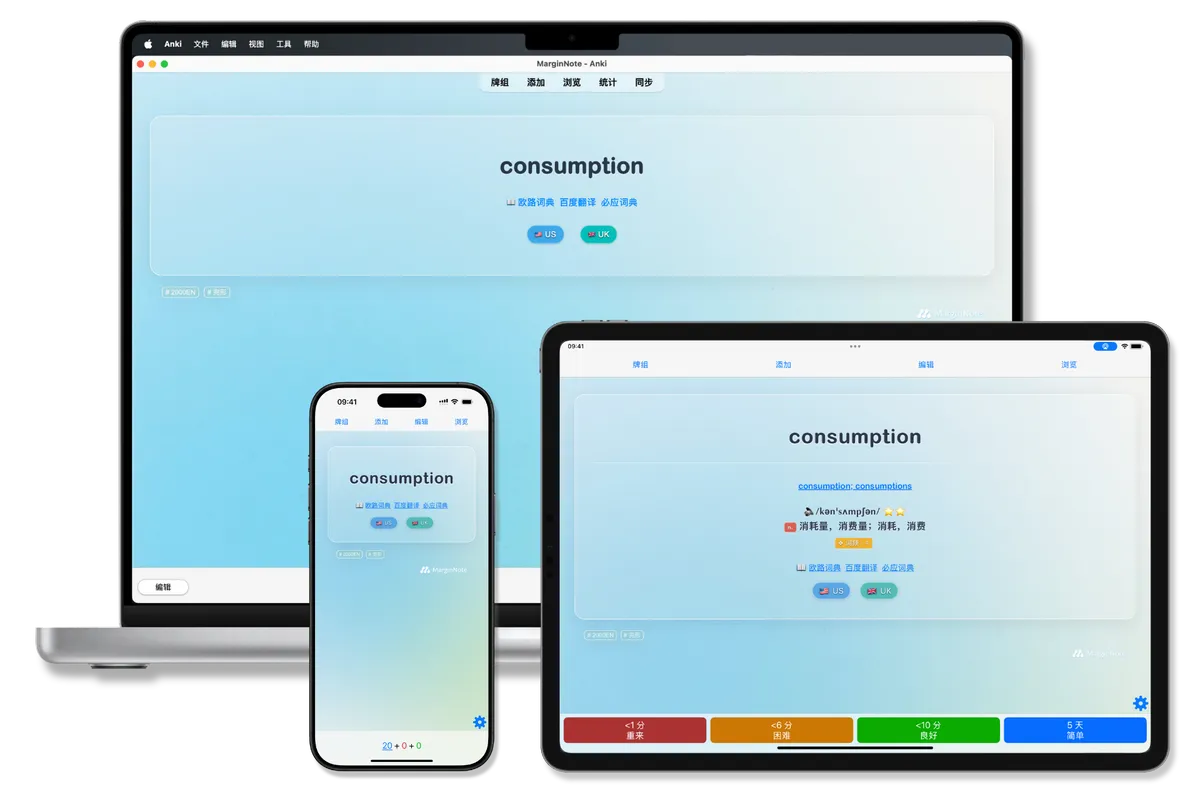
Flashcard Review ③: Export to Anki & Template Configuration
Export MN4 flashcards to Anki, with support for cloze settings, default templates, and custom templates. Includes download links for several community templates—great for advanced users who want richer card styles.
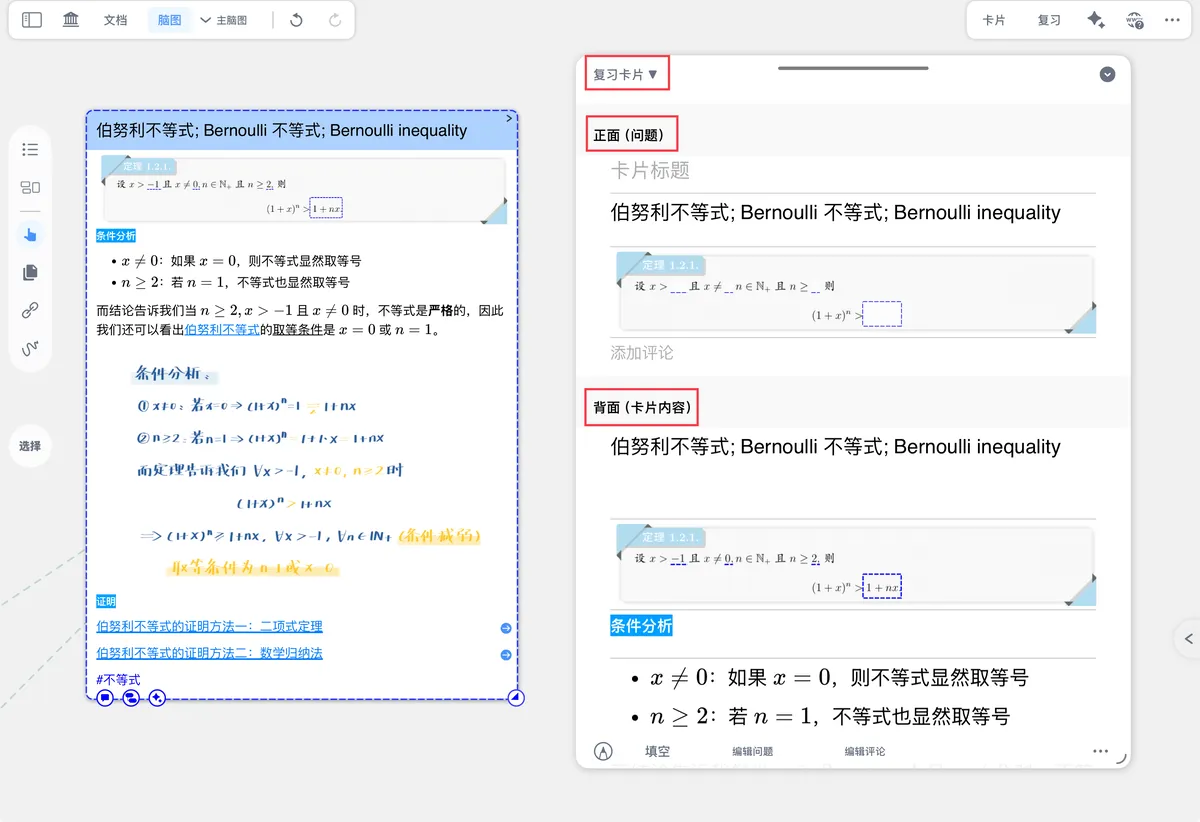
Making Flashcards ③: Setting the Front and Back of a Flashcard
Prerequisites: you should first read Parts 1 and 2 of Making Flashcards and make sure you've already added cards to a review card deck. In Part 2 you learned how to add cards. This page will teach you how to fine-tune the front and back of a flashcard to make review more efficient. Before you begin, it's recommended to first understand the relevant features of the flashcard editor (see: ).
MarginNote AI
Custom AI (Max) is an advanced setting for Max users that connects your own service provider or local model service to MarginNote AI.
AI Settings and Integration
After a custom API is configured successfully, all AI features in MarginNote use the current Custom AI configuration.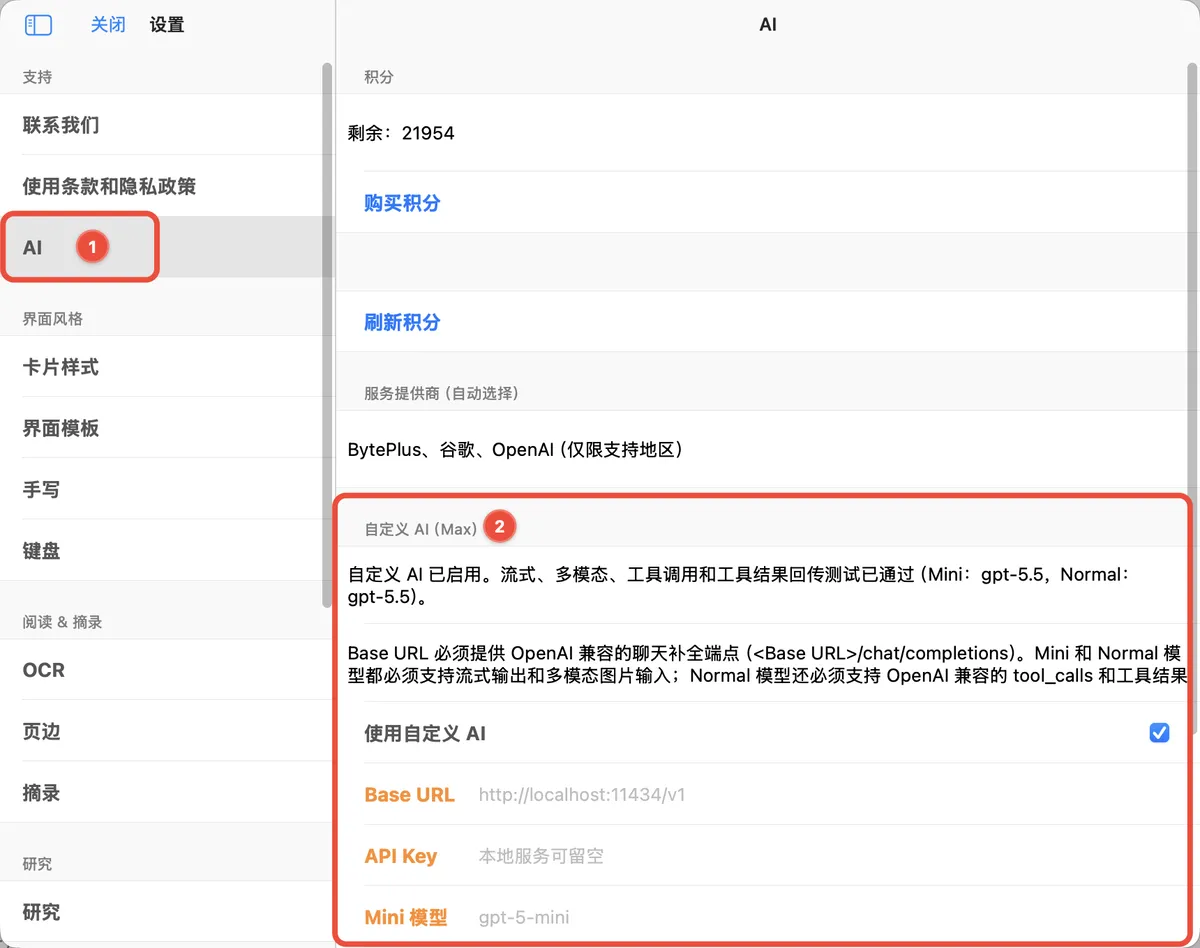
General
Data security, multi-device sync, export and sharing, cross-app integration—these aren't directly about 'what you learn,' but about 'learning with peace of mind and using the app smoothly.' When you need to back up data, migrate notes, collaborate across devices, or work alongside other tools, come here for answers.
Data Security and Management
Import documents, manage databases, sync and back up, and export and share.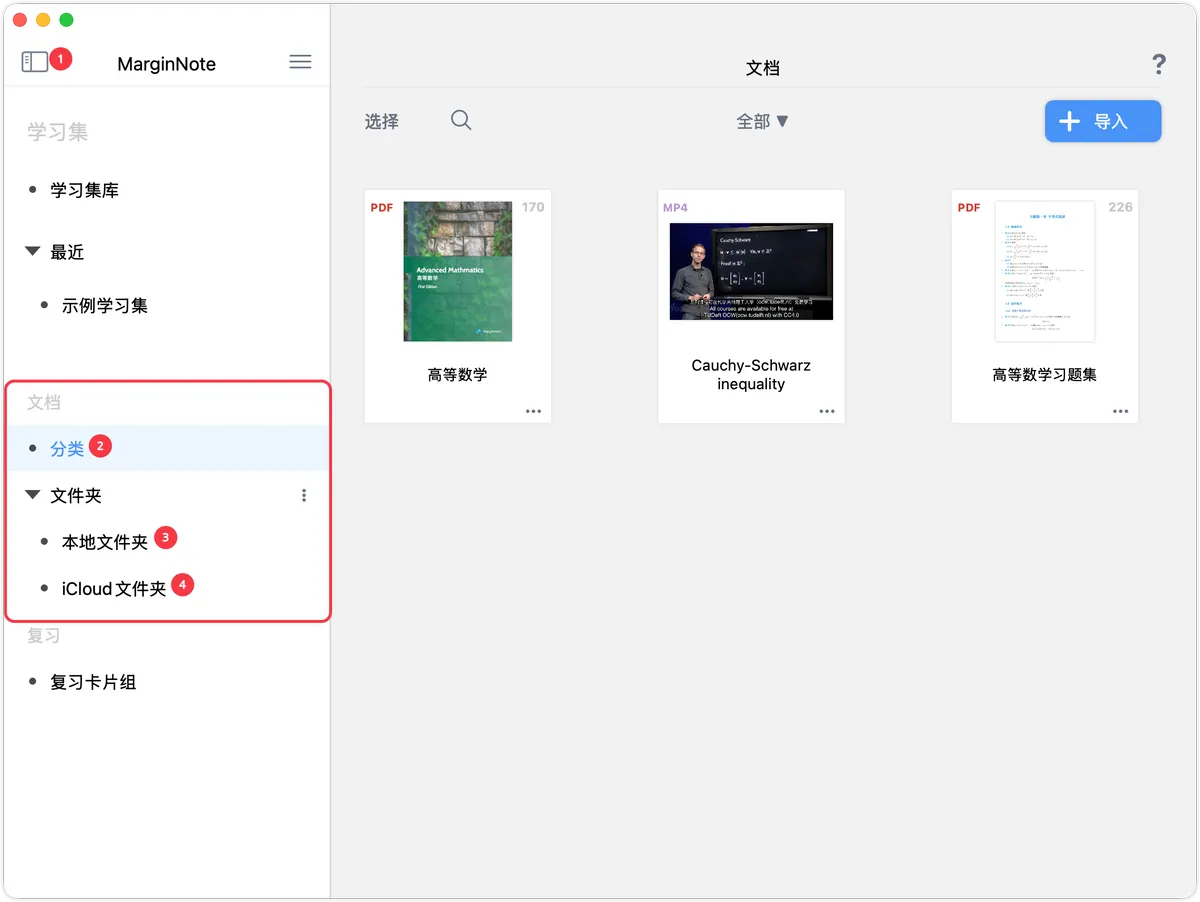
Importing Documents and Document Management
The full workflow for importing, categorizing, and managing documents. Import from files, web pages, the document library, and more; organize documents by category (tag-based) or folders (hierarchical); and reuse notes and cards across study sets.
Migrate Notes from MarginNote 3
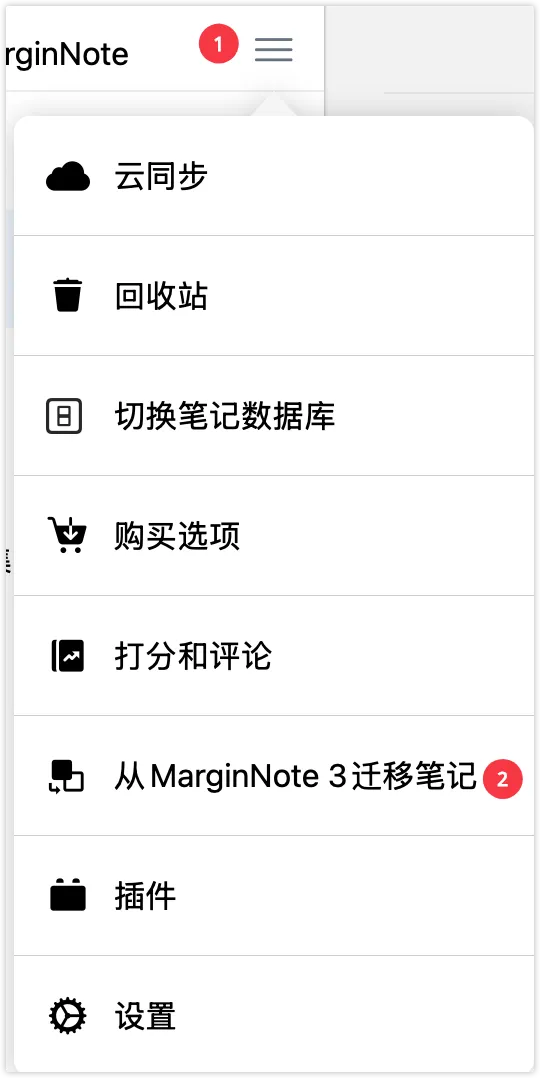
Export a study set backup (.marginpkg) from MN3 and import it into MN4 to complete the migration. Supports two import modes: replace and merge.

Adding a USB Storage Document Library
Open and study documents from a USB drive or external hard drive directly in MN4—ideal when you need portable access to large amounts of material.
Note Database ①: Creating and Managing Databases
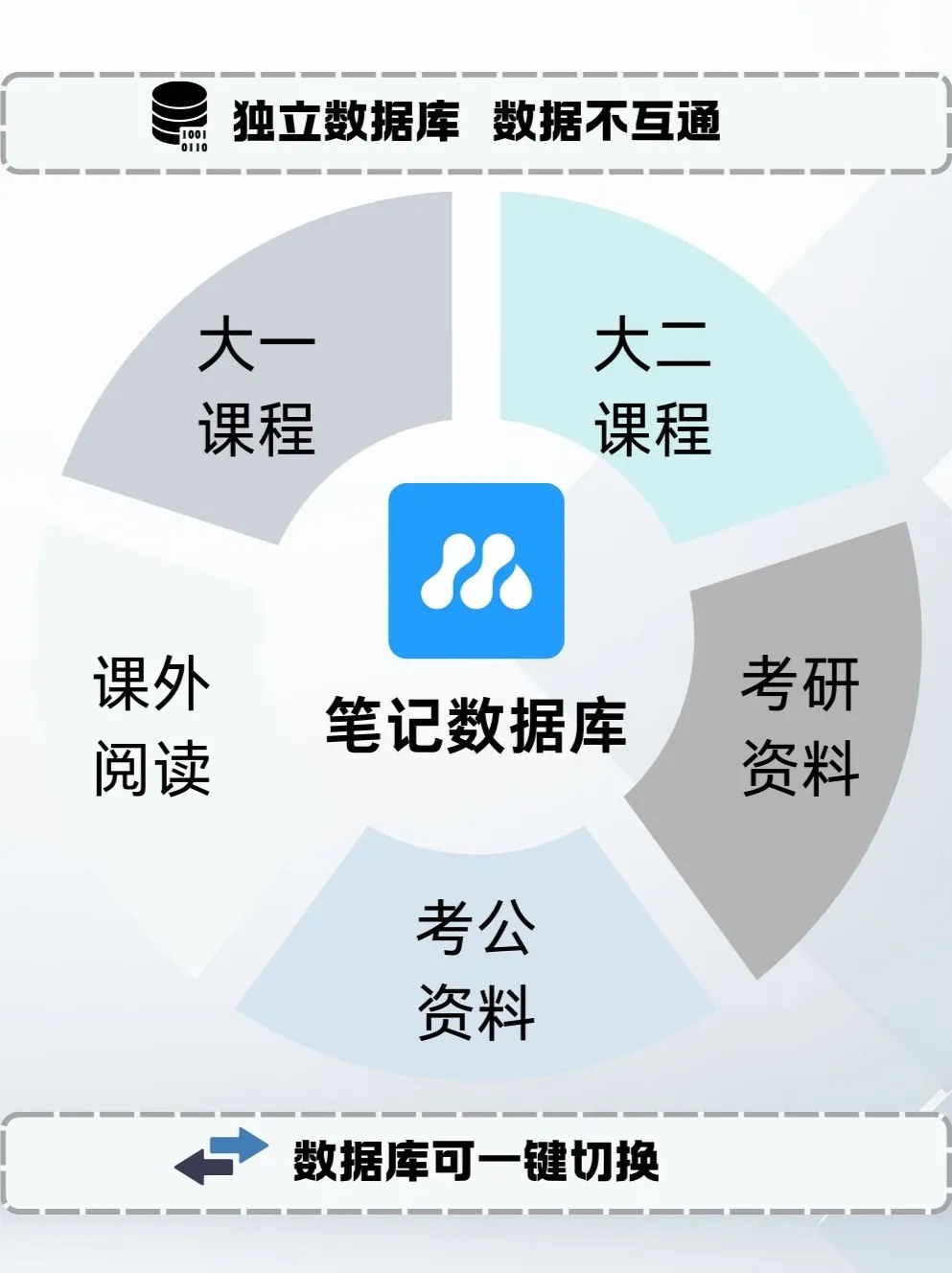
Create isolated note databases through the frequency-ID system to separate note data across different periods and fields. Supports multi-device sync and flexible data management.
Export Documents, Mind Maps, and Study Sets

Export to many formats, including PDF, mmap, OmniOutliner, Word, and Anki. A mind map can be exported as a mind map PDF or a focus branch, and a study set can be backed up as a whole or exported to another database.
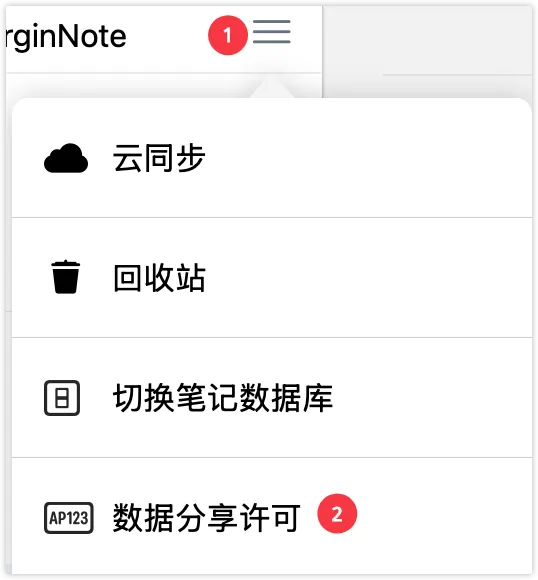
Note Database ②: Encrypted Sharing
Control database access permissions through a license mechanism, with support for online and offline activation. Ideal for data-security management when teachers share teaching materials or teams collaborate.
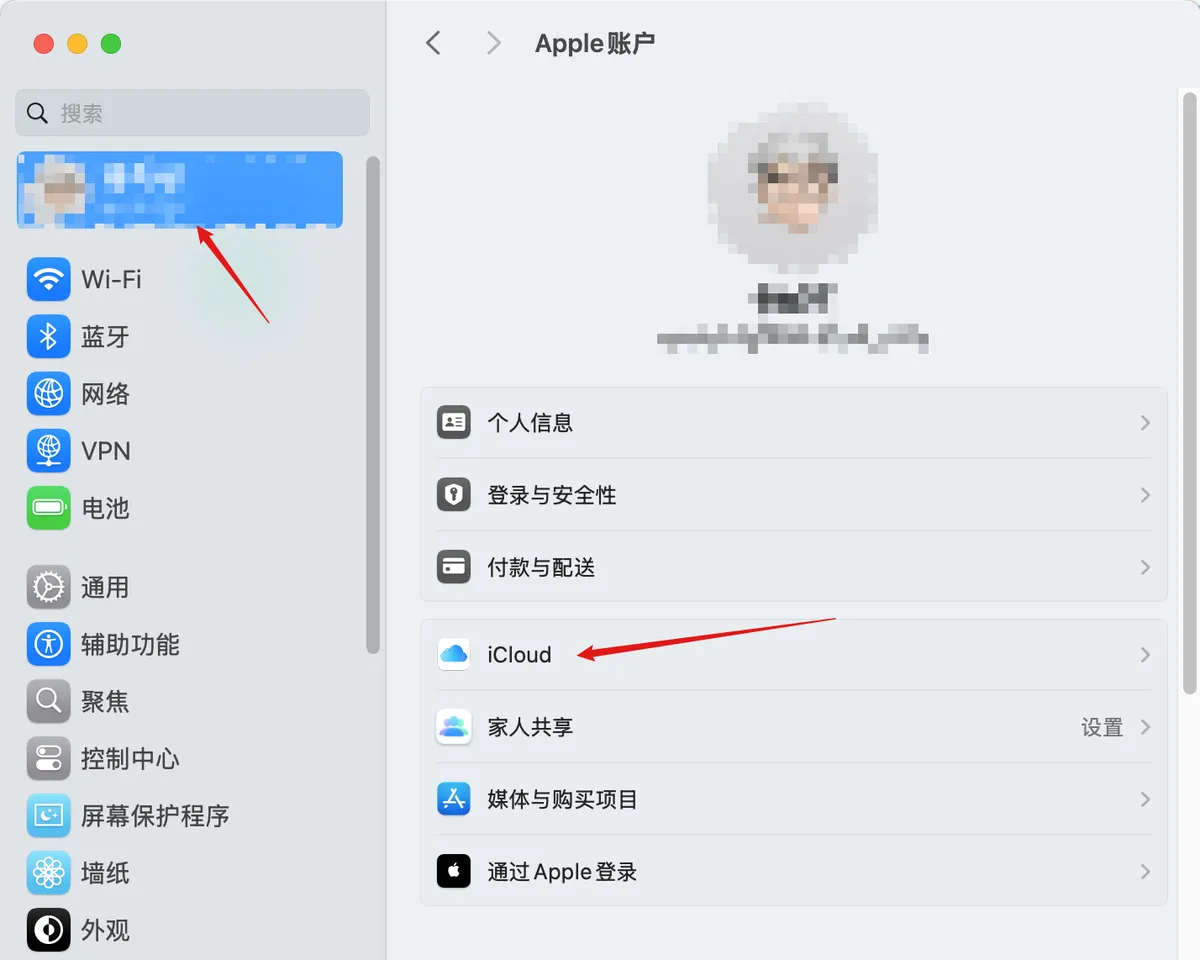
Data Sync, Backup & Restore
iCloud sync keeps data consistent across devices, while version backups (automatic) and full backups (manual) safeguard your data. You can restore from version history to avoid data loss.
Presentation and Collaboration
Multi-window linking, cross-device collaboration, and third-party app integration.
Presentation Mode and Its Applications
Screen recording plus audio recording, ideal for creating instructional videos and course presentations. Combined with Vanish Mode, it makes strokes disappear automatically as you explain.
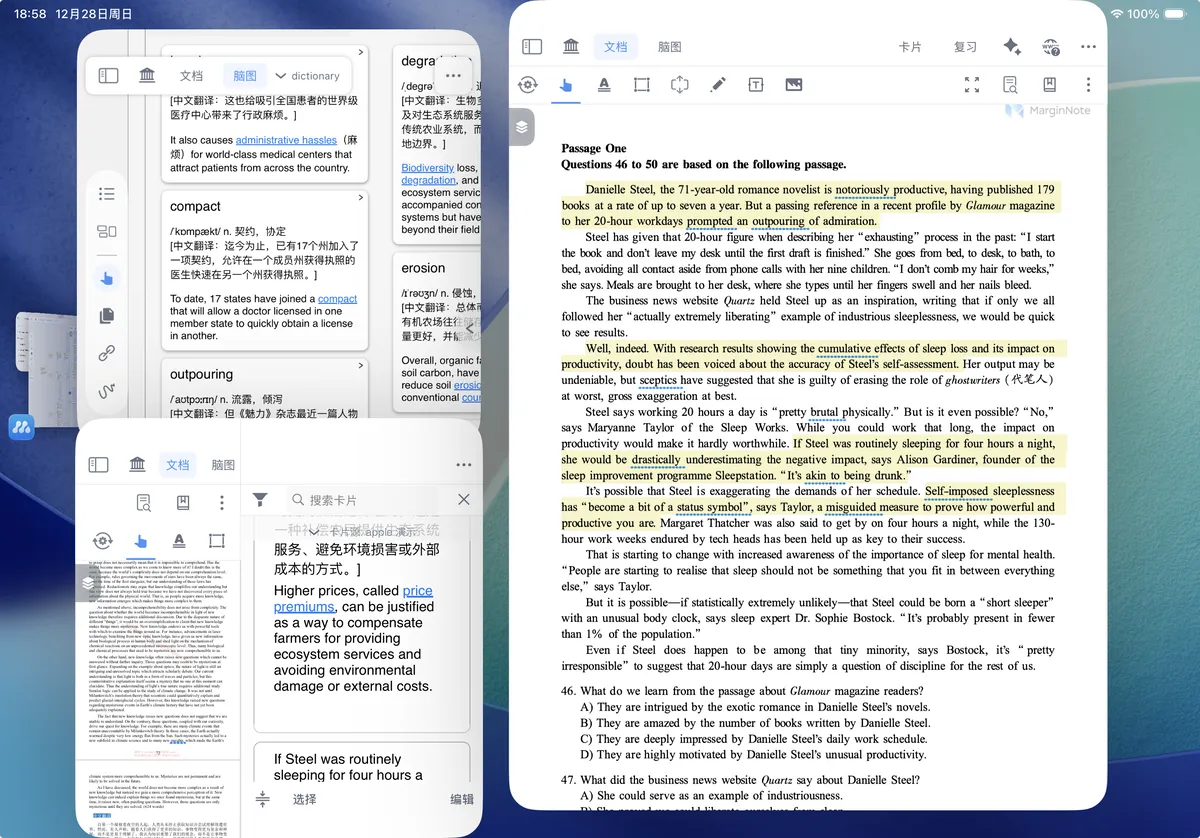
Multi-Window Linking ①: Opening Multiple MN4 Windows on the Same Device
Open multiple MN4 windows on the same device at once to compare different documents or study sets and boost multitasking efficiency.
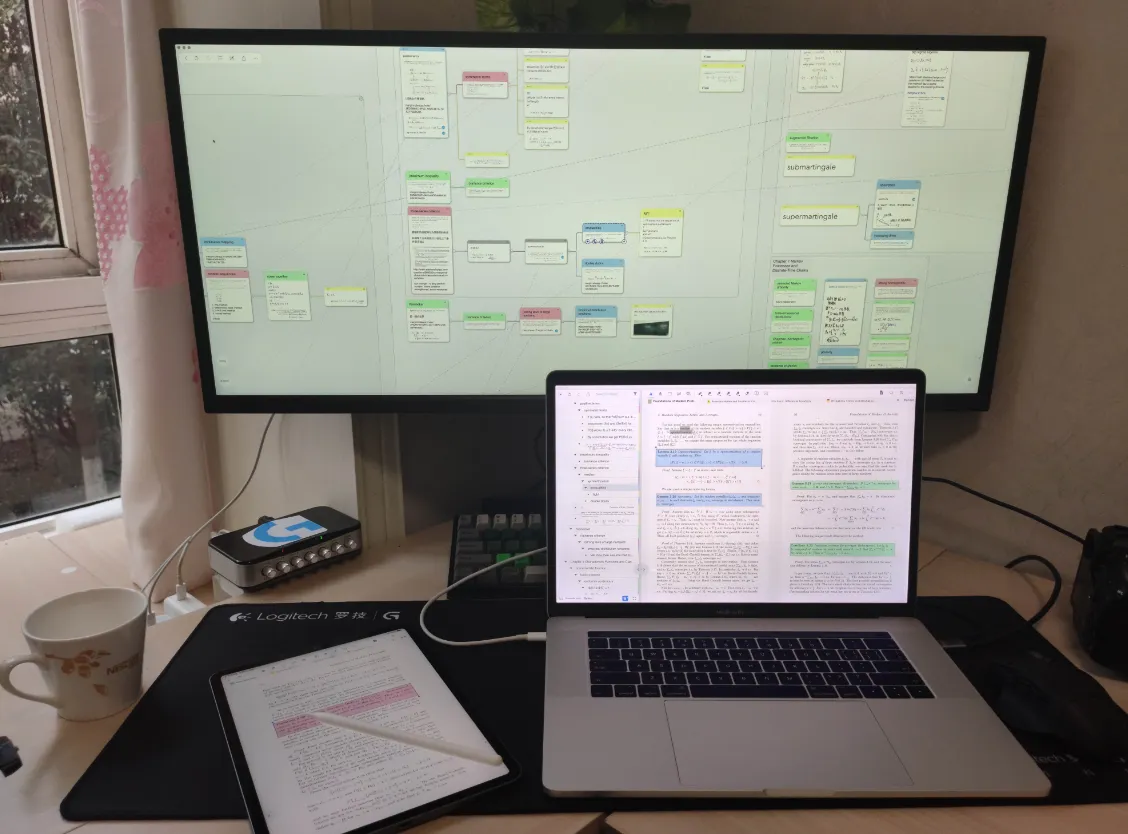
Multi-Window Linking ②: Opening Multiple MN4 Windows Across Devices and Platforms
Extend your display with Sidecar on Mac+iPad, and achieve cross-platform collaboration on iPad+Windows via Spacedesk/Duet Display, making the most of multiple devices.
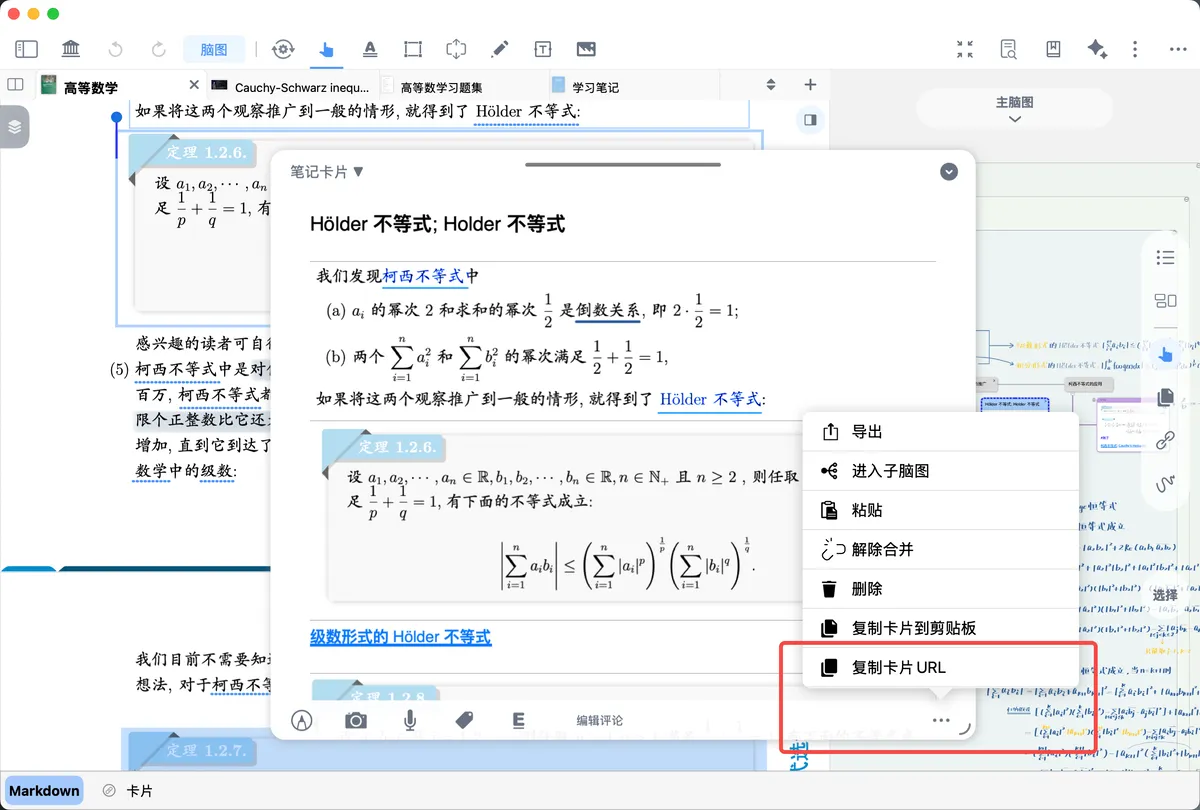
Third-Party App Integration ①: Understanding Note Backlinks
Generate card URLs and interface URLs that, when tapped in other apps, jump back to the corresponding position in MN4. This connects the knowledge chain between MN4 and third-party apps.
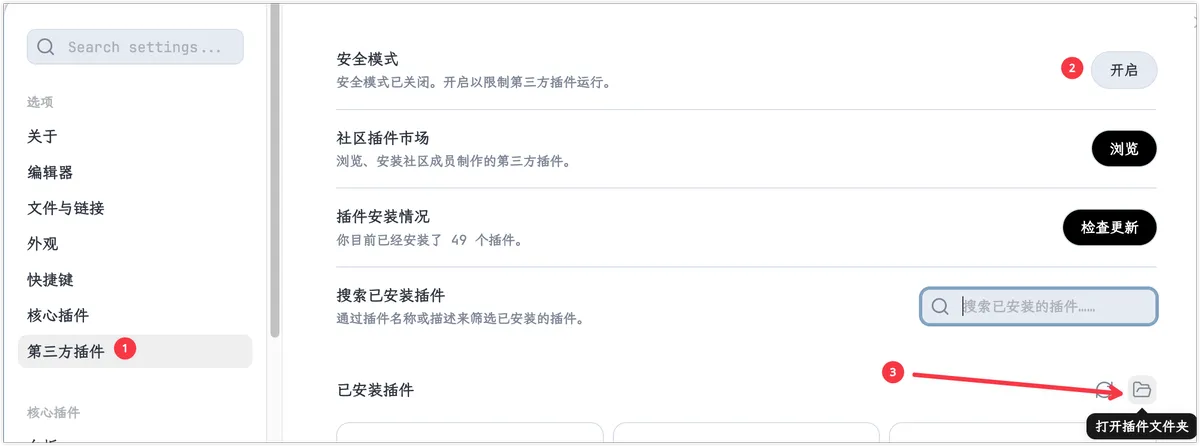
Third-Party App Integration ②: Obsidian+MN4
Sync MN4 notes to Obsidian through the Obsidian-Bridge plugin to enable bidirectional links and knowledge-graph visualization, building a more complete personal knowledge management system.