Custom Card Fonts
💡MarginNote lets you customize the fonts of cards and text boxes, breaking past the limits of your device's default fonts to personalize how your text looks. Switch font styles freely to match your own taste, so the text in your notes, documents, and more reflects your personal aesthetic and gives you a visual experience all your own.
1 Using and Switching Fonts
1.1 Switching Fonts in MN
- Select the text, then pick the font you want from the keyboard accessory bar to switch.

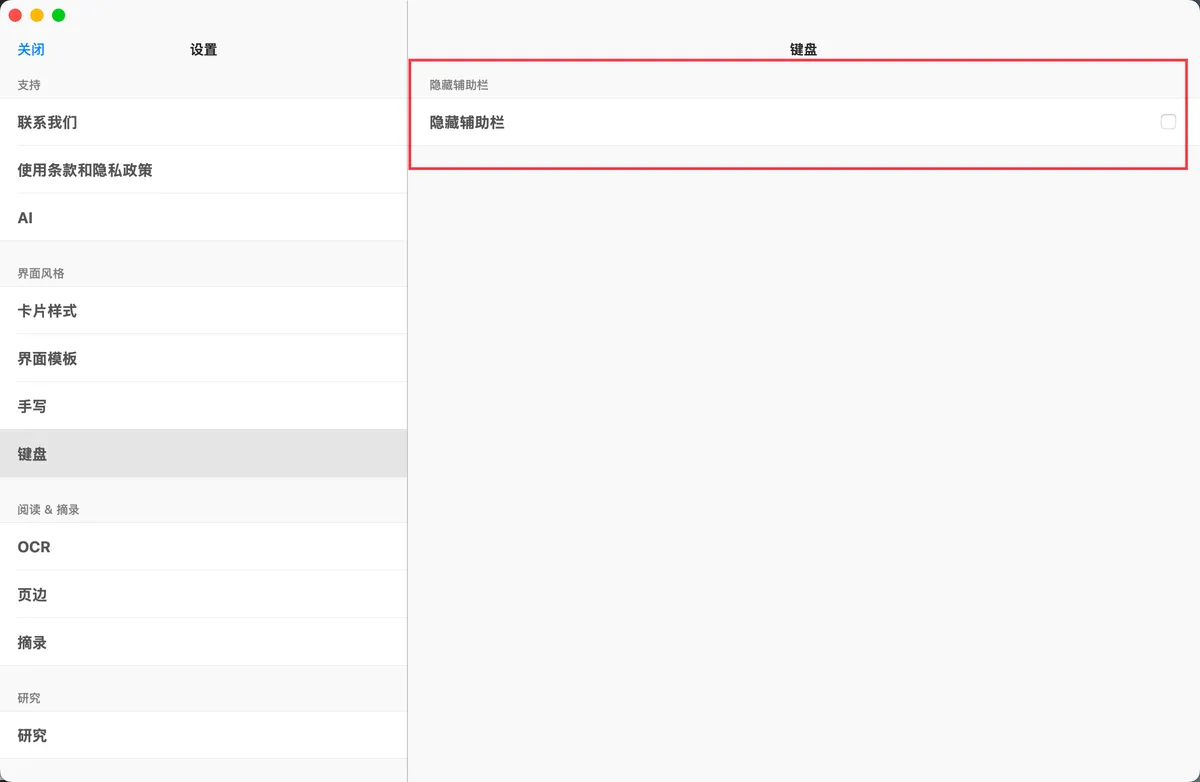
💡Can't find the "keyboard accessory bar"? How do I open it?
Open MN Settings → Keyboard → turn off "Hide Keyboard Accessory Bar"
1.2 Preview
- A comparison of a note before and after switching fonts

2 Installing Custom Fonts on Mac
Download the Font File
- Open your browser and enter a font download URL (using http://aafont.com.cn as an example), pick a font you like, and click Download

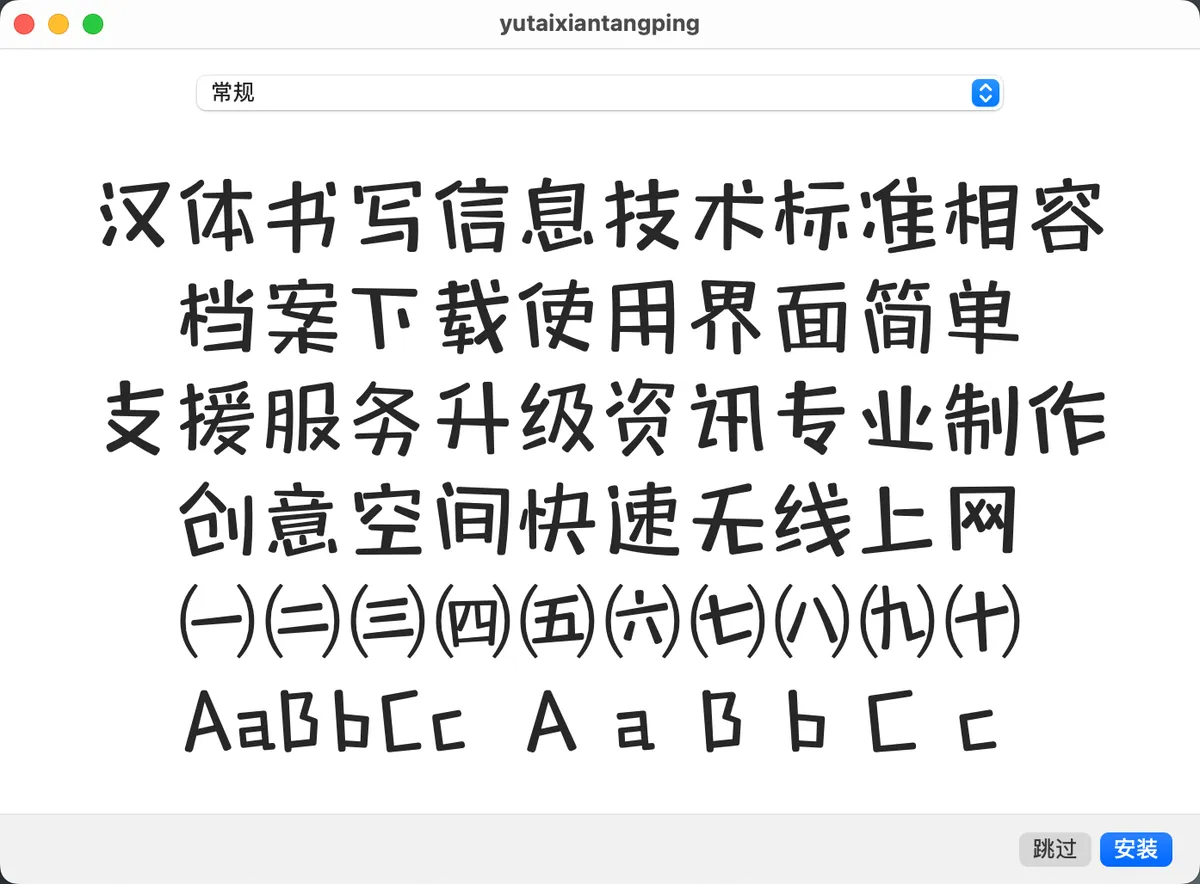
2.2 Install the Font File
- Open the downloaded font file (.ttf/.otf) and choose "Install"; the font is then installed automatically
3 Installing Custom Fonts on iPhone / iPad
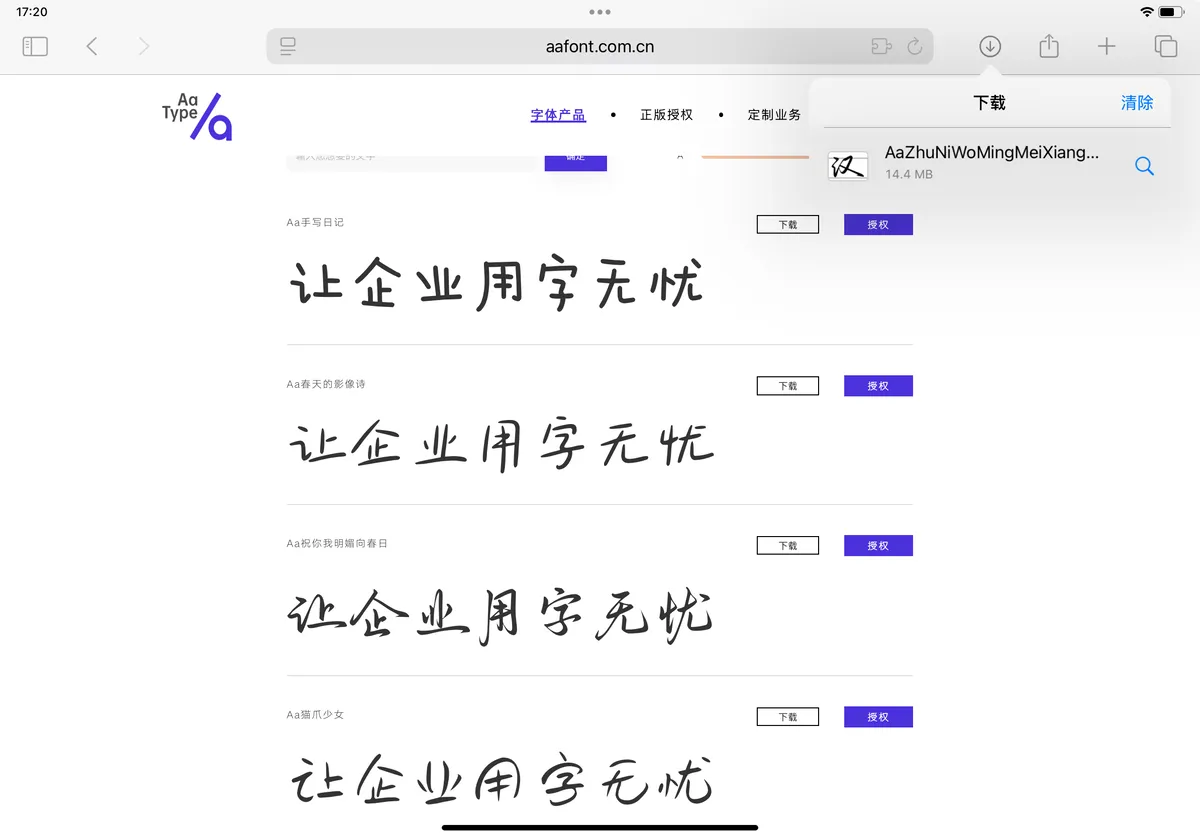
Download the Font File
- Open your browser and enter a font download URL (using http://aafont.com.cn as an example), pick a font you like, and click Download
- The downloaded font file (.ttf/.otf) is saved in the "Files app"; remember where it is stored
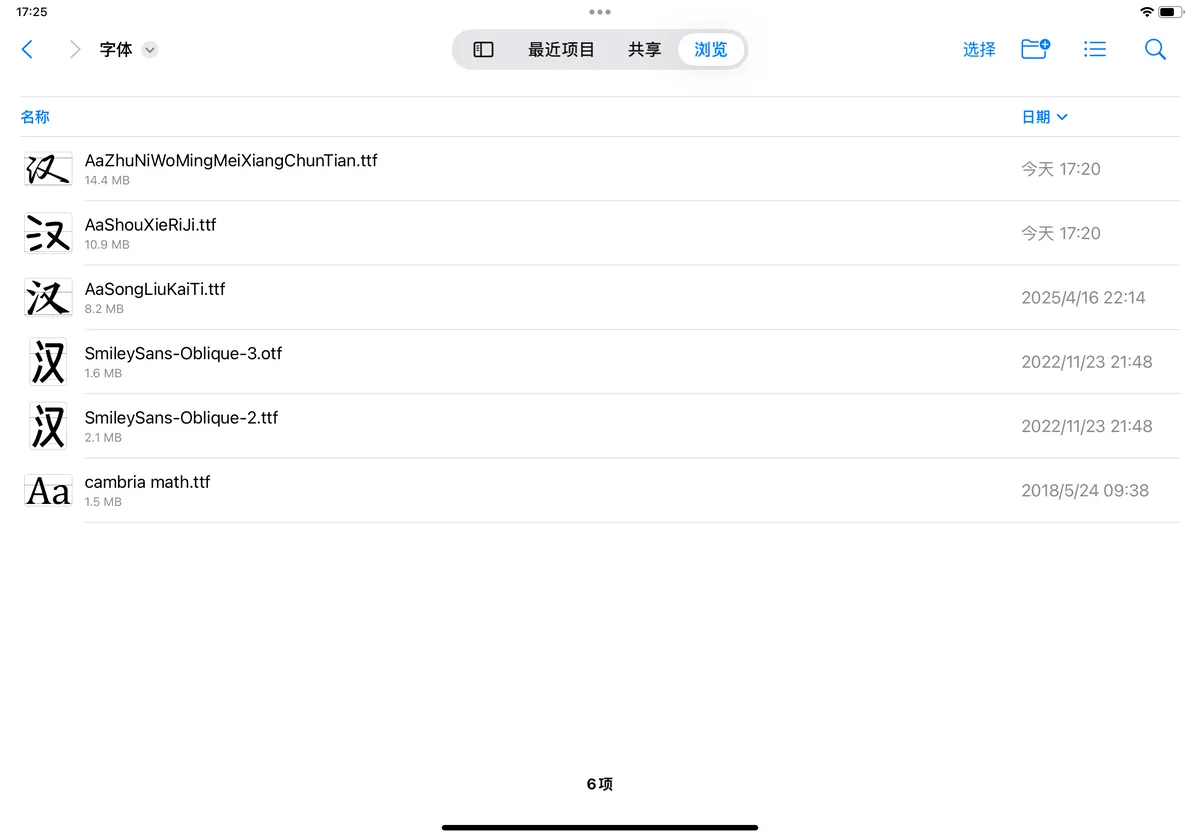
⚠️If the downloaded font comes as a compressed (.zip) archive, unzip it first!
3.2 Install the Fontcase app from the App Store , then import the font file you saved earlier
- Import → select the saved font file → Open → Install → Download Fonts → allow the configuration profile to download → a popup confirms the download succeeded

Install the Configuration Profile
- Download the configuration profile in Fontcase
- System Settings → Install Profile → Install → enter your password → Install → Install Profile → Done

3.4 Use the Custom Font
Launch MarginNote and you can use the newly installed font; for the steps, see Using and Switching Fonts.
💡If the font list doesn't update, restart the app or your device.
Third-party fonts often include only a Regular weight, so bold, italic, and underline may not be available.
4 Beautify Your Handwriting: Turn on "Scribble" to Instantly Polish Your Writing
System Settings → Apple Pencil → Scribble, which automatically converts your handwriting into printed text
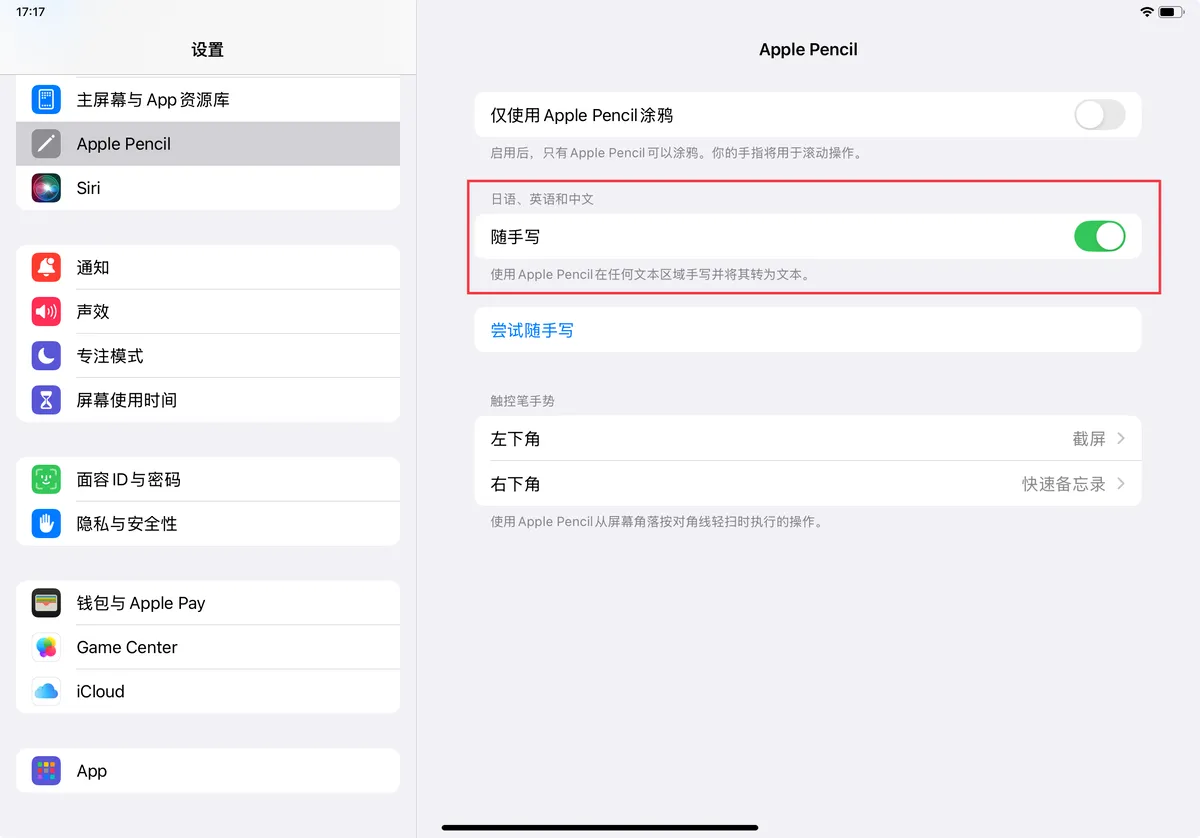
5 Recommended Font Download Sites
-
$Aa Font Library$
A complete collection of Chinese handwriting fonts Aa Font Library – Worry-free fonts for businesses. Founded in 2015, Aa Font Library is dedicated to creating commercial fonts with distinctive, original designs. It currently offers over 3,000 copyrighted font sets, spanning professional, creative, calligraphy, handwriting, and decorative styles. https://www.aafont.com.cn
-
$DaFont$
Stylish English fonts DaFont - Download fonts Archive of freely downloadable fonts. Browse by alphabetical listing, by style, by author or by popularity. https://www.dafont.com
-
$100Font$
A huge library of free fonts https://www.100font.com
-
$Font World $
The pinnacle of design fonts Font World – Free downloads and online previews for all kinds of fonts. Font World offers high-speed, free downloads and online previews of Chinese fonts, handwriting fonts, English fonts, graphic fonts, and more. https://www.fonts.net.cn
6 FAQ
6.1 Q1: What should I do if font installation fails?
If font installation fails, troubleshoot in the following order:
- Update your system to iOS 13+ and free up storage space (leave at least a few dozen MB available);
- Confirm the font file is in .ttf / .otf format and is complete and undamaged;
- Use a reputable font app (such as Fontcase / iFont) to import it, and install the profile when prompted;
- Go to Settings → General → VPN & Device Management and trust the profile;
- Restart your phone, then check whether the installation succeeded under Settings → General → Fonts;
- Still failing: try a different font file, switch to a different font-installer app, or update iOS.
6.2 Q2: What should I do if fonts don't display?
Cause: This is a bug in OS 26 — the "Cambria Math" font was not bundled in the build, yet this font is essential for rendering PDF math formulas. After upgrading, this missing font causes formulas that previously displayed correctly to fail to show.
There are 2 solutions:
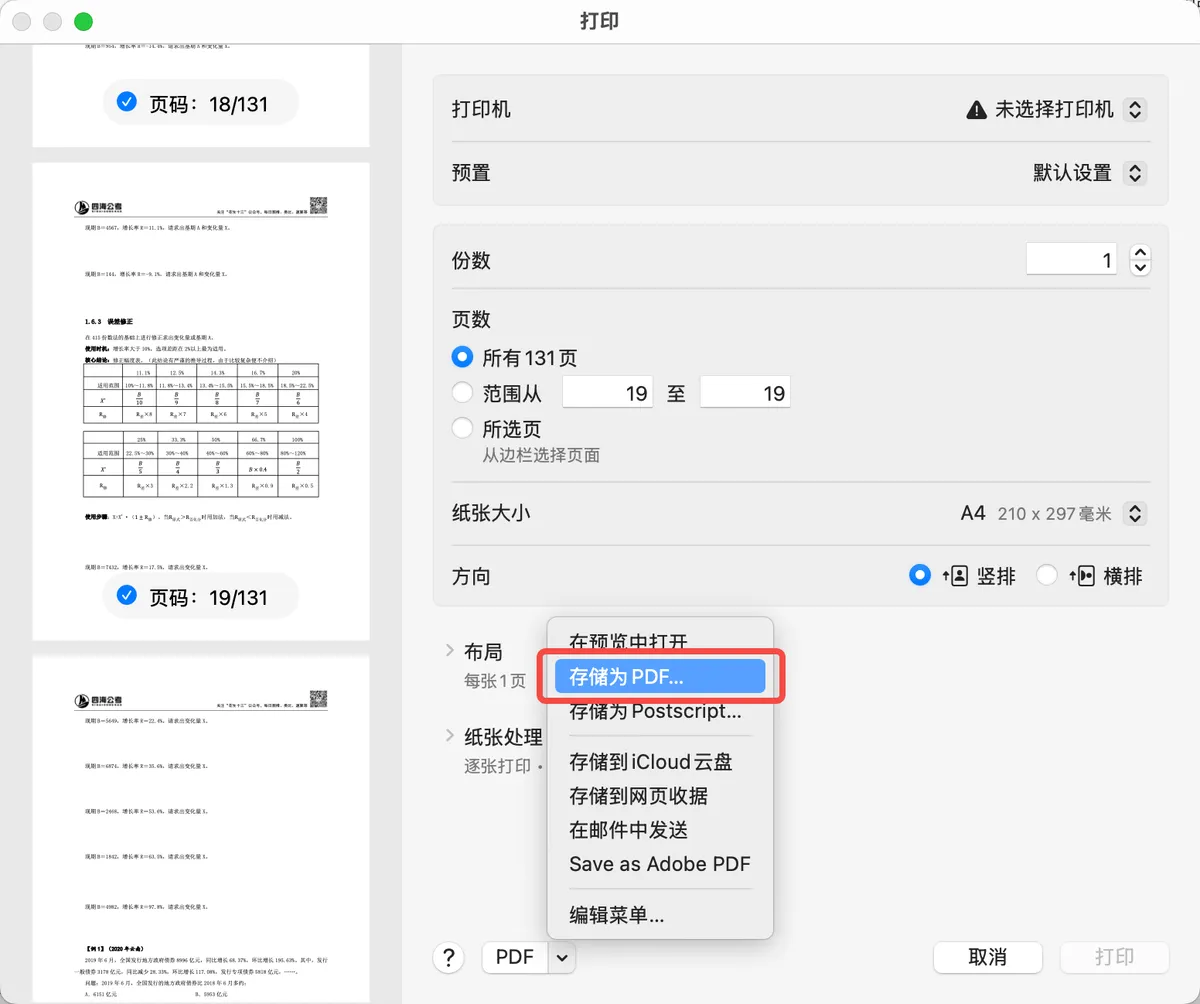
- Flatten the PDF: Export the PDF as a print version. Flattening the PDF resolves most PDF compatibility issues.
-
Manually install the "Cambria Math" font; once installed, formulas display correctly again.
6.3 Q3: How do I remove an installed custom font?
-
Method 1: Delete the profile
- Open System Settings → General → VPN & Device Management;
- Find the profile that corresponds to the font (such as iFont or Fontcase);
- Tap Remove Profile → confirm with your password;
- Go back to System Settings → General → Fonts, and the font will be gone.
-
Method 3: Uninstall the font app directly
- Simply uninstall the font app (iFont, Fontcase, etc.);
- The system automatically removes all fonts installed by that app.