
Mind Map Cards ②: Move, Merge, and Regroup
💡On this page
- Moving cards: drag to any position, make a child card, or make an independent card
- Merging cards: combine the contents of multiple cards into one
- Regrouping cards: split apart cards that have been merged
💡Use cases:
After creating cards, you can manually or automatically move, merge, and regroup loosely arranged cards into a clearly ordered mind map, so as to internalize knowledge.

Handwriting in the mind map can also be circled into a card, merging its content into a node.
During focused review, you can merge multiple knowledge points into a single card.
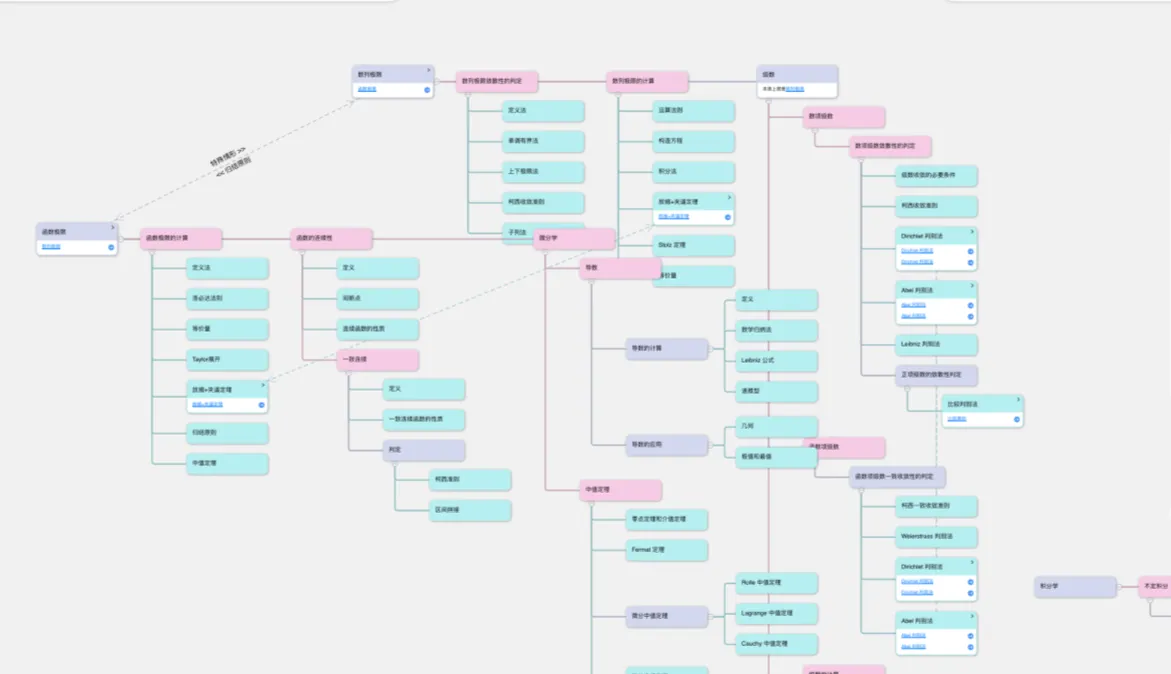
1 Moving Cards
1.1 Moving Cards by Dragging
1.1.1 Dragging Freely
In a mind map or sub-mind map, independent cards (cards with no parent node) can be arranged freely.
You can hold a card and drag it to any position you want, or overlap it with other cards to relate and compare them.
💡For a non-independent card, you can move its child cards out to become independent cards, or drag the card itself to become a child card.

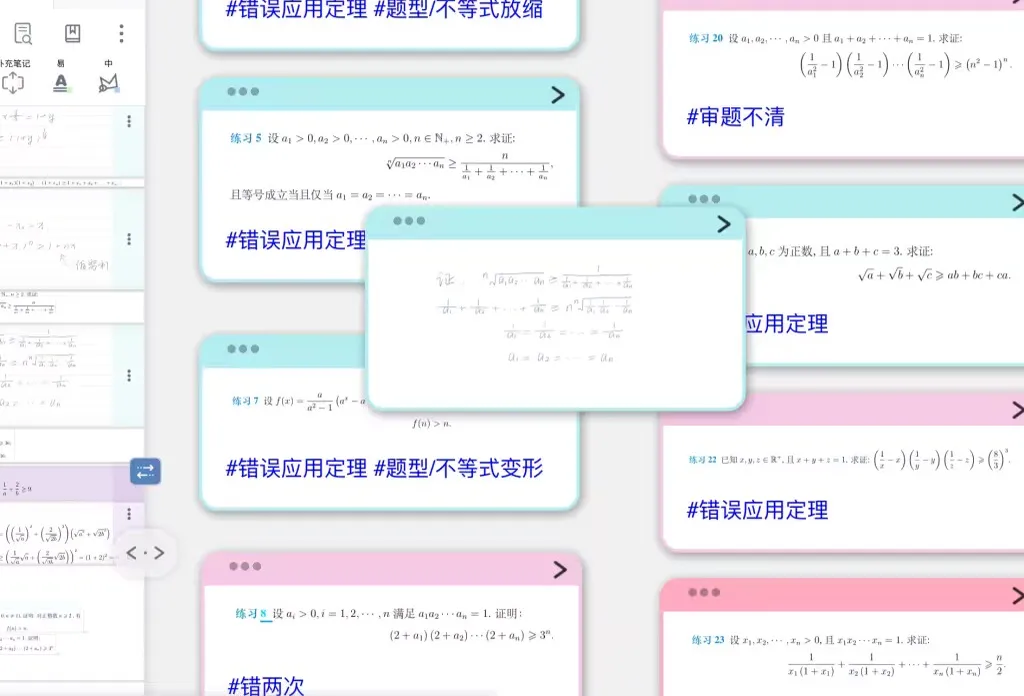
💡A card can be displayed stacked only when it is dragged onto another card with a small overlap area, without triggering "🖼️ image" or "🖼️ image"
1.1.2 Dragging to Make a Child Card
- Hold the selected card A and drag it onto another card B; when the green "
Make Child Card" prompt box appears, release. - Card A becomes a child card of card B.
- If A also has child cards, they move along with it.
💡In mind map focus mode, or when B already has other child cards, the layout arranges automatically; you can then hold card A and drag it within the branch to adjust the branch order.
1.2 Moving a Child Card Out as an Independent Card

- Hold the selected card and drag it to the blank area in the top-right corner.
- A black text box reading
Independentappears in the top-right corner. - Drag the card into the
Independentbox and release; the card is removed from the branch and becomes an independent card.
1.3 Automatically Organizing Cards by Table of Contents
💡Prerequisite: the document must have a table-of-contents structure.
For how to generate a table of contents, see: Manually & Automatically Generating a Document Table of Contents

When the card is independent, hold the selected card and drag it to the blank area in the top-right corner.
A black text box reading Table of Contents appears in the top-right corner.
Drag the card into the Table of Contents box and release; the table of contents is then presented as mind map branches, and excerpt cards become child cards of the branch they belong to.
2 Merging Nodes
💡Use cases
- Combine several related concepts into a single review card
- Gather scattered notes under a single theme
- Reduce the number of cards and simplify the mind map structure
2.1 Merging Cards with Multiple Drags
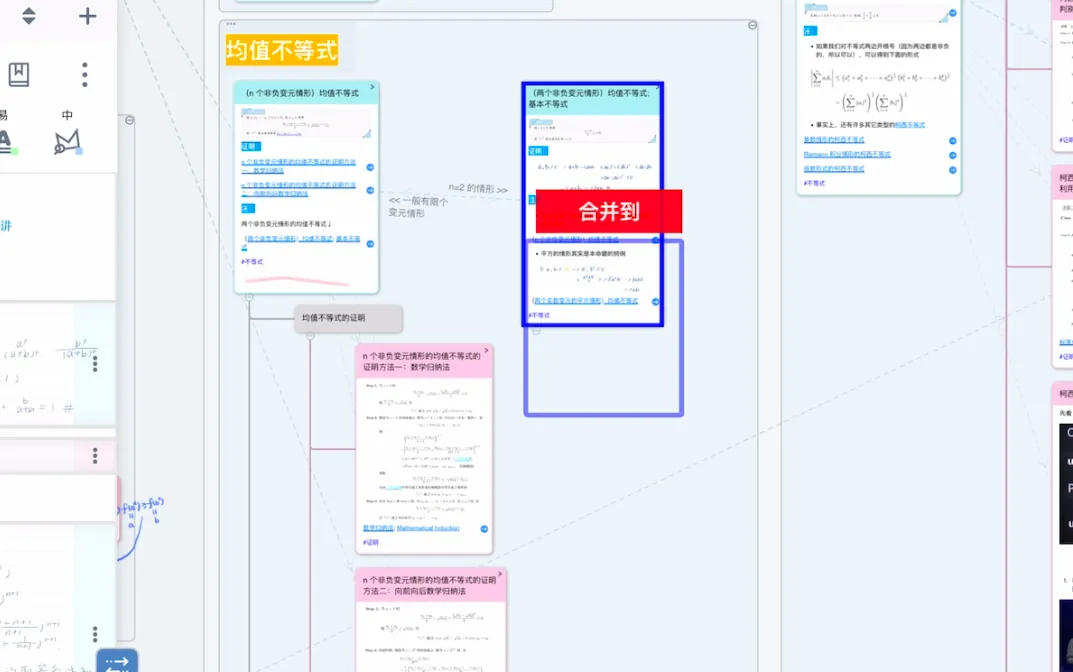
- By default, hold the selected card A and drag it onto another card B; when the green
Make Child Cardprompt box appears, release, and card A becomes a child card of card B. - Now drag again; when the red
Merge Intoprompt box appears, release, and card A is merged into card B, with its content placed after card B's content.
2.2 Merging Cards with a Single Drag

Hand tool - Mind Map
Tap the hand tool in the mind map toolbar (shown above) and turn on the "Quick Merge" toggle.
- Hold the selected card A and drag it to the right side of another card B; a green "
Make Child Card" prompt box appears. - Drag it to the left side of card B, and a red "
Merge Into" prompt box appears.
3 Regrouping Nodes
💡If you need to make further adjustments after merging cards, you can unmerge a card and then split and regroup it.
- Tap the card you want to unmerge, then in the
Advancedsection of Card Pop-up Menu and Its Customization, selectMore; - In the pop-up
Selectionpanel, chooseUnmergeunderAction\Card - The card then keeps only the first excerpt, while the other excerpts and comments become child cards of that card, making it easy to move and merge the nodes again later.