Making Flashcards ①: Understanding Flashcards and Review Card Decks
💡📖 Flashcard Series Navigation This series helps you master flashcard creation and scientific review in MN4.
Making Flashcards:
- Must-read for beginners: ① Understanding Flashcards and Review Card Decks ② Adding Cards to a Review Card Deck
- Advanced: ③ Setting the Front and Back of a Flashcard (this page)
Scientific Review:
- Must-read for beginners: ① Scientific Review Based on the FSRS Anti-Forgetting Algorithm
- Advanced: ② Tracing the Source Context
1 Understanding the Core Concepts
1.1 What Are Flashcards / Review Cards
-
Getting to know flashcards:

💡 A flashcard is a card used for memory review, made up of a "question (front)" and an "answer (back)." When reviewing, you first see the question, try to recall the answer, and then flip the card to view the full content. Through repeated, spaced reviews, it helps you firmly memorize knowledge points. 📋 Flashcard example - Front (question): "What does Bernoulli's inequality state?" - Back (answer): the theorem ... condition analysis ... proof process ...
-
Components of a flashcard:
- Front (question): can be extracted from the card content or edited yourself. By default, the card title is used as the question.
- Back (answer): contains the entire content of the note card (title and body).
-
What content is suitable for flashcards?
- ✅ Concepts, definitions, and formulas you need to memorize
- ✅ Important theorems and principles
- ✅ Easily confused knowledge points
- ✅ Questions you got wrong and error-prone points
- ❌ Long, comprehension-based discussions (not suitable)
- ❌ Content that requires extensive context to understand (not suitable)
1.2 What Is a Review Card Deck
💡 A review card deck is like a "memory card box," used specifically to hold the cards you need to review.
A study set can be bound to one review card deck. You can add cards from the study set to the review card deck, and the system will schedule review times using a scientific algorithm to help you memorize efficiently.
⚠️ Important: A review card deck depends on a study set and cannot exist on its own. You must have a study set before you can create a review card deck.
1.3 The Relationship Between Flashcards and Note Cards
In MN4, a flashcard is actually just your note card—they are different "identities" of the same card:
- When excerpting in a document → it's called an "excerpt"
- When organizing in the mind map → it's called a "note card"
- After adding it to a review card deck → it's called a "flashcard" or "review card"
A card can freely switch identities among the document, the mind map, and the review card deck. When you edit a note card in the mind map, the changes sync to the review card; deleting a flashcard from a review card deck does not delete the original note card.
2 Quick Start: Create Your First Flashcard
The steps below give you a quick walkthrough of how to create and use flashcards.
2.1 Create a New Review Card Deck
Steps:
- Open a study set
- Tap the
Reviewbutton in the top-right corner of the study set - Tap
➕ New Review Card Deck - Enter a name for the review card deck (e.g., "Advanced Mathematics Final Review")
- Finish creating the deck
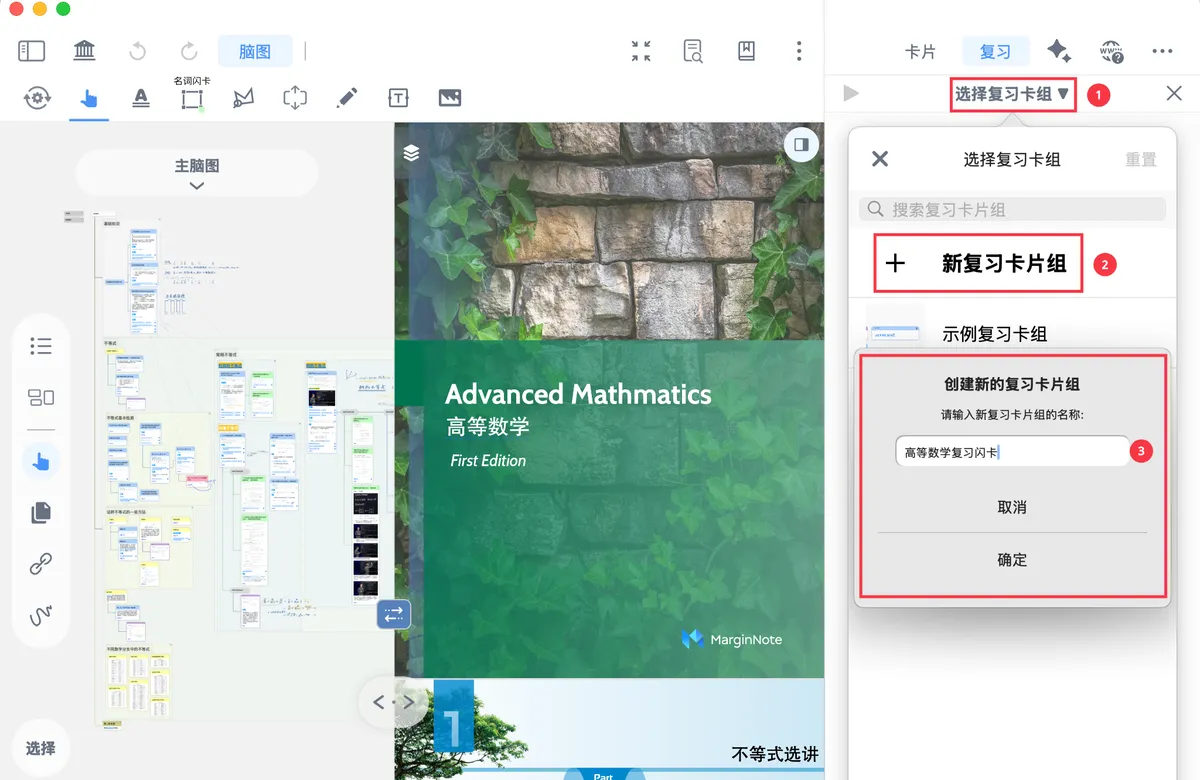
✅ Once created, the current study set is bound to this review card deck.
2.2 Add a Card to a Review Card Deck
- In the mind map, select a card (or select an excerpt in the document)
- Tap the card (excerpt); in the pop-up menu, tap the
Basicsection -... (More - Tap
Add to Review
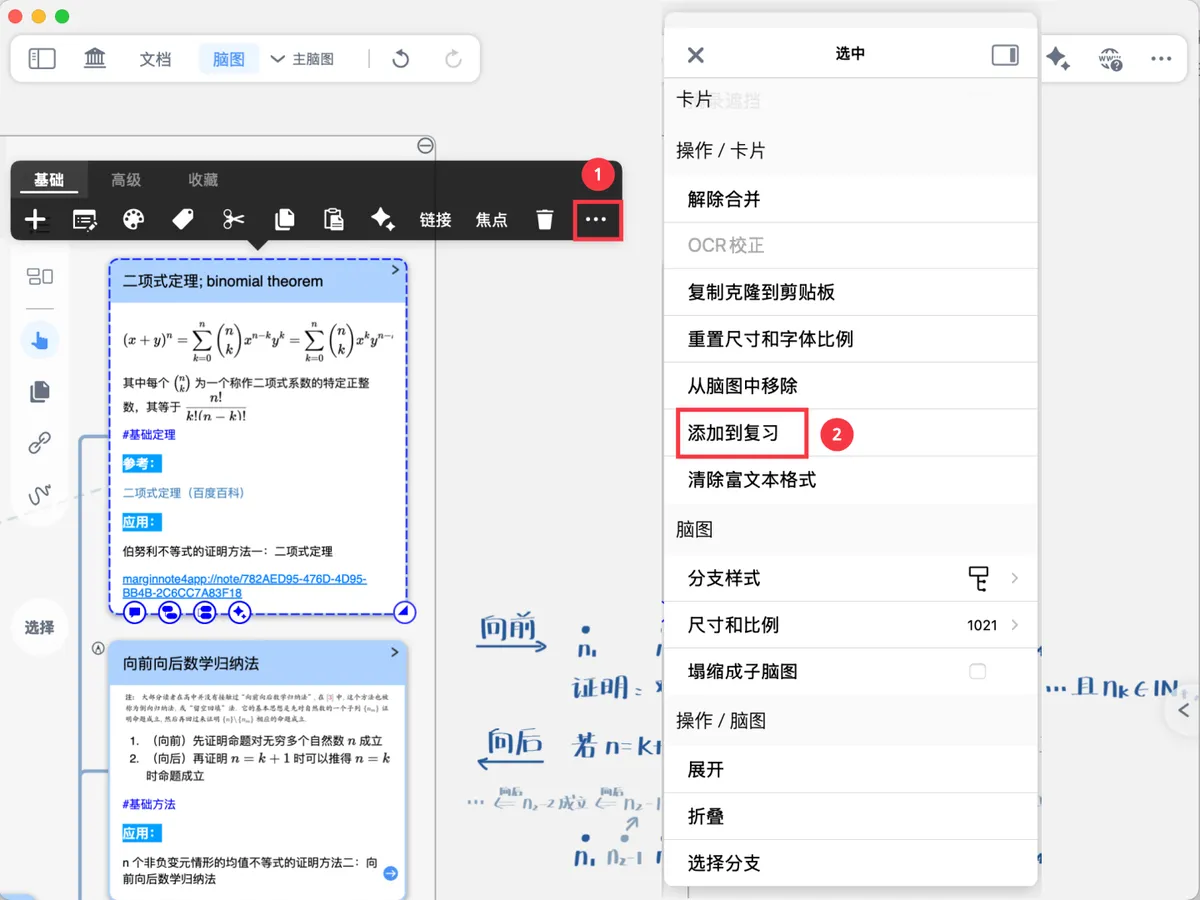
✅ The card is now added to the review card deck!
💡 Tip: If you want to add multiple cards in bulk, or automatically add cards to the review card deck while excerpting, read the next page: Making Flashcards ②: Adding Cards to a Review Card Deck
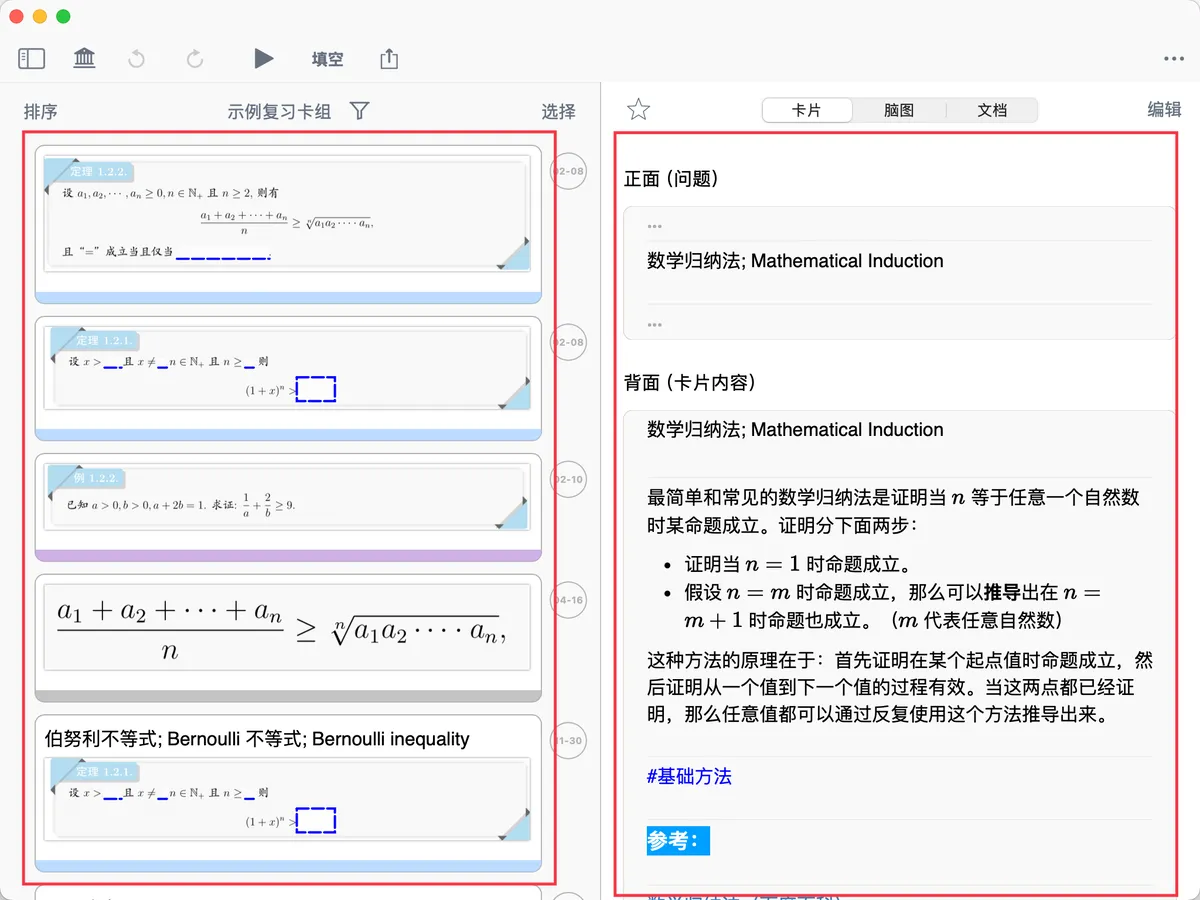
2.3 View the Flashcard Result
-
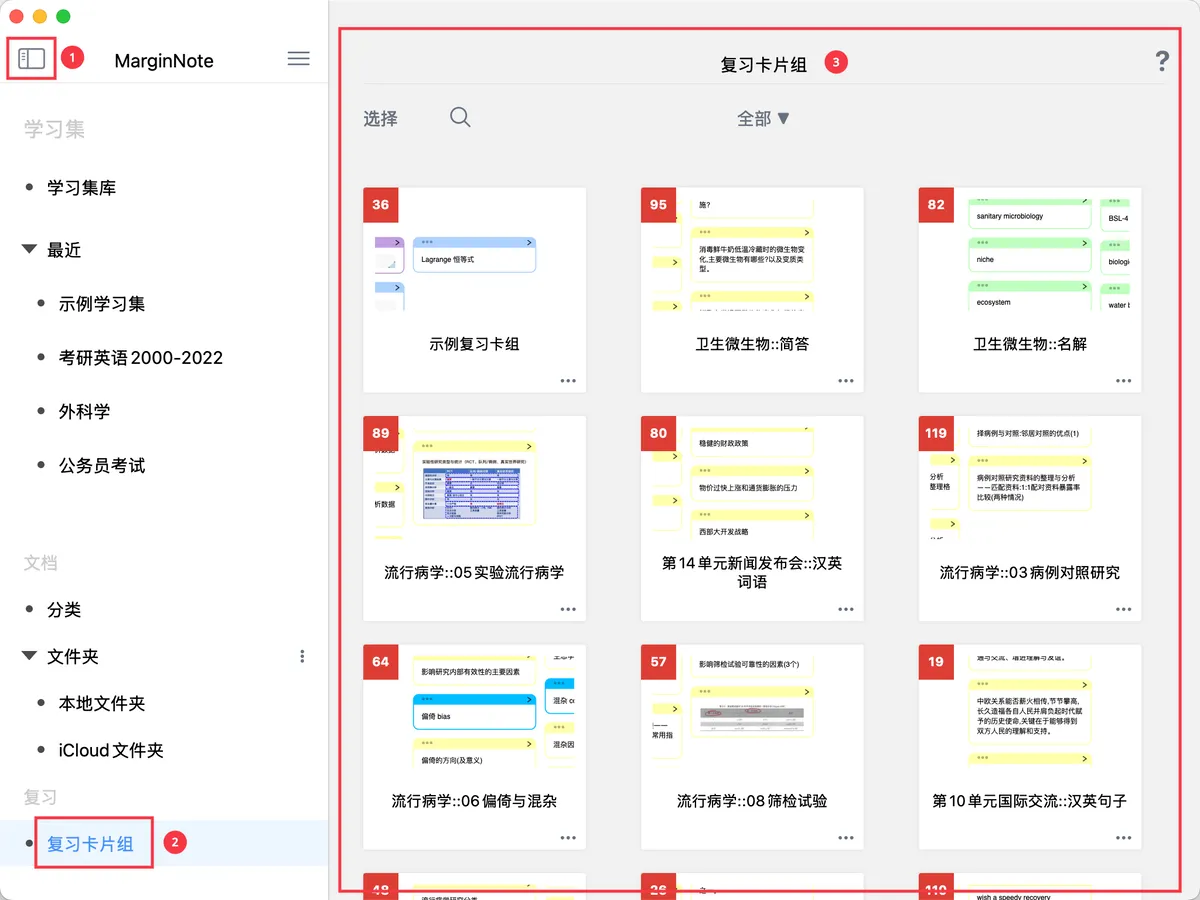
View the flashcards you added:
- On the MN4 home page, tap
Review Card Decksin the left sidebar - Select the review card deck you just created
- In the flashcard list on the left, you can see the cards you added
- On the MN4 home page, tap
-
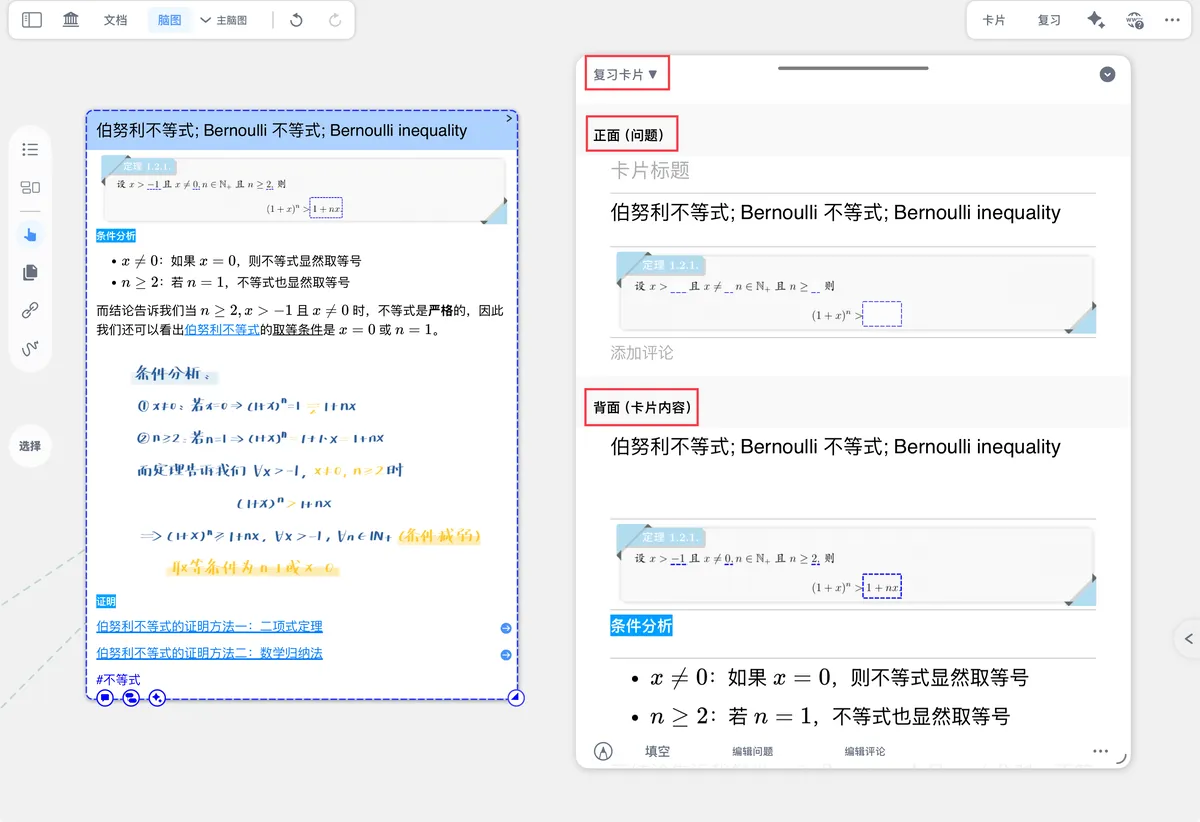
Switch to Review Card mode to view the front and back:
-
Tap a card to open the
card editorcard editor
-
In the top-left of the card editor, switch to
Review Cardmode - You will see the front (question) and back (answer) of the flashcard By default, the card title is used as the flashcard front (question), and the entire card content as the back (answer). If the card has no title, the first comment is used as the front.
-
3 Browse and Manage Review Card Decks
3.1 Overview of the Review Card Deck Interface


The review card deck interface is divided into two parts, left and right:
-
Left: the flashcard list
- Shows only the card front (question)
- Scroll to browse all flashcards
-
Right: three-column details
- Card column: shows the flashcard's front (question) and back (answer)
- Mind map column: locates the flashcard's position in the mind map
- Document column: locates the flashcard's position in the document
💡 The three-column design on the right lets you check a card's position in the mind map and its context in the document at any time while browsing flashcards, helping you understand and remember
3.2 Filter and Sort Flashcards
-
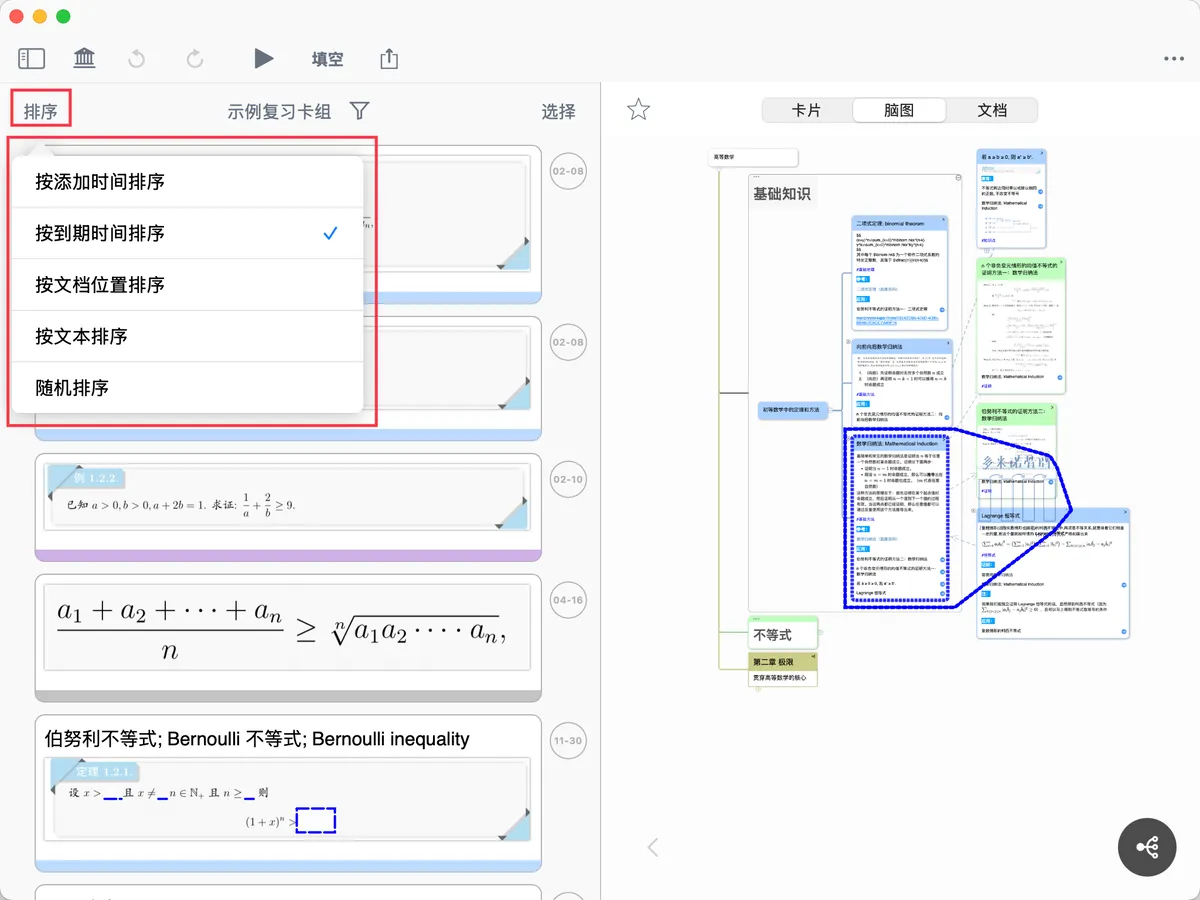
Sort flashcards: Tap
Sortat the top of the flashcard list on the left to choose a sort order:Sort by date added: the most recently added cards come firstSort by due date: the cards due soonest come firstSort by document position: arranged in the order the cards appear in the source documentSort by text: sorted by the text on the card frontRandom order: shuffles the order randomly
-
Filter flashcards: Tap the funnel icon at the top of the flashcard list on the left to filter by criteria:
Due: shows only cards that have reached their review timeRating: filter by memory level (Hard / Good / Easy)Favorites: shows only favorited cardsTags: filter cards with specific tags (e.g., #key, #error-prone)Document: filter cards from a specific documentColor: filter cards of a specific color
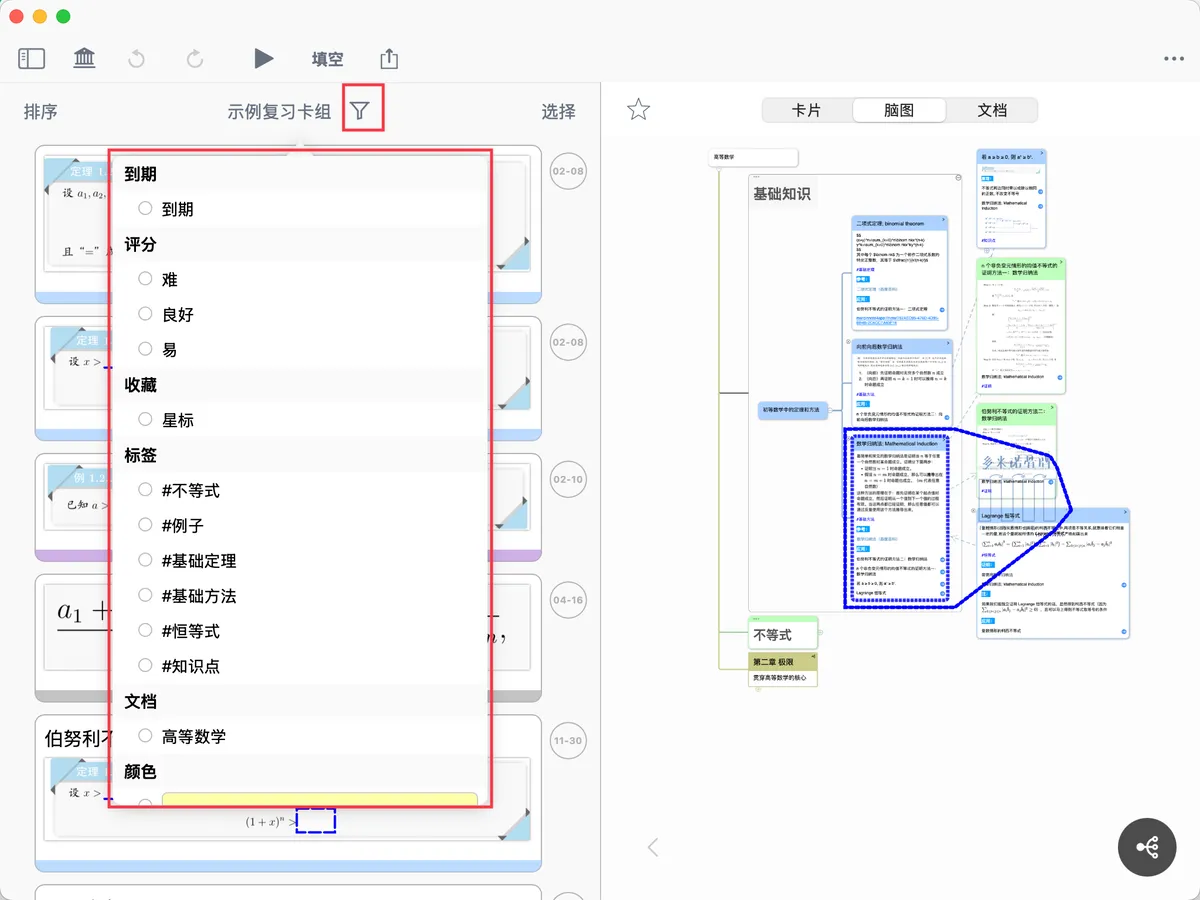
💡 Tip: You can select multiple filter criteria at once, combined as an intersection. For example, filter for cards that are "due + tagged #key + rated Hard" for focused review.
3.3 Manage Review Card Decks
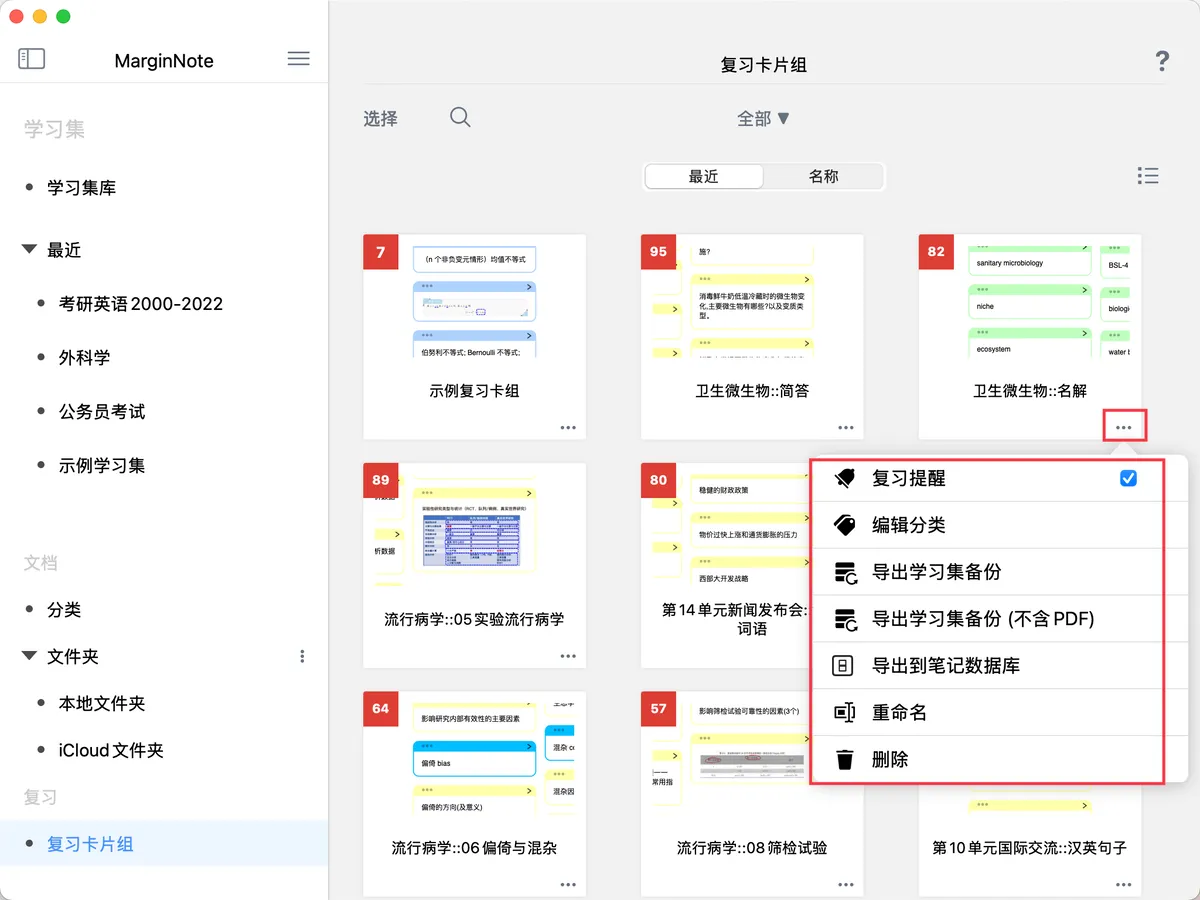
On the review card deck home page (sidebar - Review Card Decks), tap the three-dot icon in the bottom-right of a review card deck to perform the following actions:
-
Enable**
Review Reminder**- When a card reaches its review time, the app reminds you to review it with a message pop-up
⚠️ You need to enable notification permission for MarginNote 4 in your system settings
-
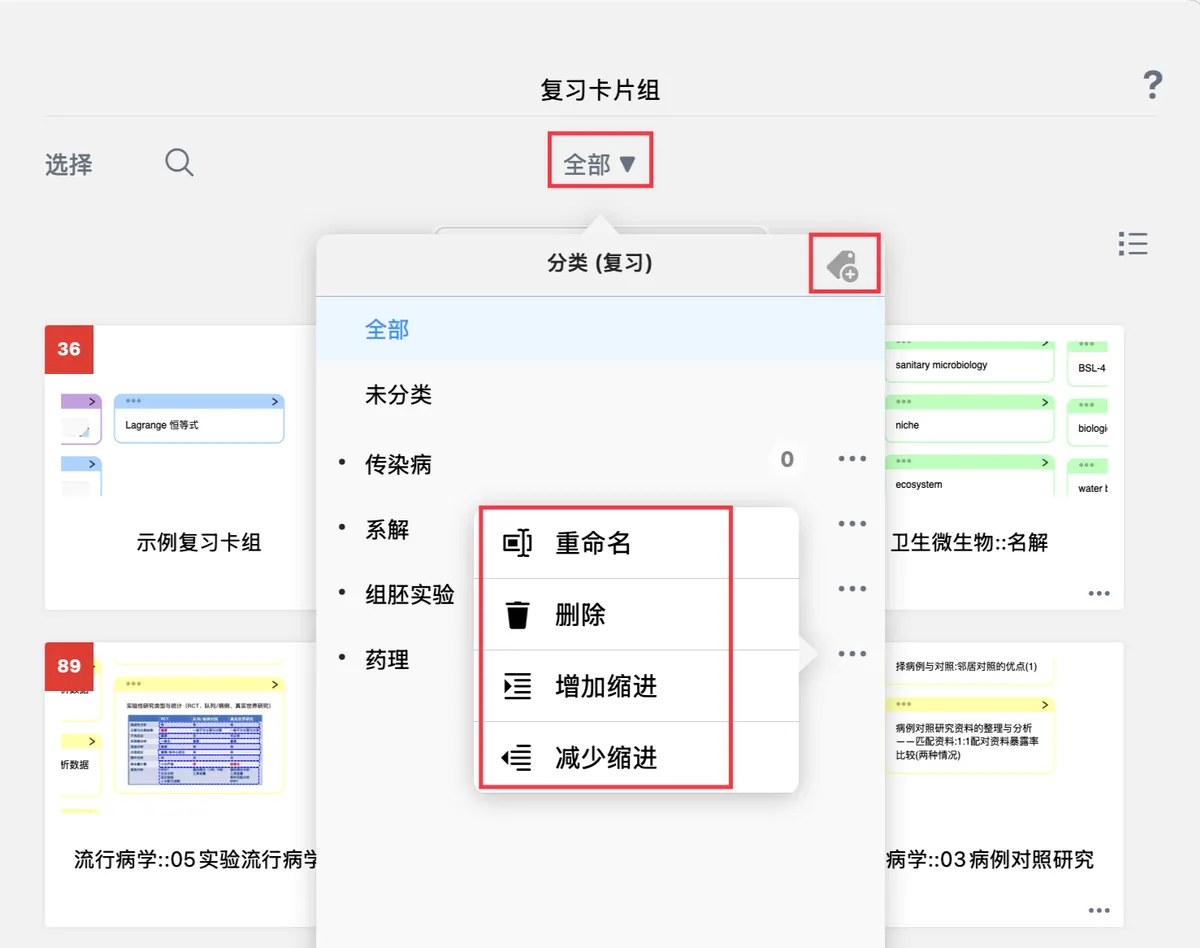
Edit Category
- Assign a category to the review card deck, similar to folder management
- Tap the dropdown at the top to view review card decks by category, or create a new category
- Categories support rename, delete, indent, and outdent
-
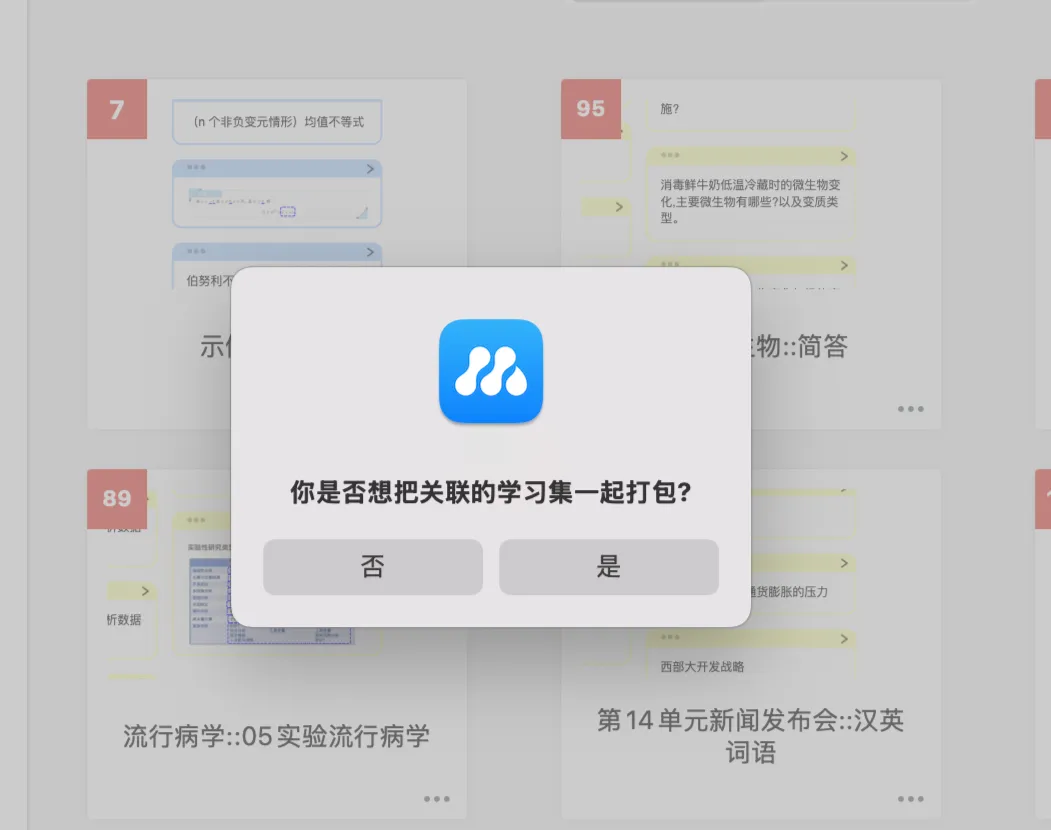
Export Study Set Backup
- You can export a backup of the review card deck, choosing whether to include the associated study set and PDF
💡 We recommend including the study set in the package so you can easily check each card's source and context
-
Rename / Delete
- Rename: change the name of the review card deck
- Delete: delete the review card deck
- ⚠️ Deleting a review card deck does not delete the corresponding mind map cards and document excerpts; it only removes the cards from the review card deck
4 FAQ
Q1: What is the difference between a flashcard and a note card?
A: They are the same card, just with different names and uses in different places. Note cards are for organizing knowledge; flashcards are for review and memorization.
Q2: Will deleting a flashcard delete my notes?
A: No. Deleting a flashcard from a review card deck only cancels its review; it does not delete the note card in the mind map or the excerpt in the document.
Q3: Can a single card be added to multiple review card decks at the same time?
A: No
Q4: Can a study set be bound to multiple review card decks?
A: Yes, but only one review card deck can be bound at a time; you need to manually switch the bound deck.
Q5: Does editing a note card affect the flashcard?
A: Yes, it syncs. When you edit a note card in the mind map, the changes automatically sync to the flashcard in the review card deck.
Q6: How do I blank out part of a card to make a fill-in-the-blank question?
A: This is an advanced feature for setting the front and back of a flashcard. See: Making Flashcards ③: Setting the Front and Back of a Flashcard
5 📌 Next Steps
Congratulations on completing the flashcard basics!
You now understand the basic concepts of flashcards and have created your first flashcard. Next, learn how to add cards to a review card deck in bulk to create flashcards more efficiently:
→Continue reading:Making Flashcards ②: Adding Cards to a Review Card Deck
After learning how to make flashcards, don't forget to learn how to review scientifically:
→Scientific Review:Flashcard Review ①: Scientific Review Based on the FSRS Anti-Forgetting Algorithm