Third-Party App Integration ②: Obsidian+MN4
💡 Using the Obsidian-Bridge plugin (on the MarginNote side) together with the MarginNote Companion plugin (on Obsidian), you can transfer notes between MarginNote and Obsidian. You can create notes in MarginNote and then easily sync them to Obsidian, where you can use bidirectional links and the graph view to deepen your understanding and connect knowledge, building a unified, interconnected, and ever-growing personal knowledge base.
1 Plugin Installation and Configuration
1.1 Installing the MarginNote Plugin: Obsidian-Bridge
-
Plugin download link:
https://bbs.marginnote.com.cn/uploads/short-url/8IJ9ATwDfjc1gin61T3n0MGcDsa.mnaddon
-
Installation method: How to install a plugin?
- Plugin configuration: No configuration is needed after the plugin is installed.
1.2 Installing the Obsidian Plugin: MarginNote Companion
- Plugin download link:
-
For MarginNote3
-
For MarginNote4
-
Installation method:
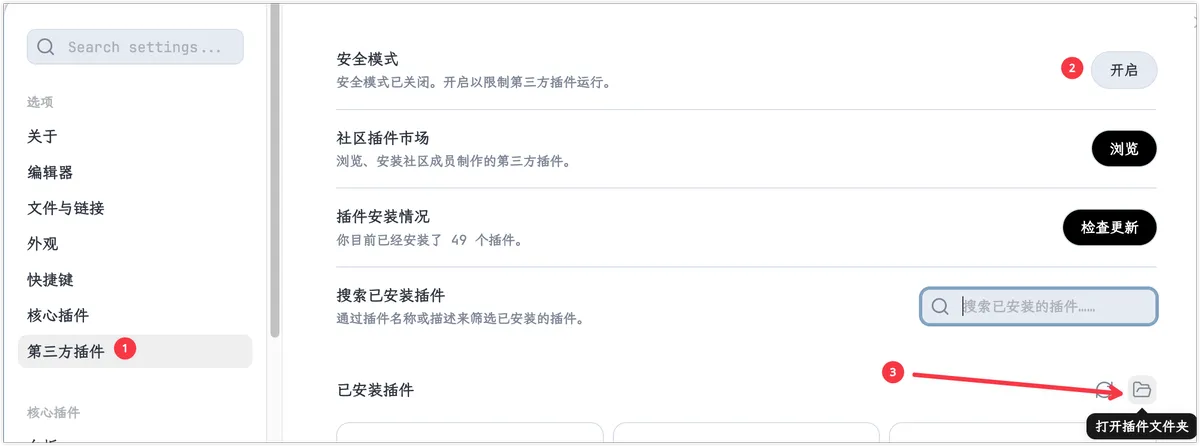
- Open Obsidian settings
- Click
Third-party plugins - Turn off
Safe mode - Open the
plugins folder - Unzip the downloaded plugin, then move the resulting folder into the plugins folder you opened
-
Plugin configuration: After the plugin is installed, you can use the default template, or configure it yourself as needed by following the MarginNote Companion plugin manual.
2 Using the Plugin
💡 The plugin supports two data import methods: basic excerpt import and Table of Contents tree import.
2.1 Basic Excerpt Import
💡 A single import supports either one card or a hand tool selection.
- Single card: supports text and images, but not handwriting inside the card.
- Selection: supports text but not images; a rectangular selection is automatically OCR'd.
-
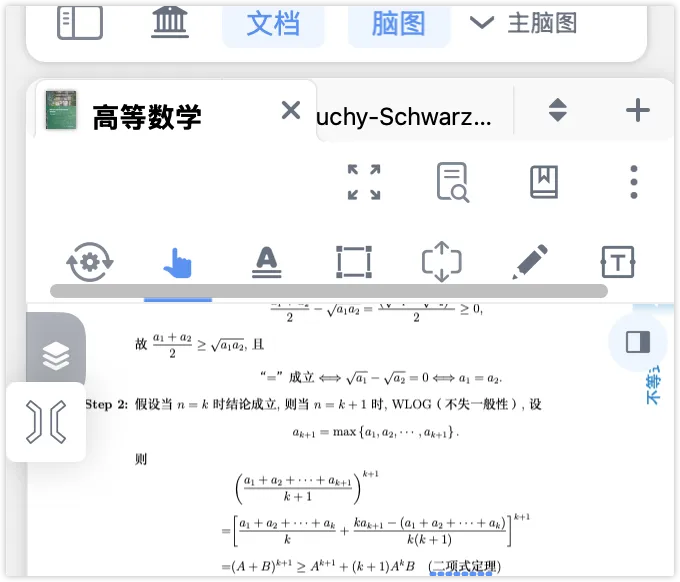
Open MarginNote4, enter a study set, then tap the plugin icon to launch the Obsidian-Bridge plugin.
-
Now, whether you tap a card or use the hand tool to box-select content, the plugin will copy the note's information.
-
Import the note data in Obsidian
- Auto-paste: Press the auto-paste toggle (default shortcut ⌘+R; you can also configure it yourself on Obsidian's hotkey settings page). Once auto-paste mode is on, you only need to keep Obsidian running in the background, and any content you tap or box-select in MarginNote will be automatically imported into Obsidian.
💡 We recommend using auto-paste mode.
2.2 Table of Contents Tree Import (TOC Mode)
💡 Best used when you want to quickly move an entire book's structure into Obsidian. It supports text only; images and handwriting inside cards cannot be imported.
-
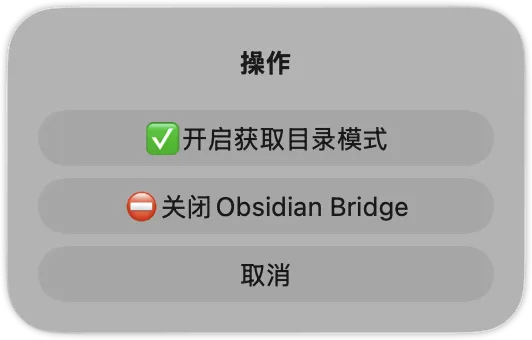
Open MarginNote4, enter a study set, then tap the plugin icon to launch the Obsidian-Bridge plugin. Once it is running, tap the plugin again to open its mode settings.
-
Tap
✅Enable TOC capture mode -
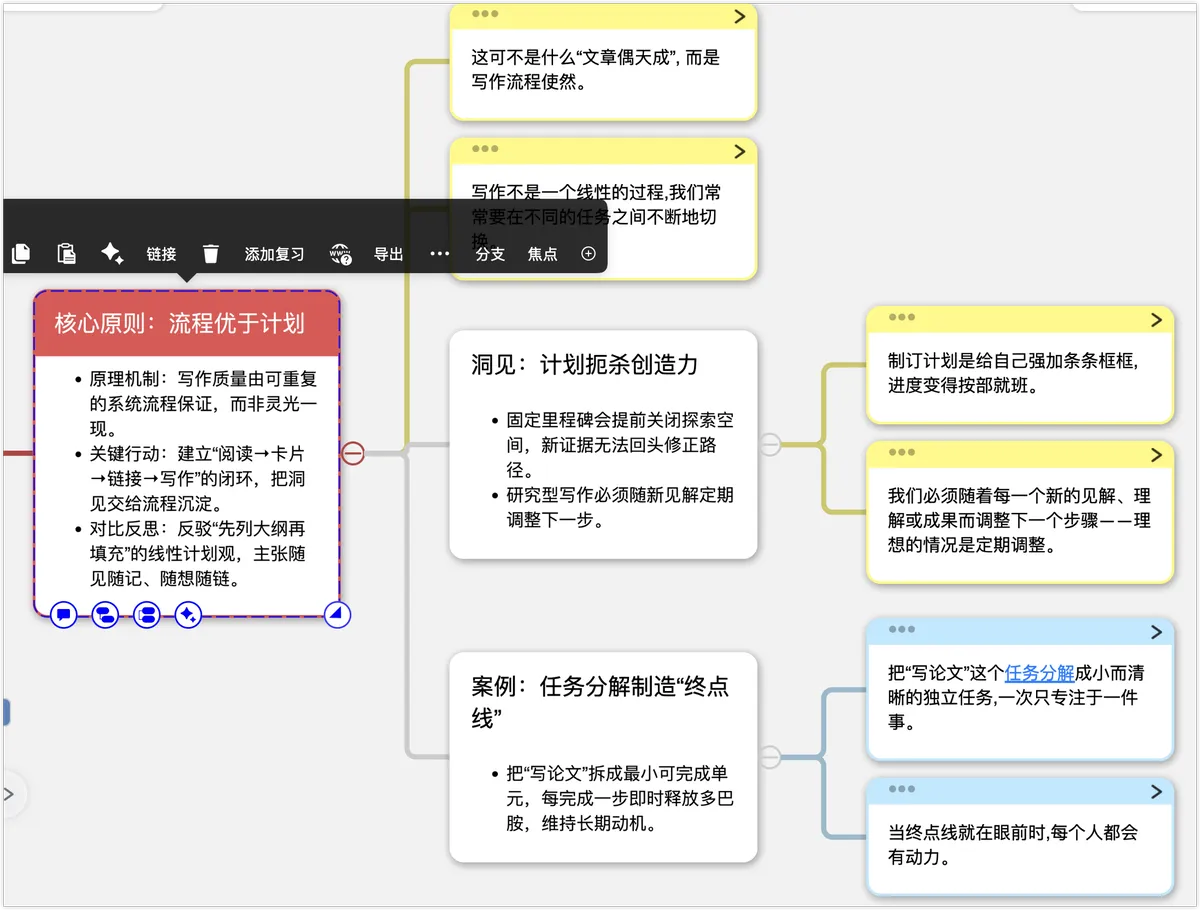
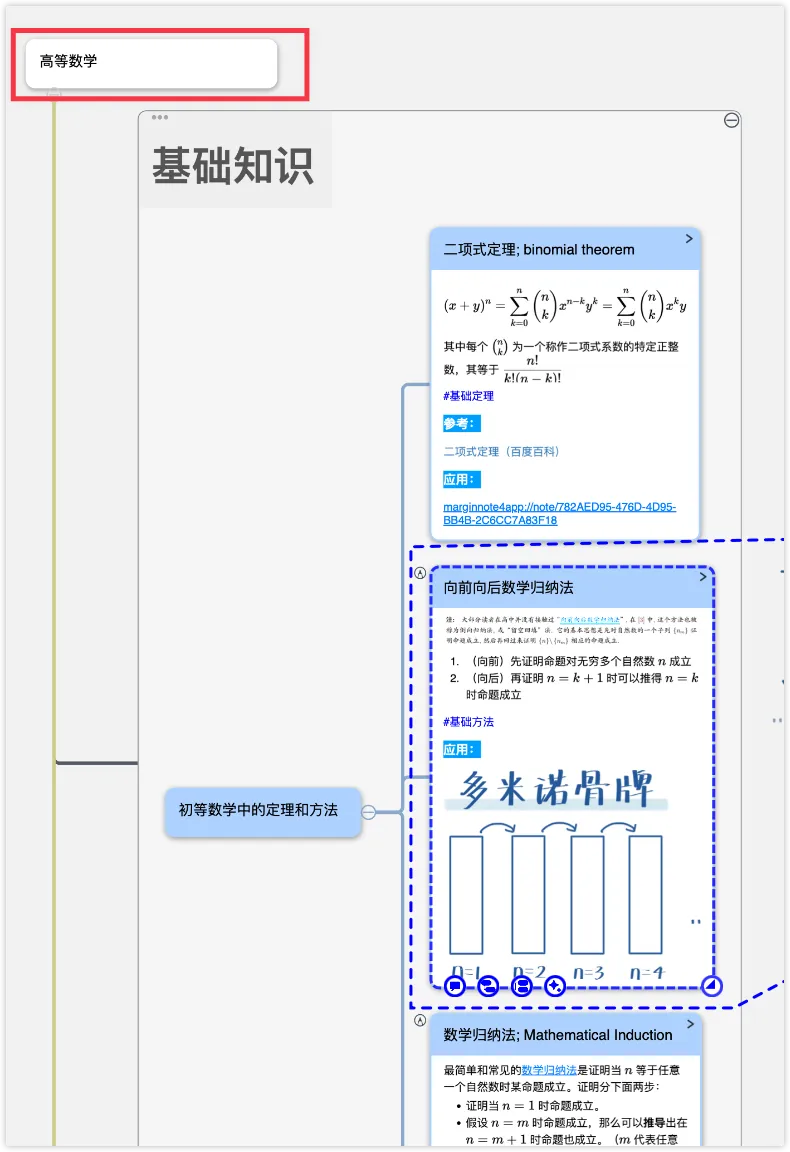
Tap the top-level card of the mind map section you want to import.
-
Import the note data in Obsidian
- Manual paste: In Obsidian, press the paste key (⌘+V).
-
Command paste: Use OB's command palette and press ⌘+P (Obsidian's default command palette shortcut). Find the MarginNote Companion plugin command and choose
Insert TOC (default template) into current note.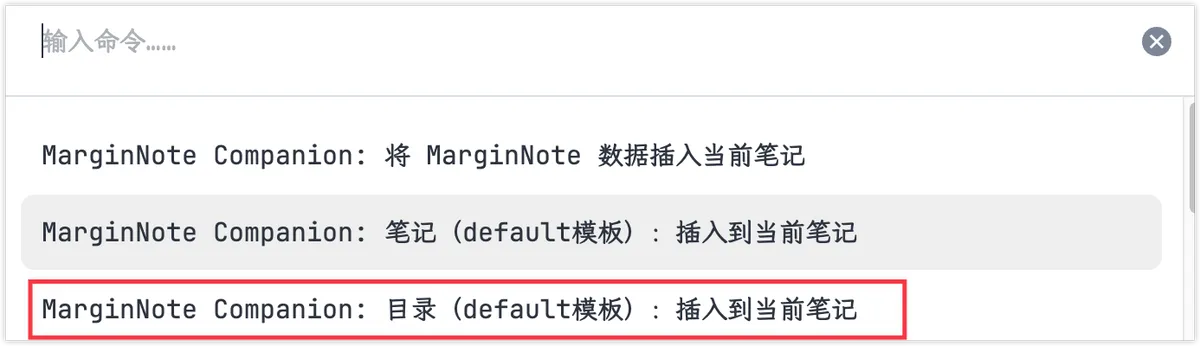
-
Auto-paste: Press the auto-paste toggle (default shortcut ⌘+R; you can also configure it yourself on Obsidian's hotkey settings page). Once auto-paste mode is on, you only need Obsidian in the background, and any content you tap or box-select in MarginNote will be automatically imported into Obsidian.
3 Showcase
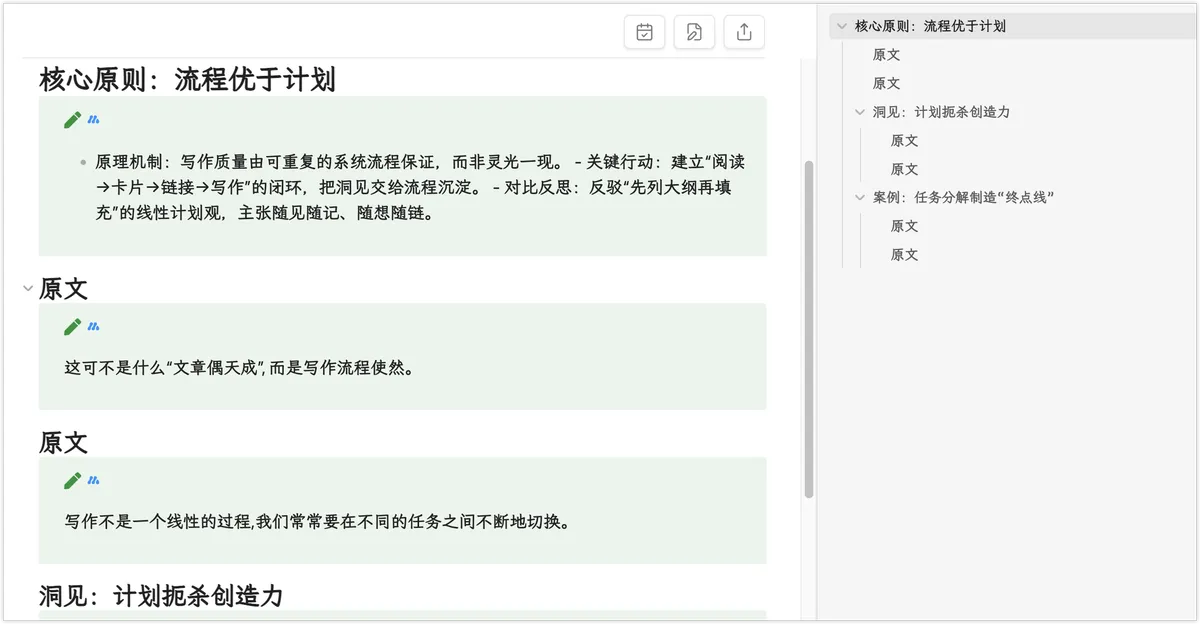
💡 The showcase below is based on a custom template. Compared with the default template, it uses Callouts to beautify the styling and improve the hierarchy display. Learners are welcome to share their own custom templates on the forum.
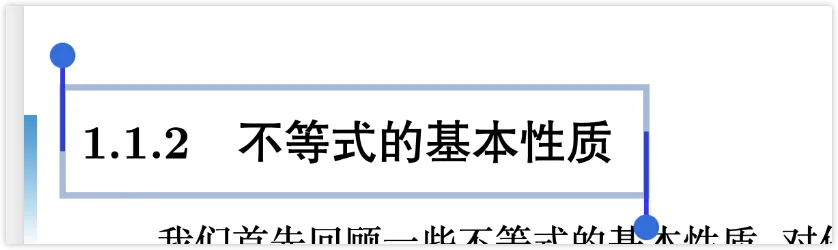
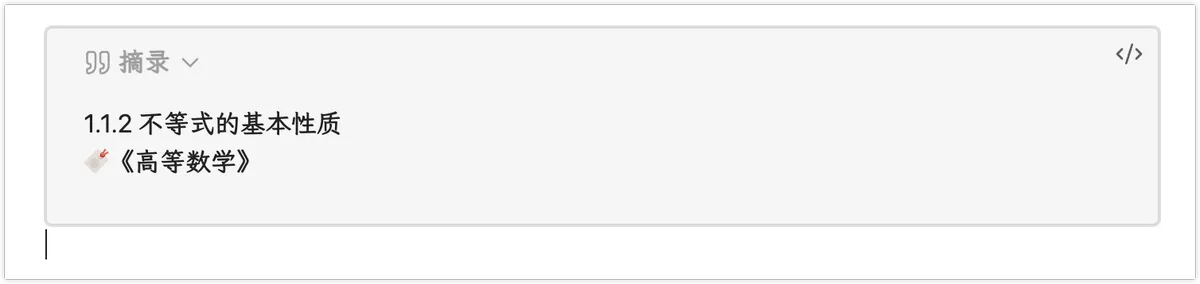
3.1 Selected Text
> [!QUOTE] Excerpt
> {{Selection}}
> 🔖《{{DocTitle}}》
3.2 Note
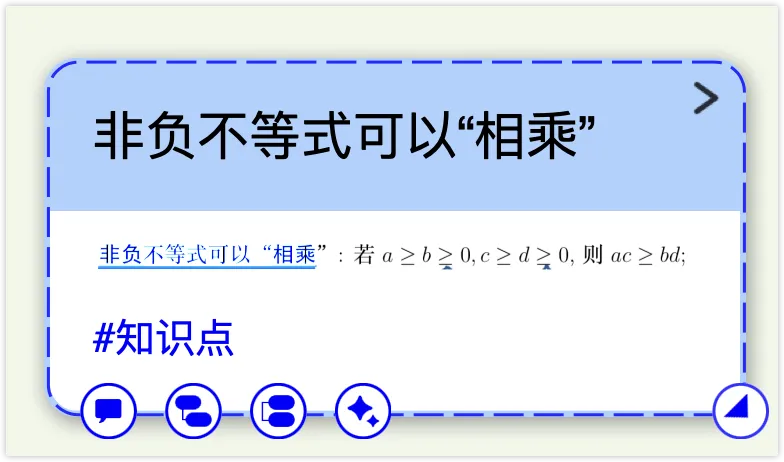
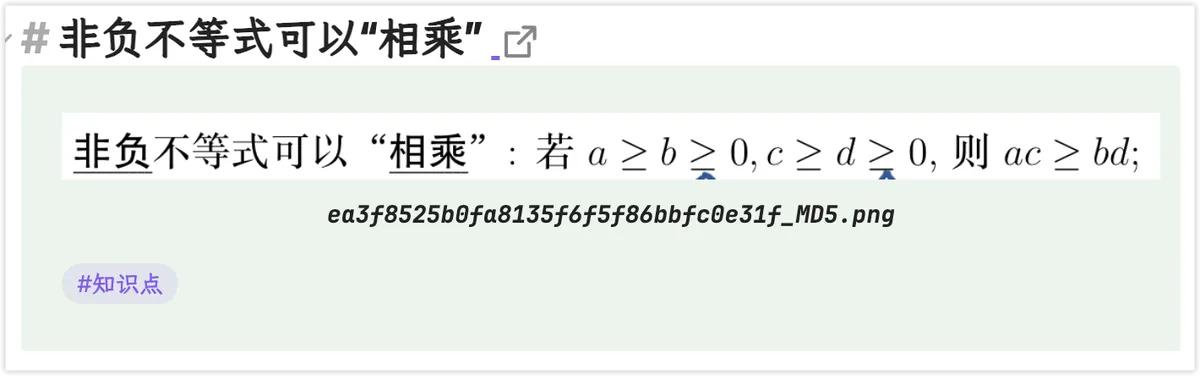
# {{#Title}}{{Title}}{{/Title}}{{^Title}}Untitled{{/Title}} {{Link}}
> [!NOTE]
{{#Excerpt}}> {{Excerpt}}
{{/Excerpt}}{{> Comments}}
{{#Text}}>
> {{Text}} {{Link}}{{/Text}}
>
> {{Excerpt}} {{Link}}
3.3 Table of Contents
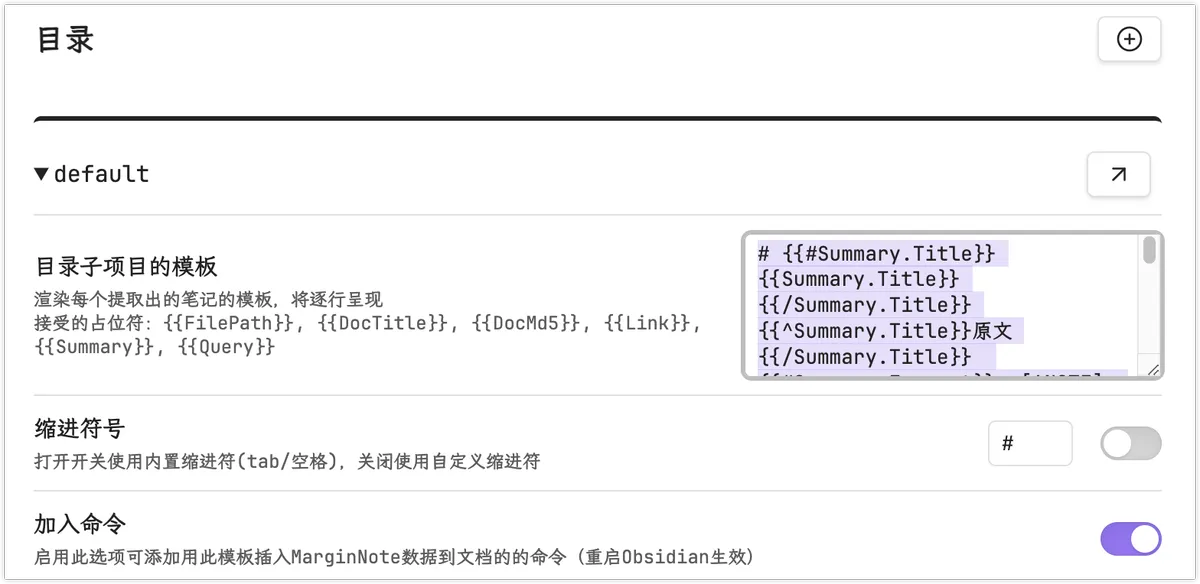
# {{#Summary.Title}}{{Summary.Title}}{{/Summary.Title}}{{^Summary.Title}}Original text{{/Summary.Title}}
{{#Summary.Excerpt}}> [!NOTE] {{Link}}
> {{Summary.Excerpt}}{{#Summary.Comments}}
>
> 📝 **Comment**:{{Summary.Comments}}{{/Summary.Comments}}{{/Summary.Excerpt}}{{^Summary.Excerpt}}{{#Summary.Comments}}> [!NOTE] {{Link}}
> 📝 **Comment**:{{Summary.Comments}}{{/Summary.Comments}}{{/Summary.Excerpt}}