
Card Links ③: Hand-Drawn Curve Links
💡When MindMap Gesture is enabled, a few handwritten strokes are all you need to adjust the mind map's structure without switching modes, improving operating efficiency.
1 Enable MindMap Gesture
MindMap handwriting tool
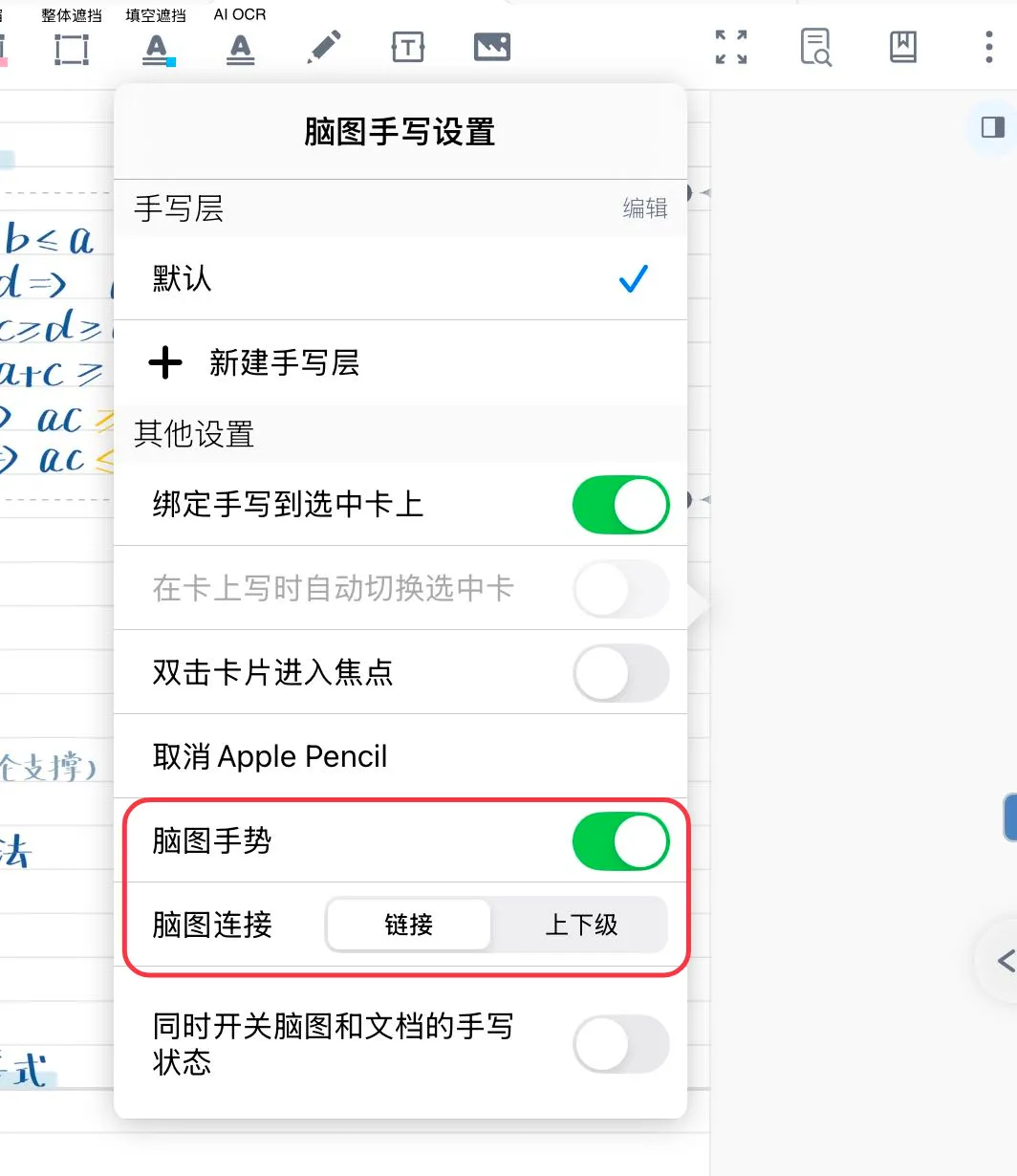
- Double-click the handwriting tool in the mind map sidebar to turn on the
MindMap Gestureswitch in theMindMap Handwriting Settingsinterface
2 Create One-Way / Two-Way Links with Gestures
Selecting Link for the MindMap Connection option in the MindMap Handwriting Settings interface means that when you use handwriting to connect two cards, it will be recognized as adding to the cards
2.1 Create a Link

Draw a line connecting two cards to create a link relationship:
- Draw a line from card A to card B, and card A and card B form a one-way link (card A can jump to card B);
- Then draw a line from card B to card A, and card A and card B form a two-way link (the two cards can jump to each other).
💡Unlike an ordinary straight-line link, the link line resembles a hand-drawn stroke, so you can create more elegant links this way
2.2 Delete a Link

Draw a zigzag line over an existing link line to delete that link relationship.
3 Create Parent-Child Cards
Selecting Parent-Child for the MindMap Connection option in the MindMap Handwriting Settings interface means that when you use handwriting to connect two cards, it will be recognized as adding a hierarchical relationship to the cards.
3.1 Create a Child Card
Draw a line connecting card A to card B, and card A will automatically become a child card of card B.
3.2 Delete a Parent-Child Relationship
Draw a zigzag line over the card's branch connector line to delete the parent-child relationship between that card and its parent card.

4 Select and Delete Mind Map Cards
- Use handwriting to draw a circle on the target card to select it;
- Draw a circle over multiple cards to select multiple cards.
- Draw a zigzag line on the target card to delete it.