Quick Sidebar Switching and Global Search
💡 The sidebar is a handy drawer for quickly swapping document files between study sets. It serves mainly as a file box, and when needed it lets you quickly switch to other projects and search global information, making it easy to cross-reference multiple materials.
1 Document Sidebar
Sidebar
In document view, tap the Sidebar button (shown by the icon above) to browse all items in your document library from the sidebar, achieving an effect similar to tab switching: switch between multiple documents to read and search.
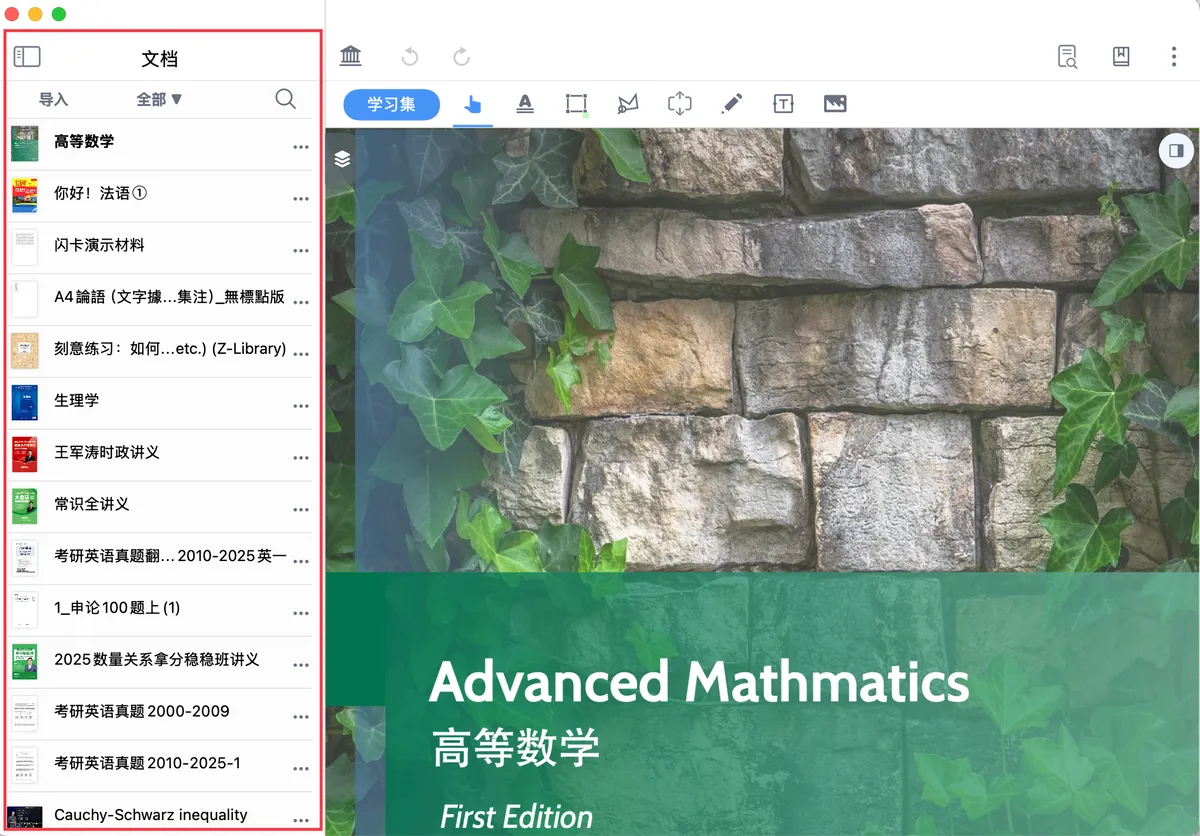

- Switch documents: Click the target document to switch to that document view
-
Bi-article comparison: Press and hold the target document and drag it to the document area on the right to create a dual-document comparison view.
For more on bi-article comparison, see: Comparison①: Bi-article Comparison Window
-
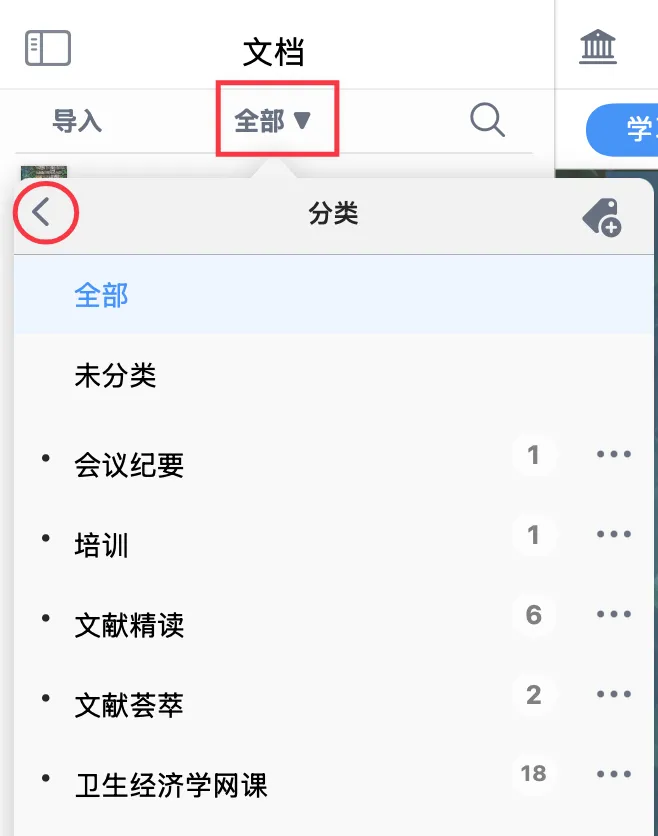
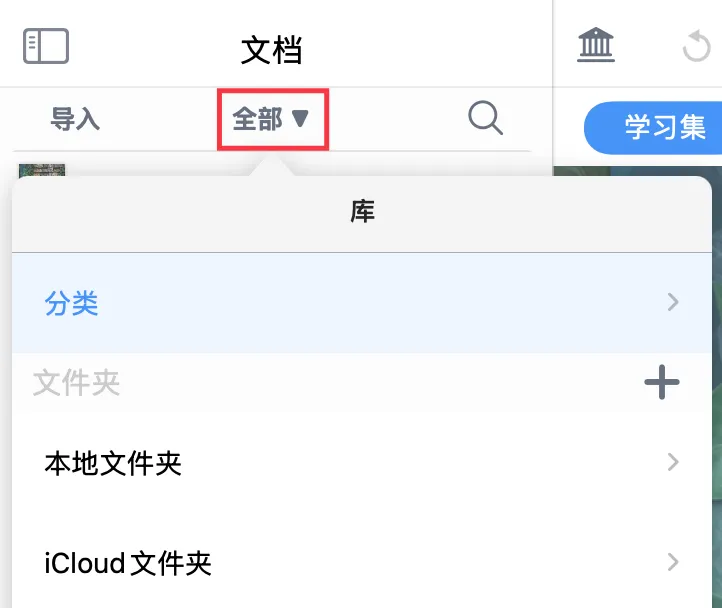
Change the document browsing scope: Tap
All🔻; by default documents are organized byCategory. Tap the<to the left ofCategoryto browse documents byFolder. -
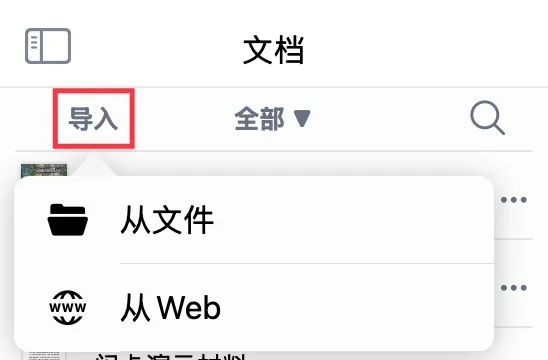
Import documents: Tap
Importand chooseFrom FilesorFrom WebFor more ways to import documents, see: Importing Documents and Document Management.
-
Search documents: Tap 🔍 to search documents by file name
2 Study Set Sidebar
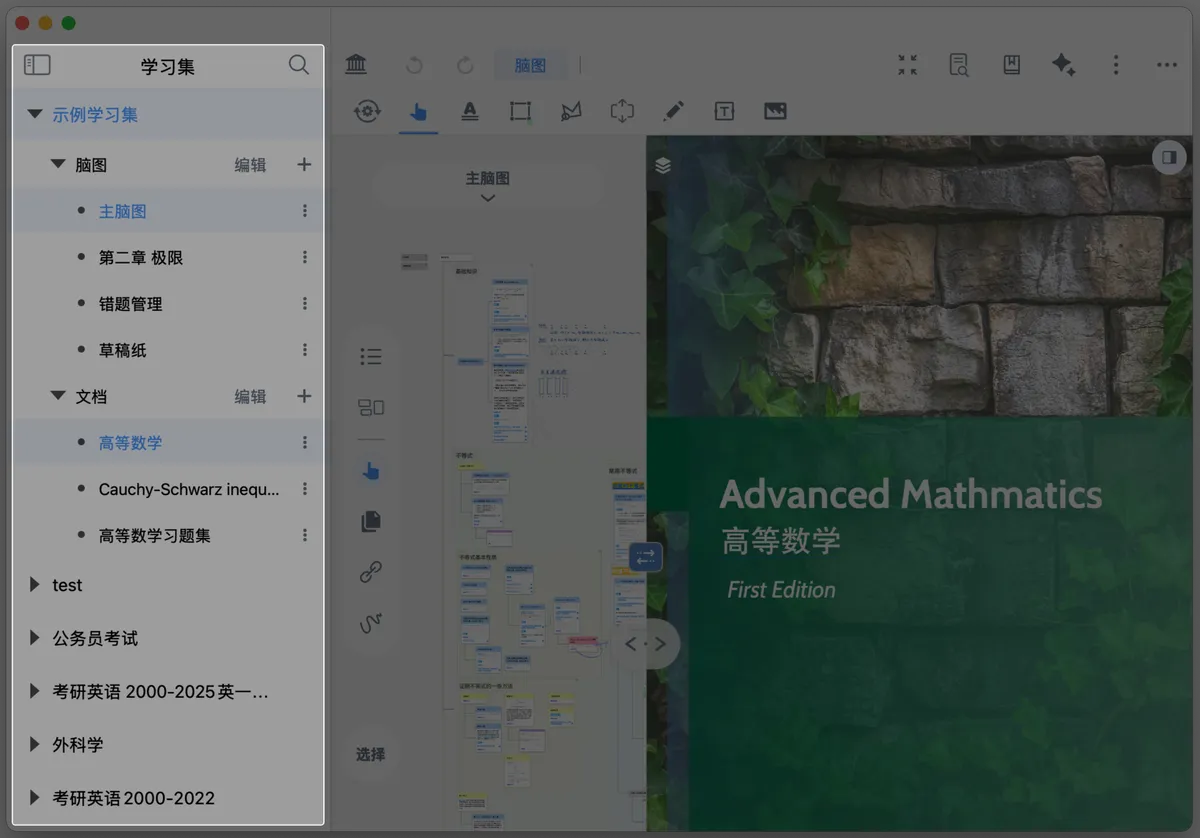
The study set sidebar displays all items in your study set library (including the documents and mind maps contained in each study set). It works much the same way as the document sidebar, but offers a richer set of features.
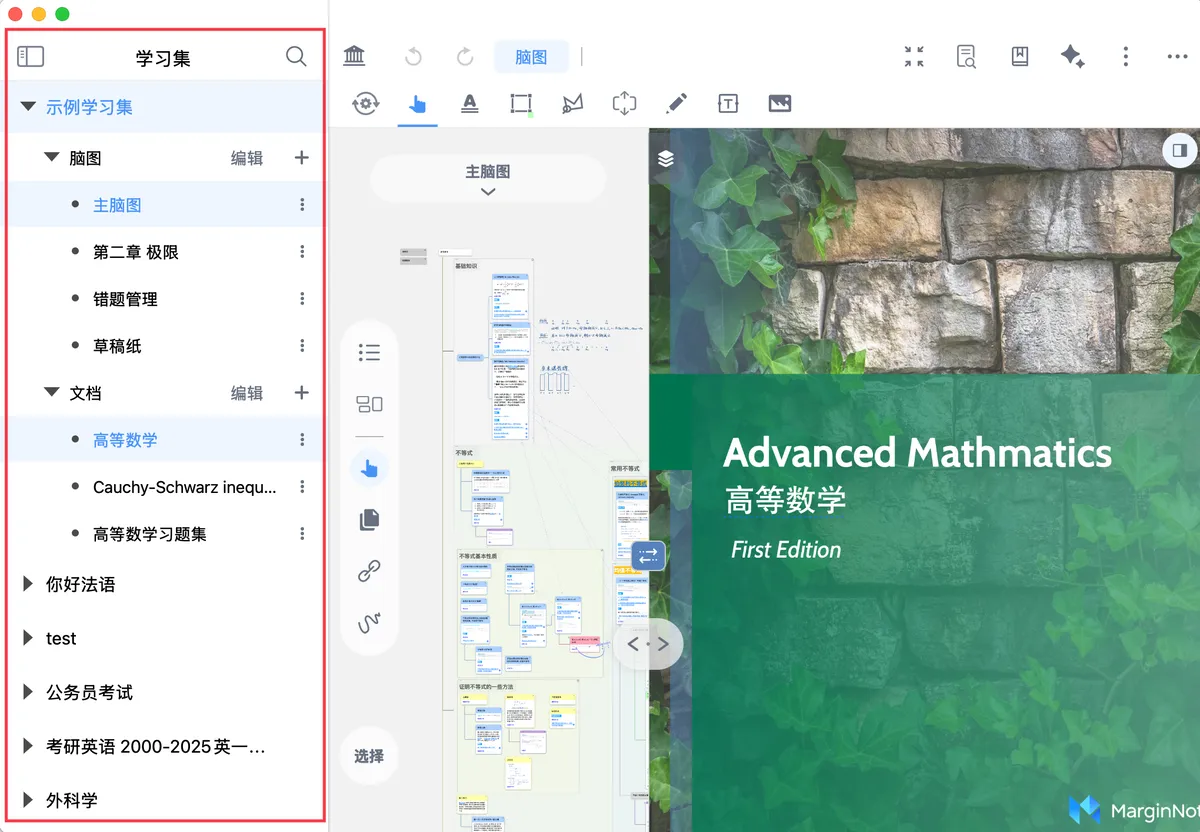
- Switch study sets: Click the target study set/document/mind map/sub-mind map to switch to the corresponding view
-
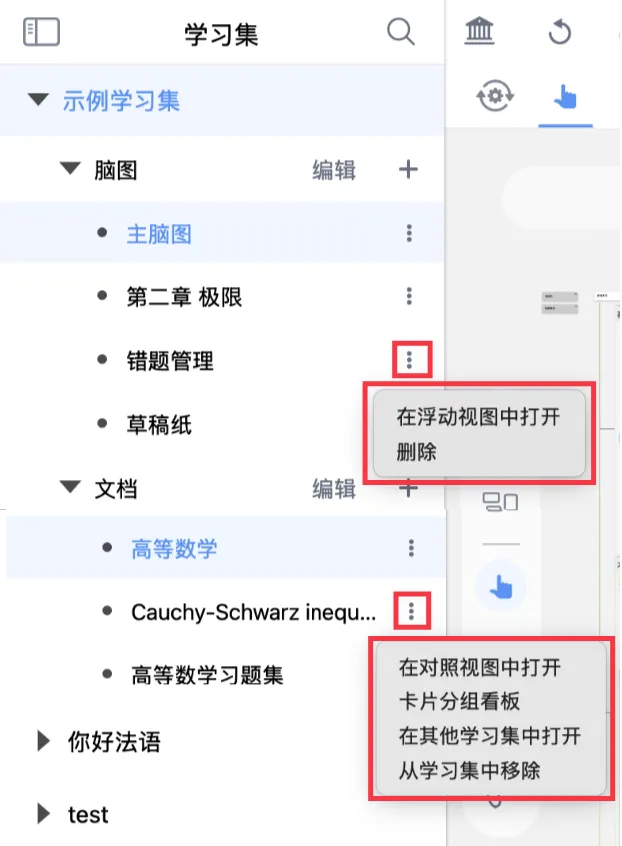
Bi-article comparison: Press and hold the target document and drag it to the document area on the right to form a bi-article comparison view; or tap the ellipsis to the right of the target document and choose
Open in Comparison ViewFor more on bi-article comparison, see: Comparison①: Bi-article Comparison Window, Comparison②: Cross-document Reference and Backlink
-
Import documents: Tap
Importand chooseFrom FilesorFrom Web -
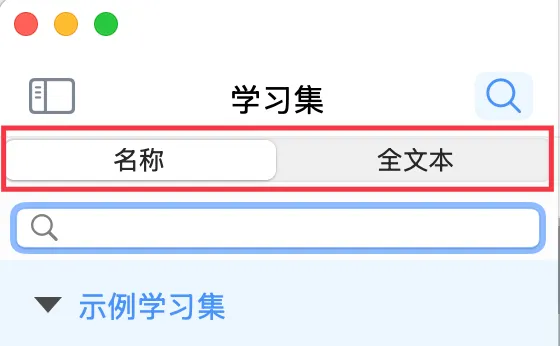
Global search: Tap 🔍 to search documents by name or full text
Name: searches only document names, such as the names of PDFs or MP4sFull text: searches the entire note and card database
💡 The first time you use full-text search, it takes a few seconds to build the text index (depending on your total number of notes). Your device may warm up during this process, which is normal.
-
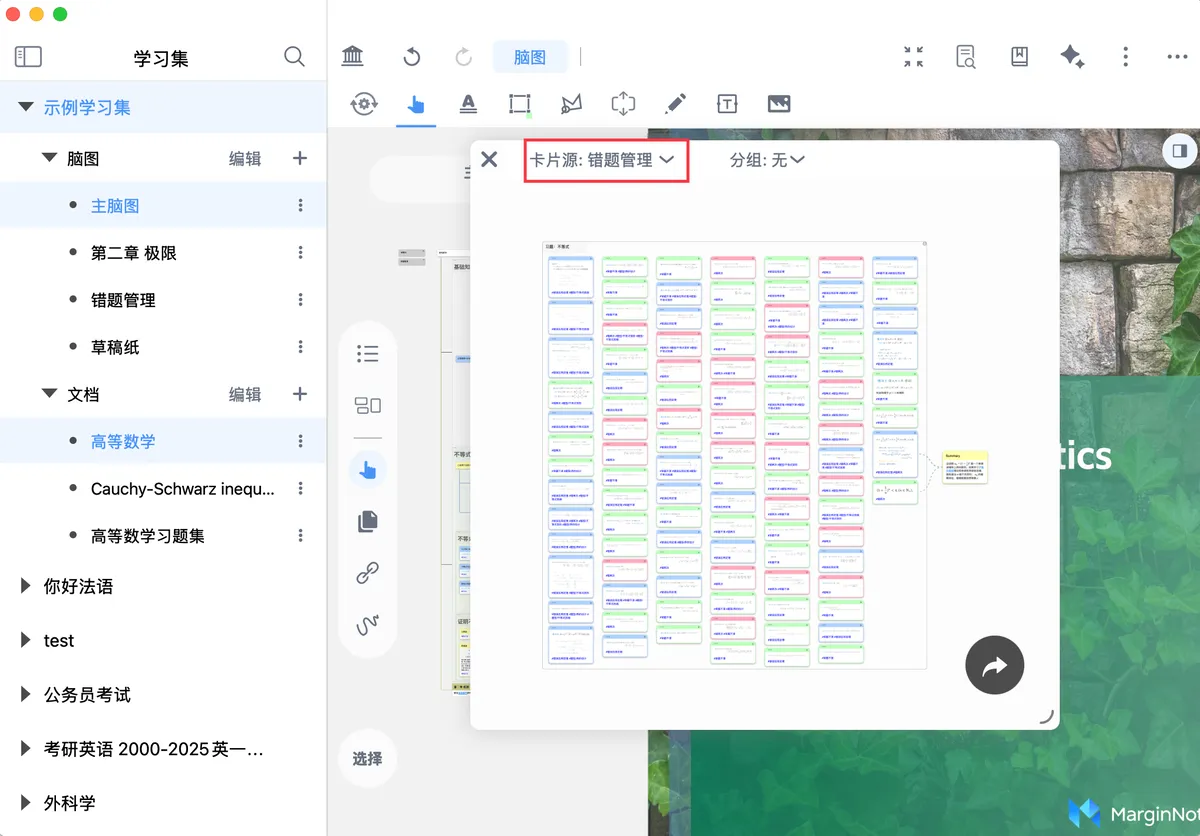
Open a sub-mind map in a floating view (card grouping board): Tap the ellipsis to the right of the target sub-mind map and choose
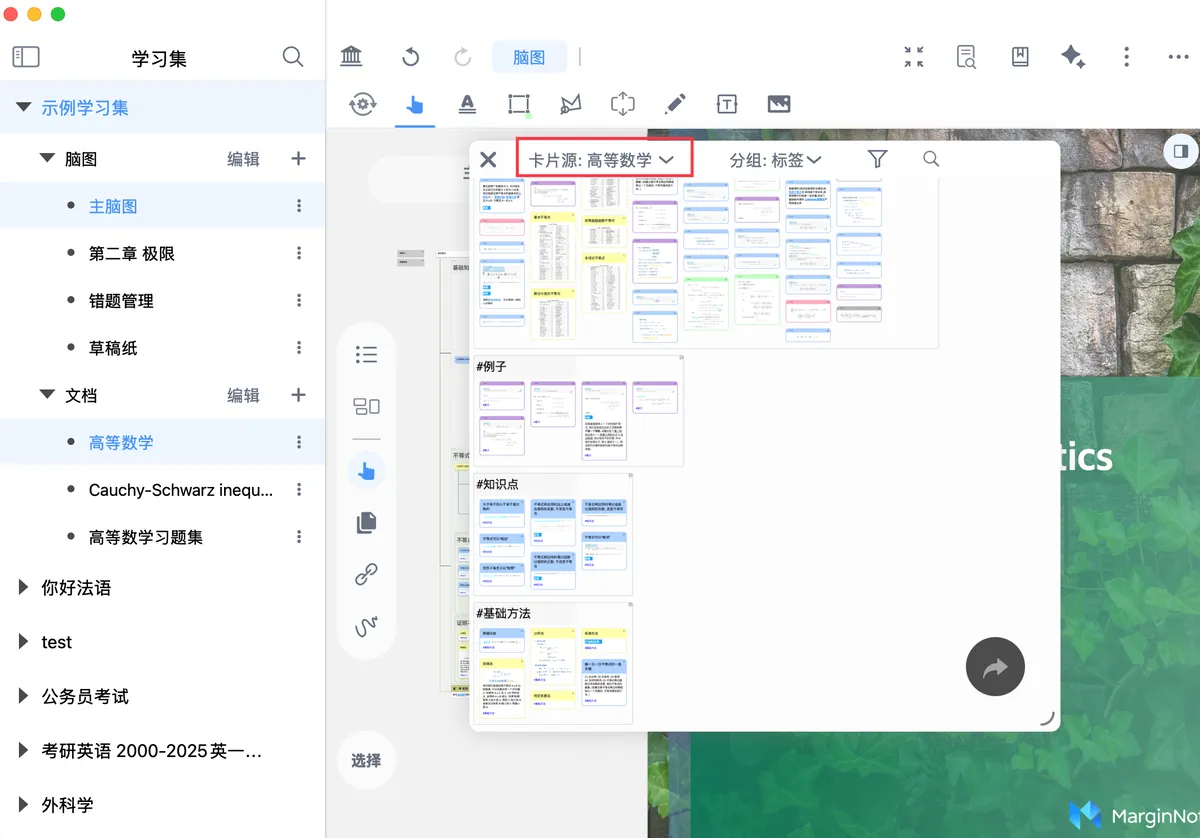
Open in Floating Viewto browse that sub-mind map's cards in a floating card grouping board window (theCard Sourceis automatically set to that sub-mind map) - Browse a document's excerpt cards in the card grouping board: Tap the ellipsis to the right of the target document and choose
Card Grouping Boardto browse that document's excerpt cards in a floating card grouping board window (theCard Sourceis automatically set to that document)
3 Appendix: Full-text Search Supports Some Advanced Rules
The keywords AND, OR, NOT, and NEAR can be used to combine conditions and must be uppercase. (Lowercase versions are treated as ordinary search terms.) Examples: word1 AND word2 (contains word1 and word2) word1 OR word2 (contains word1 or word2) word1 NOT word2 (contains word1 but not word2) word1 NEAR word2 (contains word1 and word2, with the two words close together) word1 NEAR/2 word2 (contains word1 and word2, with the two words close together; the number indicates the proximity—the smaller it is, the closer they must be) You can use parentheses to combine the above conditions into complex matching logic, for example: word1 OR (word2 NOT word3)
A lowercase search term uses the beginswith matching mode. An uppercase search term uses the fullmatch matching mode.
When searching document content, you can use file: to limit which files are searched, for example: word1 file:Name2 (searches for the keyword word1 in the text content of PDFs whose directory/file name contains Name2.