Outline Filtering and Search
💡 The "outline" is a special mind map view that lets you organize and edit the nodes and content of a mind map in the form of an outline-style list. In this mode, the hierarchical relationships among the various concepts or information points in the mind map are emphasized more strongly. Compared with a mind map, the outline follows stricter logic and a more fixed form, helping you organize knowledge in a rigorous hierarchical list, present logical relationships clearly, and avoid the structural confusion caused by the mind map's free-form layout.
Like a mind map, the
outlinerequires you to create a study set before you can use it (Create a Study Set: Start Theme-Based Learning).
1 Filter
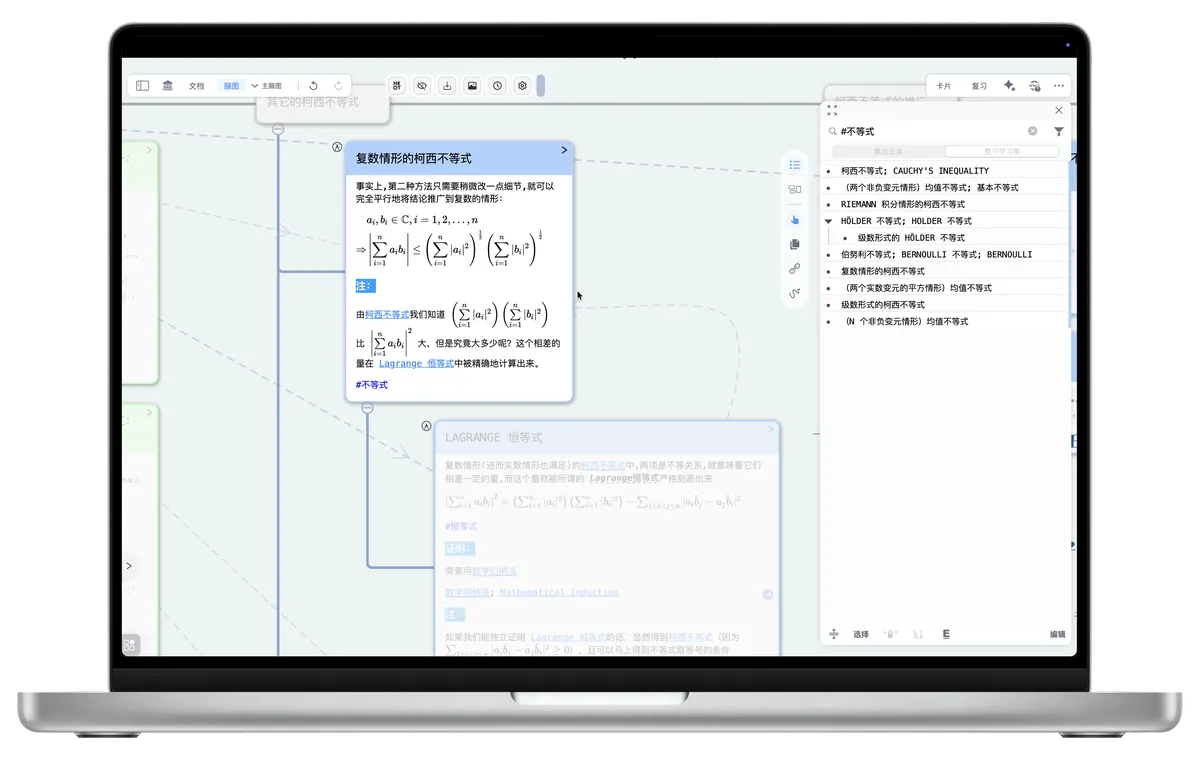
💡 The "Filter" feature lets you narrow down what is displayed based on a card's various attributes (such as tags, the document it belongs to, or excerpt color), so you see only the cards you care about most right now. This is very useful for reviewing a specific topic, organizing the notes from a particular document, or revisiting a specific type of excerpt.
Filter
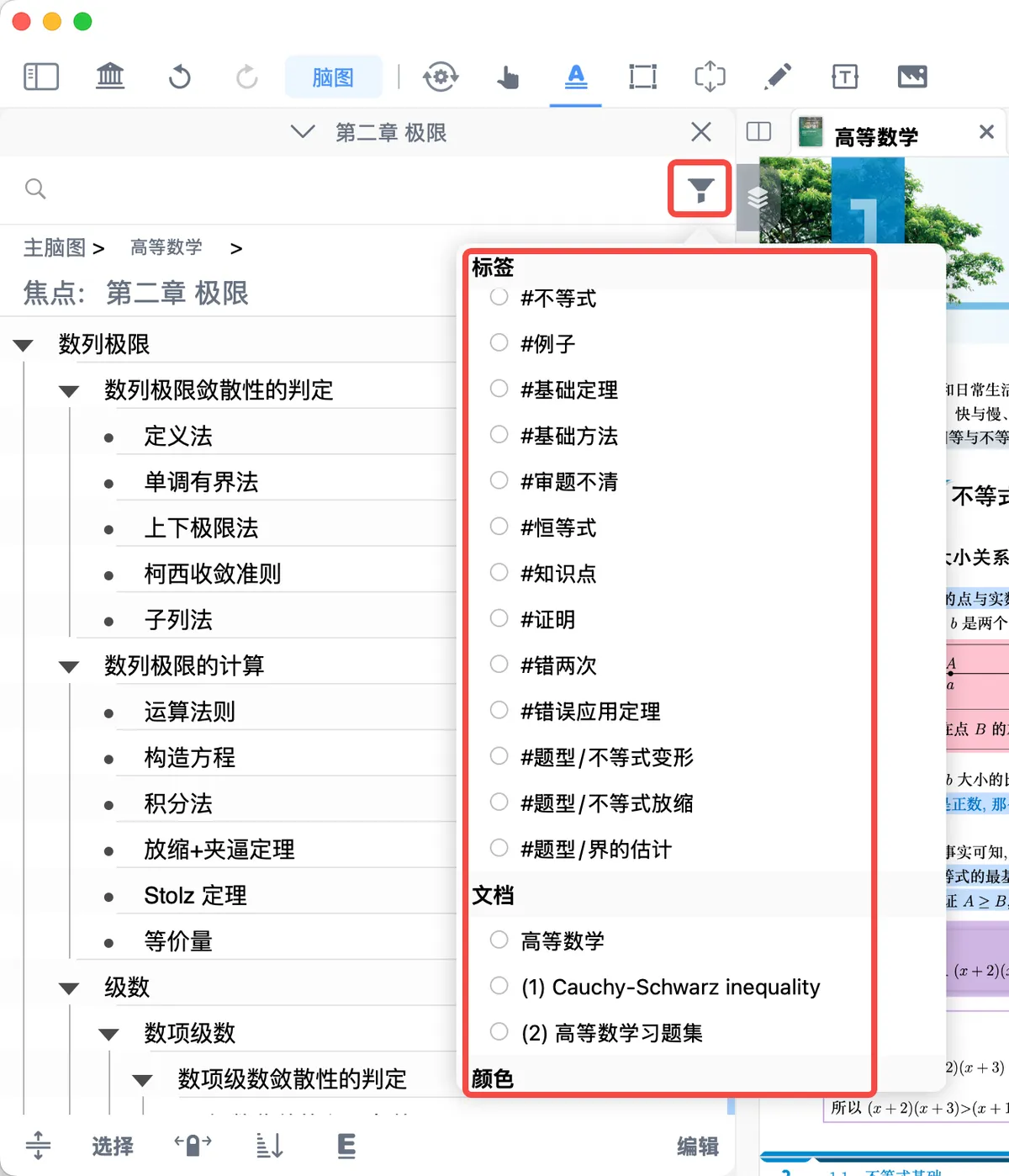
Click the filter button at the far right of the toolbar at the top of the outline (shown in the icon above) to filter the target cards by your chosen conditions.
-
Select the filter scope for cards:
Focus Branch: filters the cards in the sub-mind mapEntire Study Set: filters the cards across all mind maps in the study set
🖼️ Image.
1.1 Filtering by Tag
💡 While excerpting content into a card, or after you have finished excerpting, you can add custom tags to the excerpt card. Later, using the outline's filter feature, you can filter for the cards that carry a specific tag.
- In the pop-up menu, select the tag you want to filter by
1.2 Filtering by Document

💡 In addition to filtering by tag, MarginNote 4 also lets you filter excerpt cards by document.
- In the Document section, select the document you want to filter by
-
Select the filter scope for cards.
Focus Branch: filters the cards in the sub-mind mapEntire Study Set: filters the cards across all mind maps in the study set
1.3 Filtering by Excerpt Color

💡 When you excerpt content with the excerpt tool, color-coded excerpt cards are generated automatically. When filtering later, you can filter cards by these excerpt colors.
- In the Color section, select the color you want to filter by
-
Select the filter scope for cards.
Focus Branch: filters the cards in the sub-mind mapEntire Study Set: filters the cards across all mind maps in the study set

1.4 Filter Rules
1.4.1 Union Filtering
- Rule: When you select multiple filter conditions of the same type (for example, only several "tags," or only several "documents," or only several "colors"), the system performs union filtering. This means a card is shown as long as it matches any one of the conditions you selected.
- Example: If you select the tag "Key Point" and the tag "Question," then all cards with the "Key Point" tag and all cards with the "Question" tag will be shown.

1.4.2 Intersection Filtering
- Rule: When you select multiple filter conditions of different types (for example, a "tag" and a "document" at the same time, or a "tag," a "document," and a "color" at the same time), the system performs intersection filtering. This means a card is shown only if it matches all of the different types of conditions you selected at the same time.
- Example: If you select the tag "Key Point" and the document "Principles of Economics," then only the cards that both carry the "Key Point" tag and come from the "Principles of Economics" document will be shown.

2 Search
💡 The "Search" feature lets you type keywords to quickly locate content in cards that contains those keywords.
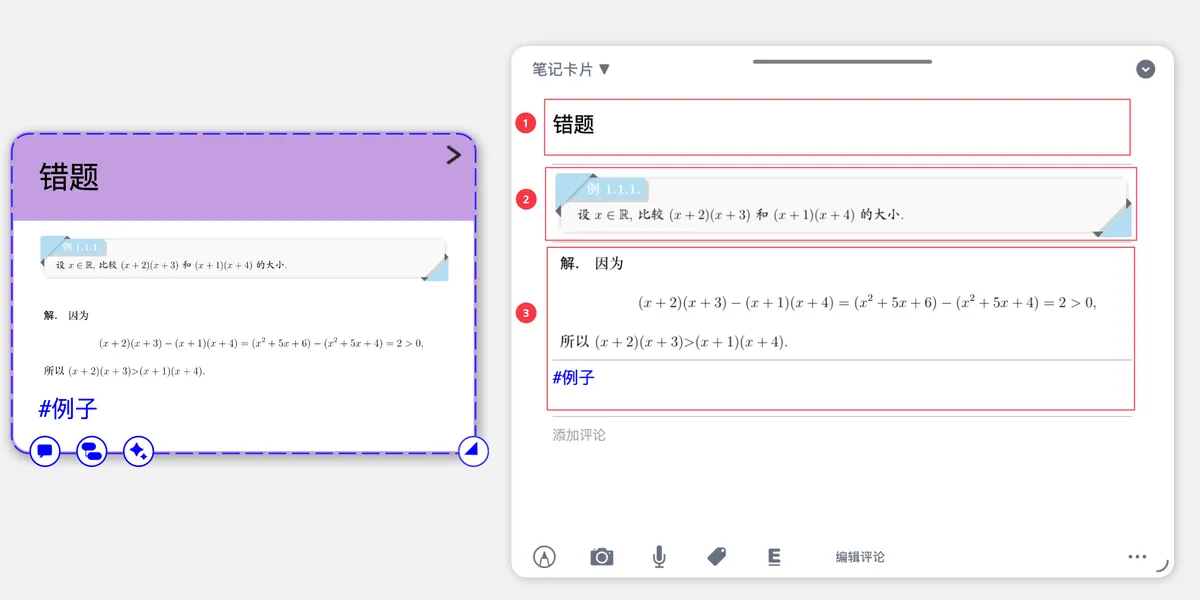
2.1 Components of a Card
-
TitleThe title field is a plain-text field (Markdown is not supported) and has a length limit (≤ 250 characters).
-
ExcerptNotes taken from the document, such as text and images.
-
Comment- Notes you add to a card, such as handwriting, text (rich text supported), formulas and code (supporting Markdown / LaTeX / HTML / CSS / code blocks / Mermaid flowcharts), audio, images, tags, and more;
- You can use
Edit Commentto reorder comments or delete them.
2.2 How to Search
- In the search box at the top of the outline, type the keywords you want to find;
- As you type, MarginNote 4 displays cards containing those keywords in real time;
- In the search results, you can click a card to jump quickly to its location.
💡 By default, the search feature searches all content in a card. If you only need to locate card titles, click
Search Title Onlyat the bottom of the search results to quickly locate card titles.