Translating and Saving Translations
💡This page covers four ways to obtain and save translations in MarginNote: instant in-document translation, AI translation and AI OCR, the Research sidebar (including Custom URL), and plugin translation. You can insert a translation as an extend note, copy it to the clipboard, or save it as a card for side-by-side comparison and later organization.
Recommendations:
- Split-screen side panel: use the built-in Research → Translate sidebar to translate long passages; the sidebar refreshes automatically.
- Fastest to get started: use Built-in Translation (Max feature) → insert as an extend note (good for comparing while reading)
- High quality / automation: use a plugin such as DeepL → Translate or AI translation, combined with AI OCR for recognition → translation → organization, to improve reliability for long sentences and natural phrasing.
- Authoritative terminology: use built-in Research → Dictionary Search, or connect authoritative sites via built-in Research → Custom URL, to ensure precise definitions and example sentences.
1 Built-in Translation (Max feature)
💡The most beginner-friendly way to translate in text and extend note scenarios.
1.1 Translate
Hand tool - Document
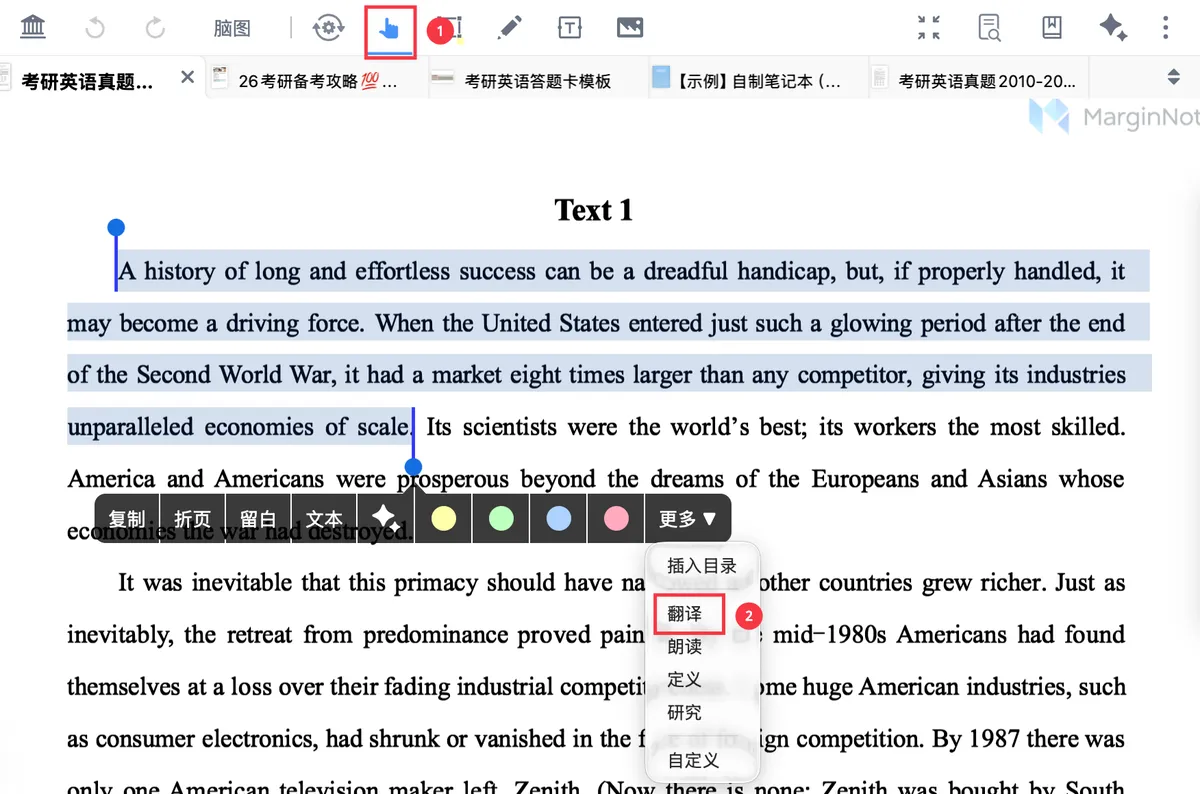
Use the hand tool to select text (as shown above), then tap Translate in the pop-up menu to translate the selected text into the target language.
1.2 Changing the Target Language
Tap Language to change the target language
💡If a translation is wrong, check the target language first.
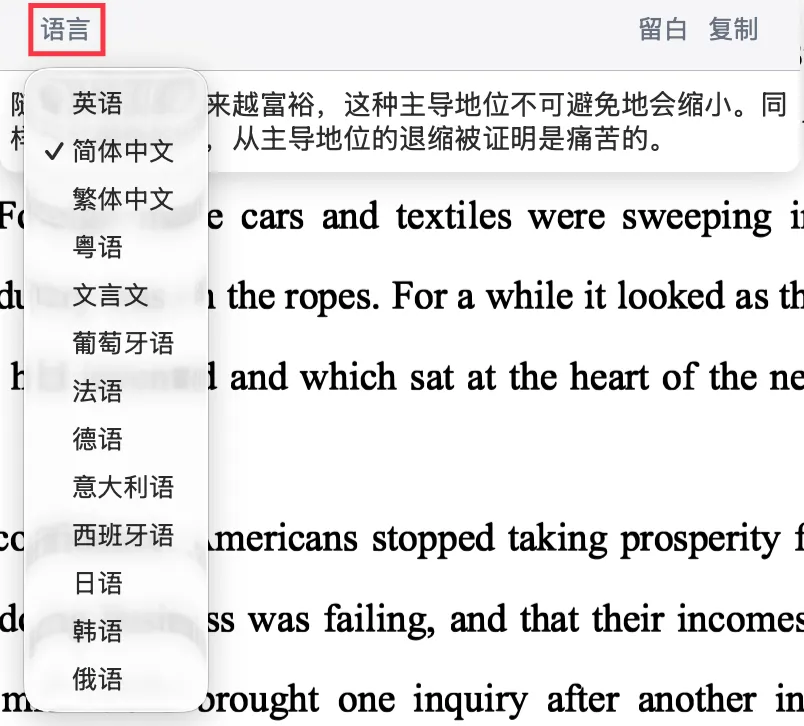
Built-in Translation supports 13 target languages: English, Simplified Chinese, Traditional Chinese, Cantonese, Classical Chinese, Portuguese, French, German, Italian, Spanish, Japanese, Korean, and Russian.
💡Use built-in Translation frequently?
We recommend checking
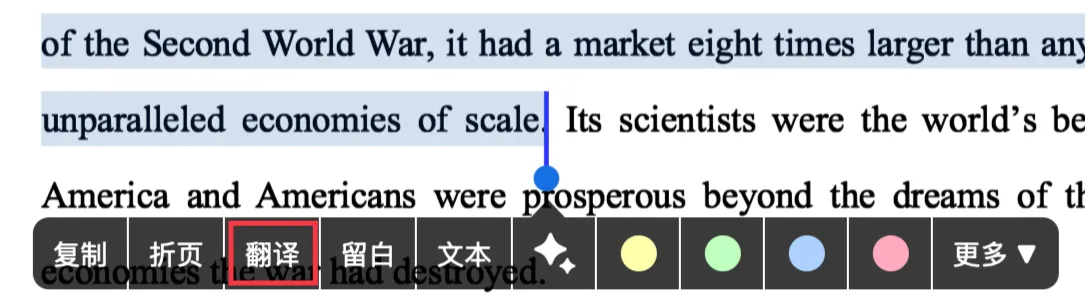
Translateunderpop-up menu-More-Customizeto addTranslateto the first-level menu for one-tap access.
1.3 Saving Translations
A translation result can be created directly as an extend note or copied.
1.3.1 Adding a Translation to an Extend Note
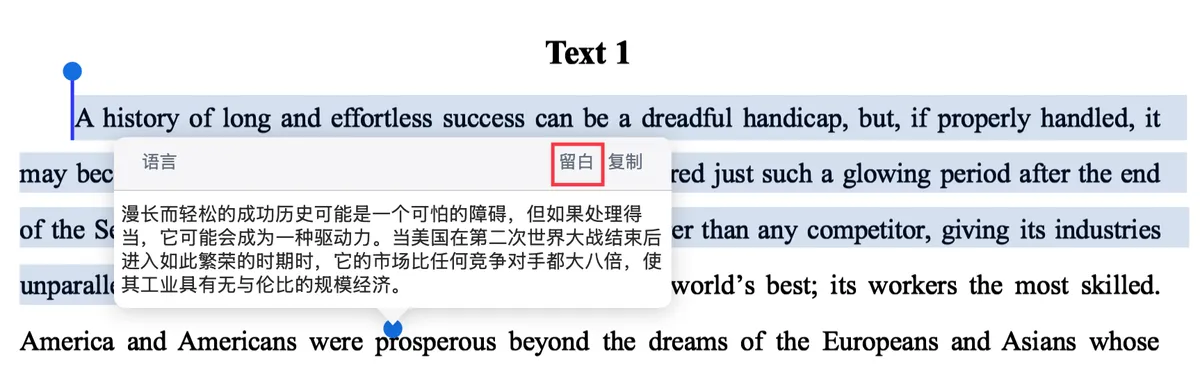
After the translation is generated, tap extend note, and the translation is inserted into the document as an extend note, side by side with the original.
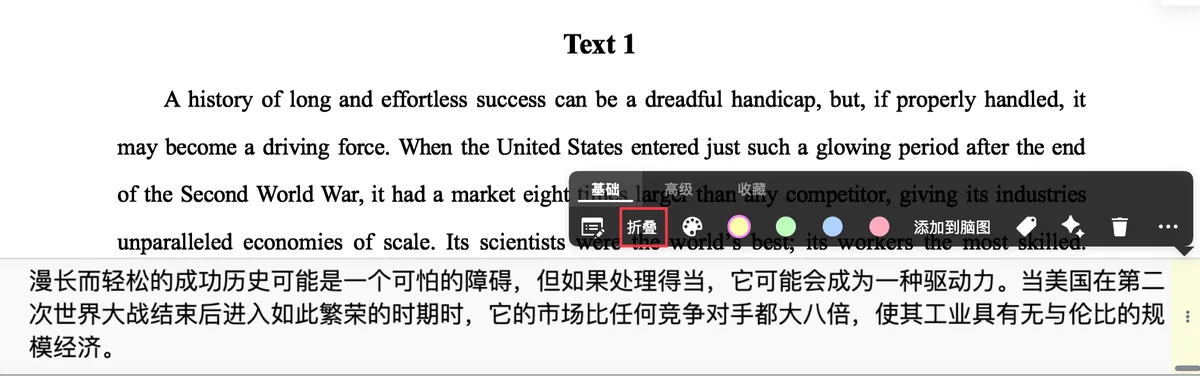
💡Adding it directly as an
extend notemakes side-by-side comparison with the original easy. Anextend notecan becollapsedand expanded as needed while reading, which helps with review and annotation. For more extend note operations, see: Extend Note ① | Basics: Freely Open Up Note Space Between the Lines.

1.3.2 Copying Translated Text to the Clipboard
Tap Copy, and the translation is automatically copied to the clipboard; pasting it directly onto a blank area of the document saves it as a Text box.
💡
Copyis used for pasting and organizing across pages or across apps.
2 AI Translation
2.1 Translating in an AI Chat
Use MarginNote 4's built-in AI feature to translate (requires version 4.2.0 or later); it is well suited to optimizing long sentences and natural expression. The generated result can likewise be copied or saved as a card.
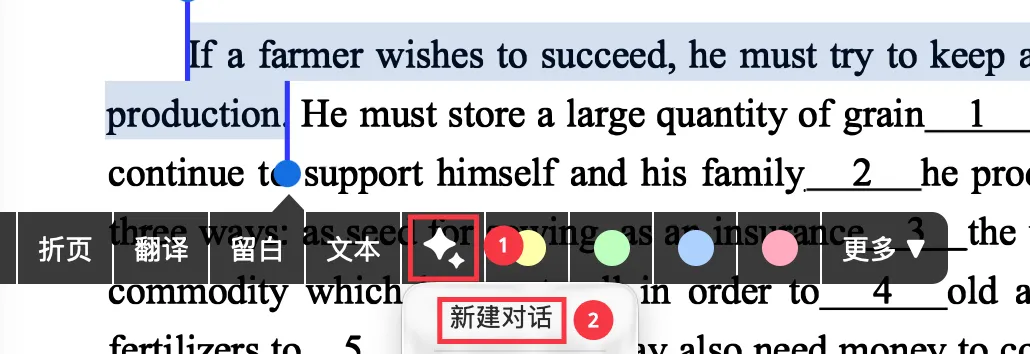
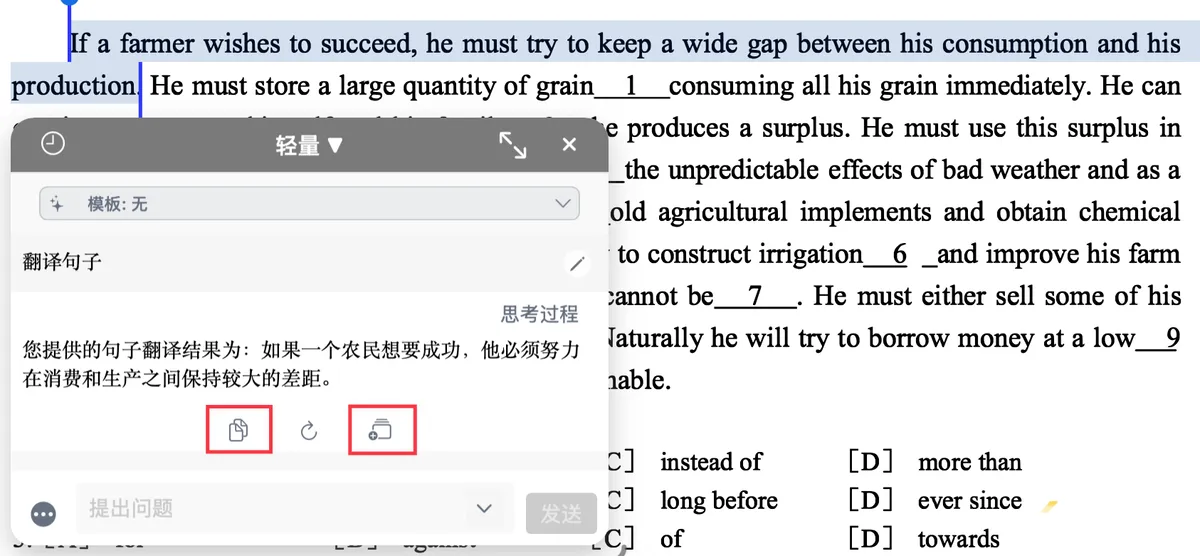


2.2 Translating with AI OCR
In the document interface, do the following:
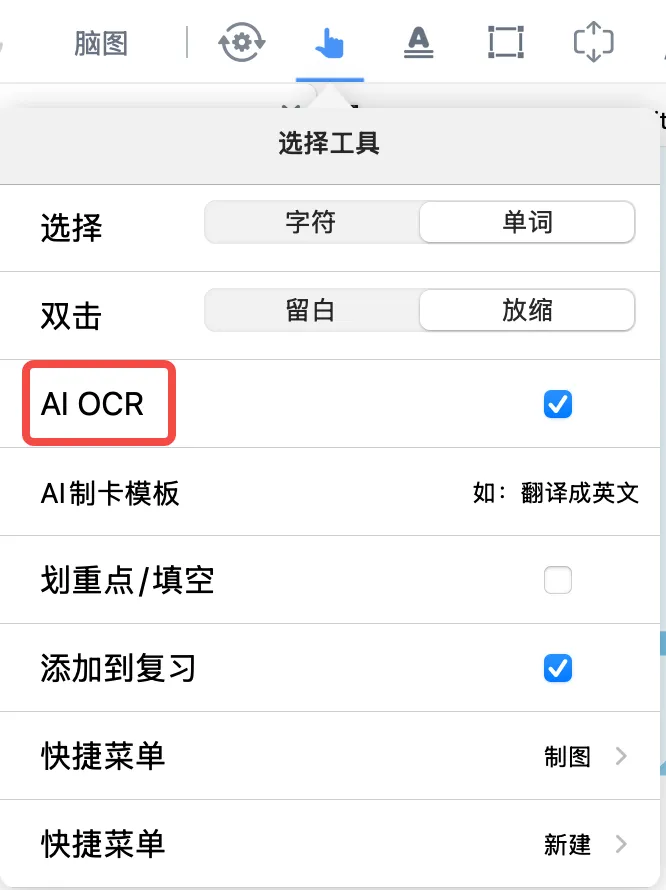
- Double-click the hand tool or any excerpt tool;
- In the settings panel that pops up, check the
AI OCRfeature; afterward, when making cards from excerpts, the AI will automatically recognize the excerpt content and convert it into editable text; - In the
AI Card Creation Template (Max feature), enter a prompt or choose a preset prompt to have the AI automatically organize, translate, summarize, create flashcards, and more after recognizing the content.
Result:
3 Research → Translate
3.1 Using Built-in Research → Translate
Research
-

In a study set, tap
Researchunder More (as shown by the icon above) to open the Research browser.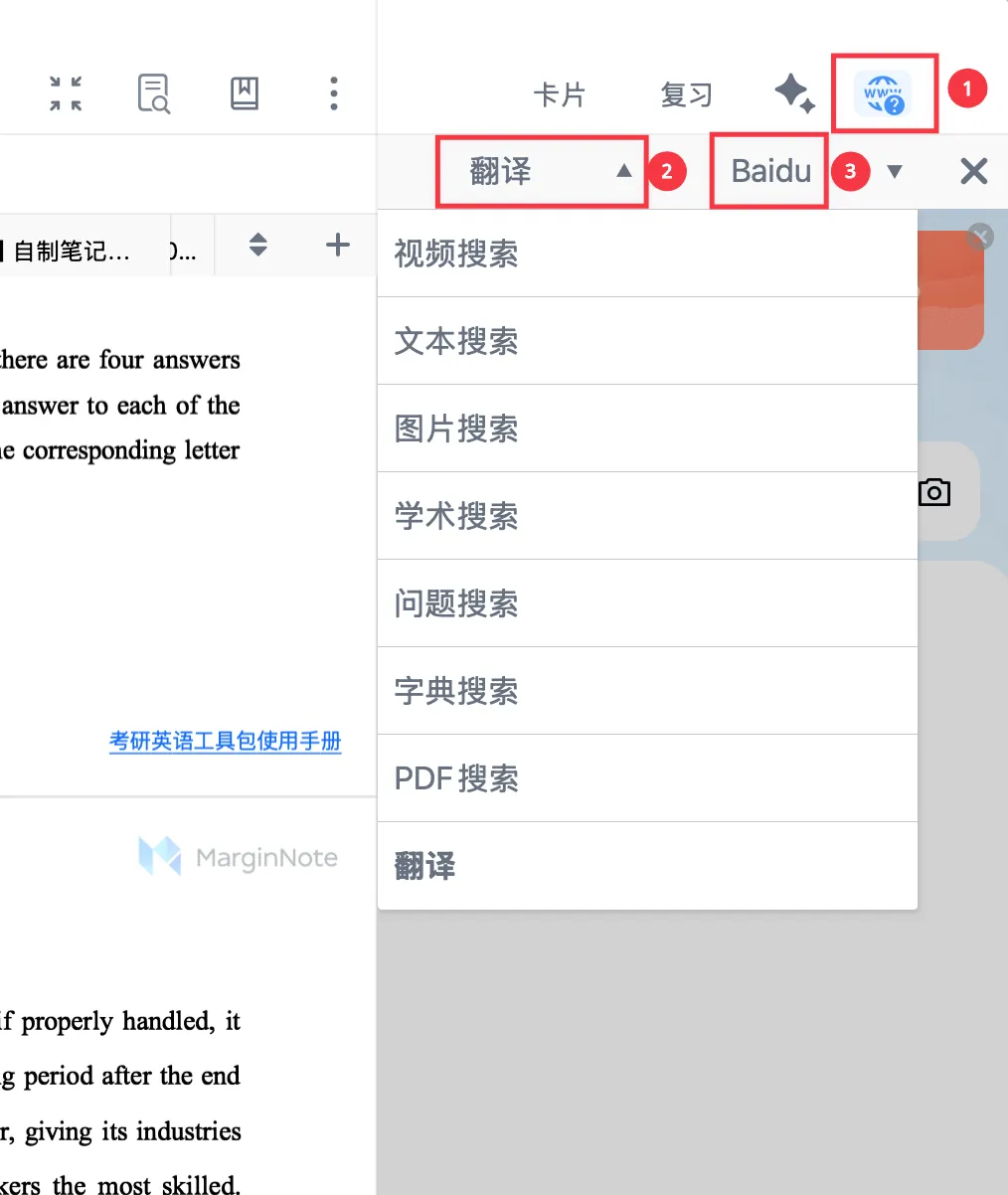
-
Select
Translateand a translation engine (Baidu or Google); as you keep selecting different text in the document, the sidebar refreshes the corresponding translation in real time.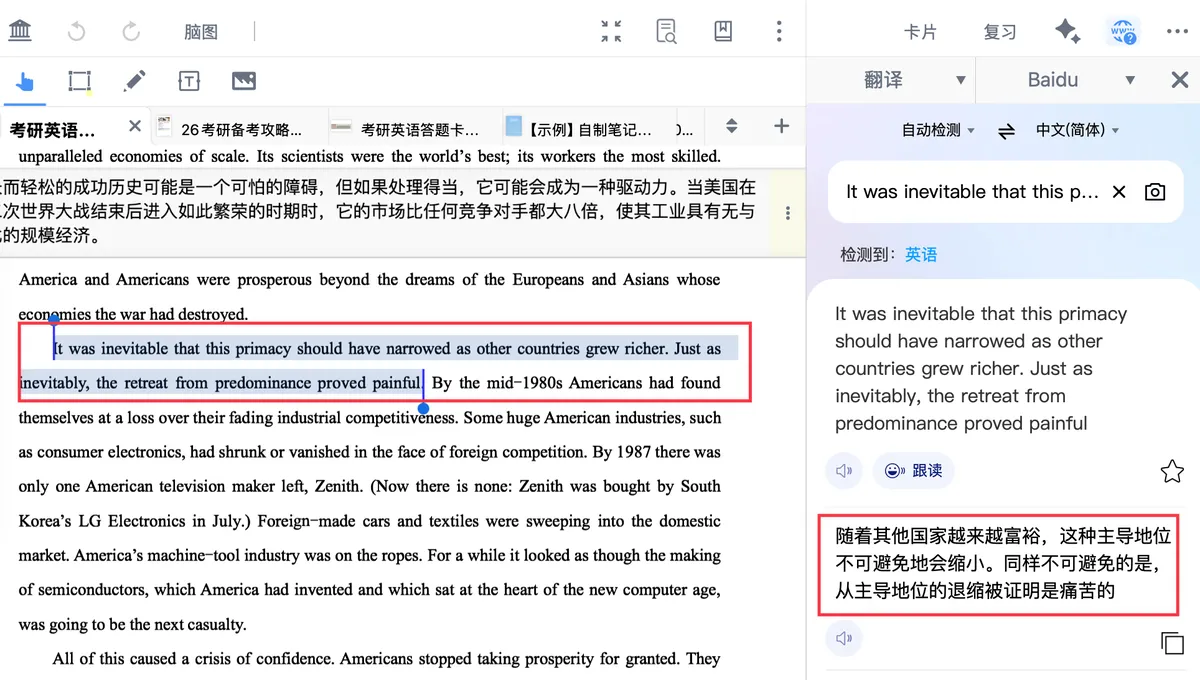
3.2 Using Built-in Research → Dictionary Search
MarginNote supports a variety of authoritative dictionary interfaces, ideal for precise term definitions and example comparison.
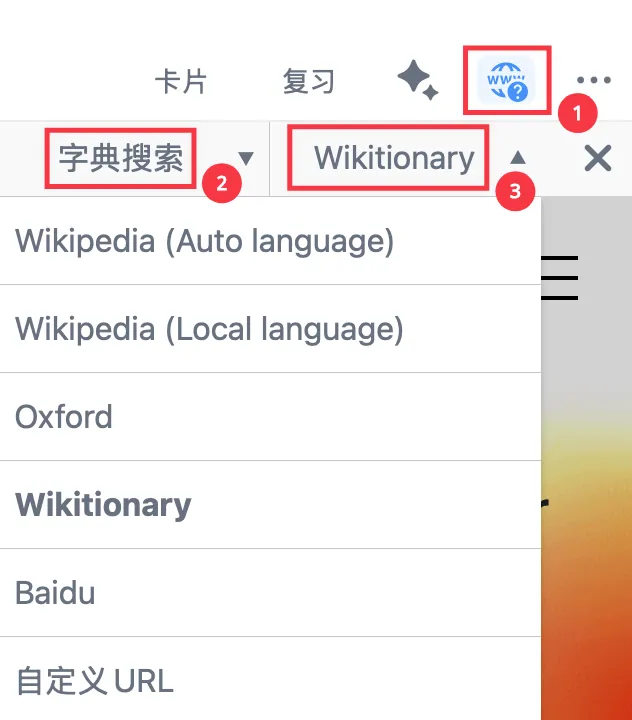
Dictionary Search supports several built-in interfaces: Wikipedia (Auto language), Wikipedia (Local language), Oxford, Wikitionary, Baidu, and built-in Research → Custom URL.
3.3 Using Built-in Research → Custom URL
💡Besides the
Translatefunction built into the native Research feature,Custom URLlets you connect frequently used translation/dictionary sites to the Research sidebar, so you can look up a word as soon as you select it.
3.3.1 Custom URL (Web Address) Setup Tutorial
- In the top-left corner of the MarginNote home page, choose
Settings; -
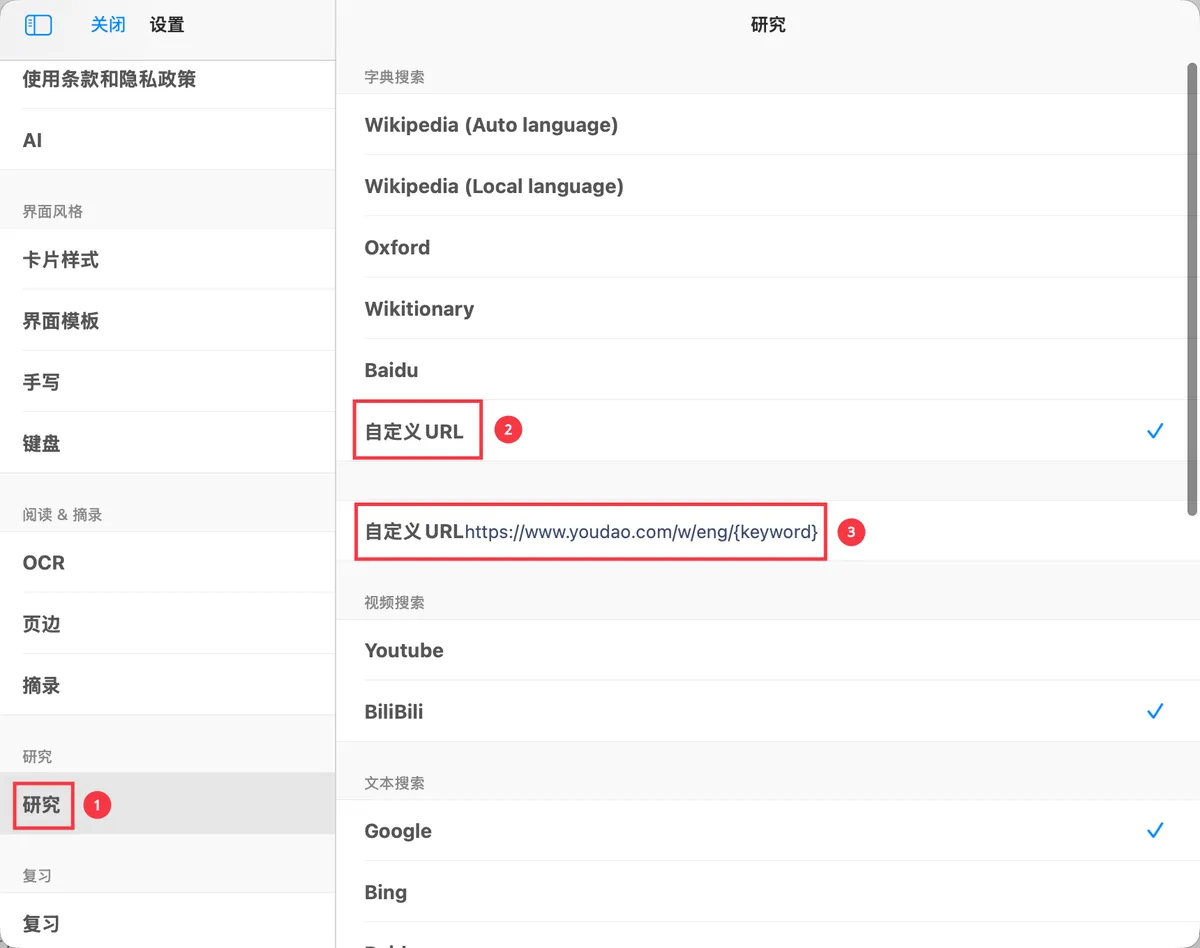
Choose
Research-Custom URL- and edit theCustom URL.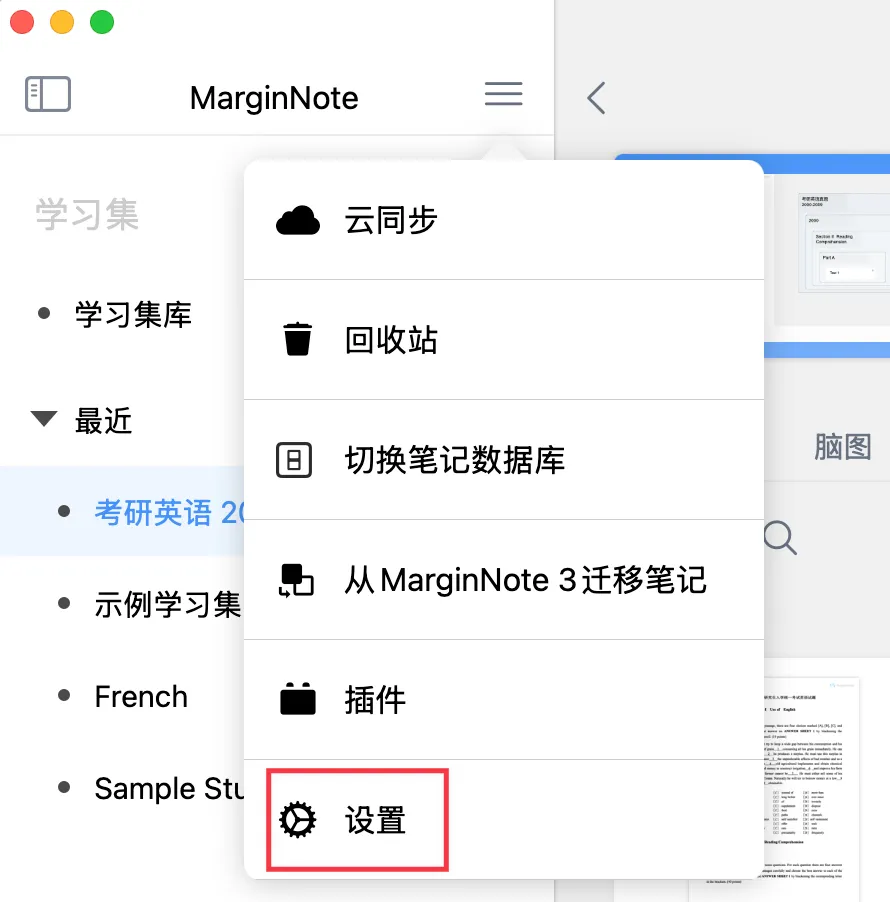
-
In Research, select
Custom URL.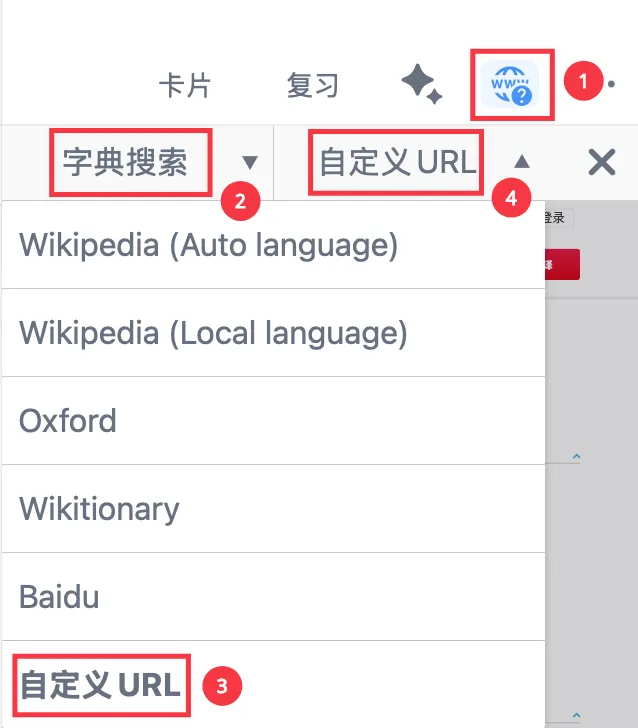
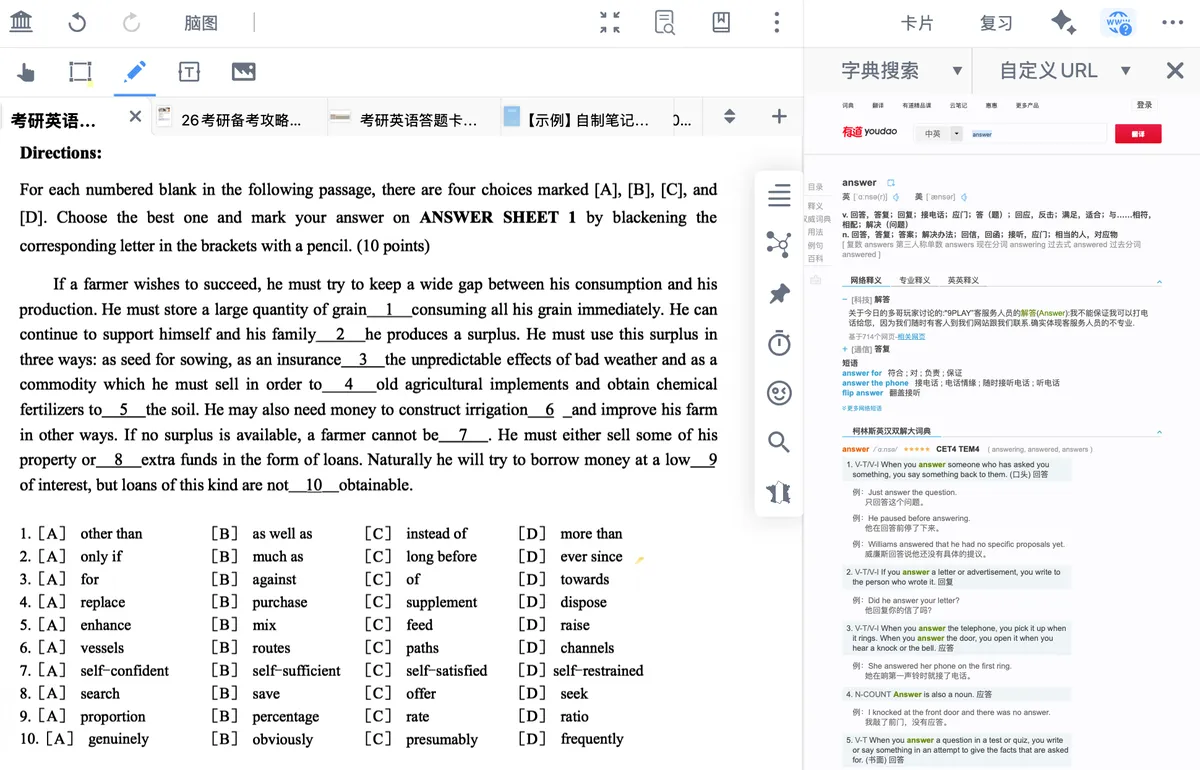
-
More translation URLs you can use: just copy and paste them into MarginNote's
Custom URLfield.💡Web address rule: replace the website's "search term" with {keyword}, and MarginNote will automatically fill the text you select in the document into that position and run the query. Suitable for connecting translation, dictionary, terminology, and bilingual corpus sites. Portuguese → Chinese: https://fanyi.baidu.com/#pt/zh/{keyword} French → Chinese: https://fanyi.baidu.com/#fra/zh/{keyword}
German → Chinese: https://fanyi.baidu.com/#de/zh/{keyword}
Italian → Chinese: https://fanyi.baidu.com/#it/zh/{keyword}
Spanish → Chinese: https://fanyi.baidu.com/#spa/zh/{keyword}
Japanese → Chinese: https://fanyi.baidu.com/#jp/zh/{keyword}
Korean → Chinese: https://fanyi.baidu.com/#kor/zh/{keyword}
Russian → Chinese: https://fanyi.baidu.com/#ru/zh/{keyword}
💡Advanced reading: for more Research features, see the tutorial.
4 Plugins → Translate
💡Plugin installation tutorial: handle your MN work efficiently with plugins
4.1 Translation Plugins
-
DeepL plugin: focuses on natural expression and accuracy for long sentences.
-
SearchInEudic / SearchInEudicPlus+ plugin: calls Eudic to look up authoritative dictionaries in split screen.
-
SearchInFrhelper+ plugin: looks up words in Frhelper (French Helper).
-
OhMyMN plugin: automatically fills in word-card translations.
-
AutoComplete module
-
AutoTranslate module
-
-
MdxDict plugin: built-in mdx-format dictionaries.
-
MN Toolbar plugin: advanced card operations.
💡Plugins are an advanced feature, suited to power users who want quality and automation; beginners are advised to start with Built-in Translation (Max feature) or Research → Translate.