Mind Map Side Toolbar
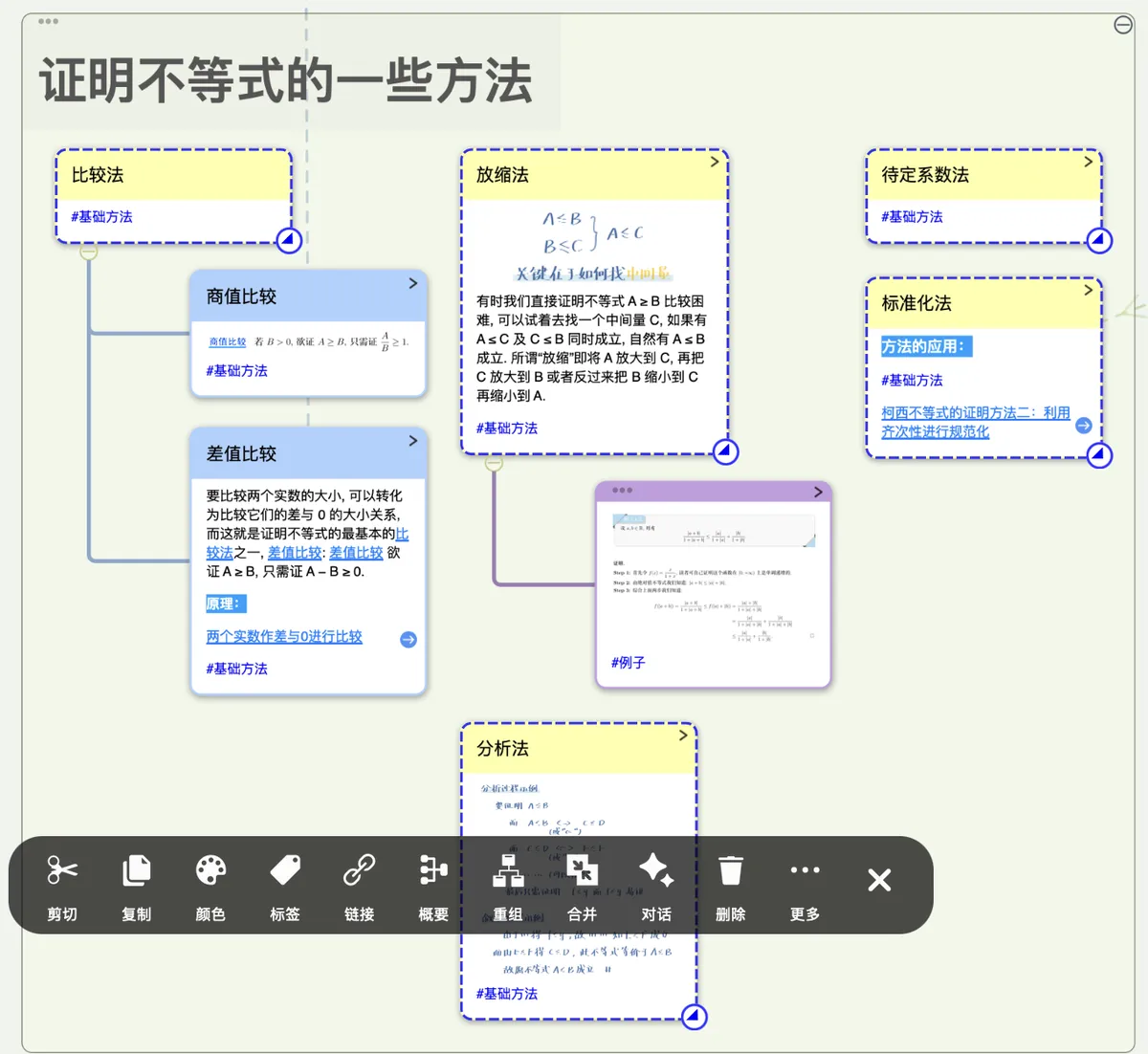
💡 The mind map side toolbar lets you quickly browse or edit mind map cards, for example opening the mind map outline, copying cards, and so on.
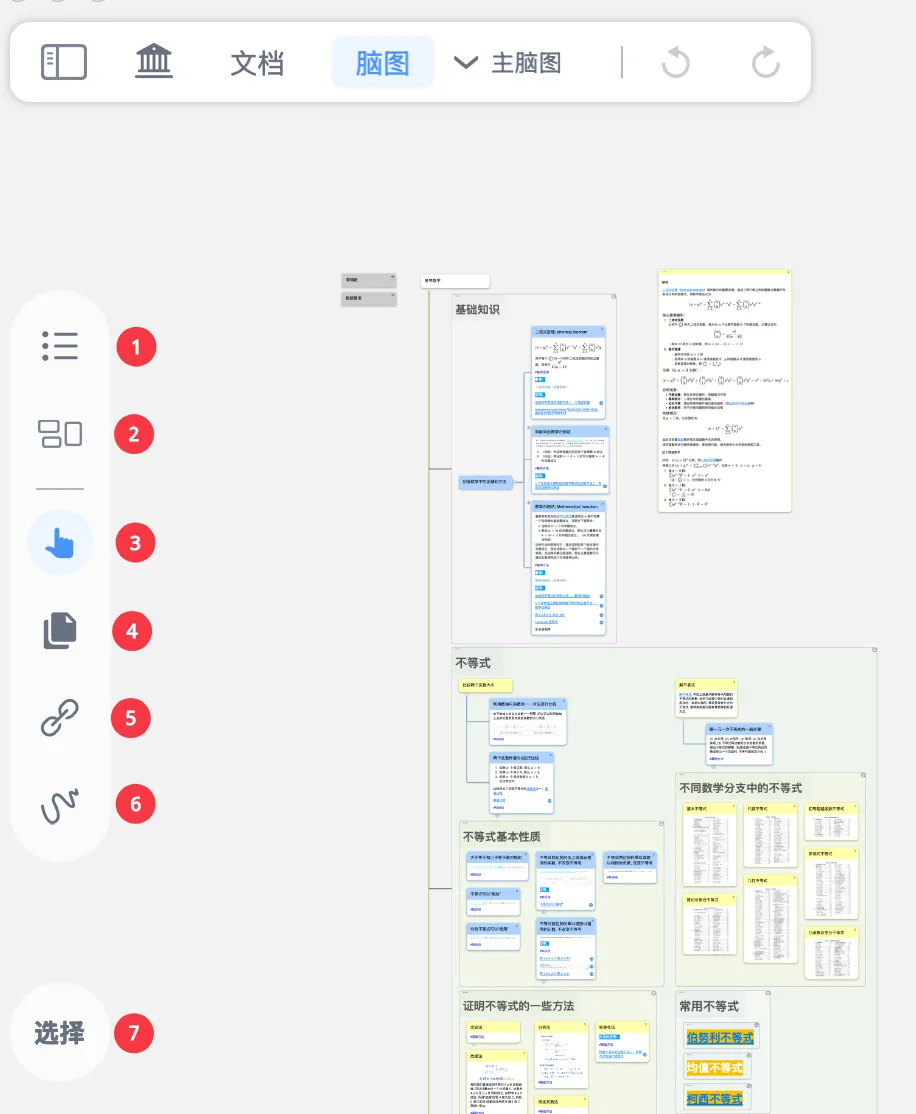
View tools:
- Outline
- Card Grouping Board
Editing tools:
- Hand Tool
- Copy Tool
- Link Tool
- Handwriting Settings Tool
- Selection Tool
1 Outline
Outline
- The outline is a minimalist representation of the mind map: its compact layout makes it easy to browse and edit.
- Tap the
Outline button(shown in the icon above) to expand theOutline view. Just like using Mubu, you can quickly create and modify the mind map by editing the outline.
💡 For more on using the outline, see: Outline Editing and Indentation, Outline Display and Sorting, Outline Filtering and Search.
2 Card Grouping Board
Card Grouping Board
- The card grouping board is a very powerful card filter. You can filter the cards you need by multiple criteria such as card source, color, tag, and creation date, then browse, edit, and manage them all in one place. See: Card Grouping Board ①: Precisely Filter Cards from a Huge Collection
💡 For more on using the card grouping board, see: Zettelkasten-styled Card Box View, Card Grouping Board ②: Auto-generate a Mind Map from the Board to Build Your Personal Knowledge Collection
3 Hand Tool
Hand Tool - Mind Map
- Used to select and move mind map cards
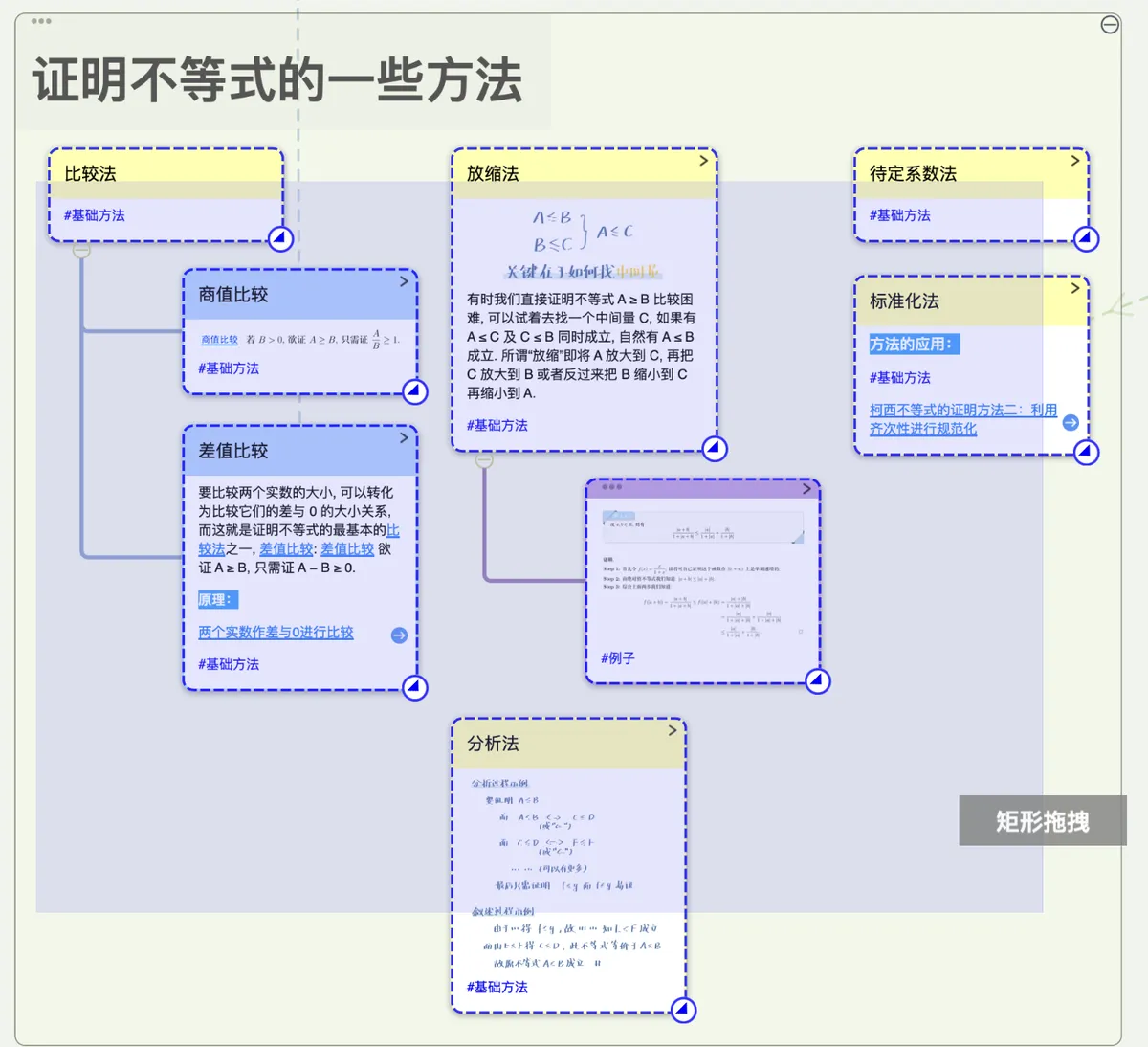
- Long-press a blank area of the mind map to start a rectangular drag that frames cards, enabling multi-selection.
-
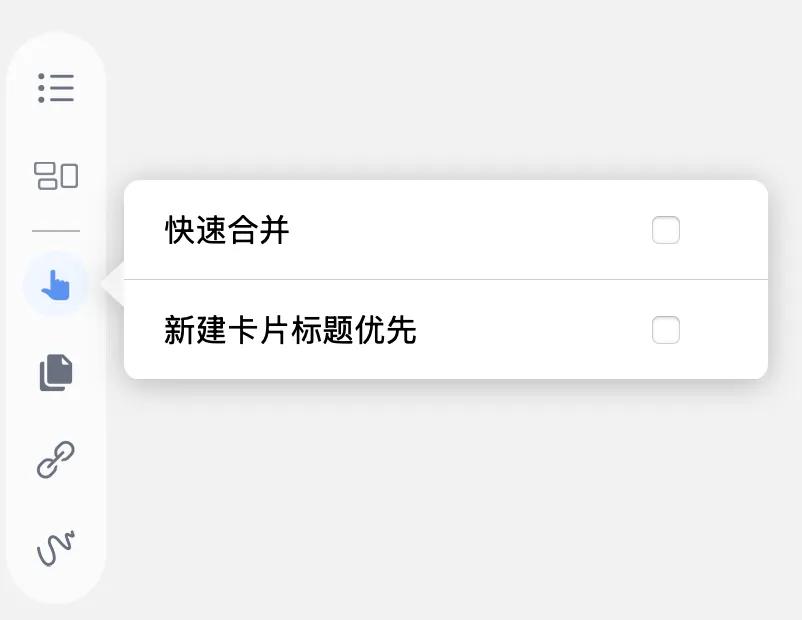
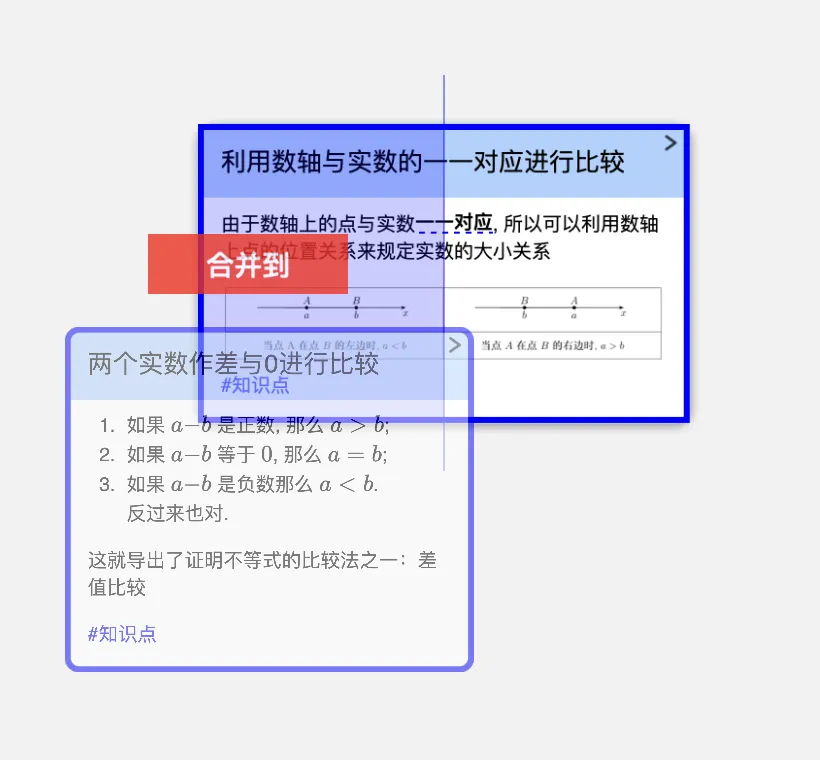
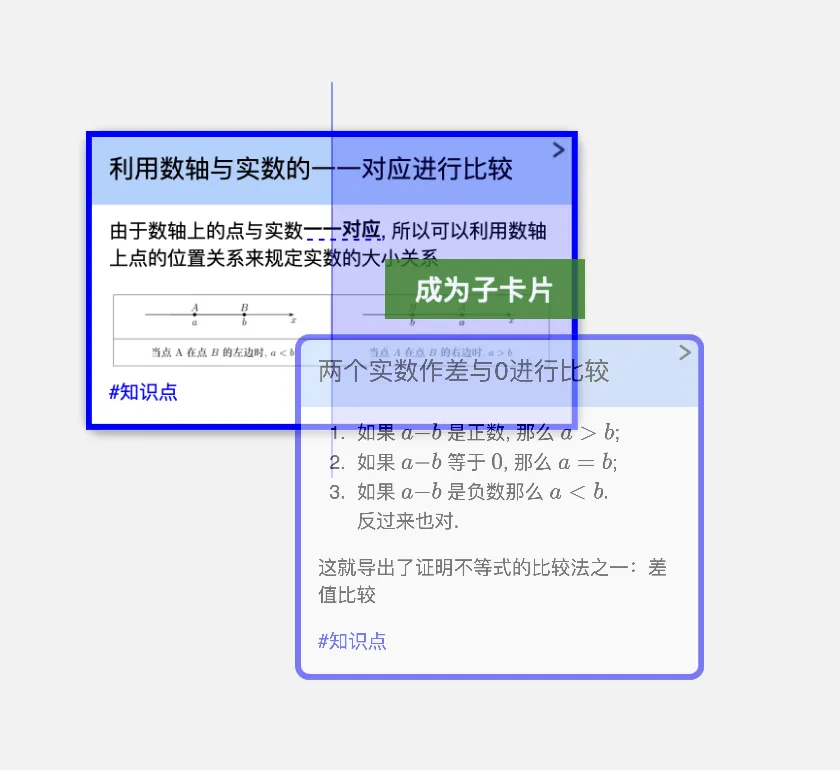
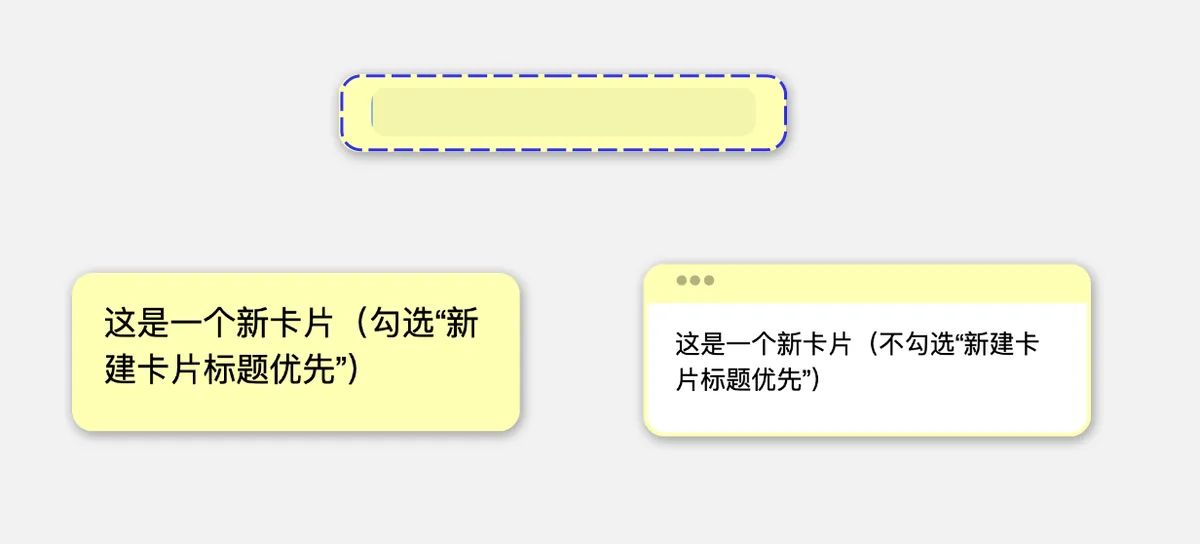
🖼️ Image, where you can set quick options for mind map cards.
Quick Merge: when enabled, by default 🖼️ Image, 🖼️ Image.New Card Title First: when enabled, 🖼️ Image
4 Copy Tool
Copy
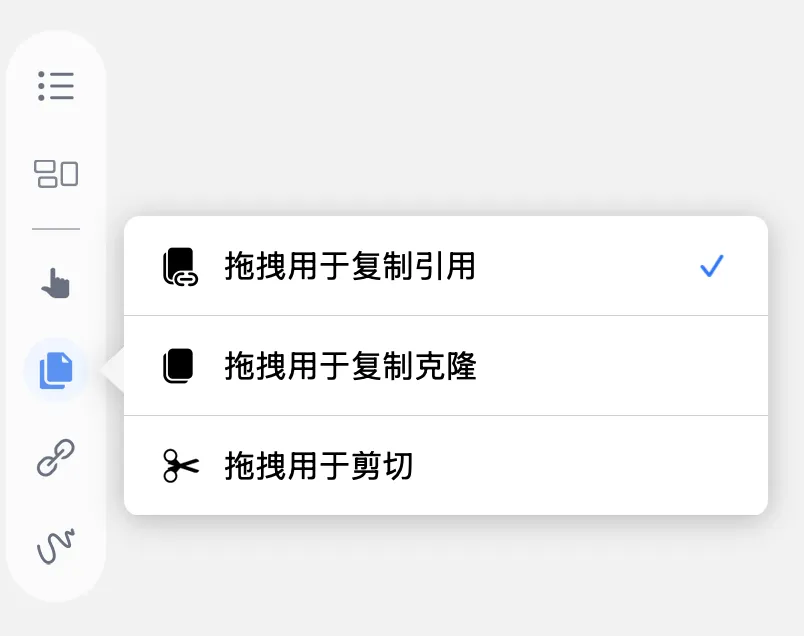
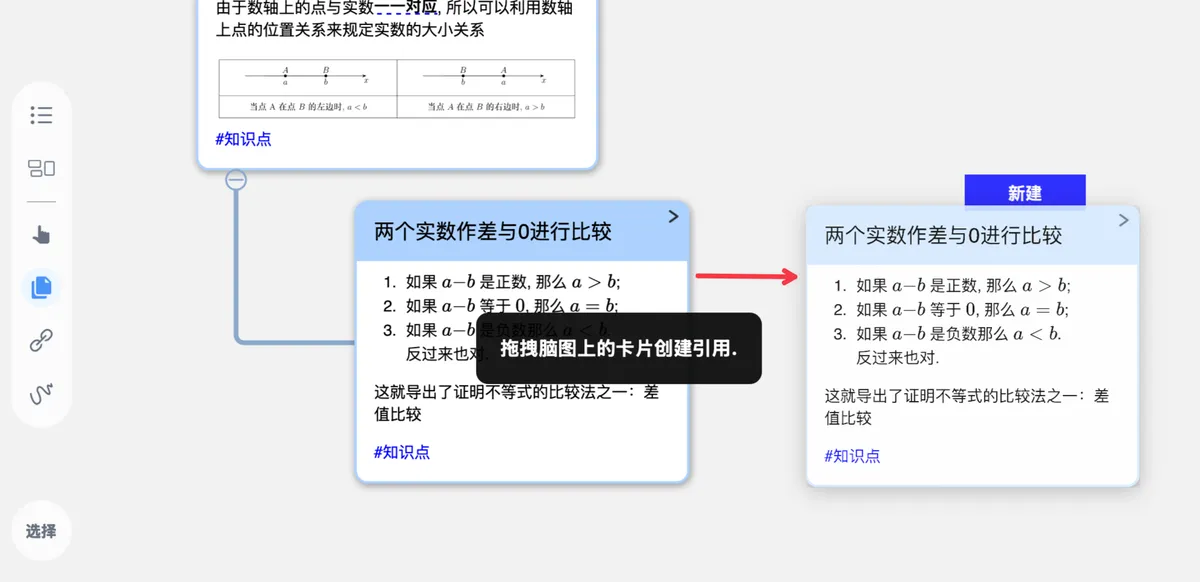
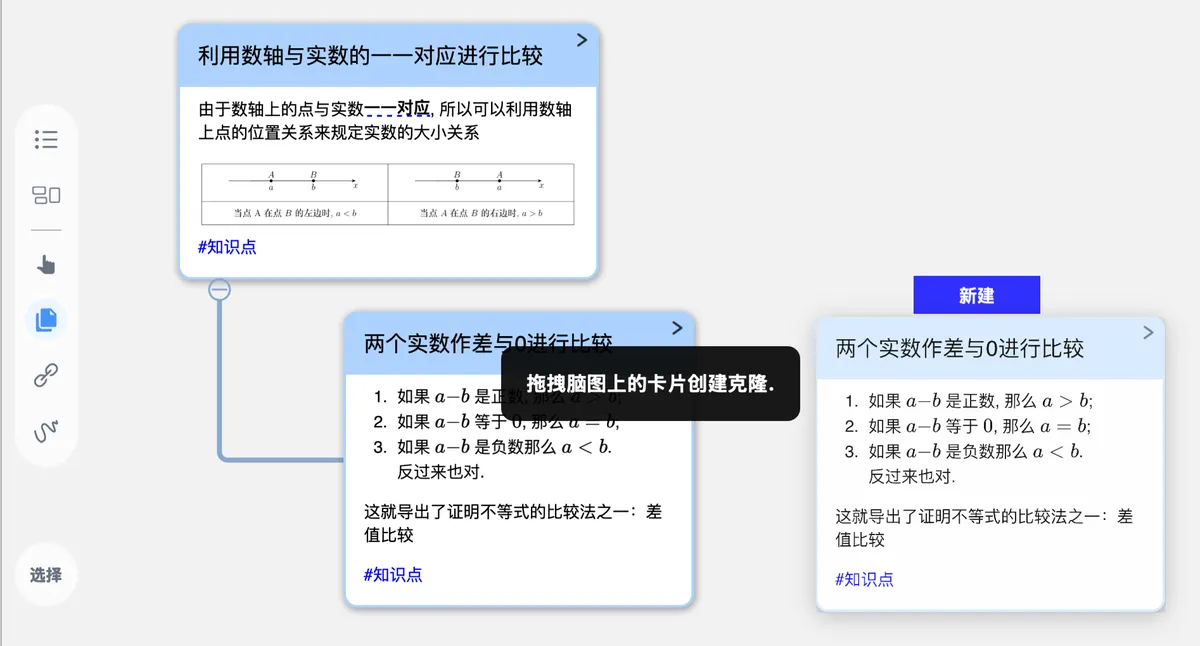
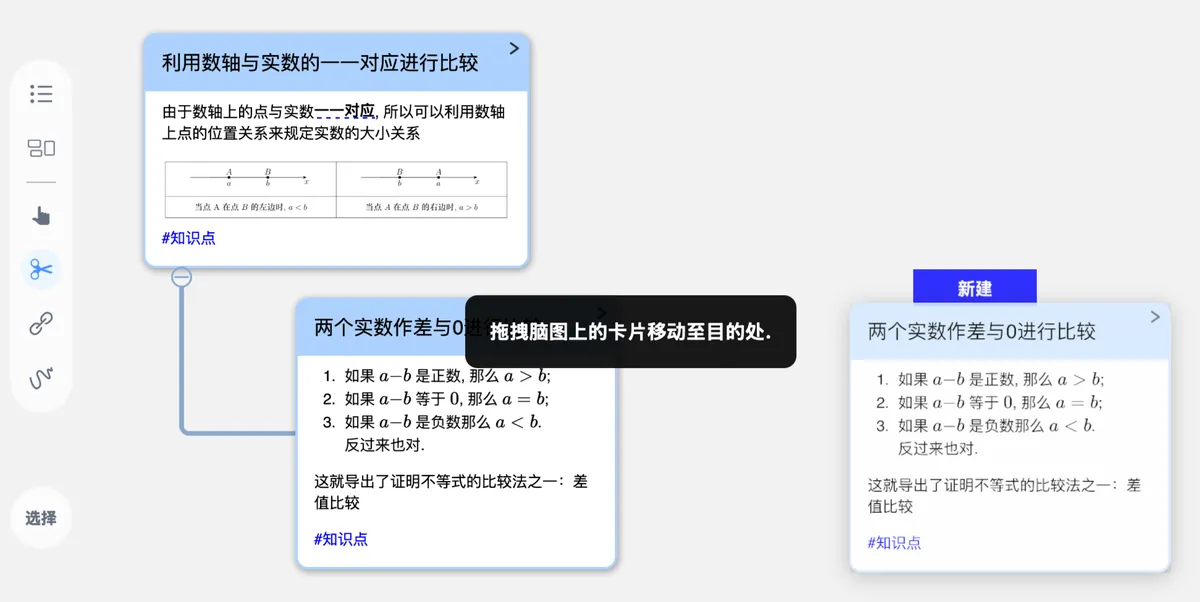
🖼️ Image, where you set the quick options for dragging mind map cards
Drag to Copy as Reference: drag a card to quickly copy it as a referenceDrag to Copy as Clone: drag a card to quickly copy it as a cloneDrag to Cut: drag a card to quickly move it as a cut
The difference between clone and reference: a cloned node is a replica of a node card, while a referenced node is a mirror of a node. For example, if you clone card A to get card B, then editing card A will not sync to card B; but if you reference card A to get card B, card B will sync with card A's changes. See: Card Copying: Clone and Reference.
💡 The copy tool lets you handle card-copying tasks efficiently and automatically. Besides the copy tool, you can also use the
Cut/Copy as Clone/Copy as Referencefunctions in the card pop-up menu. See: Cut, Copy, and Paste Cards
5 Link Tool
Link
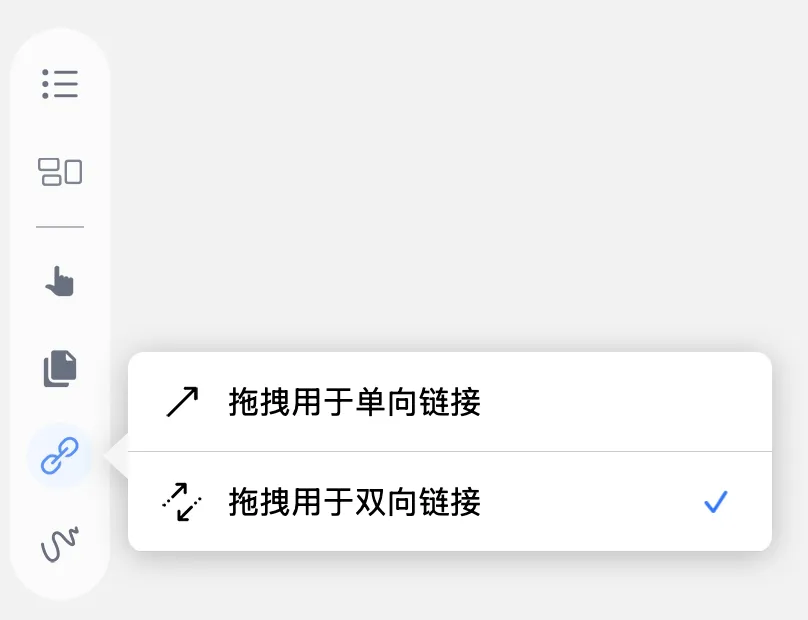
🖼️ Image, where you set the quick options for creating links by dragging mind map cards
Drag for One-way Link: when enabled, 🖼️ ImageDrag for Two-way Link: when enabled, 🖼️ Image


💡 For more on card links, see: Card Links ①| One-way and Two-way Links: Free Association Across Hierarchies, Card Links ②| Card Unique ID and URL: Linking Across Mind Maps and Study Sets
6 Handwriting Settings Tool
Mind Map Handwriting Tool
🖼️ Image, where you set the mind map handwriting layer, handwriting binding, mind map focus, and more.
New Sketch Layer: creates a new mind map handwriting layer. See MindMap Handwriting Layers: Manage Your Annotations in Layers.-
Bind Handwriting to the selected card: select a card first, and then when you write, the handwriting is automatically bound to that card (later, when you move the card, the handwriting moves along with it)Auto Switch the selected card when writing on the card: when you write on a card, the current card is selected by default and the handwriting is bound to it.
-
Double Tap the Card to Enter the Focus: see Mind Map Focus. MindMap Gesture: use the handwriting tool to draw a curve between cards to create a link between mind map cards. See for details.
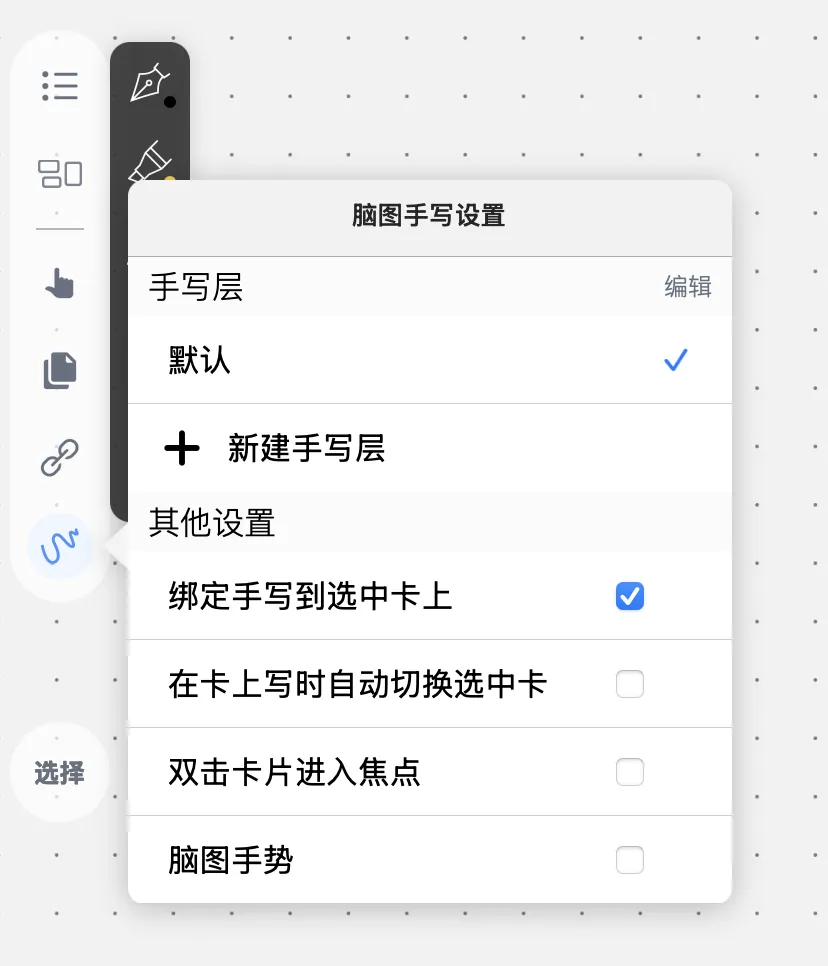
7 Selection Tool
When you need to select multiple non-adjacent cards, the selection tool is more convenient than the hand tool: click each target card in turn, or long-press a blank area to start a rectangular drag that frames the target cards.
💡 The difference between the hand tool and the selection tool (finger/mouse) when selecting cards:
- Selection tool: suitable for all kinds of scenarios, and especially useful when the target cards are scattered and need to be selected one by one.
- Hand tool (finger/mouse): quick and easy—long-press a blank area and then frame the target cards; best when the target cards are packed closely together.