Comparison ③: Attached Notebook
💡Comparison Series Navigation
This series walks you through the complete workflow, from "reading side by side" to "cross-document referencing" and finally to "long-term backlink notes".
- Must-read for beginners: Comparison ①: Bi-Article Comparison Window, which solves the problem of "viewing two sources at the same time"
- Advanced: Comparison ②: Cross-Document Reference & Backlink, which solves the problem of "citing content from document A into document B"
- Advanced: Comparison ③: Attached Notebook, which solves the problem of "binding notes to their original position in the source for the long term, with backlink access at any time"
💡The Attached Notebook is a dedicated note-taking medium that MarginNote provides for documents imported into a study set. Annotations made while doing exercises, classroom notes, and second-pass organizing can all return to their original location in the PDF, reducing the "disconnect between notes and the source text". At its core, it delivers the handwriting backlink feature.
Handwriting backlink feature: The handwriting, annotations, and note content you write in the Attached Notebook are automatically bound and linked to the corresponding page number and position in the original PDF document. Tap any note/handwriting in the Attached Notebook to instantly locate and jump back to its original position in the source PDF, achieving precise, traceable comparison between your notes and the source text.
💡When to use an Attached Notebook:
- When closely reading a textbook, you want to write your derivations/understanding in a separate notebook while still being able to return to the source at any time.
- When reviewing your exercises, you want to jump from a wrong-answer note straight back to where the question originally appeared.
- In project-based learning, you want to maintain a long-term, two-way association between "materials and notes".
1 How to create an Attached Notebook?
First, open the target PDF document; it will serve as the main document of the Attached Notebook.
1.1 Quickly create an Attached Notebook (recommended)
Attached Notebook
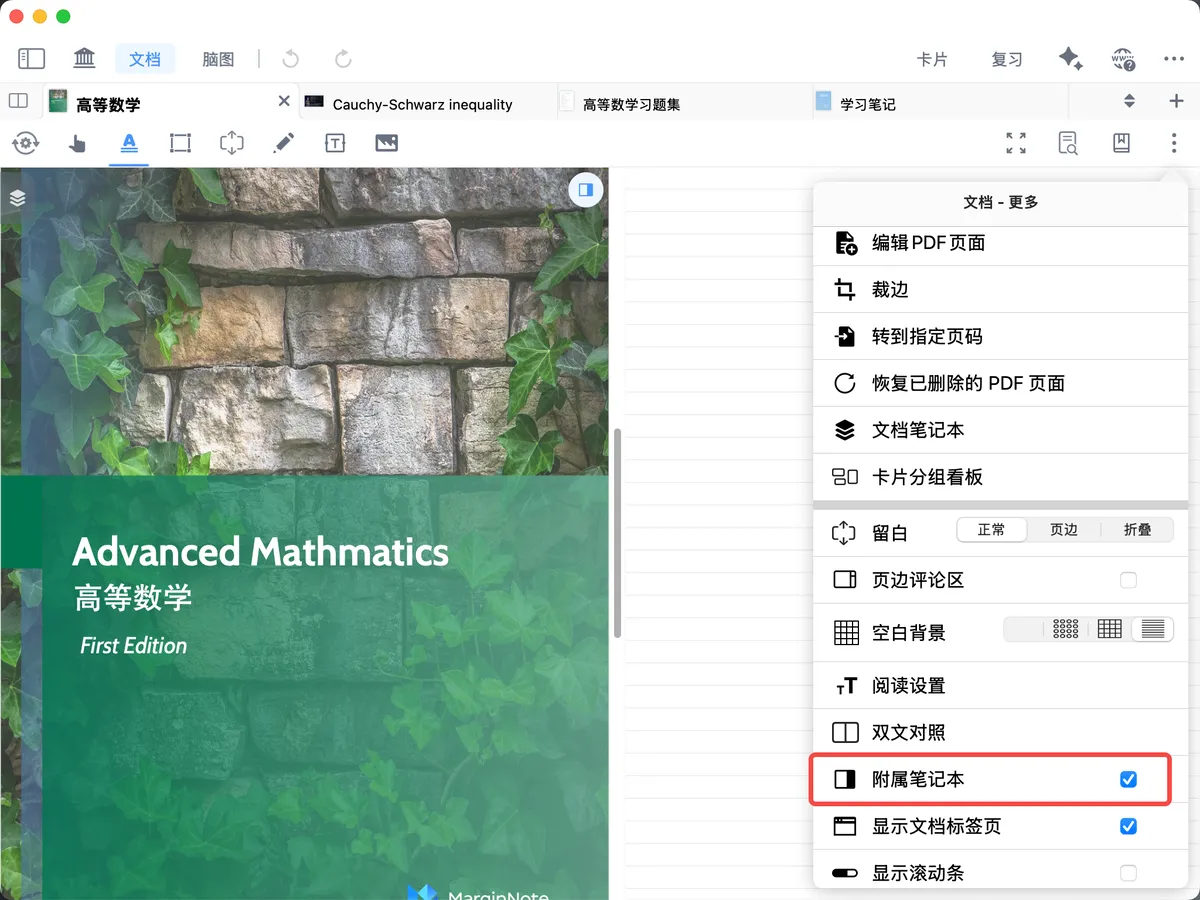
Tap the Document - More button in the top-right corner of the interface and select Attached Notebook; the system will automatically create an Attached Notebook that is bound to the current document and supports handwriting backlink.
1.2 Create an Attached Notebook by saving a comparison view
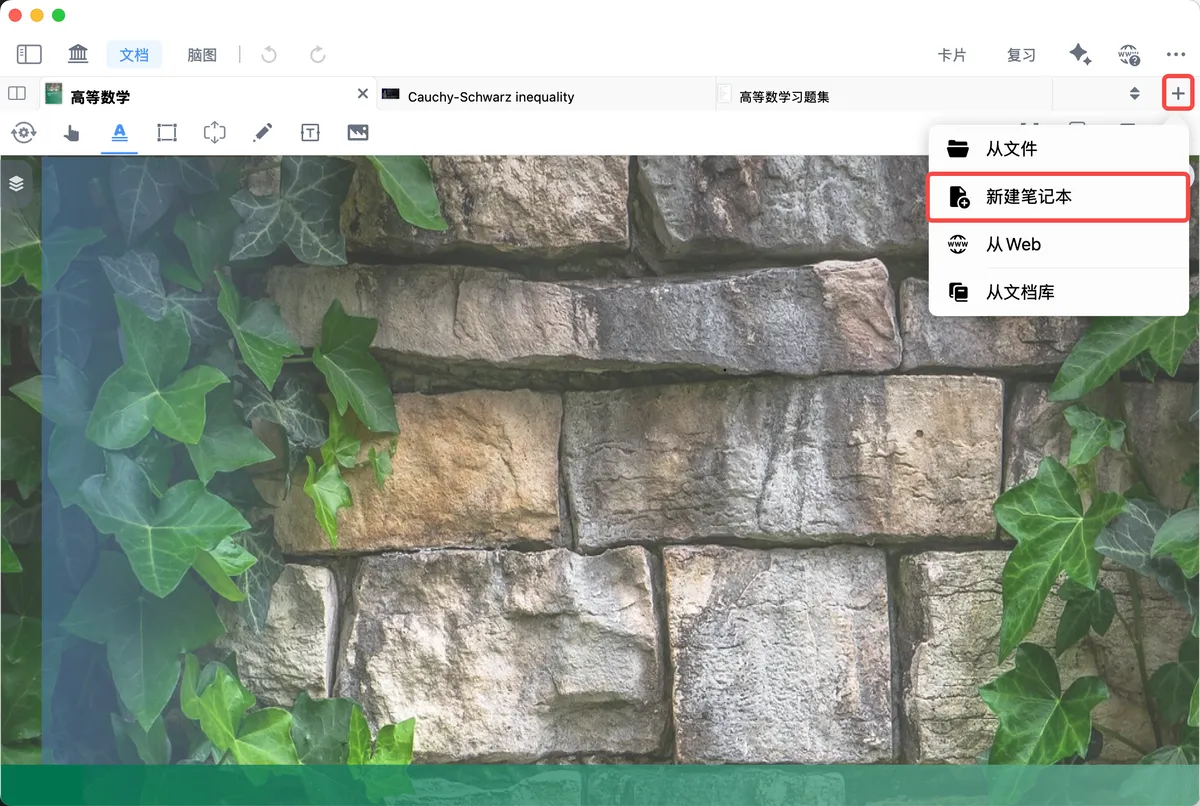
- First, create a new blank notebook (for detailed steps, see: Create a Blank Notebook),
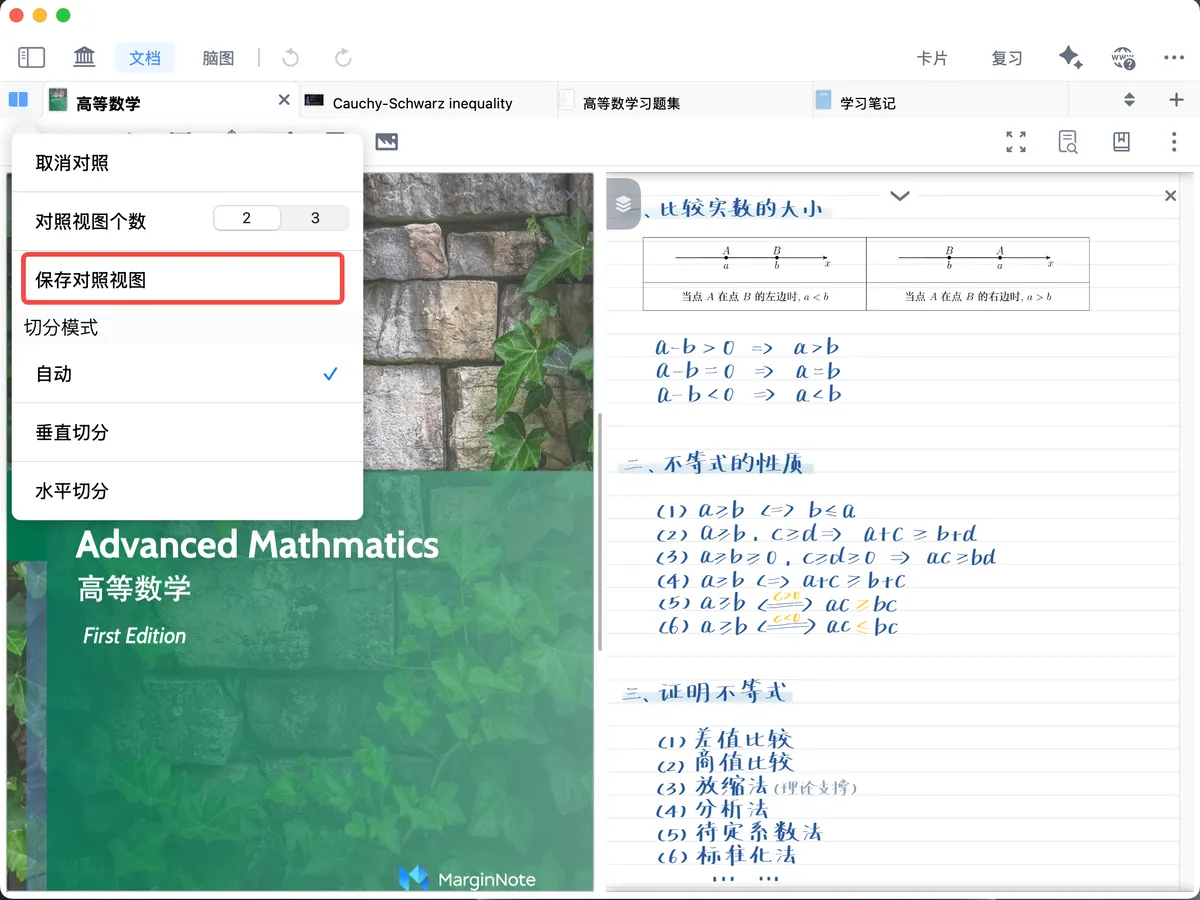
- Next, pair the newly created notebook with the document you want to backlink to (i.e., the main document) to form a
Bi-Article Comparison, then tapSave as Comparison Viewto establish the attachment relationship.
- From then on, one tap on the Attached Notebook's handwriting will backlink to the source text.

2 How to quickly open an Attached Notebook?
Attached Notebook

Once an Attached Notebook has been created, tap the Attached Notebook icon at the top right of the document interface to quickly toggle the Attached Notebook on / off. The entry point is shorter and the binding more direct, making it ideal for single-document close reading.
3 How to unbind an Attached Notebook?
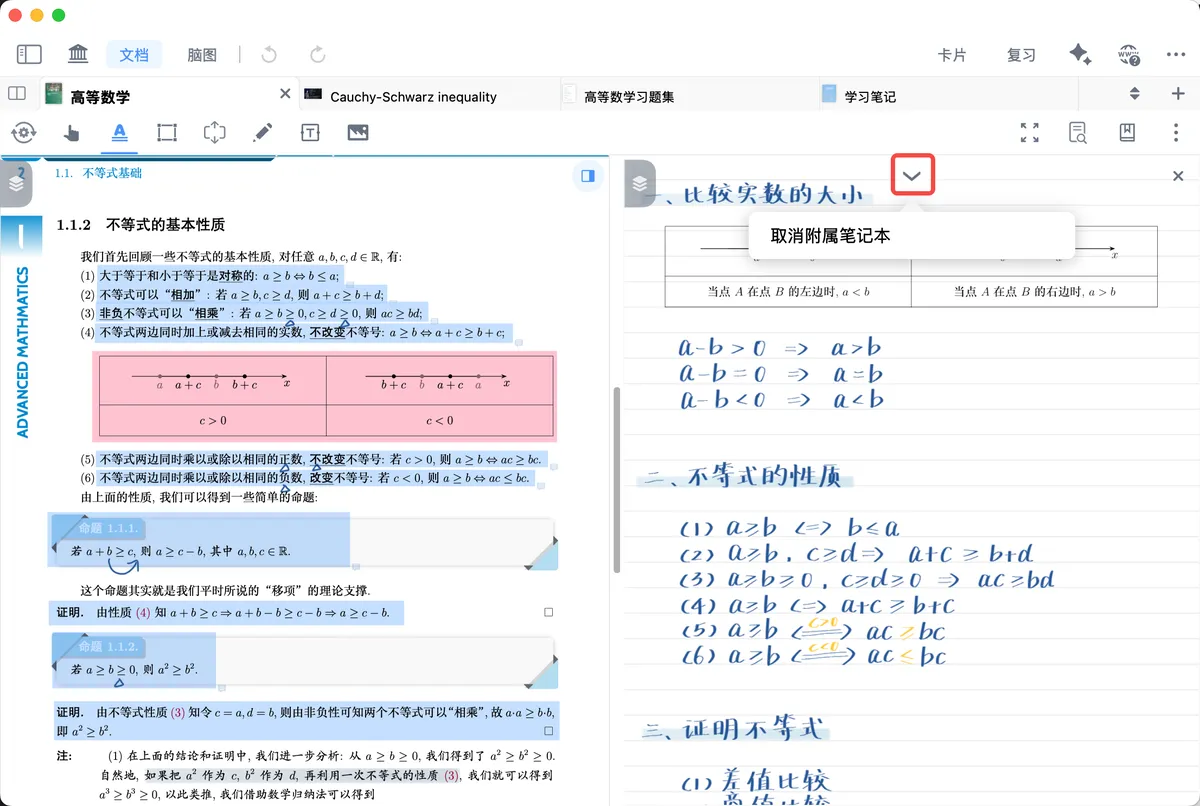
In the Attached Notebook view, tap the arrow icon and select Cancel Attached Notebook:
In the pop-up, you can choose:
- Yes: unbind and delete this Attached Notebook;
- No: unbind only, keeping the notebook file.
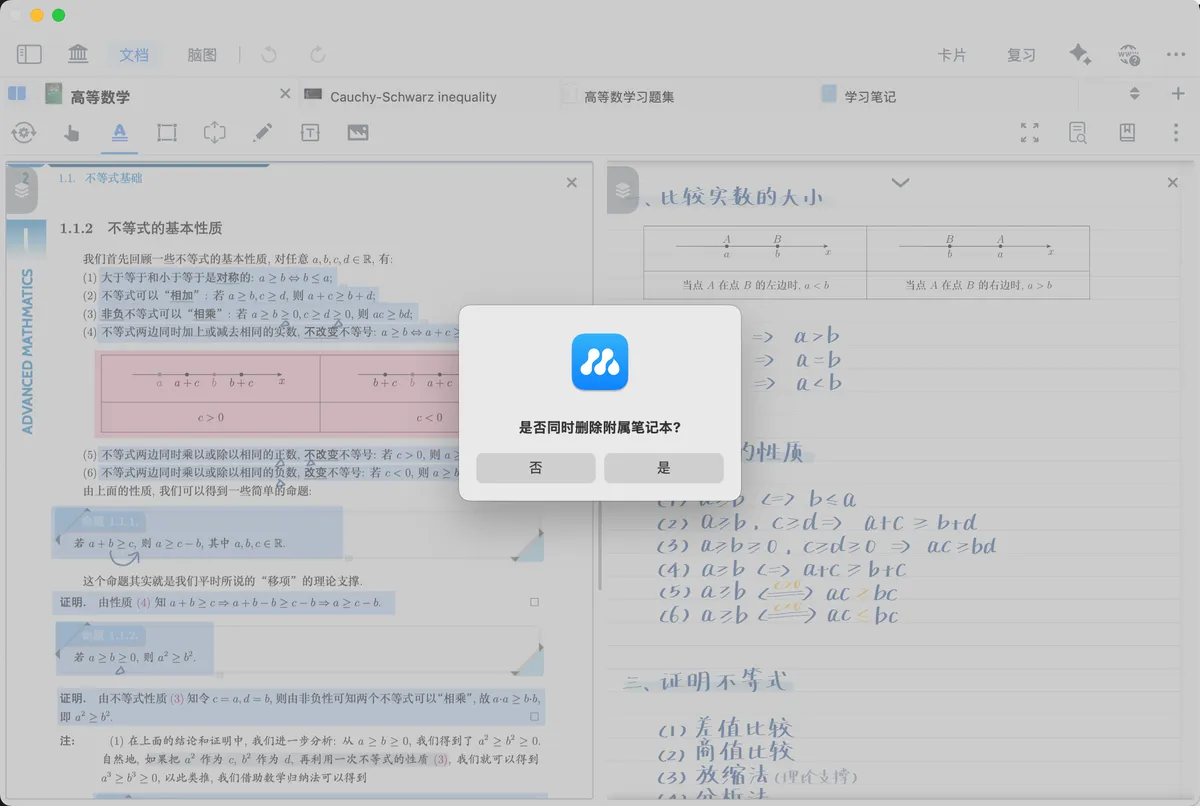
❗Please confirm before you proceed: cancelling an Attached Notebook may delete the notebook file, so we recommend exporting a backup first.
4 How to export an Attached Notebook?
- Tap the list icon in the document tab bar, then find and open the target Attached Notebook
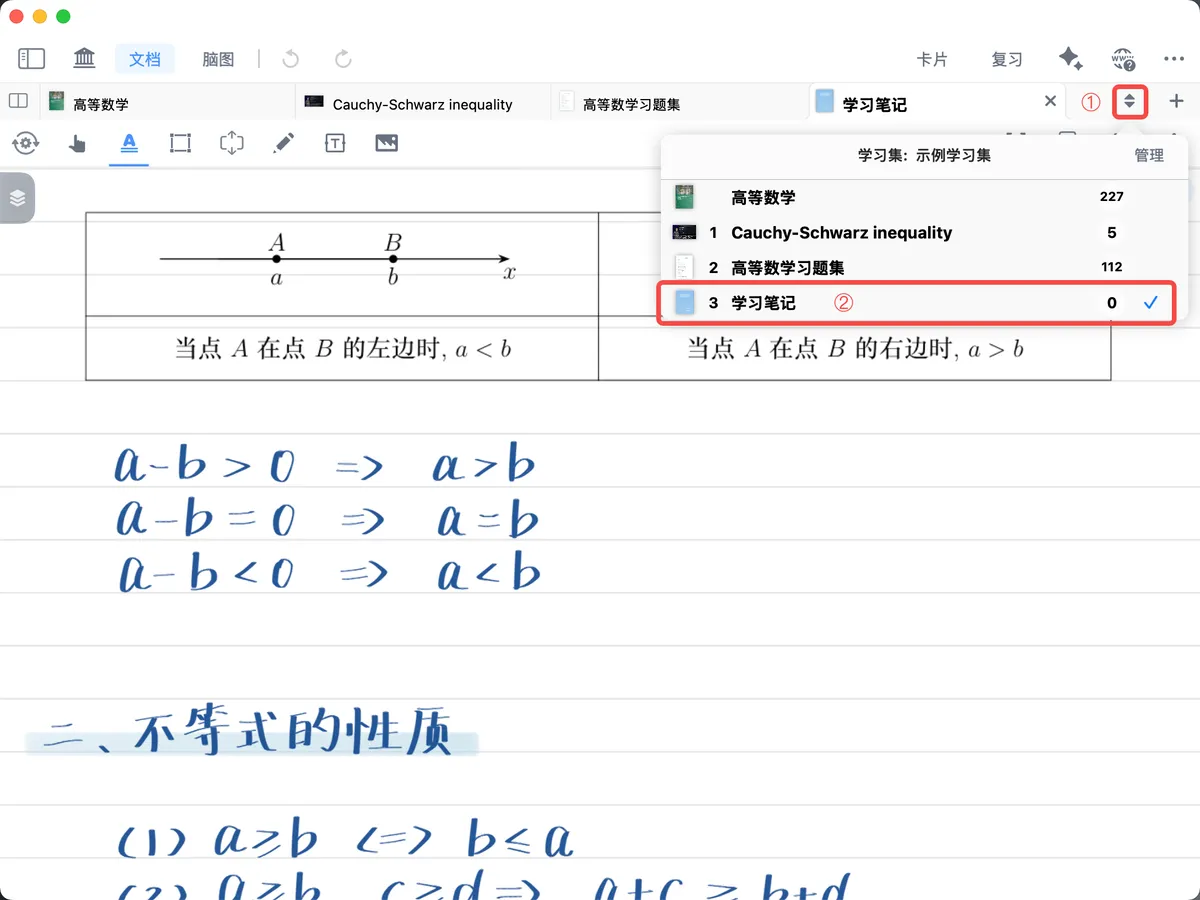
- Tap the
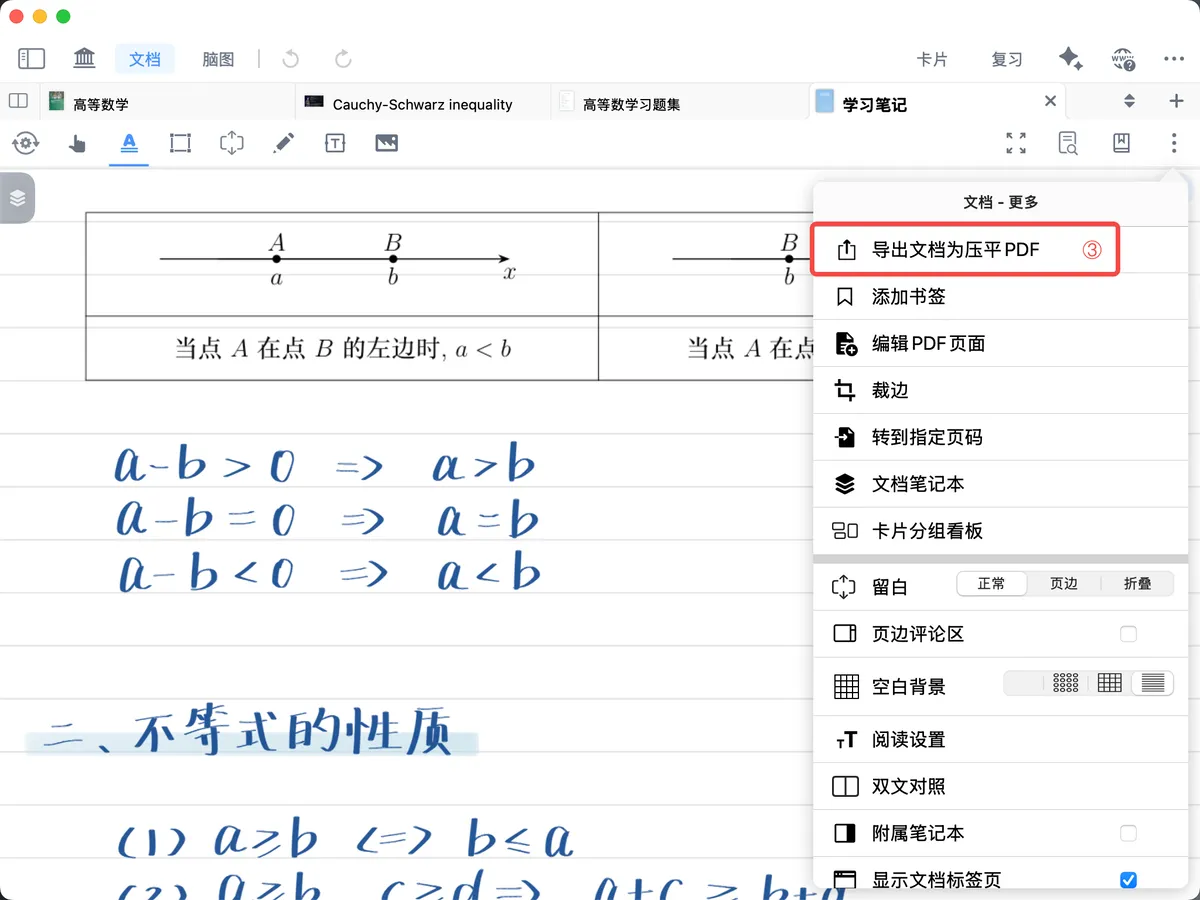
Document - Morebutton in the top-right corner and selectExport Document as Flattened PDFto complete the export of the current Attached Notebook.