Adding/Deleting Pages and Cropping the Page
1 Adding/Deleting Pages
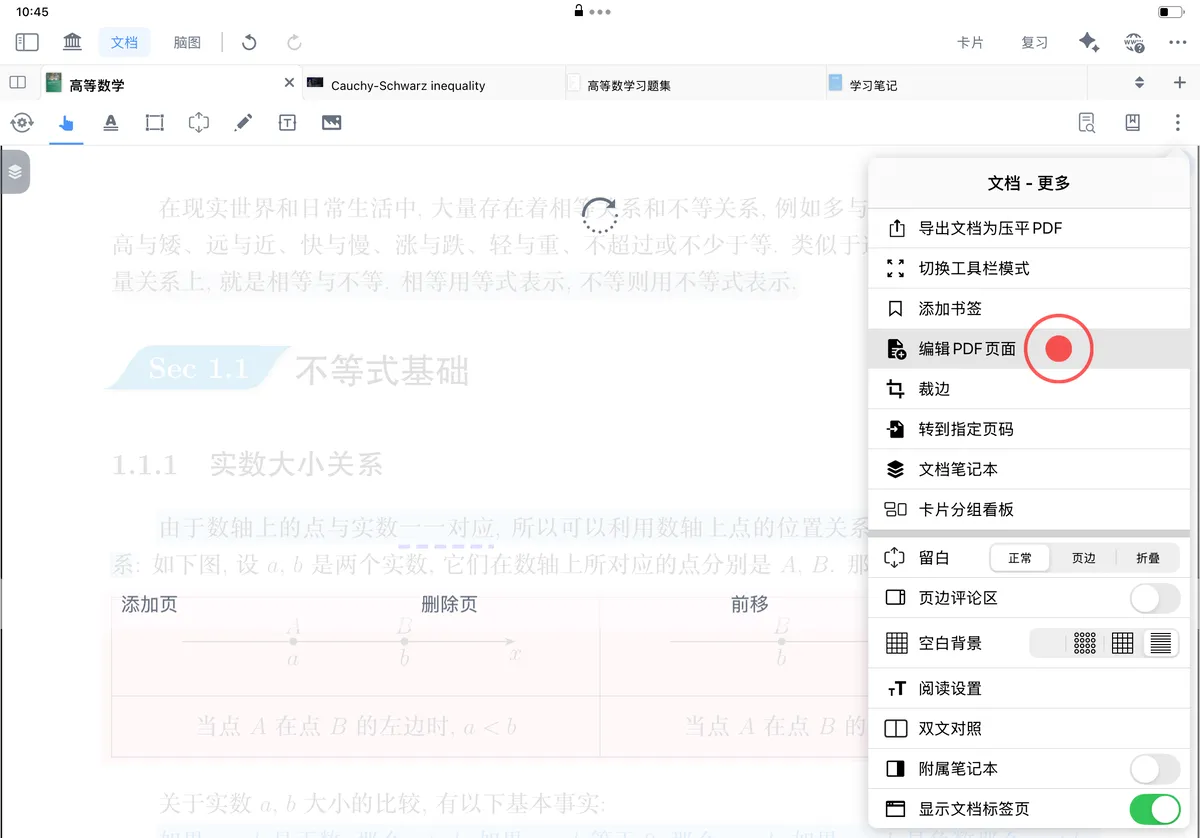
Edit PDF Pages
Tap the More button under Document and find Edit PDF Pages to perform related operations on the current page such as Rotate, Add Page, Delete Page, Move Forward, and Move Backward.
1.1 Rotate
Each tap on the rotate icon turns the current page 90° clockwise; tap the rotate icon multiple times to adjust the page to the orientation you need.
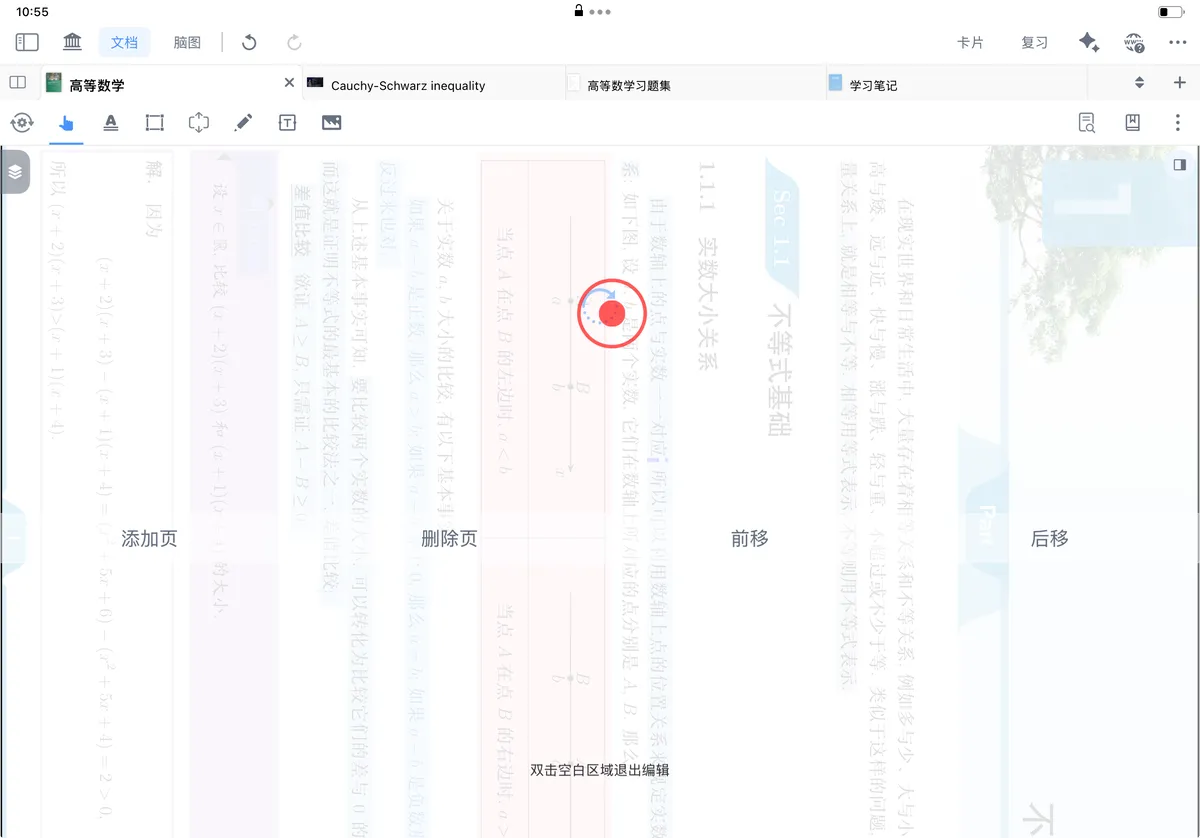
1.2 Add Page
MarginNote supports four ways to add pages: Add Blank Page, Add Page from File, Add Page from Photo, and Add Page from Camera.
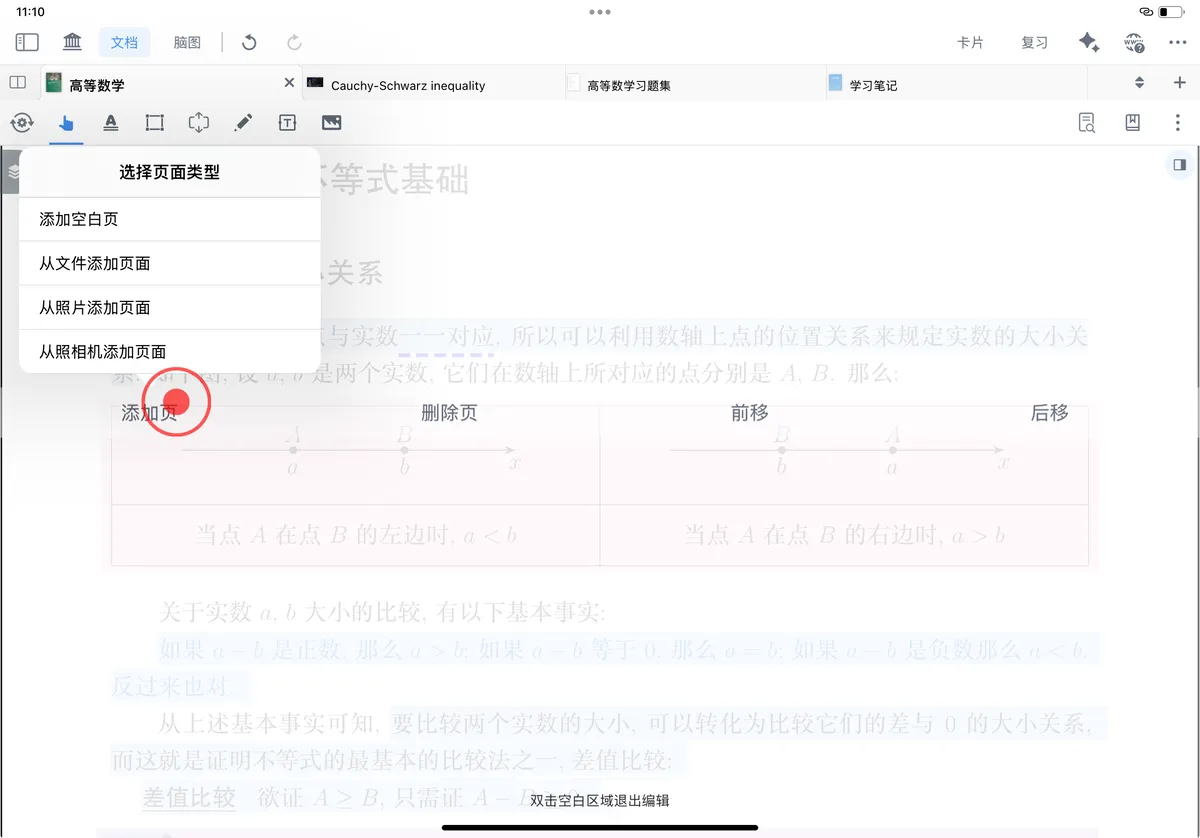
1.2.1 Add Blank Page
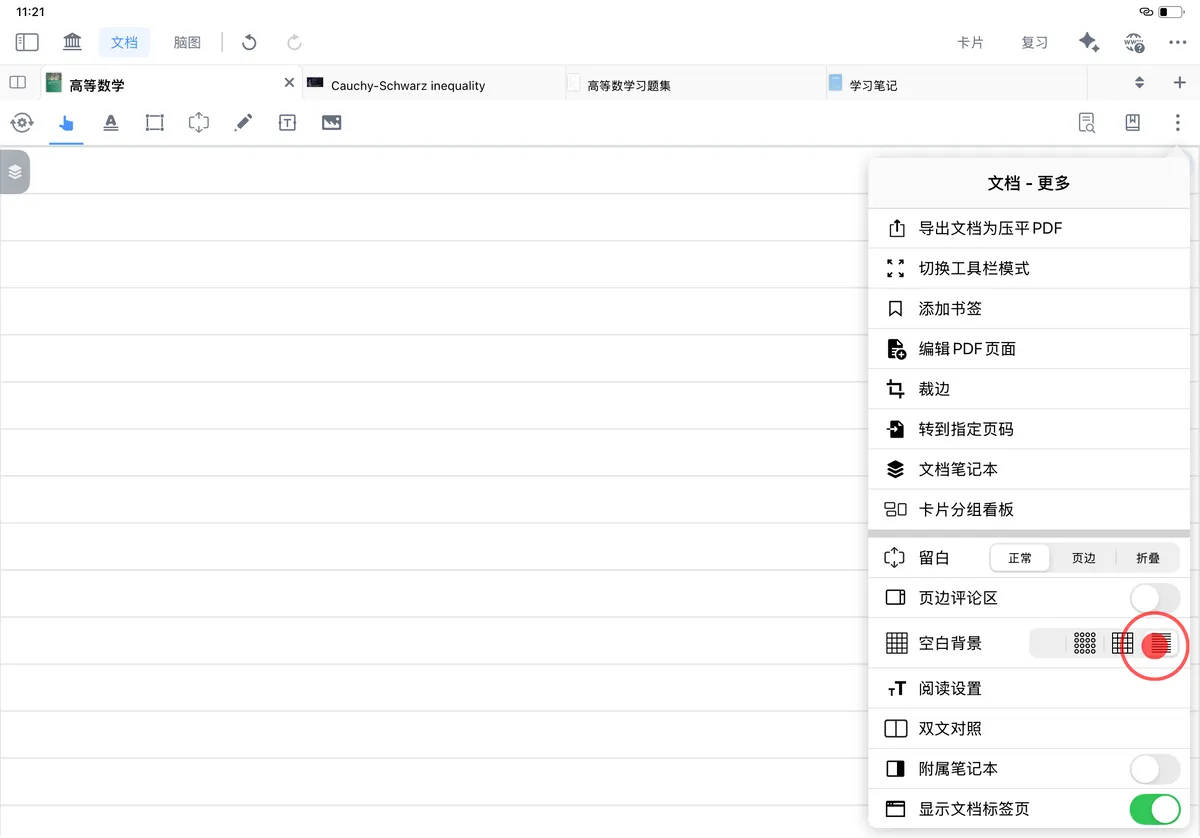
When you add a blank page, you can set the paper's background pattern to blank, dot grid, grid, or lined by changing the Blank Background option.
1.2.2 Add Page from File
You can select the relevant PDF pages or images from a file and add them as new pages to the current document.
1.2.3 Add Page from Photo
You can select the photos you want from your photo library and add them as new pages to the current document.
1.2.4 Add Page from Camera
You can use the camera to take a photo and add it as a new page.
On Mac, you can use your iPhone's camera to take the photo (added in v4.1.14).

1.3 Delete Page
Tap "Delete Page" to delete the current page.

💡 Note: The first page of a document cannot be deleted directly. Move it backward to the second position first, then delete it.
1.4 Move Forward
Tap "Move Forward" to move the current page forward by one page; tap "Move Forward" several times in a row to move the page forward that many pages.
1.5 Move Backward
Tap "Move Backward" to move the current page backward by one page; tap "Move Backward" several times in a row to move the page backward that many pages.
1.6 Double-Tap a Blank Area to Exit Editing
After performing the related operations above such as Rotate, Add Page, Delete Page, Move Forward, and Move Backward, double-tap a blank area to exit PDF page editing mode.
2 Crop
Crop
Tap the More button under Document and find Crop to crop, extend the page, and perform other related operations on the current document's pages.

2.1 Crop
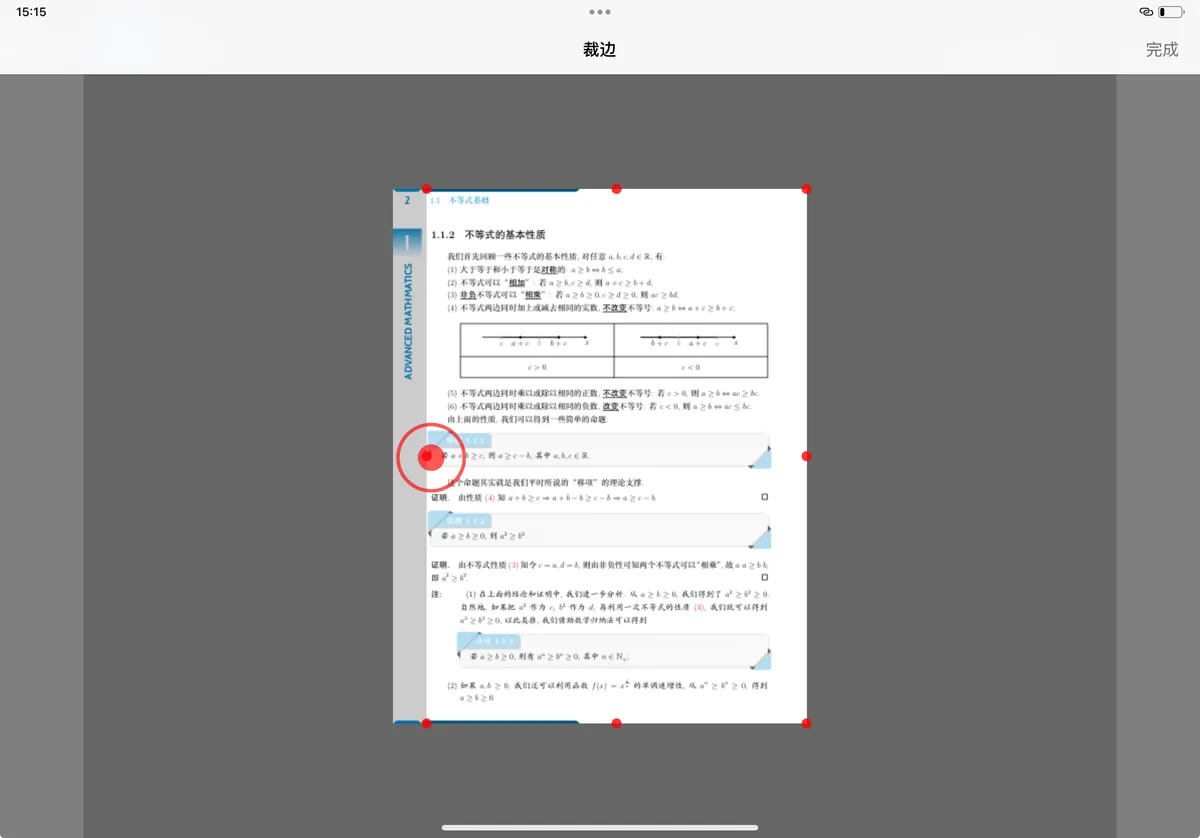
Press and hold the red dot on the page edge, drag it inward to the right position, and tap "Done" to crop the page.
💡 How do you adjust the note space in a document? (Comparing the Crop, Fold, and Extend Note features)
Crop focuses on adjusting page size, Fold emphasizes hiding portions of content, and Extend Note centers on supplementing note content; the three optimize the reading and note-taking experience in MarginNote 4 from different angles.
| Function | Core Purpose | Applies To | Typical Use Cases | |
|---|---|---|---|---|
| Crop | Adjusts page size — trims redundant margins, headers, and footers, or extends the page area | All pages | 1. Batch-remove headers and footers from textbooks and papers; 2. Crop out watermarks and side ads; 3. Extend the page to add long notes | |
| Fold | Hides specified content, expandable on demand | Portions of content within a single page | 1. Fold exercise answers and expand them to check when reviewing; 2. Hide appendices and references to focus on the core argument; 3. Hide note fragments still under study to avoid distraction > See: Page Folding | |
| Extend Note | Supplements note information and expands content | Specific spots within a single page | 1. Embedded mode: add annotations next to a knowledge point, closely tied to the original text; 2. Margin comment area mode: write annotations in the margin without covering the body text; 3. Pop-up mode: hide large blocks of examples/data and tap to view, keeping the page tidy > See: [Extend Note ① | Basics: Freely Open Up Note Space Between the Lines](../extend-note-basic-operations-freely-open/index.md) |
2.2 Extend Page
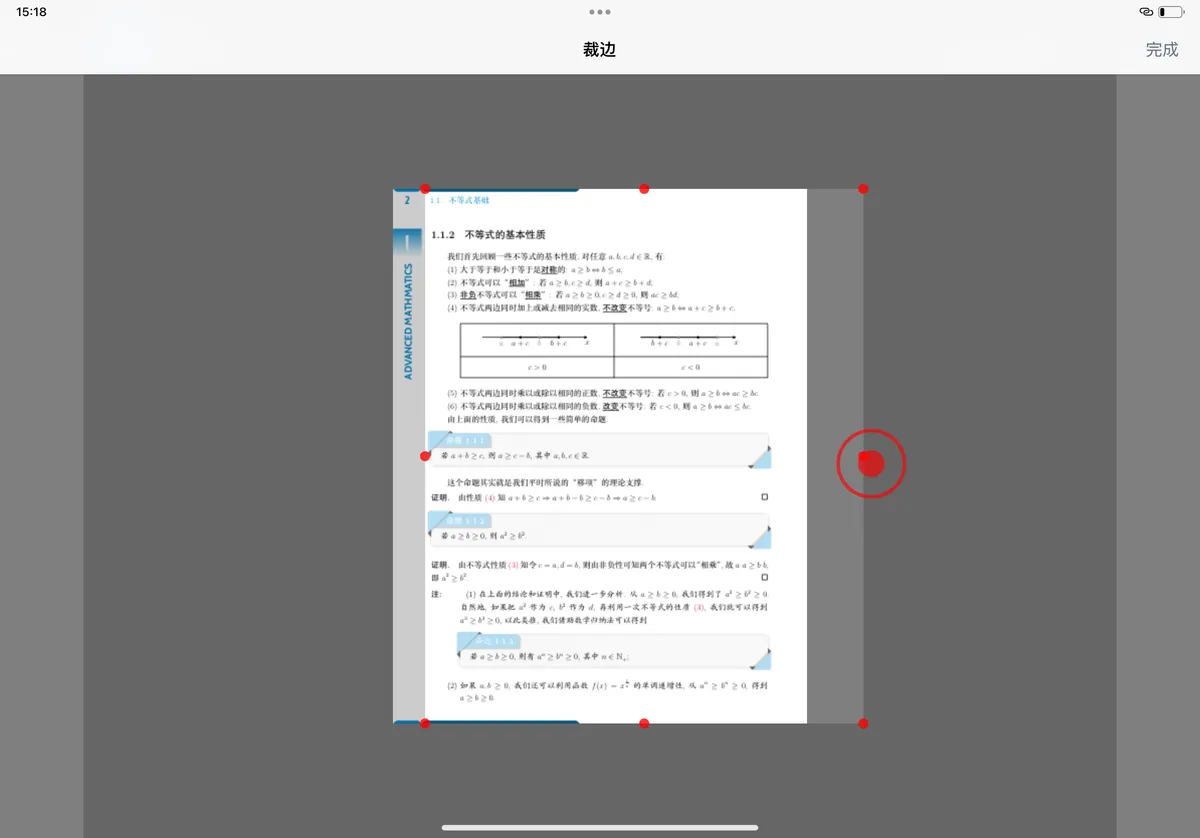
Press and hold the red dot on the page edge, drag it outward to the right position, and tap "Done" to extend the page.
2.3 Restore Default Page Size
- Crop the page down to a single point,
- select "Crop" again,
- and the page is restored to its original size.

2.4 Application: Optimizing the Display of Cross-Page Excerpt Cards
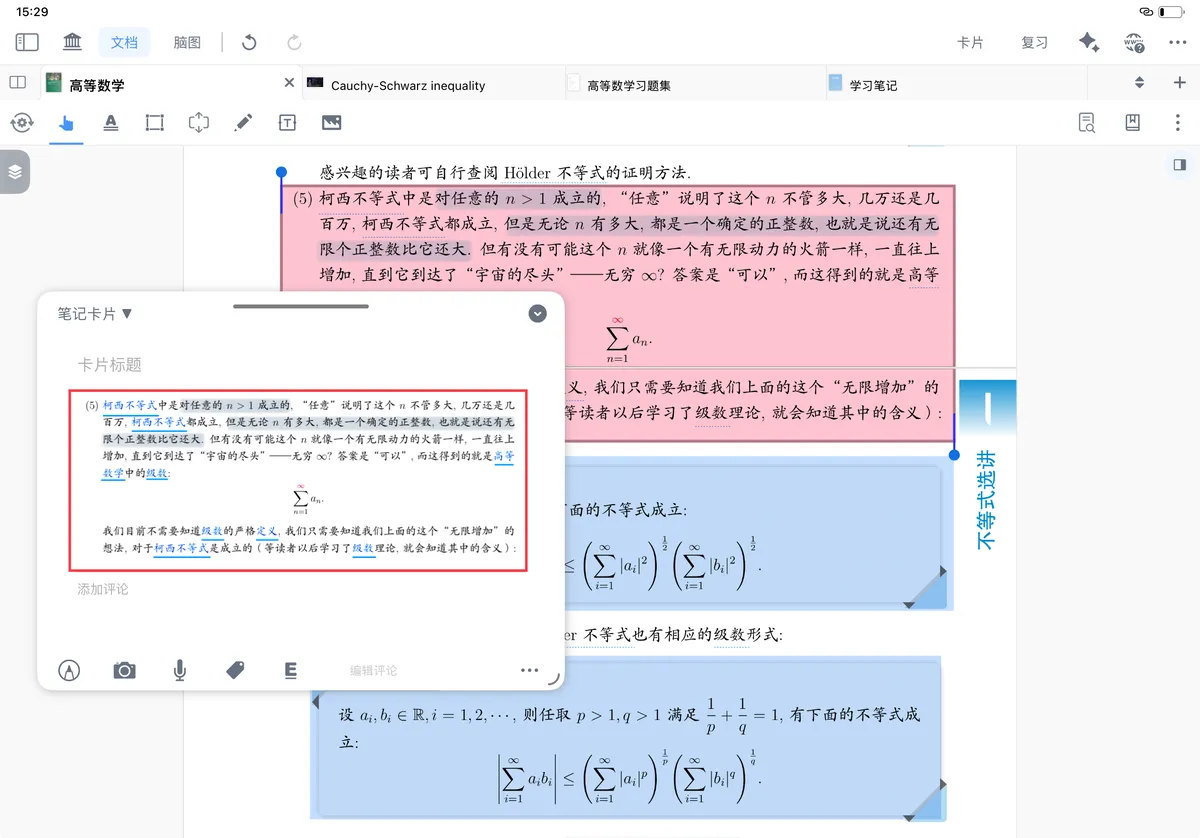
💡 When you organize cross-page knowledge points in textbooks, consecutive argument paragraphs in papers, or cross-page layout content in e-books, headers and footers easily interfere with excerpting the body text.
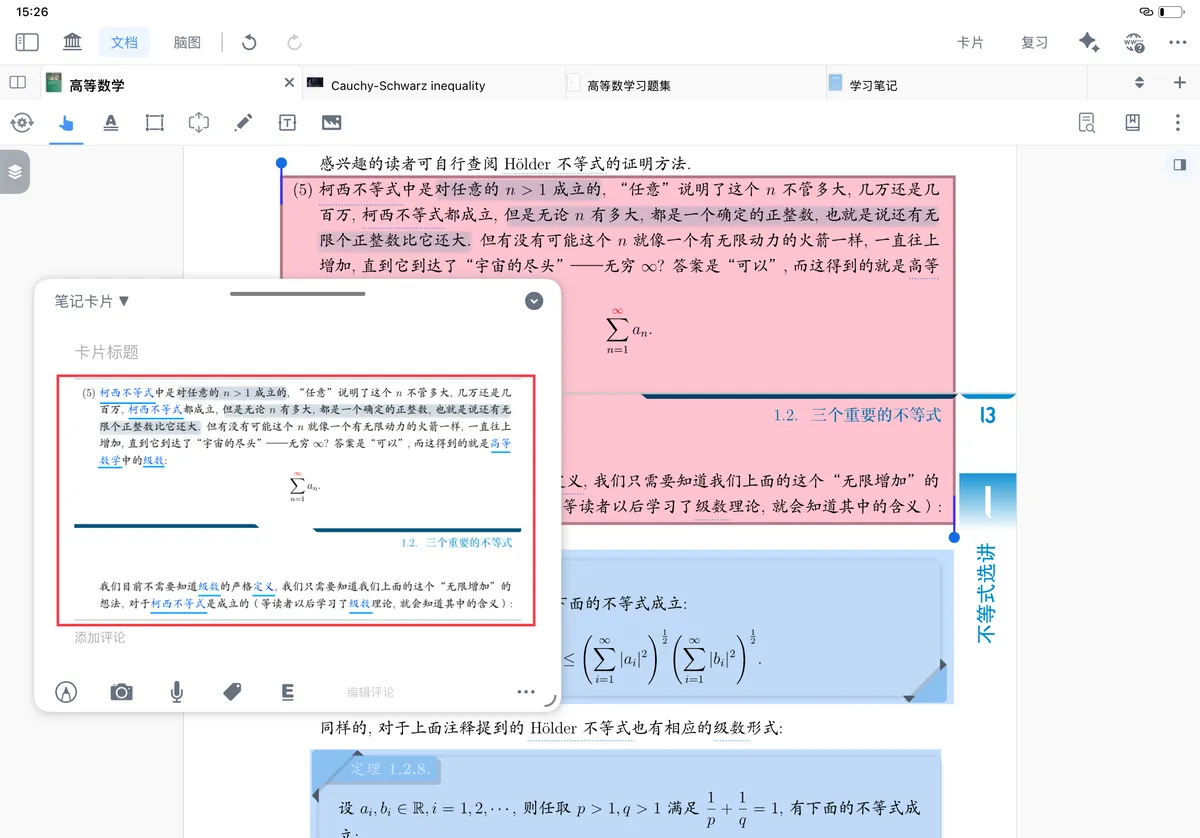
Take a cross-page formula derivation from a major course as an example: first use Crop to remove redundant elements, then excerpt across the pages, and you get a logically coherent note card, improving the efficiency of organizing your knowledge.
When you excerpt across pages, the headers/footers will affect how the excerpt card displays:
You can first use the "Crop" tool to trim away the header/footer, then excerpt, to improve the display: