Flashcard Review ③: Export to Anki & Template Configuration
💡 Flashcard series navigation
Creating flashcards: Creating Flashcards ①: Getting to Know Flashcards and Review Card DecksCreating Flashcards ②: Adding Cards to a Review Card DeckCreating Flashcards ③: Setting the Flashcard Front and Back
Scientific review: Flashcard Review ①: Scientific Review Based on the FSRS Anti-Forgetting AlgorithmFlashcard Review ②: Tracing Source ContextFlashcard Review ③: Export to Anki & Template Configuration
- If reviewing within MN is already efficient enough for you, you can keep using the Flashcard Review ①② workflow;
- If you need more granular review, read this article in detail: Export to Anki.
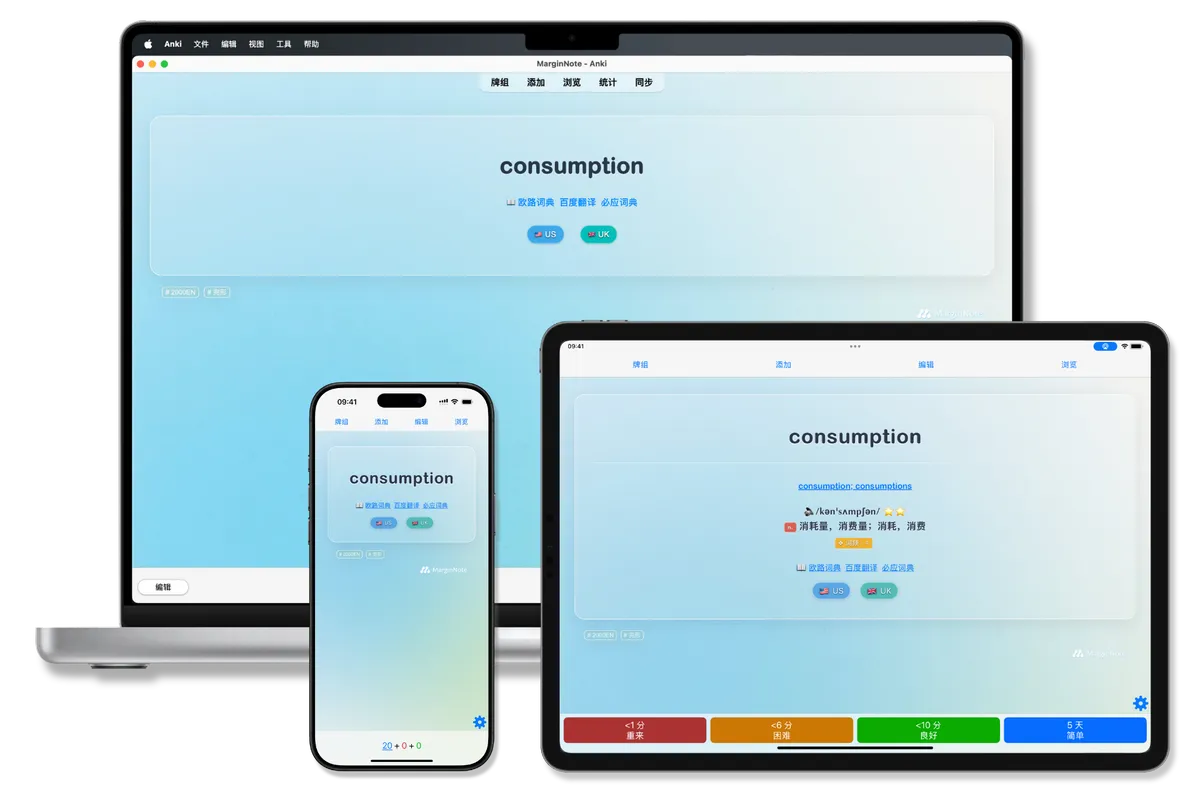
💡 Once you have finished creating note cards in MarginNote but want more refined review management and richer template styles, exporting your cards to Anki may be the better choice.
1 Before Exporting: Settings Related to "Cloze"


In full-screen review mode → tap the "… More" button on the right side of the toolbar → choose different cloze effects according to your needs:

1.1 Cloze Highlighters


1.2 Cloze Emphasize/Cloze
2 How to "Export to Anki"?
-

Method 1: Export from "Review Card Decks" on the home page
Review Card Decks → select a card deck → Export → Export to Anki (apkg)
-

Method 2: Export from "Review" in a study set
Review → … (More) → Export to Anki (apkg)
-
Method 3: Export from "More" in a study set
… (More) → Export Study Set → Export to Anki (apkg)

3 Exporting: Using the "Default Template"
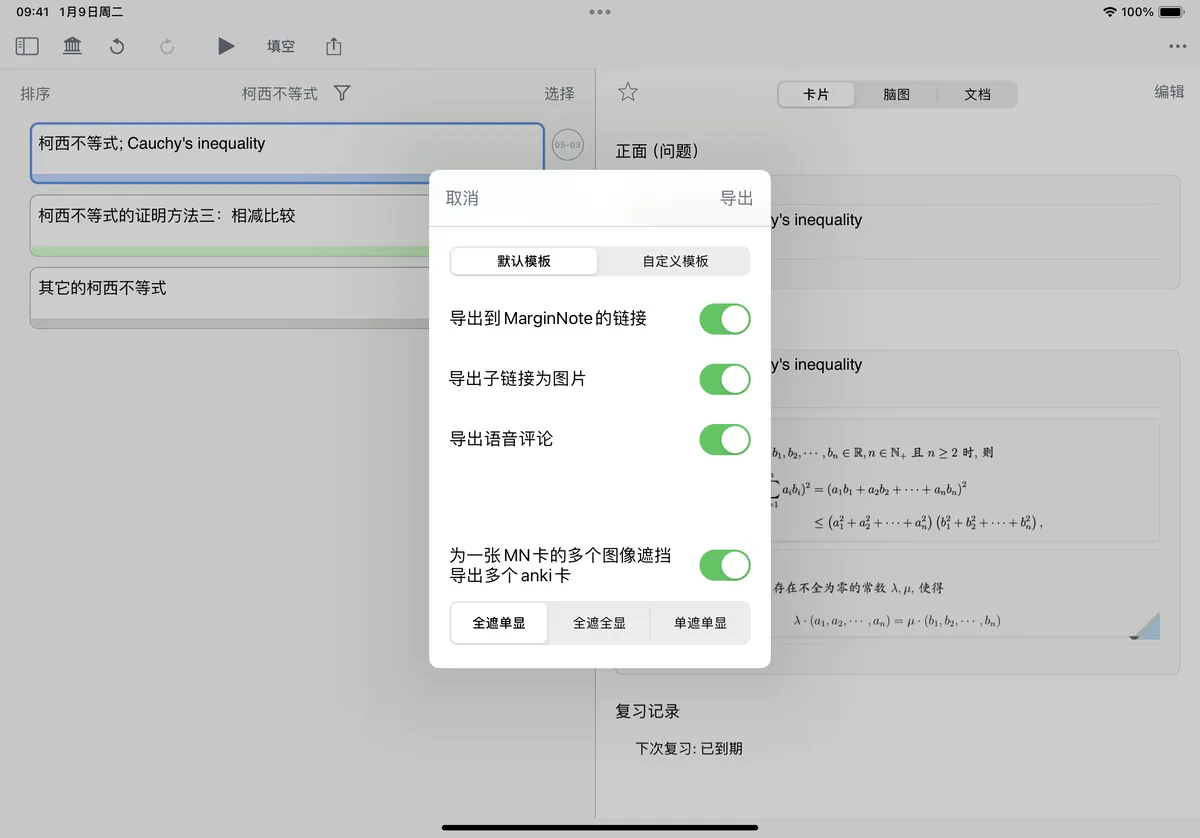

For pure memorization review, just use the default template and export the basic question-and-answer fields.
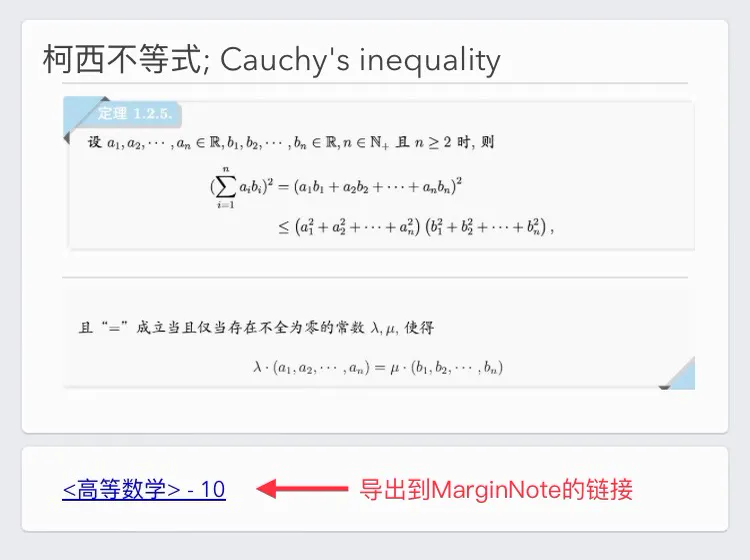
Export Link to MarginNote
When you need to backlink for verification, check "Export Link to MarginNote": this exports the card's URL, which lets you jump to the card's location in the MarginNote mind map.
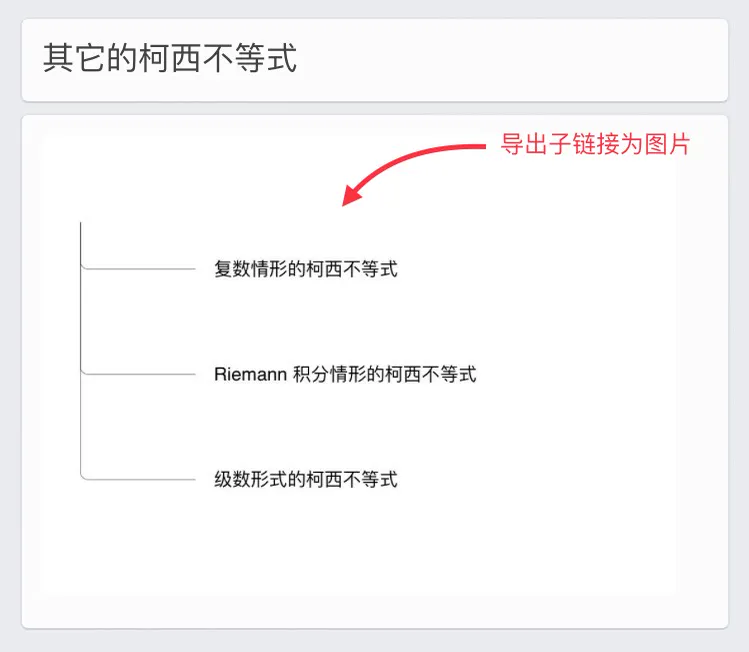
Export Child Links as Images
When you need to review your knowledge network, check "Export Child Links as Images": this exports all of the card's child nodes as images.
Export Voice Comments
For auditory review, check "Export Voice Comments": this exports the voice comments on the card.
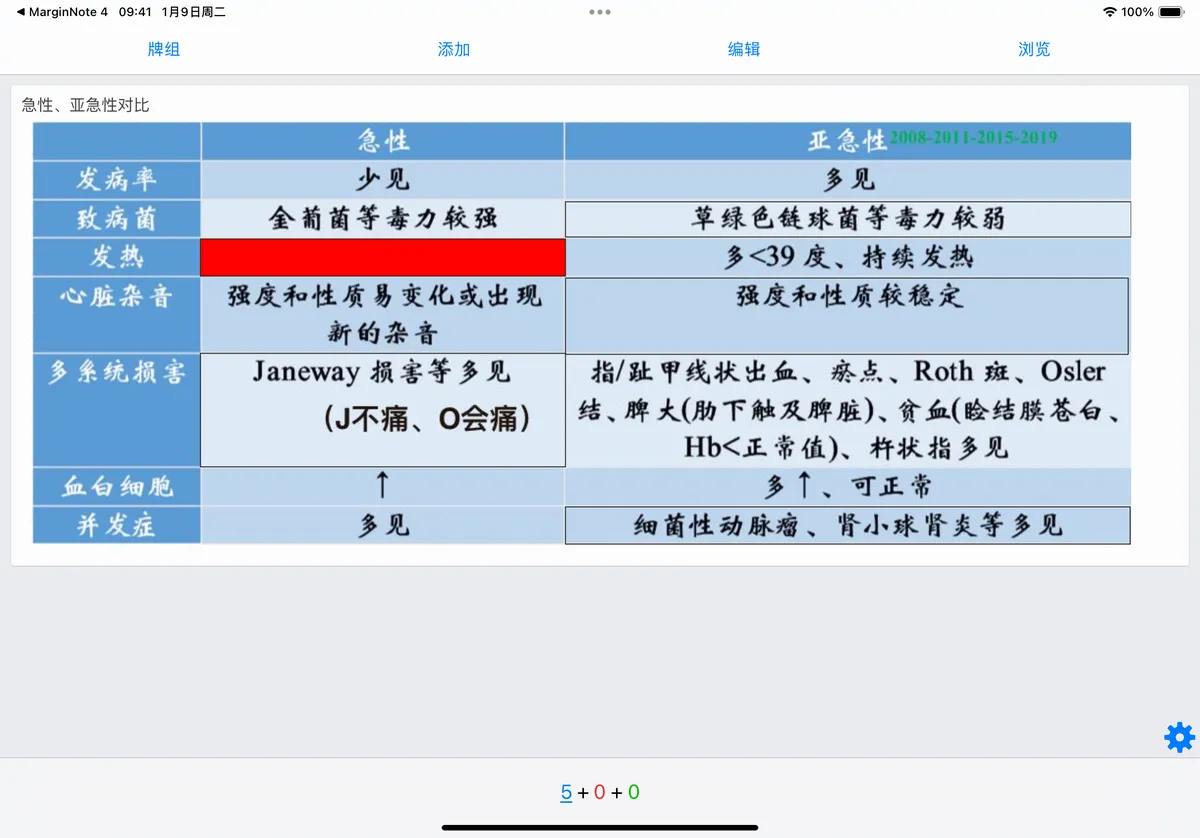
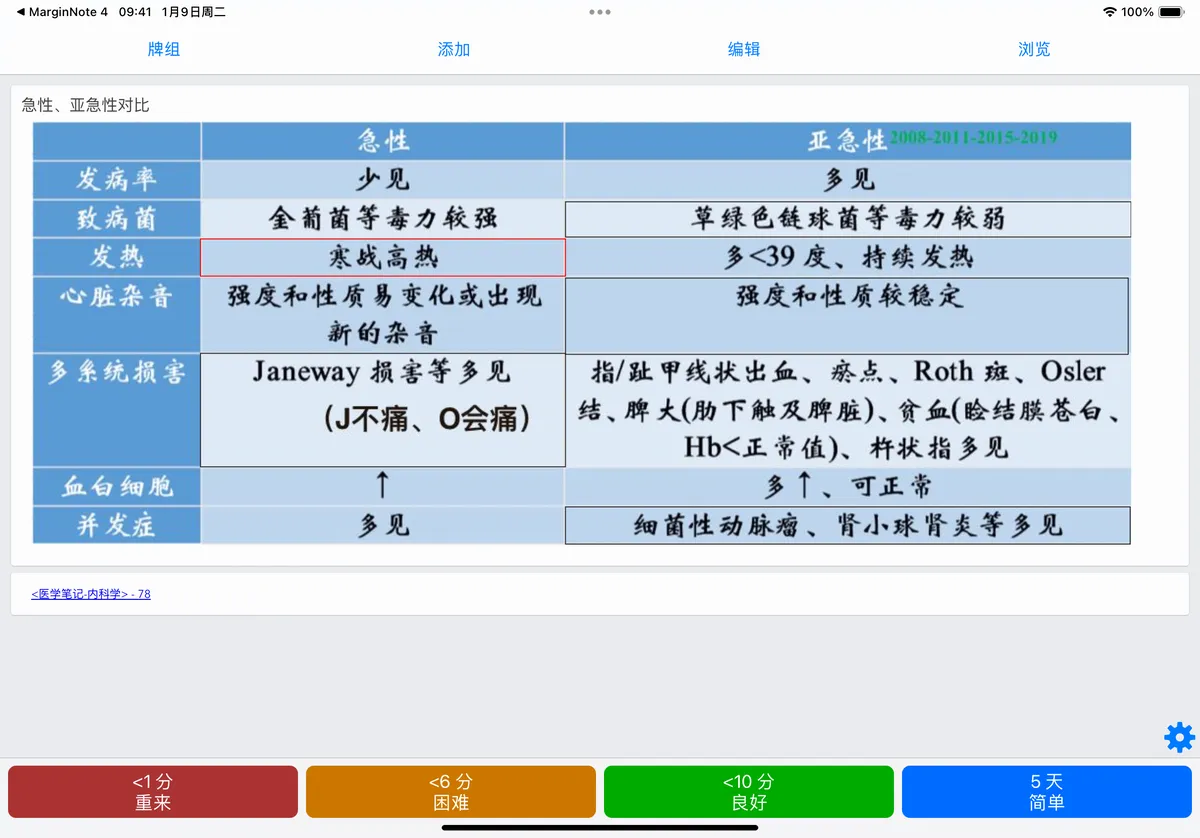
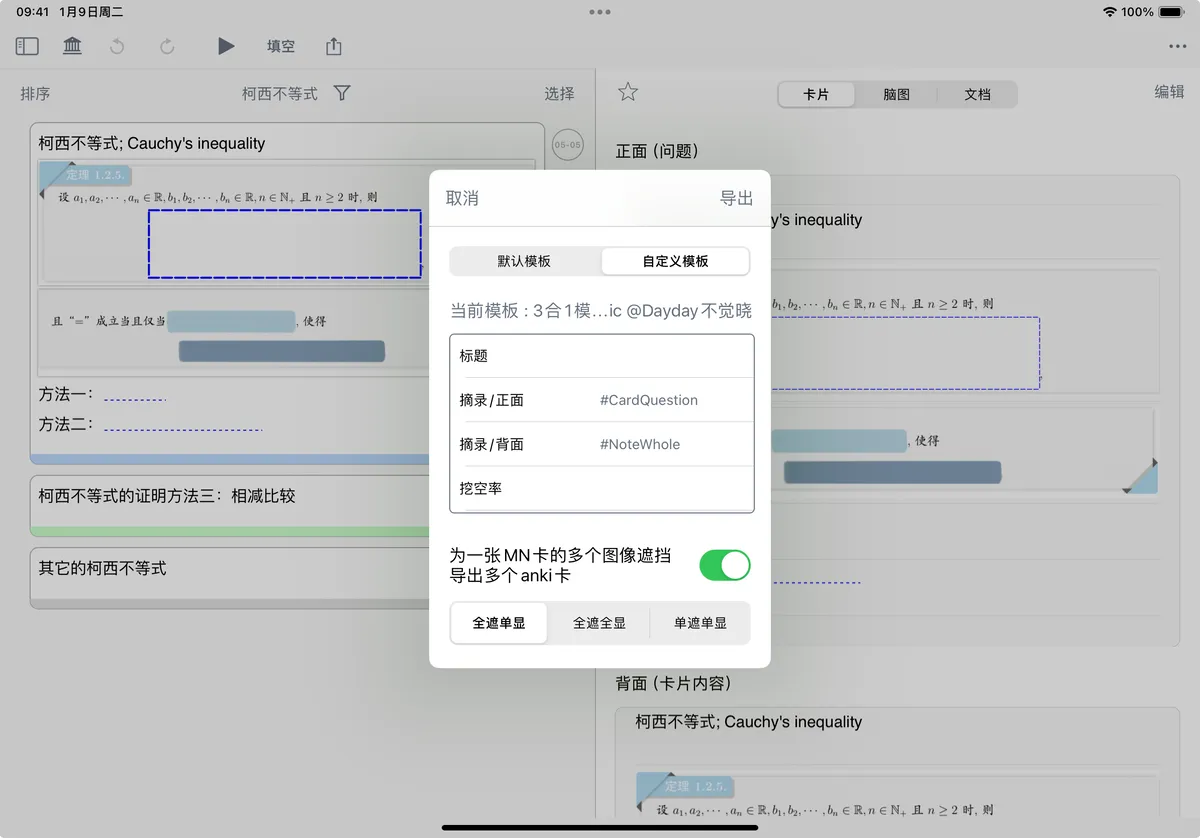
Export Multiple Anki Cards for Multiple Image Clozes on One MN Card
Hide all, reveal one
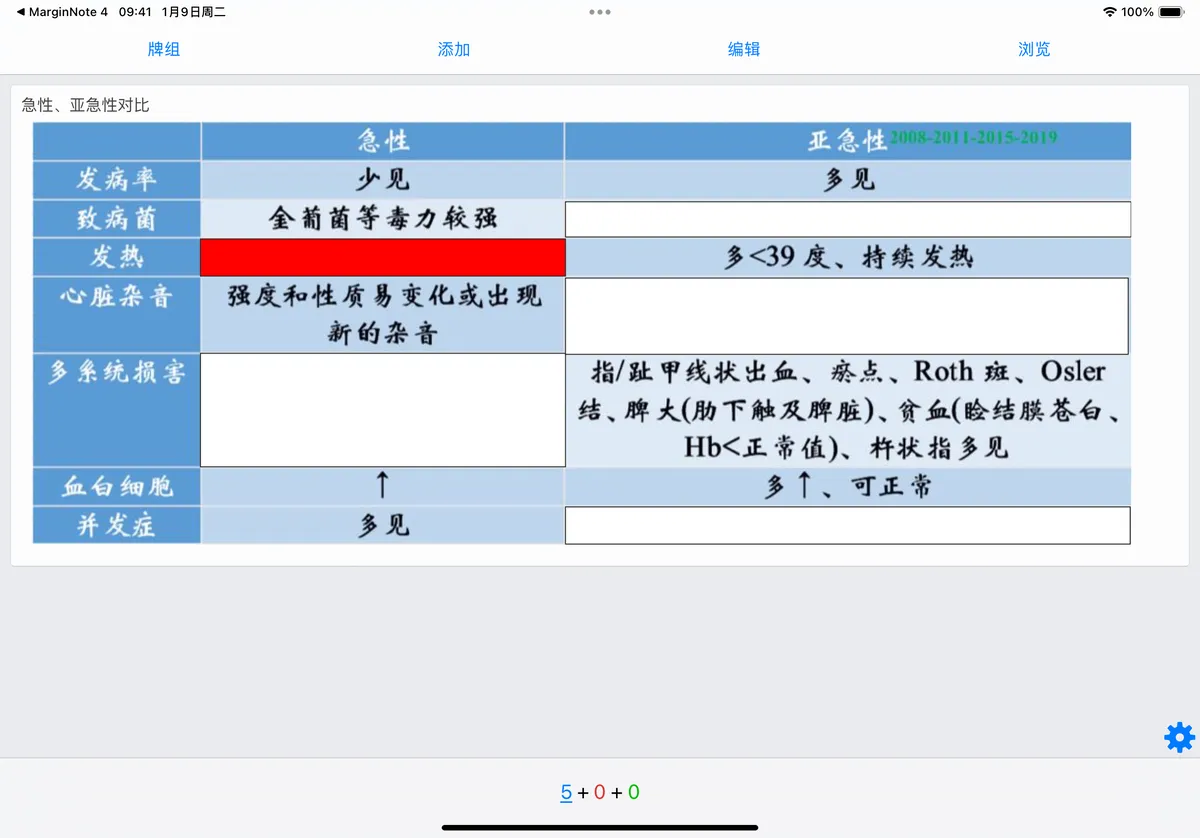
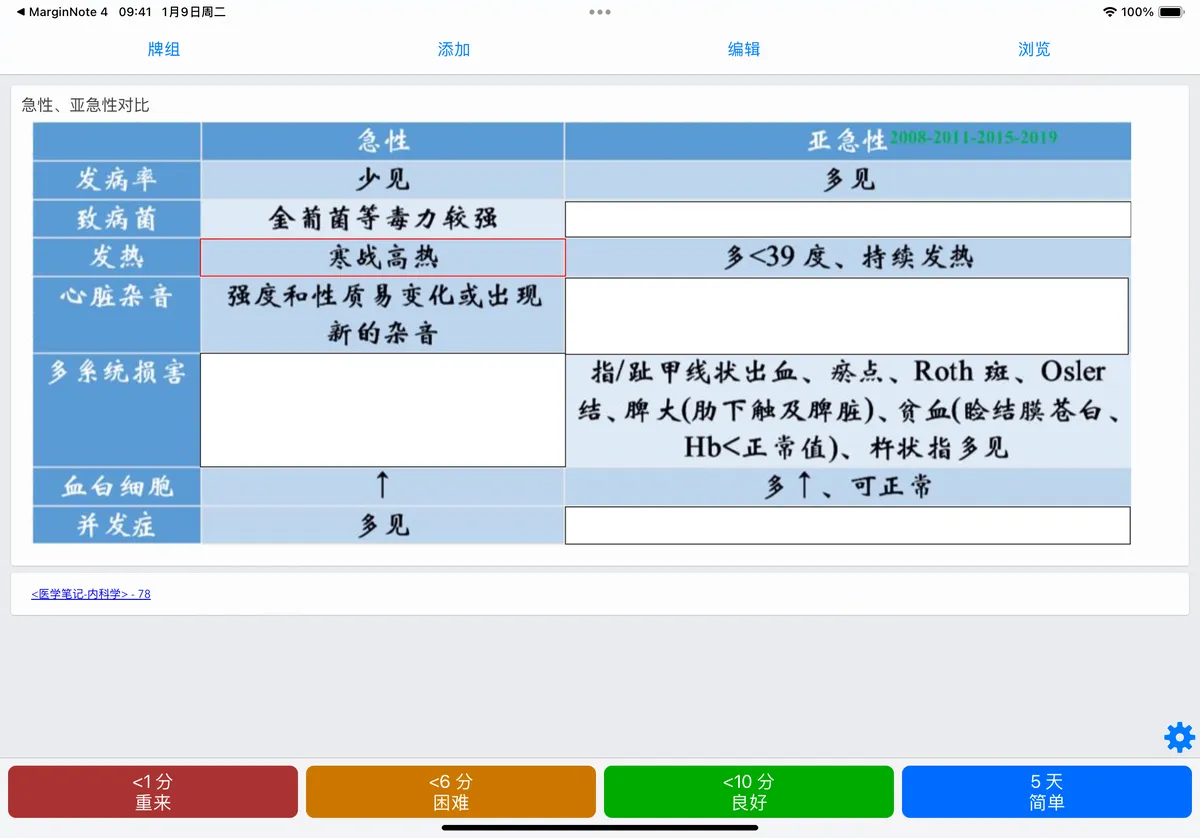
Hide all, reveal all
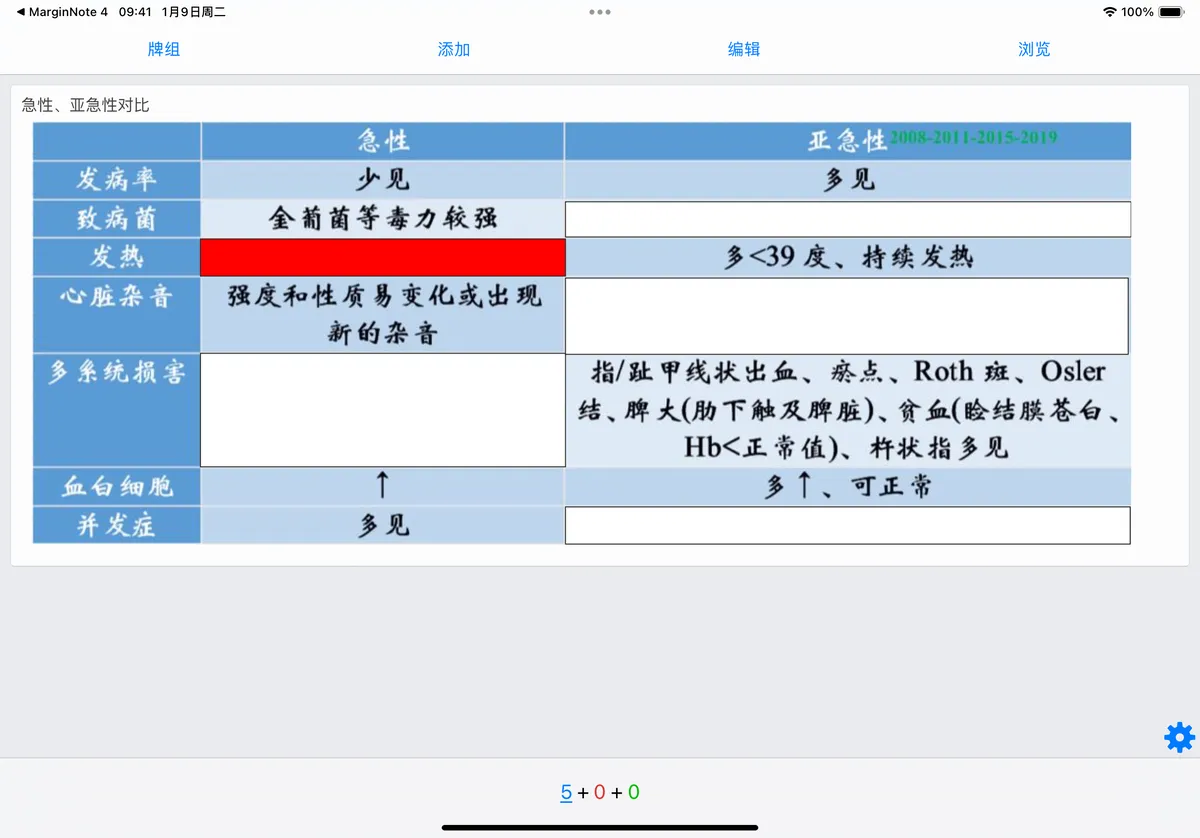
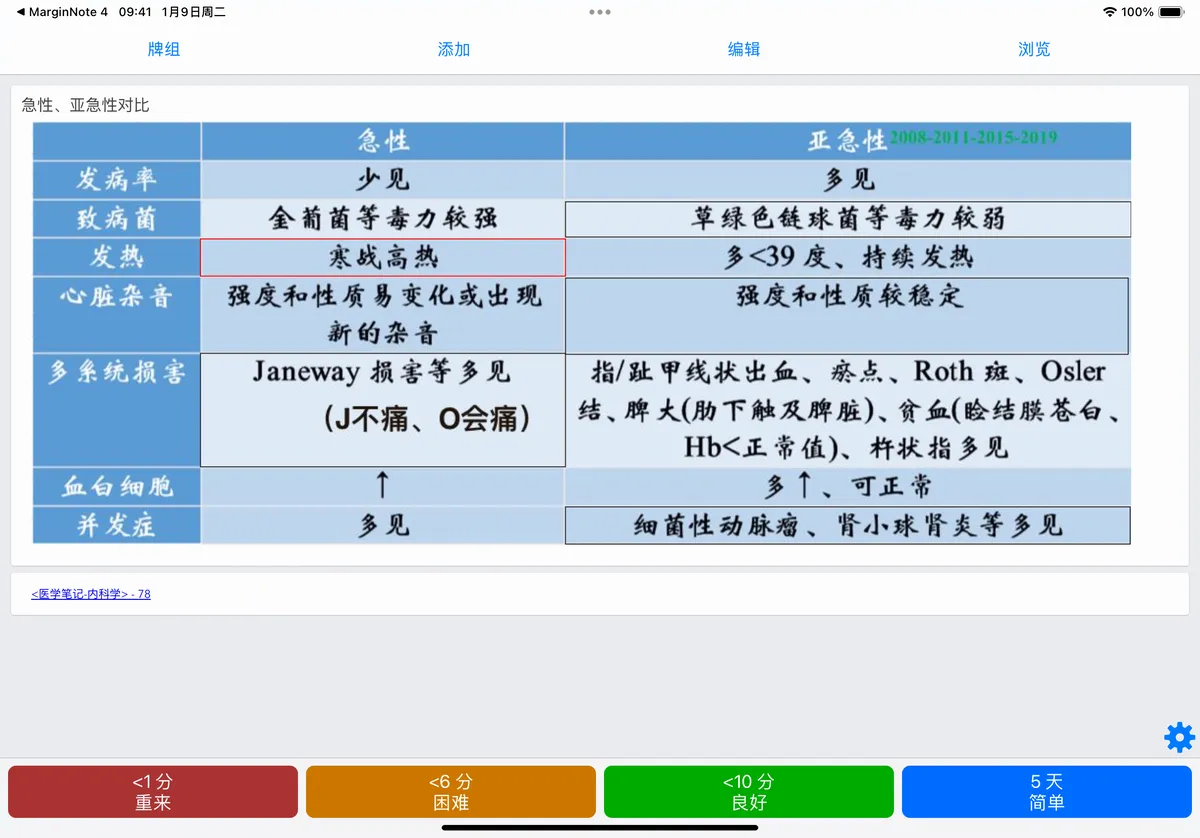
Hide one, reveal one
4 Exporting: Using a "Custom Template"
-
What each note card data field means
MarginNote Card Data Field Meaning MarginNote card front (question) #CardQuestion The front of the card MarginNote card back (notes) #NoteWhole The back of the card (i.e. all notes on the card) Card title section #NoteTitle The card's title Card excerpt section #NoteExcerpt The card's excerpt (a sourced note excerpted from the document) Card comment section #NoteComment The card's comments (including tags and voice comments) Remark (for search) #Remark All text content on the card (including OCR results), so it can be searched in Anki MarginNote backlink #MNLink This link jumps to the card's location in the MarginNote mind map Child node links #MapLink The card's child nodes, which can generate image previews in Anki -
Detailed illustration of note card data
-
Front (question) and back (card content)
-
MarginNote card front (question)
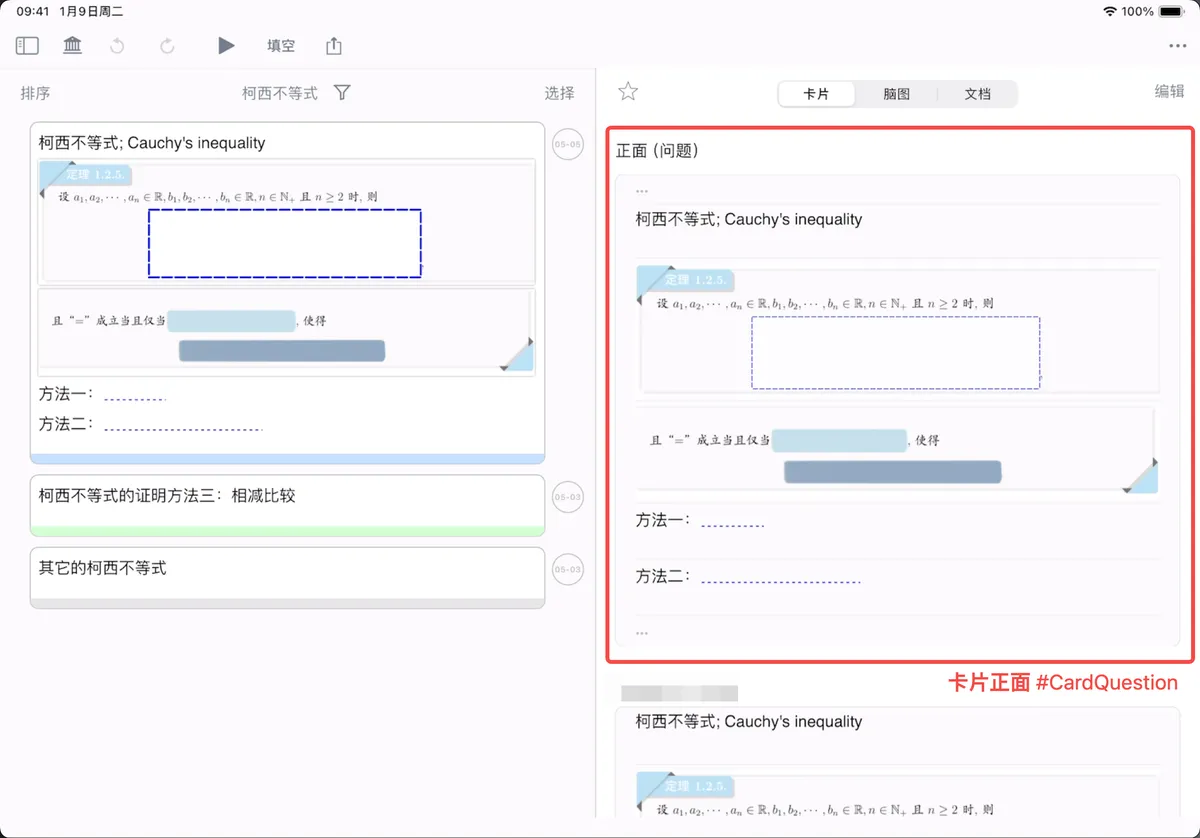
-
MarginNote card back (notes)
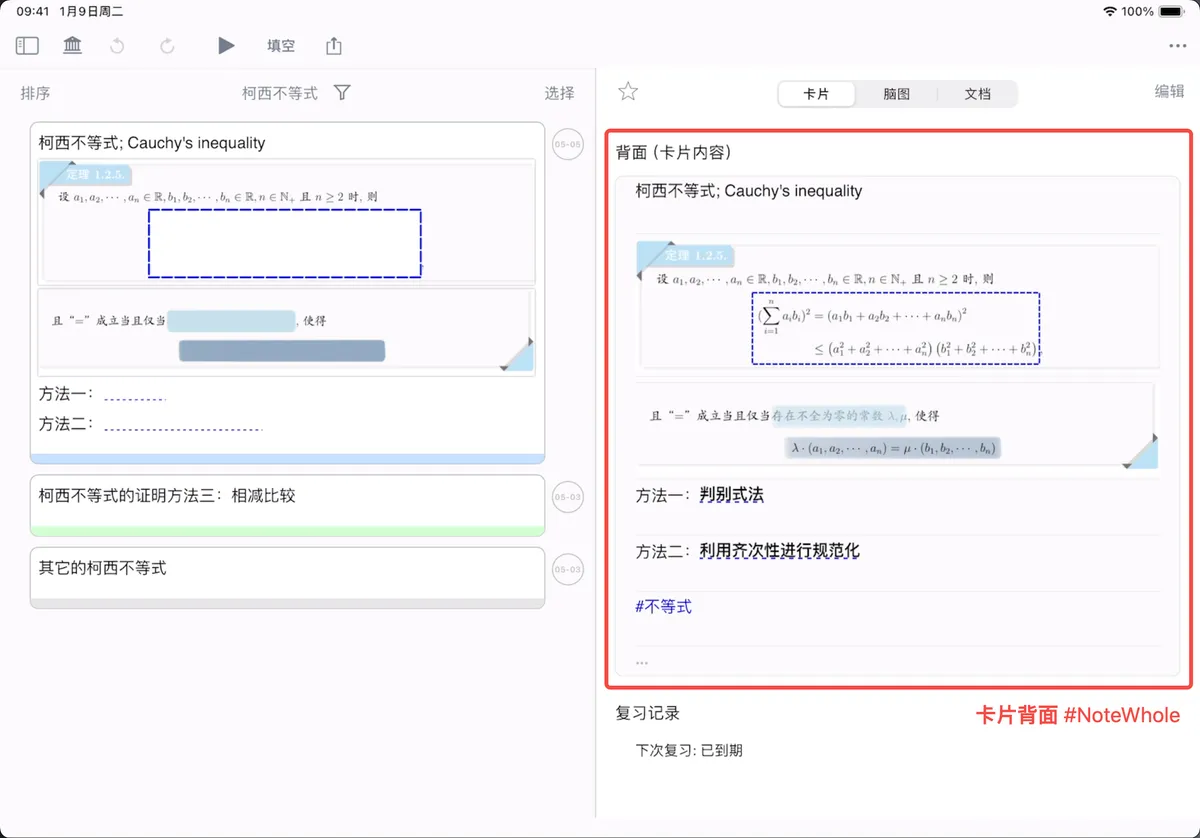
-
-
The card's title, excerpt, and comments
-
Card title section
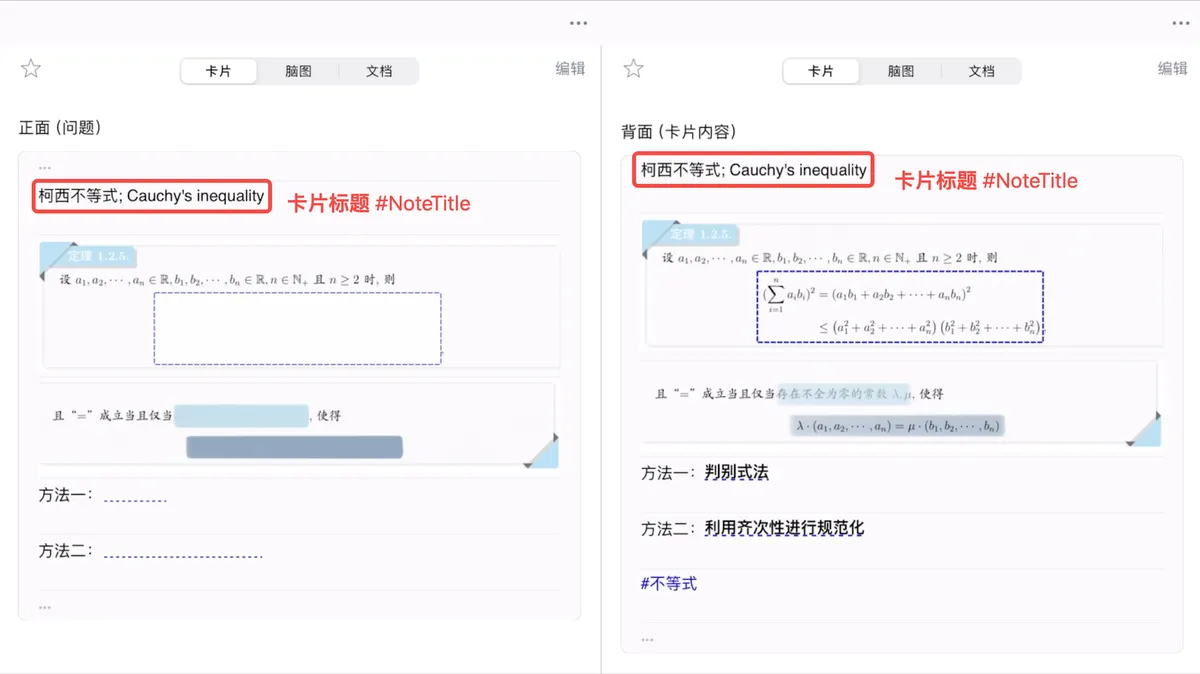
💡 When a card has no title, its first excerpt is treated as the card's title.
-
Card excerpt section
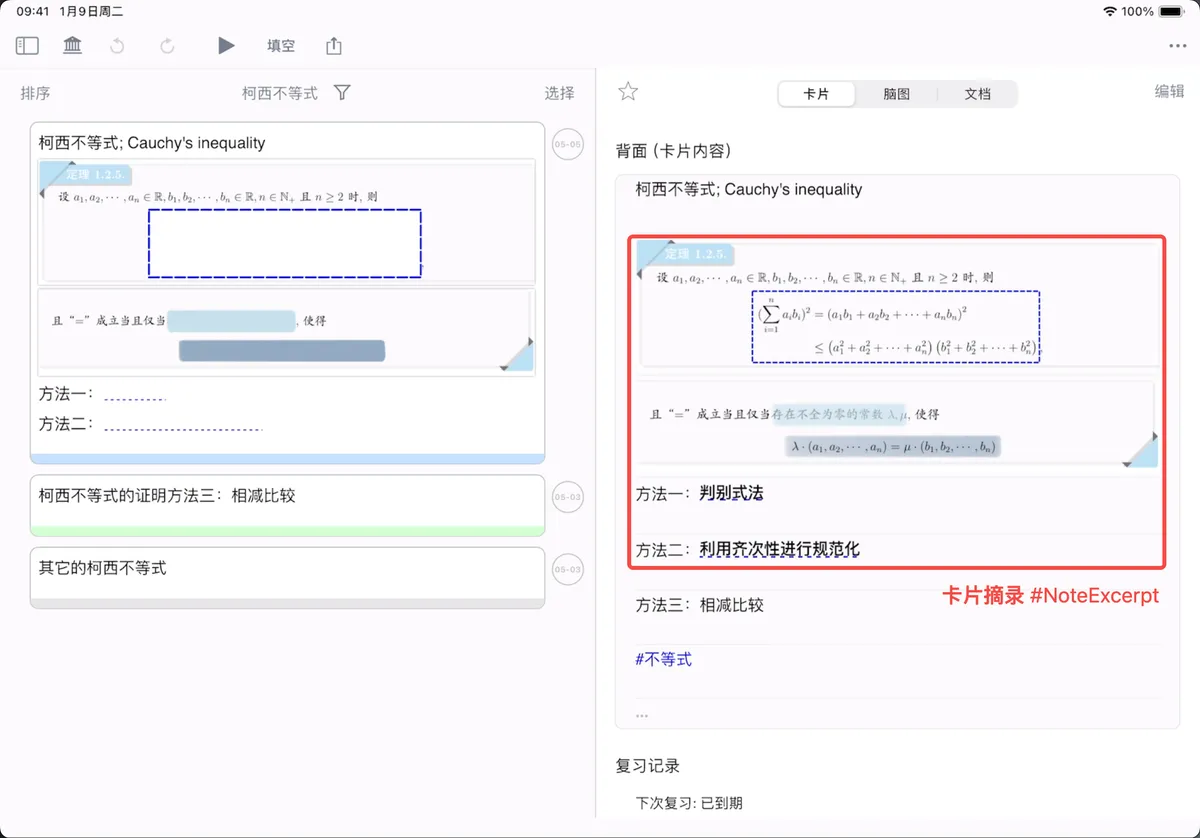
-
Card comment section
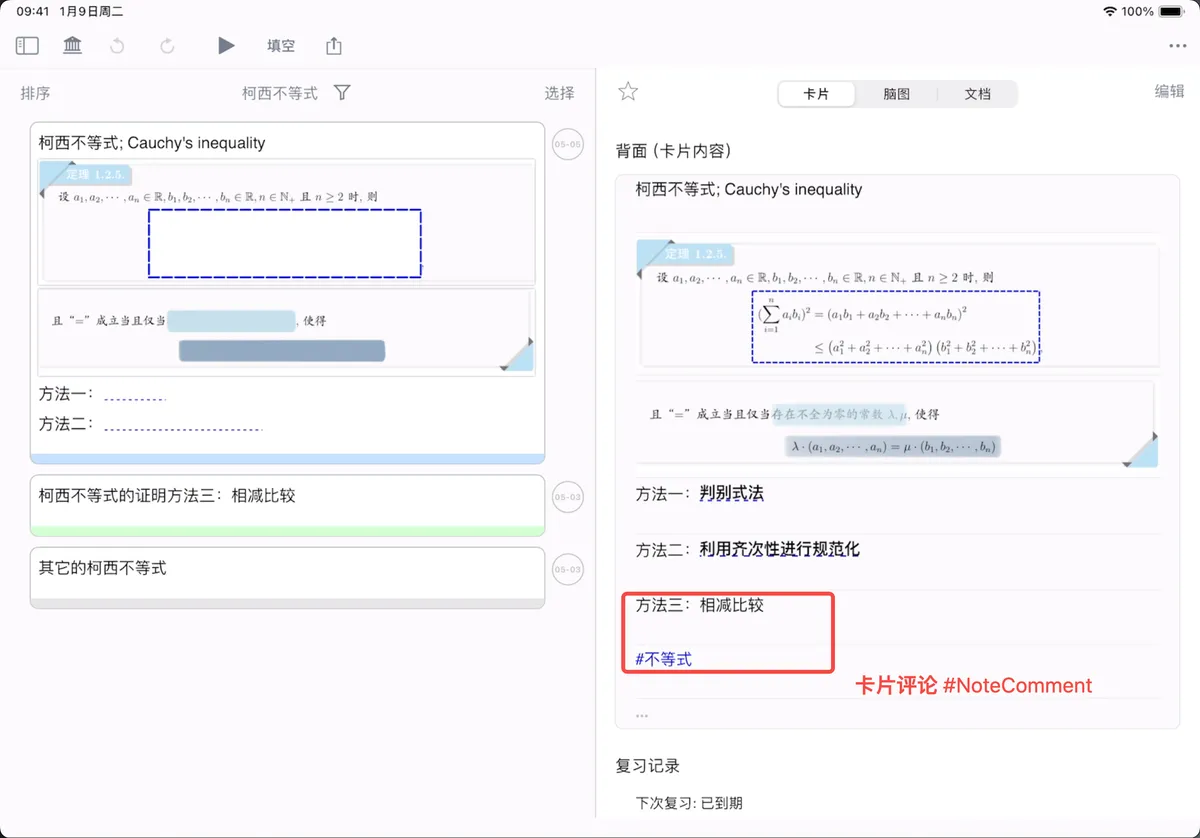
💡 Tags also count as part of the comment section.
-
-
💡 To achieve recall-based review, the "cloze/cloze/emphasize" on a card must be placed on the front of the card. (Content is pulled from the back of the card to serve as the question on the front of the flashcard.)
4.1 How to Use a Custom Template?
-
Steps for using a custom template (using the "Basic 3in1 template" as an example)
- First, save the "Basic 3in1 template" to "Local Files"
-
When exporting, switch to "Custom Template" → tap "Select Template ( *.apkg)" → choose the custom template you saved to "Local Files"
-

From the field list, select the MarginNote card data you want and map it to the Anki fields
-

Select Anki → tap "Import" in the top-right corner
💡 If you want to use the "Export Link to MarginNote", "Export Child Links as Images", or "Export Voice Comments" note data in a custom template, you must first check the corresponding export options during the default-template step in order to export them!
4.2 Downloading Custom Templates
-
MN3 xiamu template
-
Basic 3in1 template
【basic 3in1 | Random reset, Markdown cloze, keyboard shortcuts, read-aloud | All-in-one template optimization-Bilibili】
-
Type 3in1 template
【type 3in1 | Shortcuts/plugin | {{type:cloze:字段}} | All-in-one template optimization-Bilibili】
-
Word pronunciation template
【Anki auto-pronunciation template | MarginNote card creation | universal for iOS / Android / PC-Bilibili】
4.3 Creating Different Types of Anki Cards
-
Word-selection card creation
-
Forum tutorial
-
【[Beta] OhMyMN plugin v4.0.13 | MarginNote3 Word-selection card creation | AutoComplete+AutoTranslate | Anki template-Bilibili】
-
-
Phrase card creation
【MarginNote3 Phrase card creation~ a beginner-friendly tutorial~ OhMyMN plugin~-Bilibili】
MarginNote3 Phrase card creation~ a beginner-friendly tutorial~ OhMyMN plugin~_Bilibili_bilibili 【OhMyMN】Download linkhttps://bbs.marginnote.cn/t/topic/20501【OhMyMN】User guide https://ohmymn.marginnote.cn/—————【Chinese first】—————AnotherAutoDef custom definition entry /(\ **[a-z]. )/i excerpt keeps only the definition entry AutoReplace custom (/[a-z '-/]+/g," *\$\&am, Views 5 https://www.bilibili.com/video/BV1B8411x7sB/?buvid=XU69945620C34231F92B351C4D695FA793D76&from_spmid=dt.space-dt.video.0&is_story_h5=false&mid=wlce3olFiKAiEU8eyvvy5Q%3D%3D&p=1&plat_id=116&share_from=ugc&share_medium=android&share_plat=android&share_session_id=2c842125-803b-4fee-9046-f886b146055f&share_source=COPY&share_tag=s_i&spmid=united.player-video-detail.0.0×tamp=1714733725&unique_k=qfHtBdq&up_id=233956865
-
Multiple-choice card creation
-
【Using the OhMyMN plugin | Creating multiple-choice questions | MarginNote3-Bilibili】
-
Forum tutorial
-