MindMap Handwriting Follow-Along Binding
💡Feature overview for this page:

- How to enable automatic binding: quickly annotate near the selected card (fastest) — handwriting written on a card is linked to that card, and when you move the card, the handwriting moves with it.
- Binding methods: automatic binding (quickly annotate near the selected card, fastest), manual binding, and Focus binding (concentrate on a specific knowledge point for in-depth annotation).
- Visibility and management: unbind, hide/unhide, and erase.
This page is for the following users:
- You already use the mind map and are in the habit of writing annotations.
- You frequently write directly on different cards and want the system to automatically switch the selection and complete the binding for you.
- You need to focus your annotations on a specific knowledge point.
1 MindMap Handwriting Follow-Along Binding overview
- A mind map card with bound handwriting shows a handwriting icon in its upper-left corner.
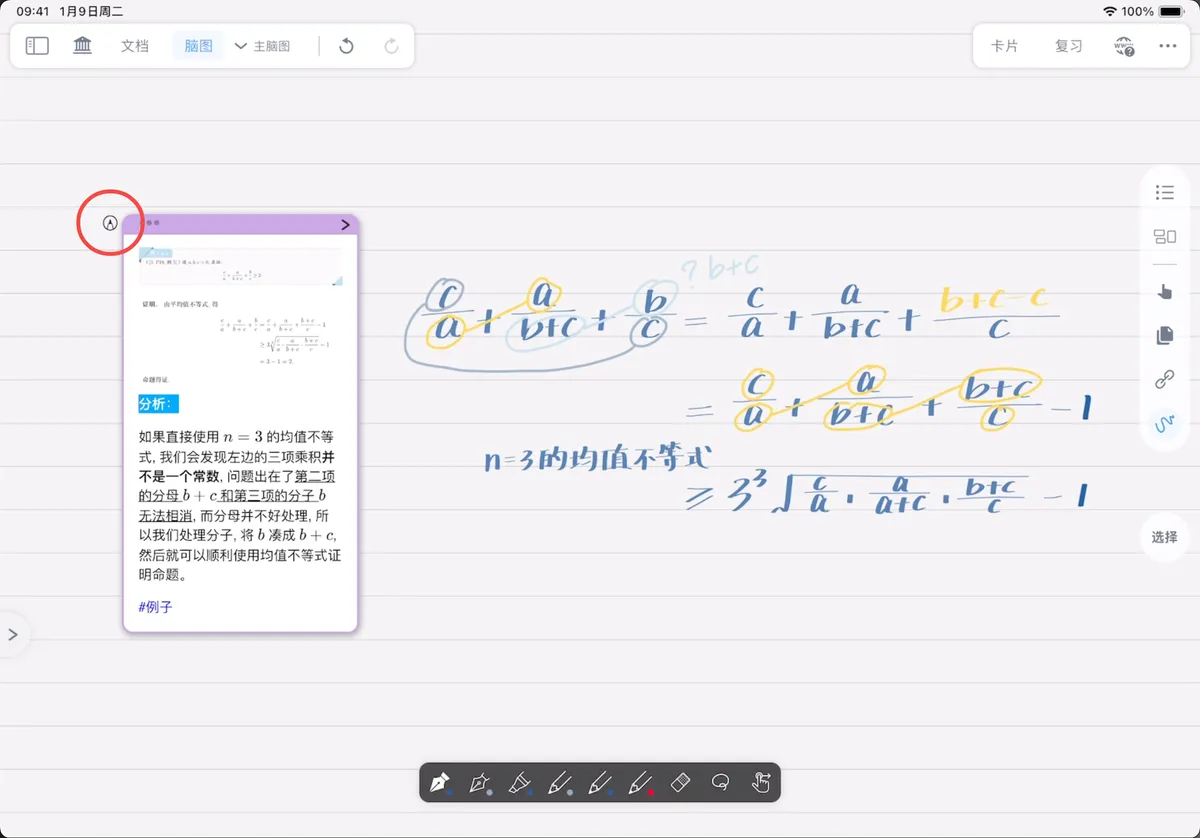
- Once handwriting is bound to a selected card, it moves flexibly along with the card.
2 Automatic binding: quickly annotate near the selected card (fastest)
💡Best for scenarios where you need to tightly associate handwritten formulas, diagrams, notes, etc. with a knowledge point/node.
MindMap Handwriting tool
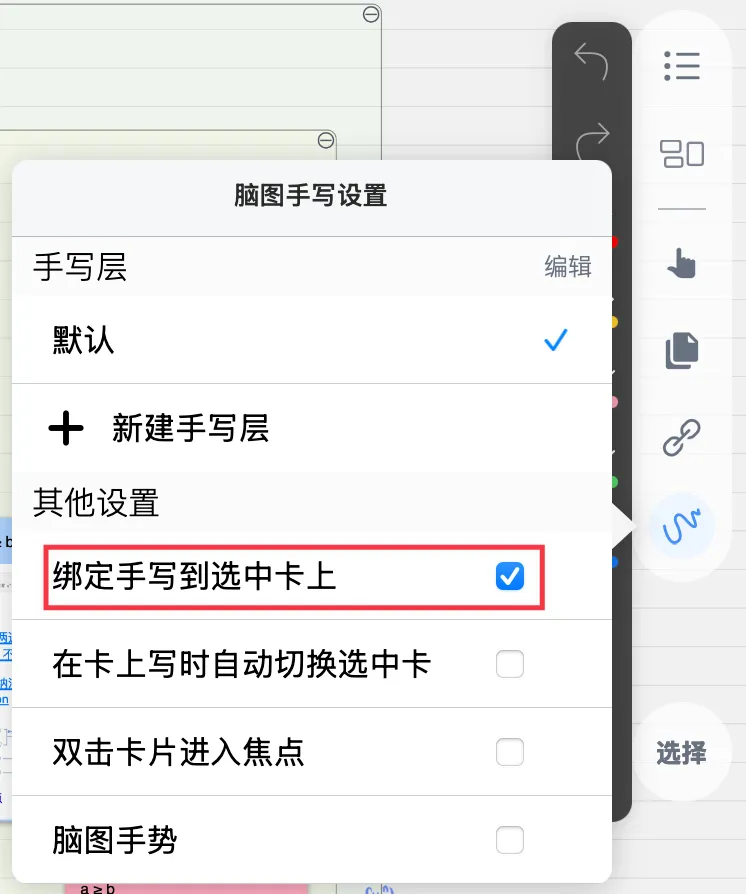
- Tap
MindMap Handwriting tool(shown by the icon above) to open theMindMap Handwriting Settingspanel; - Turn on
Bind Handwriting to the selected card; - Select a card and write directly in the card area.

💡The handwriting is automatically bound to the selected card and moves with it.
2.1 Write directly on any card without switching the selection
💡Best for: frequently switching between multiple cards while writing.
MindMap Handwriting tool
- Open the
MindMap Handwriting Settingspanel; - Turn on
Bind Handwriting to the selected card; - Turn on
Auto Switch the selected card when writing on the card; - Write in any card area.
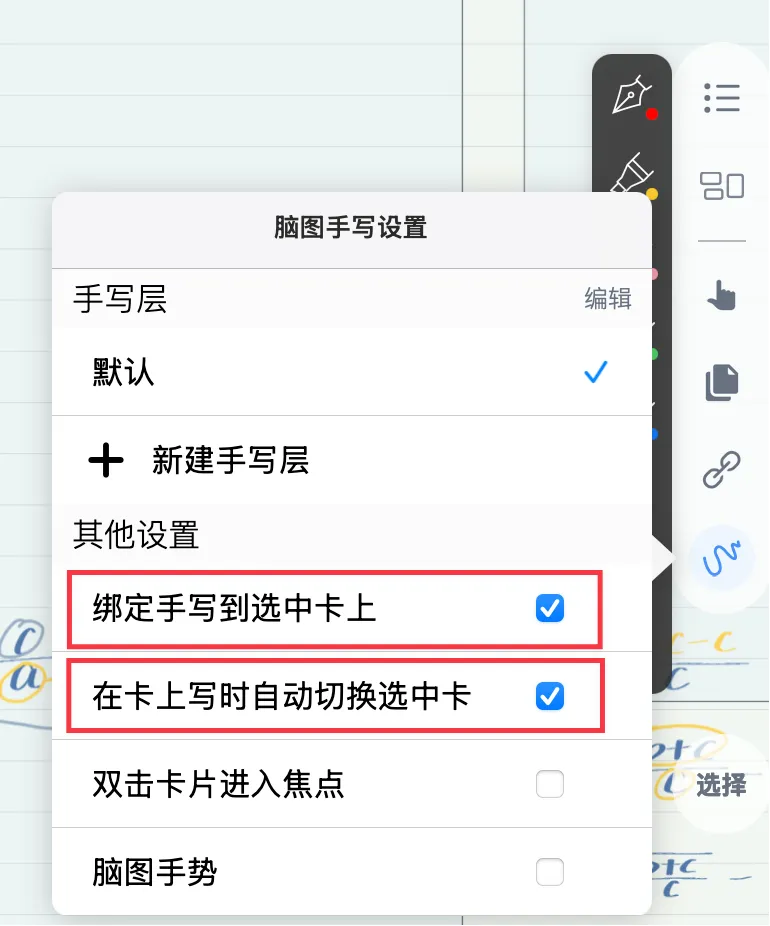

💡This automatically sets that card as selected and binds the handwriting to it.
3 Focus binding: concentrate on a specific knowledge point for in-depth annotation
💡Best for: thematic organization and step-by-step reasoning.
3.1 Entering Focus
There are two ways to enter Focus:
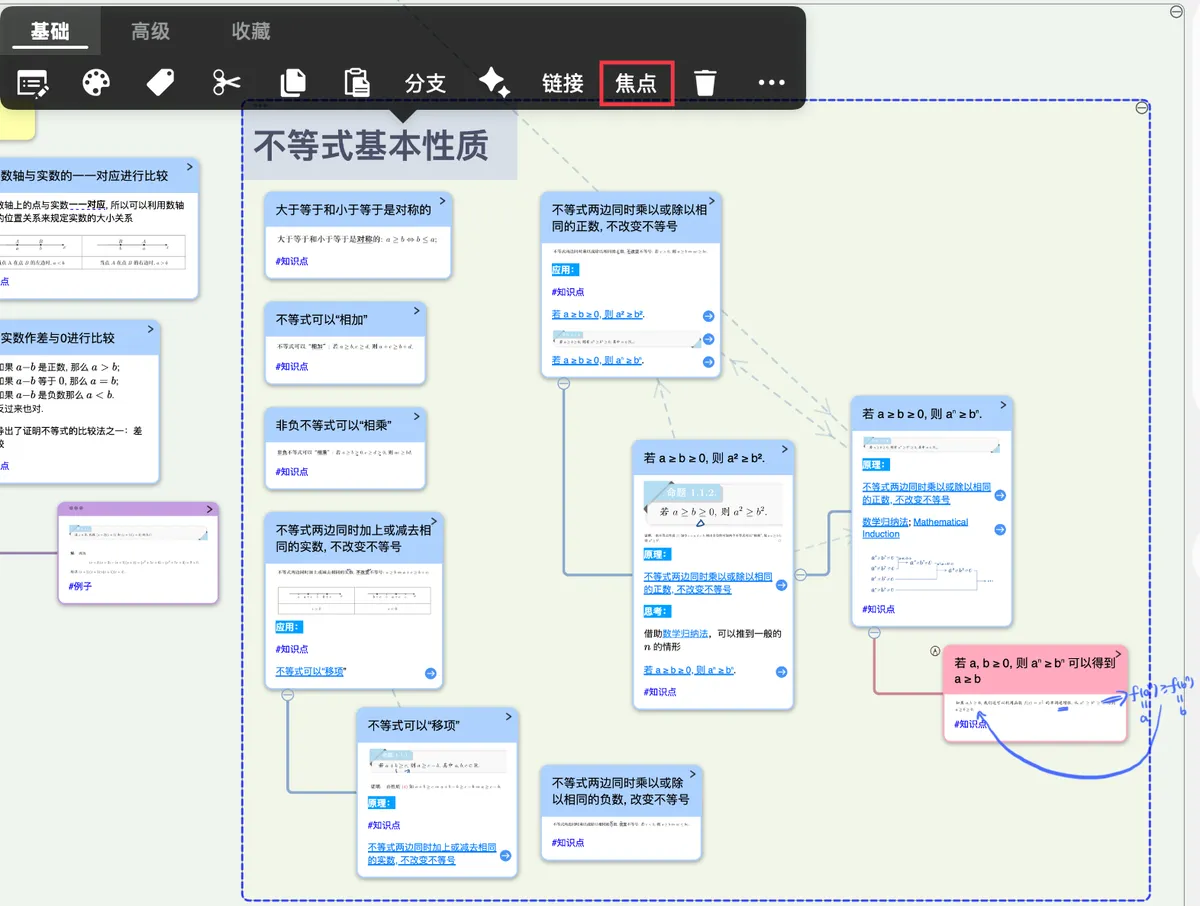
Method 1: Select a card, then on the pop-up menu, choose basic - Focus.

Method 2: In the MindMap Handwriting Settings panel, turn on Double Tap the Card to Enter the Focus, then double-tap a card to quickly enter Focus.
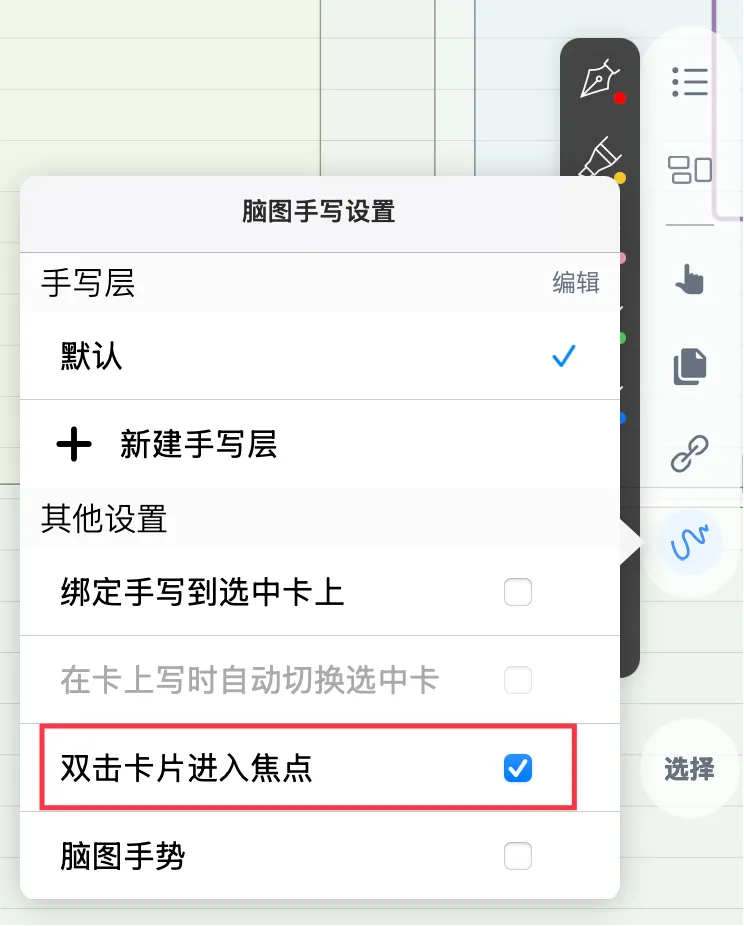

💡All handwriting created within Focus is automatically bound to the focused card.
Exit Focus
There are two ways to exit Focus:
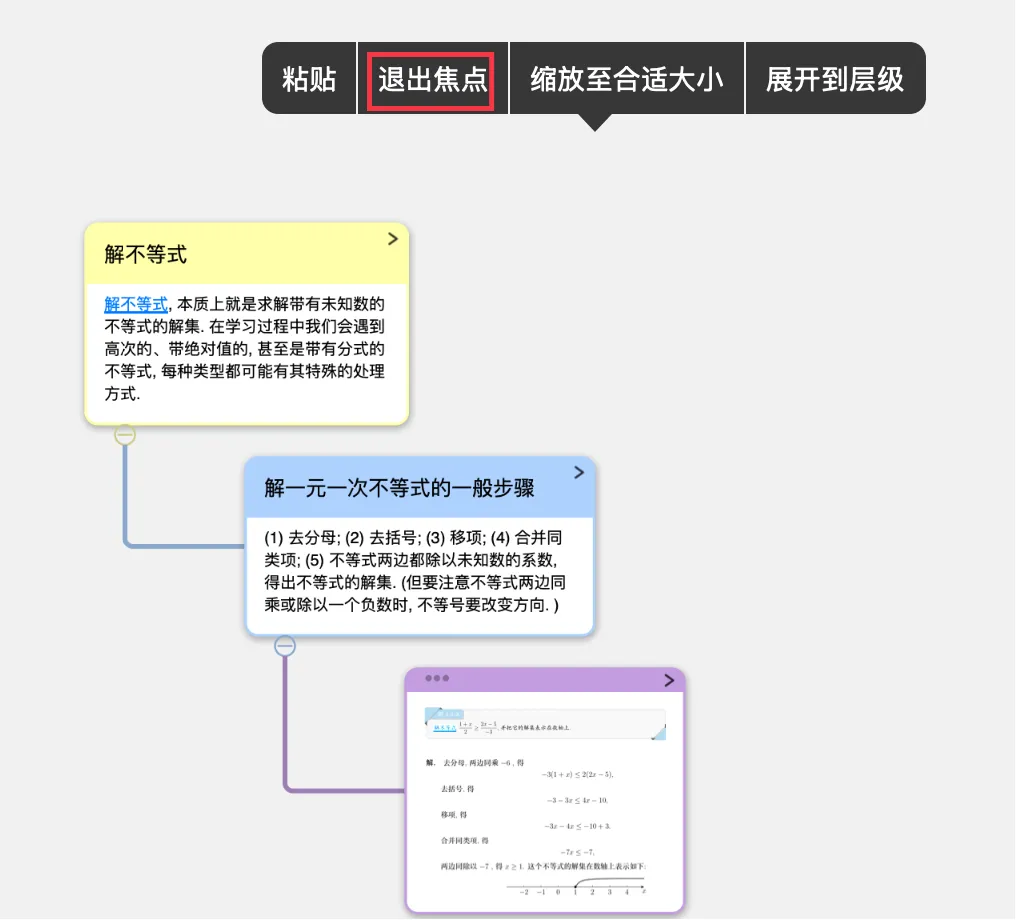
Method 1: Tap a blank area of the mind map, then on the pop-up menu, choose Exit Focus.

Method 2: Double-tap a blank area of the mind map to Exit Focus.

3.2.1 Optional: automatically hide handwriting created in the focus after exiting
💡Best for: viewing detailed handwriting only when you enter that topic.
Tap Home → Settings → Handwriting → turn on Hide handwriting created in the focus.
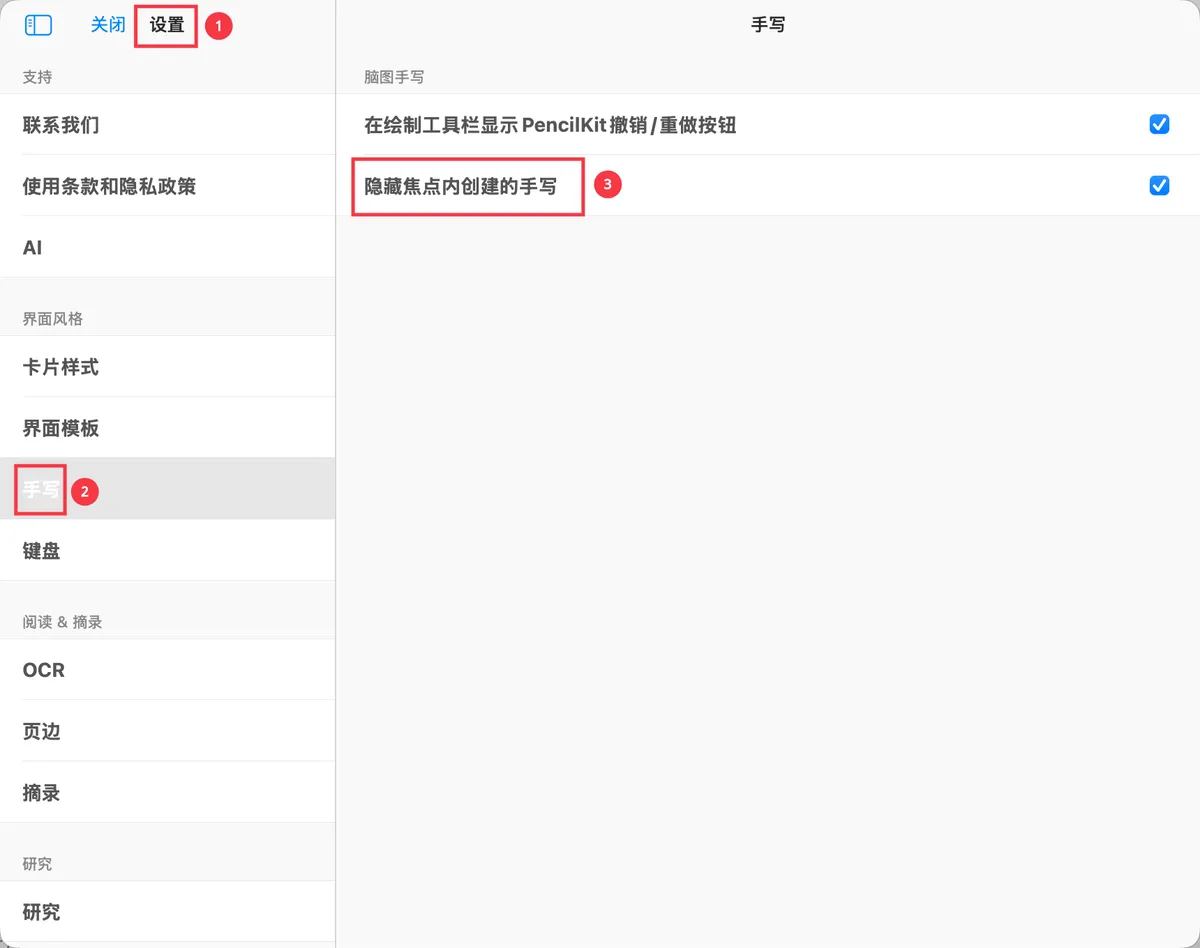
Now, MindMap Handwriting created within Focus is automatically hidden after you exit Focus.

4 Manual binding
💡For organizing existing handwriting.
Hand tool - Mind Map
-
Select the
hand tooland box-select the handwritten annotations;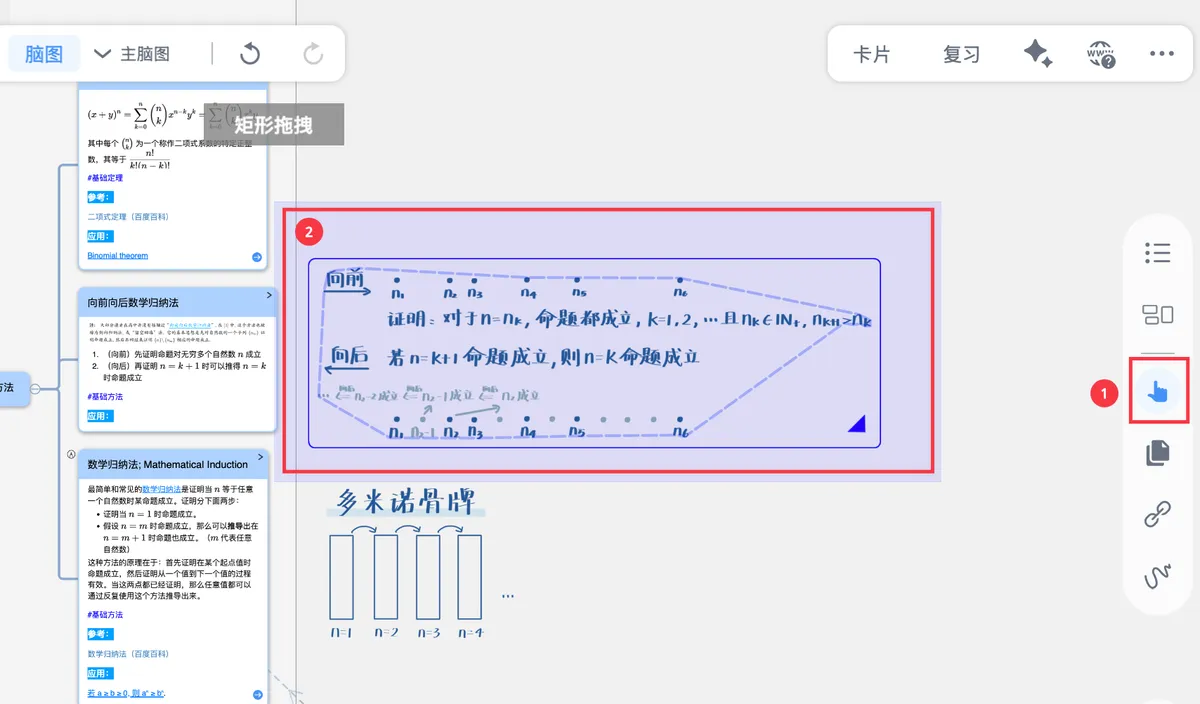
-
On the
pop-up menu, chooseBind to card;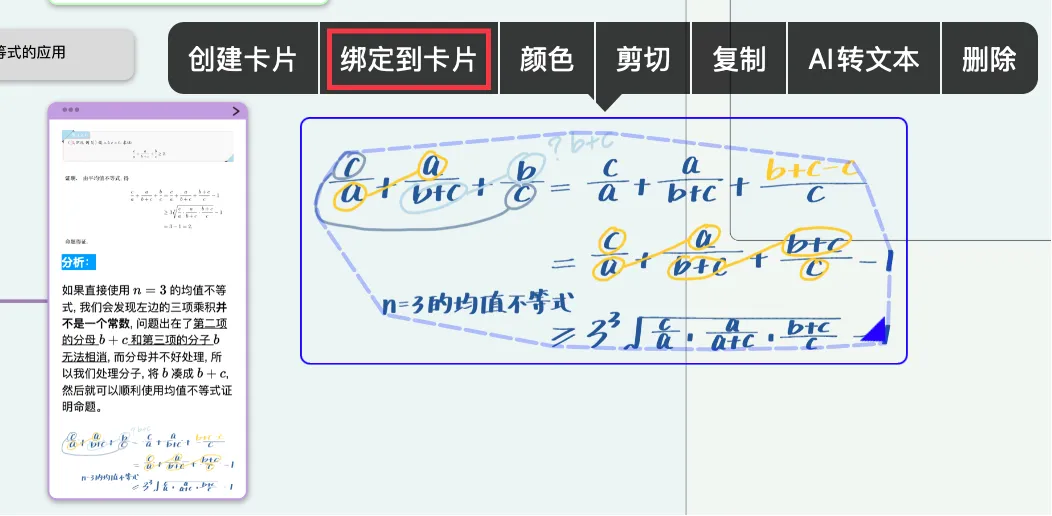
-
Drag the link ball
🔗icon onto the card you want to bind to, and the MindMap Handwriting binding is completed manually.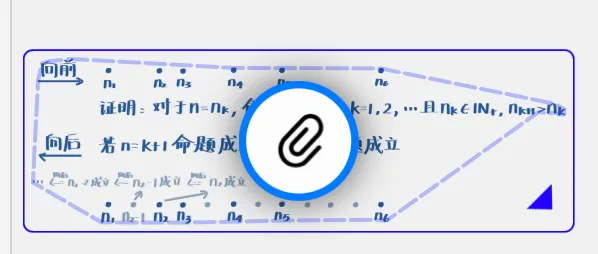

4.1 Unbind
-
Select the handwriting area;
-
On the
pop-up menu, chooseUnbind.
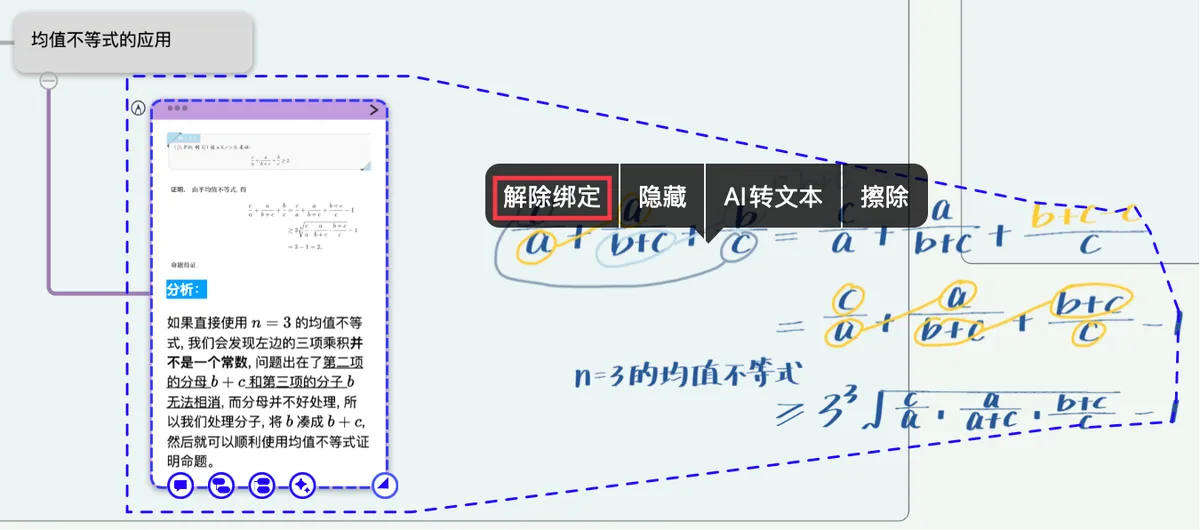

💡Now, when you move the card, the handwriting no longer follows it.
4.2 Hide/Unhide
💡Control visibility and reduce distraction
4.2.1 Hide card handwriting
- Select the handwriting area;
- On the
pop-up menu, chooseHide.
💡The handwriting is no longer shown outside Focus; when you tap the card, the bound handwriting appears semi-transparent.

4.2.2 Unhide card handwriting
- Tap the handwriting icon in the upper-right corner of a card whose handwriting is hidden;
-
On the
pop-up menu, tapUnhide.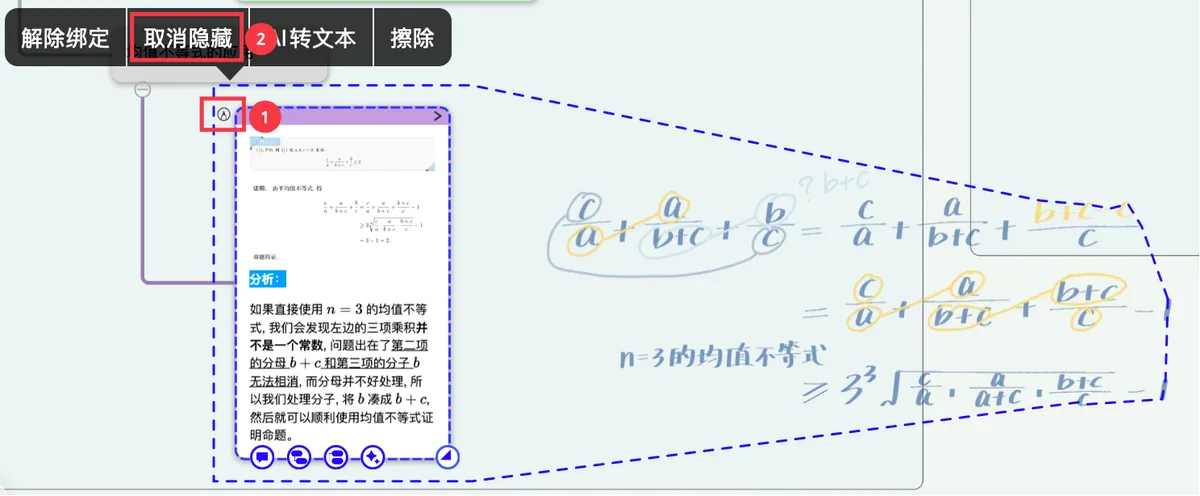
4.3 Erase
- Select the handwriting area;
-
On the
pop-up menu, chooseErase.

💡Clear all handwriting bound to the card with one tap. Best for: major content updates, outdated annotations, and reorganization.
Common questions for beginners:
-
Q1: Annotations written outside a card aren't bound automatically. How do I link them to a card?
- Use manual binding: box-select the handwriting →
Bind to card→ drag🔗onto the target card.
- Use manual binding: box-select the handwriting →
-
Q2: It looks too cluttered after binding. Can I temporarily stop showing it?
- Use Hide/Unhide to control visibility;
- Or, in
Focus mode, enable the option to automatically hide handwriting created in the focus after exiting.
-
Q3: What if I wrote on the wrong card?
- Unbind first, then use manual binding to bind it to the correct card.