Creating and Managing the Child Mind Map Hierarchy
💡Child mind maps: Organize a complex mind map into layers so the main mind map stays clean, and support focused, topic-based study.
This page covers:
- Creating a blank child mind map: for building the structure of a brand-new topic or a standalone chapter.
- Collapsing into a child mind map: when a branch grows large and needs its own space for in-depth organization, collapse it into a child mind map.
- Switching between, renaming, reordering, opening in a floating view, or deleting child mind maps in the child mind map list.
💡This page is for the following users:
- You already use mind maps and are ready to create or organize branches into separate child mind map spaces.
- You want to use child mind maps to organize complex content into layers (e.g., "chapter → section → key point").
- You want to keep your main mind map cleaner and focus on a specific topic when needed.
1 Creating a Child Mind Map
There are two ways to create a child mind map:
- Create a blank child mind map (simplest).
- Collapse a branch into a child mind map (best for existing content). Use this when the main mind map has grown large: collapse the branch into a child mind map, which leaves a special child mind map card in its original position on the main mind map.
1.1 Create a Blank Child Mind Map (Simplest)
💡For building a new topic or a blank structure.
- Open the
mind map, tapMain Mapat the top, and expand theMind Map Hierarchy. - Tap the
➕on the left to create a child mind map.
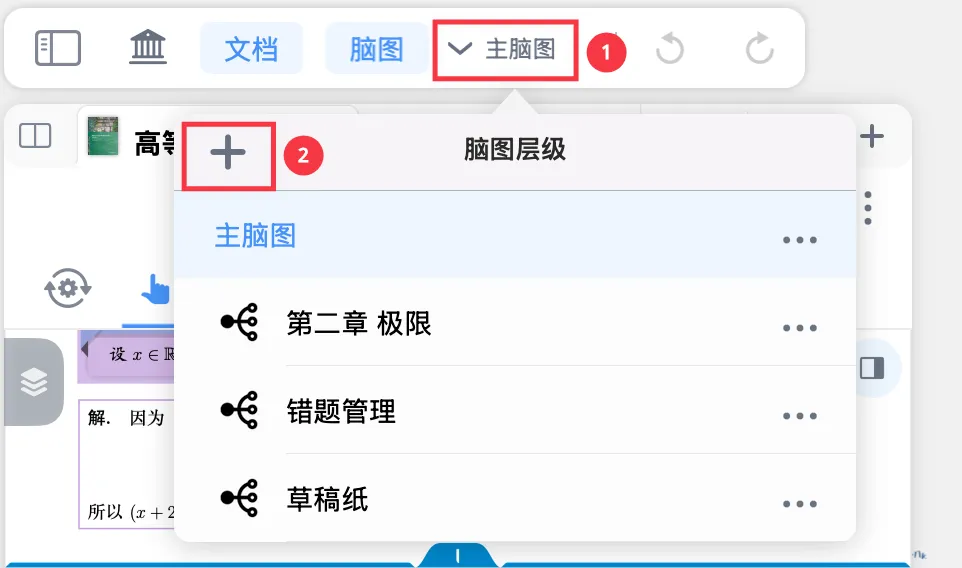
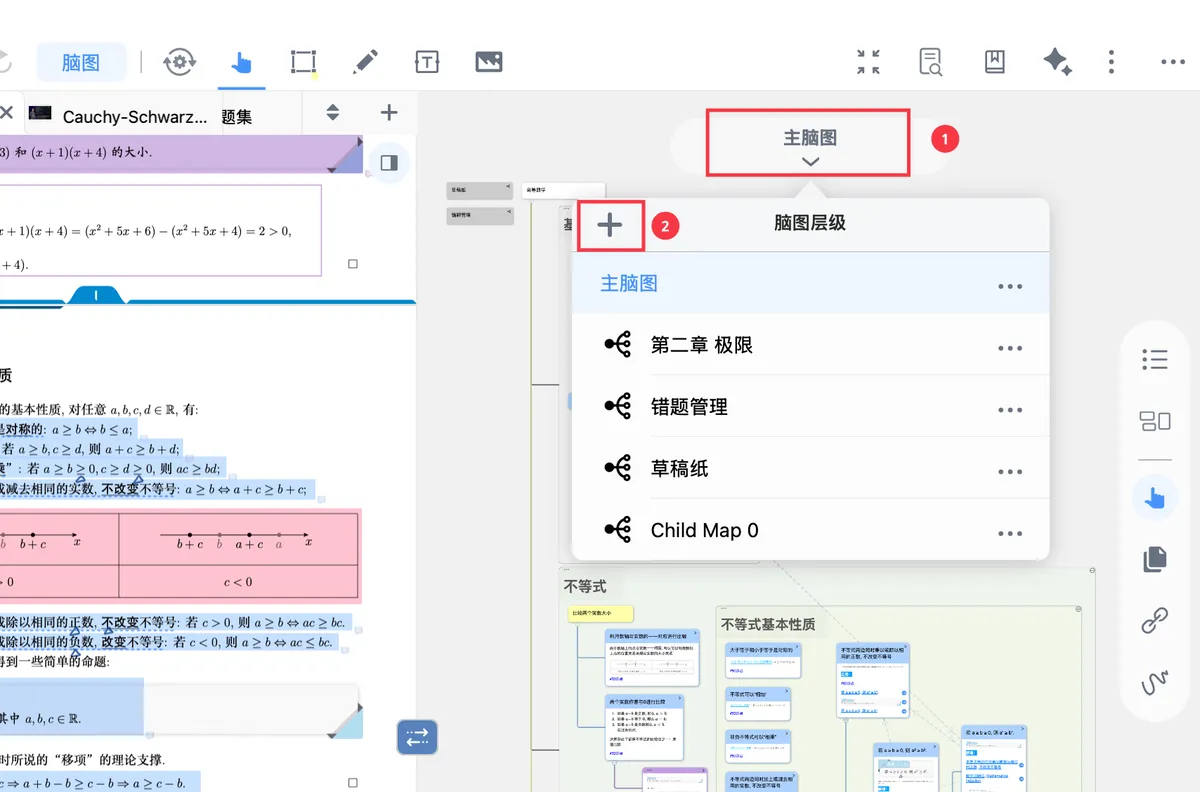

💡The child mind map is automatically named
Child Map Xand added to the bottom of the child mind map list.
1.2 Collapse a Branch into a Child Mind Map (For Existing Content)
💡Use this when a branch of the main mind map has too much content, or when you need to explore a particular topic in depth.
On the main mind map, select the card (and its child nodes) you want to break out into its own section, then tap pop-up menu → Advanced → Collapse into Child Mind Map.
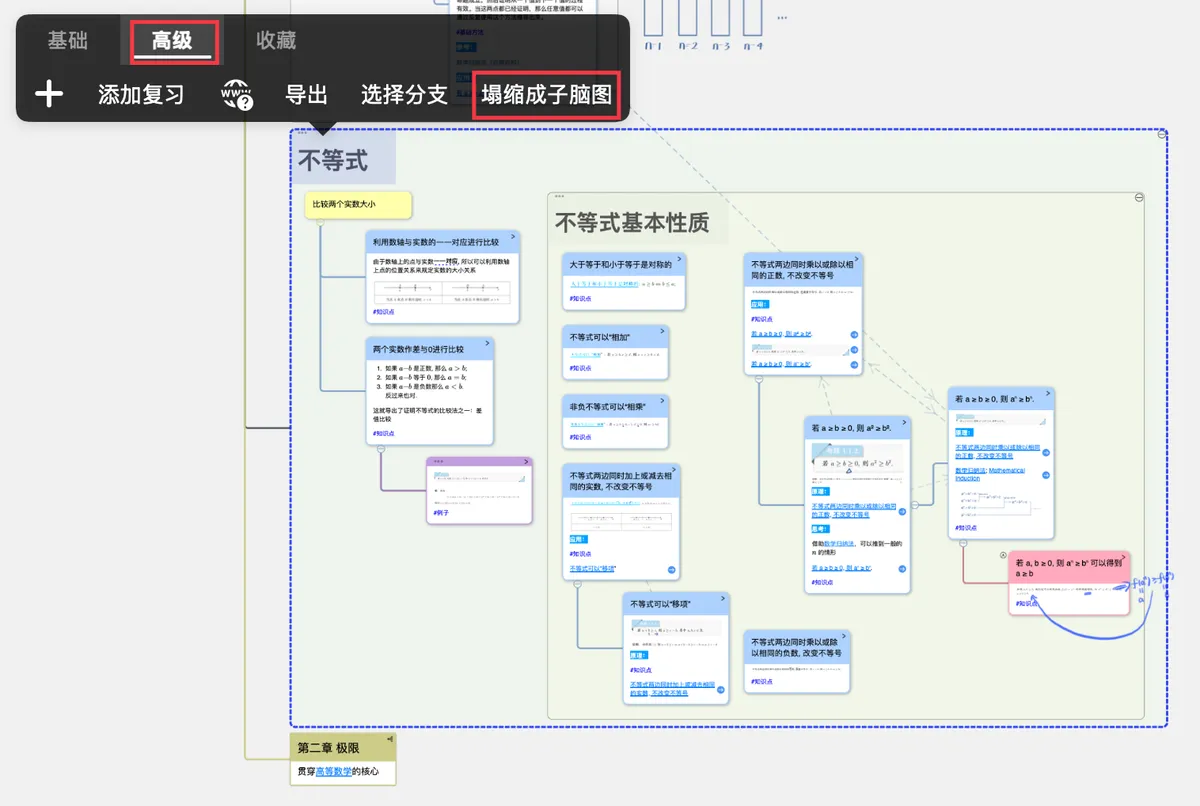
-
A


child mind map cardis left in the original position: its color darkens, and achild mind mapmarker appears in the top-right corner.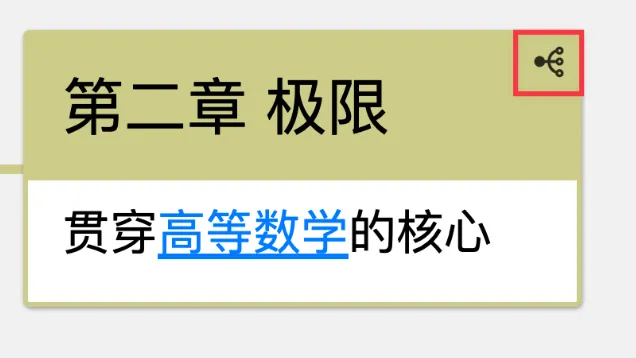
1.2.1 Working with the Collapsed Child Mind Map Card
💡Tap the child mind map card to choose
Enter Child Mind MaporExpandfrom thepop-up menu.
-

Basic-Enter Child Mind Map: go straight into that child mind map space: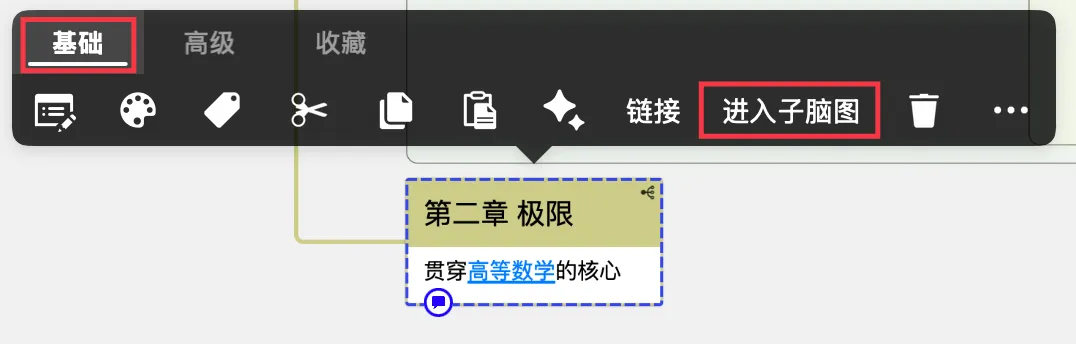
-
Advanced-Expand: expand the collapsed structure.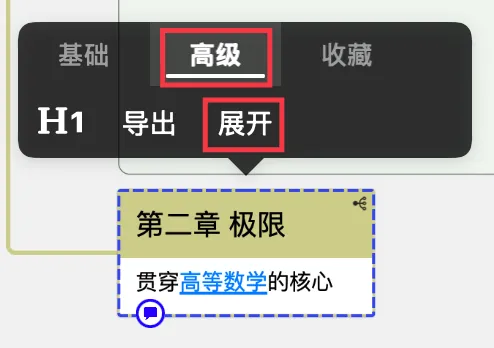
2 Switching Between Child Mind Maps
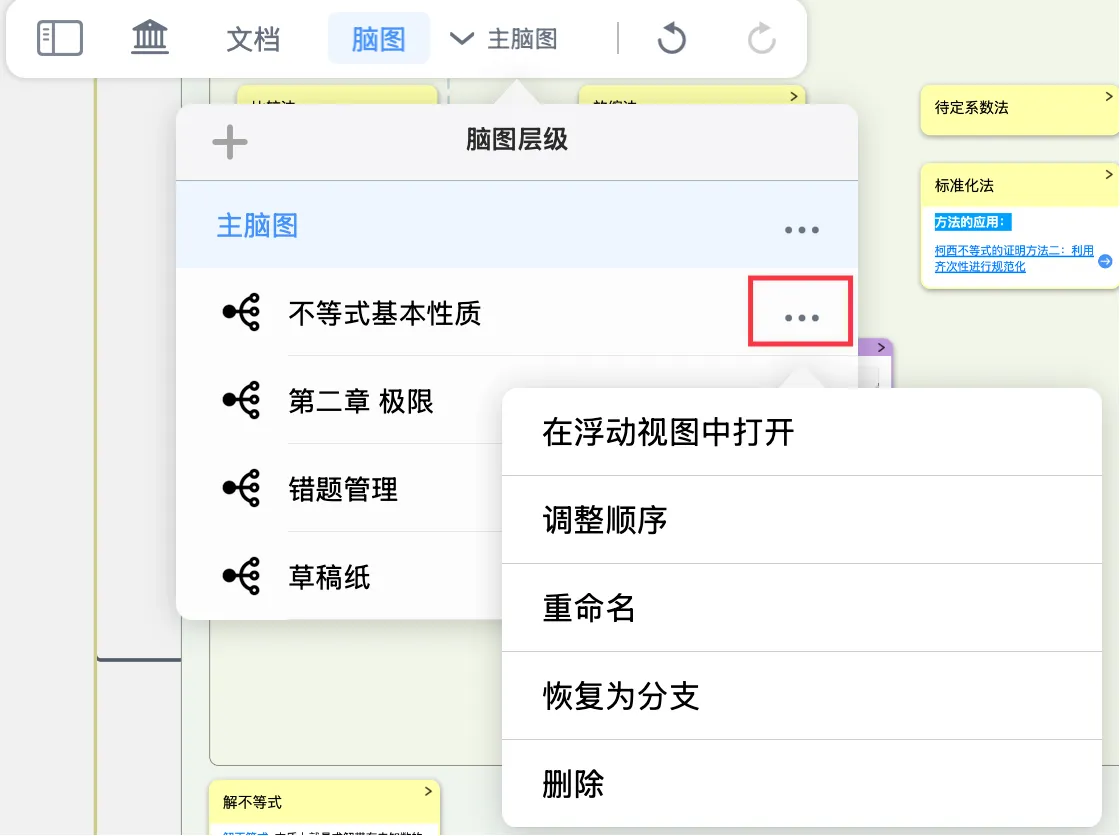
Open the child mind map list at the top and pick the child mind map you want to enter; you can return to the main mind map or switch to another child mind map at any time.
3 Managing Child Mind Maps
- Tap the
Mind Map Hierarchy buttonto expand thechild mind map list. -
Tap the
... Morebutton to the right of each child mind map to perform the following actions:- Open in a floating view
- Reorder
- Rename
- Restore as a branch
- Delete
3.1 Open in a Floating View
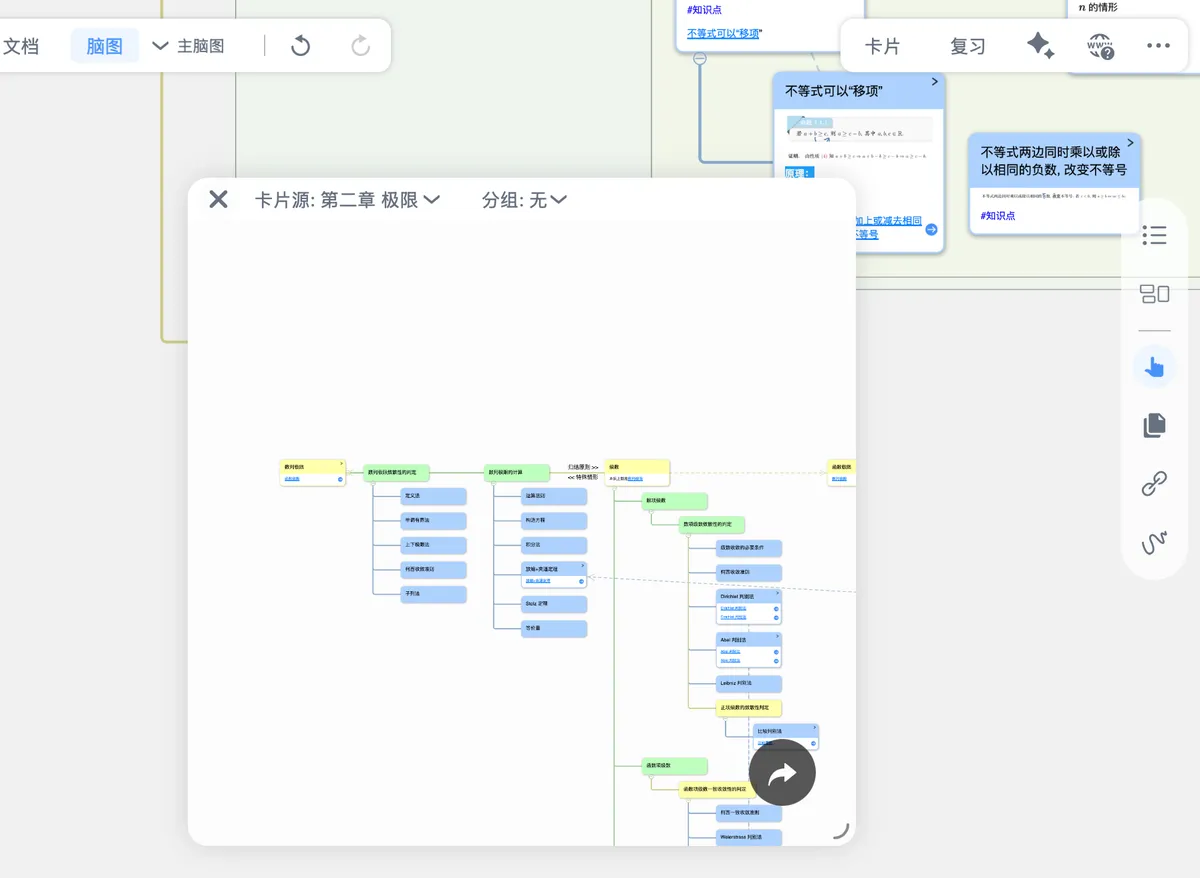
This lets you float a child mind map above the document and the main mind map, so you can quickly view and edit its content.
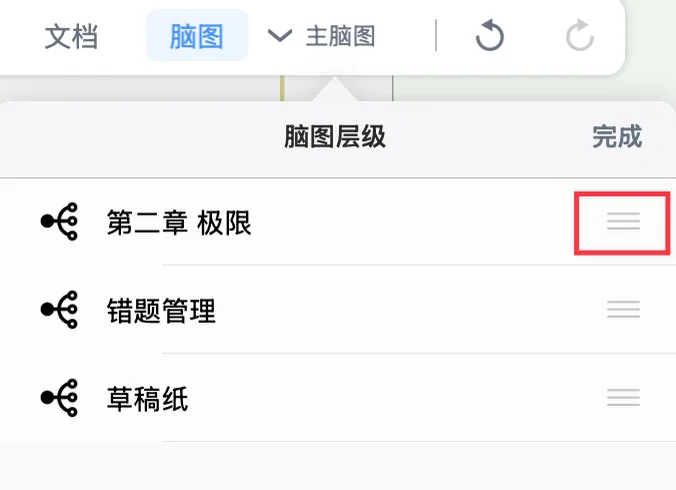
3.2 Reorder
Drag to change the order in which the mind maps are arranged.
3.3 Rename

3.4 Restore as a Branch
You can restore a child mind map back into a branch attached to a parent or child node.
3.5 Delete
Delete a child mind map.
⚠️Deleting a child mind map also deletes all the cards inside it.