Flashcard Review ①: Scientific Review with the FSRS Anti-Forgetting Algorithm
💡📖 Flashcard Series Navigation This series helps you master flashcard creation and scientific review in MN4.
Creating flashcards:
- For beginners: ① Understanding flashcards and review card decks ② Adding cards to a review card deck
- Advanced: ③ Setting the flashcard front and back
Scientific review:
- For beginners: ① Scientific review with the FSRS anti-forgetting algorithm (this page)
- Advanced: ② Tracing the source context
💡On This Page
You've already created your flashcards; now it's time to start your scientific review. This page will teach you:
- How to use full-screen review mode
- How to choose review intervals based on how well you remember
- How to filter and sort the cards you need to review
⚠️Prerequisites: First read parts ① and ② of the flashcard creation series, and make sure you already have cards added to a review card deck.
1 The FSRS Algorithm and MarginNote 4 Review Features
What Is the FSRS Algorithm?
FSRS (Free Spaced Repetition Scheduler) is a scientific spaced-repetition algorithm that automatically calculates your next review time based on your memory feedback, helping you review just before you forget and study more efficiently. MarginNote 4 uses this algorithm so you never have to schedule reviews manually—the system intelligently arranges the best moment for each review.
MN4's Review Advantages
Unlike MN3, which required switching between study mode and review mode, MN4 enables seamless flow between the document, mind map, and review card deck: while reviewing, you can see a card's position in the mind map and its context in the document at any time, and edit notes and review cards without switching between functional areas.
2 Starting a Review
2.1 Entering Full-Screen Review Mode
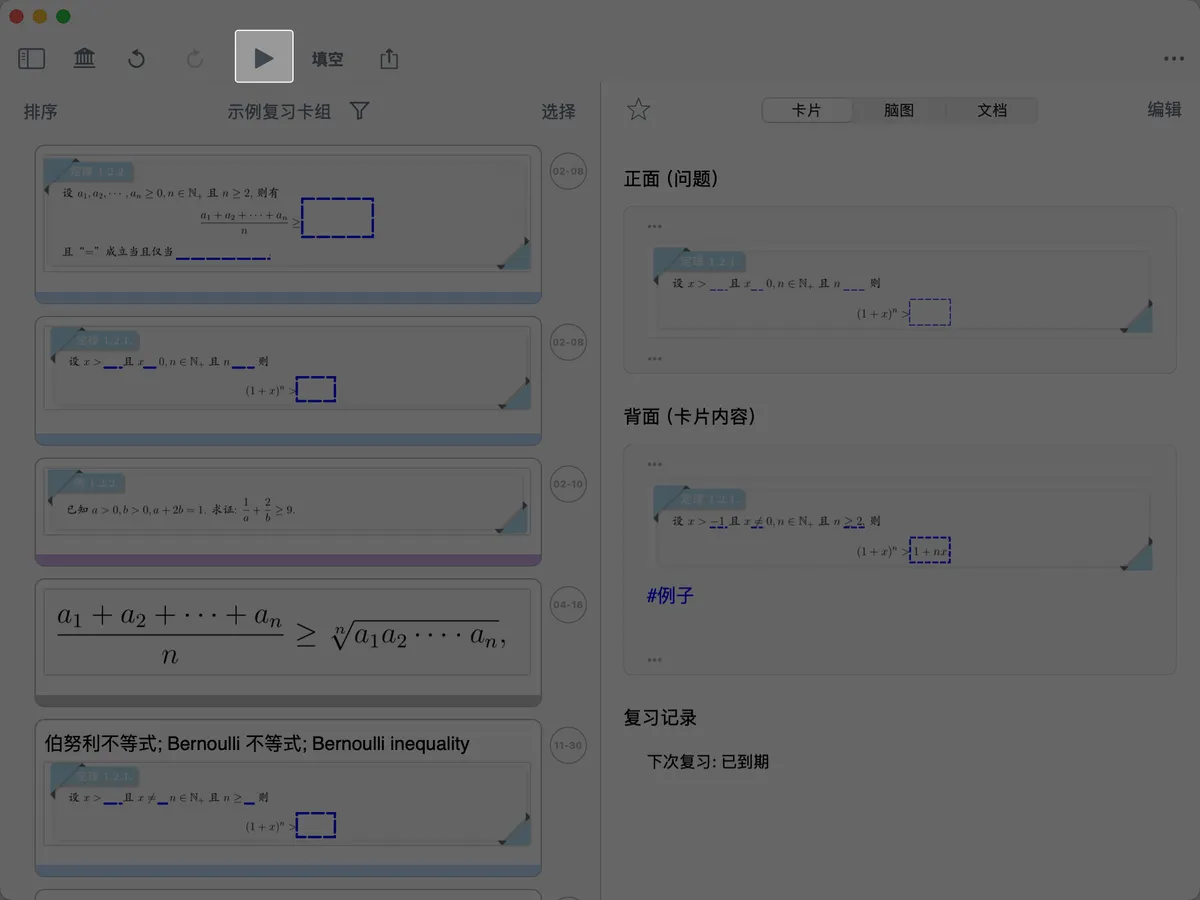
In a review card deck, tap the ▶ at the top of the view to enter the Anki-style, full-screen card review mode.
2.2 Quick Review Workflow (For Beginners)
Reviewing for the first time? Follow these steps:
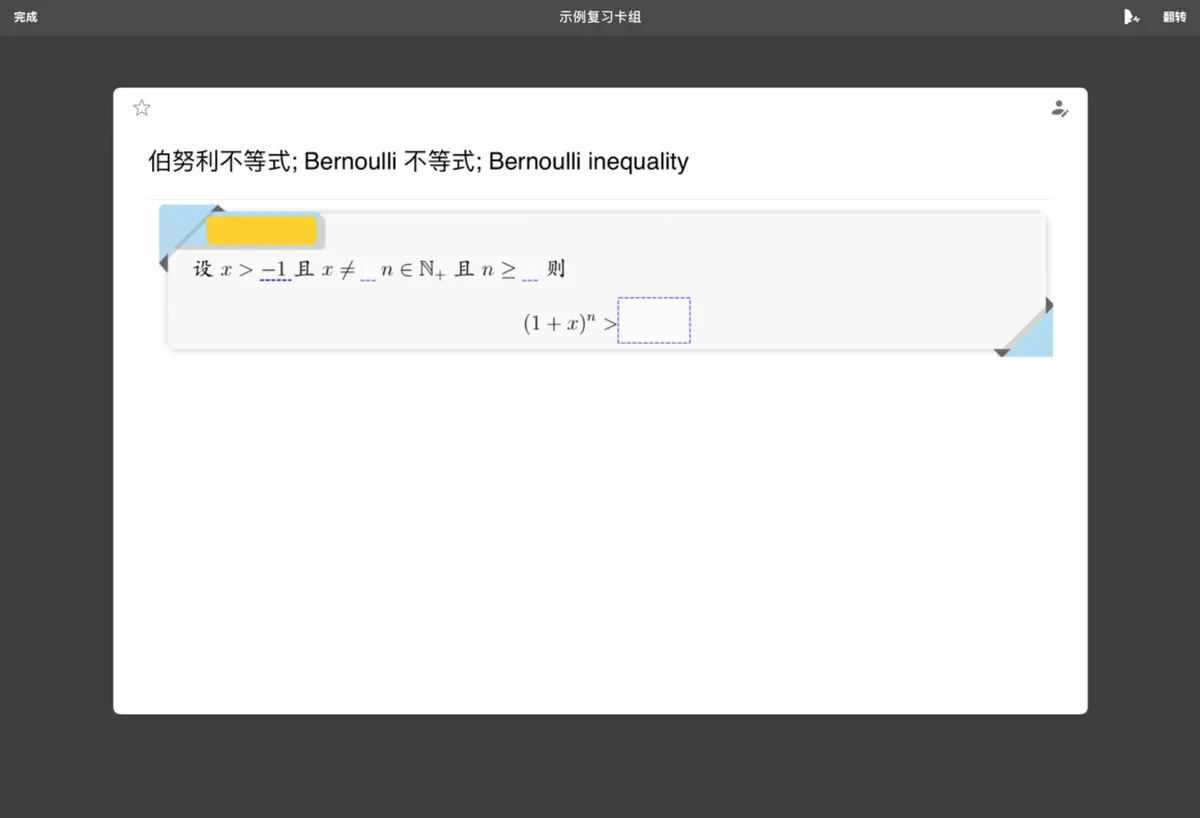
- When you see the front of the card (the question), try to recall the answer
- Tap the screen or tap
Flipto see the back of the card (the answer) - Based on how well you remembered, choose: Again, Hard, Good, Easy
- The app automatically advances to the next card
✅ Repeat these steps to review all due cards
💡Tips for Your First Time:
- When unsure, choose "Hard" or "Good"
- After reviewing 10-20 cards, you'll gradually get into the rhythm
- Later you can try advanced features like filtering, sorting, and Speech
3 Review Actions in Detail
3.1 Rating Your Recall and Choosing the Next Review Time
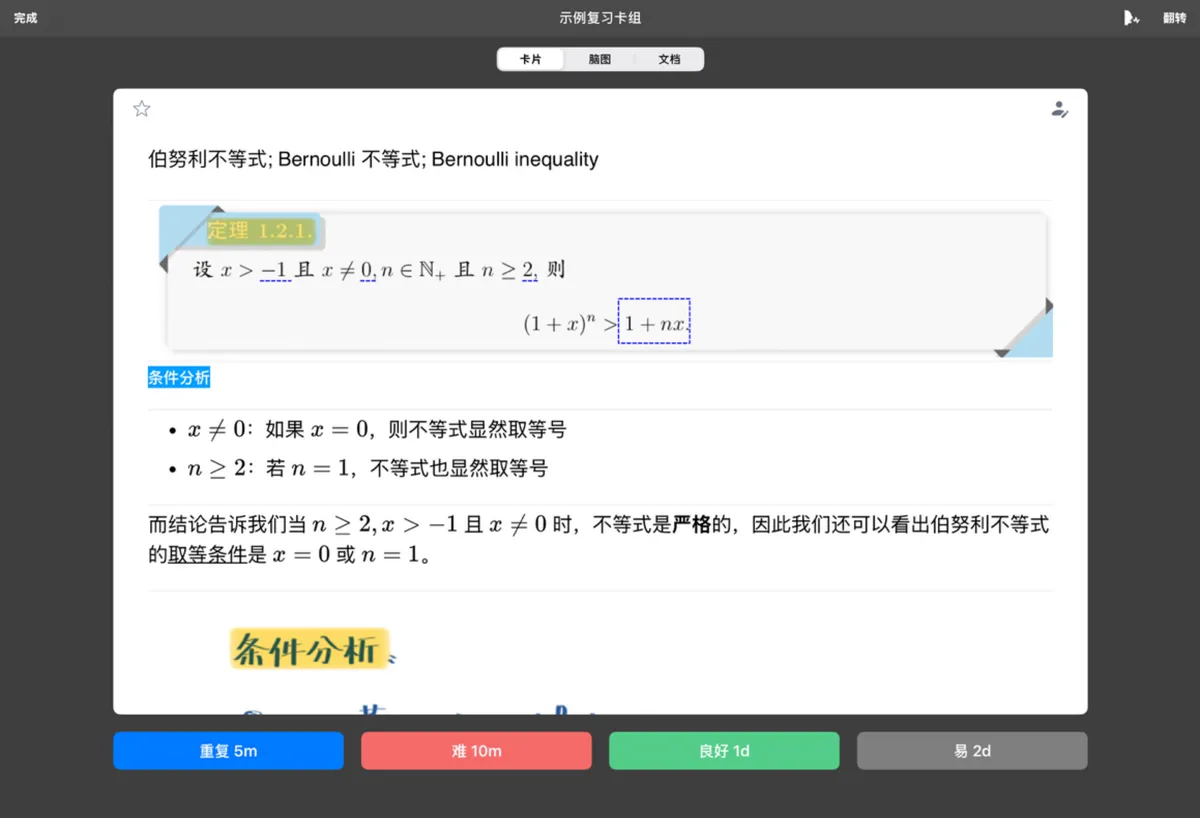

During review, use the front of the flashcard to recall the back or the clozed content on your own. After flipping, you can view the card's original text and choose the spaced-review interval based on how well you remembered.
The four recall-rating options:
Again 5m: the next review is due in 5 minutes; best for flashcards you have almost no memory ofHard 10m: the next review is due in 10 minutes; best for flashcards you remember poorlyGood 1d: the next review is due in 1 day; best for flashcards you remember fairly wellEasy 2d: the next review is due in 2 days; best for flashcards you've already memorized solidly
💡How Does FSRS Work?
The system automatically calculates the best review time based on your choices. The more often you choose "Hard," the shorter the interval becomes; the more often you choose "Easy," the longer the interval becomes. This way, you neither waste time over-reviewing nor wait until you've forgotten to review.
⚠️ Tip: Honestly report how well you remember. Don't choose "Easy" just to cut down on reviews—it will weaken your retention.
Turning On Review Reminders:
If you've enabled Review Reminder, you'll get an in-app pop-up notification when a card is due for review (See how to turn on Review Reminders)

3.2 Favoriting (Adding a Star)
Tap the ★ icon in the top-left corner of a card to favorite it. In later reviews, you can filter for favorited cards to do focused review.
💡When to Use This:
- Mark key cards for focused review before an exam
- Mark hard-to-remember cards to reinforce them repeatedly
- Mark error-prone cards to give them extra attention
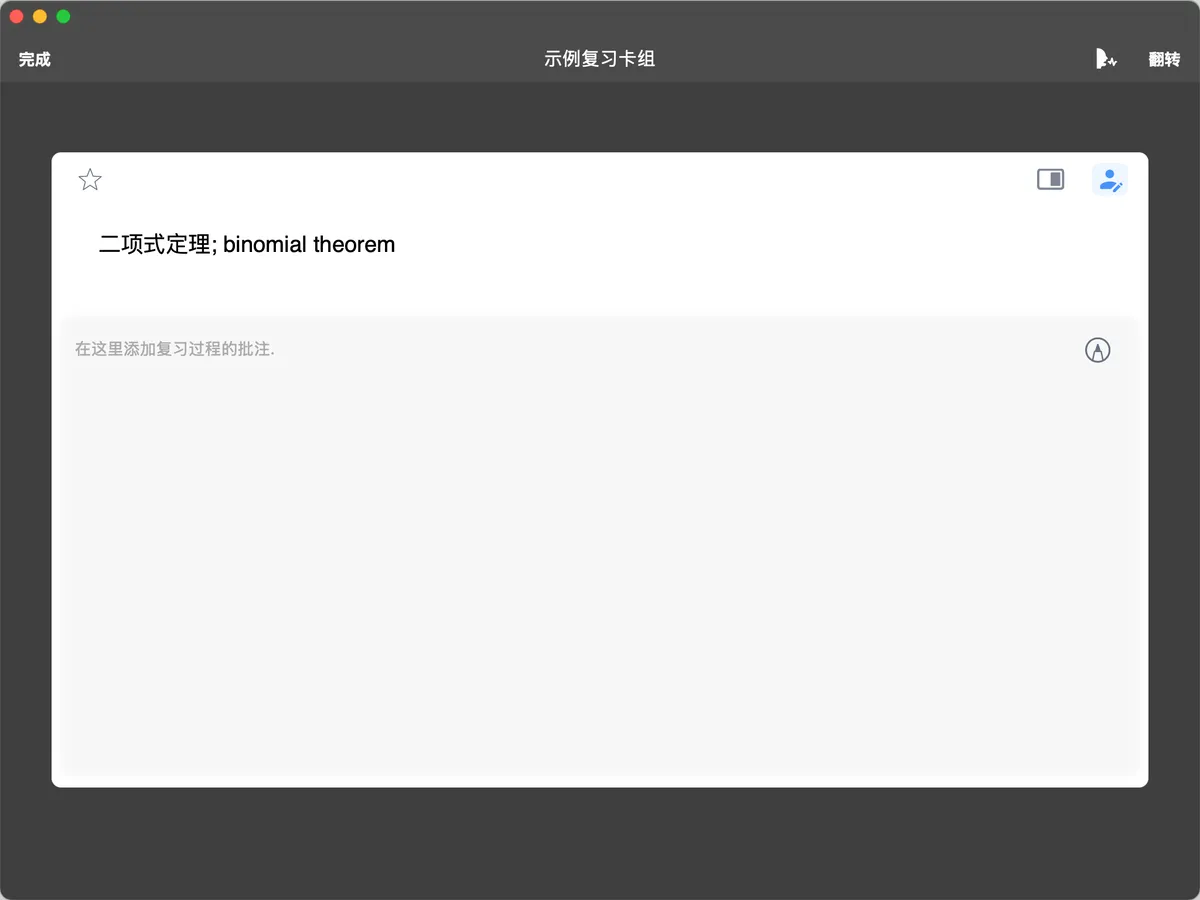
3.3 Annotation
Annotation
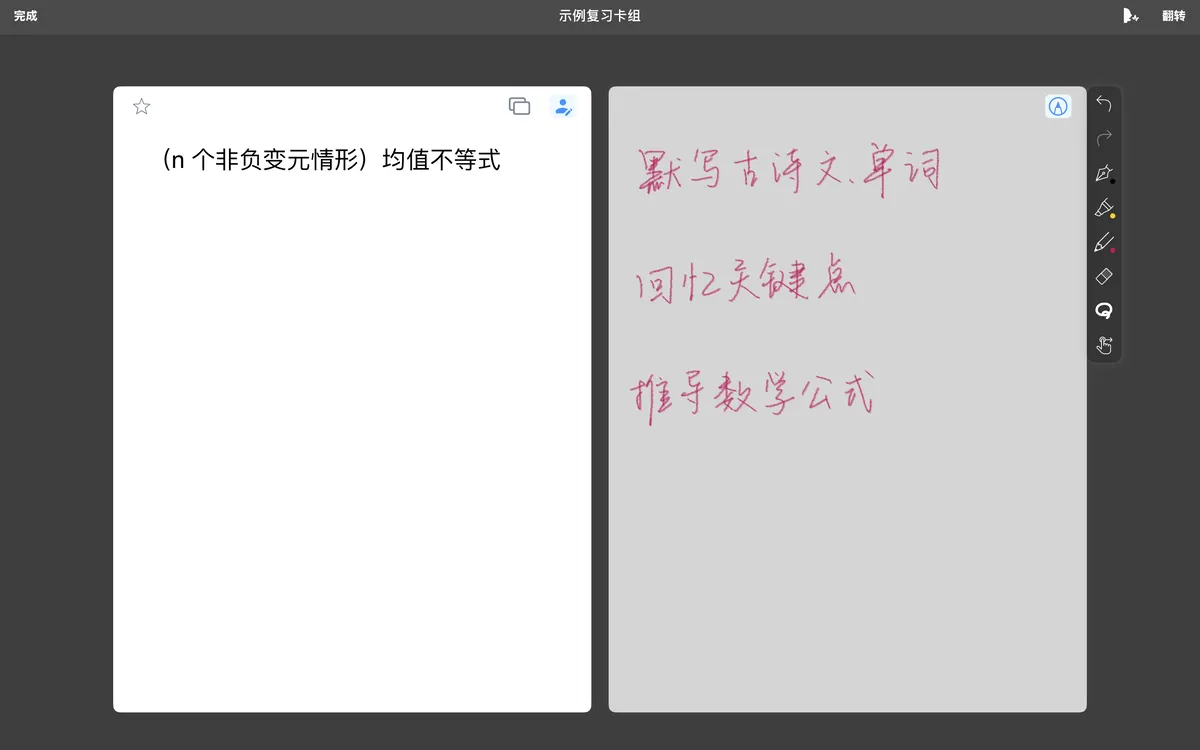
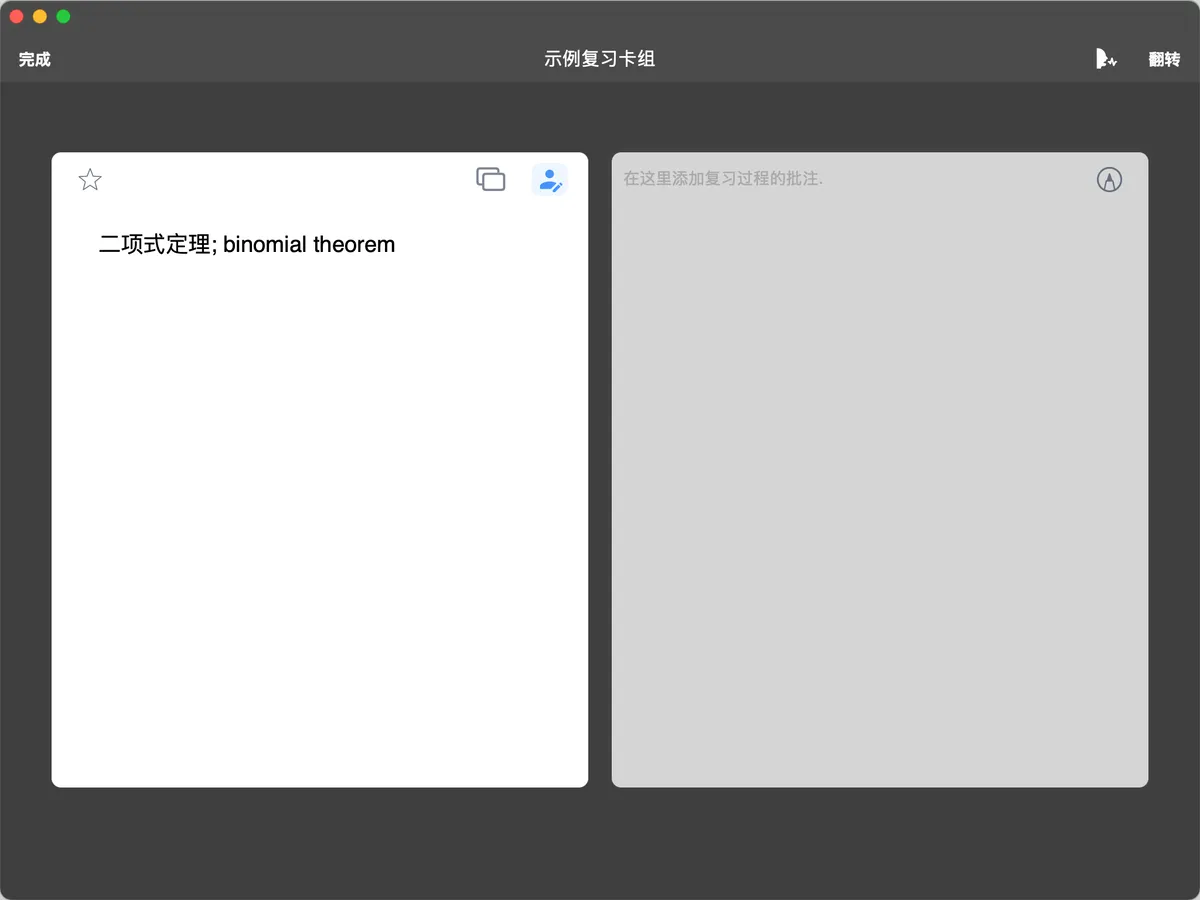
Tap the annotation button in the top-right corner of a card (shown by the icon above) to annotate. This is handy for review tasks such as writing out classical poems or vocabulary from memory, jotting down mnemonics, recalling and organizing key points, and working through calculations.
Annotation features:
- Provides 2 annotation modes: 🖼️ Image, 🖼️ Image;
- You can annotate by handwriting or typing.
- Annotations are not saved in the card; they're only visible in the review annotation mode.
💡Why Aren't Annotations Saved in the Card?
Annotations are your temporary thoughts and scratch work during review, so they don't clutter the original card content. Each time you review, you can annotate again to test whether you've truly mastered the material.
3.4 Speech
Speech
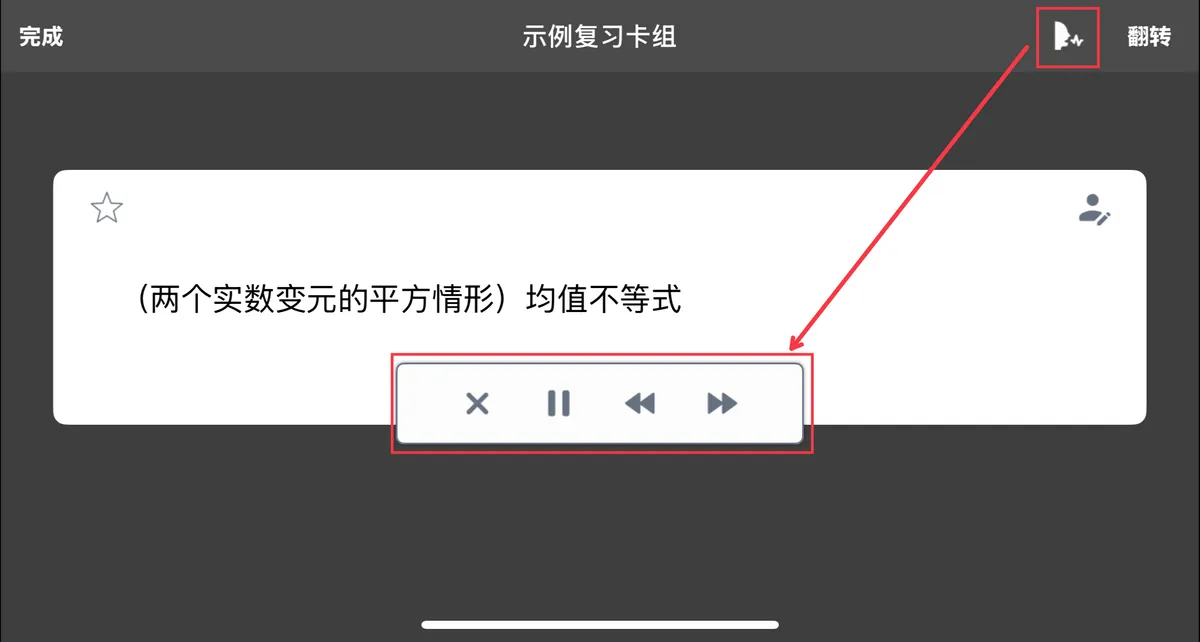
Tap Speech in the top-right corner (shown by the icon above) to enter Speech review mode; a speech control bar appears at the bottom of the screen.
Speech features:
- The system automatically reads aloud the text on the card front and the OCR text layer of images;
- After finishing the front, it automatically flips to the back and continues reading the back;
- Tap **⏪, ⏩** to switch to the previous or next card and read it aloud automatically.
💡Benefits of Combining Speech with Review
According to memory theory, multisensory stimulation significantly improves retention:
- Dual-channel memory (auditory + visual): improves retention by 30-50% compared with reading alone
- Hands-free: ideal for bite-sized review while commuting, exercising, and so on
- Stronger language learning: especially effective for foreign-language vocabulary, classical poems, and similar content
- Less eye strain: during long review sessions, auditory input can relieve eye fatigue
💡Suggested use: For your first pass, rely mainly on vision; for your second, consolidating pass, you can use Speech mode for auditory review while commuting or before bed.
Changing Speech Settings:
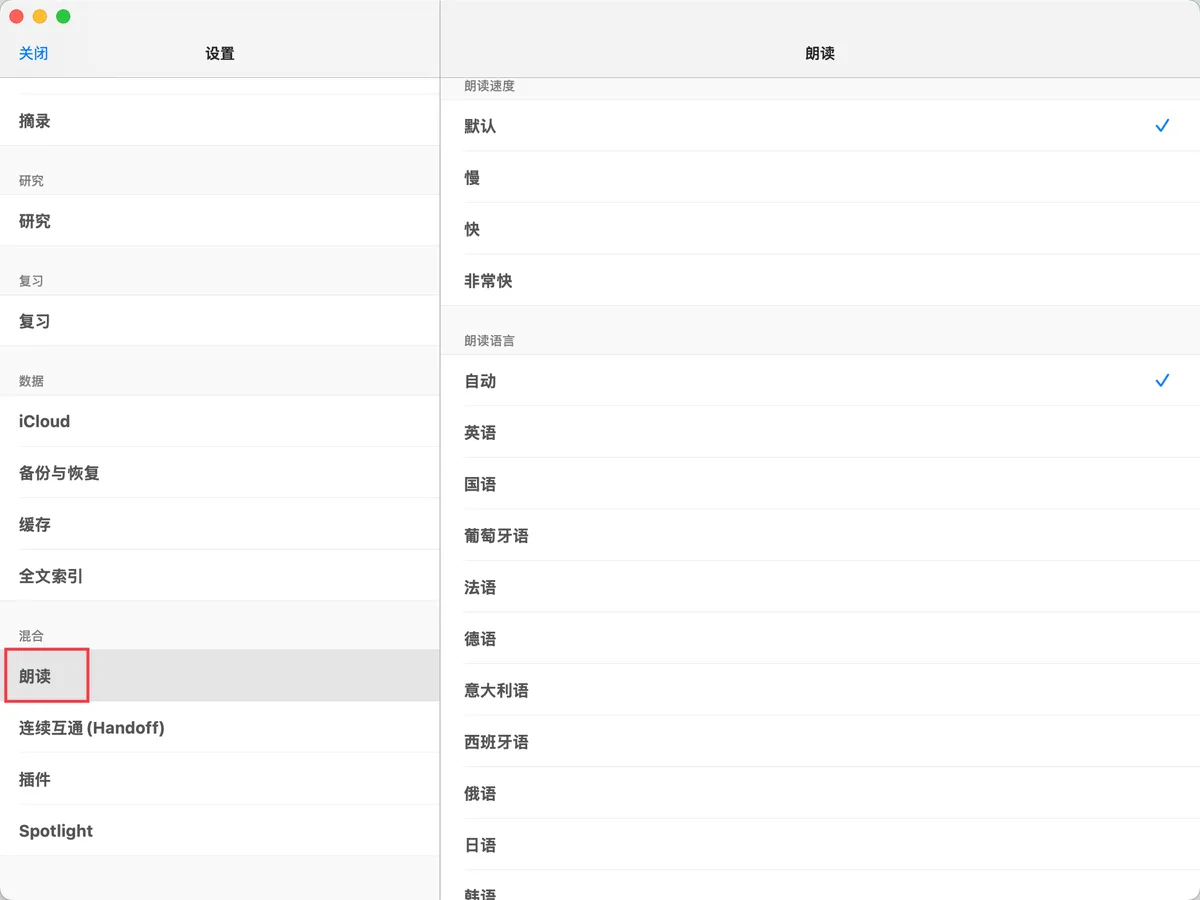
MarginNote 4 can read text aloud, and you can adjust the speech speed and language.
Speech speed: choose from Default, Slow, Fast, or Very FastSpeech language: supports Automatic, English, Mandarin, Portuguese, French, German, Italian, Spanish, Russian, Japanese, and Korean
3.5 Flip
Tap Flip in the top-right corner to force the current card to flip once.
💡What the Flip Button Is For
Although tapping the screen also flips a card, the Flip button is more convenient in these situations:
- In Speech mode: during automatic reading, tapping the screen may trigger other actions, so the Flip button is more precise
- In annotation mode: while annotating, a tap on the screen may be interpreted as an annotation stroke, so the Flip button avoids mistaken actions
3.6 Switching to the Previous/Next Card
How to do it:
- Swipe left or right with your finger
- If Speech mode is on, you can switch from the speech control bar
4 Personalizing Your Review
In review mode, you can decide which cards to review and in what order.
💡Benefits of Personalized Review
- Targeted review: concentrating on your weak spots is 2-3 times more efficient than spreading time evenly
- Flexible ordering: reviewing in textbook order helps you build a knowledge framework, while random order helps you avoid memorizing by position
- Organized by category: reviewing by tag, color, or document matches how the brain remembers in categories
- Lower cognitive load: reviewing only one type of card at a time reduces the cost of cognitive switching
4.1 Filtering Cards to Review a Subset
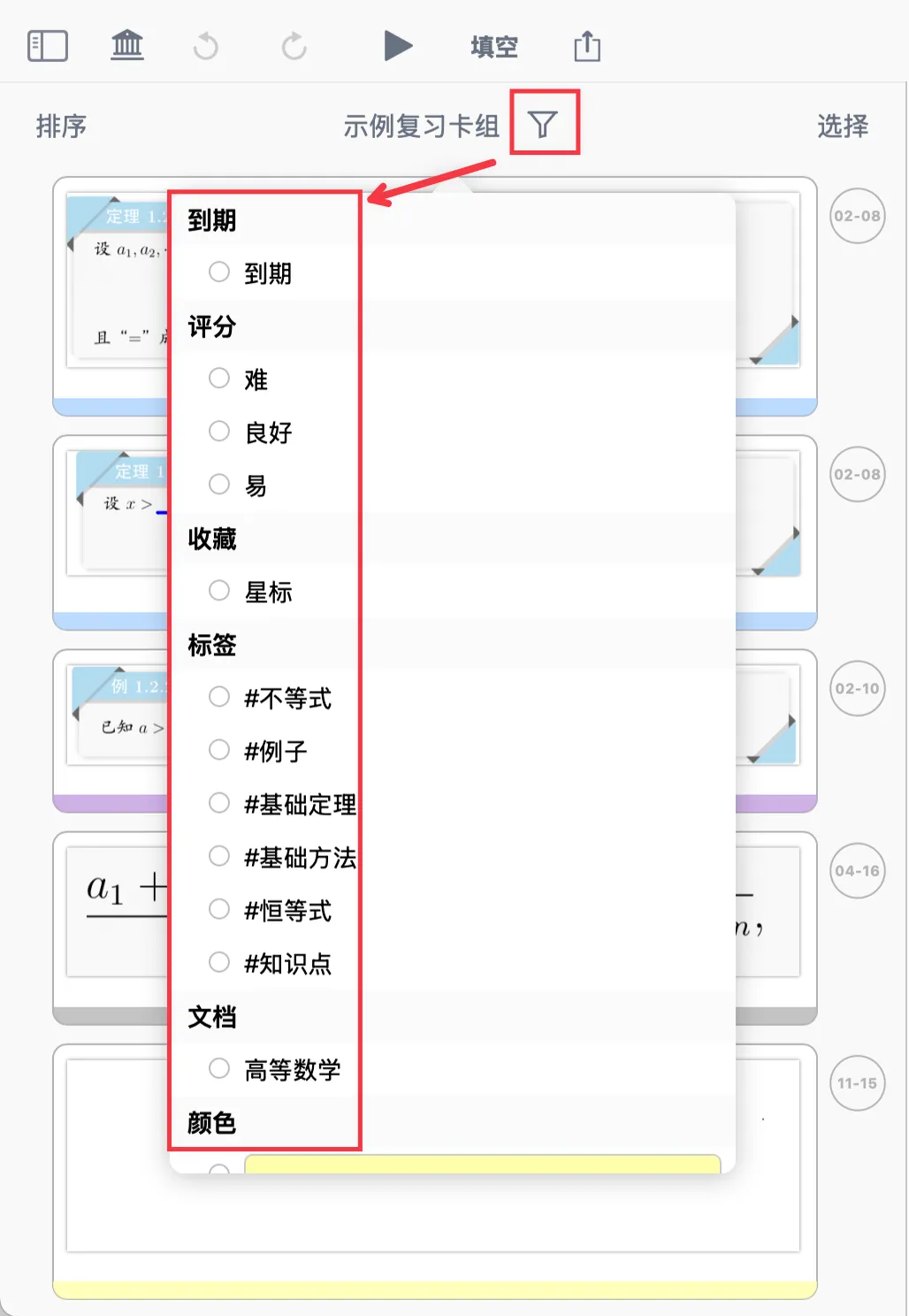
Tap the funnel icon at the top of the review view to filter cards by whether they're due, their recall rating, whether they're favorited, the tags they contain, their source document, color, and more—so you can do more targeted, focused review.
Filter options:
Due: filter for cards that are already dueRating: filter by rating—Hard, Medium, EasyFavorites: filter for favorited cardsTags: filter for cards that contain certain tagsDocument: filter for cards from a specific source documentColor: filter for cards of a specific color
Combining multiple filters:
You can select multiple filter conditions at once; they're combined as an intersection. For example:
- Filter "Due + tag #Key + rating Hard" → find the key, difficult cards that most need review
- Filter "Document is Advanced Mathematics + Color is red" → review the red-marked cards in Advanced Mathematics
- Filter "Favorites + Due" → prioritize the important cards you've favorited
💡Common Filtering Scenarios:
- Daily review: filter only "Due" to review just the cards that need reviewing
- Pre-exam sprint: filter "Due + Favorites" to focus on the important cards you've favorited
- Tackling weak spots: filter "rating Hard" to concentrate on hard-to-remember cards
- Category review: filter specific tags (such as #Formula or #ErrorProne) to review by topic
- Chapter-by-chapter review: filter a specific document or color to review systematically by textbook chapter
⚠️Beginner tip: The first time, just filter "Due"—there's no need to over-filter. Once you're comfortable, try combining filters.
4.2 Re-sorting Cards
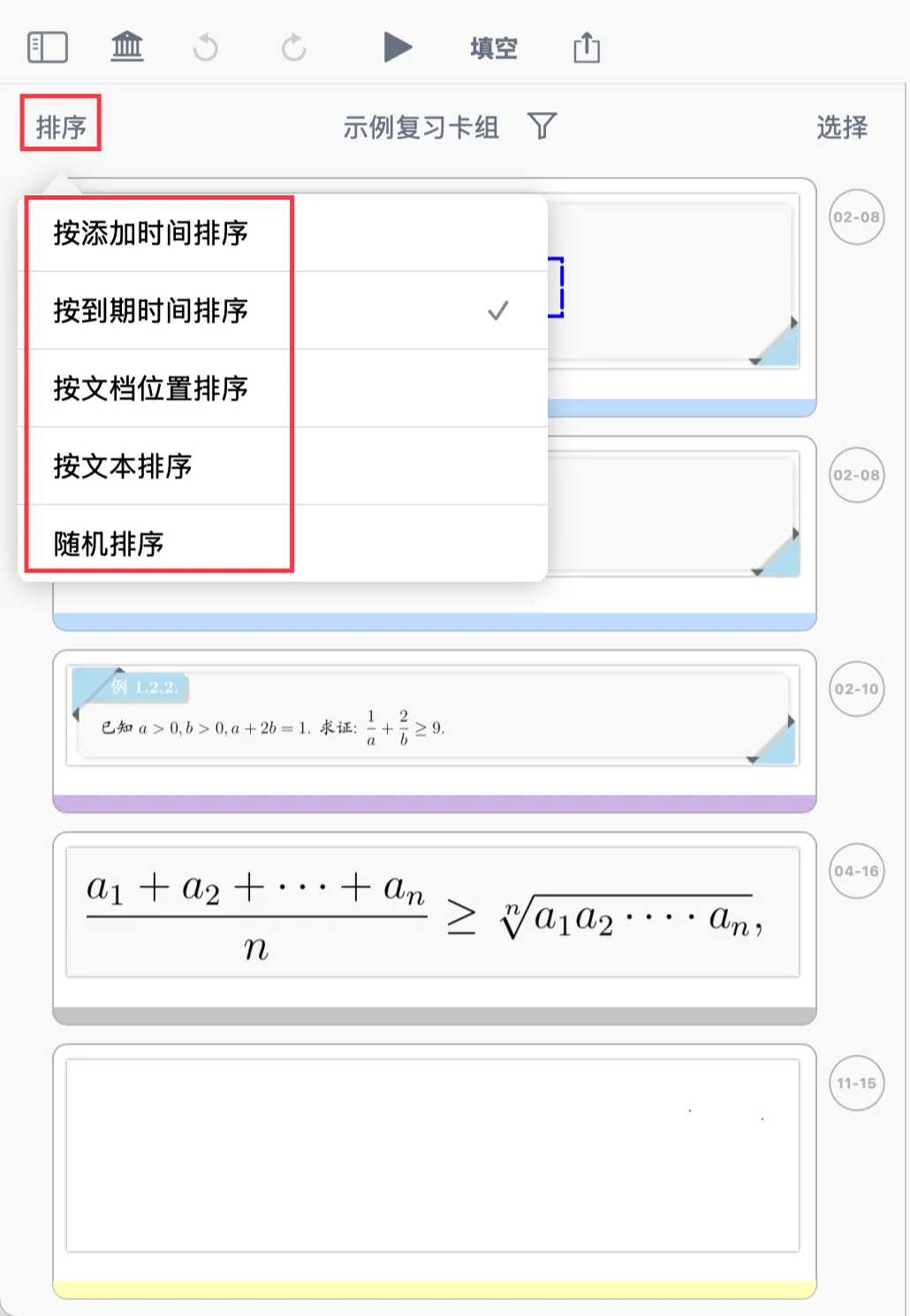
Tap Sort in the top-left corner of the review view to reorder cards by date added, due date, document position, text order, or randomly, to suit your personalized review needs.
Sort options:
Sort by Date Added: sorts by when the card was added to the review card deckSort by Due Date: sorts by the card's next review timeSort by Document Position: sorts by the card's position in its source documentSort by Text: sorts by the text on the card frontRandom: sorts the cards randomly
💡 A Guide to Choosing a Sort Method:
Sort Method Best For Advantage Sort by Due Date Daily review Soonest-due cards come first, as recommended by the FSRS algorithm Sort by Date Added First review after adding a batch of cards Review new cards first and consolidate them while they're fresh Sort by Document Position Systematically reviewing a book or chapter Reviewing in textbook order helps build a knowledge framework Sort by Text Reviewing in alphabetical or pinyin order Good for vocabulary lists, glossaries, and the like Random Avoiding memorizing order rather than content Shuffles the order to test your true recall ⚠️ Beginner tip: Just use the default sort (by due date)—it best matches how memory works.
5 Viewing Your Review History
5.1 Viewing Review History on a Card
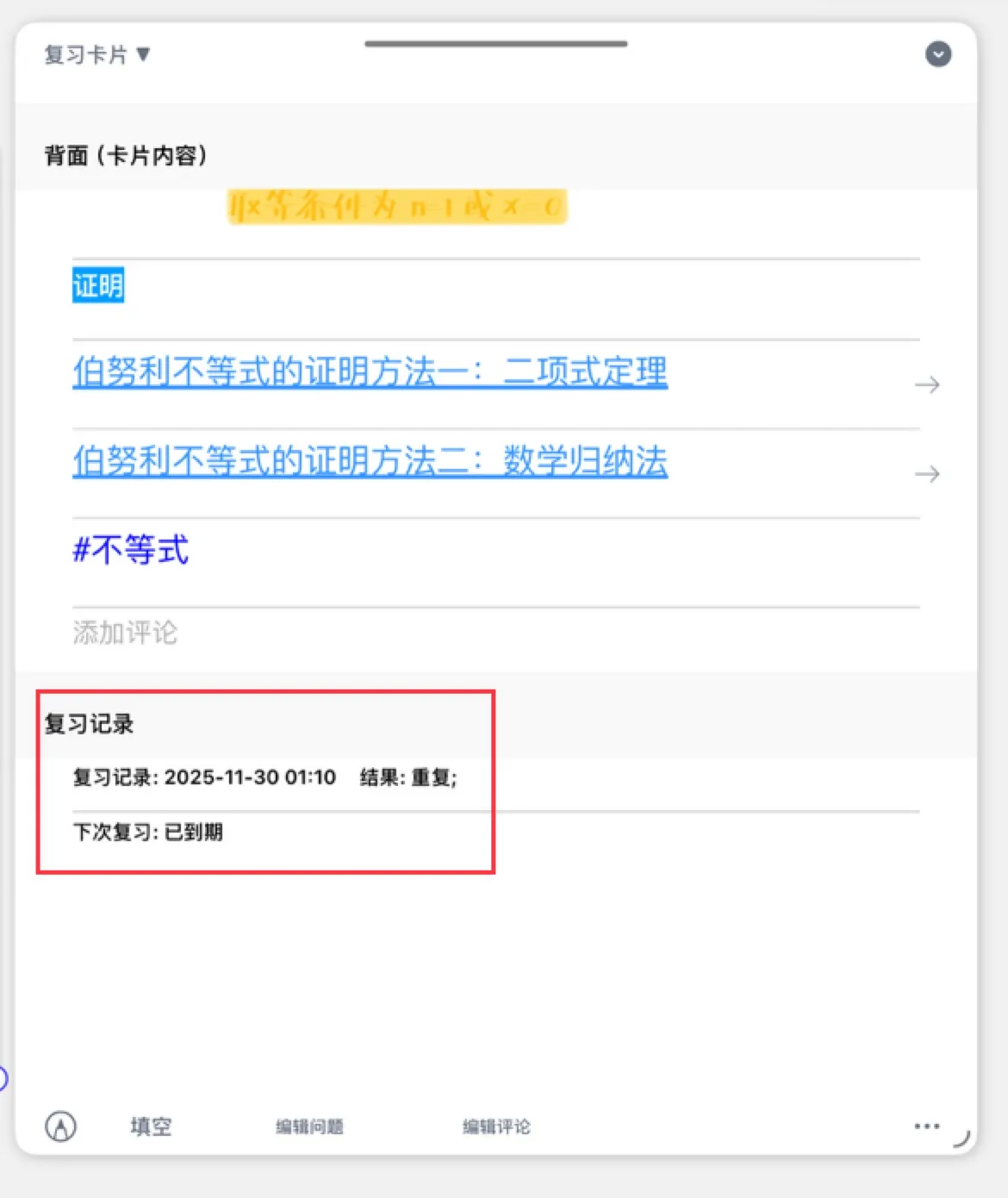
After a review session, you can check the Review History and Next Review time on a review card.
Tap any flashcard, and in the card editor you'll see:
- Review History: the time and choice (Again/Hard/Good/Easy) for each review
- Next Review: the estimated time of your next review
💡What Review History Is For:
- Understand your review frequency and memory curve
- Judge whether a card's content or question setup needs adjusting
- Identify which cards are your weak spots and need extra attention
6 Frequently Asked Questions
Q1: How many cards should I review per day?
A: The FSRS algorithm schedules this automatically. Usually it's enough to review the day's due cards; for beginners, 10-30 per day is recommended. As your number of cards grows, the cards due each day will gradually settle into a reasonable range.
Q2: What if I miss a review time?
A: No problem—FSRS adjusts automatically. At your next review, overdue cards are shown first, and the system recalculates intervals based on your actual performance.
Q3: Can I skip a card?
A: Yes. Swipe left or right to move to the next card. But try not to skip often, or it will hurt your retention. Skipped cards will still appear when they're due.
Q4: Can I quit in the middle of a review?
A: Yes. Your choices are saved automatically. The next time you enter, you'll start from the cards you haven't reviewed yet.
Q5: How do I pause reviews for a particular card?
A: Remove the card from review (see Flashcard Creation ③: Setting the Flashcard Front and Back). Removing it doesn't delete the card's content; it just cancels the review schedule.
Q6: Why do some cards have very short review intervals and others very long?
A: The FSRS algorithm adjusts dynamically based on your memory feedback. Cards you rate "Hard" or "Again" get shorter intervals, while cards you rate "Easy" or "Good" get longer intervals. This is personalized, intelligent adjustment.
7 📌 Next Steps
Congratulations—you've mastered the scientific way to review flashcards!
Now you can:
- ✅ Review efficiently with full-screen review mode
- ✅ Choose review intervals based on how well you remember
- ✅ Filter and sort the cards you need to review
- ✅ Use helper features like annotation and Speech
Up next, you can:
If you want to view a card's context during review to aid understanding and memory:
→Go further: Flashcard Review ②: Tracing the Source Context