Comparison ②: Cross-document Reference & Backlink
💡 What is a "reference," and what is a "backlink"?
Reference, simply put, means referencing content from a different context. There are two cases:
1. Referencing content at position B from position A within the same document;
2. Referencing content from another document at some position within a document.
Backlink refers to the feature that jumps from the reference back to the source text.
💡 Scenario examples


- When a learner wants to insert a snippet of textbook content into a handwritten notebook to avoid transcribing it by hand;
- When a learner wants to read related documents at the same time and annotate across documents;
- In document mode, cross-document reference can be achieved through the extend note tool and the new text/image box feature.
❗ This feature builds on the
bi-article comparison window. If you are not yet familiar with it, please first read Comparison ①: Bi-article Comparison Window. For other advanced comparison features, see: Comparison ③: Subsidiary Notebook
1 Ways to Reference Across Documents
1.1 Cross-document Reference via Extend Note
All content from an extend note is stored as individual extend note cards, which form part of the card content. This means extend notes can be viewed, reviewed, and exported in the mind map and review card decks, making them the more recommended option when the recorded content is used to build a knowledge framework and for review.
When you want to present cross-document referenced content in the mind map, the extend note tool is the ideal choice. However, this feature offers limited flexibility: within the document you cannot freely adjust its position and can only drag it up and down.
Extend note tool

As shown below, the document on the left is Nietzsche's assessment of Thus Spoke Zarathustra in Ecce Homo. The following shows how to quickly reference this assessment into the document on the right.
In the document view, the learner enables bi-article comparison mode. Use the hand tool to select the desired content and drag it to the right edge of the other document; the content will be inserted as an extend note card.

1.1.1 Annotation Mode
Annotation mode refers to the different sync modes between the sketch layer of an extend note card and the sketch layer of the original document.
The setting for annotation mode is located at the vertical ellipsis on the right side of the extend note card. Tap it to open the pop-up menu, select advanced, and tap annotation mode.
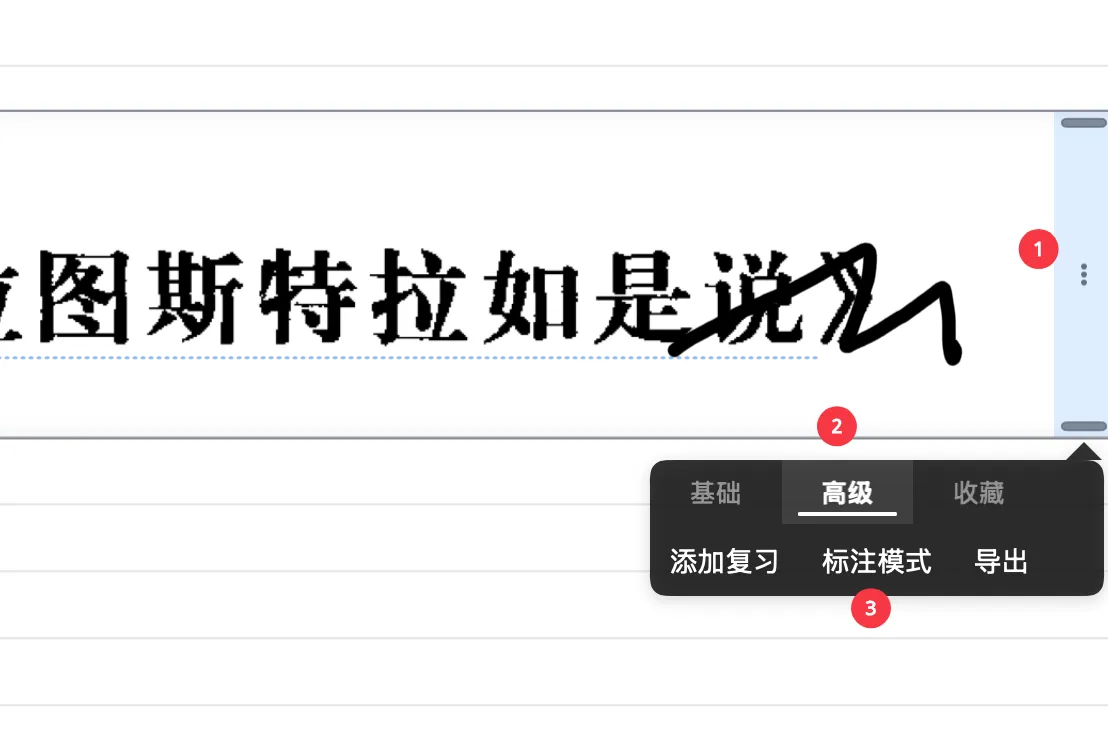
There are three annotation modes in total.
Annotate in a separate space: the sketch layer in the extend note card does not sync with the sketch layer of the original document.


Annotate on the source: the sketch layer in the extend note card syncs two-way with the sketch layer of the original document. Handwriting in the original document syncs to the extend note card, and handwriting in the extend note card also syncs to the original document.
Annotate in a separate space and overlay the source: the sketch layer in the extend note card syncs one-way with the sketch layer of the original document. Only the handwriting from the original document syncs to the extend note card, shown in a faded color. Handwriting in the extend note card does not sync back to the original document.

❗ Currently, handwriting sync for this feature has some lag; sometimes you need to tap
annotation modeagain to refresh previously written content.
1.2 Cross-document Reference via Text/Image Box.
If your need is to freely create reference notes of variable size and position in another document (like the note-taking scenario shown above), achieving cross-document reference via the text/image box is the better choice.
For more on the text/image box, see the New Text Box/Image/Photo page.
As shown below, the document on the left is a textbook, and the one on the right is a handwritten notebook you created yourself. The following shows how to quickly insert a snippet of textbook content into the handwritten notebook.
1.2.1 Creating a Text/Image Box
In the document view, the learner enables bi-article comparison mode. Use the hand tool to select the desired content and drag it to the left edge of the other document; the content will be inserted as a text/image box.